navigation BMW Z4 SDRIVE30I 2009 Owners Manual
[x] Cancel search | Manufacturer: BMW, Model Year: 2009, Model line: Z4 SDRIVE30I, Model: BMW Z4 SDRIVE30I 2009Pages: 248, PDF Size: 7.63 MB
Page 173 of 248
171
Entertainment
Reference
At a glance
Controls
Driving tips
Communications
Navigation
Mobility
Displaying messages
1. "Telephone"
2. "Messages"
A symbol identifies the type of message.
3. Select the desired message.
SMS
Calling the sender of an SMS:
1. Select the desired message.
2. Open "Options".
3. "Call sender"
Saving the sender in the contacts:
1. Select the desired message.
2. Open "Options".
3. "Store as new contact"or"Add to existing
contact"
My Info
Replying:
Send a predefined reply.
1. Select the desired message.
2. Open "Options".
3. "Answer"
Starting destination guidance:
1. Select the message that contains the
desired destination.
2. Open "Options".
3. "Start guidance"or"Insert as dest. in the
trip"
Dialing the number in the message:
1. Select the message that contains the
desired number.
2. Open "Options".
3. "Call"
Messages from the concierge service
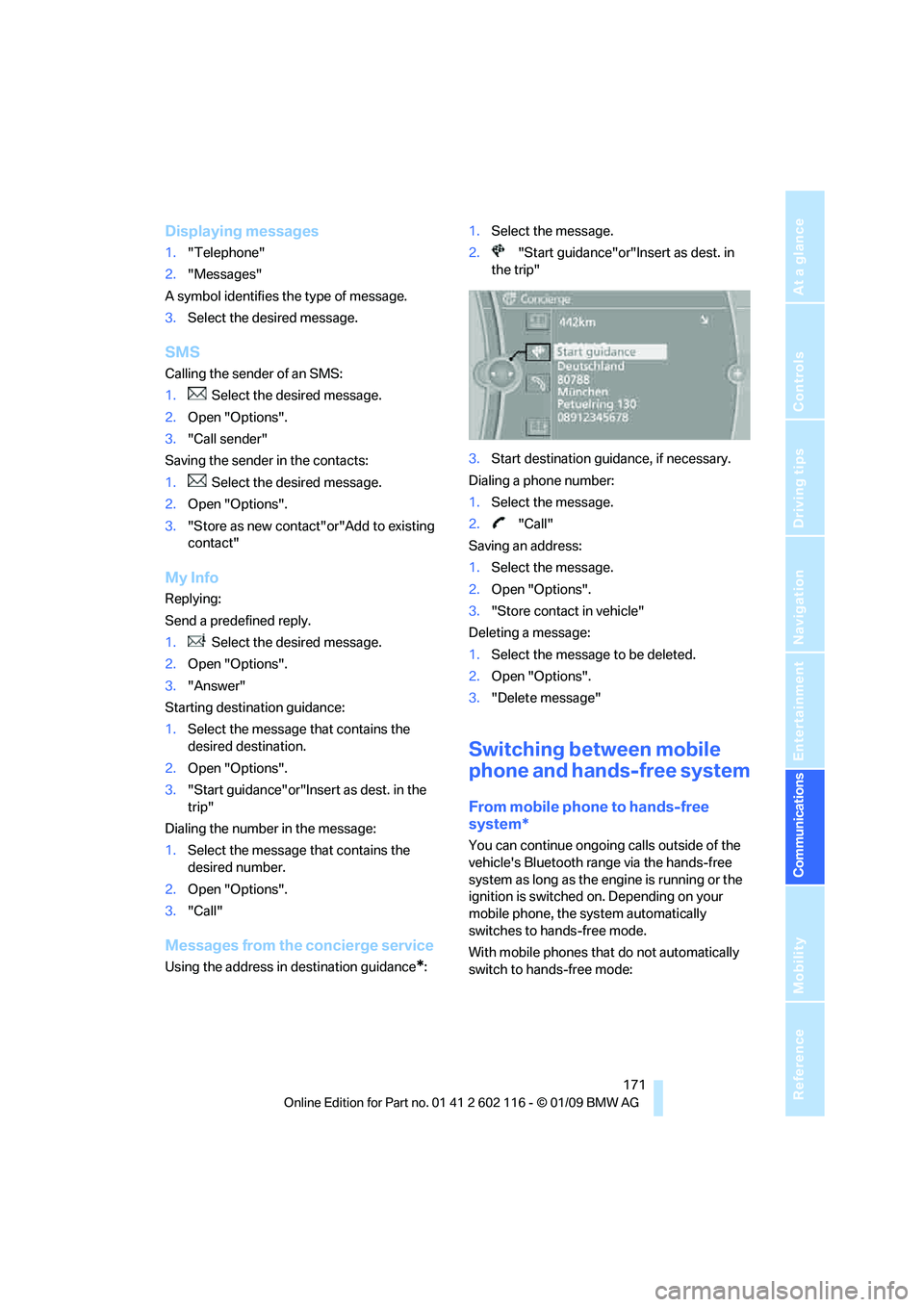
Using the address in destination guidance*:1.
Select the message.
2. "Start guidance"or"Insert as dest. in
the trip"
3. Start destination guidance, if necessary.
Dialing a phone number:
1. Select the message.
2. "Call"
Saving an address:
1. Select the message.
2. Open "Options".
3. "Store contact in vehicle"
Deleting a message:
1. Select the message to be deleted.
2. Open "Options".
3. "Delete message"
Switching between mobile
phone and hands-free system
From mobile phone to hands-free
system*
You can continue ongoing calls outside of the
vehicle's Bluetooth range via the hands-free
system as long as the engine is running or the
ignition is switched on. Depending on your
mobile phone, the sy stem automatically
switches to hands-free mode.
With mobile phones that do not automatically
switch to hands-free mode:
Page 175 of 248
173
Entertainment
Reference
At a glance
Controls
Driving tips
Communications
Navigation
Mobility
Adjusting the volume of the
instructions
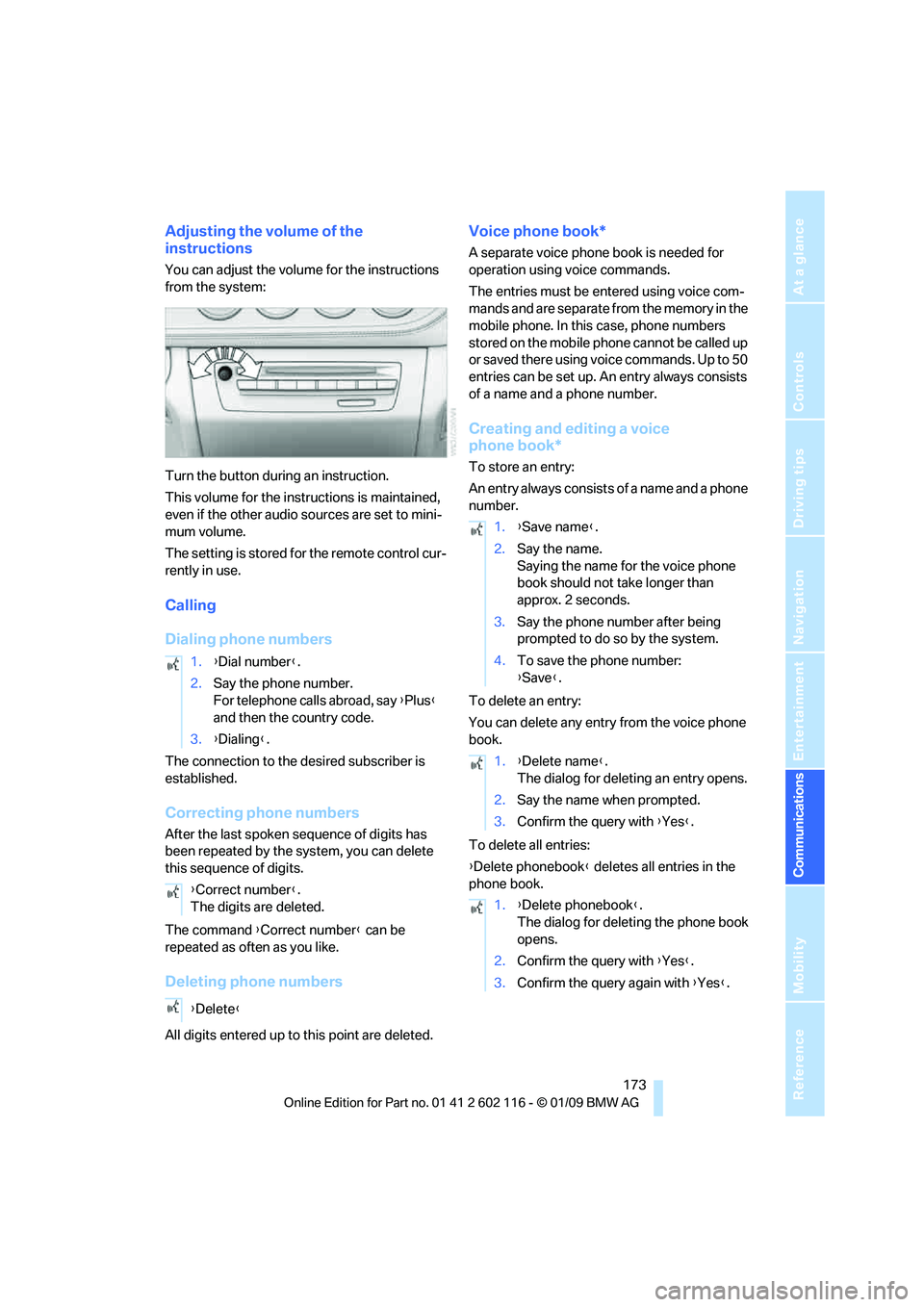
You can adjust the volume for the instructions
from the system:
Turn the button during an instruction.
This volume for the instructions is maintained,
even if the other audio sources are set to mini-
mum volume.
The setting is stored for the remote control cur-
rently in use.
Calling
Dialing phone numbers
The connection to the desired subscriber is
established.
Correcting phone numbers
After the last spoken sequence of digits has
been repeated by the system, you can delete
this sequence of digits.
The command {Correct number } can be
repeated as often as you like.
Deleting phone numbers
All digits entered up to this point are deleted.
Voice phone book*
A separate voice phone book is needed for
operation using voice commands.
The entries must be entered using voice com-
mands and are separate from the memory in the
mobile phone. In this case, phone numbers
stored on the mobile phone cannot be called up
or saved there using voice commands. Up to 50
entries can be set up. An entry always consists
of a name and a phone number.
Creating and editing a voice
phone book*
To store an entry:
An entry always consists of a name and a phone
number.
To delete an entry:
You can delete any entr y from the voice phone
book.
To delete all entries:
{ Delete phonebook } deletes all entries in the
phone book.
1.
{Dial number }.
2. Say the phone number.
For telephone calls abroad, say {Plus }
and then the country code.
3. {Dialing} .
{ Correct number }.
The digits are deleted.
{ Delete }
1.{Save name }.
2. Say the name.
Saying the name for the voice phone
book should not take longer than
approx. 2 seconds.
3. Say the phone number after being
prompted to do so by the system.
4. To save the phone number:
{Save }.
1. {Delete name }.
The dialog for deleting an entry opens.
2. Say the name when prompted.
3. Confirm the query with {Yes }.
1. {Delete phonebook }.
The dialog for deleting the phone book
opens.
2. Confirm the query with {Yes }.
3. Confirm the query again with {Yes }.
Page 177 of 248
175
Entertainment
Reference
At a glance
Controls
Driving tips
Communications
Navigation
Mobility
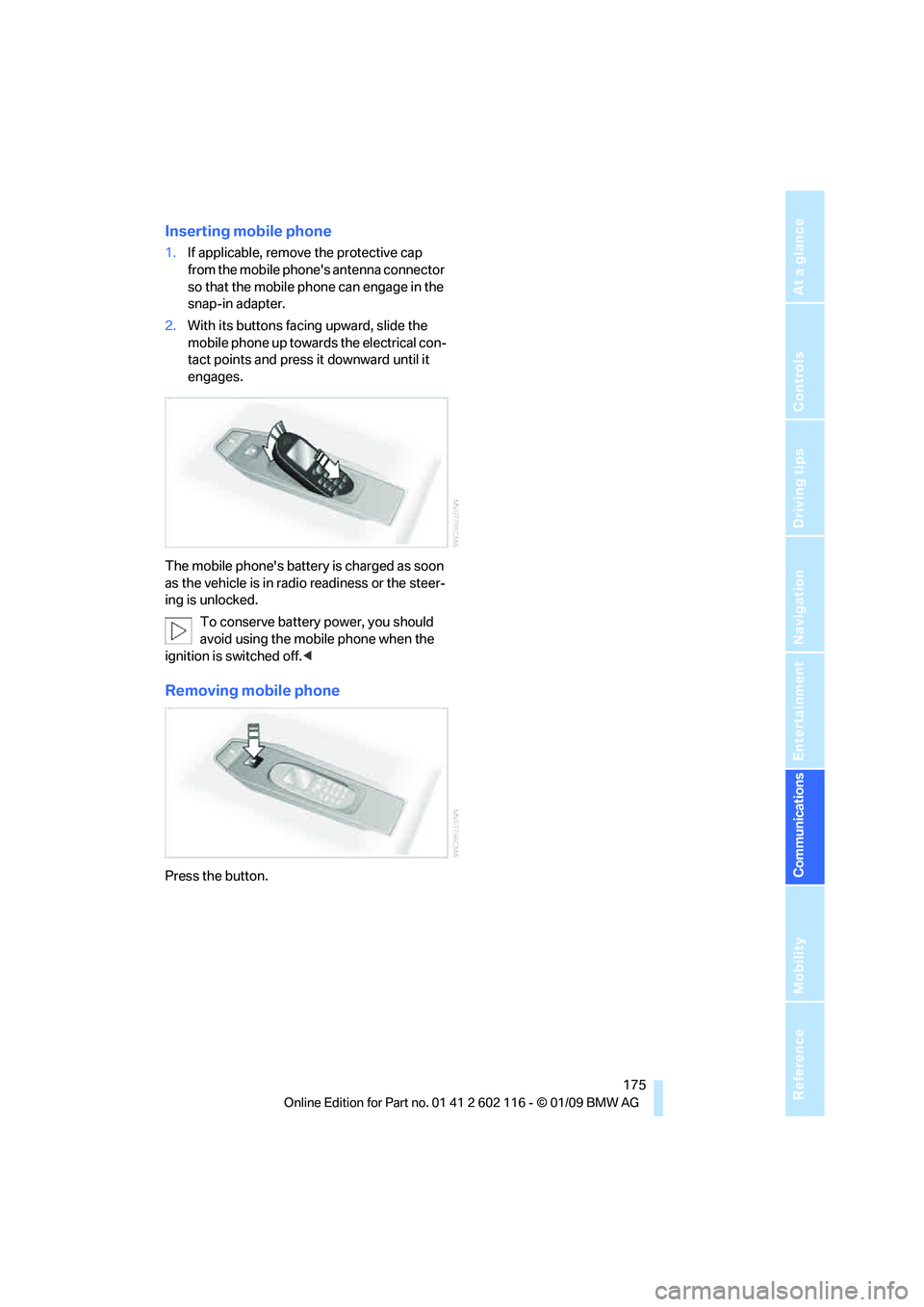
Inserting mobile phone
1. If applicable, remove the protective cap
from the mobile phone's antenna connector
so that the mobile phone can engage in the
snap-in adapter.
2. With its buttons facing upward, slide the
mobile phone up towards the electrical con-
tact points and press it downward until it
engages.
The mobile phone's battery is charged as soon
as the vehicle is in radi o readiness or the steer-
ing is unlocked.
To conserve battery power, you should
avoid using the mobile phone when the
ignition is switched off.<
Removing mobile phone
Press the button.
Page 178 of 248
Contacts
176
Contacts
You can create and edit contacts. The contacts
of the mobile phone
* are also displayed. The
addresses can be used as destinations for nav-
igation and the phone numbers can be dialed.
New contact
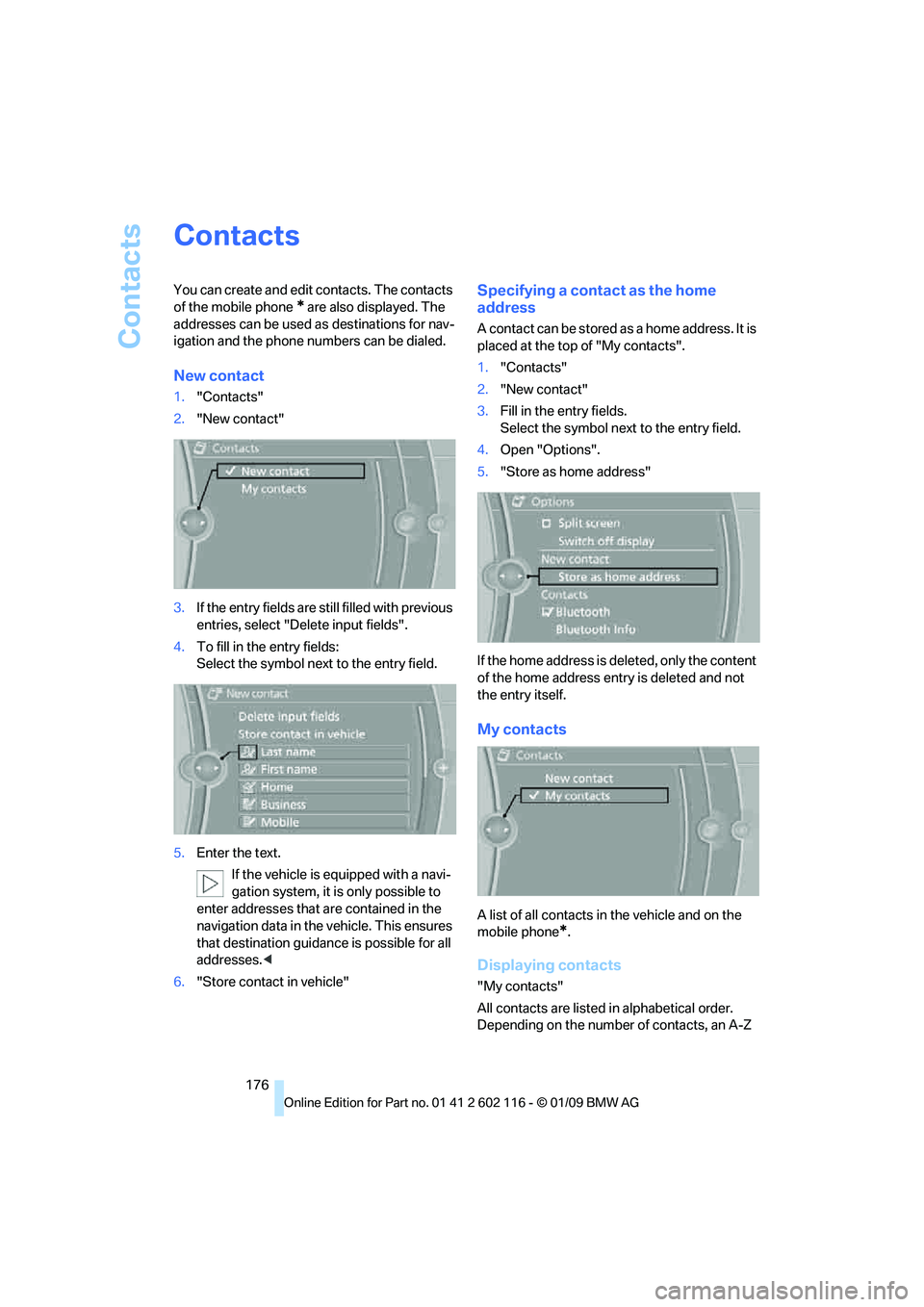
1. "Contacts"
2. "New contact"
3. If the entry fields are still filled with previous
entries, select "Delete input fields".
4. To fill in the entry fields:
Select the symbol next to the entry field.
5. Enter the text.
If the vehicle is equipped with a navi-
gation system, it is only possible to
enter addresses that are contained in the
navigation data in the vehicle. This ensures
that destination guidance is possible for all
addresses. <
6. "Store contact in vehicle"
Specifying a contact as the home
address
A contact can be stored as a home address. It is
placed at the top of "My contacts".
1."Contacts"
2. "New contact"
3. Fill in the entry fields.
Select the symbol next to the entry field.
4. Open "Options".
5. "Store as home address"
If the home address is deleted, only the content
of the home address entry is deleted and not
the entry itself.
My contacts
A list of all contacts in the vehicle and on the
mobile phone
*.
Displaying contacts
"My contacts"
All contacts are listed in alphabetical order.
Depending on the number of contacts, an A-Z
Page 179 of 248
177
Entertainment
Reference
At a glance
Controls
Driving tips
Communications
Navigation
Mobility
search is offered. A sy mbol indicates the stor-
age location of the contacts:
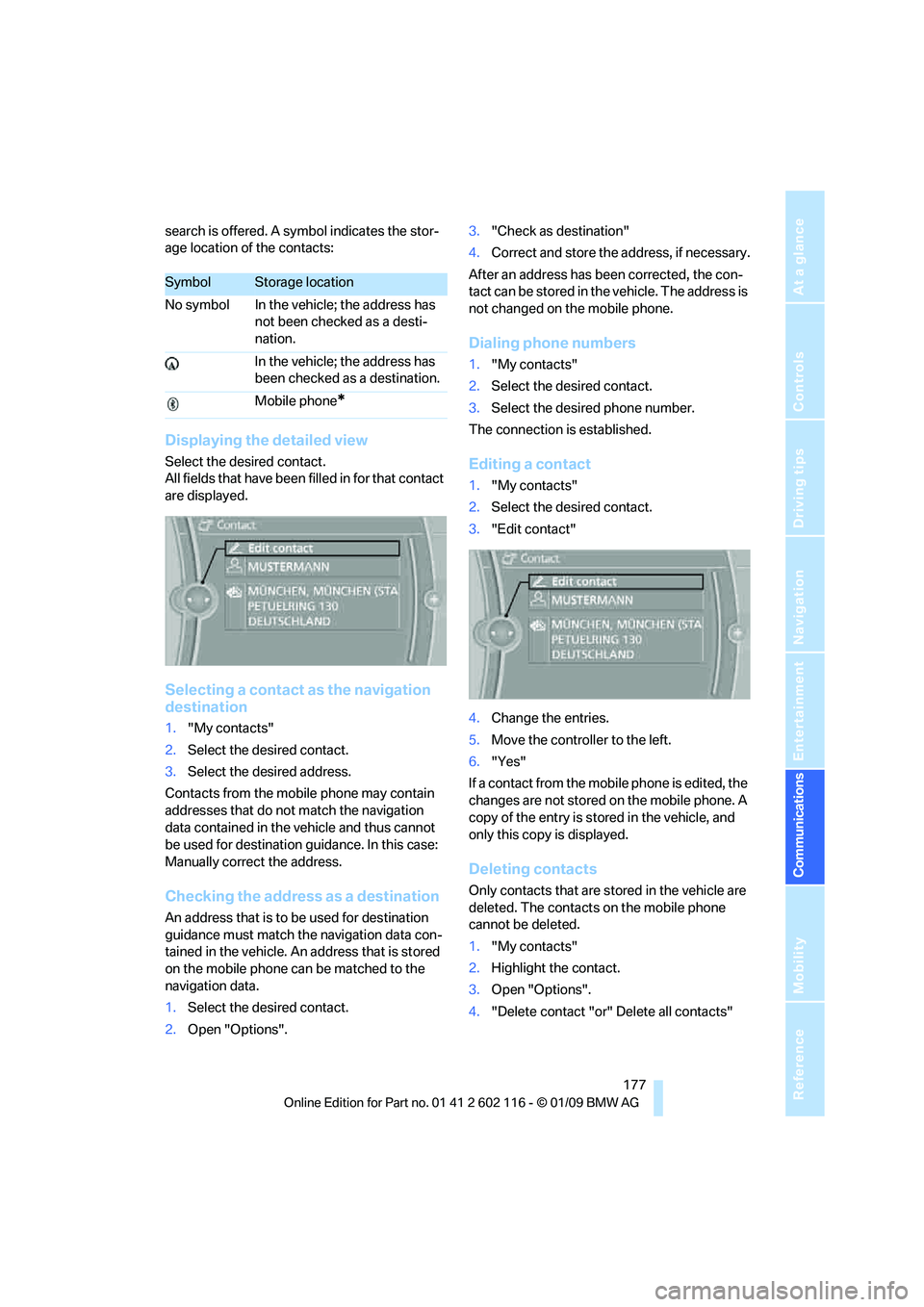
Displaying the detailed view
Select the desired contact.
All fields that have been filled in for that contact
are displayed.
Selecting a contact as the navigation
destination
1. "My contacts"
2. Select the desired contact.
3. Select the desired address.
Contacts from the mobile phone may contain
addresses that do not match the navigation
data contained in the vehicle and thus cannot
be used for destination guidance. In this case:
Manually correct the address.
Checking the address as a destination
An address that is to be used for destination
guidance must match the navigation data con-
tained in the vehicle. An address that is stored
on the mobile phone ca n be matched to the
navigation data.
1. Select the desired contact.
2. Open "Options". 3.
"Check as destination"
4. Correct and store the a ddress, if necessary.
After an address has been corrected, the con-
tact can be stored in the vehicle. The address is
not changed on the mobile phone.
Dialing phone numbers
1. "My contacts"
2. Select the desired contact.
3. Select the desired phone number.
The connection is established.
Editing a contact
1. "My contacts"
2. Select the desired contact.
3. "Edit contact"
4. Change the entries.
5. Move the controlle r to the left.
6. "Yes"
If a contact from the mobile phone is edited, the
changes are not stored on the mobile phone. A
copy of the entry is stor ed in the vehicle, and
only this copy is displayed.
Deleting contacts
Only contacts that are stored in the vehicle are
deleted. The contacts on the mobile phone
cannot be deleted.
1. "My contacts"
2. Highlight the contact.
3. Open "Options".
4. "Delete contact "or" Delete all contacts"
SymbolStorage location
No symbol In the vehicle; the address has not been checked as a desti-
nation.
In the vehicle; the address has
been checked as a destination.
Mobile phone
*
Page 181 of 248
179
Entertainment
Reference
At a glance
Controls
Driving tips
Communications
Navigation
Mobility
TeleService*
TeleService supports commu nication with your
BMW center.
> Data on the vehicle's service requirements
can be sent directly to the BMW center. In
this way, the BMW center can plan its work
in advance. This shortens the duration of
the service appointment.
> In the event of a breakdown, data on the
vehicle's condition can be sent directly to
Roadside Assistance.
> The offer varies by country.
> Connection costs may ensue.
> Services may be restricted abroad.
Requirements
>BMW Assist is activated.
> Wireless reception is available.
> The engine is running.
Concierge service*
When you call the BMW Assist Concierge, you
can obtain information about, for example, res-
taurants, emergency pharmacy services, gas
stations or hotels, as well as receive the corre-
sponding telephone numbers and addresses.
You can then dial a phone number directly or
use an address for destination guidance
*.
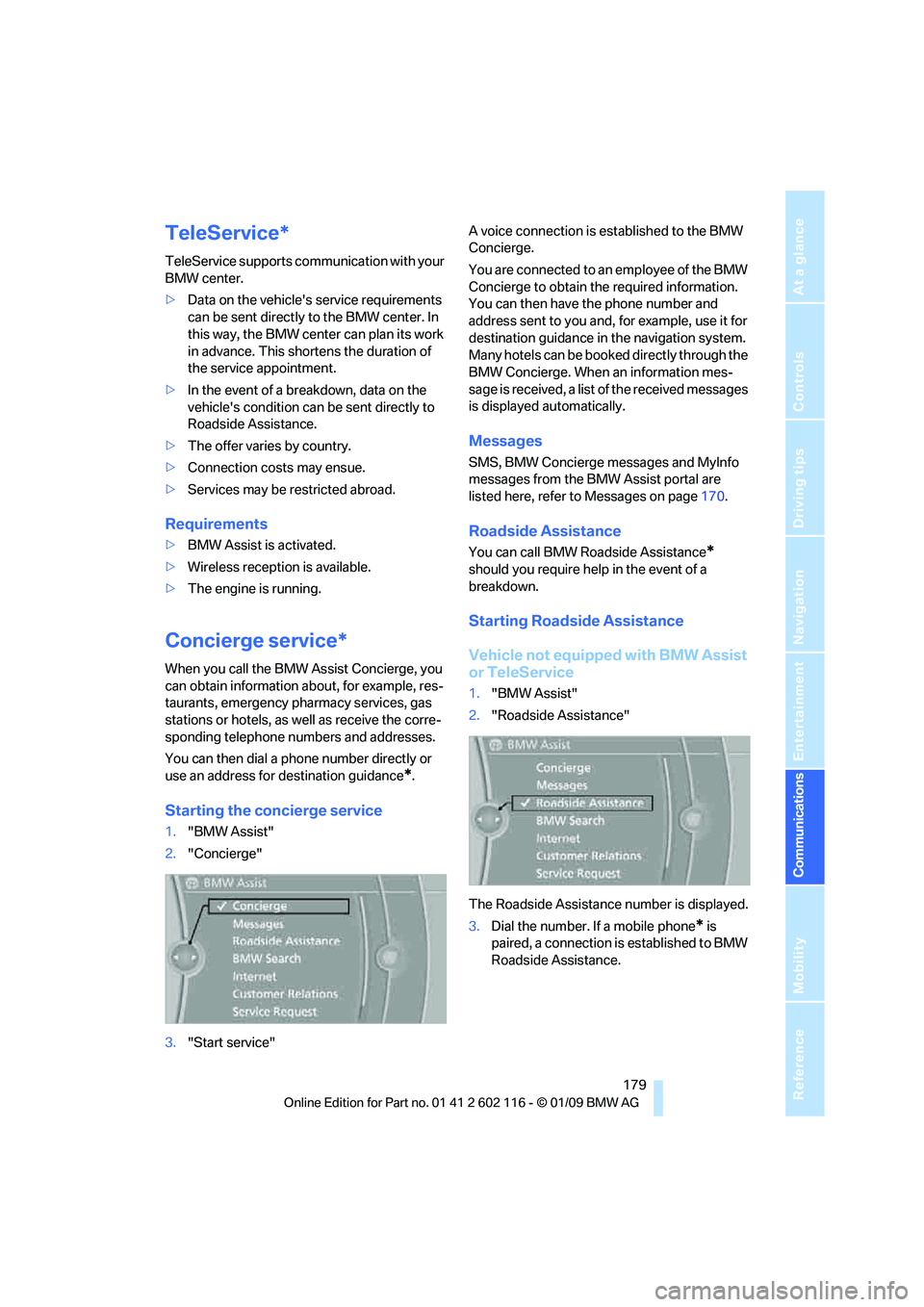
Starting the concierge service
1."BMW Assist"
2. "Concierge"
3. "Start service" A voice connection is established to the BMW
Concierge.
You are connected to an employee of the BMW
Concierge to obtain the required information.
You can then have the phone number and
address sent to you and, for example, use it for
destination guidance in
the navigation system.
Many hotels can be book ed directly through the
BMW Concierge. When an information mes-
sage is received, a list of the received messages
is displayed automatically.
Messages
SMS, BMW Concierge messages and MyInfo
messages from the BMW Assist portal are
listed here, refer to Messages on page 170.
Roadside Assistance
You can call BMW Roadside Assistance*
should you require help in the event of a
breakdown.
Starting Roadside Assistance
Vehicle not equipped with BMW Assist
or TeleService
1. "BMW Assist"
2. "Roadside Assistance"
The Roadside Assistance number is displayed.
3. Dial the number. If a mobile phone
* is
paired, a connection is established to BMW
Roadside Assistance.
Page 183 of 248
181
Entertainment
Reference
At a glance
Controls
Driving tips
Communications
Navigation
Mobility
Using BMW Search
To select and display content:
> Turn the controller to highlight an element.
> Press the controller to display an element.
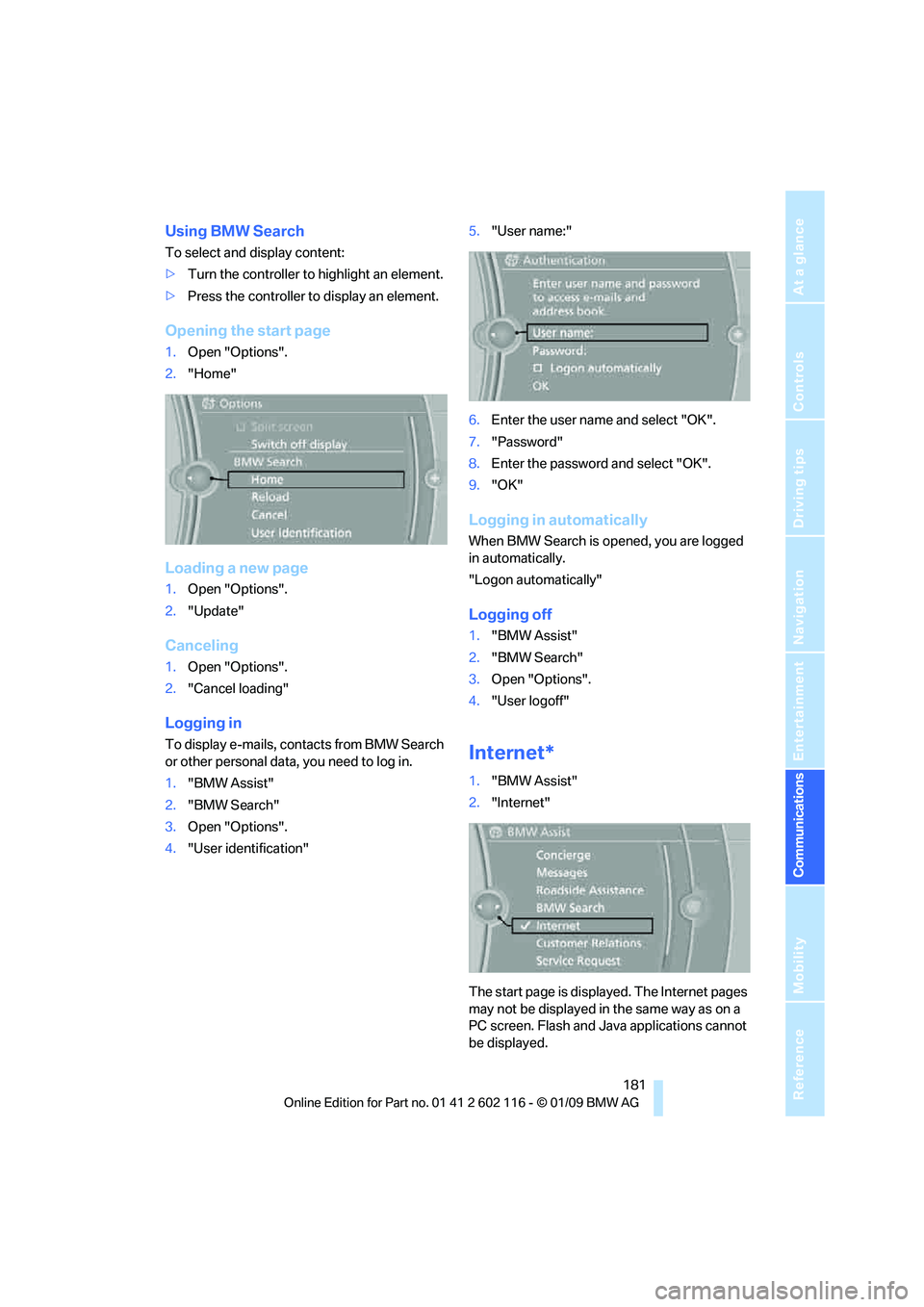
Opening the start page
1.Open "Options".
2. "Home"
Loading a new page
1.Open "Options".
2. "Update"
Canceling
1.Open "Options".
2. "Cancel loading"
Logging in
To display e-mails, contacts from BMW Search
or other personal data, you need to log in.
1."BMW Assist"
2. "BMW Search"
3. Open "Options".
4. "User identification" 5.
"User name:"
6. Enter the user name and select "OK".
7. "Password"
8. Enter the password and select "OK".
9. "OK"
Logging in automatically
When BMW Search is opened, you are logged
in automatically.
"Logon automatically"
Logging off
1."BMW Assist"
2. "BMW Search"
3. Open "Options".
4. "User logoff"
Internet*
1."BMW Assist"
2. "Internet"
The start page is displayed. The Internet pages
may not be displayed in the same way as on a
PC screen. Flash and Java applications cannot
be displayed.
Page 185 of 248
183
Entertainment
Reference
At a glance
Controls
Driving tips
Communications
Navigation
Mobility
3. "Delete bookmark"or" Delete all book-
marks"
Defining a bookmark as the start page
1. Select the symbol.
2. Open "Options".
3. "Set as home URL"
Settings
Suppressing cookies
1.Open "Options".
2. "Suppress cookies"
Suppressing pop-ups
1.Open "Options".
2. "Suppress pop-ups"
Suppressing safety warnings
1.Open "Options".
2. "Block HTTPS pop-ups"
Activating TeleService*
If the services are not displayed, they may need
to be activated.
1."BMW Assist"
2. "Activate TeleService"
Customer Relations
Contact Customer Relations for information on
all aspects of your vehicle.
Vehicle equipped with BMW Assist or
TeleService
1."BMW Assist"
2. "Customer Relations"
3. "Start service"
A voice connection is established to Customer
Relations.
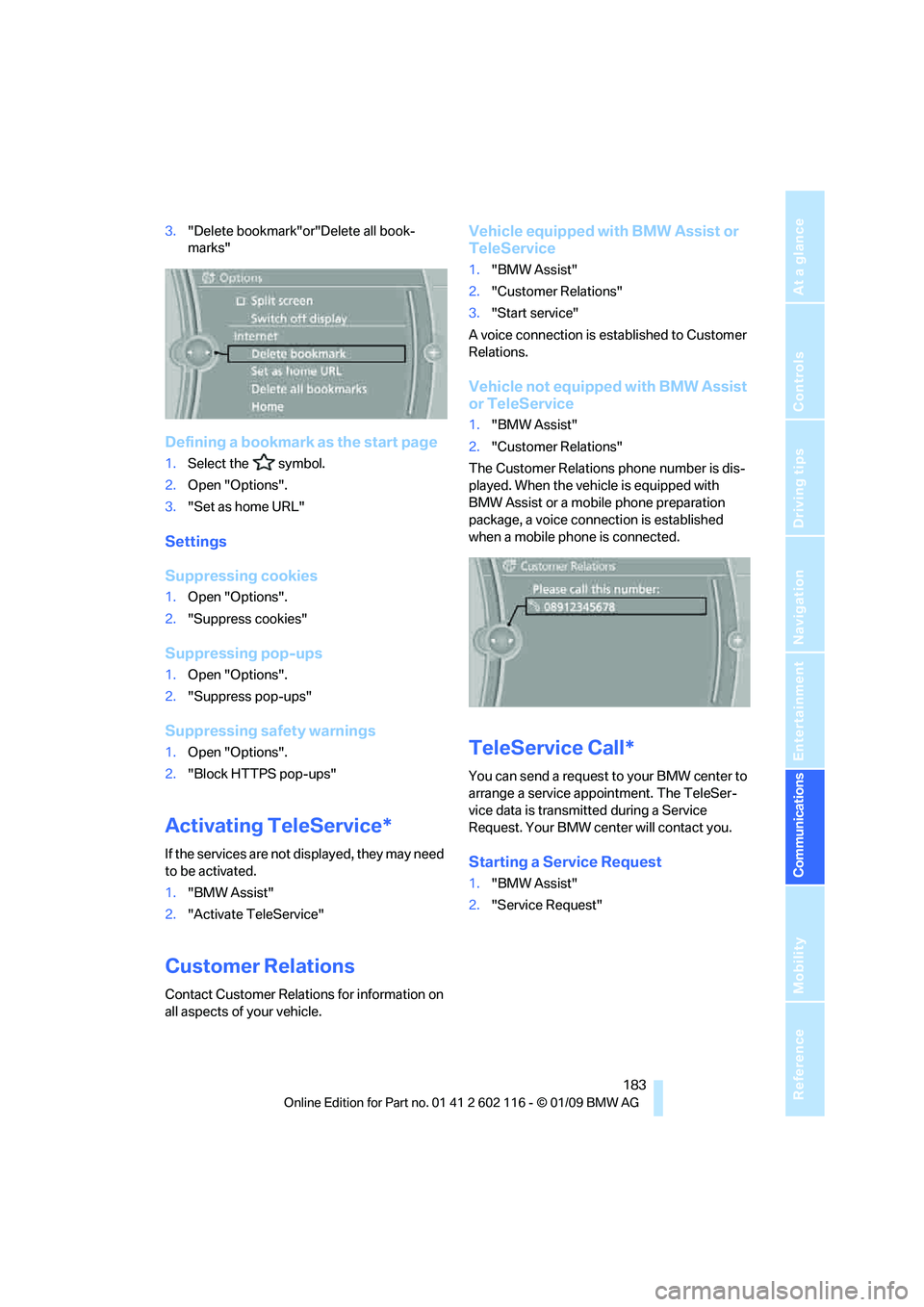
Vehicle not equipped with BMW Assist
or TeleService
1. "BMW Assist"
2. "Customer Relations"
The Customer Relations phone number is dis-
played. When the vehicle is equipped with
BMW Assist or a mobile phone preparation
package, a voice connection is established
when a mobile phone is connected.
TeleService Call*
You can send a request to your BMW center to
arrange a service appointment. The TeleSer-
vice data is transmitted during a Service
Request. Your BMW center will contact you.
Starting a Service Request
1. "BMW Assist"
2. "Service Request"
Page 187 of 248
185
Entertainment
Reference
At a glance
Controls
Driving tips
Communications
Navigation
Mobility
Page 191 of 248
Mobility
189Reference
At a glance
Controls
Driving tips
Communications
Navigation
Entertainment
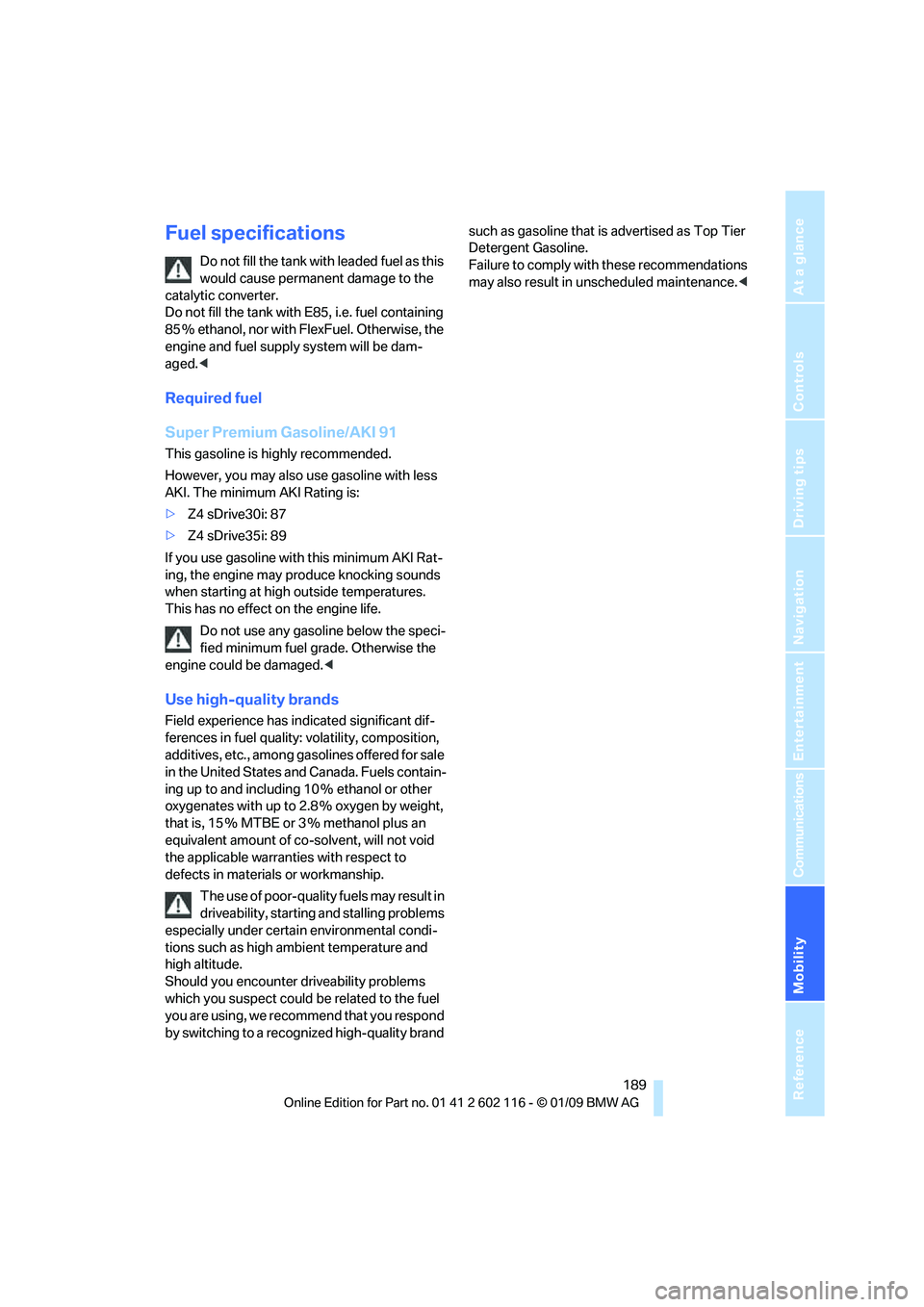
Fuel specifications
Do not fill the tank with leaded fuel as this
would cause permanent damage to the
catalytic converter.
Do not fill the tank with E85, i.e. fuel containing
85 % ethanol, nor with Fl exFuel. Otherwise, the
engine and fuel suppl y system will be dam-
aged. <
Required fuel
Super Premium Gasoline/AKI 91
This gasoline is hi ghly recommended.
However, you may also use gasoline with less
AKI. The minimum AKI Rating is:
> Z4 sDrive30i: 87
> Z4 sDrive35i: 89
If you use gasoline with this minimum AKI Rat-
ing, the engine may produce knocking sounds
when starting at high outside temperatures.
This has no effect on the engine life.
Do not use any gasoline below the speci-
fied minimum fuel grade. Otherwise the
engine could be damaged. <
Use high-quality brands
Field experience has indicated significant dif-
ferences in fuel quality: volatility, composition,
additives, etc., among ga solines offered for sale
in the United States and Canada. Fuels contain-
ing up to and including 10 % ethanol or other
oxygenates with up to 2.8 % oxygen by weight,
that is, 15 % MTBE or 3 % methanol plus an
equivalent amount of co-solvent, will not void
the applicable warranti es with respect to
defects in materials or workmanship.
The use of poor-quality fuels may result in
driveability, starting and stalling problems
especially under certai n environmental condi-
tions such as high ambient temperature and
high altitude.
Should you encounter driveability problems
which you suspect could be related to the fuel
you are using, we recommend that you respond
by switching to a recognized high-quality brand such as gasoline
that is advertised as Top Tier
Detergent Gasoline.
Failure to comply with these recommendations
may also result in un scheduled maintenance. <