display BMW Z4 SDRIVE30I 2009 Workshop Manual
[x] Cancel search | Manufacturer: BMW, Model Year: 2009, Model line: Z4 SDRIVE30I, Model: BMW Z4 SDRIVE30I 2009Pages: 248, PDF Size: 7.63 MB
Page 92 of 248
Lamps
90
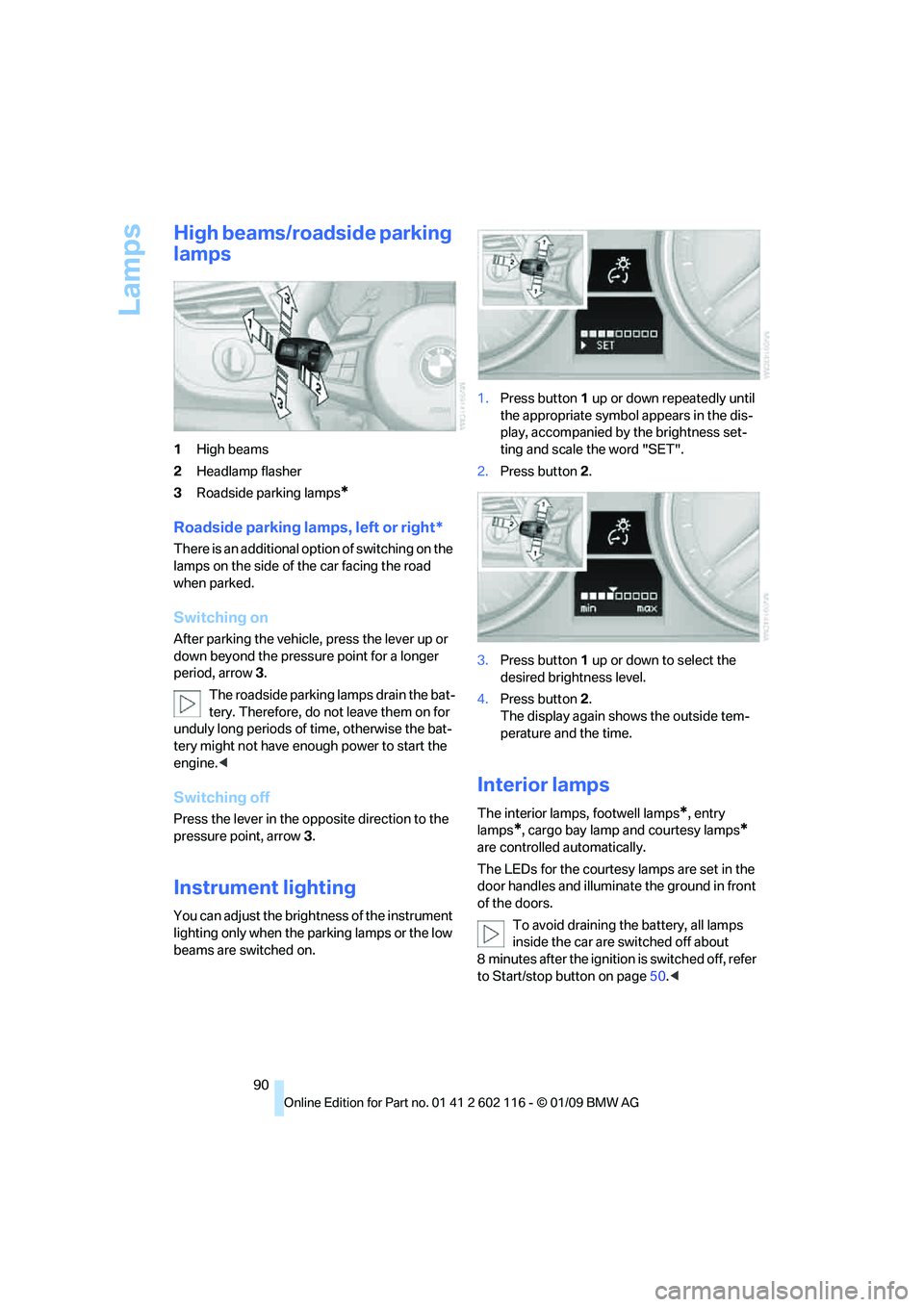
High beams/roadside parking
lamps
1High beams
2 Headlamp flasher
3 Roadside parking lamps
*
Roadside parking lamps, left or right*
There is an additional option of switching on the
lamps on the side of the car facing the road
when parked.
Switching on
After parking the vehicle, press the lever up or
down beyond the pressu re point for a longer
period, arrow 3.
The roadside parking lamps drain the bat-
tery. Therefore, do not leave them on for
unduly long periods of time, otherwise the bat-
tery might not have enou gh power to start the
engine. <
Switching off
Press the lever in the opposite direction to the
pressure point, arrow 3.
Instrument lighting
You can adjust the brightness of the instrument
lighting only when the parking lamps or the low
beams are switched on. 1.
Press button 1 up or down repeatedly until
the appropriate symbol appears in the dis-
play, accompanied by the brightness set-
ting and scale the word "SET".
2. Press button 2.
3. Press button 1 up or down to select the
desired brightness level.
4. Press button 2.
The display again shows the outside tem-
perature and the time.
Interior lamps
The interior lamps, footwell lamps*, entry
lamps
*, cargo bay lamp and courtesy lamps*
are controlled automatically.
The LEDs for the courtesy lamps
are set in the
door handles and illuminate the ground in front
of the doors.
To avoid draining the battery, all lamps
inside the car are switched off about
8 minutes after the ignition is switched off, refer
to Start/stop button on page 50.<
Page 98 of 248
Climate
96
Switching the cooling function
on and off
The cooling function cools and
dehumidifies the incoming air
before reheating it as required,
according to the temperature set-
ting. This function is only available while the
engine is running.
The cooling function he lps prevent condensa-
tion on the windows or removes it quickly.
Depending on the weathe r, the windshield may
fog over briefly when the engine is started.
The cooling function is automatically switched
on along with the AUTO program.
Maximum cooling
Maximum cooling is achieved most
quickly at outside temperatures
above 32 7/06 and when the
engine is running.
The automatic climate control goes into recir-
culated-air mode at the lowest temperature. Air
flows at maximum rate from the vents for the
upper body area. You should therefore open the
vents for maximum cooling.
AUTO program
The AUTO program auto matically adjusts the
air distribution to the windshield and side win-
dows, towards the upper bo dy area, and into the
footwell and knee area.
The air flow rate and air distribution, in addition
to your temperature specifications, will be
adapted to outside influenc es as a result of sea-
sonal changes, e.g. sunlight or window conden-
sation.
The cooling is switched on automatically with
the AUTO program.
Switching on/off
Press the button.
Manual air distribution and air flow rate are acti-
vated when the AUTO program is deactivated.
AUTO program climate level
The climate levels can be used to vary the inten-
sity when the AUTO program is switched on.
For example, air flow is adjusted automatically
to optimize climate control.
When the AUTO program is
switched on, you ca n select the cli-
mate level of the AUTO program
using the buttons for controlling the manual air
flow rate.
The selected climate le vel is displayed by
an LED.
Convertible program
When the hardtop is open, the convertible pro-
gram is activated as well. In the convertible pro-
gram, the automatic climate control is opti-
mized for driving with the hardtop open. In
addition, the air flow rate is increased as vehicle
speed increases.
The effectiveness of the convertible pro-
gram can be enhanced considerably by
installing the wind deflector. <
Adjusting air flow rate manually
Press the left side of the button to
reduce air flow. Press the right side
of the button to increase it.
The air flow rate may be reduced to save battery
power. The display remains the same.
Switching the system on/off
With the blower at its lowest setting, press the
left side of the button to switch off the auto-
matic climate control. All displays are cleared
except for the rear window defroster if it is
switched on.
Press any button except the rear window
defroster to reactivate the automatic climate
control.
Residual heat
T h e h e a t s t o r e d i n t h e e n g i n e i s u s e d t o h e a t t h e
passenger compartment, e.g. while stopped at
a school to pick up a child.
Page 102 of 248
Practical interior accessories
100
Digital compass*
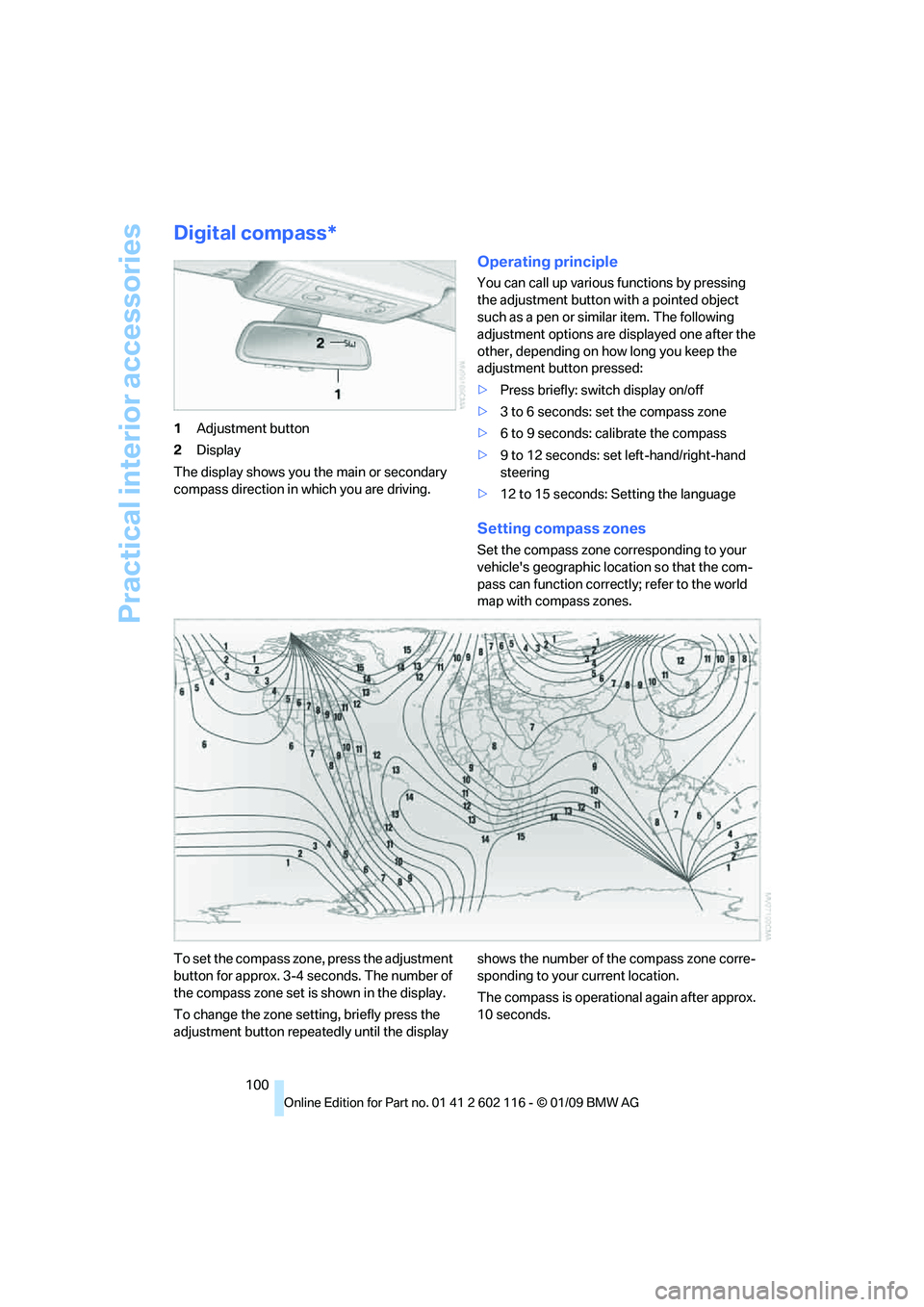
1Adjustment button
2 Display
The display shows you the main or secondary
compass direction in which you are driving.
Operating principle
You can call up various functions by pressing
the adjustment button with a pointed object
such as a pen or similar item. The following
adjustment options are displayed one after the
other, depending on how long you keep the
adjustment button pressed:
> Press briefly: switch display on/off
> 3 to 6 seconds: set the compass zone
> 6 to 9 seconds: calibrate the compass
> 9 to 12 seconds: set left-hand/right-hand
steering
> 12 to 15 seconds: Setting the language
Setting compass zones
Set the compass zone corresponding to your
vehicle's geographic loca tion so that the com-
pass can function correctl y; refer to the world
map with compass zones.
To set the compass zone, press the adjustment
button for approx. 3-4 seconds. The number of
the compass zone set is shown in the display.
To change the zone se tting, briefly press the
adjustment button repeat edly until the display shows the number of the compass zone corre-
sponding to your current location.
The compass is operational again after approx.
10 seconds.
Page 103 of 248
Controls
101Reference
At a glance
Driving tips
Communications
Navigation
Entertainment
Mobility
Calibrating the digital compass
The digital compass must be calibrated in the
following situations:
> An incorrect compass direction is shown.
> The compass direction shown does not
change although the direction of
travel does.
> Not all compass directions are shown.
Procedure
1.Make sure that no la rge metal objects or
overhead power lines are in the vicinity of
your vehicle and that you have enough
space to drive in a circle.
2. Set the currently valid compass zone.
3. ensure that the retractable hardtop is fully
closed.
4. Press the adjustment button for approx.
6-7 seconds to call up C. Then drive in at
least one full circle at a speed of no more
than 4mph or 7km/h.
If calibration is successful, the display
changes from C to a compass direction.
5. Open the retractable hardtop fully and
repeat step 4.
Setting right-hand/left-hand steering
Your digital compass is factory-set to right-
hand or left-hand steeri ng, in accordance with
your vehicle.
Setting the language
You can set the language of the display:
Press the adjustment button for approx.
12-13 seconds. Briefly press the adjustment
button again to switch between English, "E",
and German, "O".
The setting is automatically saved after approx.
10 seconds.
Glove compartment
Opening
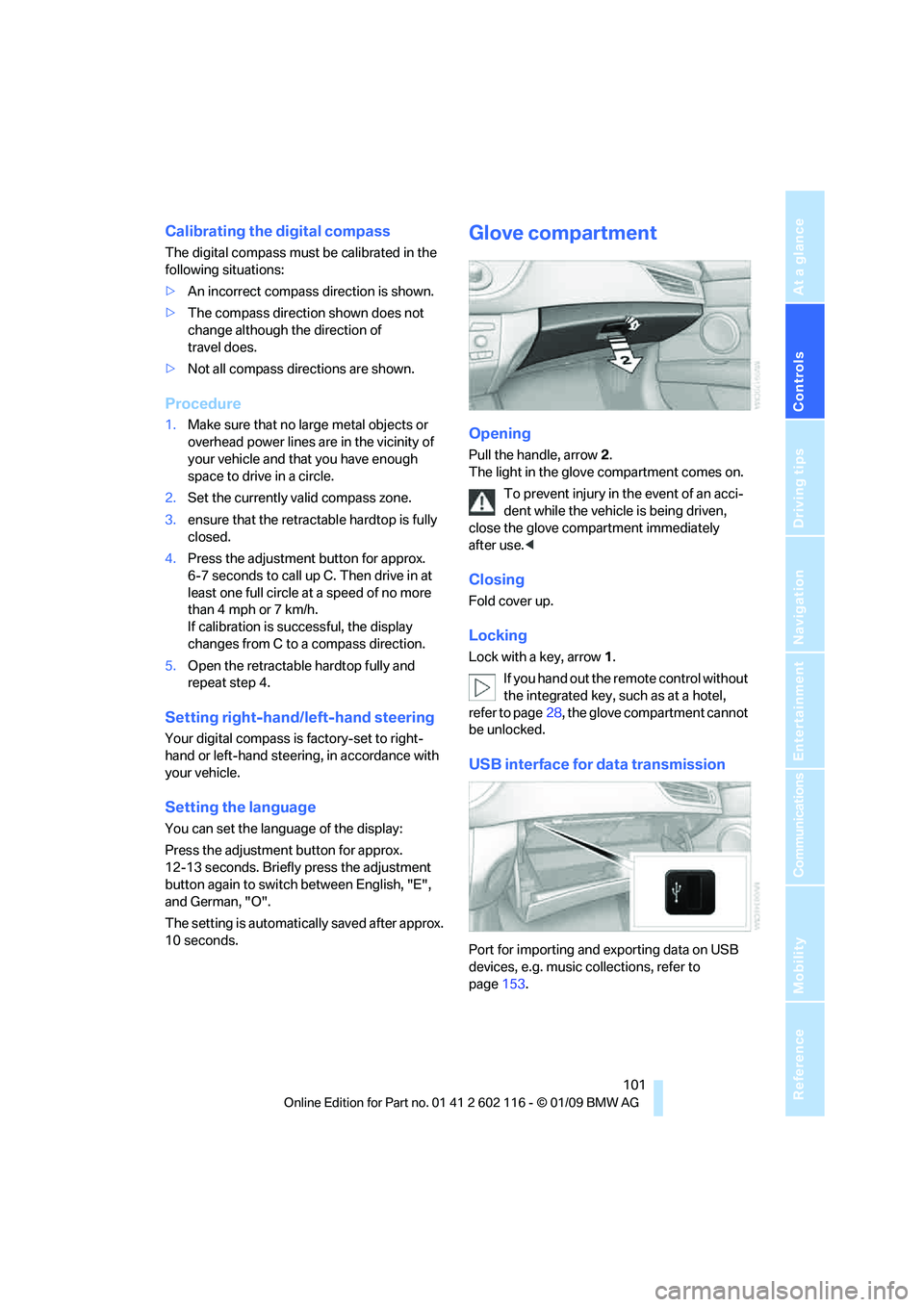
Pull the handle, arrow 2.
The light in the glove compartment comes on.
To prevent injury in the event of an acci-
dent while the vehicle is being driven,
close the glove compartment immediately
after use. <
Closing
Fold cover up.
Locking
Lock with a key, arrow 1.
If you hand out the remote control without
the integrated key, such as at a hotel,
refer to page 28, the glove compartment cannot
be unlocked.
USB interface for data transmission
Port for importing and exporting data on USB
devices, e.g. music collections, refer to
page 153.
Page 120 of 248
Navigation system
118
Navigation system
General information
With the help of satellites, the navigation sys-
tem is able to ascertain the precise position of
the vehicle and guide you reliably to any desti-
nation you enter.
The navigation data is st ored in the vehicle and
can be updated using navigation DVDs.
Enter data only when the vehicle is sta-
tionary, and always give priority to the
applicable traffic regulati ons in the event of any
contradiction between traffic and road condi-
tions and the instructions issued by the naviga-
tion system. Failure to ta ke to this precaution
can place you in violation of the law and put
vehicle occupants and other road users in
danger. <
Updating the navigation data
The navigation data is st ored in the vehicle and
can be updated using a na vigation DVD. Please
contact the BMW center if you have any ques-
tions.
Inserting navigation DVD
1. Insert the navigation DVD into the DVD
player with the labe led side facing up.
2. Follow the instructio ns on the display.
3. Enter the authorization code of the naviga-
tion DVD and change the DVD if needed.
Displaying information on the version
1. "Navigation"
2. Open "Options".
3. "Navigation system version".
Information on the data version is displayed.
Removing navigation DVD
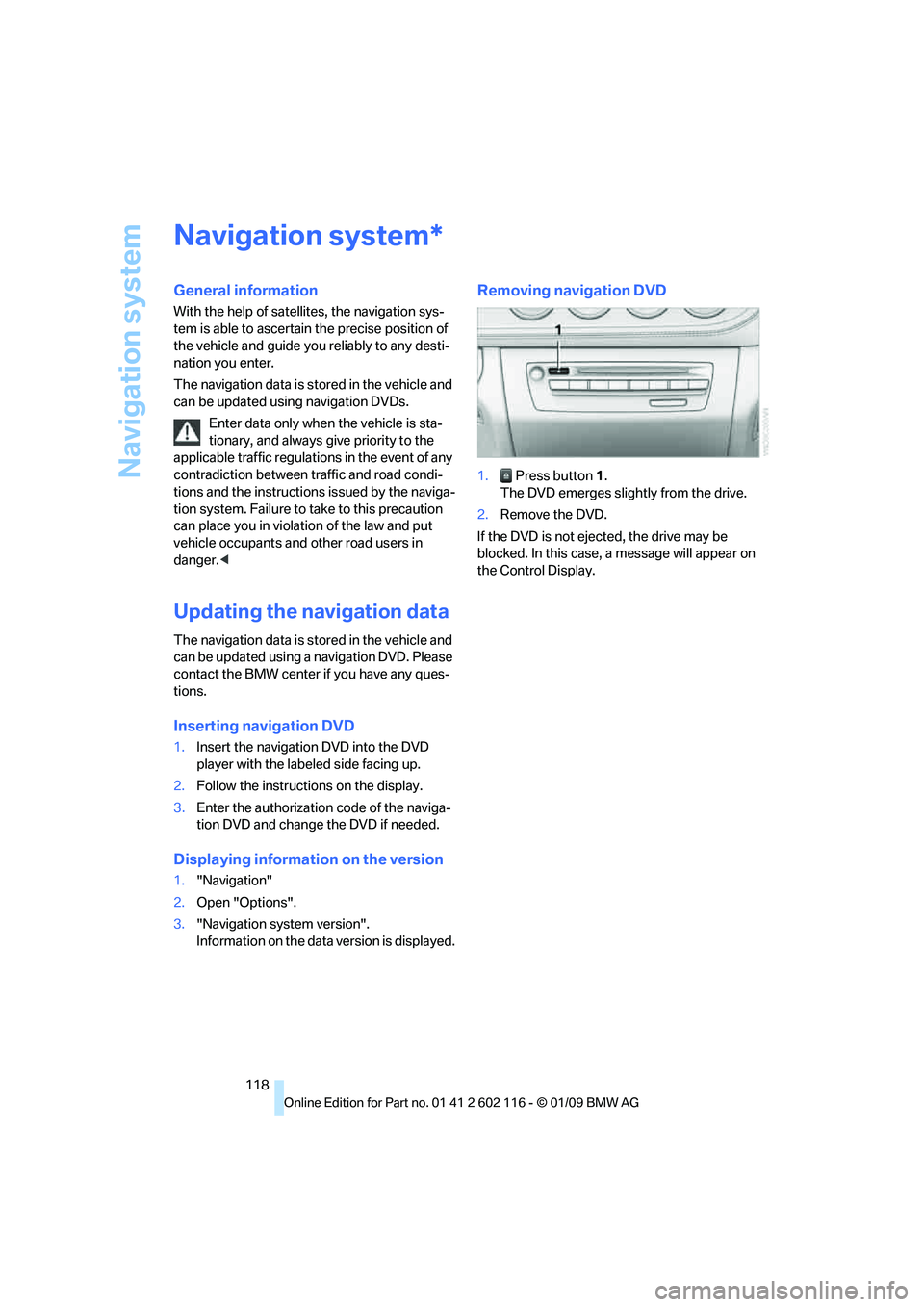
1. Press button 1.
The DVD emerges slightly from the drive.
2. Remove the DVD.
If the DVD is not ejected, the drive may be
blocked. In this case, a message will appear on
the Control Display.
*
Page 121 of 248
Navigation
Driving tips
119Reference
At a glance
Controls
Communications
Entertainment
Mobility
Destination entry
In entering your destination you can select from
the following options:
>Entering a destination manually, see below
> Selecting destination from the address
book, refer to page 121
> Last destinations, refer to Last destinations,
page 122
> Special destinations, refer to page 122
> Entering a destination on the map, refer to
page 124
> Selecting a home a ddress, refer to
page 122
> Entering a destination by voice com-
mands*, refer to page 125
You can also store a navigation destination on
the programmable memo ry keys, refer to
page 21.
Enter data only when the vehicle is sta-
tionary, and always give priority to the
applicable traffic regulations in the event of any
contradiction between traffic and road condi-
tions and the instructions issued by the naviga-
tion system. Otherwise, vehicle occupants and
other road users may be endangered. <
Entering a destination
manually
The system's word-matching principle makes it
easier for you to enter the names of towns or
streets. This allows you to enter different spell-
ings and completes your entry automatically so
that stored names can be called up quickly.
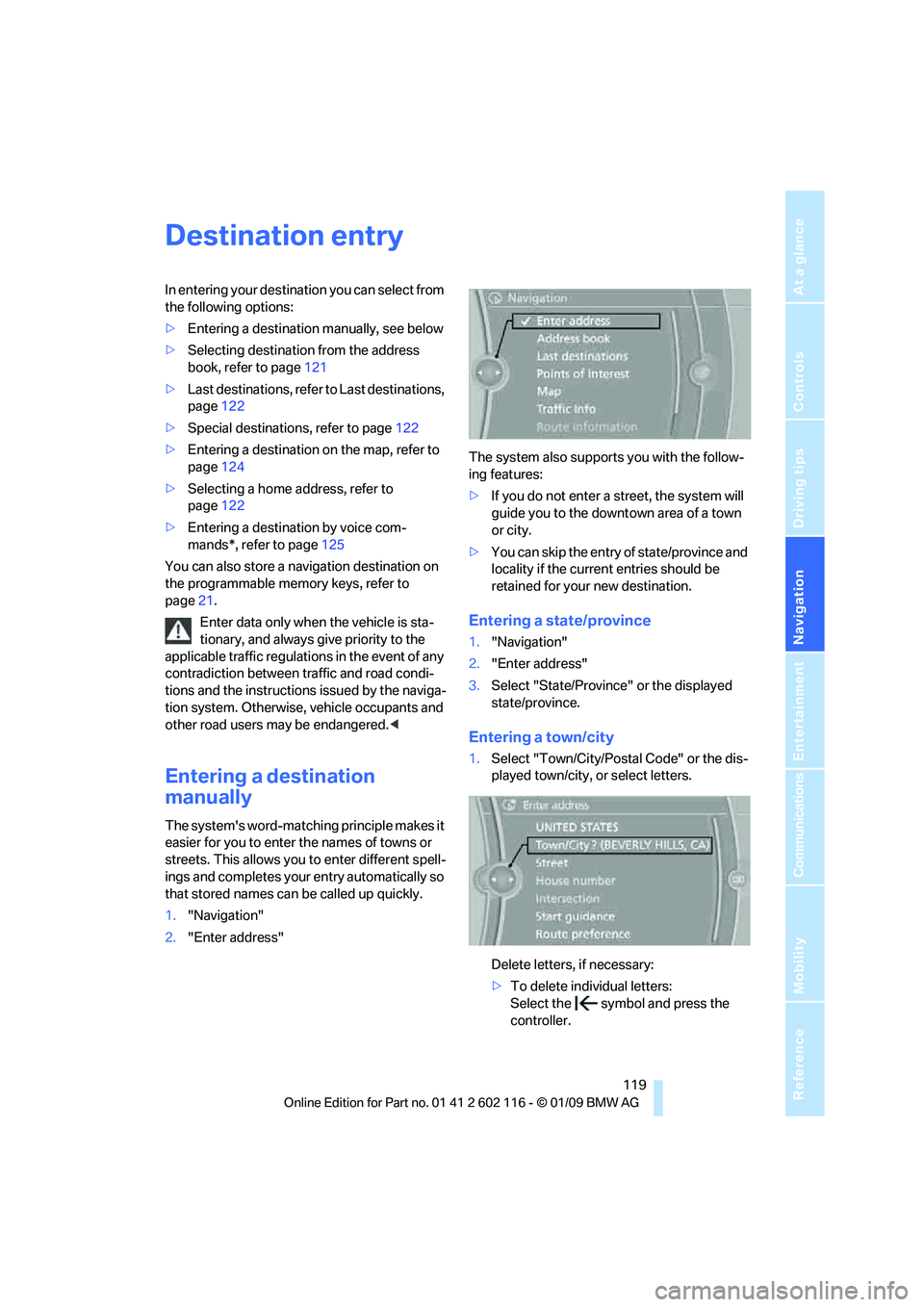
1. "Navigation"
2. "Enter address" The system also supports you with the follow-
ing features:
>
If you do not enter a street, the system will
guide you to the downto wn area of a town
or city.
> You can skip the entry of state/province and
locality if the current entries should be
retained for your new destination.
Entering a state/province
1."Navigation"
2. "Enter address"
3. Select "State/Province" or the displayed
state/province.
Entering a town/city
1.Select "Town/City/Postal Code" or the dis-
played town/city, or select letters.
Delete letters, if necessary:
>To delete indi vidual letters:
Select the symbol and press the
controller.
Page 122 of 248
Destination entry
120
>
To delete all letters:
Select the symbol and press the
controller for a lengthy period.
> To enter spaces:
Select the symbol.
The list gradually grow s smaller each time
you enter a new letter.
2. Move the controller to the right.
3. Select the name of th e town/city from the
list. The three destinations stored last are
displayed.
If there are several towns/cities with the
same name:
1. Change to the list of town/city names.
2. Highlight the town/city: a preview map is
displayed.
3. Select the town/city.
Entering the postal code
1.Select "Town/City/Postal Code" or the dis-
played town/city.
2. Select the symbol.
3. Select the digits.
4. Change to the list of postal codes and
towns/cities.
5. Highlight the postal code. A preview map is
displayed in the assistance window.
6. Select the postal code.
Entering street and intersection
1.Select "Street" or the displayed street.
2. Enter a street and intersection as you would
the town/city.
After the street you can also enter the intersec-
tion or the house number.
If there are several streets with the same name:
1. Change to the list of street names.
2. Highlight the street: a preview map is dis-
played.
3. Select the street.
Entering a street without a destination
town/city*
You can also enter a street without specifying a
town/city. In this case, all streets of the same
name in the designated state/province are
offered. The correspond ing town/city is dis-
played after the street name.
If a town/city has already been entered, you can
negate this entry. This could be helpful in
instances where the desired street does not
exist in the entered town/city because it
belongs to another suburb, for example.
1. "Navigation"
2. "Enter address"
3. Select "Street" or the displayed street.
4. Change to the list of street names.
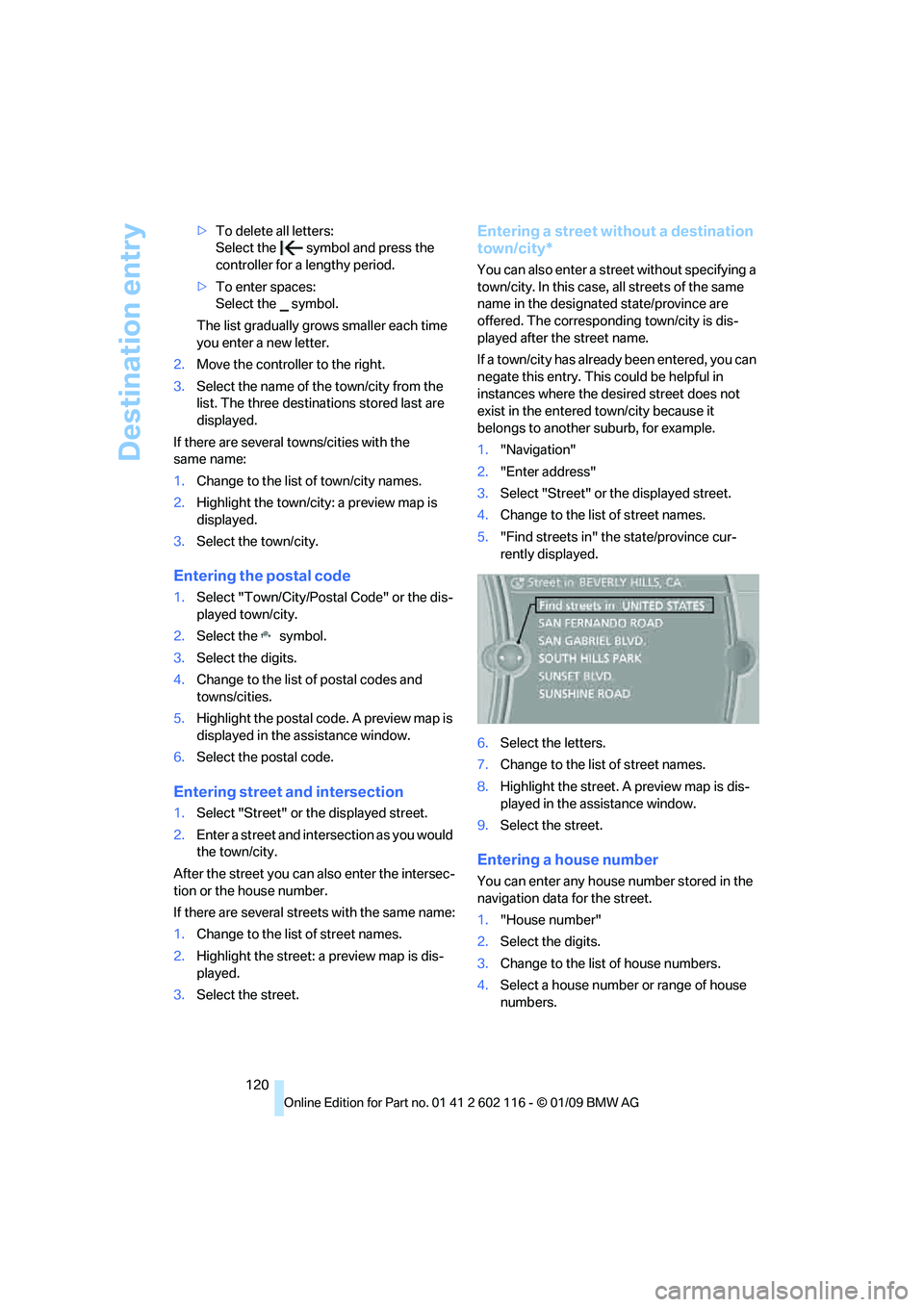
5. "Find streets in" the state/province cur-
rently displayed.
6. Select the letters.
7. Change to the list of street names.
8. Highlight the street. A preview map is dis-
played in the assistance window.
9. Select the street.
Entering a house number
You can enter any house number stored in the
navigation data for the street.
1."House number"
2. Select the digits.
3. Change to the list of house numbers.
4. Select a house number or range of house
numbers.
Page 123 of 248
Navigation
Driving tips
121Reference
At a glance
Controls
Communications
Entertainment
Mobility
Selection after destination entry
>"Start guidance".
Destination guidance is started imme-
diately.
> "Route preference"
refer to page 128.
> "Points of Interest at dest."
refer to page 122.
If a new town/city is sele cted during destination
guidance, the current de stination guidance is
terminated.
Address book
To create contac ts, refer to page176.
Selecting a destination from the
address book
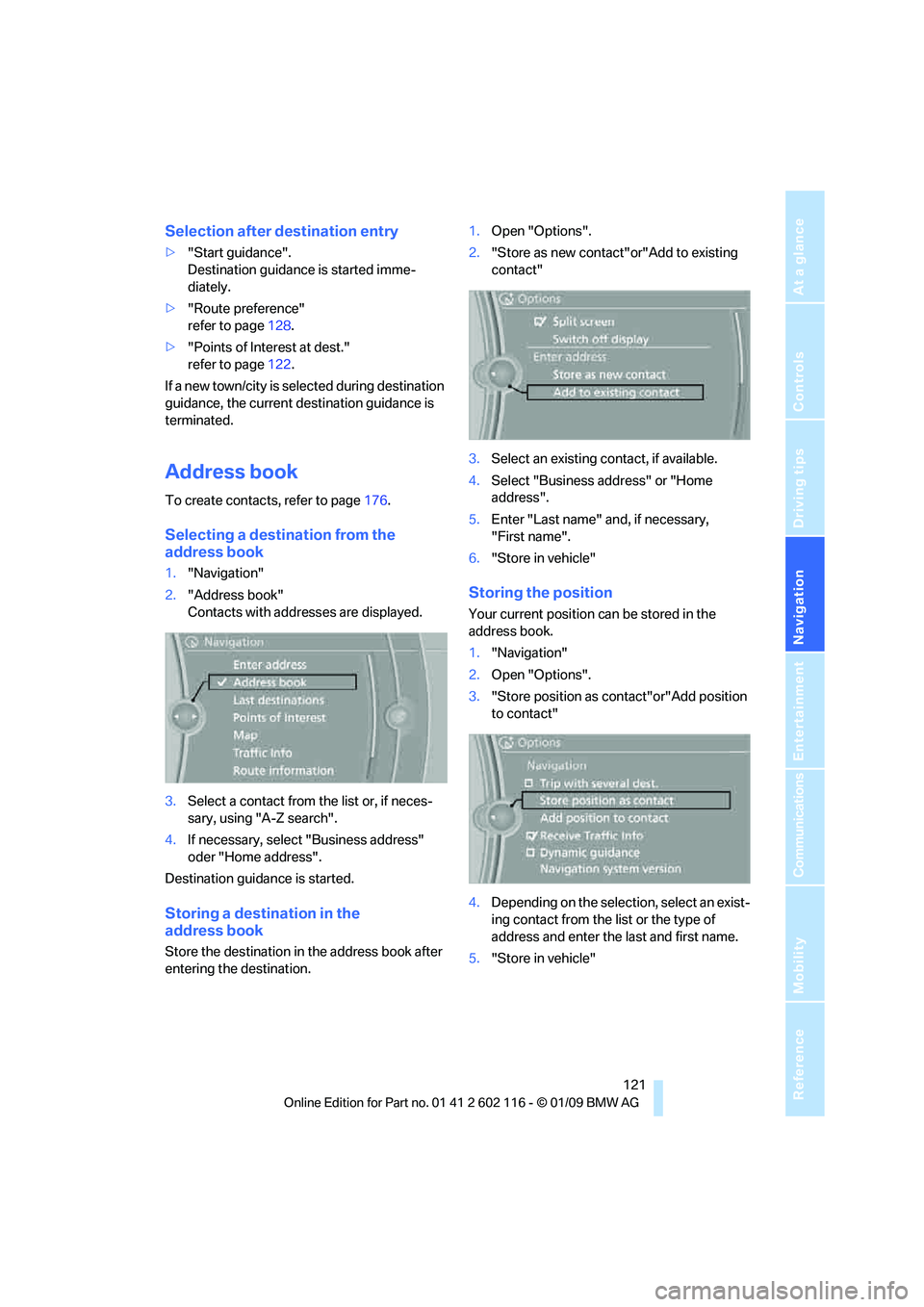
1."Navigation"
2. "Address book"
Contacts with addr esses are displayed.
3. Select a contact from the list or, if neces-
sary, using "A-Z search".
4. If necessary, select "Business address"
oder "Home address".
Destination guidance is started.
Storing a destination in the
address book
Store the destination in the address book after
entering the destination. 1.
Open "Options".
2. "Store as new contact" or"Add to existing
contact"
3. Select an existing co ntact, if available.
4. Select "Business address" or "Home
address".
5. Enter "Last name" and, if necessary,
"First name".
6. "Store in vehicle"
Storing the position
Your current position can be stored in the
address book.
1."Navigation"
2. Open "Options".
3. "Store position as contact"or"Add position
to contact"
4. Depending on the select ion, select an exist-
ing contact from the list or the type of
address and enter the last and first name.
5. "Store in vehicle"
Page 125 of 248
Navigation
Driving tips
123Reference
At a glance
Controls
Communications
Entertainment
Mobility
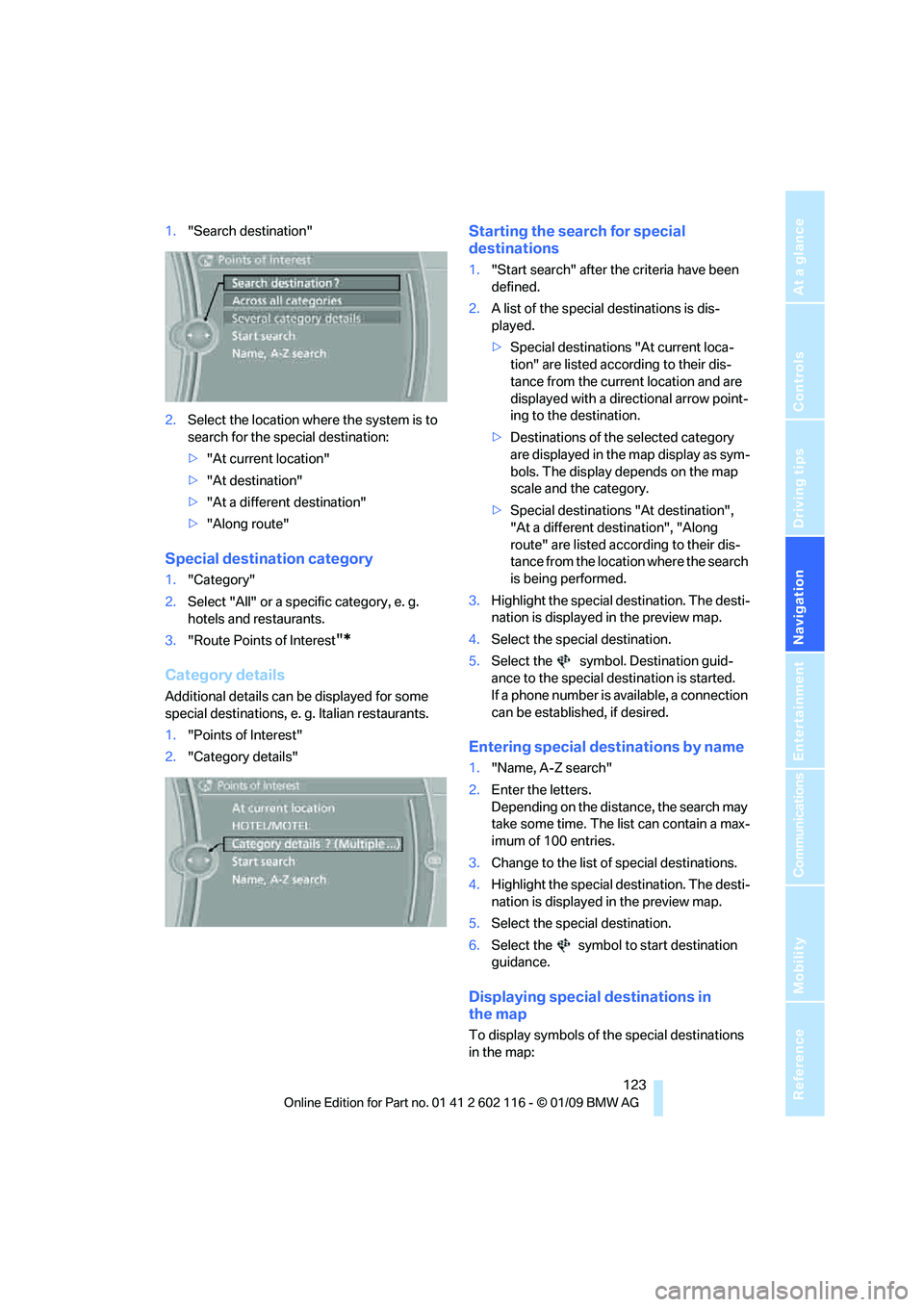
1."Search destination"
2. Select the location where the system is to
search for the special destination:
>"At current location"
> "At destination"
> "At a different destination"
> "Along route"
Special destination category
1. "Category"
2. Select "All" or a spec ific category, e. g.
hotels and restaurants.
3. "Route Points of Interest
"*
Category details
Additional details can be displayed for some
special destinations, e. g. Italian restaurants.
1. "Points of Interest"
2. "Category details"
Starting the search for special
destinations
1."Start search" after the criteria have been
defined.
2. A list of the special destinations is dis-
played.
>Special destinations "At current loca-
tion" are listed according to their dis-
tance from the current location and are
displayed with a directional arrow point-
ing to the destination.
> Destinations of the selected category
are displayed in the map display as sym-
bols. The display depends on the map
scale and the category.
> Special destinations "At destination",
"At a different destination", "Along
route" are listed acco rding to their dis-
tance from the locati on where the search
is being performed.
3. Highlight the special destination. The desti-
nation is displayed in the preview map.
4. Select the special destination.
5. Select the symbol. Destination guid-
ance to the special destination is started.
If a phone number is available, a connection
can be established, if desired.
Entering special destinations by name
1."Name, A-Z search"
2. Enter the letters.
Depending on the distance, the search may
take some time. The list can contain a max-
imum of 100 entries.
3. Change to the list of special destinations.
4. Highlight the special destination. The desti-
nation is displayed in the preview map.
5. Select the special destination.
6. Select the symbol to start destination
guidance.
Displaying special destinations in
the map
To display symbols of the special destinations
in the map:
Page 126 of 248
Destination entry
124
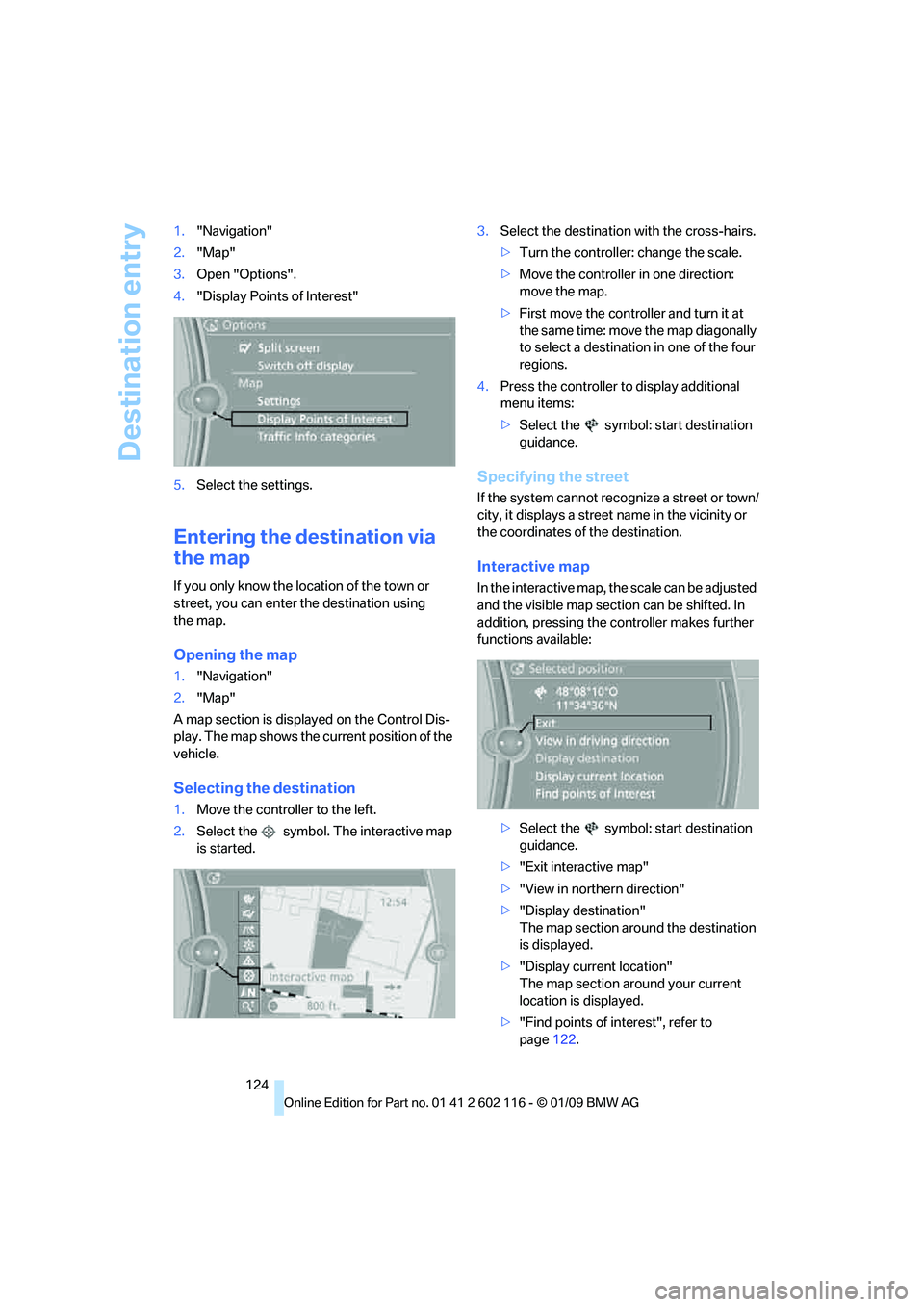
1.
"Navigation"
2. "Map"
3. Open "Options".
4. "Display Points of Interest"
5. Select the settings.
Entering the destination via
the map
If you only know the lo cation of the town or
street, you can enter the destination using
the map.
Opening the map
1. "Navigation"
2. "Map"
A map section is displa yed on the Control Dis-
play. The map shows the cu rrent position of the
vehicle.
Selecting the destination
1. Move the controller to the left.
2. Select the symbol. The interactive map
is started. 3.
Select the destination with the cross-hairs.
>Turn the controller: change the scale.
> Move the controller in one direction:
move the map.
> First move the controller and turn it at
the same time: move the map diagonally
to select a destination in one of the four
regions.
4. Press the controller to display additional
menu items:
>Select the symbol: start destination
guidance.
Specifying the street
If the system cannot recognize a street or town/
city, it displays a street name in the vicinity or
the coordinates of the destination.
Interactive map
In the interactive map, th e scale can be adjusted
and the visible map section can be shifted. In
addition, pressing the controller makes further
functions available:
>Select the symbol: start destination
guidance.
> "Exit interactive map"
> "View in northern direction"
> "Display destination"
The map section around the destination
is displayed.
> "Display current location"
The map section around your current
location is displayed.
> "Find points of interest", refer to
page 122.