display BMW Z4 SDRIVE30I 2009 Repair Manual
[x] Cancel search | Manufacturer: BMW, Model Year: 2009, Model line: Z4 SDRIVE30I, Model: BMW Z4 SDRIVE30I 2009Pages: 248, PDF Size: 7.63 MB
Page 127 of 248
Navigation
Driving tips
125Reference
At a glance
Controls
Communications
Entertainment
Mobility
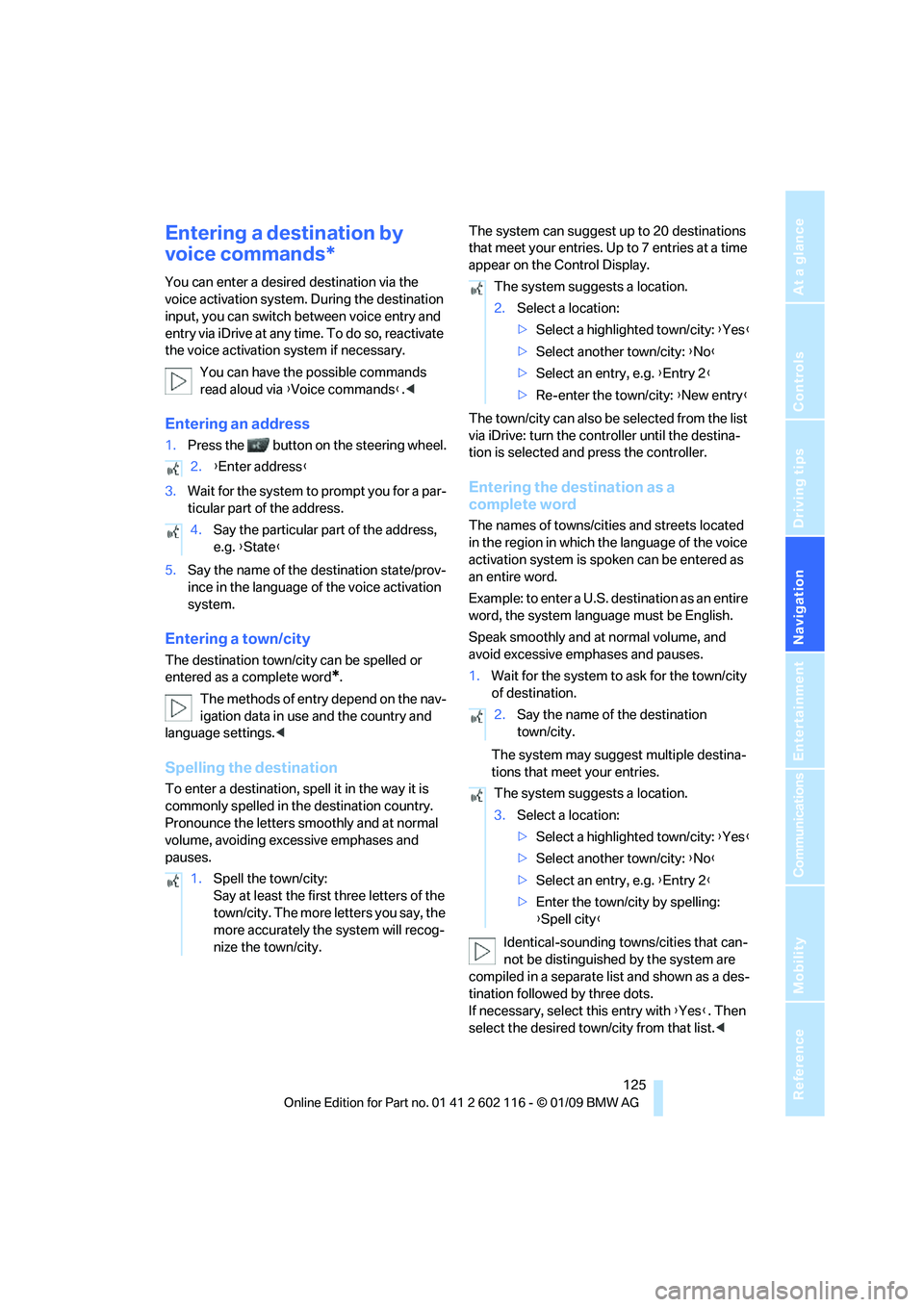
Entering a destination by
voice commands*
You can enter a desired destination via the
voice activation system. During the destination
input, you can switch between voice entry and
entry via iDrive at any ti me. To do so, reactivate
the voice activation system if necessary.
You can have the possible commands
read aloud via {Voice commands }.<
Entering an address
1. Press the button on the steering wheel.
3. Wait for the system to prompt you for a par-
ticular part of the address.
5. Say the name of the destination state/prov-
ince in the language of the voice activation
system.
Entering a town/city
The destination town/cit y can be spelled or
entered as a complete word
*.
The methods of entry depend on the nav-
igation data in use and the country and
language settings. <
Spelling the destination
To enter a destination, sp ell it in the way it is
commonly spelled in the destination country.
Pronounce the letters smoothly and at normal
volume, avoiding excessive emphases and
pauses. The system can suggest up to 20 destinations
that meet your entries. Up to 7 entries at a time
appear on the Control Display.
The town/city can also be
selected from the list
via iDrive: turn the controller until the destina-
tion is selected and press the controller.
Entering the destination as a
complete word
The names of towns/cities and streets located
in the region in which th e language of the voice
activation system is spoken can be entered as
an entire word.
Example: to enter a U.S. destination as an entire
word, the system language must be English.
Speak smoothly and at normal volume, and
avoid excessive emphases and pauses.
1. Wait for the system to ask for the town/city
of destination.
The system may suggest multiple destina-
tions that meet your entries.
Identical-sounding towns/cities that can-
not be distinguished by the system are
compiled in a separate list and shown as a des-
tination followed by three dots.
If necessary, select this entry with {Yes }. Then
select the desired tow n/city from that list.<
2.
{Enter address }
4. Say the particular part of the address,
e.g. {State }
1. Spell the town/city:
Say at least the first three letters of the
town/city. The more letters you say, the
more accurately th e system will recog-
nize the town/city.
The system suggests a location.
2. Select a location:
>Select a highlighted town/city: {Yes }
> Select another town/city: {No }
> Select an entry, e.g. {Entry 2 }
> Re-enter the town/city: {New entry }
2. Say the name of the destination
town/city.
The system suggests a location.
3. Select a location:
>Select a highlighted town/city: {Yes }
> Select another town/city: {No }
> Select an entry, e.g. {Entry 2 }
> Enter the town/city by spelling:
{Spell city }
Page 128 of 248
Destination entry
126
Entering street and house number
The street is entered in the same way as the
destination town/city.
To enter the house number:
Starting destination guidance
Destination guidance starts immediately.
Storing destinations
The destination is added to the destination list
and is displayed in the list of last destinations.
Trip planner
The trip planner can be us ed to plan a trip with
several legs to diffe rent destinations.
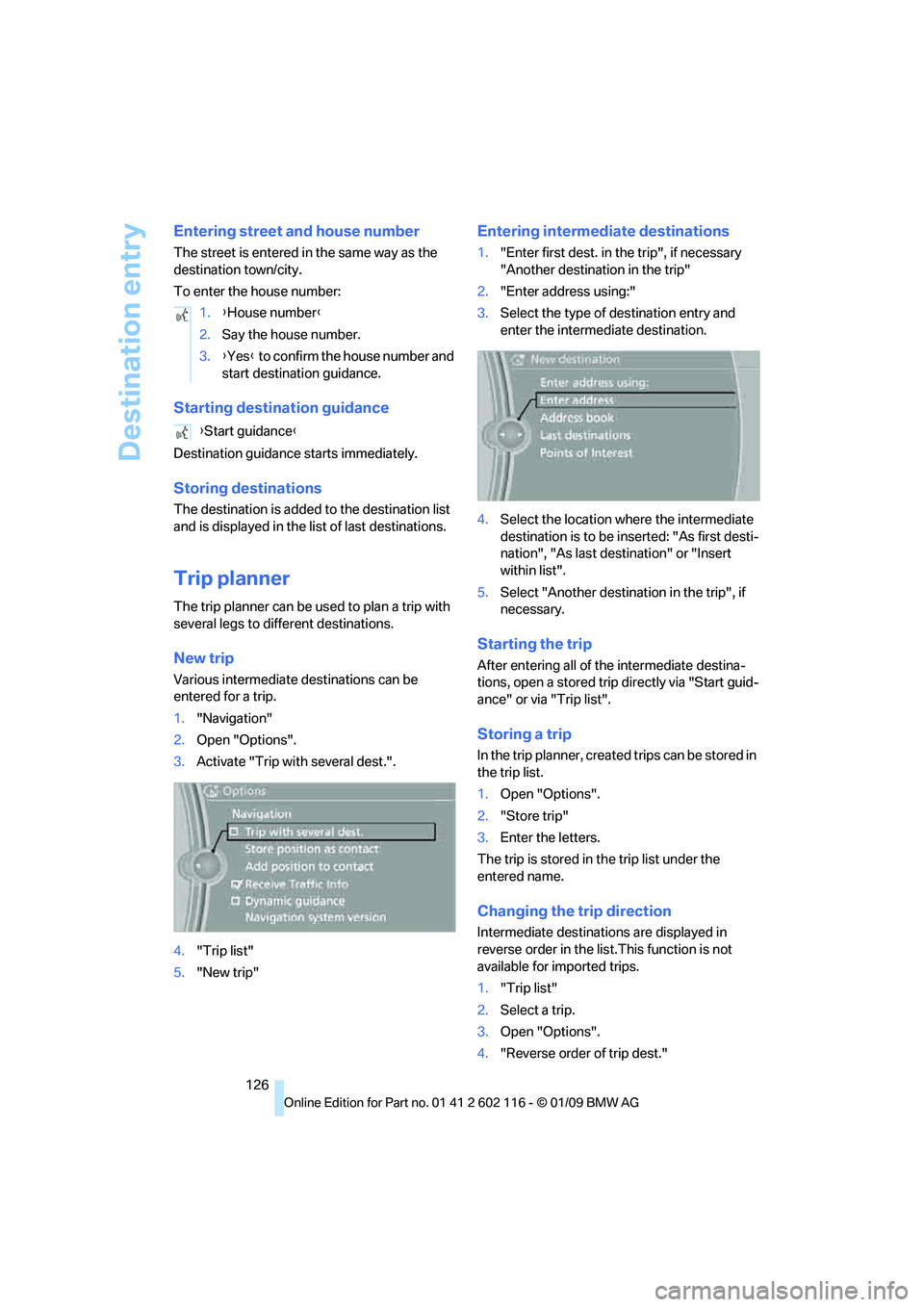
New trip
Various intermediate destinations can be
entered for a trip.
1. "Navigation"
2. Open "Options".
3. Activate "Trip with several dest.".
4. "Trip list"
5. "New trip"
Entering intermediate destinations
1."Enter first dest. in the trip", if necessary
"Another destination in the trip"
2. "Enter address using:"
3. Select the type of destination entry and
enter the intermed iate destination.
4. Select the location where the intermediate
destination is to be inserted: "As first desti-
nation", "As last destination" or "Insert
within list".
5. Select "Another destinat ion in the trip", if
necessary.
Starting the trip
After entering all of th e intermediate destina-
tions, open a stored trip directly via "Start guid-
ance" or via "Trip list".
Storing a trip
In the trip planner, create d trips can be stored in
the trip list.
1. Open "Options".
2. "Store trip"
3. Enter the letters.
The trip is stored in the trip list under the
entered name.
Changing the trip direction
Intermediate destinatio ns are displayed in
reverse order in the list.This function is not
available for imported trips.
1. "Trip list"
2. Select a trip.
3. Open "Options".
4. "Reverse order of trip dest."
1.
{House number }
2. Say the house number.
3. {Yes } to confirm the house number and
start destination guidance.
{ Start guidance }
Page 130 of 248
Destination guidance
128
Destination guidance
Starting destination
guidance
1."Navigation"
2. "Enter address"
3. Select the destination.
4. "Start guidance"
After the route is calculated, the route is dis-
played in the map on the Control Display.
Terminating destination
guidance
1. "Navigation"
2. "Map"
3. Select the symbol
Continuing destination
guidance
If the destination was no t reached at the end of
the last trip, the system asks whether it should
continue destination guidance.
Select "Resume guidance" or "Stop guidance".
Route criteria
General information
You can influence the calculated route by
choosing certain route criteria. You can change
the route criteria as often as you like during des-
tination entry or during destination guidance.
The route is planned acco rding to fixed rules.
The type of road is ta ken into account, e.g.
whether it is a highway or a winding road. As a
result, the routes recommended by the naviga-
tion system may not always be the same ones
that you would choose based on personal
experience. The settings are stored
for the remote control
currently in use.
Changing route criteria
1. "Navigation"
2. "Map"
3. "Route preference"
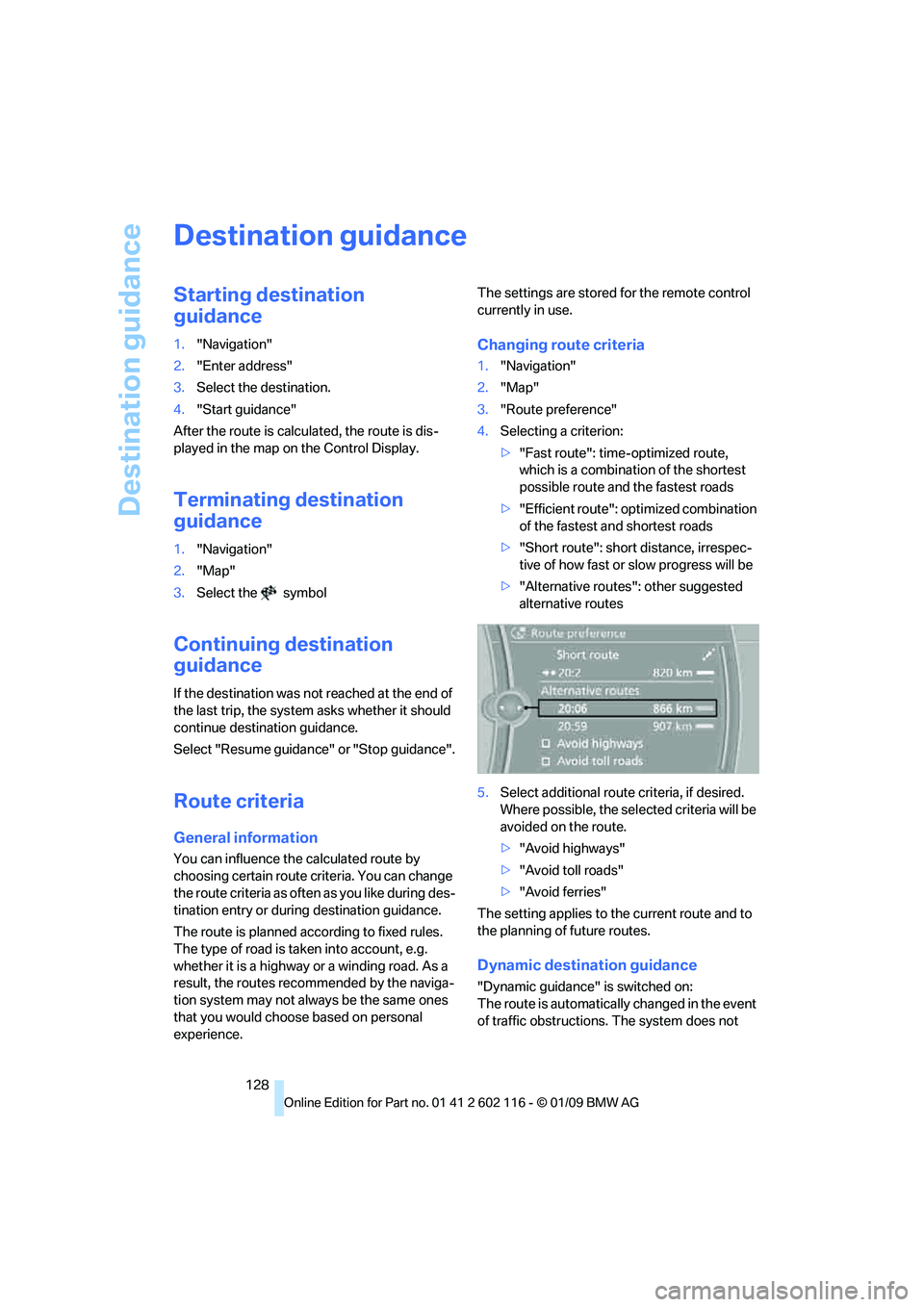
4. Selecting a criterion:
>"Fast route": time-optimized route,
which is a combination of the shortest
possible route and the fastest roads
> "Efficient route": optimized combination
of the fastest and shortest roads
> "Short route": short distance, irrespec-
tive of how fast or slow progress will be
> "Alternative routes": other suggested
alternative routes
5. Select additional route criteria, if desired.
Where possible, the sele cted criteria will be
avoided on the route.
> "Avoid highways"
> "Avoid toll roads"
> "Avoid ferries"
The setting applies to th e current route and to
the planning of future routes.
Dynamic destination guidance
"Dynamic guidance" is switched on:
The route is automatically changed in the event
of traffic obstructions. The system does not
Page 131 of 248
Navigation
Driving tips
129Reference
At a glance
Controls
Communications
Entertainment
Mobility
point out traffic obstructions along the original
route.
Depending on the type of road and the nature
and length of the traffic obstruction, the route
can also be calculated so that you travel
through the traffic obstruction.
1. "Navigation"
2. Open "Options".
3. "Dynamic guidance"
If the "Avoid highways", "Avoid toll roads"
or "Avoid ferries" route criteria are
selected, route calculation may take consider-
ably longer. <
Route
General information
Depending on the equipment in your vehicle,
different views of the route are available during
destination guidance.
>Map display
> Arrow display
> Displaying towns/cities and streets along
the route
Displaying a list of the streets or
towns/cities on the route
When destination guidance is started, a list of
the streets and towns/cities on the route is dis-
played. The driving distances and traffic bulle-
tins are displayed for each route section.
>Display a list of the streets and towns/cities
on the route.
> Display the traffic bulletins and the driving
distance for each route section.
1. "Navigation"
2. "Route information"
3. Highlight a section.
The section is displaye d in the preview map.
Bypassing a section of the route
During destination guidan ce, you can revise the
navigation system's ro ute recommendations to avoid particular stretches of road. Enter the
number of miles/kilomete
rs that you want to
travel before returning to the original route.
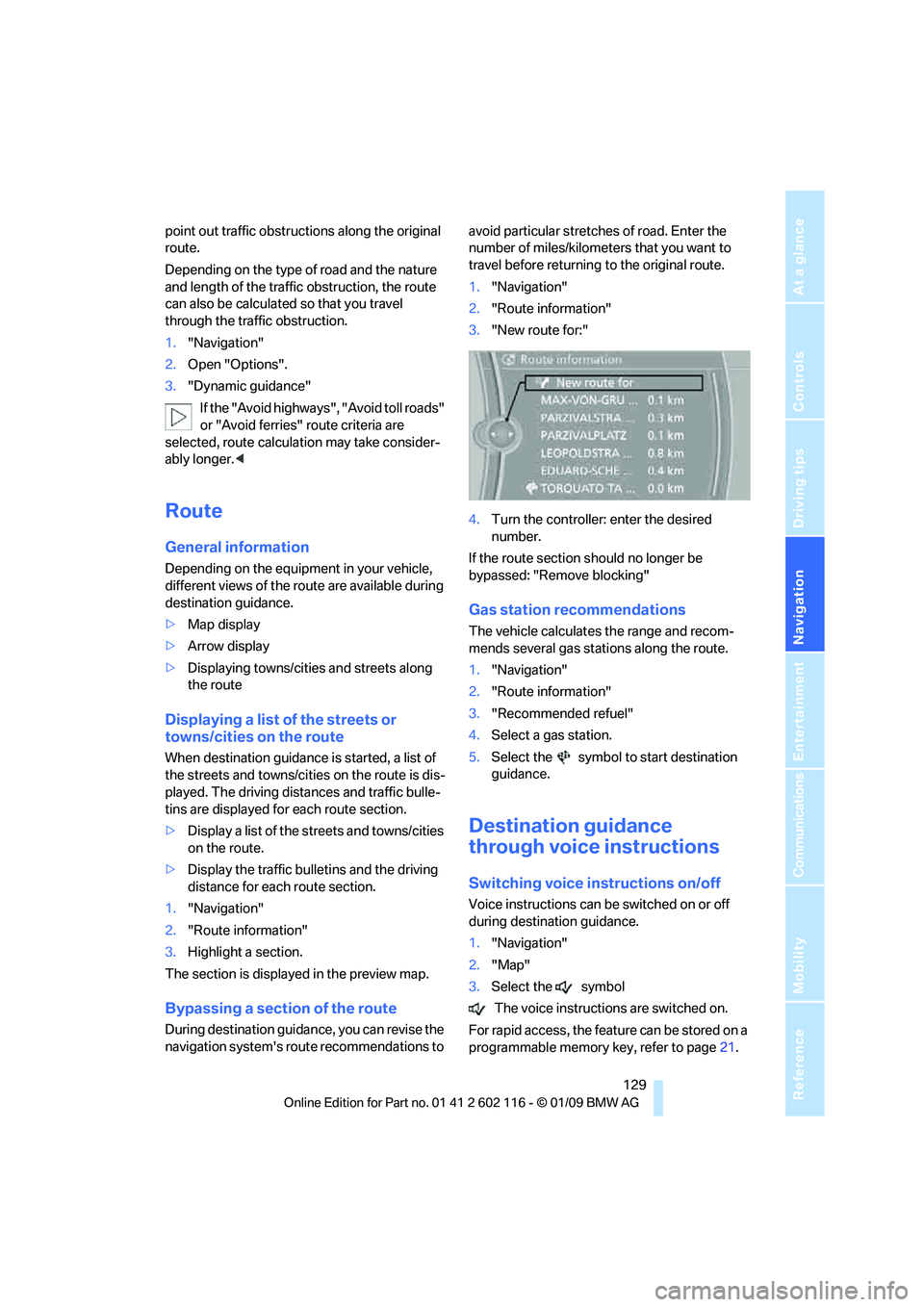
1. "Navigation"
2. "Route information"
3. "New route for:"
4. Turn the controller: enter the desired
number.
If the route section sh ould no longer be
bypassed: "Remove blocking"
Gas station recommendations
The vehicle calculates the range and recom-
mends several gas stations along the route.
1. "Navigation"
2. "Route information"
3. "Recommended refuel"
4. Select a gas station.
5. Select the symbol to start destination
guidance.
Destination guidance
through voice instructions
Switching voice in structions on/off
Voice instructions can be switched on or off
during destination guidance.
1."Navigation"
2. "Map"
3. Select the symbol
The voice instructions are switched on.
For rapid access, the feat ure can be stored on a
programmable memory key, refer to page21.
Page 132 of 248
Destination guidance
130
Repeating a voice instruction
1."Navigation"
2. "Map"
3. Select the symbol twice.
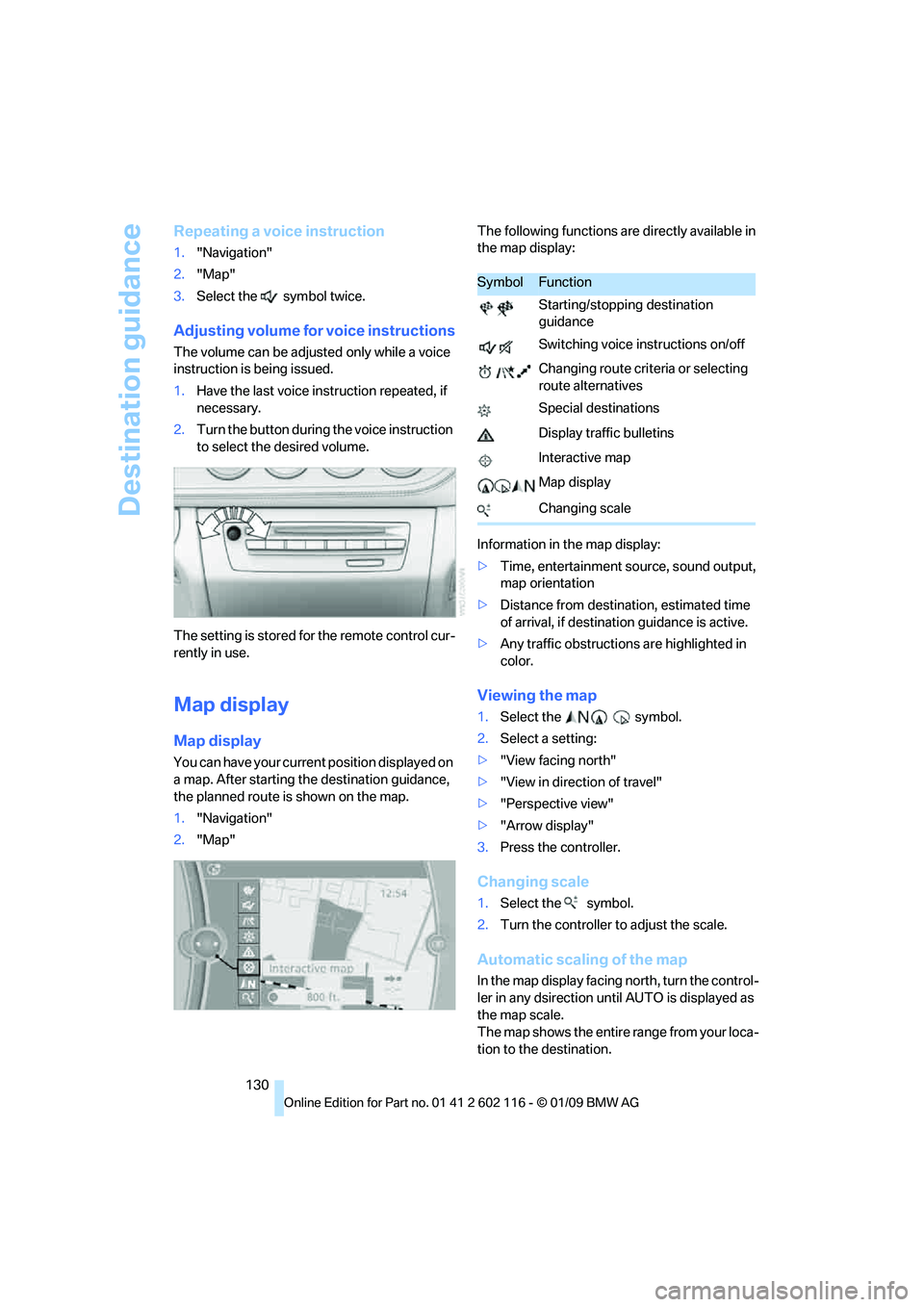
Adjusting volume for voice instructions
The volume can be adjust ed only while a voice
instruction is being issued.
1. Have the last voice in struction repeated, if
necessary.
2. Turn the button during the voice instruction
to select the desired volume.
The setting is stored fo r the remote control cur-
rently in use.
Map display
Map display
You can have your current position displayed on
a map. After starting th e destination guidance,
the planned route is shown on the map.
1. "Navigation"
2. "Map" The following functions ar
e directly available in
the map display:
Information in the map display:
> Time, entertainment so urce, sound output,
map orientation
> Distance from destination, estimated time
of arrival, if destination guidance is active.
> Any traffic obstructions are highlighted in
color.
Viewing the map
1.Select the symbol.
2. Select a setting:
> "View facing north"
> "View in direction of travel"
> "Perspective view"
> "Arrow display"
3. Press the controller.
Changing scale
1.Select the symbol.
2. Turn the controller to adjust the scale.
Automatic scaling of the map
In the map display facing north, turn the control-
ler in any dsirection until AUTO is displayed as
the map scale.
The map shows the entire range from your loca-
tion to the destination.
SymbolFunction
Starting/stopping destination
guidance
Switching voice instructions on/off
Changing route criteria or selecting
route alternatives
Special destinations
Display traffic bulletins
Interactive map
Map display
Changing scale
Page 133 of 248
Navigation
Driving tips
131Reference
At a glance
Controls
Communications
Entertainment
Mobility
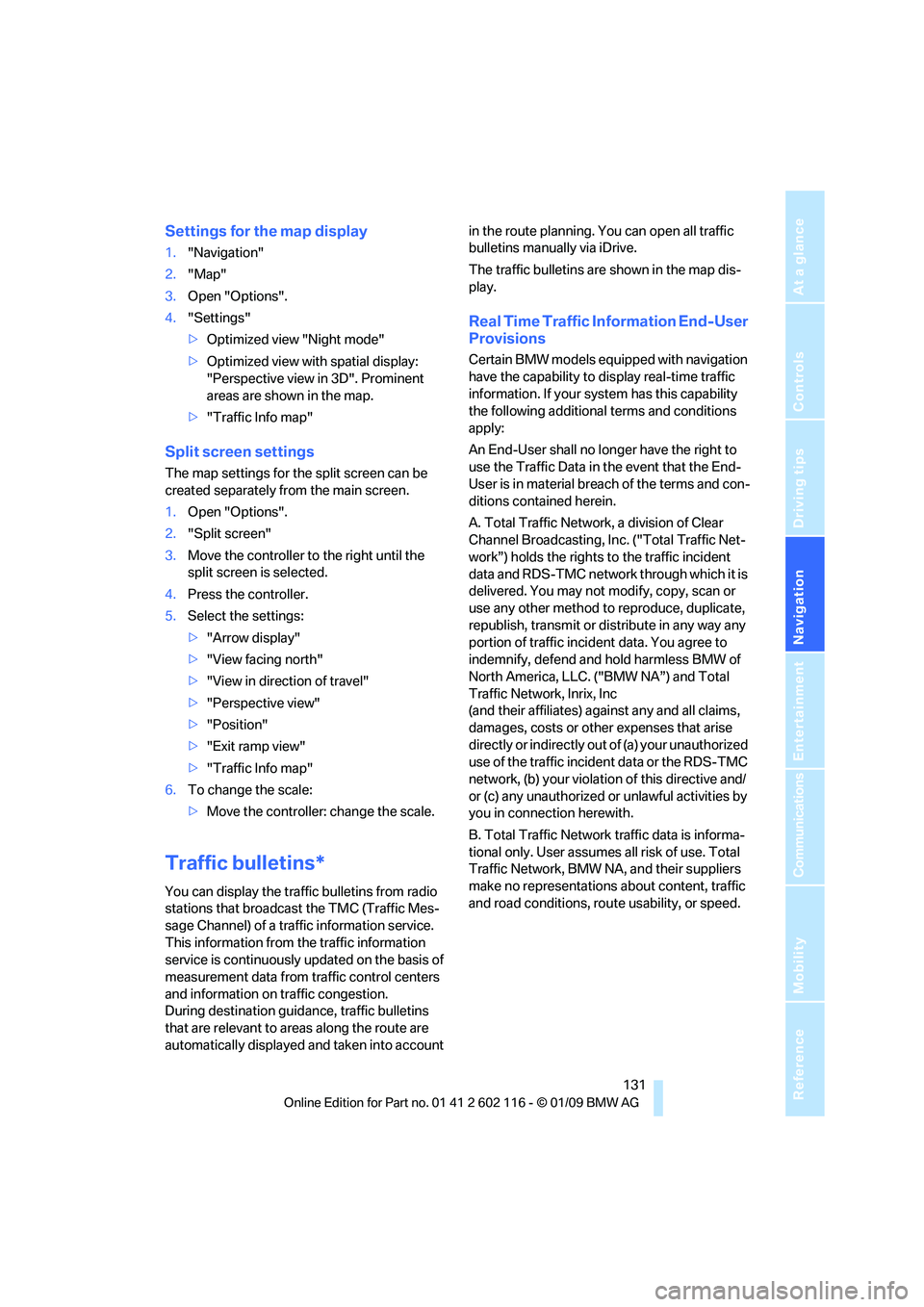
Settings for the map display
1."Navigation"
2. "Map"
3. Open "Options".
4. "Settings"
>Optimized view "Night mode"
> Optimized view with spatial display:
"Perspective view in 3D". Prominent
areas are shown in the map.
> "Traffic Info map"
Split screen settings
The map settings for the split screen can be
created separately fr om the main screen.
1. Open "Options".
2. "Split screen"
3. Move the controller to the right until the
split screen is selected.
4. Press the controller.
5. Select the settings:
>"Arrow display"
> "View facing north"
> "View in direction of travel"
> "Perspective view"
> "Position"
> "Exit ramp view"
> "Traffic Info map"
6. To change the scale:
>Move the controller: change the scale.
Traffic bulletins*
You can display the traffic bulletins from radio
stations that broadcast the TMC (Traffic Mes-
sage Channel) of a traffic information service.
This information from the traffic information
service is continuously updated on the basis of
measurement data from traffic control centers
and information on traffic congestion.
During destination guid ance, traffic bulletins
that are relevant to areas along the route are
automatically displayed and taken into account in the route planning. You can open all traffic
bulletins manually via iDrive.
The traffic bulletins are shown in the map dis-
play.
Real Time Traffic In
formation End-User
Provisions
Certain BMW models equipped with navigation
have the capability to di splay real-time traffic
information. If your system has this capability
the following additional terms and conditions
apply:
An End-User shall no longer have the right to
use the Traffic Data in the event that the End-
User is in material breach of the terms and con-
ditions contained herein.
A. Total Traffic Network, a division of Clear
Channel Broadcasting, In c. ("Total Traffic Net-
work”) holds the rights to the traffic incident
data and RDS-TMC networ k through which it is
delivered. You may not modify, copy, scan or
use any other method to reproduce, duplicate,
republish, transmit or distribute in any way any
portion of traffic incide nt data. You agree to
indemnify, defend and hold harmless BMW of
North America, LLC. ("BMW NA”) and Total
Traffic Network, Inrix, Inc
(and their affiliates) ag ainst any and all claims,
damages, costs or other expenses that arise
directly or indirectly out of (a) your unauthorized
use of the traffic incident data or the RDS-TMC
network, (b) your violatio n of this directive and/
or (c) any unauthorized or unlawful activities by
you in connection herewith.
B. Total Traffic Network traffic data is informa-
tional only. User assumes all risk of use. Total
Traffic Network, BMW NA, and their suppliers
make no representations about content, traffic
and road conditions, route usability, or speed.
Page 134 of 248
Destination guidance
132
C. The licensed material is provided to licensee
"as is,” and "where is”. Total Traffic Network,
including, but not limited
to, any and all third
party providers of any of the licensed material,
expressly disclaims, to the fullest extent permit-
ted by law, all warranti es or representations
with respect to the licen sed material (including,
without limitation, that the licensed material will
be error-free, will oper ate without interruption
or that the traffic data w ill be accurate), express,
implied or statutory, including, without limita-
tion, the implied warranti es of merchantability,
non-infringement fitnes s for a particular pur-
pose, or those arising from a course of dealing
or usage of trade.
D. Neither Total Traffic Network, Inrix, Inc. or
BMW NA will be liable to you for any indirect,
special, consequential, exemplary, or incidental
damages (including, without limitation, lost rev-
enues, anticipated revenu es, or profits relating
to the same) arising from any claim relating
directly or indirectly to use of the traffic data,
and even if Total Traffic Network, Inrix, Inc., or
BMW NA are aware of the possibility of such
damages. These limitations apply to all claims,
including, without limitation, claims in contract
and tort (such as negligence, product liability
and strict liability). Some states do not allow the
exclusion or limitation of incidental or conse-
quential damages, so those particular limita-
tions may not apply to you.
Activating/deactivating reception
1. "Navigation"
2. Open "Options".
3. "Receive Traffic Info"
In many metropolitan areas you can receive
traffic information broadcast by radio stations.
The traffic conditions are monitored by traffic
control centers and the traffic information is
updated periodically.
During destination guid ance, the traffic bulle-
tins relevant to your planned route are automat-
ically shown. Whether de stination guidance is
active or not, you can ha ve the traffic bulletins
displayed in the map view or in the traffic bulle-
tin list.
Traffic bulletins in a list
A list of the traffic bulle tins can be opened via
the menu or map display.
Opening the traffic bulletins
1. "Navigation"
2. "Traffic Info"
First, the traffic bulle tins on the planned
route are displayed. The traffic bulletins are
sorted in the order of their distance from the
current vehicle position.
3. Select a traffic bulletin.
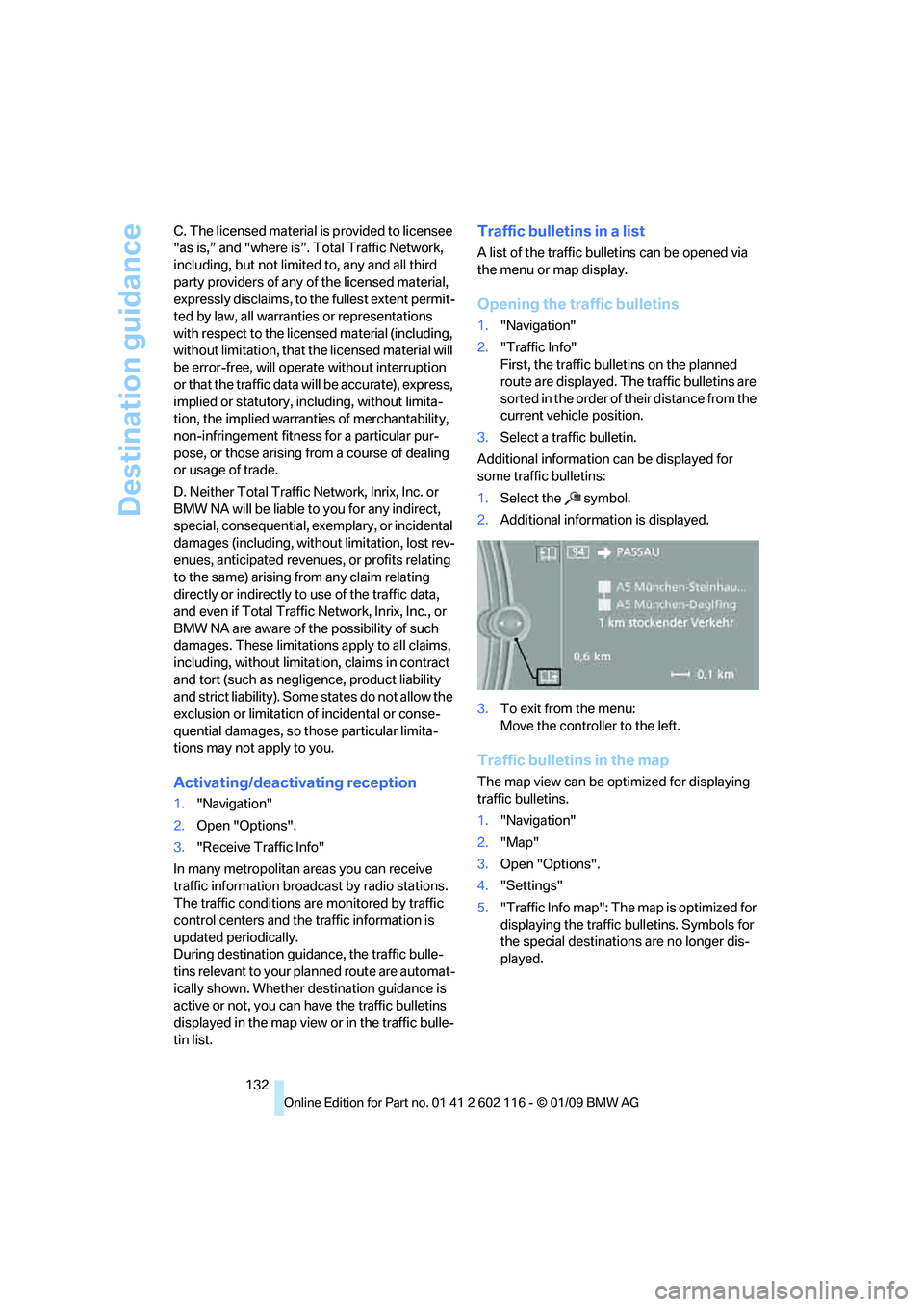
Additional information can be displayed for
some traffic bulletins:
1. Select the symbol.
2. Additional information is displayed.
3. To exit from the menu:
Move the controller to the left.
Traffic bulletins in the map
The map view can be optimized for displaying
traffic bulletins.
1."Navigation"
2. "Map"
3. Open "Options".
4. "Settings"
5. "Traffic Info map": The map is optimized for
displaying the traffic bulletins. Symbols for
the special destinations are no longer dis-
played.
Page 135 of 248
Navigation
Driving tips
133Reference
At a glance
Controls
Communications
Entertainment
Mobility
Symbols in the map display
The appearance of the symbols indicating a
traffic obstruction depends on the scale and the
position of the traffic obstruction relative to the
route.
> Smaller map scale, e.g. 1 mile/2 km: white
sign with the traffic obstruction symbol
> Larger map scale, e.g. 50 miles/100 km:
white sign with an arrow in the relevant
direction
Additional information in the traffic
bulletin map
When using a smaller map scale, the traffic
obstructions are displayed as bars at the edge
of the calculated route.
>Red: traffic congestion
> Orange: stop-and-go traffic
> Brown: traffic congestion in opposite
direction
Filtering of traffic bulletins
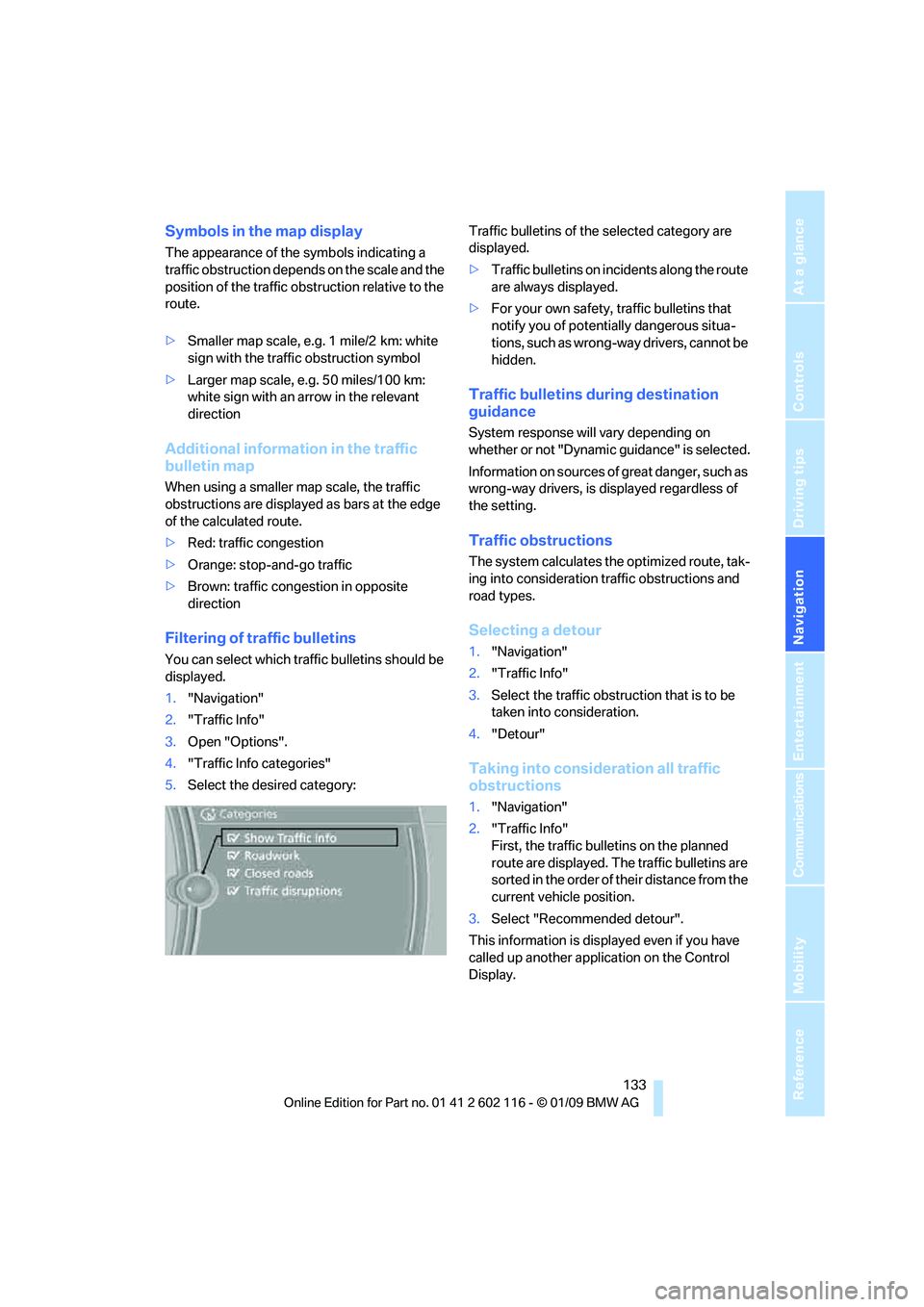
You can select which tra ffic bulletins should be
displayed.
1. "Navigation"
2. "Traffic Info"
3. Open "Options".
4. "Traffic Info categories"
5. Select the desired category: Traffic bulletins of the selected category are
displayed.
>
Traffic bulletins on incidents along the route
are always displayed.
> For your own safety, traffic bulletins that
notify you of potentially dangerous situa-
tions, such as wrong- way drivers, cannot be
hidden.
Traffic bulletins during destination
guidance
System response will vary depending on
whether or not "Dynamic guidance" is selected.
Information on sources of great danger, such as
wrong-way drivers, is displayed regardless of
the setting.
Traffic obstructions
The system calculates the optimized route, tak-
ing into consideration traffic obstructions and
road types.
Selecting a detour
1. "Navigation"
2. "Traffic Info"
3. Select the traffic obstruction that is to be
taken into consideration.
4. "Detour"
Taking into consideration all traffic
obstructions
1."Navigation"
2. "Traffic Info"
First, the traffic bulletins on the planned
route are displayed. The traffic bulletins are
sorted in the order of their distance from the
current vehicle position.
3. Select "Recommended detour".
This information is displayed even if you have
called up another application on the Control
Display.
Page 136 of 248
What to do if …
134
What to do if …
What to do if …
>The current position cannot be displayed?
The position is in an unrecognized region, in
a poor reception area, or the system is in the
process of determining the position.
Reception is generally available when you
are in the open.
> Destination guidance does not accept an
address without the street name?
A downtown area cannot be determined for
the town or city that has been entered. Input
any street in the selected town/city and
start destination guidance.
> The destination guidance does not accept a
destination?
The destination data is not contained in the
navigation data. Choose a destination as
close as possible to the original one.
> The letters for a destination cannot be
selected during destination entry?
The stored data do not contain the data of
the destination. Select a destination that is
as close as possible to the original.
> Voice instructions are no longer issued
before intersections during destination
guidance?
The area has not yet been fully recorded, or
you have left the recommended route and
the system requires a few seconds to calcu-
late a new route suggestion.
Page 140 of 248
On/off and tone
138
On/off and tone
The following audio and video sources share
the same control elements and adjustments:
>Radio
> CD/DVD player
> CD/DVD changer
*
>Video
> External devices, e.g. MP3 player
Controls
The audio and video sources can be controlled
using the:
>Buttons near th e CD/DVD player
> iDrive
> Buttons on the steeri ng wheel, refer to
page 11
> Programmable memory keys, refer to
page 21
> Voice activation system
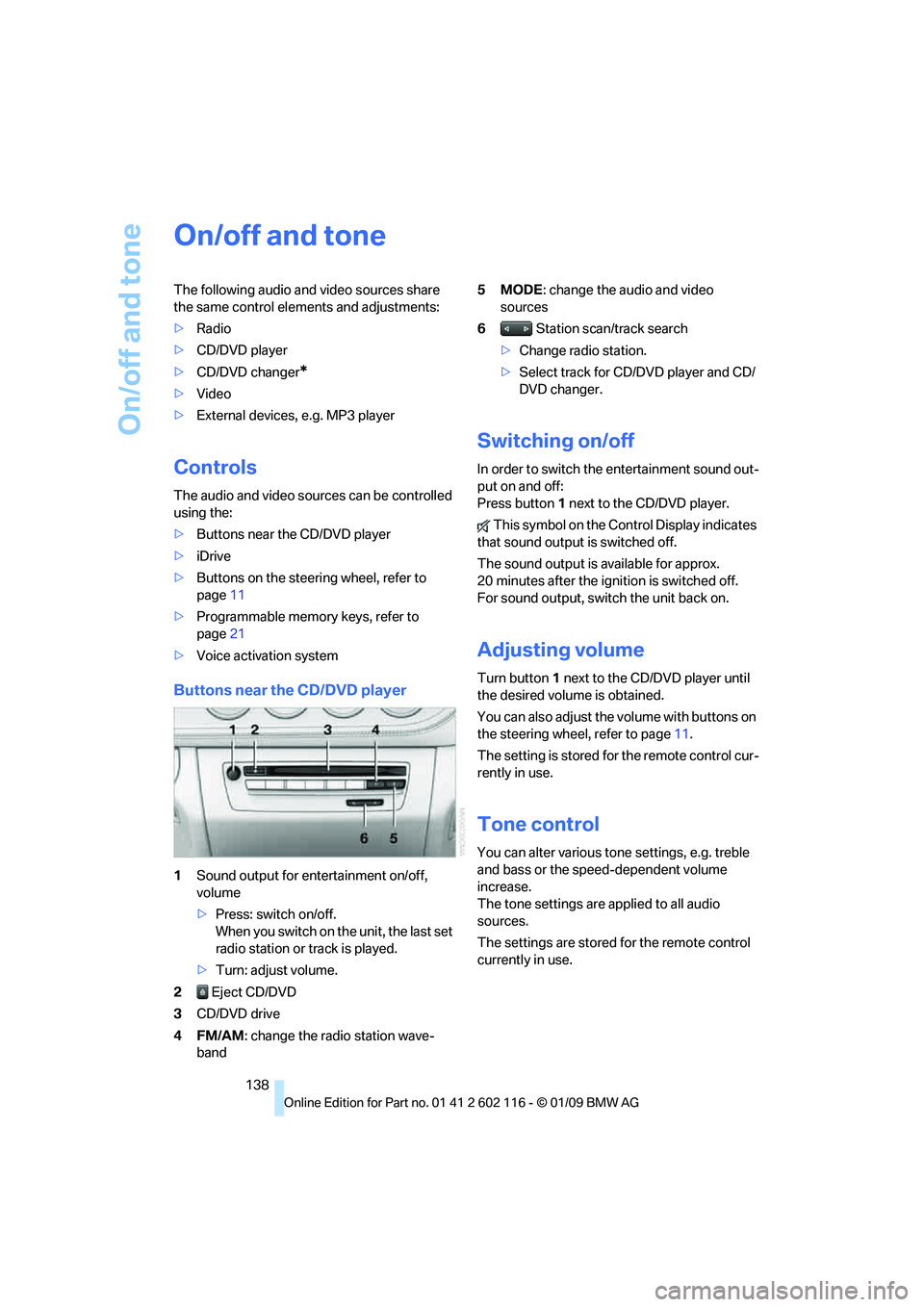
Buttons near the CD/DVD player
1Sound output for entertainment on/off,
volume
>Press: switch on/off.
When you switch on the unit, the last set
radio station or track is played.
> Turn: adjust volume.
2 Eject CD/DVD
3 CD/DVD drive
4FM/AM : change the radio station wave-
band 5MODE
: change the audio and video
sources
6 Station scan/track search
> Change radio station.
> Select track for CD/DVD player and CD/
DVD changer.
Switching on/off
In order to switch the entertainment sound out-
put on and off:
Press button 1 next to the CD/DVD player.
This symbol on the Control Display indicates
that sound output is switched off.
The sound output is available for approx.
20 minutes after the igni tion is switched off.
For sound output, switch the unit back on.
Adjusting volume
Turn button 1 next to the CD/DVD player until
the desired volume is obtained.
You can also adjust the volume with buttons on
the steering wheel, refer to page 11.
The setting is stored fo r the remote control cur-
rently in use.
Tone control
You can alter various tone settings, e.g. treble
and bass or the speed-dependent volume
increase.
The tone settings are applied to all audio
sources.
The settings are stored for the remote control
currently in use.