Messages BMW Z4 SDRIVE35IS 2014 User Guide
[x] Cancel search | Manufacturer: BMW, Model Year: 2014, Model line: Z4 SDRIVE35IS, Model: BMW Z4 SDRIVE35IS 2014Pages: 285, PDF Size: 7.21 MB
Page 210 of 285
Sym‐
bolFunction "Select phone number"
If the message contains more than
one number, select the desired
number from the list. The connec‐
tion is established. "Further information"
Display additional information.
E-mail
Displaying e-mails
1."Office"2."Messages"3.Select the desired e-mail.
Displaying e-mail contacts
If the sender and recipient of an e-mail are
transmitted by the mobile phone, this informa‐
tion is displayed in the e-mail.
"Sender/Recipient"
If the e-mail addresses are stored in the con‐
tacts, the contact is displayed. Select the con‐
tact to display details.
If the e-mail addresses are not stored in the
contacts, only the e-mail address is displayed.
Using contact data Contact data from appointments, tasks, text
messages, e-mails, and notes can be saved or
selected, refer to page 212.
Deactivating the full display
When an e-mail is opened in the vehicle, the e-
mail is fully transmitted to the vehicle. This
may result in charges.
1."Office"2."Messages"3.Open "Options".4."Fully download e-mails"
Only a part of the e-mail from the mobile
phone is loaded into the vehicle.
Reading the e-mail out loud
Read the e-mail out loud, refer to page 212.
Calendar
Display the calendar Appointments during the last 20 days and the
next 50 days can be displayed.
1."Office"2."Calendar"
The appointments on the current day are
displayed.
Selecting the calendar day
1.Select the date.2.Select the desired day or date.▷"Next day"▷"Date:"▷"Previous day"▷"Today"
Display the appointment
1.Select the desired appointment.2.Scroll through the appointment if neces‐
sary:▷Turn the controller.Seite 210CommunicationOffice210
Online Edition for Part no. 01 40 2 911 315 - VI/13
Page 211 of 285
▷ Select the symbol.
Using contact data
Contact data from appointments, tasks, text
messages, e-mails, and notes can be saved or
selected, refer to page 212.
Reading the appointment out loud Read the appointment out loud, refer to
page 212.
Tasks Displaying the task list
Display tasks that are due within the next
90 days.
1."Office"2."Tasks"
Sorting the task list
1.Select the header in the task list.2.Select the sorting criterion:▷"Priority (!)"▷"Subject"▷"Due date"
Displaying the task
1.Select the desired task.2.Scroll in the task if necessary:▷Turn the controller.▷ Select the symbol.Using contact data
Contact data from appointments, tasks, text
messages, e-mails, and notes can be saved or
selected, refer to page 212.
Reading the task out loud Read the task out loud, refer to page 212.
Notes
Displaying notes1."Office"2."Notes"
All notes are displayed.
Displaying the note
1.Select the desired note.2.Scroll in the note if necessary:▷Turn the controller.▷ Select the symbol.
Using contact data
Contact data from appointments, tasks, text
messages, e-mails, and notes can be saved or
selected, refer to page 212.
Reading the note out loud Read the note out loud, refer to page 212.
Seite 211OfficeCommunication211
Online Edition for Part no. 01 40 2 911 315 - VI/13
Page 212 of 285
Reminders
Displaying reminders
Reminders of pending appointments and tasks
are displayed. After an appointment or after a
task is due, the reminder is no longer dis‐
played.1."Office"2."Reminders"3.Select the desired reminder.
The corresponding appointment or the task
are displayed.
Using contact data
At a glance Contact data from appointments, tasks, text
messages, emails, and notes can be stored or
selected.
Displaying contact or selecting phone number
1. "Use contact data"2.Display the contact or select the phone
number:▷Select the contact to display contact
details.▷Select the phone number to establish a
connection directly.
Storing contact data
1. "Use contact data"2.Highlight the phone number or e-mail ad‐
dress.3.Open "Options".4."Add to existing contact" or "Store as new
contact"Reading out loud
Text messages, e-mails, appointment entries,
tasks, and notes can be read out loud.1.Select the desired message, appointment,
task, or note.2. Select the symbol.
The following options are available during
reading:
▷ "Pause"
Interrupt reading. Select again to restart
reading.▷ "Back to beginning"
Start reading the message again from the
beginning.▷ Select the symbol.
Go back one paragraph.▷ Select the symbol.
Skip a paragraph.▷To end reading, turn the controller to the
left.
What to do if...
Information on suitable mobile phones, refer to
page 192.
Appointments, tasks, notes, text messages, or
e-mails from the mobile phone are not dis‐
played.
▷The mobile phone is not capable of the
missing function or is not connected cor‐
rectly.▷The Office function is deactivated.▷The mobile phone is connected as an addi‐
tional phone.▷Appointments are older than 20 days or
are more than 50 days in the future.▷The tasks have been marked as completed
or have a due date that lies more than
90 days in the future.Seite 212CommunicationOffice212
Online Edition for Part no. 01 40 2 911 315 - VI/13
Page 213 of 285
▷Depending on the number of stored ap‐
pointments, task notes, and messages in
the mobile phone, not all are displayed in
the vehicle.
Not all appointments and tasks from the mo‐
bile phone are displayed at the right time?
▷The time zone, time, or date is incorrectly
set on the Control Display and mobile
phone.
The e-mail attachment is not displayed.
▷E-mails are transmitted without an attach‐
ment.
Entries are not displayed in full length.
▷Text were already transmitted from the
mobile phone in a shortened form.▷Synchronization between the mobile
phone and vehicle may take several mi‐
nutes.
The contact pictures are not being displayed?
▷Up to 200 contact pictures can be stored in
the vehicle.
The E-mail is displayed with a delay?
▷Check the e-mail settings on the telephone
and adjust if necessary.
If all points in this list have been checked and
the required function is still not available,
please contact the hotline or service center.
Seite 213OfficeCommunication213
Online Edition for Part no. 01 40 2 911 315 - VI/13
Page 217 of 285
ConnectedDriveVehicle equipment
This chapter describes all series equipment as
well as country-specific and special equipment
offered for this model series.Therefore, it also
describes equipment that may not be found in
your vehicle, for instance due to the selected
special equipment or the country version. This
also applies to safety-related functions and
systems.
TeleService
General information
TeleService supports communication with
your service center.▷Data on the vehicle's service requirements
can be sent directly to the service center.
In this way, the service center can plan its
work in advance. This shortens the dura‐
tion of the service appointment.▷In the event of a breakdown, data on the
vehicle's condition can be sent directly to
Roadside Assistance.▷The service varies by country.▷Connection costs may ensue.▷Services may be restricted abroad.
Requirements
Different variants of TeleService may be imple‐
mented in the vehicle. The following condi‐
tions must always be met:
▷Wireless reception is available.▷The ignition is switched on.▷A current ConnectedDrive subscription or
a vehicle equipped with intelligent Emer‐
gency Request.Concierge service
General information The Concierge service offers information on
events, gas stations, and hotels, and provides
phone numbers and addresses. Hotels can be
booked directly using the Concierge service.
The Concierge service is part of the optional
Convenience Plan.
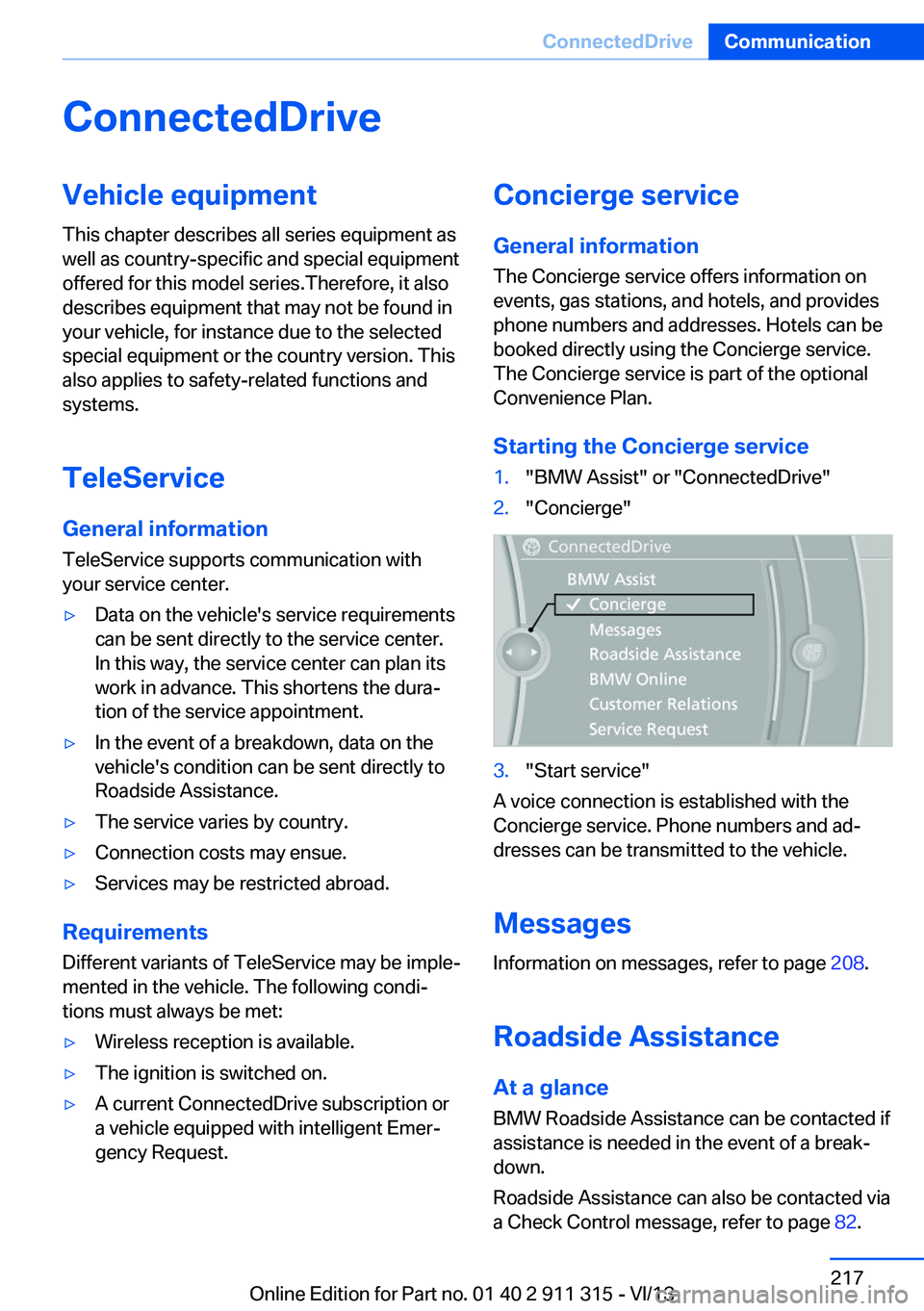
Starting the Concierge service1."BMW Assist" or "ConnectedDrive"2."Concierge"3."Start service"
A voice connection is established with the
Concierge service. Phone numbers and ad‐
dresses can be transmitted to the vehicle.
Messages
Information on messages, refer to page 208.
Roadside Assistance At a glance
BMW Roadside Assistance can be contacted if
assistance is needed in the event of a break‐
down.
Roadside Assistance can also be contacted via
a Check Control message, refer to page 82.
Seite 217ConnectedDriveCommunication217
Online Edition for Part no. 01 40 2 911 315 - VI/13
Page 238 of 285
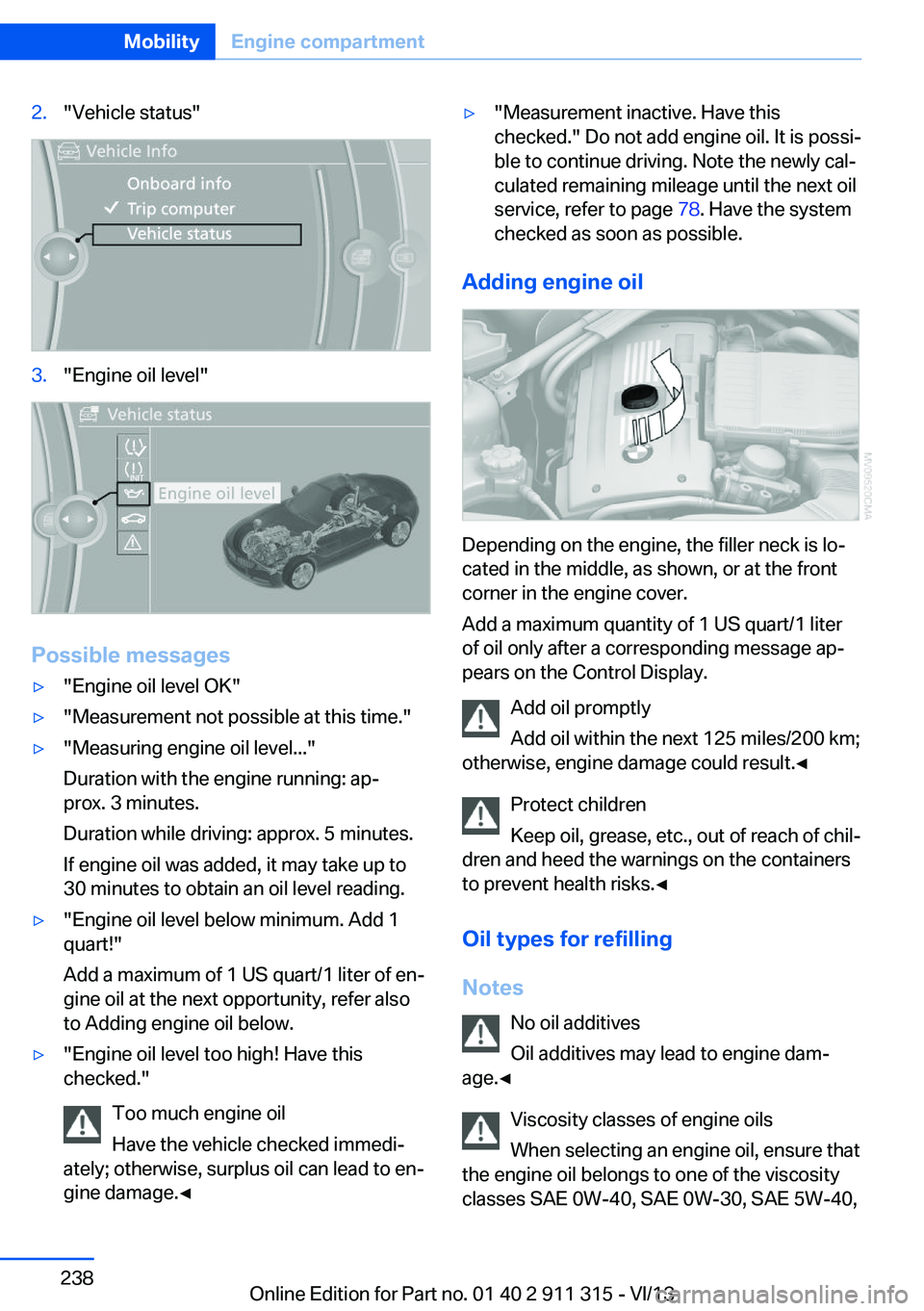
2."Vehicle status"3."Engine oil level"
Possible messages
▷"Engine oil level OK"▷"Measurement not possible at this time."▷"Measuring engine oil level..."
Duration with the engine running: ap‐
prox. 3 minutes.
Duration while driving: approx. 5 minutes.
If engine oil was added, it may take up to
30 minutes to obtain an oil level reading.▷"Engine oil level below minimum. Add 1
quart!"
Add a maximum of 1 US quart/1 liter of en‐
gine oil at the next opportunity, refer also
to Adding engine oil below.▷"Engine oil level too high! Have this
checked."
Too much engine oil
Have the vehicle checked immedi‐
ately; otherwise, surplus oil can lead to en‐
gine damage.◀▷"Measurement inactive. Have this
checked." Do not add engine oil. It is possi‐
ble to continue driving. Note the newly cal‐
culated remaining mileage until the next oil
service, refer to page 78. Have the system
checked as soon as possible.
Adding engine oil
Depending on the engine, the filler neck is lo‐
cated in the middle, as shown, or at the front
corner in the engine cover.
Add a maximum quantity of 1 US quart/1 liter
of oil only after a corresponding message ap‐
pears on the Control Display.
Add oil promptly
Add oil within the next 125 miles/200 km;
otherwise, engine damage could result.◀
Protect children
Keep oil, grease, etc., out of reach of chil‐
dren and heed the warnings on the containers
to prevent health risks.◀
Oil types for refilling
Notes No oil additives
Oil additives may lead to engine dam‐
age.◀
Viscosity classes of engine oils
When selecting an engine oil, ensure that
the engine oil belongs to one of the viscosity
classes SAE 0W-40, SAE 0W-30, SAE 5W-40,
Seite 238MobilityEngine compartment238
Online Edition for Part no. 01 40 2 911 315 - VI/13
Page 270 of 285
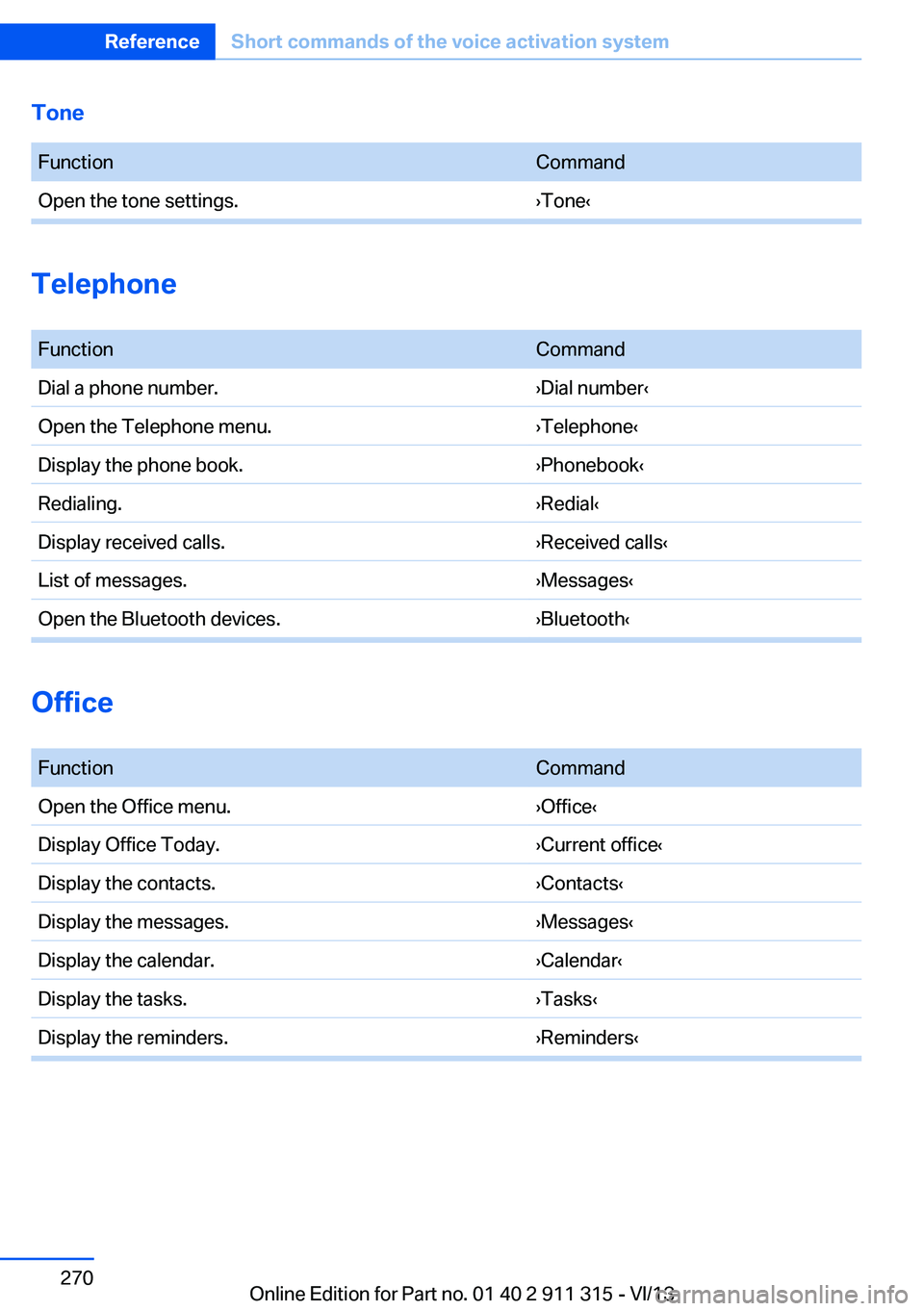
Tone FunctionCommandOpen the tone settings.›Tone‹
Telephone
FunctionCommandDial a phone number.›Dial number‹Open the Telephone menu.›Telephone‹Display the phone book.›Phonebook‹Redialing.›Redial‹Display received calls.›Received calls‹List of messages.›Messages‹Open the Bluetooth devices.›Bluetooth‹
Office
FunctionCommandOpen the Office menu.›Office‹Display Office Today.›Current office‹Display the contacts.›Contacts‹Display the messages.›Messages‹Display the calendar.›Calendar‹Display the tasks.›Tasks‹Display the reminders.›Reminders‹Seite 270ReferenceShort commands of the voice activation system270
Online Edition for Part no. 01 40 2 911 315 - VI/13
Page 275 of 285
DCC, refer to Cruise con‐trol 103
Defogging windows 109
Defroster– Rear window 109, 112
Defrosting windows 109
Destination entry via the ad‐ dress book 142
Destination guidance 149
Destination guidance with in‐ termediate destinations 147
Destination input, naviga‐ tion 140
Digital clock 71
Digital compass 116
Digital radio 163
Dimming mirrors 51
Directional indicators, refer to Turn signals 60
Display lighting, refer to In‐ strument lighting 88
Display, refer to Control Dis‐ play 18
Displays and controls 12
Displays, care 258
Displays, cleaning 258
Displays, refer to Instrument cluster 14
Disposal
– Coolant 239– Remote control battery 39– Vehicle battery 247
Distance control, refer to
PDC 105
Divided screen view, split screen 22
Door key, refer to Remote control with integrated
key 30
Door lock 35
Doors, manual operation 35
Doors, unlocking and locking
– Confirmation signals 34– From the inside 35– From the outside 32
DOT Quality Grades 231
Draft-free ventila‐
tion 109, 113
Drive-off assistant 102
Drive-off assistant, refer to DSC 99
Driving notes, breaking in 128
Driving notes, general 128
Driving stability control sys‐ tems 99
Driving tips 128
DSC Dynamic Stability Con‐ trol 99
DTC Dynamic Traction Con‐ trol 100
DTMF suffix dialing 198
DVD/CD 170
DVDs, storing 175
DVD, video 172
Dynamic Brake Control DBC 99
Dynamic destination guid‐ ance 156
Dynamic Driving Control 100
Dynamic Stability Control DSC 99
Dynamic Traction Control DTC 100
E
EBV electronic brake-force distribution 99
EfficientDynamics, refer to Saving fuel 132
Electrical fault– 7-gear automatic transmis‐
sion 69
Electrical malfunction
– Door lock 35– Driver's door 35– Fuel filler flap 224
Electric seat adjustment 47
Electronic brake-force distri‐ bution 99
Electronic engine oil level check 236
Electronic Stability Program
ESP, refer to DSC 99
Emergency operation– Fuel filler flap, unlocking
manually 224
Emergency Request 249
Emergency service, refer to Roadside Assistance 250
Emergency unlocking
– Trunk lid, from the inside 37
Energy, saving
– Automatic Engine Start/
Stop Function 57
Engine compartment 235
Engine coolant, refer to Cool‐ ant 239
Engine oil, adding 238
Engine oil additives 238
Engine oil, checking the level 236
Engine oil temperature 72
Engine oil types, alterna‐ tive 238
Engine oil types, ap‐ proved 238
Engine, overheating, refer to Coolant temperature 72
Engine start, Help 250
Engine, starting 56
Engine, starting
– Comfort Access 37– Start/Stop button 55
Engine, stopping, Start/Stop
button 55
Engine, switching off 57
Engine temperature 72
Entry comparison 23
Entry lamps, refer to Interior lamps 89
Equalizer 160
Equipment, interior 114
Error messages, refer to Check Control 82
ESP Electronic Stability Pro‐ gram, refer to DSC 99
Exchanging wheels/tires 233
Exhaust system 129
Seite 275Everything from A to ZReference275
Online Edition for Part no. 01 40 2 911 315 - VI/13
Page 276 of 285
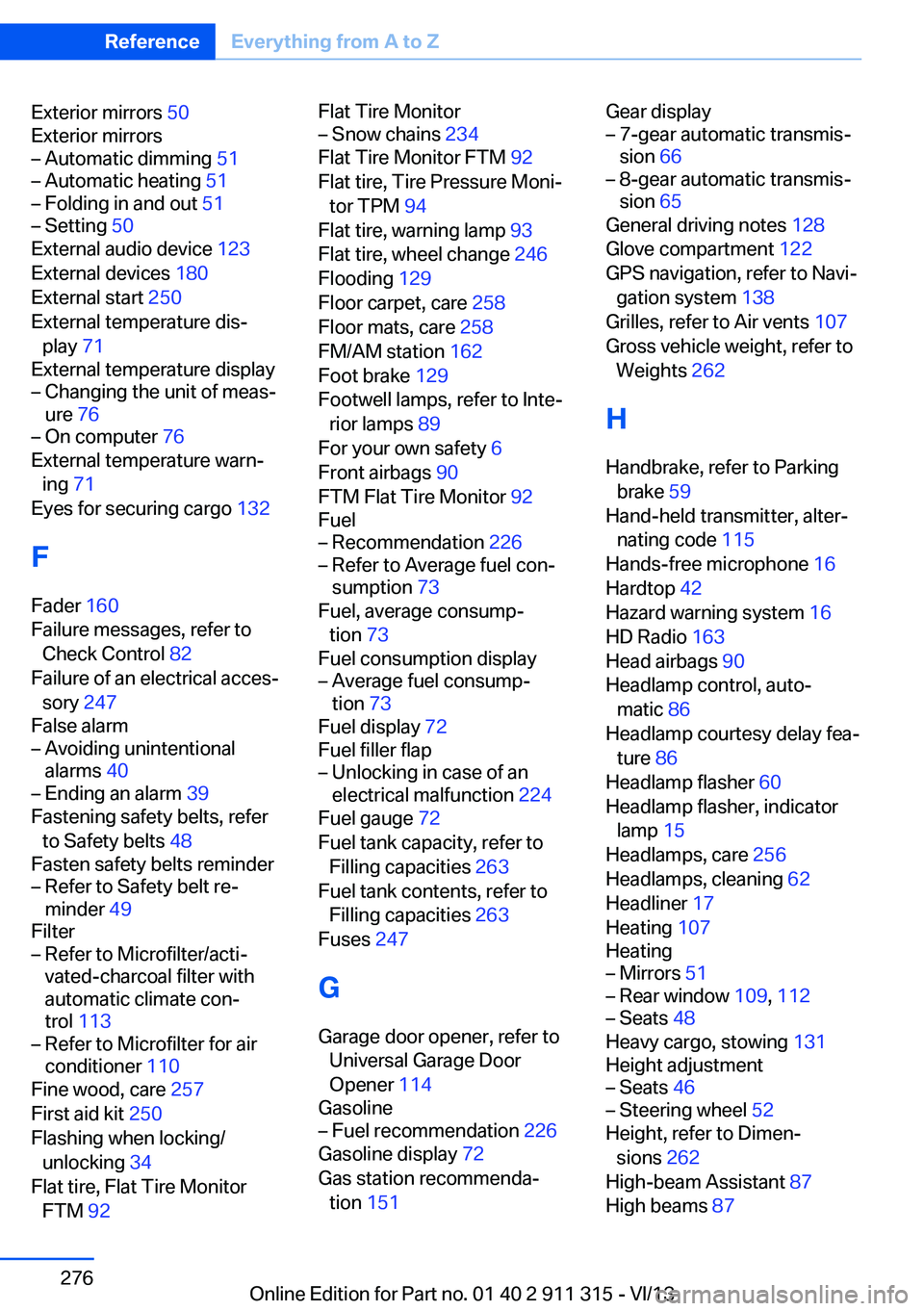
Exterior mirrors 50
Exterior mirrors– Automatic dimming 51– Automatic heating 51– Folding in and out 51– Setting 50
External audio device 123
External devices 180
External start 250
External temperature dis‐ play 71
External temperature display
– Changing the unit of meas‐
ure 76– On computer 76
External temperature warn‐
ing 71
Eyes for securing cargo 132
F
Fader 160
Failure messages, refer to Check Control 82
Failure of an electrical acces‐
sory 247
False alarm
– Avoiding unintentional
alarms 40– Ending an alarm 39
Fastening safety belts, refer
to Safety belts 48
Fasten safety belts reminder
– Refer to Safety belt re‐
minder 49
Filter
– Refer to Microfilter/acti‐
vated-charcoal filter with
automatic climate con‐
trol 113– Refer to Microfilter for air
conditioner 110
Fine wood, care 257
First aid kit 250
Flashing when locking/ unlocking 34
Flat tire, Flat Tire Monitor FTM 92
Flat Tire Monitor– Snow chains 234
Flat Tire Monitor FTM 92
Flat tire, Tire Pressure Moni‐ tor TPM 94
Flat tire, warning lamp 93
Flat tire, wheel change 246
Flooding 129
Floor carpet, care 258
Floor mats, care 258
FM/AM station 162
Foot brake 129
Footwell lamps, refer to Inte‐ rior lamps 89
For your own safety 6
Front airbags 90
FTM Flat Tire Monitor 92
Fuel
– Recommendation 226– Refer to Average fuel con‐
sumption 73
Fuel, average consump‐
tion 73
Fuel consumption display
– Average fuel consump‐
tion 73
Fuel display 72
Fuel filler flap
– Unlocking in case of an
electrical malfunction 224
Fuel gauge 72
Fuel tank capacity, refer to Filling capacities 263
Fuel tank contents, refer to Filling capacities 263
Fuses 247
G
Garage door opener, refer to Universal Garage Door
Opener 114
Gasoline
– Fuel recommendation 226
Gasoline display 72
Gas station recommenda‐ tion 151
Gear display– 7-gear automatic transmis‐
sion 66– 8-gear automatic transmis‐
sion 65
General driving notes 128
Glove compartment 122
GPS navigation, refer to Navi‐ gation system 138
Grilles, refer to Air vents 107
Gross vehicle weight, refer to Weights 262
H
Handbrake, refer to Parking brake 59
Hand-held transmitter, alter‐ nating code 115
Hands-free microphone 16
Hardtop 42
Hazard warning system 16
HD Radio 163
Head airbags 90
Headlamp control, auto‐ matic 86
Headlamp courtesy delay fea‐ ture 86
Headlamp flasher 60
Headlamp flasher, indicator lamp 15
Headlamps, care 256
Headlamps, cleaning 62
Headliner 17
Heating 107
Heating
– Mirrors 51– Rear window 109, 112– Seats 48
Heavy cargo, stowing 131
Height adjustment
– Seats 46– Steering wheel 52
Height, refer to Dimen‐
sions 262
High-beam Assistant 87
High beams 87
Seite 276ReferenceEverything from A to Z276
Online Edition for Part no. 01 40 2 911 315 - VI/13
Page 278 of 285
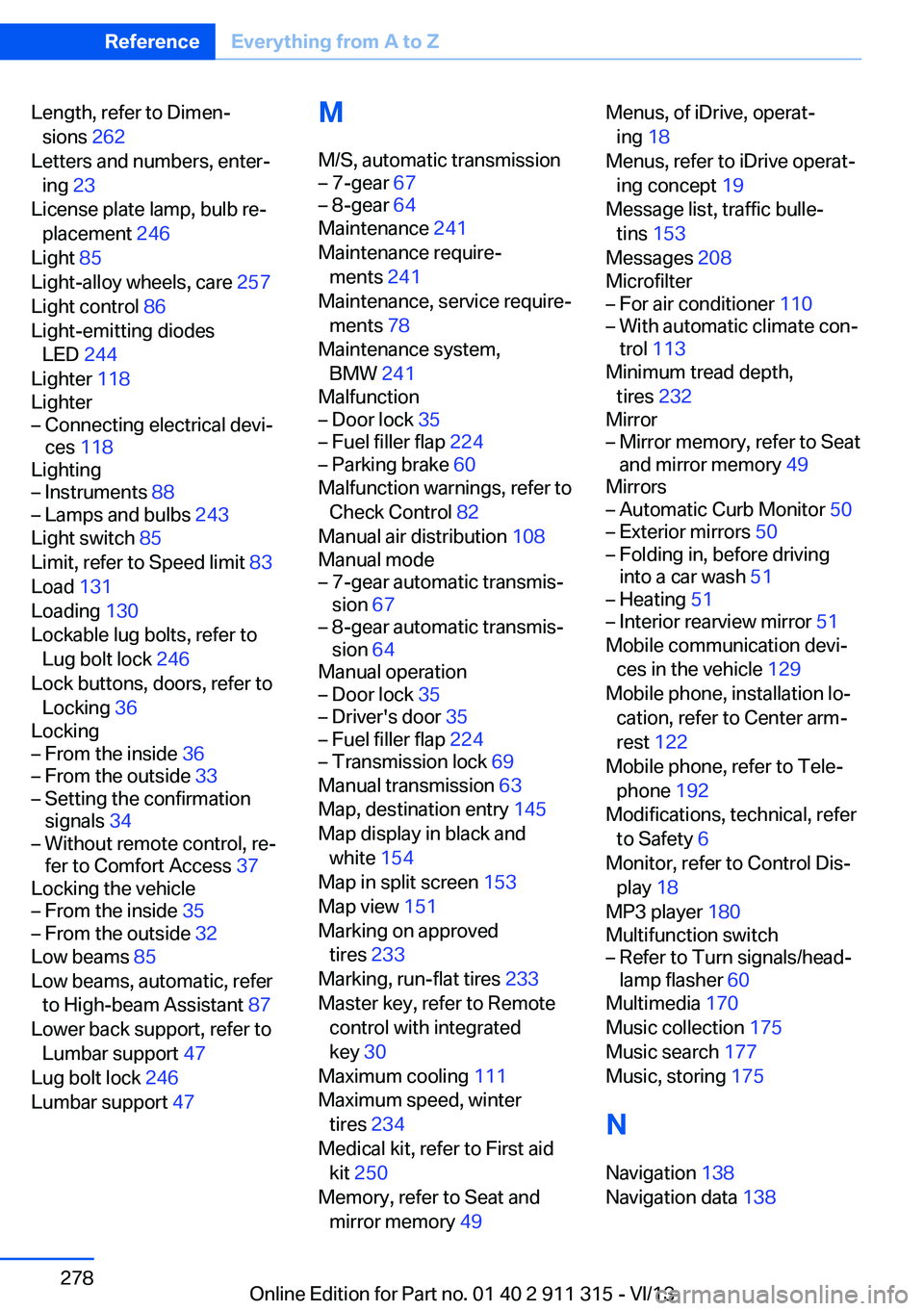
Length, refer to Dimen‐sions 262
Letters and numbers, enter‐ ing 23
License plate lamp, bulb re‐ placement 246
Light 85
Light-alloy wheels, care 257
Light control 86
Light-emitting diodes LED 244
Lighter 118
Lighter– Connecting electrical devi‐
ces 118
Lighting
– Instruments 88– Lamps and bulbs 243
Light switch 85
Limit, refer to Speed limit 83
Load 131
Loading 130
Lockable lug bolts, refer to Lug bolt lock 246
Lock buttons, doors, refer to Locking 36
Locking
– From the inside 36– From the outside 33– Setting the confirmation
signals 34– Without remote control, re‐
fer to Comfort Access 37
Locking the vehicle
– From the inside 35– From the outside 32
Low beams 85
Low beams, automatic, refer to High-beam Assistant 87
Lower back support, refer to Lumbar support 47
Lug bolt lock 246
Lumbar support 47
M
M/S, automatic transmission– 7-gear 67– 8-gear 64
Maintenance 241
Maintenance require‐ ments 241
Maintenance, service require‐ ments 78
Maintenance system, BMW 241
Malfunction
– Door lock 35– Fuel filler flap 224– Parking brake 60
Malfunction warnings, refer to
Check Control 82
Manual air distribution 108
Manual mode
– 7-gear automatic transmis‐
sion 67– 8-gear automatic transmis‐
sion 64
Manual operation
– Door lock 35– Driver's door 35– Fuel filler flap 224– Transmission lock 69
Manual transmission 63
Map, destination entry 145
Map display in black and white 154
Map in split screen 153
Map view 151
Marking on approved tires 233
Marking, run-flat tires 233
Master key, refer to Remote control with integrated
key 30
Maximum cooling 111
Maximum speed, winter tires 234
Medical kit, refer to First aid kit 250
Memory, refer to Seat and mirror memory 49
Menus, of iDrive, operat‐
ing 18
Menus, refer to iDrive operat‐ ing concept 19
Message list, traffic bulle‐ tins 153
Messages 208
Microfilter– For air conditioner 110– With automatic climate con‐
trol 113
Minimum tread depth,
tires 232
Mirror
– Mirror memory, refer to Seat
and mirror memory 49
Mirrors
– Automatic Curb Monitor 50– Exterior mirrors 50– Folding in, before driving
into a car wash 51– Heating 51– Interior rearview mirror 51
Mobile communication devi‐
ces in the vehicle 129
Mobile phone, installation lo‐ cation, refer to Center arm‐
rest 122
Mobile phone, refer to Tele‐ phone 192
Modifications, technical, refer to Safety 6
Monitor, refer to Control Dis‐ play 18
MP3 player 180
Multifunction switch
– Refer to Turn signals/head‐
lamp flasher 60
Multimedia 170
Music collection 175
Music search 177
Music, storing 175
N
Navigation 138
Navigation data 138
Seite 278ReferenceEverything from A to Z278
Online Edition for Part no. 01 40 2 911 315 - VI/13