change wheel BUICK CASCADA 2016 User Guide
[x] Cancel search | Manufacturer: BUICK, Model Year: 2016, Model line: CASCADA, Model: BUICK CASCADA 2016Pages: 381, PDF Size: 5.52 MB
Page 139 of 381
Buick Cascada Owner Manual (GMNA-Localizing-U.S-9186636) - 2016 - crc -
3/9/16
138 Infotainment System
3. Touch to select an option. Toupdate the station list, touch
Refresh.
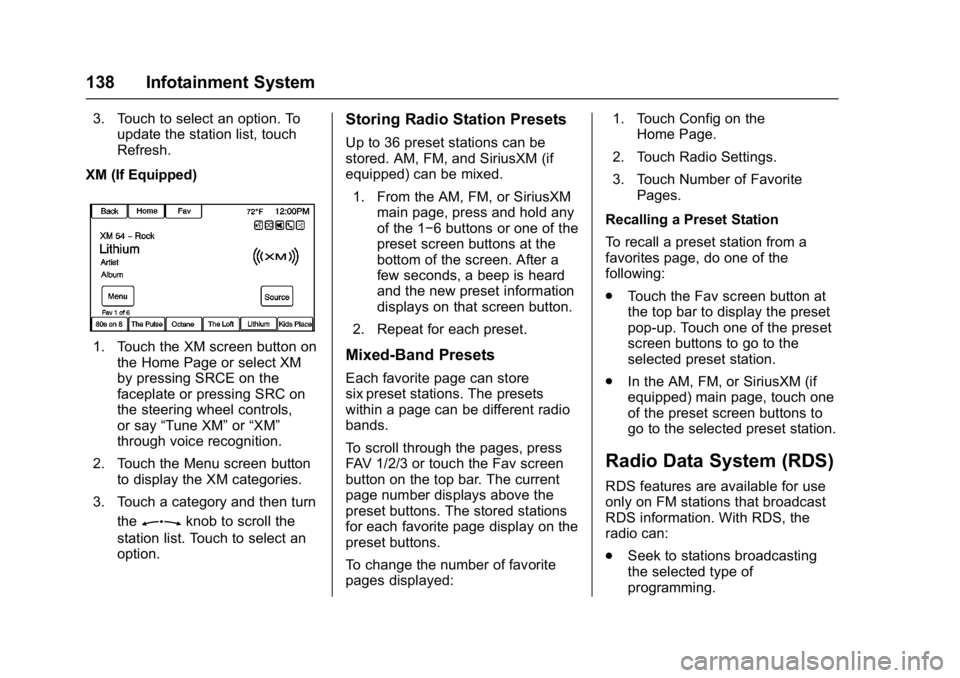
XM (If Equipped)
1. Touch the XM screen button on the Home Page or select XM
by pressing SRCE on the
faceplate or pressing SRC on
the steering wheel controls,
or say “Tune XM” or“XM”
through voice recognition.
2. Touch the Menu screen button to display the XM categories.
3. Touch a category and then turn the
Zknob to scroll the
station list. Touch to select an
option.
Storing Radio Station Presets
Up to 36 preset stations can be
stored. AM, FM, and SiriusXM (if
equipped) can be mixed.
1. From the AM, FM, or SiriusXM main page, press and hold any
of the 1−6 buttons or one of the
preset screen buttons at the
bottom of the screen. After a
few seconds, a beep is heard
and the new preset information
displays on that screen button.
2. Repeat for each preset.
Mixed-Band Presets
Each favorite page can store
six preset stations. The presets
within a page can be different radio
bands.
To scroll through the pages, press
FAV 1/2/3 or touch the Fav screen
button on the top bar. The current
page number displays above the
preset buttons. The stored stations
for each favorite page display on the
preset buttons.
To change the number of favorite
pages displayed: 1. Touch Config on the
Home Page.
2. Touch Radio Settings.
3. Touch Number of Favorite Pages.
Recalling a Preset Station
To recall a preset station from a
favorites page, do one of the
following:
. Touch the Fav screen button at
the top bar to display the preset
pop-up. Touch one of the preset
screen buttons to go to the
selected preset station.
. In the AM, FM, or SiriusXM (if
equipped) main page, touch one
of the preset screen buttons to
go to the selected preset station.
Radio Data System (RDS)
RDS features are available for use
only on FM stations that broadcast
RDS information. With RDS, the
radio can:
.Seek to stations broadcasting
the selected type of
programming.
Page 149 of 381
Buick Cascada Owner Manual (GMNA-Localizing-U.S-9186636) - 2016 - crc -
3/9/16
148 Infotainment System
If the“Please See Device” message
is shown, the login screen may
display on the device.
If the “Please Unlock the Phone or
Restart the App and Try again”
message is shown, then your phone
may be locked. Unlock the phone,
close the app, then restart the app
to ensure proper communication.
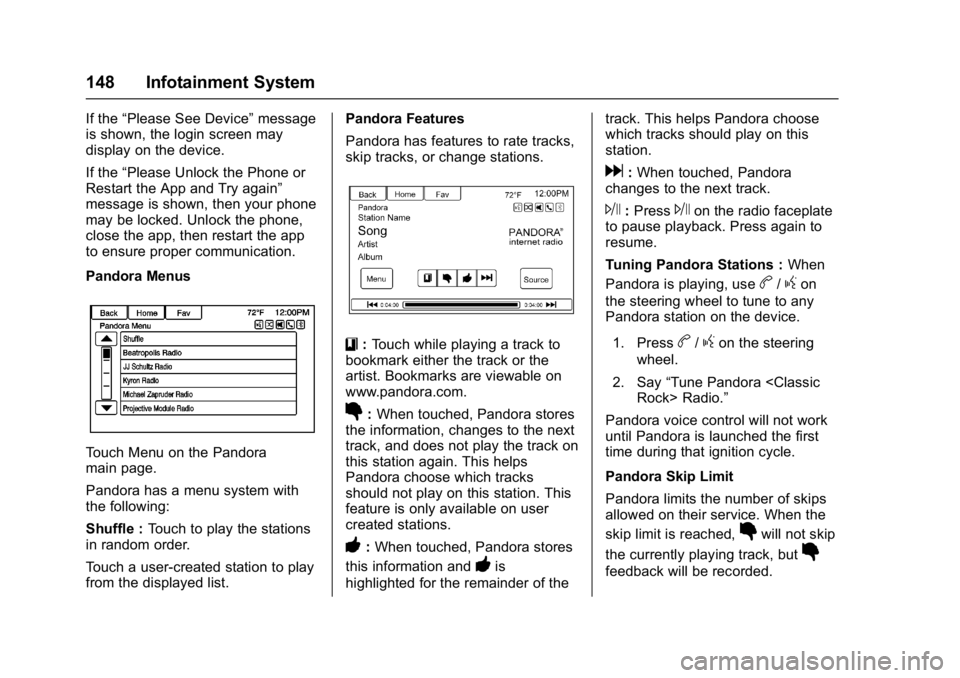
Pandora Menus
Touch Menu on the Pandora
main page.
Pandora has a menu system with
the following:
Shuffle : Touch to play the stations
in random order.
Touch a user-created station to play
from the displayed list. Pandora Features
Pandora has features to rate tracks,
skip tracks, or change stations.
}:
Touch while playing a track to
bookmark either the track or the
artist. Bookmarks are viewable on
www.pandora.com.
}: When touched, Pandora stores
the information, changes to the next
track, and does not play the track on
this station again. This helps
Pandora choose which tracks
should not play on this station. This
feature is only available on user
created stations.
-: When touched, Pandora stores
this information and
-is
highlighted for the remainder of the track. This helps Pandora choose
which tracks should play on this
station.
d:
When touched, Pandora
changes to the next track.
J: PressJon the radio faceplate
to pause playback. Press again to
resume.
Tuning Pandora Stations : When
Pandora is playing, use
b/gon
the steering wheel to tune to any
Pandora station on the device.
1. Press
b/gon the steering
wheel.
2. Say “Tune Pandora
Pandora voice control will not work
until Pandora is launched the first
time during that ignition cycle.
Pandora Skip Limit
Pandora limits the number of skips
allowed on their service. When the
skip limit is reached,
}will not skip
the currently playing track, but
}
feedback will be recorded.
Page 193 of 381
Buick Cascada Owner Manual (GMNA-Localizing-U.S-9186636) - 2016 - crc -
3/9/16
192 Infotainment System
.When the system does not
recognize the command, the
system says “Pardon.”
. If experiencing difficulty with the
system recognizing a command,
confirm that the command is
correct. Try saying the command
clearly or wait for a brief moment
after the tone.
. Background noise such as a
climate control fan positioned on
high, open windows, and very
loud outside noises, even if the
windows are closed, can cause
voice commands to be
misunderstood.
. The system is able to recognize
commands in different
languages, such as English,
Canadian French, and Spanish.
The system only recognizes
commands based on the
language selected.
. To increase or decrease the
voice volume during a voice
recognition session, turn the
volume knob of the radio,
or press the volume steering
wheel control. If the volume is adjusted during a voice
recognition session, a Volume
bar appears on the screen
showing the voice volume level
as it is being adjusted. This also
changes the volume of the
guidance prompts.
. When using navigation
commands, take the time to
become familiar with the
address. Long delays when
giving the address can result in
the system not recognizing the
address or routing to a different
location than intended.
. When providing the house
number portion of the address,
the system recognizes both digit
format and numerical text. An
example would be to say,
“3-0-0-0-1” or“Thirty
Thousand One.”
. If the system provides the
destination in another country on
several attempts, say the
“Change Country” command and
say the country of interest. The
country default is the United
States. To enter a destination in Canada or Mexico, the country
will first have to be changed in
the system.
Voice Recognition Help
To enter the help playback session,
clearly speak one of the help
commands.
Help :
The system plays back more
specific help commands such as
Radio Settings to choose from.
Radio : Use this command to learn
about how to select a band (AM,
FM, or SiriusXM), and how to
change radio stations by speaking
frequency numbers.
Phone : Use this command to learn
about how to dial, pair a device,
or delete a device.
My Media : Use this command to
learn how to play specific tracks,
artists, albums, devices connected
to the USB port, or to change
sources.
Settings : Use this command to
learn about how to turn Verbose on
or off, or set the language.
Page 197 of 381
Buick Cascada Owner Manual (GMNA-Localizing-U.S-9186636) - 2016 - crc -
3/9/16
196 Infotainment System
Entering a Destination in Other
Countries
For the voice recognition to respond
to a local address, the
corresponding country needs to be
set in the navigation system.
The country can also be set using
voice commands. However, the
country will change back to the
default country when the vehicle is
keyed off.1. Press
b/gon the steering
wheel.
2. Say “Navigation.”
3. Say “Change Country.”
4. Say the country name. For example, say “Canada.”
OnStar Command (If
Equipped)
To activate OnStar voice
recognition, press
=on the mirror
or press
b/gon the steering
wheel and say “OnStar”after the
beep. This will active the OnStar
voice control. See OnStar
Overview 0360. OnStar :
These commands can be
used after the OnStar button is
pressed.
Help Commands
. Help
. Hands-Free Calling (if available)
. Turn-by-Turn Directions
. OnStar Info
After each list of help commands,
the following are available:
. Go Back
. Repeat
. Cancel
. Help
. Goodbye
Hands-Free Calling (if available)
. Call
. Store
. Commands
‐Call
‐ Store
‐ My Number ‐
Minutes
‐ Store Last Number
‐ Digit Dial
‐ Redial
‐ Dial
‐ Number Recall
‐ Directory
‐ Digit Store
Turn-by-Turn Directions (if
available)
. Directory
. Plan Route
. Commands
‐Directory
‐ Store Destination
‐ Plan Route
‐ Delete Destination
‐ Mute Directions
OnStar Info (if available)
. Messages
. Minutes
. My Number
Page 201 of 381

Buick Cascada Owner Manual (GMNA-Localizing-U.S-9186636) - 2016 - crc -
3/9/16
200 Infotainment System
PIN or confirming the six-digit
passcode. The PIN is used in
Step 4.
4. Locate and select the device named after the vehicle make
and model in the list on the cell
phone. Follow the instructions
on the cell phone to enter the
PIN provided in Step 3 or to
confirm the six-digit code
matches. The system responds
“Successfully paired.”
5. Repeat Steps 1−4 to pair additional phones.
Listing All Paired and Connected
Phones
The system can list all cell phones
paired to it. If a paired cell phone is
also connected to the vehicle, the
system responds to confirm that
phone name is connected.
1. Press
b/g. The system
responds “Please say a
command,” followed by a tone.
2. Say “Device List.” Deleting a Paired Phone
If the phone name to delete is
unknown, see
“Listing All Paired
and Connected Phones.”
1. Press
b/g. The system
responds “Please say a
command,” followed by a tone.
2. Say “Delete Device.”
3. The system responds: “To
delete a device, please select
its name from the list.” Select
the device to delete on the
display and it will be removed.
To cancel this command, press
$/
ion the steering wheel control or
press BACK on the radio faceplate.
Connecting to a Different Phone
or Device
To connect to a different cell phone,
the system looks for the next
available cell phone. Depending on
the cell phone to be connected, this
command may need to be repeated.
1. Press
b/g. The system
responds “Please say a
command,” followed by a tone. 2. Say
“Change Phone.”
. To select a device, touch
the name on the display.
. If another cell phone is not
found, the original phone
remains connected.
Making a Call Using Phone
Book and Infotainment
Controls
For cell phones that support the
phone book feature, the Bluetooth
system can use the contacts stored
on the cell phone to make calls. See
the cell phone manufacturer‘s user
guide or contact the wireless
provider to find out if this feature is
supported.
When a cell phone supports the
phone book feature, the Phone
Book and Call Lists menus are
automatically available.
The Phone Book menu allows
access to the phone book stored in
the cell phone to make a call.
Page 204 of 381

Buick Cascada Owner Manual (GMNA-Localizing-U.S-9186636) - 2016 - crc -
3/9/16
Infotainment System 203
To Transfer Audio to the Bluetooth
System from a Cell Phone
Use the audio transfer feature on
the cell phone. See your cell phone
manufacturer's user guide for more
information. Touch the Transfer Call
button on the screen or press and
hold
b/gon the steering wheel.
Dual Tone Multi-Frequency
(DTMF) Tones
The in-vehicle Bluetooth system can
send numbers during a call. This is
used when calling a menu-driven
phone system.
Using the Infotainment Controls1. Turn and press the outer ring of the
Zknob and select
Enter Number.
2. Enter the phone number, or select Enter Number on the
screen and select digits, then
touch OK.
Hands-Free Phone
Using Bluetooth Voice
Recognition
To use voice recognition, press
b/
gon the steering wheel. Use the
commands below for the various
voice features. For additional
information, say “Help”while in a
voice recognition menu.
Making a Call
Calls can be made using the
following commands.
Dial or Call : These commands can
be used interchangeably to dial a
phone number.
Digit Dial : This command allows a
phone number to be dialed by
entering the digits one at a time.
Redial : This command dials the
last number used on the cell phone.
To call a number:
1. Press
b/g. The system
responds “Please say a
command,” followed by a tone.
2. Say “Dial”or“Call.” 3. Say the entire number without
pausing, followed by “Dial.”
Once connected, the person called
will be heard through the audio
speakers.
To call using a name tag:
1. Press
b/g. The system
responds “Please say a
command,” followed by a tone.
2. Say “Dial”or“Call” and then
say the name tag. For
example, say “Call John
at Work.”
Once connected, the person called
will be heard through the audio
speakers.
Using the “Digit Dial” Command
This allows a phone number to be
dialed by entering the digits one at
a time.
1. Press
b/g. The system
responds “Please say a
command,” followed by a tone.
2. Say “Digit Dial.”
Page 216 of 381
Buick Cascada Owner Manual (GMNA-Localizing-U.S-9186636) - 2016 - crc -
3/9/16
Climate Controls 215
2. Thumbwheel
Use the slider knobs (1) on the air
vents to change the direction of the
airflow.
Use the thumbwheels (2) near the
air vents to control the amount of
airflow or to shut off the airflow.
Fixed Air Vents
Additional air vents are under the
windshield, near the side windows,
and in the foot wells.
Operation Tips
.Keep all outlets open whenever
possible for best system
performance.
. Keep the path under all seats
clear of objects to help circulate
the air inside the vehicle more
effectively.
. Use of non-GM approved hood
deflectors can adversely affect
the performance of the system.
Maintenance
Passenger Compartment
Air Filter
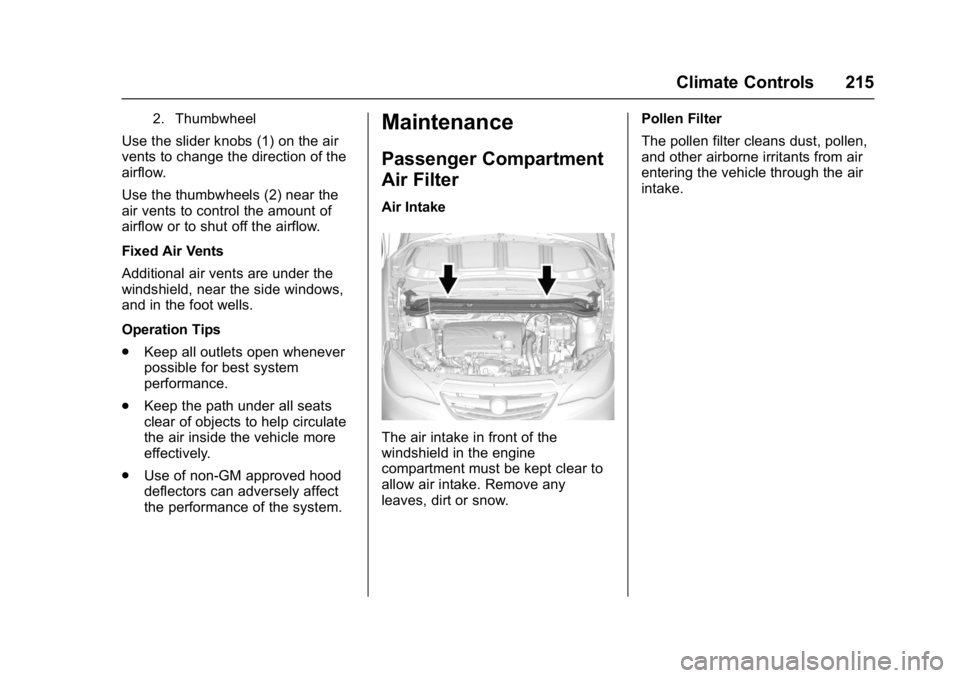
Air Intake
The air intake in front of the
windshield in the engine
compartment must be kept clear to
allow air intake. Remove any
leaves, dirt or snow. Pollen Filter
The pollen filter cleans dust, pollen,
and other airborne irritants from air
entering the vehicle through the air
intake.
Page 224 of 381
Buick Cascada Owner Manual (GMNA-Localizing-U.S-9186636) - 2016 - crc -
3/9/16
Driving and Operating 223
If the Vehicle Is Stuck
Slowly and cautiously spin the
wheels to free the vehicle when
stuck in sand, mud, ice, or snow.
If stuck too severely for the traction
system to free the vehicle, turn the
traction system off and use the
rocking method. SeeTraction
Control/Electronic Stability
Control 0239.
{Warning
If the vehicle's tires spin at high
speed, they can explode, and you
or others could be injured. The
vehicle can overheat, causing an
engine compartment fire or other
damage. Spin the wheels as little
as possible and avoid going
above 56 km/h (35 mph).
Rocking the Vehicle to Get
it Out
Turn the steering wheel left and
right to clear the area around the
front wheels. Turn off any traction
system. Shift back and forth between R (Reverse) and a low
forward gear, spinning the wheels
as little as possible. To prevent
transmission wear, wait until the
wheels stop spinning before shifting
gears. Release the accelerator
pedal while shifting, and press
lightly on the accelerator pedal
when the transmission is in gear.
Slowly spinning the wheels in the
forward and reverse directions
causes a rocking motion that could
free the vehicle. If that does not get
the vehicle out after a few tries, it
might need to be towed out. If the
vehicle does need to be towed out,
see
Towing the Vehicle 0318.
Vehicle Load Limits
It is very important to know how
much weight the vehicle can
carry. This weight is called the
vehicle capacity weight and
includes the weight of all
occupants, cargo, and all
nonfactory-installed options.
Two labels on the vehicle may
show how much weight it may properly carry: the Tire and
Loading Information label and
the Certification label.
{Warning
Do not load the vehicle any
heavier than the Gross
Vehicle Weight Rating
(GVWR), or either the
maximum front or rear Gross
Axle Weight Rating (GAWR).
This can cause systems to
break and change the way the
vehicle handles. This could
cause loss of control and a
crash. Overloading can also
reduce stopping distance,
damage the tires, and shorten
the life of the vehicle.
Page 230 of 381

Buick Cascada Owner Manual (GMNA-Localizing-U.S-9186636) - 2016 - crc -
3/9/16
Driving and Operating 229
Starting the Engine
Move the shift lever to P (Park) or
N (Neutral). To restart the vehicle
when it is already moving, use
N (Neutral) only.
Caution
Do not try to shift to P (Park) if the
vehicle is moving. If you do, you
could damage the transmission.
Shift to P (Park) only when the
vehicle is stopped.
Caution
If you add electrical parts or
accessories, you could change
the way the engine operates. Any
resulting damage would not be
covered by the vehicle warranty.
SeeAdd-On Electrical
Equipment 0252.
Caution
If the steering wheel is turned
until it reaches the end of its
travel, and is held in that position
while starting the vehicle, damage
may occur to the hydraulic power
steering system and there may be
loss of power steering assist.
Starting Procedure 1. With your foot off the accelerator pedal, turn the
ignition key to START. When
the engine starts, let go of the
key. The idle speed will go
down as the engine warms. Do
not race the engine
immediately after starting it.
Operate the engine and
transmission gently to allow the
oil to warm up and lubricate all
moving parts.
Caution
Cranking the engine for long
periods of time, by returning the
ignition to the START position
immediately after cranking has
ended, can overheat and damage
the cranking motor, and drain the
battery. Wait at least 15 seconds
between each try, to let the
cranking motor cool down.
2. If the engine does not start after five to 10 seconds,
especially in very cold weather
(below −18 °C or 0 °F), it could
be flooded with too much
gasoline. Push the accelerator
pedal all the way to the floor
and hold it there as you hold
the key in START for a
maximum of 15 seconds. Wait
at least 15 seconds between
each try, to allow the cranking
motor to cool. When the engine
starts, let go of the key and
accelerator. If the vehicle starts
briefly but then stops again,
repeat the procedure. This
Page 237 of 381
Buick Cascada Owner Manual (GMNA-Localizing-U.S-9186636) - 2016 - crc -
3/9/16
236 Driving and Operating
Brakes
Antilock Brake
System (ABS)
This vehicle has an Antilock Brake
System (ABS), an advanced
electronic braking system that helps
prevent a braking skid.
When the vehicle begins to drive
away, ABS checks itself.
A momentary motor or clicking noise
may be heard while this test is going
on, and it may even be noticed that
the brake pedal moves a little. This
is normal.
If there is a problem with ABS, this
warning light stays on. SeeAntilock
Brake System (ABS) Warning
Light 0105. If driving safely on a wet road and it
becomes necessary to slam on the
brakes and continue braking to
avoid a sudden obstacle, a
computer senses the wheels are
slowing down. If one of the wheels
is about to stop rolling, the computer
will separately work the brakes at
each wheel.
ABS can change the brake pressure
to each wheel, as required, faster
than any driver could. This can help
you steer around the obstacle while
braking hard.
As the brakes are applied, the
computer keeps receiving updates
on wheel speed and controls
braking pressure accordingly.
Remember: ABS does not change
the time needed to get a foot up to
the brake pedal or always decrease
stopping distance. If you get too
close to the vehicle in front of you,
there will not be enough time to
apply the brakes if that vehicle
suddenly slows or stops. Always
leave enough room up ahead to
stop, even with ABS.
Using ABS
Do not pump the brakes. Just hold
the brake pedal down firmly and let
ABS work. You may hear the ABS
pump or motor operating and feel
the brake pedal pulsate. This is
normal.
Braking in Emergencies
ABS allows you to steer and brake
at the same time. In many
emergencies, steering can help
more than even the very best
braking.
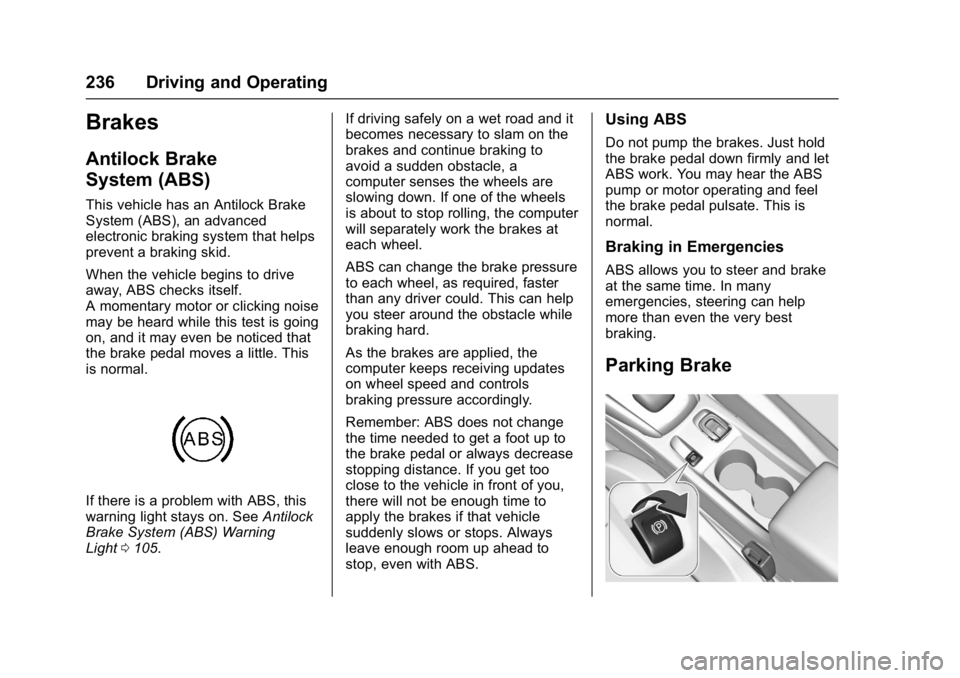
Parking Brake