radio BUICK CASCADA 2016 Workshop Manual
[x] Cancel search | Manufacturer: BUICK, Model Year: 2016, Model line: CASCADA, Model: BUICK CASCADA 2016Pages: 381, PDF Size: 5.52 MB
Page 198 of 381

Buick Cascada Owner Manual (GMNA-Localizing-U.S-9186636) - 2016 - crc -
3/9/16
Infotainment System 197
.Commands
‐Messages
‐ Virtual Advisor
‐ My Number
‐ Minutes
‐ Number Recall
‐ Advisor Playback
. Virtual Advisor
Virtual Advisor (if available)
Choose this option to connect to a
live Advisor.
Voice Pass-Thru
Voice pass-thru allows access to the
voice recognition commands on the
cell phone, namely Siri
®or Voice
Command. See the cell phone
manufacturer's user guide to see if
the cell phone supports this feature.
To activate the phone voice
recognition system, press and hold
b/gon the steering wheel for
approximately two seconds.
Bluetooth Phone/
Devices
Bluetooth
Overview
For vehicles equipped with
Bluetooth capability, the system can
interact with many cell phones and
devices, allowing:
. Placing and receiving hands-free
calls.
. Sharing of the cell phone’s
address book or contact list with
the vehicle. The phone book will
only display when that phone is
connected.
. Placing outgoing calls by voice
recognition.
The system can be used while in
ON/RUN, ACC/ACCESSORY,
or Retained Accessory Power
(RAP). The range of the Bluetooth
system can be up to 9.1 m (30 ft).
The radio can connect to most Bluetooth-enabled phones.
Available features and functions
may be dependent on the device.
On a current phone call screen, an
image of the contact from your
phone's contact list can be
displayed. Not all phones are
compatible with this feature.
Bluetooth Controls
Use the buttons on the infotainment
system and the steering wheel to
operate the Bluetooth system.
Steering Wheel Controls
b/g:
Press to answer incoming
calls and start voice recognition.
$/i: Press to end a call,
decline an incoming call, or cancel
voice recognition.
+
x− :Press + or −to increase or
decrease the volume.
Infotainment System Controls
For information about how to
navigate the menu system using the
infotainment controls, see
Overview 0127.
Page 199 of 381

Buick Cascada Owner Manual (GMNA-Localizing-U.S-9186636) - 2016 - crc -
3/9/16
198 Infotainment System
PHONE :Press to enter the Phone
main menu. Press and hold to mute
or unmute.
Voice Recognition
The voice recognition system uses
commands to control the system
and dial phone numbers.
When using voice recognition:
. The system may not recognize
voice commands if there is too
much background noise.
. A tone sounds to indicate that
the system is ready for a voice
command. Wait for the tone and
then speak.
. Speak clearly in a calm and
natural voice.
See Voice Recognition 0191.
Audio System
Sound comes through the vehicle's
front audio system speakers and
overrides the audio system. Use the
VOL/
nknob during a call to
change the volume level. The adjusted volume level remains in
memory for later calls. The system
maintains a minimum volume level.
See
Voice Recognition 0191.
Bluetooth Audio
See Bluetooth Audio 0164.
Pairing with Infotainment
Controls
A Bluetooth-enabled cell phone
must be paired and then connected
to the vehicle before it can be used.
See the cell phone manufacturer's
user guide for Bluetooth functions
before pairing the cell phone. If a
Bluetooth phone is not connected,
calls will be made using OnStar
Hands-Free Calling, if available.
See OnStar Overview 0360.
Pairing Information
. A Bluetooth-enabled phone and
an audio playback device can be
paired to the system at the
same time.
. Up to five devices can be paired
to the Bluetooth system. .
The pairing process is disabled
when the vehicle is moving.
. Pairing only needs to be
completed once, unless the
pairing information on the cell
phone changes or the cell phone
is deleted from the system.
. Only one paired cell phone can
be connected to the Bluetooth
system at a time.
. If multiple paired cell phones are
within range of the system, the
radio will connect to the first
phone in the list or to the phone
that was previously connected.
Pairing a Phone/Device 1. Press CONFIG or PHONE.
2. Select Phone Settings.
3. Select Pair Device (Phone). The radio displays “Please
start Bluetooth search on your
phone. Confirm or enter
number :”. If the device
supports a four-digit Personal
Identification Number (PIN), it
will display. The PIN is used in
Step 5.
Page 201 of 381

Buick Cascada Owner Manual (GMNA-Localizing-U.S-9186636) - 2016 - crc -
3/9/16
200 Infotainment System
PIN or confirming the six-digit
passcode. The PIN is used in
Step 4.
4. Locate and select the device named after the vehicle make
and model in the list on the cell
phone. Follow the instructions
on the cell phone to enter the
PIN provided in Step 3 or to
confirm the six-digit code
matches. The system responds
“Successfully paired.”
5. Repeat Steps 1−4 to pair additional phones.
Listing All Paired and Connected
Phones
The system can list all cell phones
paired to it. If a paired cell phone is
also connected to the vehicle, the
system responds to confirm that
phone name is connected.
1. Press
b/g. The system
responds “Please say a
command,” followed by a tone.
2. Say “Device List.” Deleting a Paired Phone
If the phone name to delete is
unknown, see
“Listing All Paired
and Connected Phones.”
1. Press
b/g. The system
responds “Please say a
command,” followed by a tone.
2. Say “Delete Device.”
3. The system responds: “To
delete a device, please select
its name from the list.” Select
the device to delete on the
display and it will be removed.
To cancel this command, press
$/
ion the steering wheel control or
press BACK on the radio faceplate.
Connecting to a Different Phone
or Device
To connect to a different cell phone,
the system looks for the next
available cell phone. Depending on
the cell phone to be connected, this
command may need to be repeated.
1. Press
b/g. The system
responds “Please say a
command,” followed by a tone. 2. Say
“Change Phone.”
. To select a device, touch
the name on the display.
. If another cell phone is not
found, the original phone
remains connected.
Making a Call Using Phone
Book and Infotainment
Controls
For cell phones that support the
phone book feature, the Bluetooth
system can use the contacts stored
on the cell phone to make calls. See
the cell phone manufacturer‘s user
guide or contact the wireless
provider to find out if this feature is
supported.
When a cell phone supports the
phone book feature, the Phone
Book and Call Lists menus are
automatically available.
The Phone Book menu allows
access to the phone book stored in
the cell phone to make a call.
Page 202 of 381

Buick Cascada Owner Manual (GMNA-Localizing-U.S-9186636) - 2016 - crc -
3/9/16
Infotainment System 201
The Call Lists menu allows access
to the phone numbers from the
Incoming Calls, Outgoing Calls, and
Missed Calls menus on the cell
phone to make a call.
The radio will display the first 1,000
contacts and the phone numbers for
each contact including Home, Work,
Mobile, and Other.
To make a call using the Phone
Book menu:1. Press
V/$once on the radio
or the Phone screen button.
2. Select Phone Book.
3. Select the letter group of the phone book entry to scroll
through the list of names/
numbers.
4. Select the name.
5. Select the number to call.
To make a call using the Call
Lists menu: 1. Press PHONE once on the radio or touch the Phone
screen button.
2. Select Call Lists. 3. Select the Incoming Calls,
Outgoing Calls, or Missed
Calls list.
4. Select the name or number to call.
Making a Call Using the
Infotainment Controls
To make a call:
1. Press PHONE once on the radio or touch the Phone
screen button.
2. Touch Enter Number.
3. Enter the phone number.
4. Select OK to start dialing the number.
5. Select Call to place the call.
To make a call using voice
recognition, see “Making a Call”
under Bluetooth 0197.
Accepting or Declining a Call
When an incoming call is received,
the infotainment system mutes and
a ring tone is heard in the vehicle. Using the Infotainment Controls
Turn the
Zknob to
“Answer” or
“Decline” and press the outer ring of
the
Zknob or touch Accept or
Decline on the screen.
Using Steering Wheel Controls
Press
b/gto answer or$/ito
decline the call.
Call Waiting Using the
Infotainment Controls
Call waiting must be supported on
the Bluetooth phone and enabled by
the wireless service carrier to work.
Switching Between Calls (Call
Waiting Calls Only)
To switch between calls, turn and
press the outer ring of the
Z
knob and select Switch Call or
select Switch Call on the screen.
Page 205 of 381

Buick Cascada Owner Manual (GMNA-Localizing-U.S-9186636) - 2016 - crc -
3/9/16
204 Infotainment System
3. Say each digit, one at a time,to dial. After each digit is
entered, the system repeats
back the digit it heard followed
by a tone. After the last digit
has been entered, say “Dial.”
If an unwanted number is repeated
back, say “Clear”to clear the last
number.
Once connected, the person called
will be heard through the audio
speakers.
Using the “Redial”Command
1. Press
b/g. The system
responds “Please say a
command,” followed by a tone.
2. After the tone, say “Redial.”
The system dials the last
number called from the
connected cell phone.
Once connected, the person called
will be heard through the audio
speakers.
Clearing the System
Unless information is deleted out of
the vehicle Bluetooth system, it will
be retained. This includes phone
pairing information. For directions
on how to delete this information,
see “Deleting a Paired Phone/
Device.” previously in this section.
Text Messaging
For vehicles equipped with
Bluetooth capability, the system,
if equipped with text messaging, can
display text messages, play back a
message over the audio system,
and send a predefined message.
Not all phones support all functions
and work with Bluetooth. The radio
only supports the receipt of SMS
text messages. A request may need
to be accepted on the phone or
some phone settings may need to
be changed to allow text messaging
to function. See the cell phone
manufacturer ’s user guide. Using Text Messaging1. Touch Messages on the Home
Page or select Text Messages
from the Phone main screen.
Until all text messages are
retrieved, the Home Page icon
will remain gray and the Phone
main screen option will be
removed.
This feature will be disabled if
the paired Bluetooth device
does not support SMS text
messaging.
Page 207 of 381
Buick Cascada Owner Manual (GMNA-Localizing-U.S-9186636) - 2016 - crc -
3/9/16
206 Infotainment System
.Select Listen to hear the
message through voice
recognition.
. Select View to view the
message. Viewing is not
available while the vehicle is in
motion.
. Select Reply to reply to the
message using a predefined
message.
. Select Call to dial the contact or
number associated with the text.
. Select Dismiss to close out the
incoming pop-up message
screen.
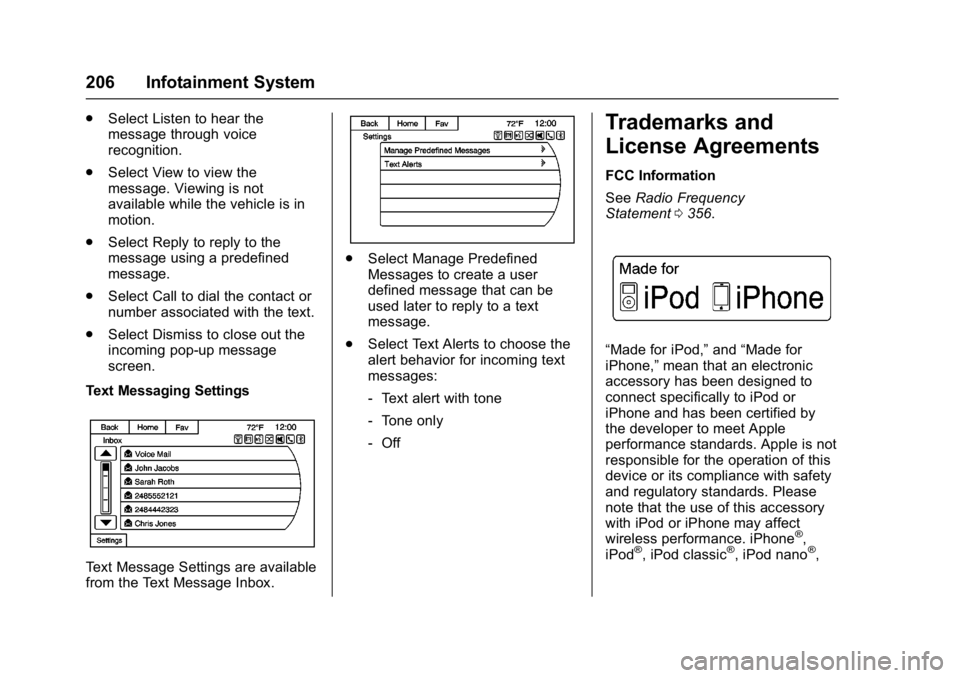
Text Messaging Settings
Text Message Settings are available
from the Text Message Inbox.
. Select Manage Predefined
Messages to create a user
defined message that can be
used later to reply to a text
message.
. Select Text Alerts to choose the
alert behavior for incoming text
messages:
‐Text alert with tone
‐ Tone only
‐ Off
Trademarks and
License Agreements
FCC Information
See Radio Frequency
Statement 0356.
“Made for iPod,” and“Made for
iPhone,” mean that an electronic
accessory has been designed to
connect specifically to iPod or
iPhone and has been certified by
the developer to meet Apple
performance standards. Apple is not
responsible for the operation of this
device or its compliance with safety
and regulatory standards. Please
note that the use of this accessory
with iPod or iPhone may affect
wireless performance. iPhone
®,
iPod®, iPod classic®, iPod nano®,
Page 208 of 381
Buick Cascada Owner Manual (GMNA-Localizing-U.S-9186636) - 2016 - crc -
3/9/16
Infotainment System 207
iPod shuffle®, and iPod touch®are
trademarks of Apple Inc., registered
in the U.S. and other countries.
Fees and Taxes: Subscription fee,
taxes, one time activation fee, and
other fees may apply. Subscription
fee is consumer only. All fees and
programming subject to change.
Subscriptions subject to Customer
Agreement available at
www.siriusxm.com. SiriusXM
®
service only available in the
48 contiguous United States and
Canada.
In Canada: Some deterioration of
service may occur in extreme
northern latitudes. This is beyond
the control of SiriusXM
®Satellite
Radio.
Explicit Language Notice: Channels
with frequent explicit language are
indicated with an “XL”preceding the channel name. Channel blocking is
available for SiriusXM Satellite
Radio receivers by notifying
SiriusXM:
.
U.S: 866-635-2349 or see
www.siriusxm.com.
It is prohibited to copy, decompile,
disassemble, reverse engineer,
hack, manipulate, or otherwise
make available any technology or
software incorporated in receivers
compatible with the SiriusXM
Satellite Radio System or that
support the SiriusXM website, the
Online Service or any of its content.
Furthermore, the AMBER voice
compression software included in
this product is protected by
intellectual property rights including
patent rights, copyrights, and trade
secrets of Digital Voice
Systems, Inc.
General Requirements: 1. A License Agreement from SiriusXM is required for any
product that incorporates
SiriusXM Technology and/or for
use of any of the SiriusXM marks to be manufactured,
distributed, or marketed in the
SiriusXM Service Area.
2. For products to be distributed, marketed, and/or sold in
Canada, a separate agreement
is required with Canadian
Satellite Radio Inc. (operating
as XM Canada).
Gracenote
Gracenote®, Gracenote logo and
logotype, and the "Powered by
Gracenote" logo are either a
registered trademark or a trademark
of Gracenote, Inc. in the United
States and/or other countries.
Bluetooth
The Bluetooth®word mark and
logos are owned by the Bluetooth®
SIG, Inc. and any use of such marks
by General Motors is under license.
Other trademarks and trade names
are those of their respective owners.
Pandora (If Equipped)
Pandora is a registered trademark
of Pandora Media, Inc., used under
license.
Page 209 of 381

Buick Cascada Owner Manual (GMNA-Localizing-U.S-9186636) - 2016 - crc -
3/9/16
208 Infotainment System
Manufactured under license from
Dolby Laboratories. Dolby and the
double-D symbol are trademarks of
Dolby Laboratories.
Map End User License
Agreement (Optional
Equipment Applies Where
Equipped)
END USER TERMS
The Map Data Disc (“Data”) is
provided for your personal, internal
use only and not for resale. It is
protected by copyright, and is
subject to the following terms (this
“End User License Agreement”) and
conditions which are agreed to by
you, on the one hand, and HERE
North America, LLC (“HERE”) and
its licensors (including their
licensors and suppliers) on the
other hand.In addition, the Lonely Planet Travel
Guide content is subject to the
following supplier notices (if
equipped):
© 2014 Lonely Planet Publications
Pty Ltd. All rights reserved.
PANASONIC and its content
providers have tried to make this
information as accurate as possible,
but it is provided
“as is”and
PANASONIC and its content
providers accept no responsibility
for any loss, injury or inconvenience
resulting from this information. You
should verify critical information (like
visas, health and safety) before you
travel.
TERMS AND CONDITIONS
Personal Use Only. You agree to
use this Data together with the
General Motors MyLink or IntelliLink
Connected Navigation Radio
Platform for the solely personal,
non-commercial purposes for which
you were licensed, and not for
service bureau, time-sharing or
other similar purposes. Accordingly,
but subject to the restrictions set
forth in the following paragraphs, you agree not to otherwise
reproduce, copy, modify, decompile,
disassemble, create any derivative
works of, or reverse engineer any
portion of this Data, and may not
transfer or distribute it in any form,
for any purpose, except to the
extent permitted by mandatory laws.
Restrictions
Except where you have been
specifically licensed to do so by
PANASONIC, and without limiting
the preceding paragraph, you may
not (a) use this Data with any
products, systems, or applications
installed or otherwise connected to
or in communication with vehicles,
capable of vehicle navigation,
positioning, dispatch, real time route
guidance, fleet management or
similar applications; or (b) with or in
communication with any positioning
devices or any mobile or
wireless-connected electronic or
computer devices, including without
limitation cellular phones, palmtop
and handheld computers, pagers,
and personal digital assistants
or PDAs
Page 215 of 381
Buick Cascada Owner Manual (GMNA-Localizing-U.S-9186636) - 2016 - crc -
3/9/16
214 Climate Controls
automatically when the interior
temperature is cold and the outside
temperature is about 4 °C (40 °F)
and below. The auto rear defogger
turns off automatically after about
10 minutes. At higher speeds, the
rear window defogger may stay on
continuously.
If equipped with heated outside
rearview mirrors, they turn on when
the rear window defogger button is
on and help to clear fog or frost from
the surface of the mirrors. See
Heated Mirrors033.
Caution
Do not try to clear frost or other
material from the inside of the
front windshield and rear window
with a razor blade or anything
else that is sharp. This may
damage the rear window
defogger grid and affect the
radio's ability to pick up stations
clearly. The repairs would not be
covered by the vehicle warranty.
MorL:Press to turn the heated
seats on or off. See Heated Front
Seats 049.
(:If equipped, press to turn the
heated steering wheel on or off. See
Heated Steering Wheel 094.
Remote Start Climate Control
Operation : If equipped with the
remote vehicle start feature, the
climate control system may run
when the vehicle is started remotely.
The system uses the driver ’s
previous settings to heat or cool the
inside of the vehicle. The rear defog
may come on during remote start
based on cold ambient conditions.
The rear defog indicator light does
not come on during a remote start.
If the vehicle has front heated seats,
they may come on during a remote
start. The heated seat indicator
lights do not come on during a
remote start. See Remote Vehicle
Start 049 and Heated Front
Seats 049.
Air Vents
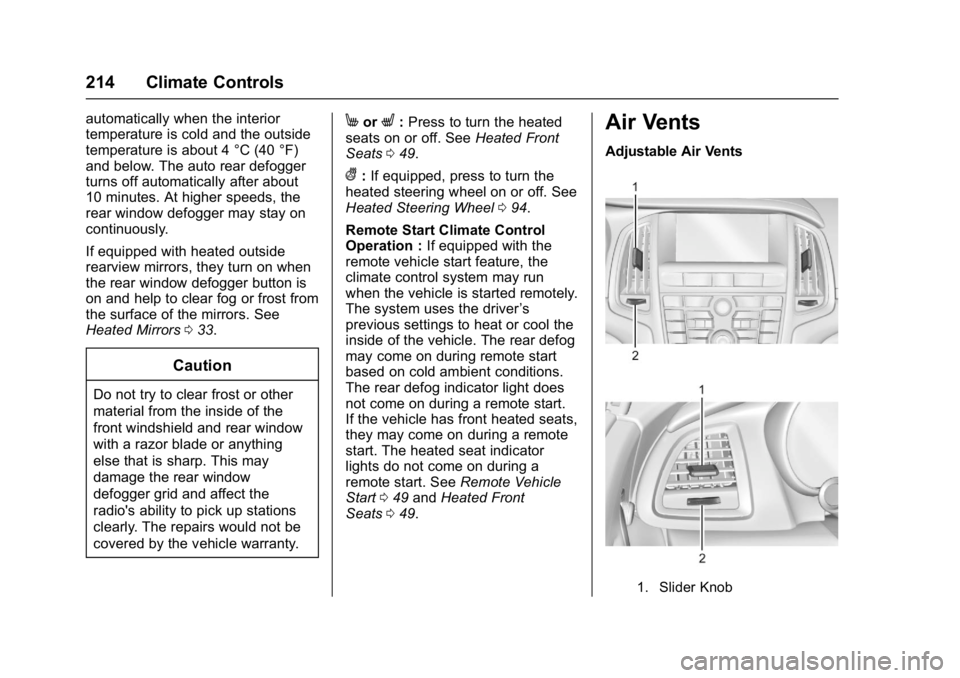
Adjustable Air Vents
1. Slider Knob
Page 218 of 381
Buick Cascada Owner Manual (GMNA-Localizing-U.S-9186636) - 2016 - crc -
3/9/16
Driving and Operating 217
Driving Information
Distracted Driving
Distraction comes in many forms
and can take your focus from the
task of driving. Exercise good
judgment and do not let other
activities divert your attention away
from the road. Many local
governments have enacted laws
regarding driver distraction. Become
familiar with the local laws in
your area.
To avoid distracted driving, always
keep your eyes on the road, hands
on the wheel, and mind on the drive.
.Do not use a phone in
demanding driving situations.
Use a hands-free method to
place or receive necessary
phone calls.
. Watch the road. Do not read,
take notes, or look up
information on phones or other
electronic devices.
. Designate a front seat
passenger to handle potential
distractions. .
Become familiar with vehicle
features before driving, such as
programming favorite radio
stations and adjusting climate
control and seat settings.
Program all trip information into
any navigation device prior to
driving.
. Wait until the vehicle is parked
to retrieve items that have fallen
to the floor.
. Stop or park the vehicle to tend
to children.
. Keep pets in an appropriate
carrier or restraint.
. Avoid stressful conversations
while driving, whether with a
passenger or on a cell phone.
{Warning
Taking your eyes off the road too
long or too often could cause a
crash resulting in injury or death.
Focus your attention on driving. Refer to the infotainment section for
more information on using that
system, including pairing and using
a cell phone
Defensive Driving
Defensive driving means
“always
expect the unexpected.” The first
step in driving defensively is to wear
the safety belt. See Safety
Belts 052.
. Assume that other road users
(pedestrians, bicyclists, and
other drivers) are going to be
careless and make mistakes.
Anticipate what they might do
and be ready.
. Allow enough following distance
between you and the driver in
front of you.
. Focus on the task of driving.
Drunk Driving
Death and injury associated with
drinking and driving is a global
tragedy.