light BUICK CASCADA 2016 Repair Manual
[x] Cancel search | Manufacturer: BUICK, Model Year: 2016, Model line: CASCADA, Model: BUICK CASCADA 2016Pages: 381, PDF Size: 5.52 MB
Page 152 of 381

Buick Cascada Owner Manual (GMNA-Localizing-U.S-9186636) - 2016 - crc -
3/9/16
Infotainment System 151
.On an iPhone, iPad, or iPod
touch, go to the iTunes Store
and search for Stitcher.
Launching Stitcher
Connect the iPhone, iPad, or iPod
touch to the USB port, or connect
Android through Bluetooth. See
Auxiliary Devices 0164 orBluetooth
0 197. For first-time use, set up the
stations before connecting to the
vehicle. The Stitcher icon will be
available on the Home Page and
source pop-up displays if the latest
application is installed on the
device.
Using the iPhone, iPod touch,
or an iPad
1. Plug the device into the USB port. The phone screen must
be unlocked.
2. Use one of the following to launch :
.Press the application on the
device.
. Touch Stitcher on the
Home Page. .
Press
b/gand say
“Stitcher” or“Tune Stitcher.”
. Accept any notifications on
the device screen.
3. If Stitcher does not begin playing, select a category and
then a station.
After Stitcher has been launched,
press SRCE on the faceplate or
press SRC on the steering wheel
controls to access Stitcher features.
If nothing happens when the
available Stitcher screen button is
touched, download the latest
Stitcher application and retry.
Stitcher will always be highlighted
on the Home Page when an iPhone,
iPad, or iPod touch is connected
using the USB port. To use, log into
your account.
If the “Please See Device” message
is shown, the login screen may
display on the device.
If the “Please Unlock the Phone or
Restart the App and Try again”
message is shown, then the phone
may be locked. Unlock the phone, close the app, then restart the app
and make sure the home page is
visible on the phone/device.
Using an Android Phone
1. Pair the Android phone using Bluetooth.
2. Use one of the following to launch:
.Press the application on the
device.
. Touch Stitcher on the
Home Page.
. Press
b/gand say
“Stitcher” or“Tune Stitcher.”
3. If Stitcher does not begin playing, select a category and
then a station.
After Stitcher has been launched,
press SRCE on the faceplate or
press SRC on the steering wheel
controls to access Stitcher features.
If nothing happens when the
available Stitcher screen button is
touched, download the latest
Stitcher application and retry.
Page 153 of 381
Buick Cascada Owner Manual (GMNA-Localizing-U.S-9186636) - 2016 - crc -
3/9/16
152 Infotainment System
If the“Please See Device” message
is shown, the login screen may
display on the device.
If the “Please Unlock the Phone or
Restart the App and Try again”
message is shown, then your phone
may be locked. Unlock the phone,
close the app, then restart the app
to ensure proper communication.
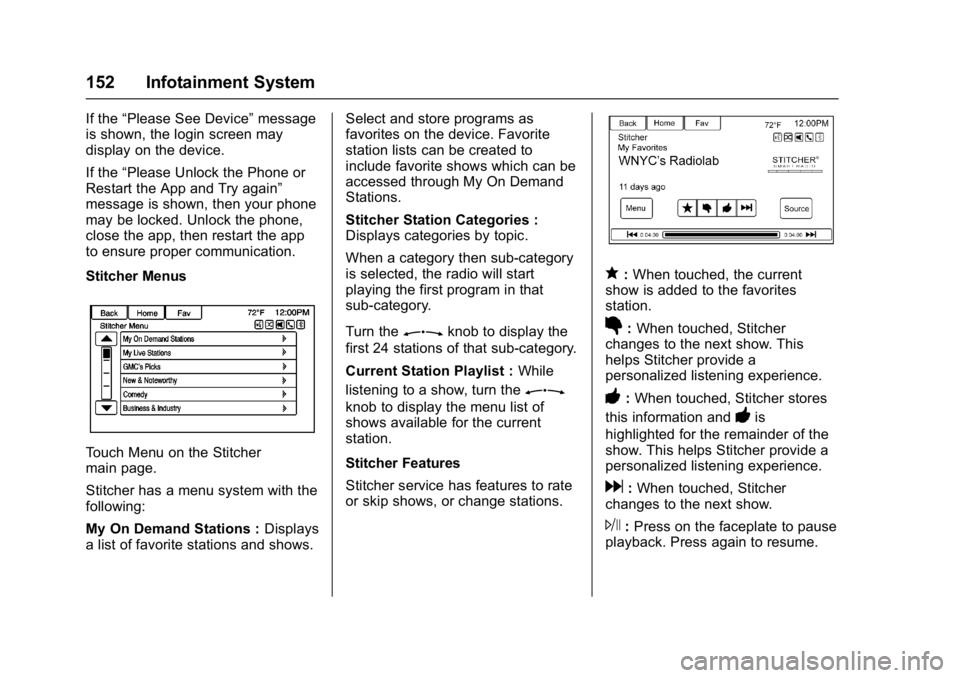
Stitcher Menus
Touch Menu on the Stitcher
main page.
Stitcher has a menu system with the
following:
My On Demand Stations : Displays
a list of favorite stations and shows. Select and store programs as
favorites on the device. Favorite
station lists can be created to
include favorite shows which can be
accessed through My On Demand
Stations.
Stitcher Station Categories :
Displays categories by topic.
When a category then sub-category
is selected, the radio will start
playing the first program in that
sub-category.
Turn the
Zknob to display the
first 24 stations of that sub-category.
Current Station Playlist : While
listening to a show, turn the
Z
knob to display the menu list of
shows available for the current
station.
Stitcher Features
Stitcher service has features to rate
or skip shows, or change stations.
q: When touched, the current
show is added to the favorites
station.
}: When touched, Stitcher
changes to the next show. This
helps Stitcher provide a
personalized listening experience.
-: When touched, Stitcher stores
this information and
-is
highlighted for the remainder of the
show. This helps Stitcher provide a
personalized listening experience.
d: When touched, Stitcher
changes to the next show.
J: Press on the faceplate to pause
playback. Press again to resume.
Page 154 of 381

Buick Cascada Owner Manual (GMNA-Localizing-U.S-9186636) - 2016 - crc -
3/9/16
Infotainment System 153
Stitcher Advertisement
Stitcher may display
advertisements. Artist name and title
may not display and the skip track
button is not available.
Switching Between Pandora and
Stitcher
To switch between Pandora and
Stitcher, press the application icon
on the iPhone, iPod touch, or iPad.
This is not required for Android
devices. SeePandora Internet
Radio 0146.
Stitcher Troubleshooting
Unable to Connect Device to
Vehicle
If the device is unable to connect to
the USB or Bluetooth:
1. Turn the vehicle off.
2. Remove the key from the ignition.
3. Open and close the driver door, wait about 30 seconds, and try
to connect the device again. The battery saver and task manager
applications on the phone can
cause Stitcher to function
incorrectly. Remove those apps
from the phone or remove Stitcher
and Bluetooth from the task lists.
Unable to Start Stitcher
If the device is unable to launch
Stitcher:
.
Check that the latest version of
Stitcher is installed.
. Check that there is an active
account logged into Stitcher.
. For Android devices, check that
the device is paired with the
vehicle, and the Bluetooth icon
on the display is highlighted.
. For iPhone, iPod touch, or iPad
devices, check that the USB
cable is connected to the USB
port and the screen is unlocked
and the Home Page is showing.
. Close Stitcher on the device and
launch again. Devices that allow
multitasking may require an extra step to quit the Stitcher
application. See the cell phone
manufacturer's user guide.
Loss of Audio
Loss of Stitcher audio can happen
due to:
. Weak or lost data connection.
. Device needs to be charged.
. Application needs to be
relaunched.
. Connection between phone and
radio is lost.
. If any iPhone, iPod touch,
or iPad is connected to
Bluetooth and the dock
connector, go to the Airplay icon
on the device and select dock
connector or disconnect and
reconnect the dock connector on
the device.
. The volume is too low. Turn up
the volume on the device.
If the connection is lost between the
application and device, a message
“Please Unlock the Phone or
Restart the App and Try again” will
display. Touch OK to retry.
Page 169 of 381
Buick Cascada Owner Manual (GMNA-Localizing-U.S-9186636) - 2016 - crc -
3/9/16
168 Infotainment System
Traffic
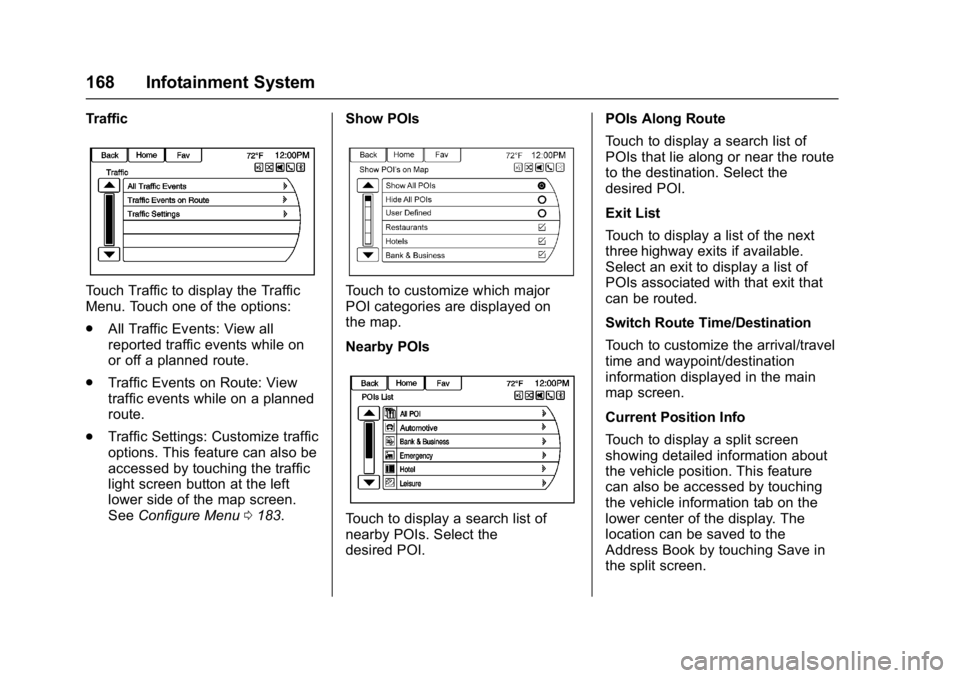
Touch Traffic to display the Traffic
Menu. Touch one of the options:
.All Traffic Events: View all
reported traffic events while on
or off a planned route.
. Traffic Events on Route: View
traffic events while on a planned
route.
. Traffic Settings: Customize traffic
options. This feature can also be
accessed by touching the traffic
light screen button at the left
lower side of the map screen.
See Configure Menu 0183. Show POIsTouch to customize which major
POI categories are displayed on
the map.
Nearby POIs
Touch to display a search list of
nearby POIs. Select the
desired POI. POIs Along Route
Touch to display a search list of
POIs that lie along or near the route
to the destination. Select the
desired POI.
Exit List
Touch to display a list of the next
three highway exits if available.
Select an exit to display a list of
POIs associated with that exit that
can be routed.
Switch Route Time/Destination
Touch to customize the arrival/travel
time and waypoint/destination
information displayed in the main
map screen.
Current Position Info
Touch to display a split screen
showing detailed information about
the vehicle position. This feature
can also be accessed by touching
the vehicle information tab on the
lower center of the display. The
location can be saved to the
Address Book by touching Save in
the split screen.
Page 174 of 381
Buick Cascada Owner Manual (GMNA-Localizing-U.S-9186636) - 2016 - crc -
3/9/16
Infotainment System 173
Address Entry
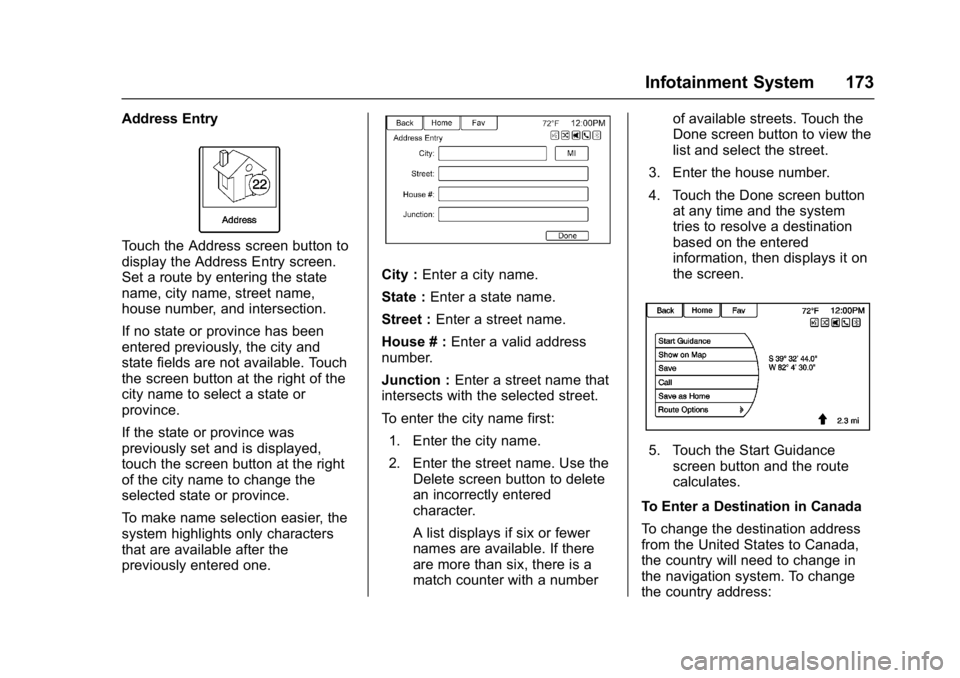
Touch the Address screen button to
display the Address Entry screen.
Set a route by entering the state
name, city name, street name,
house number, and intersection.
If no state or province has been
entered previously, the city and
state fields are not available. Touch
the screen button at the right of the
city name to select a state or
province.
If the state or province was
previously set and is displayed,
touch the screen button at the right
of the city name to change the
selected state or province.
To make name selection easier, the
system highlights only characters
that are available after the
previously entered one.
City :Enter a city name.
State : Enter a state name.
Street : Enter a street name.
House # : Enter a valid address
number.
Junction : Enter a street name that
intersects with the selected street.
To enter the city name first:
1. Enter the city name.
2. Enter the street name. Use the Delete screen button to delete
an incorrectly entered
character.
A list displays if six or fewer
names are available. If there
are more than six, there is a
match counter with a number of available streets. Touch the
Done screen button to view the
list and select the street.
3. Enter the house number.
4. Touch the Done screen button at any time and the system
tries to resolve a destination
based on the entered
information, then displays it on
the screen.
5. Touch the Start Guidancescreen button and the route
calculates.
To Enter a Destination in Canada
To change the destination address
from the United States to Canada,
the country will need to change in
the navigation system. To change
the country address:
Page 182 of 381

Buick Cascada Owner Manual (GMNA-Localizing-U.S-9186636) - 2016 - crc -
3/9/16
Infotainment System 181
Destination List
Select Destination List to view
options for organizing waypoints.
Turn List
Select Turn List to view a list of
maneuvers for the entire route.
Touch the Avoid screen button next
to one of the turn maneuvers toavoid a segment of roads.
A maximum of eight avoided
segments are allowed.
Avoid List
Select Avoid List to display a list of
avoided road segments with the
option to remove the avoided items
from the list.
Voice Prompt
Select Voice Prompt to view options
to disable or manage navigation
voice prompts and traffic alert
prompts.
Detour
Touch Detour to display the route
detour options. Select to detour the
whole route or by a specific
distance.
Route Options
This feature can be accessed from
the Destination Confirmation Menu
and Destination Menu with Route
Guidance Active. See
“Destination
Confirmation” previously in this
section. Waypoints
Up to three waypoints can be added
to the current route. The waypoints
can be sorted (moved) or deleted.
To add a waypoint:
1. From the Destination List menu, touch Add Waypoint.
2. Enter the waypoint by any of the add destination methods.
The system calculates and
highlights the route and the
route can be started.
3. To add more waypoints, touch Add Waypoint to add the
waypoint in the order desired
on the route.
Page 187 of 381

Buick Cascada Owner Manual (GMNA-Localizing-U.S-9186636) - 2016 - crc -
3/9/16
186 Infotainment System
Route Based on Traffic
Conditions :Touch to display a
submenu of options.
. Route Based on Traffic
Conditions: Touch to enable or
disable the route feature.
. Automatic Recalculation: Touch
to enable automatic route
recalculation.
. Recalculation after Confirmation:
Touch to enable route
recalculation after confirmation.
Sort Method : Touch to display a
submenu of sort options.
. Sort by Distance: Touch to
display traffic events in order of
distance with the closest event
shown first.
. Sort byRoad Name: Touch to
display traffic events in
alphabetical order.
Show Traffic Events on Map :
Touch to display traffic icons on
the map.
. Show All: Touch to enable
display of all traffic icons on
the map.
. Hide All: Touch to disable
display of all traffic icons on
the map.
. User Defined: Touch to define
the individual types of icons that
are displayed for traffic flow and
traffic conditions.
Traffic Flow Status
The traffic flow status will display in
green, yellow, or red lines beside
the road.
. Red indicates significantly
impaired traffic flow with average
speed less than 40 km/h
(25 mph). .
Yellow indicates slightly impaired
traffic flow with average speed
between 40 and 73 km/h (25 and
45 mph).
. Green indicates normal traffic
flow with average speed above
73 km/h (45 mph).
Closed Roads, Traffic Delays,
Roadworks, Incidents, and
Advisories
Select the traffic event group for
display on the map screen. Some
events may cover more than one
traffic condition. See the following
traffic conditions.
Traffic Conditions
The following traffic condition icons
may display:
Stopped TrafficTraffic Jam
Page 189 of 381
Buick Cascada Owner Manual (GMNA-Localizing-U.S-9186636) - 2016 - crc -
3/9/16
188 Infotainment System
Previously stored bread crumbs can
be loaded from the Saved menu
item, and then displayed by
selecting Show on Map.
Route Simulation
Select to display a route simulation.
Use Last Known Position :Select
to start the simulation from the last
known position.
Use Previous Destination : Select
to start the simulation from a
previous destination.
Use Specified Location : Select to
start the simulation from a specified
location.
Once the starting position for the
simulation is selected, select
Navigation and the Map display will
be in Simulation mode. SIMis
displayed on the map.
Select and enter the destination as
for a normal journey and select Start
Guidance to calculate the route in
Simulation mode.
Touch Next to skip to the next turn,
or touch Stop to pause the
simulation. To stop the simulation, press DEST
and select Cancel Guidance.
To exit from Simulation mode, return
to the Navigation Settings menu,
select Route Simulation, then select
Cancel Route Simulation.
Vehicle Settings
See
Vehicle Personalization 0113.
Display Settings
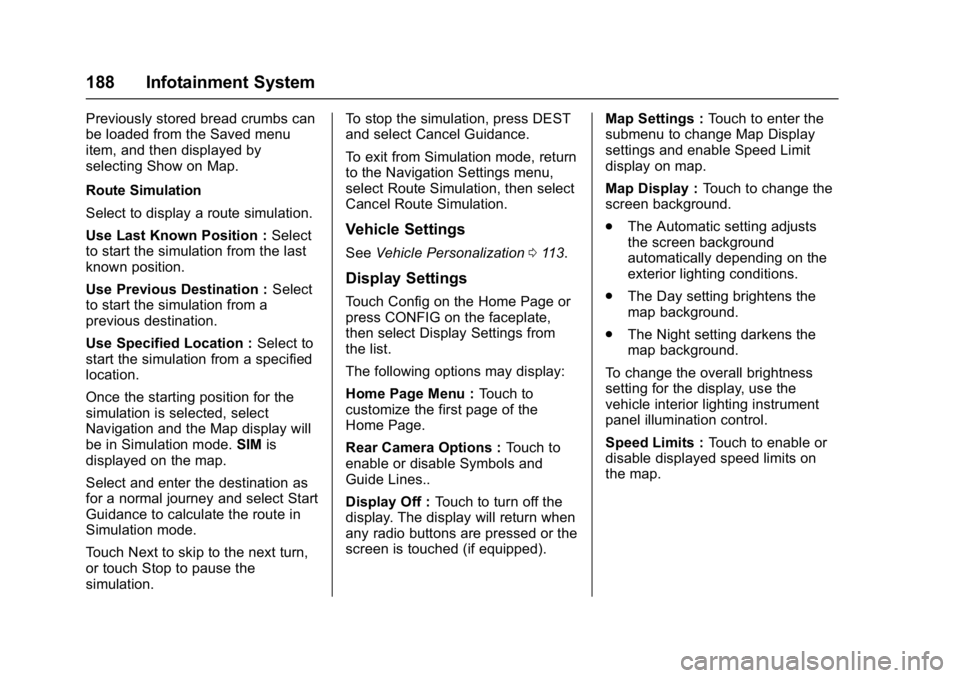
Touch Config on the Home Page or
press CONFIG on the faceplate,
then select Display Settings from
the list.
The following options may display:
Home Page Menu : Touch to
customize the first page of the
Home Page.
Rear Camera Options : Touch to
enable or disable Symbols and
Guide Lines..
Display Off : Touch to turn off the
display. The display will return when
any radio buttons are pressed or the
screen is touched (if equipped). Map Settings :
Touch to enter the
submenu to change Map Display
settings and enable Speed Limit
display on map.
Map Display : Touch to change the
screen background.
. The Automatic setting adjusts
the screen background
automatically depending on the
exterior lighting conditions.
. The Day setting brightens the
map background.
. The Night setting darkens the
map background.
To change the overall brightness
setting for the display, use the
vehicle interior lighting instrument
panel illumination control.
Speed Limits : Touch to enable or
disable displayed speed limits on
the map.
Page 214 of 381
Buick Cascada Owner Manual (GMNA-Localizing-U.S-9186636) - 2016 - crc -
3/9/16
Climate Controls 213
To improve fuel efficiency and
to cool the vehicle faster,
recirculation may be
automatically selected in warm
weather. The recirculation light
will not come on. Press
L
to select recirculation; press it
again to select outside air.
English units can be changed to
metric units through the Driver
Information Center (DIC). See
Driver Information Center
(DIC) 0110.
Manual Operation
9: Press the lower9button to
decrease the fan speed. Pressing
the lower button longer turns the fan
and cooling off. Press the upper
9
button to increase the fan speed.
The selected fan speed is indicated
by the number of segments on the
display screen. Press AUTO to
return to automatic operation.
Air Delivery Modes : Press
%,Y,
or
[to change the direction of the
airflow. Any combination of the three
buttons can be selected. The
indicator light in the button will turn on. The current mode appears in
the display screen. Pressing any of
the three buttons cancels automatic
air delivery control and the direction
of the airflow is controlled manually.
Press AUTO to return to automatic
operation.
To change the current mode, select
one or more of the following:
%:
Air is directed to the
windshield and side window vents.
Y: Air is directed to the instrument
panel outlets.
[: Air is directed to the floor
outlets.
0: Press to clear the windshield
of fog or frost more quickly. Air is
directed to the windshield.
For best results, clear all snow and
ice from the windshield before
defrosting.
#: Press to turn the air
conditioning on or off. If the fan is
turned off or the outside
temperature falls below freezing, the
air conditioning compressor will
not run. Press AUTO to return to automatic
operation and the air conditioner
runs as needed. When the indicator
light is on, the air conditioner runs
automatically to cool the air inside
the vehicle or to dry the air needed
to defog the windshield faster.
L:
Press to turn recirculation on
or off. An indicator light comes on.
Air is recirculated to quickly cool the
inside of the vehicle or reduce entry
of outside air and odors.
Rear Window Defogger
=: Press to turn the rear window
defogger on or off. An indicator light
on the button comes on to show that
the rear window defogger is on.
The defogger only works when the
ignition is in ON/RUN. The defogger
turns off if the ignition is in the ACC/
ACCESSORY or LOCK/OFF
position.
The rear window defogger can be
set to automatic operation; see
“Climate and Air Quality” under
Vehicle Personalization 0113.
When Auto Rear Defog is selected,
the rear window defogger turns on
Page 215 of 381
Buick Cascada Owner Manual (GMNA-Localizing-U.S-9186636) - 2016 - crc -
3/9/16
214 Climate Controls
automatically when the interior
temperature is cold and the outside
temperature is about 4 °C (40 °F)
and below. The auto rear defogger
turns off automatically after about
10 minutes. At higher speeds, the
rear window defogger may stay on
continuously.
If equipped with heated outside
rearview mirrors, they turn on when
the rear window defogger button is
on and help to clear fog or frost from
the surface of the mirrors. See
Heated Mirrors033.
Caution
Do not try to clear frost or other
material from the inside of the
front windshield and rear window
with a razor blade or anything
else that is sharp. This may
damage the rear window
defogger grid and affect the
radio's ability to pick up stations
clearly. The repairs would not be
covered by the vehicle warranty.
MorL:Press to turn the heated
seats on or off. See Heated Front
Seats 049.
(:If equipped, press to turn the
heated steering wheel on or off. See
Heated Steering Wheel 094.
Remote Start Climate Control
Operation : If equipped with the
remote vehicle start feature, the
climate control system may run
when the vehicle is started remotely.
The system uses the driver ’s
previous settings to heat or cool the
inside of the vehicle. The rear defog
may come on during remote start
based on cold ambient conditions.
The rear defog indicator light does
not come on during a remote start.
If the vehicle has front heated seats,
they may come on during a remote
start. The heated seat indicator
lights do not come on during a
remote start. See Remote Vehicle
Start 049 and Heated Front
Seats 049.
Air Vents
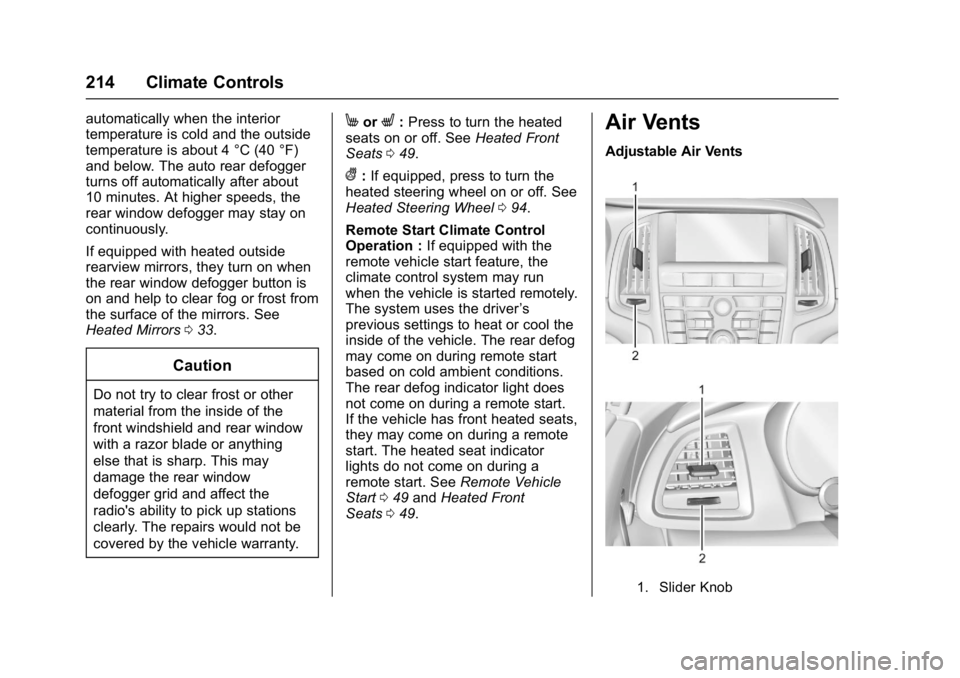
Adjustable Air Vents
1. Slider Knob