radio controls BUICK CASCADA 2017 User Guide
[x] Cancel search | Manufacturer: BUICK, Model Year: 2017, Model line: CASCADA, Model: BUICK CASCADA 2017Pages: 381, PDF Size: 6.58 MB
Page 133 of 381
Buick Cascada Owner Manual (GMNA-Localizing-U.S.-9967834) - 2017 - crc -
7/18/16
132 Infotainment System
Autostore does not delete
previously stored favorite stations.
Autostore does not function with
SiriusXM radio channels.
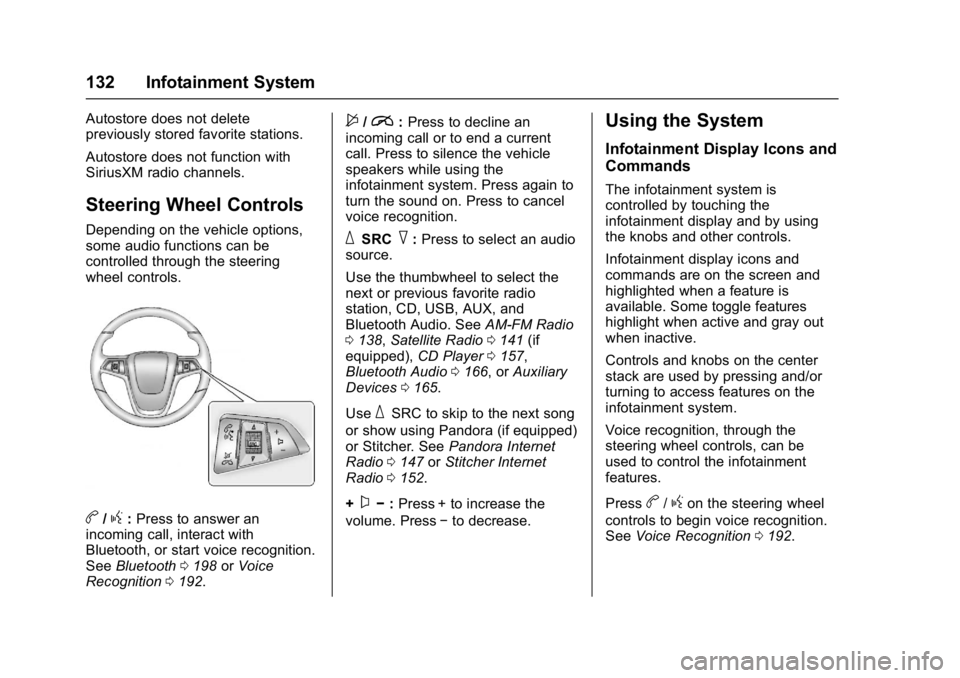
Steering Wheel Controls
Depending on the vehicle options,
some audio functions can be
controlled through the steering
wheel controls.
b/g:Press to answer an
incoming call, interact with
Bluetooth, or start voice recognition.
See Bluetooth 0198 orVoice
Recognition 0192.
$/i:Press to decline an
incoming call or to end a current
call. Press to silence the vehicle
speakers while using the
infotainment system. Press again to
turn the sound on. Press to cancel
voice recognition.
_SRC^: Press to select an audio
source.
Use the thumbwheel to select the
next or previous favorite radio
station, CD, USB, AUX, and
Bluetooth Audio. See AM-FM Radio
0 138, Satellite Radio 0141 (if
equipped), CD Player0157,
Bluetooth Audio 0166, or Auxiliary
Devices 0165.
Use
_SRC to skip to the next song
or show using Pandora (if equipped)
or Stitcher. See Pandora Internet
Radio 0147 orStitcher Internet
Radio 0152.
+
x− :Press + to increase the
volume. Press −to decrease.
Using the System
Infotainment Display Icons and
Commands
The infotainment system is
controlled by touching the
infotainment display and by using
the knobs and other controls.
Infotainment display icons and
commands are on the screen and
highlighted when a feature is
available. Some toggle features
highlight when active and gray out
when inactive.
Controls and knobs on the center
stack are used by pressing and/or
turning to access features on the
infotainment system.
Voice recognition, through the
steering wheel controls, can be
used to control the infotainment
features.
Press
b/gon the steering wheel
controls to begin voice recognition.
See Voice Recognition 0192.
Page 139 of 381
Buick Cascada Owner Manual (GMNA-Localizing-U.S.-9967834) - 2017 - crc -
7/18/16
138 Infotainment System
Radio
AM-FM Radio
Playing the Radio
O/n:
. Press to turn the radio on or off.
. Turn to increase or decrease the
volume of the active source.
The steering wheel controls can
also be used to adjust the volume.
See Steering Wheel Controls 0132.
Radio Operation
The radio will work when the key is
in ON/RUN or ACC/ACCESSORY.
When the key is turned from ON/
RUN to LOCK/OFF, the radio will
continue to work for 10 minutes or
until the driver door is opened.
The radio can be turned on by
pressing
O/non the center
stack and will stay on for
10 minutes. Opening the driver door
will not turn the radio off when
pressing
O/n. Some radios may stay on longer
and reset the time for 10 minutes if
there are any additional presses of
O/n.
The radio can be turned off at any
time by pressing
O/non the
center stack.
Audio Source
Press SRCE on the center stack or
SRC on the steering wheel controls
to display and scroll through the
available sources AM, FM, SiriusXM
(if equipped), Pandora (if equipped),
Stitcher, CD, USB, AUX, and
Bluetooth Audio.
For radios without navigation, press
RADIO/BAND, CD, or AUX to scroll
through the sources.
Infotainment System Settings
Tone Settings
To access the tone settings, touch
Tone Settings on the Home Page.
Tone settings are specific to each
source.
The tone settings can also be
accessed by pressing TONE on the
center stack.
To adjust the settings:
. Bass: Touch + or −to change
the level.
. Mid (Midrange): Touch + or −to
change the level.
. Treble: Touch + or −to change
the level.
. EQ: Press and turn the
Z
knob to cycle through the preset
EQ options.
. Fade: Touch F or R for more
sound from the front or rear
speakers. The middle position
balances the sound between the
front and rear speakers.
Page 140 of 381
Buick Cascada Owner Manual (GMNA-Localizing-U.S.-9967834) - 2017 - crc -
7/18/16
Infotainment System 139
.Balance: Touch L or R for more
sound from the left or right
speakers. The middle position
balances the sound between the
left and right speakers.
Finding a Station
Press SRCE on the center stack or
press SRC on the steering wheel
controls to select AM, FM, SiriusXM
(if equipped), Pandora (if equipped),
Stitcher (if equipped), CD, USB,
AUX, and Bluetooth Audio.
Turn the
Zknob to find a radio
station. To select a preset station,
press FAV 1/2/3 to scroll through the
favorite pages and then press a
preset on the center stack or touch
the display icon.
Seeking a Station
Press
s ©or¨\to search for a
station. AM
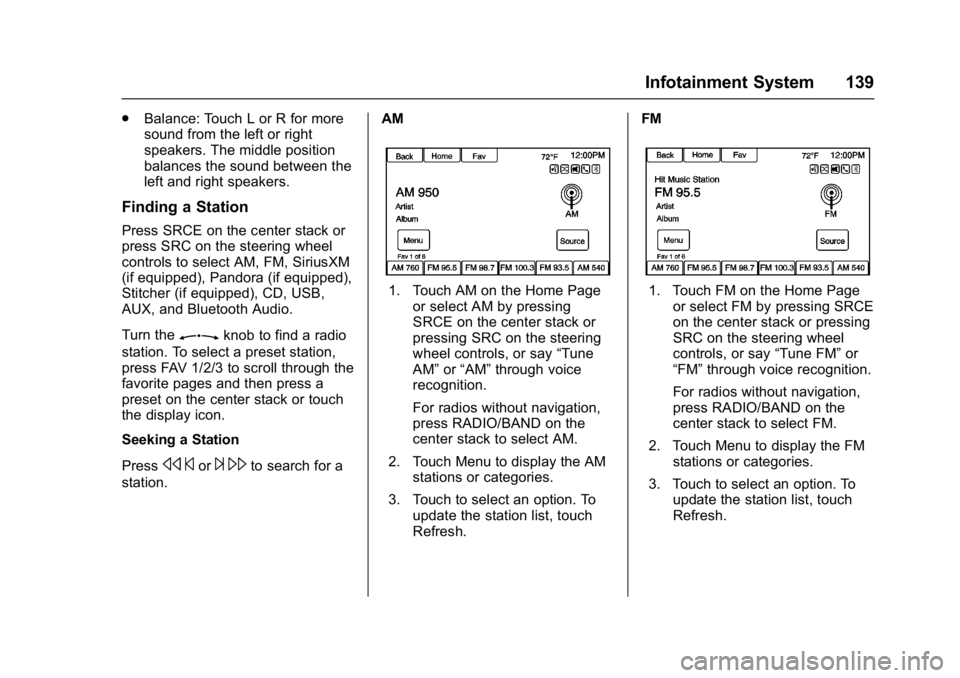
1. Touch AM on the Home Page
or select AM by pressing
SRCE on the center stack or
pressing SRC on the steering
wheel controls, or say “Tune
AM” or“AM” through voice
recognition.
For radios without navigation,
press RADIO/BAND on the
center stack to select AM.
2. Touch Menu to display the AM stations or categories.
3. Touch to select an option. To update the station list, touch
Refresh. FM1. Touch FM on the Home Page
or select FM by pressing SRCE
on the center stack or pressing
SRC on the steering wheel
controls, or say “Tune FM”or
“FM” through voice recognition.
For radios without navigation,
press RADIO/BAND on the
center stack to select FM.
2. Touch Menu to display the FM stations or categories.
3. Touch to select an option. To update the station list, touch
Refresh.
Page 141 of 381
Buick Cascada Owner Manual (GMNA-Localizing-U.S.-9967834) - 2017 - crc -
7/18/16
140 Infotainment System
SiriusXM (If Equipped)
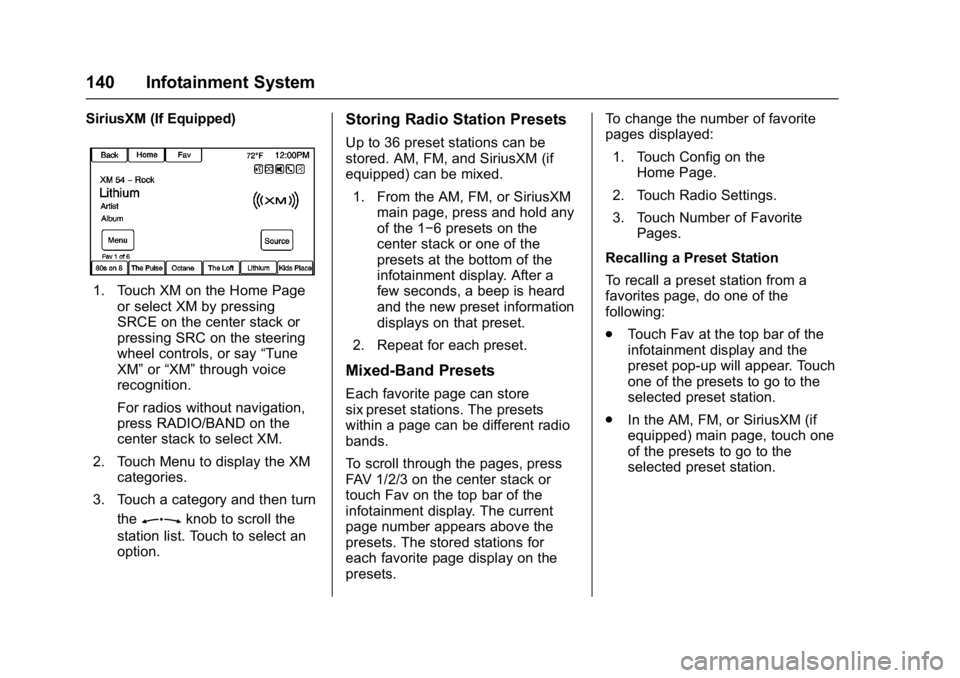
1. Touch XM on the Home Pageor select XM by pressing
SRCE on the center stack or
pressing SRC on the steering
wheel controls, or say “Tune
XM” or“XM” through voice
recognition.
For radios without navigation,
press RADIO/BAND on the
center stack to select XM.
2. Touch Menu to display the XM categories.
3. Touch a category and then turn the
Zknob to scroll the
station list. Touch to select an
option.
Storing Radio Station Presets
Up to 36 preset stations can be
stored. AM, FM, and SiriusXM (if
equipped) can be mixed.
1. From the AM, FM, or SiriusXM main page, press and hold any
of the 1−6 presets on the
center stack or one of the
presets at the bottom of the
infotainment display. After a
few seconds, a beep is heard
and the new preset information
displays on that preset.
2. Repeat for each preset.
Mixed-Band Presets
Each favorite page can store
six preset stations. The presets
within a page can be different radio
bands.
To scroll through the pages, press
FAV 1/2/3 on the center stack or
touch Fav on the top bar of the
infotainment display. The current
page number appears above the
presets. The stored stations for
each favorite page display on the
presets. To change the number of favorite
pages displayed:
1. Touch Config on the Home Page.
2. Touch Radio Settings.
3. Touch Number of Favorite Pages.
Recalling a Preset Station
To recall a preset station from a
favorites page, do one of the
following:
. Touch Fav at the top bar of the
infotainment display and the
preset pop-up will appear. Touch
one of the presets to go to the
selected preset station.
. In the AM, FM, or SiriusXM (if
equipped) main page, touch one
of the presets to go to the
selected preset station.
Page 153 of 381
Buick Cascada Owner Manual (GMNA-Localizing-U.S.-9967834) - 2017 - crc -
7/18/16
152 Infotainment System
Devices that allow multitasking may
require an extra step to quit the
Pandora application. Close Pandora
on the device and launch again.
Unlock the phone and check that
the Home Page shows on the
phone/device.
See the cell phone manufacturer's
user guide.
See www.pandora.com/help for
more information. If the service will
not work, see your dealer for
assistance.
Stitcher Internet Radio
Stitcher SmartRadio®is an Internet
radio service that streams news,
sports, and entertainment shows
through the audio system. Create
personalized, on-demand stations or
use Stitcher's preset stations. To set
up an account, download the
application from the Android Market
or iTunes Store, or go to
www.stitcher.com.
A phone or tablet with Internet
connection is required for this
application. Personal cell phone data plans are used. Make sure the
latest version is installed on the
device and the volume on the
device is turned up.
BlackBerry phones are not
supported for this application.
To install Stitcher:
.
On an Android phone or Tablet
with Internet connection, go to
the Android Play Store, search
for Stitcher, and install to the
phone, not to the SD card.
. On an iPhone, iPad, or iPod
touch, go to the iTunes Store
and search for Stitcher.Launching Stitcher
Connect the iPhone, iPad, or iPod
touch to the USB port, or connect
Android through Bluetooth. See
Auxiliary Devices 0165 orBluetooth
0 198. For first-time use, set up the
stations before connecting to the
vehicle. The Stitcher icon will be
available on the Home Page and
source pop-up displays if the latest
application is installed on the
device. Using the iPhone, iPod touch,
or an iPad
1. Plug the device into the USB port. The phone screen must
be unlocked.
2. Use one of the following to launch :
.Press the application on the
device.
. Touch Stitcher on the
Home Page.
. Press
b/gand say
“Stitcher” or“Tune Stitcher.”
. Accept any notifications on
the device screen.
3. If Stitcher does not begin playing, select a category and
then a station.
After Stitcher has been launched,
press SRCE on the center stack or
press SRC on the steering wheel
controls to access Stitcher features.
If nothing happens when the
available Stitcher icon is touched,
download the latest Stitcher
application and retry.
Page 154 of 381
Buick Cascada Owner Manual (GMNA-Localizing-U.S.-9967834) - 2017 - crc -
7/18/16
Infotainment System 153
Stitcher will always be highlighted
on the Home Page when an iPhone,
iPad, or iPod touch is connected
using the USB port. To use, log into
your account.
If the“Please See Device” message
is shown, the login screen may
display on the device.
If the “Please Unlock the Phone or
Restart the App and Try again”
message is shown, then the phone
may be locked. Unlock the phone,
close the app, then restart the app
and make sure the home page is
visible on the phone/device.
Using an Android Phone
1. Pair the Android phone using Bluetooth.
2. Use one of the following to launch:
.Press the application on the
device.
. Touch Stitcher on the
Home Page.
. Press
b/gand say
“Stitcher” or“Tune Stitcher.” 3. If Stitcher does not begin
playing, select a category and
then a station.
After Stitcher has been launched,
press SRCE on the center stack or
press SRC on the steering wheel
controls to access Stitcher features.
If nothing happens when the
available Stitcher icon is touched,
download the latest Stitcher
application and retry.
If the “Please See Device” message
is shown, the login screen may
display on the device.
If the “Please Unlock the Phone or
Restart the App and Try again”
message is shown, then your phone
may be locked. Unlock the phone,
close the app, then restart the app
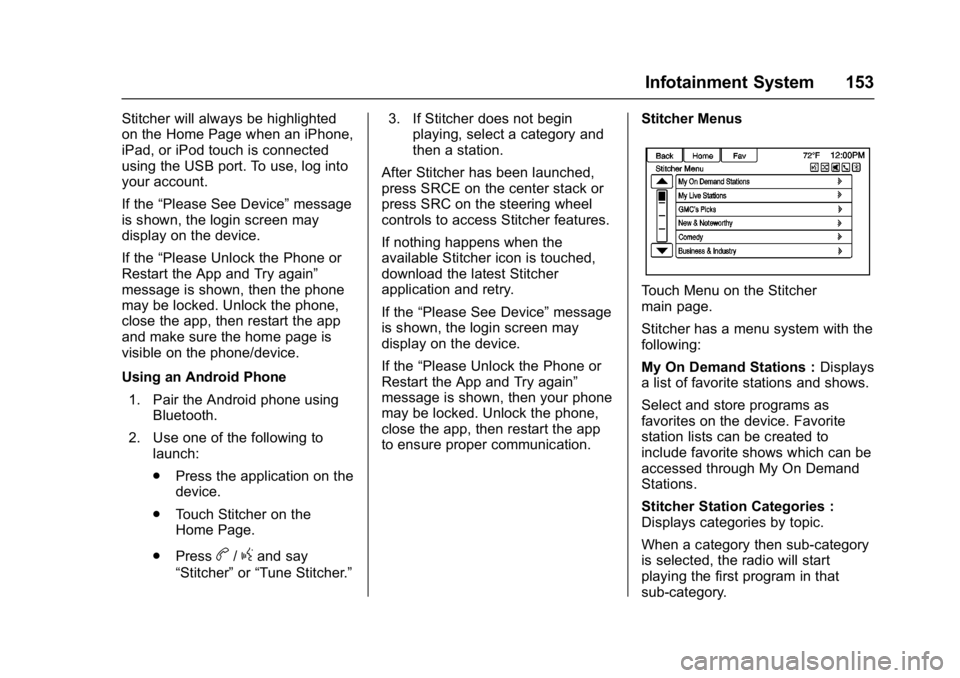
to ensure proper communication. Stitcher Menus
Touch Menu on the Stitcher
main page.
Stitcher has a menu system with the
following:
My On Demand Stations :
Displays
a list of favorite stations and shows.
Select and store programs as
favorites on the device. Favorite
station lists can be created to
include favorite shows which can be
accessed through My On Demand
Stations.
Stitcher Station Categories :
Displays categories by topic.
When a category then sub-category
is selected, the radio will start
playing the first program in that
sub-category.
Page 159 of 381
Buick Cascada Owner Manual (GMNA-Localizing-U.S.-9967834) - 2017 - crc -
7/18/16
158 Infotainment System
For vehicles without navigation,
press CD on the center stack
to access the CD main page.
2. Touch the Menu icon to display the menu options.
3. Touch to select the option.
On the CD main page, the track
number displays and the Song,
Artist, and Album information
displays when available.
Use the following radio controls to
play the disc:
J: Use to pause or resume play.
s ©:
. Press to seek to the beginning of
the current or previous track.
If the track has been playing for
less than five seconds, it seeks
to the previous track. If longer
than five seconds, the current
track starts from the beginning.
. Press and hold to fast reverse
through a track. Release to
return to playing speed. Elapsed
time displays.
¨\:
. Press to seek to the next track.
. Press and hold to fast forward
through a track. Release to
return to playing speed. Elapsed
time displays.
ZKnob : Turn to the right or
left to select the next or previous
track. Press the outer ring of this
knob to select from the list. If a track
is selected from the menu, the
system plays the track and returns
to the CD screen.
Error Messages
If Disc Error displays and/or the disc
comes out, it could be due to:
. The disc has an invalid or
unknown format.
. The disc is very hot. Try the disc
again when the temperature
returns to normal.
. The road is very rough. Try the
disc again when the road is
smoother.
. The disc is dirty, scratched, wet,
or upside down. .
The air is very humid. Try the
disc again later.
. There was a problem while
burning the disc.
. The label is caught in the CD
player.
If the CD is not playing correctly, try
a known good CD.
If any error continues, contact your
dealer.
MP3
Playing an MP3 CD
To play an MP3 CD, follow the same
instructions as “Playing an
Audio CD”.
The following guidelines must be
met when creating an MP3 disc,
otherwise the CD might not play:
. Sampling rate: 16 kHz,
22.05 kHz, 24 kHz, 32 kHz,
44.1 kHz, and 48 kHz.
. Bit rates supported: 8, 16, 24,
32, 40, 48, 56, 64, 80, 96, 112,
128, 144, 160, 192, 224, 256,
and 320 kbps.
Page 163 of 381
Buick Cascada Owner Manual (GMNA-Localizing-U.S.-9967834) - 2017 - crc -
7/18/16
162 Infotainment System
.Pressb/gon the steering
wheel controls to play CD, Artist,
Album, Song Title, or Song
Genre. See Voice
Recognition 0192.
The following playlist formats are
supported:
. M3U (Standard and Extended)
. iTunes
. PLS (Standard)
. WAX
. ASX
. RMP
The radio supports plugging a cell
phone in as a USB device as long
as the cell phone supports USB
mass storage class or has USB disc
drive support enabled.
While the USB source is active, use
the following to operate USB
function:
ZKnob : Turn to scroll through
the list. Turn quickly to fast scroll
alphabetically through large lists.
J: Touch to start, pause,
or resume play of the current media
source.
s ©:
. Touch to seek to the beginning
of the current or previous track.
If the track has been playing for
less than five seconds, the
previous track plays. If playing
longer than five seconds, the
current track restarts.
. Touch and hold to reverse
quickly through playback.
Release to return to playing
speed. Elapsed time displays.
¨\:
. Touch to seek to the next track.
. Touch and hold to advance
quickly through playback.
Release to return to playing
speed. Elapsed time displays.
USB Menu
The following are available through
the USB Menu: Shuffle :
Touch to play the tracks
randomly. Touch again to stop
shuffle.
Play More Like This : Touch to
automatically create a playlist of
songs that are like the song
currently playing.
The radio will show Playlist Creation
Succeeded and continue playing the
current song.
Playlist Creation Failed may appear
if a song is not found in the
Gracenote Database.
Delete Automatic Playlist : Touch
to delete a More Like This playlist.
Folders : Touch to open a folder list
to access the files within the folder
structure.
Playlists:
1. Touch to view the playlists on the USB.
2. Select a playlist to view the list of all songs in that playlist.
3. Select a song from the list to begin playback.
Page 203 of 381

Buick Cascada Owner Manual (GMNA-Localizing-U.S.-9967834) - 2017 - crc -
7/18/16
202 Infotainment System
To cancel this command, press$/
ion the steering wheel control or
press BACK on the center stack.
Connecting to a Different Phone
or Device
To connect to a different cell phone,
the system looks for the next
available cell phone. Depending on
the cell phone to be connected, this
command may need to be repeated.
1. Press
b/g. The system
responds “Please say a
command,” followed by a tone.
2. Say “Change Phone.”
. To select a device, touch
the name on the display.
. If another cell phone is not
found, the original phone
remains connected.
Making a Call Using Phone
Book and Infotainment
Controls
For cell phones that support the
phone book feature, the Bluetooth
system can use the contacts stored
on the cell phone to make calls. See the cell phone manufacturer‘s user
guide or contact the wireless
provider to find out if this feature is
supported.
When a cell phone supports the
phone book feature, the Phone
Book and Call Lists menus are
automatically available.
The Phone Book menu allows
access to the phone book stored in
the cell phone to make a call.
The Call Lists menu allows access
to the phone numbers from the
Incoming Calls, Outgoing Calls, and
Missed Calls menus on the cell
phone to make a call.
The radio will display the first
1,000 contacts and the phone
numbers for each contact including
Home, Work, Mobile, and Other.
To make a call using the Phone
Book menu:
1. Press PHONE on the center stack or touch the Phone icon
on the Home Page.
2. Select Phone Book. 3. Select the letter group of the
phone book entry to scroll
through the list of names/
numbers.
4. Select the name.
5. Select the number to call.
To make a call using the Call
Lists menu: 1. Press PHONE on the center stack or touch the Phone icon
on the Home Page.
2. Select Call Lists.
3. Select the Incoming Calls, Outgoing Calls, or Missed
Calls list.
4. Select the name or number to call.
Making a Call Using the
Infotainment Controls
To make a call:
1. Press PHONE on the center stack or touch the Phone icon
on the Home Page.
2. Touch Enter Number.
3. Enter the phone number.
Page 216 of 381

Buick Cascada Owner Manual (GMNA-Localizing-U.S.-9967834) - 2017 - crc -
7/18/16
Climate Controls 215
automatically when the interior
temperature is cold and the outside
temperature is about 4 °C (40 °F)
and below. The auto rear defogger
turns off automatically after about
10 minutes. At higher speeds, the
rear window defogger may stay on
continuously.
If equipped with heated outside
rearview mirrors, they turn on when
the rear window defogger button is
on and help to clear fog or frost from
the surface of the mirrors. See
Heated Mirrors033.
Caution
Do not try to clear frost or other
material from the inside of the
front windshield and rear window
with a razor blade or anything
else that is sharp. This may
damage the rear window
defogger grid and affect the
radio's ability to pick up stations
clearly. The repairs would not be
covered by the vehicle warranty.
MorL:Press to turn the heated
seats on or off. See Heated Front
Seats 049.
(:If equipped, press to turn the
heated steering wheel on or off. See
Heated Steering Wheel 094.
Remote Start Climate Control
Operation : If equipped with the
remote vehicle start feature, the
climate control system may run
when the vehicle is started remotely.
The system uses the driver ’s
previous settings to heat or cool the
inside of the vehicle. The rear defog
may come on during remote start
based on cold ambient conditions.
The rear defog indicator light does
not come on during a remote start.
If the vehicle has front heated
seats, they may come on during a
remote start. The heated seat
indicator lights do not come on
during a remote start.
See Remote Vehicle Start 026
and Heated Front Seats 049.
Air Vents
Adjustable Air Vents
1. Slider Knob