manual radio set BUICK CASCADA 2017 Owner's Guide
[x] Cancel search | Manufacturer: BUICK, Model Year: 2017, Model line: CASCADA, Model: BUICK CASCADA 2017Pages: 381, PDF Size: 6.58 MB
Page 186 of 381
Buick Cascada Owner Manual (GMNA-Localizing-U.S.-9967834) - 2017 - crc -
7/18/16
Infotainment System 185
Configure Menu
The Configuration Menu is used to
adjust features and preferences,
such as Sound, Radio, Nav
(Navigation), Display, or Time
Settings.
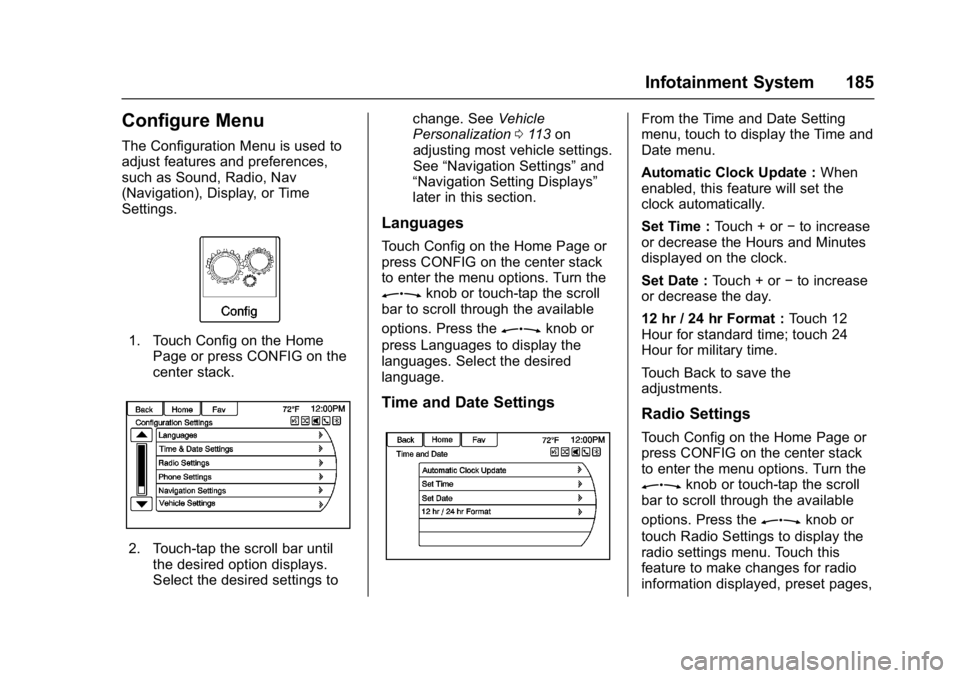
1. Touch Config on the HomePage or press CONFIG on the
center stack.
2. Touch-tap the scroll bar untilthe desired option displays.
Select the desired settings to change. See
Vehicle
Personalization 0113 on
adjusting most vehicle settings.
See “Navigation Settings” and
“Navigation Setting Displays”
later in this section.
Languages
Touch Config on the Home Page or
press CONFIG on the center stack
to enter the menu options. Turn the
Zknob or touch-tap the scroll
bar to scroll through the available
options. Press the
Zknob or
press Languages to display the
languages. Select the desired
language.
Time and Date Settings
From the Time and Date Setting
menu, touch to display the Time and
Date menu.
Automatic Clock Update : When
enabled, this feature will set the
clock automatically.
Set Time : Touch + or−to increase
or decrease the Hours and Minutes
displayed on the clock.
Set Date : Touch + or −to increase
or decrease the day.
12 hr / 24 hr Format : Touch 12
Hour for standard time; touch 24
Hour for military time.
Touch Back to save the
adjustments.
Radio Settings
Touch Config on the Home Page or
press CONFIG on the center stack
to enter the menu options. Turn the
Zknob or touch-tap the scroll
bar to scroll through the available
options. Press the
Zknob or
touch Radio Settings to display the
radio settings menu. Touch this
feature to make changes for radio
information displayed, preset pages,
Page 187 of 381
Buick Cascada Owner Manual (GMNA-Localizing-U.S.-9967834) - 2017 - crc -
7/18/16
186 Infotainment System
Auto Volume, and XM Categories
Restore. SeeSatellite Radio 0141,
for information about XM
Categories.
The Radio Settings are:
Auto Volume : Select Off, Low,
Medium, or High sensitivity to
automatically adjust the volume to
minimize the effects of unwanted
background noise that can result
from changing road surfaces, driving
speeds, or open windows. This
feature works best at lower volume
settings where background noise is
typically louder than the sound
system volume.
Gracenote Options : Touch to
enable/disable Normalization used
to improve voice recognition and
media groupings. See CD Player
0 157, USB 0160, Auxiliary Devices
0 165, and Bluetooth Audio 0166.
XM Channel Art : Touch to enable/
disable the XM Audio page
background on the XM Channel
display. Max Startup Volume :
Touch to set
the maximum volume level for
startup that will be used even if a
higher volume had been set when
the radio was turned off.
Number of Favorite Pages : Touch
to select the number of favorite
pages to be displayed.
XM Categories : Touch to
customize which available XM
Categories are used and displayed.
Software Version Information :
Touch to display information about
the system and update software if
available.
Phone Settings
See Bluetooth 0198.
Navigation Settings
Touch Config on the Home Page to
enter the setup menu. Turn the
Zknob or touch-tap the scroll
bar until the Navigation Settings
option displays. Select this feature
to make changes to Voice Prompt,
Traffic Settings, Guidance Alert,
Delete Saved Destinations, Bread
Crumbs, and Route Simulation.
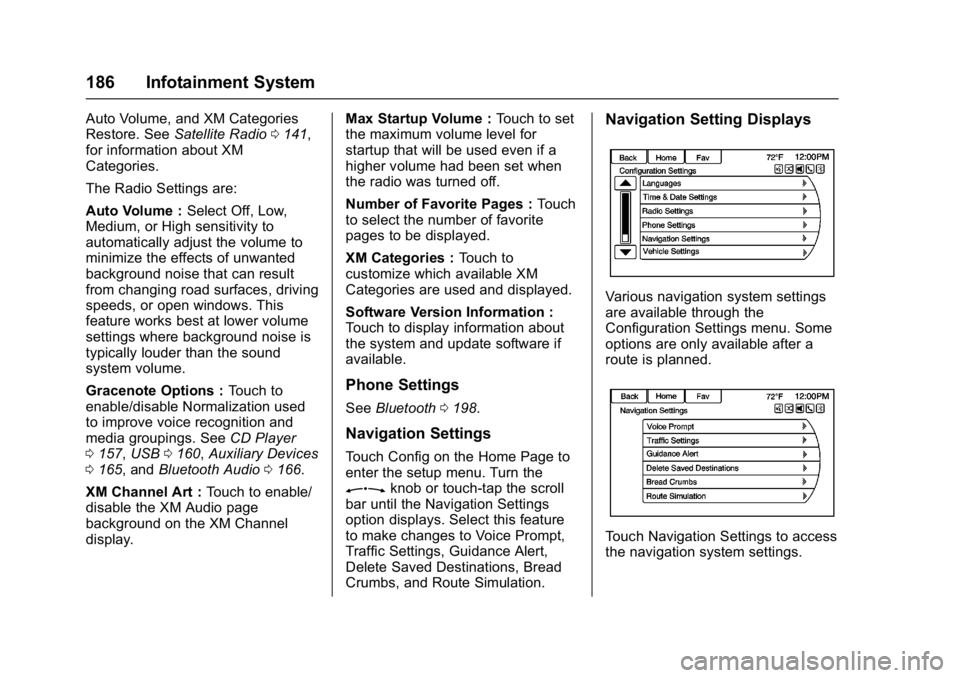
Navigation Setting Displays
Various navigation system settings
are available through the
Configuration Settings menu. Some
options are only available after a
route is planned.
Touch Navigation Settings to access
the navigation system settings.
Page 195 of 381
Buick Cascada Owner Manual (GMNA-Localizing-U.S.-9967834) - 2017 - crc -
7/18/16
194 Infotainment System
Canada or Mexico, the country
will first have to be changed in
the system.
Voice Recognition Help
To enter the help playback session,
clearly speak one of the help
commands.
Help :The system plays back more
specific help commands such as
Radio Settings to choose from.
Radio : Use this command to learn
about how to select a band (AM,
FM, or SiriusXM), and how to
change radio stations by speaking
frequency numbers.
Phone : Use this command to learn
about how to dial, pair a device,
or delete a device.
My Media : Use this command to
learn how to play specific tracks,
artists, albums, devices connected
to the USB port, or to change
sources.
Settings : Use this command to
learn about how to turn Verbose on
or off, or set the language.
Voice Recognition Commands
The following list shows the voice
commands available for the system
with a brief description of each. The
commands are listed with the
optional words in parentheses. To
use the voice commands, see the
previous instructions.
Radio Commands
Tune AM, Tune FM, Tune XM,
Tune Pandora, Tune Stitcher :
Instructs the system to go to the
specific band and the last station.
Tune AM (frequency), Tune FM
(frequency), Tune XM (station
number or name) : Instructs the
system to go to the specific station.
Thumbs Up : Instructs the system
to give the current song or station a
thumbs up in Pandora or Stitcher.
Thumbs Down : Instructs the
system to give the current song or
station a thumbs down in Pandora
or Stitcher.
Phone Commands
Dial or Call (phone number or
contact) : Instructs the system to
start a phone call. For example, say
“Dial 1 248 123 4567.” To call a
phone book contact, say “Dial”or
“Call,” say the name and location,
and then say “Dial.”For example,
say “Call John at Home” or“Call
John at Work.” If a number is not
recognized, the first number in the
list will be called.
Pair or Connect : Instructs the
system to begin pairing a device.
Digit Dial : Instructs the system to
dial a phone number one digit at a
time. After saying the digits,
say “Dial.”
Redial or Redial Last Number :
Instructs the system to dial the last
phone number called.
Select Device or Change Phone :
Instructs the system to switch to a
different paired device. The device
must be selected from the screen or
using the
Zknob.
Delete Device : Instructs the
system to delete a paired device.
Page 201 of 381
Buick Cascada Owner Manual (GMNA-Localizing-U.S.-9967834) - 2017 - crc -
7/18/16
200 Infotainment System
.The pairing process is disabled
when the vehicle is moving.
. Pairing only needs to be
completed once, unless the
pairing information on the cell
phone changes or the cell phone
is deleted from the system.
. Only one paired cell phone can
be connected to the Bluetooth
system at a time.
. If multiple paired cell phones are
within range of the system, the
radio will connect to the first
phone in the list or to the phone
that was previously connected.
Pairing a Phone/Device 1. Press CONFIG or PHONE on the center stack.
2. Select Phone Settings.
3. Select Pair Device (Phone). The radio displays “Please
start Bluetooth search on your
phone. Confirm or enter
number :”. If the device
supports a four-digit Personal Identification Number (PIN), it
will display. The PIN is used in
Step 5.
4. Start the pairing process on the cell phone to be paired to the
vehicle. See the cell phone
manufacturer's user guide.
5. Locate and select the device named after the vehicle make
and model in the list on the cell
phone. Follow the instructions
on the cell phone to enter the
PIN provided in Step 3, or to
confirm the six-digit code
matches. The system
recognizes the new connected
phone after the pairing process
is complete.
6. If the phone prompts to accept connection or allow phone
book download, select always
accept and allow. The phone
book may not be available if
not accepted. Some phones
will put connection request or a
phonebook request in a pull
down task bar at the top of the screen. Drag down the task bar
and look for connection/
phonebook request and accept.
7. Repeat to pair additional phones.
Listing All Paired and Connected
Phones/Devices 1. Press CONFIG on the center stack.
2. Select Phone Settings.
3. Select Device List.
Deleting a Paired Phone/Device 1. Press CONFIG on the center stack.
2. Select Phone Settings.
3. Select Device List.
4. Select the phone to delete and follow the screen prompts.
Connecting to a Different Phone
To connect to a different phone, the
new phone must be in the vehicle
and available to be connected to the
Bluetooth system before the
process is started.
Page 206 of 381
Buick Cascada Owner Manual (GMNA-Localizing-U.S.-9967834) - 2017 - crc -
7/18/16
Infotainment System 205
To call a number:1. Press
b/g. The system
responds “Please say a
command,” followed by a tone.
2. Say “Dial”or“Call.”
3. Say the entire number without pausing, followed by “Dial.”
Once connected, the person called
will be heard through the audio
speakers.
To call using a name tag:
1. Press
b/g. The system
responds “Please say a
command,” followed by a tone.
2. Say “Dial”or“Call” and then
say the name tag. For
example, say “Call John
at Work.”
Once connected, the person called
will be heard through the audio
speakers.
Using the “Digit Dial” Command
This allows a phone number to be
dialed by entering the digits one at
a time. 1. Press
b/g. The system
responds “Please say a
command,” followed by a tone.
2. Say “Digit Dial.”
3. Say each digit, one at a time, to dial. After each digit is
entered, the system repeats
back the digit it heard followed
by a tone. After the last digit
has been entered, say “Dial.”
If an unwanted number is repeated
back, say “Clear”to clear the last
number.
Once connected, the person called
will be heard through the audio
speakers.
Using the “Redial”Command
1. Press
b/g. The system
responds “Please say a
command,” followed by a tone.
2. After the tone, say “Redial.”
The system dials the last
number called from the
connected cell phone. Once connected, the person called
will be heard through the audio
speakers.
Clearing the System
Unless information is deleted out of
the vehicle Bluetooth system, it will
be retained. This includes phone
pairing information. For directions
on how to delete this information,
see
“Deleting a Paired Phone/
Device.” previously in this section.
Text Messaging
For vehicles equipped with
Bluetooth capability, the system,
if equipped with text messaging, can
display text messages, play back a
message over the audio system,
and send a predefined message.
Not all phones support all functions
and work with Bluetooth. The radio
only supports the receipt of SMS
text messages. A request may need
to be accepted on the phone or
some phone settings may need to
be changed to allow text messaging
to function. See the cell phone
manufacturer ’s user guide.
Page 210 of 381
Buick Cascada Owner Manual (GMNA-Localizing-U.S.-9967834) - 2017 - crc -
7/18/16
Infotainment System 209
SiriusXM marks to be manufactured,
distributed, or marketed in the
SiriusXM Service Area.
Gracenote
Gracenote®, Gracenote logo and
logotype, and the "Powered by
Gracenote" logo are either a
registered trademark or a trademark
of Gracenote, Inc. in the United
States and/or other countries.
Bluetooth
The Bluetooth®word mark and
logos are owned by the Bluetooth®
SIG, Inc. and any use of such marks
by General Motors is under license.
Other trademarks and trade names
are those of their respective
owner ’s.
Pandora (If Equipped)
Pandora is a registered trademark
of Pandora Media, Inc., used under
license.
Manufactured under license from
Dolby Laboratories. Dolby and the
double-D symbol are trademarks of
Dolby Laboratories.
Map End User License
Agreement (Optional
Equipment Applies Where
Equipped)
END USER TERMS
The Map Data Disc (“Data”) is
provided for your personal, internal
use only and not for resale. It is
protected by copyright, and is
subject to the following terms (this
“End User License Agreement”) and
conditions which are agreed to by
you, on the one hand, and HERE
North America, LLC (“HERE”) and
its licensors (including their
licensors and suppliers) on the
other hand. In addition, the Lonely Planet Travel
Guide content is subject to the
following supplier notices (if
equipped):
© 2014 Lonely Planet Publications
Pty Ltd. All rights reserved.
PANASONIC and its content
providers have tried to make this
information as accurate as possible,
but it is provided
“as is”and
PANASONIC and its content
providers accept no responsibility
for any loss, injury or inconvenience
resulting from this information. You
should verify critical information (like
visas, health and safety) before you
travel.
TERMS AND CONDITIONS
Personal Use Only. You agree to
use this Data together with the
General Motors MyLink or IntelliLink
Connected Navigation Radio
Platform for the solely personal,
non-commercial purposes for which
you were licensed, and not for
service bureau, time-sharing or
other similar purposes. Accordingly,
but subject to the restrictions set
forth in the following paragraphs,
Page 216 of 381

Buick Cascada Owner Manual (GMNA-Localizing-U.S.-9967834) - 2017 - crc -
7/18/16
Climate Controls 215
automatically when the interior
temperature is cold and the outside
temperature is about 4 °C (40 °F)
and below. The auto rear defogger
turns off automatically after about
10 minutes. At higher speeds, the
rear window defogger may stay on
continuously.
If equipped with heated outside
rearview mirrors, they turn on when
the rear window defogger button is
on and help to clear fog or frost from
the surface of the mirrors. See
Heated Mirrors033.
Caution
Do not try to clear frost or other
material from the inside of the
front windshield and rear window
with a razor blade or anything
else that is sharp. This may
damage the rear window
defogger grid and affect the
radio's ability to pick up stations
clearly. The repairs would not be
covered by the vehicle warranty.
MorL:Press to turn the heated
seats on or off. See Heated Front
Seats 049.
(:If equipped, press to turn the
heated steering wheel on or off. See
Heated Steering Wheel 094.
Remote Start Climate Control
Operation : If equipped with the
remote vehicle start feature, the
climate control system may run
when the vehicle is started remotely.
The system uses the driver ’s
previous settings to heat or cool the
inside of the vehicle. The rear defog
may come on during remote start
based on cold ambient conditions.
The rear defog indicator light does
not come on during a remote start.
If the vehicle has front heated
seats, they may come on during a
remote start. The heated seat
indicator lights do not come on
during a remote start.
See Remote Vehicle Start 026
and Heated Front Seats 049.
Air Vents
Adjustable Air Vents
1. Slider Knob
Page 219 of 381
Buick Cascada Owner Manual (GMNA-Localizing-U.S.-9967834) - 2017 - crc -
7/18/16
218 Driving and Operating
Driving Information
Distracted Driving
Distraction comes in many forms
and can take your focus from the
task of driving. Exercise good
judgment and do not let other
activities divert your attention away
from the road. Many local
governments have enacted laws
regarding driver distraction. Become
familiar with the local laws in
your area.
To avoid distracted driving, keep
your eyes on the road, keep your
hands on the steering wheel, and
focus your attention on driving.
.Do not use a phone in
demanding driving situations.
Use a hands-free method to
place or receive necessary
phone calls.
. Watch the road. Do not read,
take notes, or look up
information on phones or other
electronic devices. .
Designate a front seat
passenger to handle potential
distractions.
. Become familiar with vehicle
features before driving, such as
programming favorite radio
stations and adjusting climate
control and seat settings.
Program all trip information into
any navigation device prior to
driving.
. Wait until the vehicle is parked
to retrieve items that have fallen
to the floor.
. Stop or park the vehicle to tend
to children.
. Keep pets in an appropriate
carrier or restraint.
. Avoid stressful conversations
while driving, whether with a
passenger or on a cell phone.
{Warning
Taking your eyes off the road too
long or too often could cause a
crash resulting in injury or death.
Focus your attention on driving. Refer to the infotainment section for
more information on using that
system, including pairing and using
a cell phone
Defensive Driving
Defensive driving means
“always
expect the unexpected.” The first
step in driving defensively is to wear
the safety belt. See Safety
Belts 052.
. Assume that other road users
(pedestrians, bicyclists, and
other drivers) are going to be
careless and make mistakes.
Anticipate what they might do
and be ready.
. Allow enough following distance
between you and the driver in
front of you.
. Focus on the task of driving.
Drunk Driving
Death and injury associated with
drinking and driving is a global
tragedy.
Page 359 of 381
Buick Cascada Owner Manual (GMNA-Localizing-U.S.-9967834) - 2017 - crc -
7/18/16
358 Customer Information
Transport Canada
Road Safety Branch
80 rue Noel
Gatineau
,QC J8Z 0A1
Reporting Safety Defects
to General Motors
In addition to notifying NHTSA (or
Transport Canada) in a situation like
this, notify General Motors.
Call 1-800-521-7300, or write:
Buick Customer Assistance Center
P.O. Box 33136
Detroit, MI 48232–5136
In Canada, call 1-800-263-3777
(English) or 1-800-263-7854
(French), or write:
General Motors of Canada
Company
Customer Care Centre, Mail Code:
CA1-163-005
1908 Colonel Sam Drive
Oshawa, Ontario L1H 8P7
Vehicle Data
Recording and
Privacy
The vehicle has a number of
computers that record information
about the vehicle’s performance and
how it is driven. For example, the
vehicle uses computer modules to
monitor and control engine and
transmission performance, to
monitor the conditions for airbag
deployment and deploy them in a
crash, and, if equipped, to provide
antilock braking to help the driver
control the vehicle. These modules
may store data to help the dealer
technician service the vehicle.
Some modules may also store data
about how the vehicle is operated,
such as rate of fuel consumption or
average speed. These modules may
retain personal preferences, such as
radio presets, seat positions, and
temperature settings.
Event Data Recorders
This vehicle is equipped with an
event data recorder (EDR). The
main purpose of an EDR is to
record, in certain crash or near
crash-like situations, such as an air
bag deployment or hitting a road
obstacle, data that will assist in
understanding how a vehicle’s
systems performed. The EDR is
designed to record data related to
vehicle dynamics and safety
systems for a short period of time,
typically 30 seconds or less. The
EDR in this vehicle is designed to
record such data as:
.How various systems in your
vehicle were operating;
. Whether or not the driver and
passenger safety belts were
buckled/fastened;
. How far (if at all) the driver was
depressing the accelerator and/
or brake pedal; and,
. How fast the vehicle was
traveling.
Page 368 of 381

Buick Cascada Owner Manual (GMNA-Localizing-U.S.-9967834) - 2017 - crc -
7/18/16
OnStar 367
A temporary loss of GPS can cause
loss of the ability to send a
Turn-by-Turn Navigation route. The
Advisor may give a verbal route or
may ask for a call back after the
vehicle is driven into an open area.
Cellular and GPS Antennas
Cellular reception is required for
OnStar to send remote signals to
the vehicle. Do not place items over
or near the antenna to prevent
blocking cellular and GPS signal
reception.
Unable to Connect to OnStar
Message
If there is limited cellular coverage
or the cellular network has reached
maximum capacity, this message
may come on. Press
Qto try the
call again or try again after driving a
few miles into another cellular area.
Vehicle and Power Issues
OnStar services require a vehicle
electrical system, wireless service,
and GPS satellite technologies to be
available and operating for features to function properly. These systems
may not operate if the battery is
discharged or disconnected.
Add-on Electrical Equipment
The OnStar system is integrated
into the electrical architecture of the
vehicle. Do not add any electrical
equipment. See
Add-On Electrical
Equipment 0253. Added electrical
equipment may interfere with the
operation of the OnStar system and
cause it to not operate.
Vehicle Software Updates
OnStar or GM may remotely deliver
software updates or changes to the
vehicle without further notice or
consent. These updates or changes
may enhance or maintain safety,
security, or the operation of the
vehicle or the vehicle systems.
Software updates or changes may
affect or erase data or settings that
are stored in the vehicle, such as
OnStar Hands-Free Calling name
tags, saved navigation destinations,
or pre-set radio stations. Neither
OnStar nor GM is responsible for
any affected or erased data or settings. These updates or changes
may also collect personal
information. Such collection is
described in the OnStar privacy
statement or separately disclosed at
the time of installation. These
updates or changes may also cause
a system to automatically
communicate with GM servers to
collect information about vehicle
system status, identify whether
updates or changes are available,
or deliver updates or changes. An
active OnStar agreement constitutes
consent to these software updates
or changes and agreement that
either OnStar or GM may remotely
deliver them to the vehicle.
Privacy
The complete OnStar Privacy
Statement may be found at
www.onstar.com (U.S.),
or www.onstar.ca (Canada). We
recommend that you review it. If you
have any questions, call
1-888-4ONSTAR (1-888-466-7827)
or press
Qto speak with an
Advisor. Users of wireless
communications are cautioned that