infotainment BUICK CASCADA 2017 Repair Manual
[x] Cancel search | Manufacturer: BUICK, Model Year: 2017, Model line: CASCADA, Model: BUICK CASCADA 2017Pages: 381, PDF Size: 6.58 MB
Page 179 of 381

Buick Cascada Owner Manual (GMNA-Localizing-U.S.-9967834) - 2017 - crc -
7/18/16
178 Infotainment System
To enter the location as coordinates,
latitude and longitude:1. Touch Destination on the Home Page. Touch the Latitude and
Longitude option to display the
screen above.
2. Select Latitude or Longitude to change. Enter the coordinates
in degrees, minutes, and
seconds.
3. Touch Search if the information is correct.
4. Touch the Start Guidance option. The route calculates. Favorite RoutesAdding a Favorite Route:
1. Touch Destination on the Home Page to display the Favorite
Routes option.
2. Touch Favorite Routes to display New Favorite Route.
3. Select New Favorite Route and enter a favorite route name.
4. Touch OK and the display returns to the favorite
routes list.
5. Select the favorite route and add a waypoint using any of
the destination methods, such
as address entry, POI
entry, etc.
Selecting a Favorite Route: 1. Touch Destination on the Home
Page to display the Favorite
Routes option.
2. Touch Favorite Routes to display a list of available
favorite routes.
3. Scroll and select a favorite route.
4. Touch Start Guidance. The route calculates.
Deleting a Favorite Route: 1. Touch Destination on the Home Page to display the Favorite
Routes option. Touch this
option to display the list of
available favorite routes.
2. Scroll and select the route to be deleted.
3. Touch Edit.
4. Touch Delete Favorite Route.
Changing the route name: 1. Touch Destination on the Home Page to display the Favorite
Routes option. Touch this to
display the list of available
favorite routes.
Page 180 of 381
Buick Cascada Owner Manual (GMNA-Localizing-U.S.-9967834) - 2017 - crc -
7/18/16
Infotainment System 179
2. Touch the Edit option.
3. Select Edit Name.
4. Using the keypad, enterthe name.
5. Touch the Done option. The new name will be in the
Favorite Routes Menu.
My Home
If no home destination is entered,
save a destination by touching the
Destination icon on the Home Page.
Enter a destination using any of the
destination entry methods (Address
Entry, POI Entry, etc.). Select Save
as Home from the Destination
Confirmation screen.
If a destination is already saved as
home, touch Destination on the
Home Page to display My Home.
Touch this option to start route
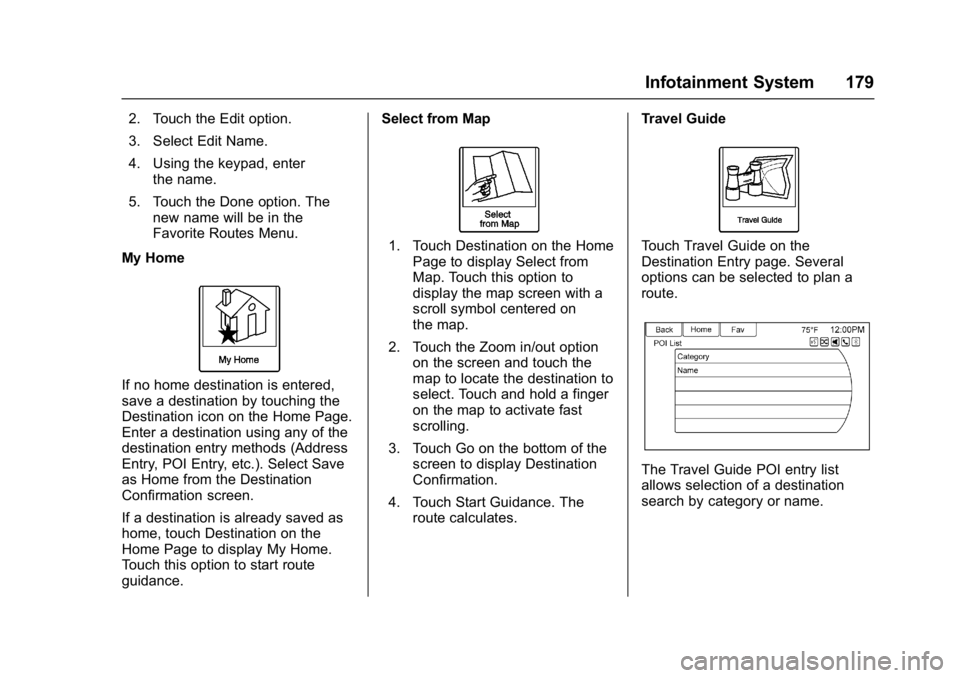
guidance. Select from Map
1. Touch Destination on the Home
Page to display Select from
Map. Touch this option to
display the map screen with a
scroll symbol centered on
the map.
2. Touch the Zoom in/out option on the screen and touch the
map to locate the destination to
select. Touch and hold a finger
on the map to activate fast
scrolling.
3. Touch Go on the bottom of the screen to display Destination
Confirmation.
4. Touch Start Guidance. The route calculates. Travel GuideTouch Travel Guide on the
Destination Entry page. Several
options can be selected to plan a
route.
The Travel Guide POI entry list
allows selection of a destination
search by category or name.
Page 181 of 381
Buick Cascada Owner Manual (GMNA-Localizing-U.S.-9967834) - 2017 - crc -
7/18/16
180 Infotainment System
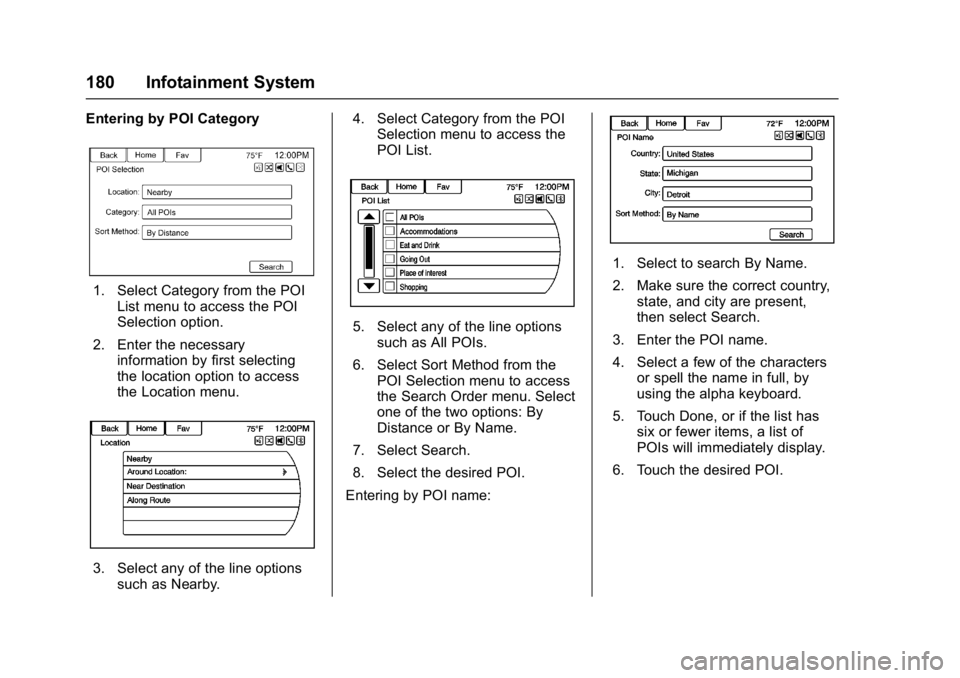
Entering by POI Category
1. Select Category from the POIList menu to access the POI
Selection option.
2. Enter the necessary information by first selecting
the location option to access
the Location menu.
3. Select any of the line optionssuch as Nearby. 4. Select Category from the POI
Selection menu to access the
POI List.
5. Select any of the line options
such as All POIs.
6. Select Sort Method from the POI Selection menu to access
the Search Order menu. Select
one of the two options: By
Distance or By Name.
7. Select Search.
8. Select the desired POI.
Entering by POI name:
1. Select to search By Name.
2. Make sure the correct country, state, and city are present,
then select Search.
3. Enter the POI name.
4. Select a few of the characters or spell the name in full, by
using the alpha keyboard.
5. Touch Done, or if the list has six or fewer items, a list of
POIs will immediately display.
6. Touch the desired POI.
Page 182 of 381

Buick Cascada Owner Manual (GMNA-Localizing-U.S.-9967834) - 2017 - crc -
7/18/16
Infotainment System 181
The Travel Guide POI will have
some detailed information about the
selection made. This information
may include:
.Brief Description
. Address
. Number
. Hours of Operation
. Price
. Website
Photos may not be available for
certain locations or countries. Destination Confirmation
Multiple options are available on the
Destination Confirmation screen:
Start Guidance :
Touch to start a
route calculation to the displayed
destination.
Show on Map : Touch to switch to
the map view with the displayed
destination centered on the map.
Save/Edit : Touch to save the
displayed destination into the
address book. If the displayed
destination is already stored in the
address book, Edit will show as the
menu item.
Call : Touch to initiate a phone call
to the displayed phone number,
if phone capability is available. Save as Home :
Touch to save the
displayed destination as your home
destination. The home destination
will be stored at the top of the list of
destinations in the address book.
Route Options : Touch to change
route options. See “Route Options”
following.
Route Options
Touch to display various route
options.
Alternative Routes : If enabled, the
system will provide an additional
screen after Start Guidance has
been selected. Select Fastest,
Shortest, or Eco calculated routes
before selecting Go.
Page 183 of 381

Buick Cascada Owner Manual (GMNA-Localizing-U.S.-9967834) - 2017 - crc -
7/18/16
182 Infotainment System
Fastest :This calculates the
quickest route.
Shortest : This calculates the
shortest route.
Eco : This calculates the most fuel
efficient route based on speed and
distance.
Under the Route Options menu,
there are route preferences that by
default are all enabled.
A checkmark placed next to each
preference indicates this. All of
these preferences are used when
calculating the route. If any of these
preferences are unselected, the
route will be calculated without
including these preferences.
Use Highways : Deselect to avoid
major roads.
Use Toll Roads : Deselect to avoid
toll roads.
Use Ferries : Deselect to avoid
ferries.
Use Tunnels : Deselect to avoid
tunnels.
Use Time Restricted : Deselect to
avoid time restricted roads. Use Car Train :
Deselect to avoid
car trains.
Menu with Route Guidance
Active
Several functions can be performed
after a destination has been
entered. Touch the Home Page
Destination Entry display to access
the Route Menu screen.
Cancel Guidance
Touch Cancel Guidance to cancel
the current route. Destination List
Select Destination List to view
options for organizing waypoints.
Turn List
Select Turn List to view a list of
maneuvers for the entire route.
Touch Avoid next to one of the turn
maneuvers to avoid a segment of
roads. A maximum of eight avoided
segments are allowed.
Page 184 of 381
Buick Cascada Owner Manual (GMNA-Localizing-U.S.-9967834) - 2017 - crc -
7/18/16
Infotainment System 183
Avoid List
Select Avoid List to display a list of
avoided road segments with the
option to remove the avoided items
from the list.
Voice Prompt
Select Voice Prompt to view options
to disable or manage navigation
voice prompts and traffic alert
prompts.
Detour
Touch Detour to display the route
detour options. Select to detour the
whole route or by a specific
distance.
Route Options
This feature can be accessed from
the Destination Confirmation Menu
and Destination Menu with Route
Guidance Active. See“Destination
Confirmation” previously in this
section.
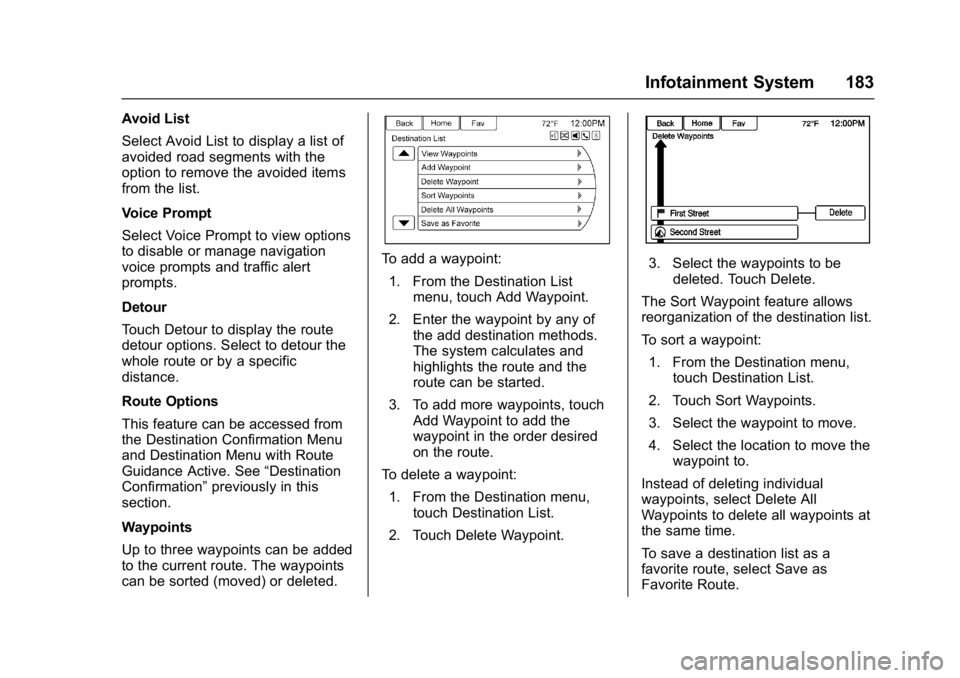
Waypoints
Up to three waypoints can be added
to the current route. The waypoints
can be sorted (moved) or deleted.
To add a waypoint:
1. From the Destination List menu, touch Add Waypoint.
2. Enter the waypoint by any of the add destination methods.
The system calculates and
highlights the route and the
route can be started.
3. To add more waypoints, touch Add Waypoint to add the
waypoint in the order desired
on the route.
To delete a waypoint: 1. From the Destination menu, touch Destination List.
2. Touch Delete Waypoint.3. Select the waypoints to be deleted. Touch Delete.
The Sort Waypoint feature allows
reorganization of the destination list.
To sort a waypoint: 1. From the Destination menu, touch Destination List.
2. Touch Sort Waypoints.
3. Select the waypoint to move.
4. Select the location to move the waypoint to.
Instead of deleting individual
waypoints, select Delete All
Waypoints to delete all waypoints at
the same time.
To save a destination list as a
favorite route, select Save as
Favorite Route.
Page 185 of 381
Buick Cascada Owner Manual (GMNA-Localizing-U.S.-9967834) - 2017 - crc -
7/18/16
184 Infotainment System
OnStar®Destination
Download
The destination download lets an
OnStar®Subscriber ask an OnStar
Advisor to download a destination to
the navigation system. OnStar will
send address information and
location coordinates of the
destination into the navigation
system.
Using Destination Download
The navigation radio screen must
be turned on before a download.
The navigation system displays
“Please wait” as the address is
searched within the map database.
If the address is not found within the
map database, the system may use
latitude and longitude coordinates to
locate the destination.
If the system is unable to locate the
address, the Downloading OnStar
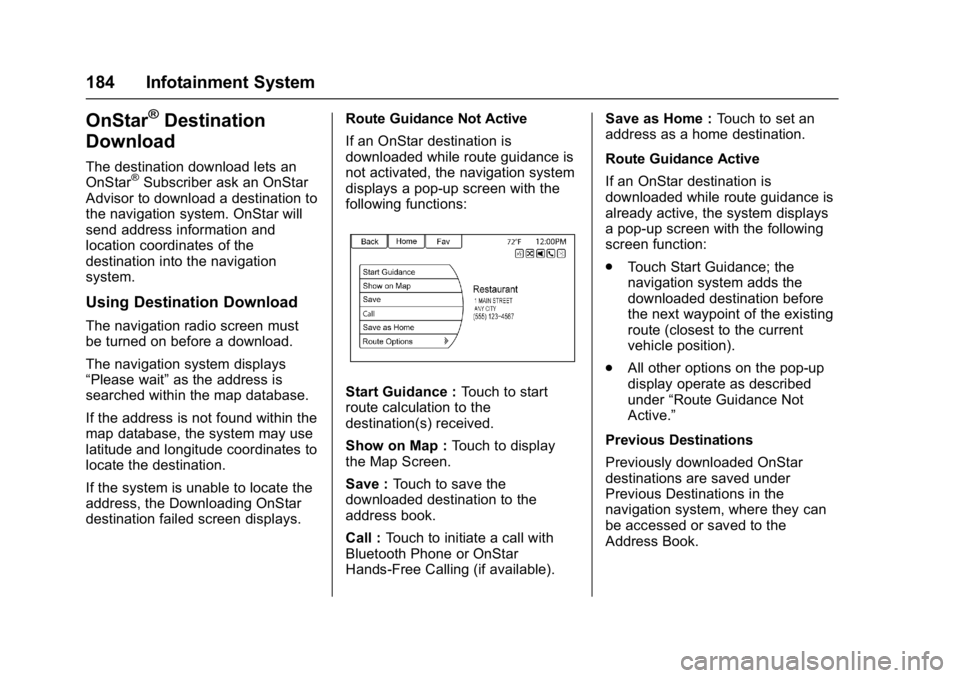
destination failed screen displays. Route Guidance Not Active
If an OnStar destination is
downloaded while route guidance is
not activated, the navigation system
displays a pop-up screen with the
following functions:
Start Guidance :
Touch to start
route calculation to the
destination(s) received.
Show on Map : Touch to display
the Map Screen.
Save : Touch to save the
downloaded destination to the
address book.
Call : Touch to initiate a call with
Bluetooth Phone or OnStar
Hands-Free Calling (if available). Save as Home :
Touch to set an
address as a home destination.
Route Guidance Active
If an OnStar destination is
downloaded while route guidance is
already active, the system displays
a pop-up screen with the following
screen function:
. Touch Start Guidance; the
navigation system adds the
downloaded destination before
the next waypoint of the existing
route (closest to the current
vehicle position).
. All other options on the pop-up
display operate as described
under “Route Guidance Not
Active.”
Previous Destinations
Previously downloaded OnStar
destinations are saved under
Previous Destinations in the
navigation system, where they can
be accessed or saved to the
Address Book.
Page 186 of 381
Buick Cascada Owner Manual (GMNA-Localizing-U.S.-9967834) - 2017 - crc -
7/18/16
Infotainment System 185
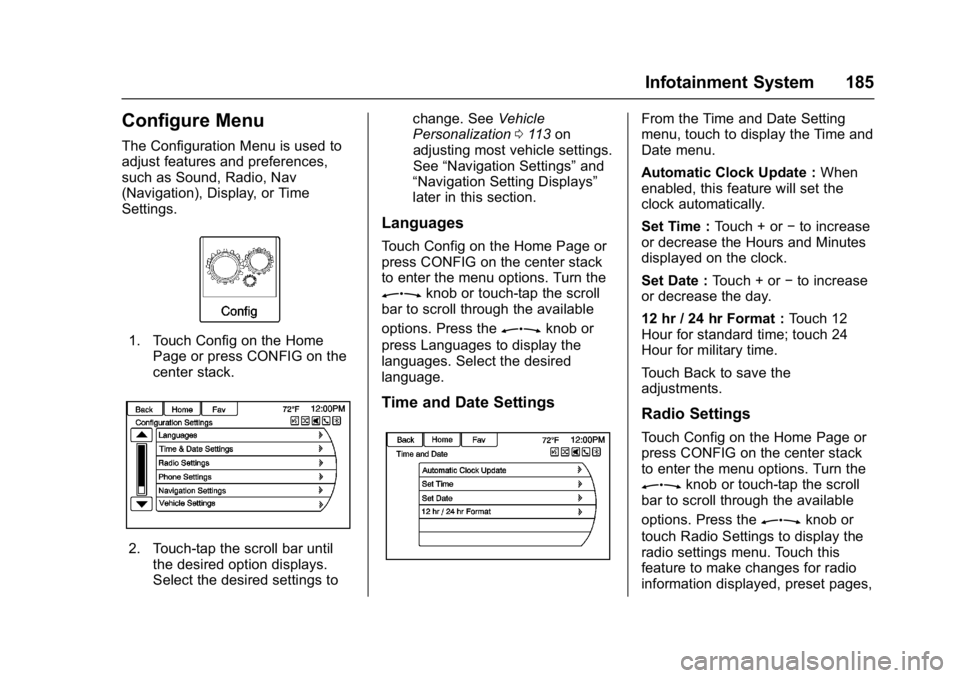
Configure Menu
The Configuration Menu is used to
adjust features and preferences,
such as Sound, Radio, Nav
(Navigation), Display, or Time
Settings.
1. Touch Config on the HomePage or press CONFIG on the
center stack.
2. Touch-tap the scroll bar untilthe desired option displays.
Select the desired settings to change. See
Vehicle
Personalization 0113 on
adjusting most vehicle settings.
See “Navigation Settings” and
“Navigation Setting Displays”
later in this section.
Languages
Touch Config on the Home Page or
press CONFIG on the center stack
to enter the menu options. Turn the
Zknob or touch-tap the scroll
bar to scroll through the available
options. Press the
Zknob or
press Languages to display the
languages. Select the desired
language.
Time and Date Settings
From the Time and Date Setting
menu, touch to display the Time and
Date menu.
Automatic Clock Update : When
enabled, this feature will set the
clock automatically.
Set Time : Touch + or−to increase
or decrease the Hours and Minutes
displayed on the clock.
Set Date : Touch + or −to increase
or decrease the day.
12 hr / 24 hr Format : Touch 12
Hour for standard time; touch 24
Hour for military time.
Touch Back to save the
adjustments.
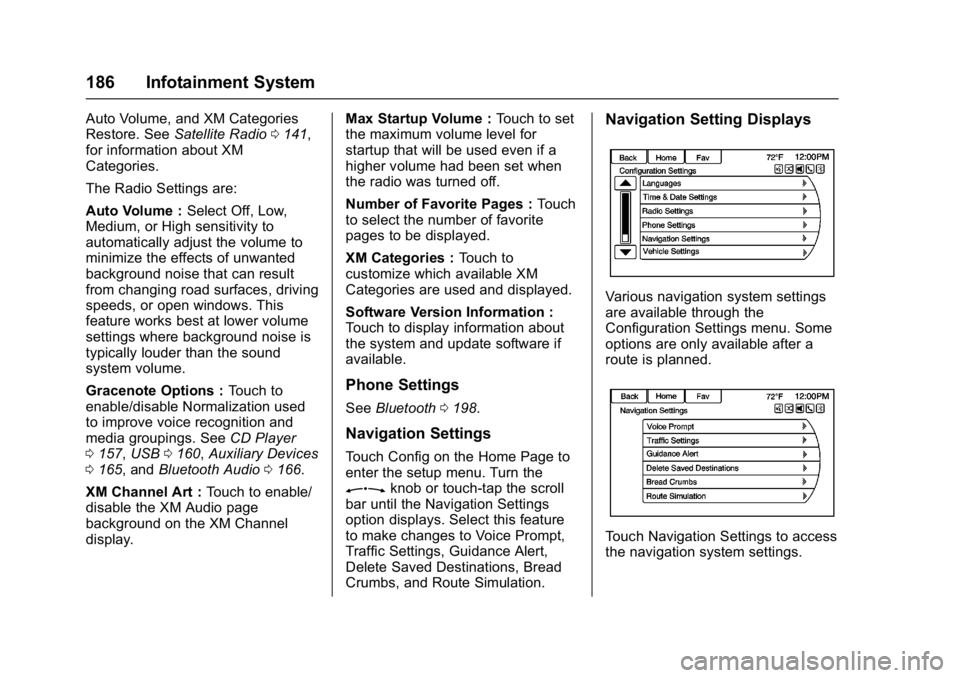
Radio Settings
Touch Config on the Home Page or
press CONFIG on the center stack
to enter the menu options. Turn the
Zknob or touch-tap the scroll
bar to scroll through the available
options. Press the
Zknob or
touch Radio Settings to display the
radio settings menu. Touch this
feature to make changes for radio
information displayed, preset pages,
Page 187 of 381
Buick Cascada Owner Manual (GMNA-Localizing-U.S.-9967834) - 2017 - crc -
7/18/16
186 Infotainment System
Auto Volume, and XM Categories
Restore. SeeSatellite Radio 0141,
for information about XM
Categories.
The Radio Settings are:
Auto Volume : Select Off, Low,
Medium, or High sensitivity to
automatically adjust the volume to
minimize the effects of unwanted
background noise that can result
from changing road surfaces, driving
speeds, or open windows. This
feature works best at lower volume
settings where background noise is
typically louder than the sound
system volume.
Gracenote Options : Touch to
enable/disable Normalization used
to improve voice recognition and
media groupings. See CD Player
0 157, USB 0160, Auxiliary Devices
0 165, and Bluetooth Audio 0166.
XM Channel Art : Touch to enable/
disable the XM Audio page
background on the XM Channel
display. Max Startup Volume :
Touch to set
the maximum volume level for
startup that will be used even if a
higher volume had been set when
the radio was turned off.
Number of Favorite Pages : Touch
to select the number of favorite
pages to be displayed.
XM Categories : Touch to
customize which available XM
Categories are used and displayed.
Software Version Information :
Touch to display information about
the system and update software if
available.
Phone Settings
See Bluetooth 0198.
Navigation Settings
Touch Config on the Home Page to
enter the setup menu. Turn the
Zknob or touch-tap the scroll
bar until the Navigation Settings
option displays. Select this feature
to make changes to Voice Prompt,
Traffic Settings, Guidance Alert,
Delete Saved Destinations, Bread
Crumbs, and Route Simulation.
Navigation Setting Displays
Various navigation system settings
are available through the
Configuration Settings menu. Some
options are only available after a
route is planned.
Touch Navigation Settings to access
the navigation system settings.
Page 188 of 381
Buick Cascada Owner Manual (GMNA-Localizing-U.S.-9967834) - 2017 - crc -
7/18/16
Infotainment System 187
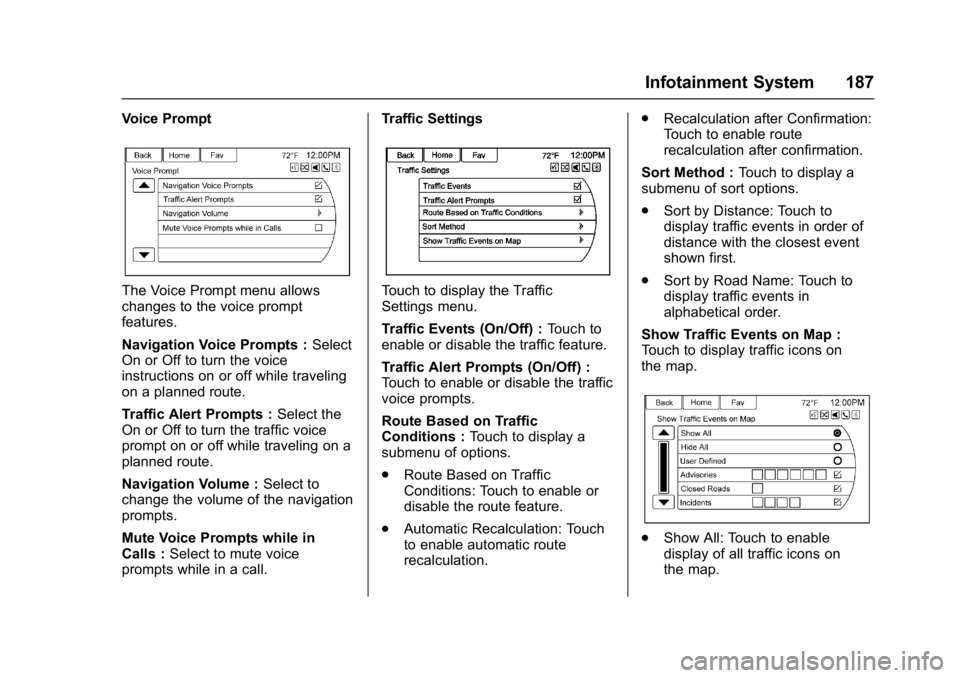
Voice Prompt
The Voice Prompt menu allows
changes to the voice prompt
features.
Navigation Voice Prompts :Select
On or Off to turn the voice
instructions on or off while traveling
on a planned route.
Traffic Alert Prompts : Select the
On or Off to turn the traffic voice
prompt on or off while traveling on a
planned route.
Navigation Volume : Select to
change the volume of the navigation
prompts.
Mute Voice Prompts while in
Calls : Select to mute voice
prompts while in a call. Traffic SettingsTouch to display the Traffic
Settings menu.
Traffic Events (On/Off) :
Touch to
enable or disable the traffic feature.
Traffic Alert Prompts (On/Off) :
Touch to enable or disable the traffic
voice prompts.
Route Based on Traffic
Conditions : Touch to display a
submenu of options.
. Route Based on Traffic
Conditions: Touch to enable or
disable the route feature.
. Automatic Recalculation: Touch
to enable automatic route
recalculation. .
Recalculation after Confirmation:
Touch to enable route
recalculation after confirmation.
Sort Method : Touch to display a
submenu of sort options.
. Sort by Distance: Touch to
display traffic events in order of
distance with the closest event
shown first.
. Sort by Road Name: Touch to
display traffic events in
alphabetical order.
Show Traffic Events on Map :
Touch to display traffic icons on
the map.
. Show All: Touch to enable
display of all traffic icons on
the map.