radio BUICK ENCLAVE 2014 Owner's Guide
[x] Cancel search | Manufacturer: BUICK, Model Year: 2014, Model line: ENCLAVE, Model: BUICK ENCLAVE 2014Pages: 410, PDF Size: 4.02 MB
Page 180 of 410
Black plate (10,1)Buick Enclave Owner Manual (GMNA-Localizing-U.S./Canada/Mexico-
6014143) - 2014 - CRC - 8/14/13
7-10 Infotainment System
Adding or Removing SiriusXM
Categories
Using the home page:
1. Press the Settings screen buttonon the Home Page.
2. Select XM Categories.
3. Select or deselect a category. A checkmark will indicate that
the category is selected.
Press “Show All XM Categories” to
restore all SiriusXM categories.
Using the XM playing screen:
1. Press the Menu screen button.
2. Select XM Categories.
3. Select or deselect a category. A checkmark will indicate that
the category is selected.
SiriusXM Messages
XL (Explicit Language
Channels): These stations, or any
others, can be blocked by request,
by calling 1-866-635-2349 (U.S.),
and 1-877-209-0079 (Canada). XM Updating:
The encryption code
in the receiver is being updated. No
action is required.
Loading XM: The audio system is
acquiring and processing audio and
text data. No action is needed.
Channel Off Air: This station is not
currently in service.
Channel Unauth: This station is
blocked or cannot be received.
Channel Unavailable: This
previously assigned station is no
longer assigned.
No Artist Info: No artist
information is available at this time
on this station.
No Title Info: No song title
information is available at this time
on this station.
No CAT Info: No category
information is available at this time
on this station. No Information:
No text or
informational messages are
available at this time on this station.
No XM Signal: The vehicle may be
in a location where the SiriusXM
signal is being blocked. When the
vehicle is moved into an open area,
the signal should return.
CAT Not Found: There are no
stations available for the selected
category.
XM Radio ID: If tuned to station 0,
this message alternates with the
SiriusXM radio eight-digit radio ID
label. This label is needed to
activate the service.
Unknown: If this message is
received when tuned to station 0,
there could be a receiver fault.
Consult with your dealer.
XM Not Available: If this message
does not clear within a short period
of time, the receiver could have a
fault. Consult with your dealer.
Page 181 of 410
Black plate (11,1)Buick Enclave Owner Manual (GMNA-Localizing-U.S./Canada/Mexico-
6014143) - 2014 - CRC - 8/14/13
Infotainment System 7-11
Radio Reception
Frequency interference and static
can occur during normal radio
reception if items such as phone
chargers, vehicle convenience
accessories, and external electronic
devices are plugged into the
accessory power outlet. If there is
interference or static, unplug the
item from the accessory power
outlet.
FM
FM signals only reach about 16 to
65 km (10 to 40 mi). Although the
radio has a built-in electronic circuit
that automatically works to reduce
interference, some static can occur,
especially around tall buildings or
hills, causing the sound to fade in
and out.
AM
The range for most AM stations is
greater than for FM, especially at
night. The longer range can cause
station frequencies to interfere with
each other. Static can also occurwhen things like storms and power
lines interfere with radio reception.
When this happens, try reducing the
treble on the radio.
SiriusXM Satellite Radio
Service
SiriusXM Satellite Radio Service
provides digital radio reception. Tall
buildings or hills can interfere with
satellite radio signals, causing the
sound to fade in and out. In
addition, traveling or standing under
heavy foliage, bridges, garages,
or tunnels may cause loss of the
SiriusXM signal for a period of time.
Cell Phone Usage
Cell phone usage, such as making
or receiving phone calls, charging,
or just having the phone on may
cause static interference in the
radio. Unplug the phone or turn it off
if this happens.
Multi-Band Antenna
The multi-band antenna is located
on the roof of the vehicle. This type
of antenna is used with the AM/FM
radio, as well as OnStar and the
SiriusXM Satellite Radio Service
System, if the vehicle has these
features. Keep this antenna clear of
snow and ice build up for clear radio
reception. If the vehicle has a
sunroof, the performance of the
radio system may be affected if the
sunroof is open. Loading items onto
the roof of the vehicle can interfere
with the performance of the radio
system and, if the vehicle has this
feature, OnStar. Make sure the
multi-band antenna is not
obstructed.
Page 185 of 410
Black plate (15,1)Buick Enclave Owner Manual (GMNA-Localizing-U.S./Canada/Mexico-
6014143) - 2014 - CRC - 8/14/13
Infotainment System 7-15
Root Directory
The root directory is treated as a
folder. All files contained directly
under the root directory are
accessed prior to any root directory
folders.
Empty Folders
If a root directory or folder is empty
or contains only folders, the player
advances to the next folder in the
file structure that contains a
compressed audio file. The empty
folder(s) are not displayed or
numbered.
No Folder
When the CD only contains
compressed audio files without any
folders or playlists, all files are
under the root folder.
File System and Naming
The song titles, artists, albums, and
genres are taken from the file's ID3
tag and are only displayed if present
in the tag. If a song title is notpresent in the ID3 tag, the radio
displays the file name as the
track name.
Preprogrammed Playlists
The radio recognizes
preprogrammed playlists; however,
there is no editing capability. These
playlists are treated as special
folders containing compressed
audio song files.
Music Navigator
Folders
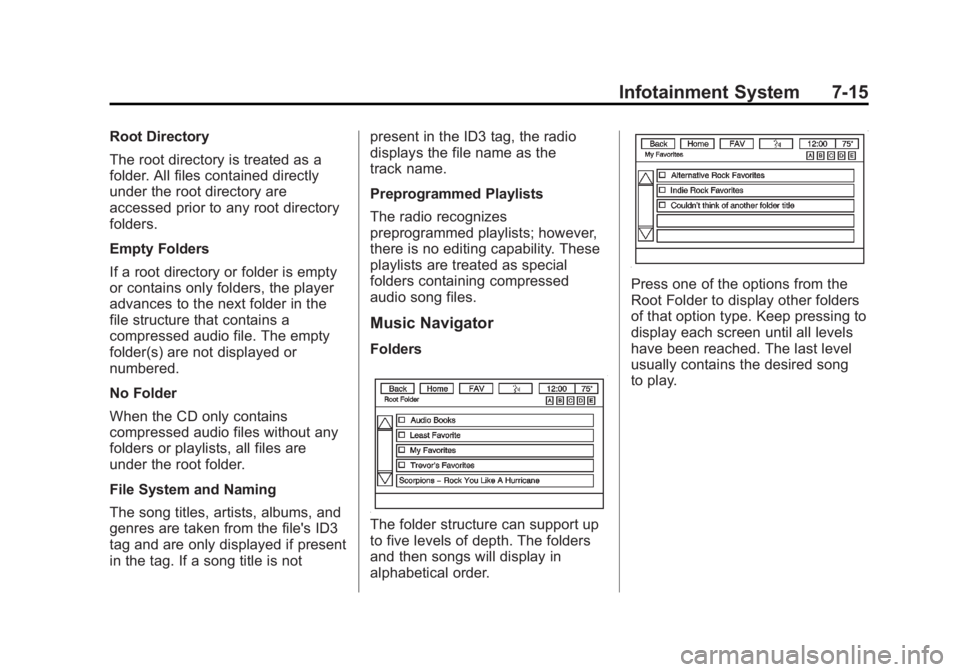
The folder structure can support up
to five levels of depth. The folders
and then songs will display in
alphabetical order.
Press one of the options from the
Root Folder to display other folders
of that option type. Keep pressing to
display each screen until all levels
have been reached. The last level
usually contains the desired song
to play.
Page 188 of 410
Black plate (18,1)Buick Enclave Owner Manual (GMNA-Localizing-U.S./Canada/Mexico-
6014143) - 2014 - CRC - 8/14/13
7-18 Infotainment System
Drivers are encouraged to set up
any auxiliary device while the
vehicle is in P (Park). See
Defensive Driving on page 9-3for
more information on driver
distraction.
To use an auxiliary input device,
connect a 3.5 mm (1/8 in) cable to
the radio's front auxiliary input jack.
Press SRCE to select the device.
Using the USB Port
The USB port is in the instrument
panel storage area. See Instrument
Panel Storage on page 4-1.
The USB port can control a USB
storage device or an iPod using the
radio buttons and knobs. See MP3
on page 7-13 for information about
how to connect and control a USB
storage device or an iPod.
USB Supported Devices
.USB Flash Drives
.Portable USB Hard Drives
.Fifth generation or later iPod
.iPod classic®(6th generation)
.iPod nano®(3G, 4G, 5G,
and 6G)
.iPod touch®(1G, 2G, 3G,
and 4G)
.iPhone®(2G, 3G, 3GS, 4, and 5)
.iPad®(1G, 2G)
Not all iPods and USB drives are
compatible with the USB port.
Make sure the iPod has the latest
firmware from Apple
®for proper
operation. iPod firmware can be
updated using the latest iTunes
®
application. See www.apple.com/
itunes.
For help identifying your iPod, go to
www.apple.com/support.
Rear Seat
Infotainment
Rear Seat Audio (RSA)
System
If equipped with RSA, rear seat
passengers can listen to and control
any of the music sources: radio,
CDs, DVDs, or other auxiliary
sources. The rear seat passengers
can only control the music sources
the front seat passengers are not
listening to (except on some radios
where dual control is allowed). For
example, rear seat passengers can
control a CD and listen to it through
the headphones, while the driver
listens to the radio through the front
speakers. The rear seat passengers
have control of the volume for each
set of headphones.
The RSA functions operate even
when the main radio is off. The front
audio system displays
Xwhen the
RSA is on, and disappears from the
display when it is off.
Page 189 of 410
Black plate (19,1)Buick Enclave Owner Manual (GMNA-Localizing-U.S./Canada/Mexico-
6014143) - 2014 - CRC - 8/14/13
Infotainment System 7-19
Audio can be heard through wired
headphones (not included) plugged
into the jacks on the RSA. If the
vehicle has this feature, audio can
also be heard on Channel 2 of the
wireless headphones.
The audio system mutes the rear
speakers when the RSA audio is
active through the headphones.
To listen to an iPod or portable
audio device through the RSA,
attach the iPod or portable audio
device to the front auxiliary input (if
available), located on the front audio
system. Turn the iPod on, then
choose the front auxiliary input with
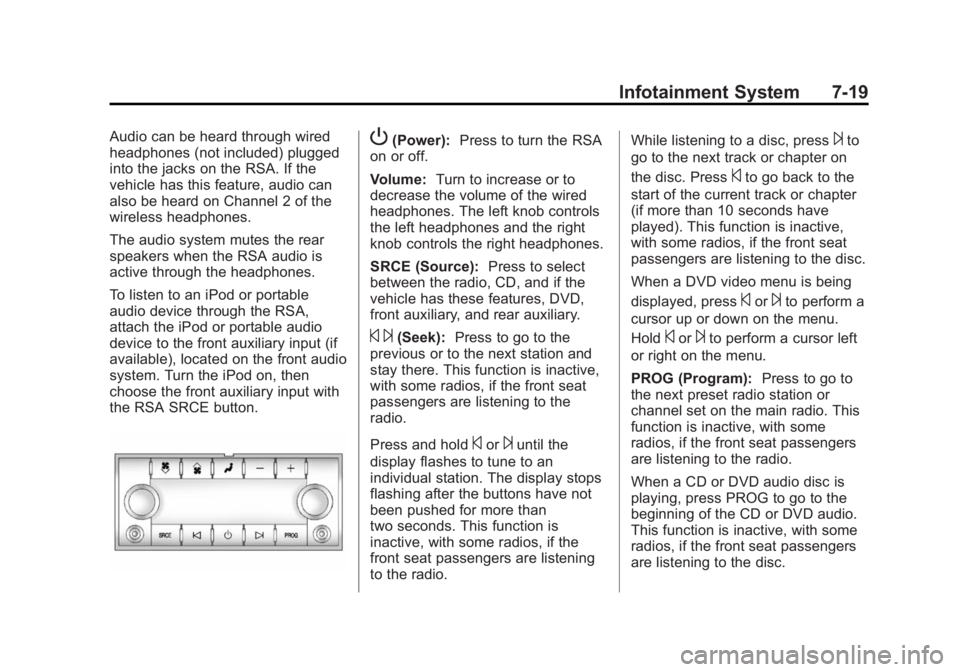
the RSA SRCE button.P(Power):Press to turn the RSA
on or off.
Volume: Turn to increase or to
decrease the volume of the wired
headphones. The left knob controls
the left headphones and the right
knob controls the right headphones.
SRCE (Source): Press to select
between the radio, CD, and if the
vehicle has these features, DVD,
front auxiliary, and rear auxiliary.
© ¨(Seek): Press to go to the
previous or to the next station and
stay there. This function is inactive,
with some radios, if the front seat
passengers are listening to the
radio.
Press and hold
©or¨until the
display flashes to tune to an
individual station. The display stops
flashing after the buttons have not
been pushed for more than
two seconds. This function is
inactive, with some radios, if the
front seat passengers are listening
to the radio. While listening to a disc, press
¨to
go to the next track or chapter on
the disc. Press
©to go back to the
start of the current track or chapter
(if more than 10 seconds have
played). This function is inactive,
with some radios, if the front seat
passengers are listening to the disc.
When a DVD video menu is being
displayed, press
©or¨to perform a
cursor up or down on the menu.
Hold
©or¨to perform a cursor left
or right on the menu.
PROG (Program): Press to go to
the next preset radio station or
channel set on the main radio. This
function is inactive, with some
radios, if the front seat passengers
are listening to the radio.
When a CD or DVD audio disc is
playing, press PROG to go to the
beginning of the CD or DVD audio.
This function is inactive, with some
radios, if the front seat passengers
are listening to the disc.
Page 190 of 410
Black plate (20,1)Buick Enclave Owner Manual (GMNA-Localizing-U.S./Canada/Mexico-
6014143) - 2014 - CRC - 8/14/13
7-20 Infotainment System
When a disc is playing in the CD or
DVD changer, press PROG to
select the next disc, if multiple discs
are loaded. This function is inactive,
with some radios, if the front seat
passengers are listening to the disc.
When a DVD video menu is being
displayed, press PROG to perform
the ENTER menu function.
Rear Audio
Controller (RAC)
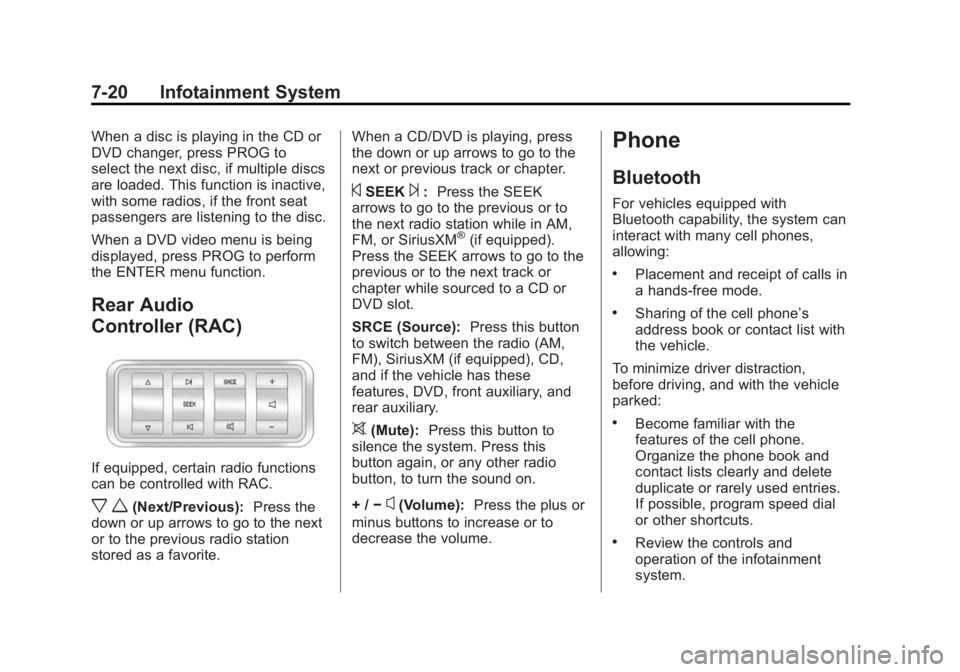
If equipped, certain radio functions
can be controlled with RAC.
x w(Next/Previous):Press the
down or up arrows to go to the next
or to the previous radio station
stored as a favorite. When a CD/DVD is playing, press
the down or up arrows to go to the
next or previous track or chapter.
©SEEK¨:
Press the SEEK
arrows to go to the previous or to
the next radio station while in AM,
FM, or SiriusXM
®(if equipped).
Press the SEEK arrows to go to the
previous or to the next track or
chapter while sourced to a CD or
DVD slot.
SRCE (Source): Press this button
to switch between the radio (AM,
FM), SiriusXM (if equipped), CD,
and if the vehicle has these
features, DVD, front auxiliary, and
rear auxiliary.
>(Mute): Press this button to
silence the system. Press this
button again, or any other radio
button, to turn the sound on.
+ / −
x(Volume): Press the plus or
minus buttons to increase or to
decrease the volume.
Phone
Bluetooth
For vehicles equipped with
Bluetooth capability, the system can
interact with many cell phones,
allowing:
.Placement and receipt of calls in
a hands-free mode.
.Sharing of the cell phone’s
address book or contact list with
the vehicle.
To minimize driver distraction,
before driving, and with the vehicle
parked:
.Become familiar with the
features of the cell phone.
Organize the phone book and
contact lists clearly and delete
duplicate or rarely used entries.
If possible, program speed dial
or other shortcuts.
.Review the controls and
operation of the infotainment
system.
Page 197 of 410
Black plate (27,1)Buick Enclave Owner Manual (GMNA-Localizing-U.S./Canada/Mexico-
6014143) - 2014 - CRC - 8/14/13
Infotainment System 7-27
Dual Tone Multi-Frequency
(DTMF) Tones
The Bluetooth system can send
numbers and the numbers stored as
name tags during a call. You can
use this feature when calling a
menu-driven phone system.
Account numbers can also be
stored for use.
Sending a Number or Name Tag
During a Call
1. Press
b/g. The system
responds “Ready,”followed by
a tone.
2. Say “Dial.”
3. Say the number or name tag to send.
Clearing the System
Unless information is deleted out of
the in-vehicle Bluetooth system, it
will be retained indefinitely. This
includes all saved name tags in the
phone book and phone pairing
information. For information on how
to delete this information, see the
previous section “Deleting a Paired
Phone” and the previous sections
on deleting name tags.
Other Information
The Bluetooth®word mark and
logos are owned by the Bluetooth®
SIG, Inc. and any use of such marks
by General Motors is under license.
Other trademarks and trade names
are those of their respective owners.
See Radio Frequency Statement on
page 13-15.
Settings
Press Settings on the Home Page
to adjust features and preferences,
such as Time, Date, Bluetooth
Device List, Voice Recognition,
Favorite Pages, Display Settings,
Navigation Settings, etc.
1. Press the Settings screen button on the Home Page.
2. Touch-tap the scroll bar until the desired option displays. Select
the desired settings to change.
A few of the setting options change
the way the navigation system
displays or reacts while in use.
Page 198 of 410
Black plate (28,1)Buick Enclave Owner Manual (GMNA-Localizing-U.S./Canada/Mexico-
6014143) - 2014 - CRC - 8/14/13
7-28 Infotainment System
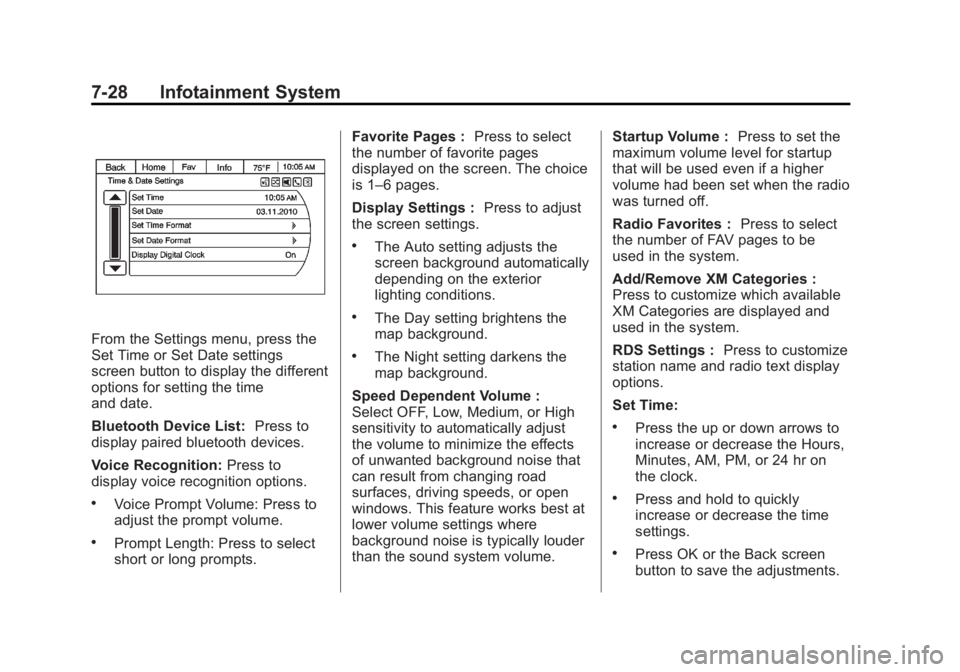
From the Settings menu, press the
Set Time or Set Date settings
screen button to display the different
options for setting the time
and date.
Bluetooth Device List:Press to
display paired bluetooth devices.
Voice Recognition: Press to
display voice recognition options.
.Voice Prompt Volume: Press to
adjust the prompt volume.
.Prompt Length: Press to select
short or long prompts. Favorite Pages :
Press to select
the number of favorite pages
displayed on the screen. The choice
is 1–6 pages.
Display Settings : Press to adjust
the screen settings.
.The Auto setting adjusts the
screen background automatically
depending on the exterior
lighting conditions.
.The Day setting brightens the
map background.
.The Night setting darkens the
map background.
Speed Dependent Volume :
Select OFF, Low, Medium, or High
sensitivity to automatically adjust
the volume to minimize the effects
of unwanted background noise that
can result from changing road
surfaces, driving speeds, or open
windows. This feature works best at
lower volume settings where
background noise is typically louder
than the sound system volume. Startup Volume :
Press to set the
maximum volume level for startup
that will be used even if a higher
volume had been set when the radio
was turned off.
Radio Favorites : Press to select
the number of FAV pages to be
used in the system.
Add/Remove XM Categories :
Press to customize which available
XM Categories are displayed and
used in the system.
RDS Settings : Press to customize
station name and radio text display
options.
Set Time:
.Press the up or down arrows to
increase or decrease the Hours,
Minutes, AM, PM, or 24 hr on
the clock.
.Press and hold to quickly
increase or decrease the time
settings.
.Press OK or the Back screen
button to save the adjustments.
Page 199 of 410
Black plate (29,1)Buick Enclave Owner Manual (GMNA-Localizing-U.S./Canada/Mexico-
6014143) - 2014 - CRC - 8/14/13
Infotainment System 7-29
Set Date:
.Press the up or down arrows to
increase or decrease the Month,
Day, and Year settings.
.Press and hold to quickly
increase or decrease the date
settings.
.Press OK or the Back screen
button to save the adjustments.
Radio Settings
Press the Config button on the
Home Page or the CONFIG button
on the faceplate to enter the menu
options. Turn the PUSH/SEL knob
or touch-tap the scroll bar to scroll
through the available options. Press
the PUSH/SEL knob or press Radio
Settings to display the radio settings
menu. Press this feature to make
changes for radio information
displayed, preset pages, Auto
Volume Control, and XM Categories
Restore. SeeSatellite Radio on
page 7-9 (if equipped), for more
information about XM Categories. The Radio Settings are:
Phone Settings
See
Bluetooth on page 7-20 in the
“Phone” section for more
information on phone settings.
Vehicle Settings
See Vehicle Personalization on
page 5-40.
Display
Mode : Press Mode to change the
screen background. This setting
controls map colors.
Calibrate Touchscreen : Press to
display the Touchscreen Calibration
Screen.
Turn Display Off : Press to turn
the Display option off.
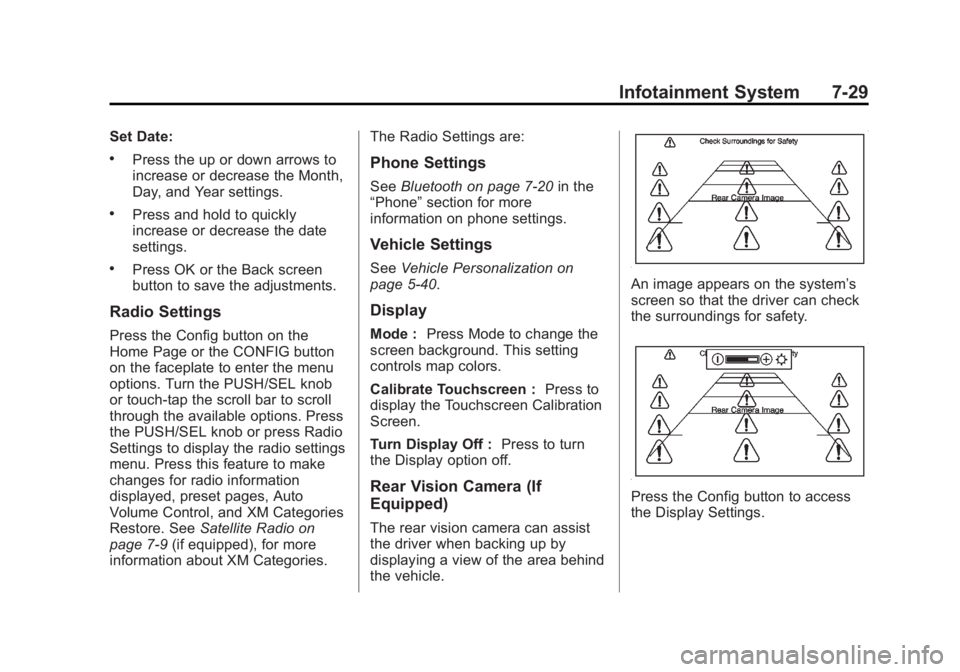
Rear Vision Camera (If
Equipped)
The rear vision camera can assist
the driver when backing up by
displaying a view of the area behind
the vehicle.
An image appears on the system’s
screen so that the driver can check
the surroundings for safety.
Press the Config button to access
the Display Settings.
Page 212 of 410
Black plate (2,1)Buick Enclave Owner Manual (GMNA-Localizing-U.S./Canada/Mexico-
6014143) - 2014 - CRC - 8/14/13
9-2 Driving and Operating
Trailer Towing
General TowingInformation . . . . . . . . . . . . . . . . . 9-46
Driving Characteristics and Towing Tips . . . . . . . . . . . . . . . . 9-46
Trailer Towing . . . . . . . . . . . . . . . . 9-49
Towing Equipment . . . . . . . . . . . 9-51
Conversions and Add-Ons
Add-On Electrical
Equipment . . . . . . . . . . . . . . . . . 9-53
Driving Information
Distracted Driving
Distraction comes in many forms
and can take your focus from the
task of driving. Exercise good
judgment and do not let other
activities divert your attention away
from the road. Many local
governments have enacted laws
regarding driver distraction. Become
familiar with the local laws in
your area.
To avoid distracted driving, always
keep your eyes on the road, hands
on the wheel, and mind on the drive.
.Do not use a phone in
demanding driving situations.
Use a hands-free method to
place or receive necessary
phone calls.
.Watch the road. Do not read,
take notes, or look up
information on phones or other
electronic devices.
.Designate a front seat
passenger to handle potential
distractions.
.Become familiar with vehicle
features before driving, such as
programming favorite radio
stations and adjusting climate
control and seat settings.
Program all trip information into
any navigation device prior to
driving.
.Wait until the vehicle is parked
to retrieve items that have fallen
to the floor.
.Stop or park the vehicle to tend
to children.
.Keep pets in an appropriate
carrier or restraint.
.Avoid stressful conversations
while driving, whether with a
passenger or on a cell phone.