radio BUICK ENCLAVE 2014 User Guide
[x] Cancel search | Manufacturer: BUICK, Model Year: 2014, Model line: ENCLAVE, Model: BUICK ENCLAVE 2014Pages: 410, PDF Size: 4.02 MB
Page 129 of 410
Black plate (17,1)Buick Enclave Owner Manual (GMNA-Localizing-U.S./Canada/Mexico-
6014143) - 2014 - CRC - 8/14/13
Instruments and Controls 5-17
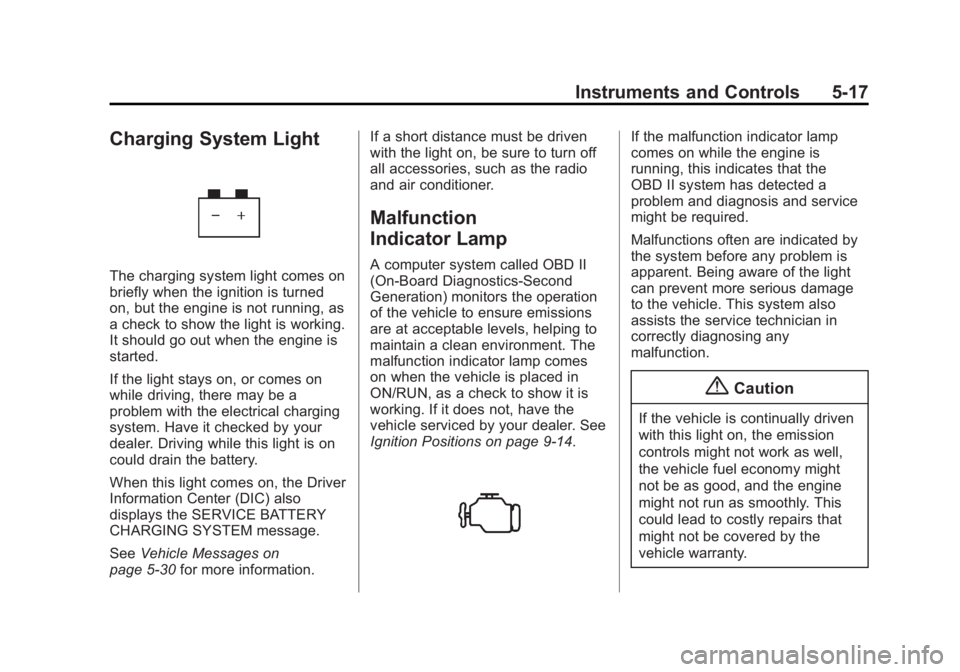
Charging System Light
The charging system light comes on
briefly when the ignition is turned
on, but the engine is not running, as
a check to show the light is working.
It should go out when the engine is
started.
If the light stays on, or comes on
while driving, there may be a
problem with the electrical charging
system. Have it checked by your
dealer. Driving while this light is on
could drain the battery.
When this light comes on, the Driver
Information Center (DIC) also
displays the SERVICE BATTERY
CHARGING SYSTEM message.
SeeVehicle Messages on
page 5-30 for more information. If a short distance must be driven
with the light on, be sure to turn off
all accessories, such as the radio
and air conditioner.
Malfunction
Indicator Lamp
A computer system called OBD II
(On-Board Diagnostics-Second
Generation) monitors the operation
of the vehicle to ensure emissions
are at acceptable levels, helping to
maintain a clean environment. The
malfunction indicator lamp comes
on when the vehicle is placed in
ON/RUN, as a check to show it is
working. If it does not, have the
vehicle serviced by your dealer. See
Ignition Positions on page 9-14.
If the malfunction indicator lamp
comes on while the engine is
running, this indicates that the
OBD II system has detected a
problem and diagnosis and service
might be required.
Malfunctions often are indicated by
the system before any problem is
apparent. Being aware of the light
can prevent more serious damage
to the vehicle. This system also
assists the service technician in
correctly diagnosing any
malfunction.
{Caution
If the vehicle is continually driven
with this light on, the emission
controls might not work as well,
the vehicle fuel economy might
not be as good, and the engine
might not run as smoothly. This
could lead to costly repairs that
might not be covered by the
vehicle warranty.
Page 159 of 410
Black plate (47,1)Buick Enclave Owner Manual (GMNA-Localizing-U.S./Canada/Mexico-
6014143) - 2014 - CRC - 8/14/13
Instruments and Controls 5-47
If you do not exit, pressing the
customization button again will
return you to the beginning of the
feature settings menu.
Exiting the Feature
Settings Menu
The feature settings menu will be
exited when any of the following
occurs:
.The vehicle is shifted out of
P (Park).
.The vehicle is no longer in
ON/RUN.
.The trip/fuel or vehicle
information DIC buttons are
pressed.
.The end of the feature settings
menu is reached and exited.
.A 40-second time period has
elapsed with no selection made.
Universal Remote
System
SeeRadio Frequency Statement on
page 13-15.
Universal Remote System
Programming
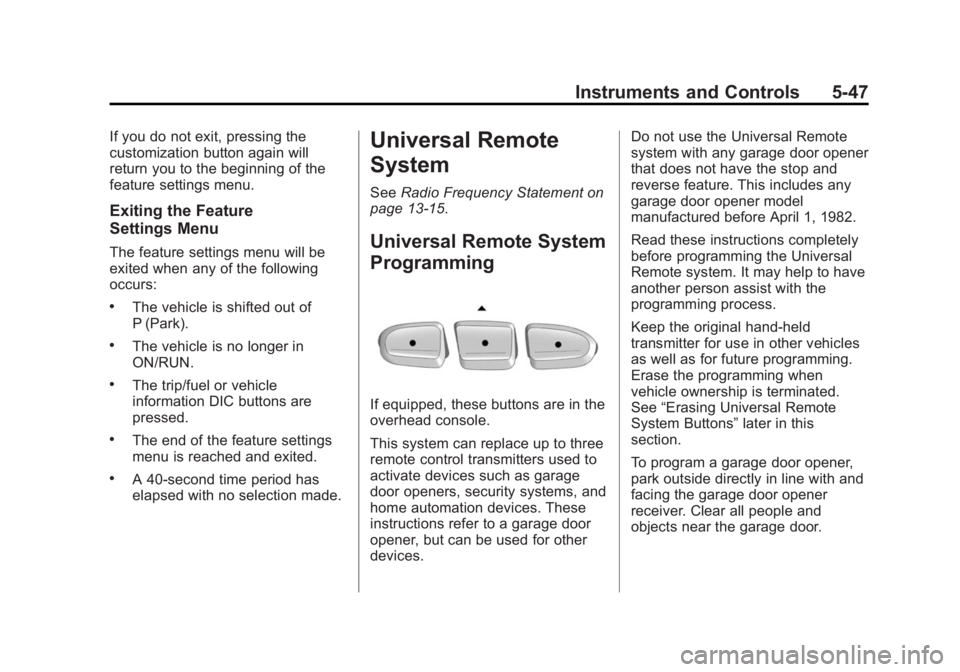
If equipped, these buttons are in the
overhead console.
This system can replace up to three
remote control transmitters used to
activate devices such as garage
door openers, security systems, and
home automation devices. These
instructions refer to a garage door
opener, but can be used for other
devices. Do not use the Universal Remote
system with any garage door opener
that does not have the stop and
reverse feature. This includes any
garage door opener model
manufactured before April 1, 1982.
Read these instructions completely
before programming the Universal
Remote system. It may help to have
another person assist with the
programming process.
Keep the original hand-held
transmitter for use in other vehicles
as well as for future programming.
Erase the programming when
vehicle ownership is terminated.
See
“Erasing Universal Remote
System Buttons” later in this
section.
To program a garage door opener,
park outside directly in line with and
facing the garage door opener
receiver. Clear all people and
objects near the garage door.
Page 160 of 410
Black plate (48,1)Buick Enclave Owner Manual (GMNA-Localizing-U.S./Canada/Mexico-
6014143) - 2014 - CRC - 8/14/13
5-48 Instruments and Controls
Make sure the hand-held transmitter
has a new battery for quicker and
more accurate transmission of the
radio-frequency signal.
Programming the Universal
Remote System
For questions or help programming
the Universal Remote system, call
1-800-355-3515 or see
www.homelink.com.
Programming involves
time-sensitive actions, and may time
out causing the procedure to be
repeated.
To program up to three devices:
1. Hold the end of the hand-heldtransmitter about 3 to 8 cm (1 to
3 in) away from the Universal
Remote system buttons with the
indicator light in view. The
hand-held transmitter was
supplied by the manufacturer of
the garage door opener receiver. 2. At the same time, press and
hold both the hand-held
transmitter button and one of the
three Universal Remote system
buttons to be used to operate
the garage door. Do not release
either button until the indicator
light changes from a slow to a
rapid flash. Then release both
buttons.
Some garage door openers may
require substitution of Step 2
with the procedure under “Radio
Signals for Canada and Some
Gate Operators” later in this
section.
3. Press and hold the newly programmed Universal Remote
system button for five seconds
while watching the indicator light
and garage door activation.
.If the indicator light stays on
continuously or the garage
door moves when the
button is pressed, then programming is complete.
There is no need to
complete Steps 4–6.
.If the indicator light does
not come on or the garage
door does not move, a
second button press may
be required. For a second
time, press and hold the
newly programmed button
for five seconds. If the light
stays on or the garage door
moves, programming is
complete.
.If the indicator light blinks
rapidly for two seconds,
then changes to a solid light
and the garage door does
not move, continue with
programming Steps 4–6.
Page 161 of 410
Black plate (49,1)Buick Enclave Owner Manual (GMNA-Localizing-U.S./Canada/Mexico-
6014143) - 2014 - CRC - 8/14/13
Instruments and Controls 5-49
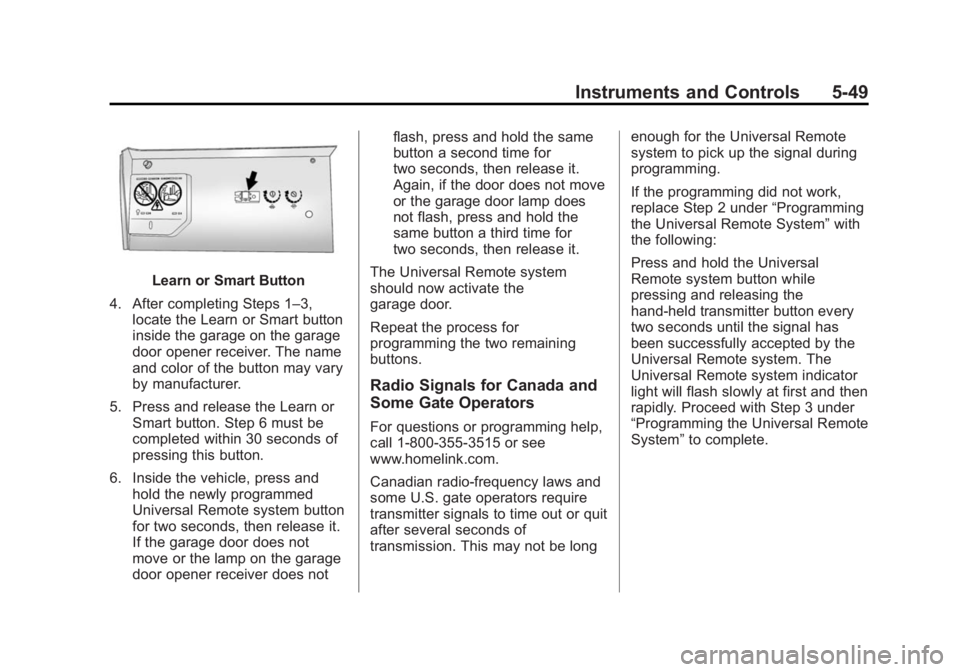
Learn or Smart Button
4. After completing Steps 1–3, locate the Learn or Smart button
inside the garage on the garage
door opener receiver. The name
and color of the button may vary
by manufacturer.
5. Press and release the Learn or Smart button. Step 6 must be
completed within 30 seconds of
pressing this button.
6. Inside the vehicle, press and hold the newly programmed
Universal Remote system button
for two seconds, then release it.
If the garage door does not
move or the lamp on the garage
door opener receiver does not flash, press and hold the same
button a second time for
two seconds, then release it.
Again, if the door does not move
or the garage door lamp does
not flash, press and hold the
same button a third time for
two seconds, then release it.
The Universal Remote system
should now activate the
garage door.
Repeat the process for
programming the two remaining
buttons.
Radio Signals for Canada and
Some Gate Operators
For questions or programming help,
call 1-800-355-3515 or see
www.homelink.com.
Canadian radio-frequency laws and
some U.S. gate operators require
transmitter signals to time out or quit
after several seconds of
transmission. This may not be long enough for the Universal Remote
system to pick up the signal during
programming.
If the programming did not work,
replace Step 2 under
“Programming
the Universal Remote System” with
the following:
Press and hold the Universal
Remote system button while
pressing and releasing the
hand-held transmitter button every
two seconds until the signal has
been successfully accepted by the
Universal Remote system. The
Universal Remote system indicator
light will flash slowly at first and then
rapidly. Proceed with Step 3 under
“Programming the Universal Remote
System” to complete.
Page 171 of 410
Black plate (1,1)Buick Enclave Owner Manual (GMNA-Localizing-U.S./Canada/Mexico-
6014143) - 2014 - CRC - 8/14/13
Infotainment System 7-1
Infotainment
System
Introduction
Infotainment . . . . . . . . . . . . . . . . . . . 7-1
Theft-Deterrent Feature . . . . . . . 7-2
Overview . . . . . . . . . . . . . . . . . . . . . . 7-3
Operation . . . . . . . . . . . . . . . . . . . . . 7-3
Radio
AM-FM Radio . . . . . . . . . . . . . . . . . 7-6
Satellite Radio . . . . . . . . . . . . . . . . 7-9
Radio Reception . . . . . . . . . . . . . 7-11
Multi-Band Antenna . . . . . . . . . . 7-11
Audio Players
CD Player . . . . . . . . . . . . . . . . . . . 7-12
MP3 . . . . . . . . . . . . . . . . . . . . . . . . . 7-13
Auxiliary Devices . . . . . . . . . . . . 7-17
Rear Seat Infotainment
Rear Seat Audio (RSA)System . . . . . . . . . . . . . . . . . . . . . 7-18
Rear Audio Controller (RAC) . . . . . . . . . . . 7-20
Phone
Bluetooth . . . . . . . . . . . . . . . . . . . . 7-20
Settings
Settings . . . . . . . . . . . . . . . . . . . . . . 7-27
Trademarks and License
Agreements
Trademarks and LicenseAgreements . . . . . . . . . . . . . . . . 7-30
Introduction
Infotainment
Read the following pages to
become familiar with the
infotainment system featured in this
owner manual.
{Warning
Taking your eyes off the road for
too long or too often while using
any infotainment features can
cause a crash resulting in injury
or death. Do not give extended
attention to infotainment tasks
while driving. Focus your attention
on driving and limit glances to the
instrument cluster or center stack
screens. Use voice guidance
whenever possible.
Page 172 of 410
Black plate (2,1)Buick Enclave Owner Manual (GMNA-Localizing-U.S./Canada/Mexico-
6014143) - 2014 - CRC - 8/14/13
7-2 Infotainment System
The infotainment system has built-in
features intended to help with this
by disabling some functions when
driving. A grayed-out function is not
available when the vehicle is
moving.
All functions are available when the
vehicle is parked. Before driving:
.Become familiar with the
infotainment system operation
and buttons on the faceplate.
.Set up the audio by presetting
favorite stations, setting the
tone, and adjusting the
speakers.
.Set up phone numbers in
advance so they can be called
easily by pressing a single
button or a single voice
command for vehicles equipped
with phone capability.See
Defensive Driving on page 9-3.
The vehicle has Retained
Accessory Power (RAP). With RAP,
the audio system can be played
even after the ignition is turned off.
See Retained Accessory Power
(RAP) on page 9-18.
The vehicle has a base radio
included in this manual. See the
separate infotainment manual for
information on the uplevel radios,
audio players, phone, navigation
system, and voice or speech
recognition. There is also
information on settings and
downloadable applications (if
equipped).
Theft-Deterrent Feature
TheftLock®is designed to
discourage theft of the vehicle's
radio by learning a portion of the
Vehicle Identification Number (VIN).
The radio does not operate if it is
stolen or moved to a different
vehicle.
Page 176 of 410
Black plate (6,1)Buick Enclave Owner Manual (GMNA-Localizing-U.S./Canada/Mexico-
6014143) - 2014 - CRC - 8/14/13
7-6 Infotainment System
speakers. The middle position
balances the sound between the
left and right speakers.
.Fade: Press F for more sound
from the front speakers or R for
more sound from the rear
speakers. The middle position
balances the sound between the
front and rear speakers.
DSP Mode: Press
oorpto adjust
the DSP mode (if equipped).
Language
To change the language of the
screens. See Vehicle
Personalization on page 5-40.
English or Metric Units
To change the screens from English
or metric. See Driver Information
Center (DIC) on page 5-24.
Radio
AM-FM Radio
Playing the Radio
PUSH/O(Power/Volume):
.Press to turn the radio on or off.
.Turn to increase or decrease the
volume of the active source.
The steering wheel controls can
also be used to adjust the volume.
See Steering Wheel Controls on
page 5-3.
Audio Source
To access AM, FM, or SiriusXM
®if
equipped, do one of the following:
.Press the AM, FM, or XM (if
equipped) screen button.
.Press the SRCE radio button to
scroll through the options.
A source ribbon will appear at
the bottom of the screen
allowing you to select the one
you want.
Infotainment System Settings
Tone Settings
To access the tone settings, press
the Tone Settings button on the
Home Page.
To adjust the settings:
.Bass: Press + or −to change
the level.
.Middle: Press + or −to change
the level.
.Treble: Press + or −to change
the level.
.EQ: Pressoorpto scroll
through the preset EQ options.
.DSP Mode: Pressoorpto
scroll through the preset DSP
modes.
.Fade: Press the F or R button
for more sound from the front or
rear speakers. The middle
position balances the sound
between the front and rear
speakers.
Page 177 of 410
Black plate (7,1)Buick Enclave Owner Manual (GMNA-Localizing-U.S./Canada/Mexico-
6014143) - 2014 - CRC - 8/14/13
Infotainment System 7-7
.Balance: Press the L or R button
for more sound from the left or
right speakers. The middle
position balances the sound
between the left and right
speakers.
Finding a Station
Press SRCE to select AM, FM,
or SiriusXM (if equipped).
Turn the PUSH/SEL knob to find a
radio station. To select a preset
station, press FAV to scroll through
the favorite pages and then press a
preset button on the radio or the
screen button.
Seeking a Station
Press
©SEEK or SEEK¨to search
for a station. You may also use the
¨on the steering wheel
control (SWC). AM
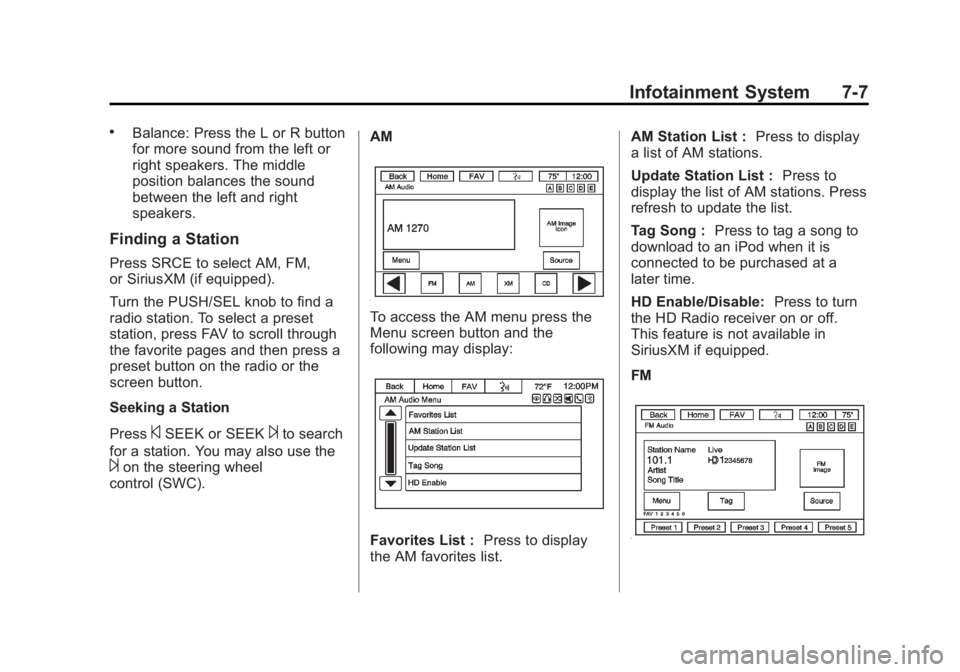
To access the AM menu press the
Menu screen button and the
following may display:
Favorites List :
Press to display
the AM favorites list. AM Station List :
Press to display
a list of AM stations.
Update Station List : Press to
display the list of AM stations. Press
refresh to update the list.
Tag Song : Press to tag a song to
download to an iPod when it is
connected to be purchased at a
later time.
HD Enable/Disable: Press to turn
the HD Radio receiver on or off.
This feature is not available in
SiriusXM if equipped.
FM
Page 178 of 410
Black plate (8,1)Buick Enclave Owner Manual (GMNA-Localizing-U.S./Canada/Mexico-
6014143) - 2014 - CRC - 8/14/13
7-8 Infotainment System
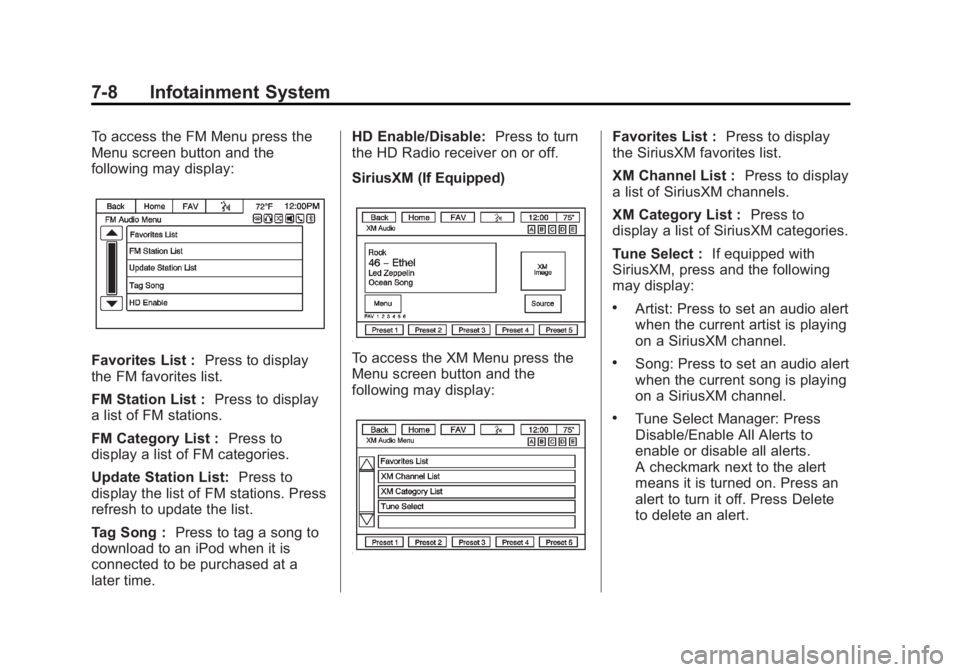
To access the FM Menu press the
Menu screen button and the
following may display:
Favorites List :Press to display
the FM favorites list.
FM Station List : Press to display
a list of FM stations.
FM Category List : Press to
display a list of FM categories.
Update Station List: Press to
display the list of FM stations. Press
refresh to update the list.
Tag Song : Press to tag a song to
download to an iPod when it is
connected to be purchased at a
later time. HD Enable/Disable:
Press to turn
the HD Radio receiver on or off.
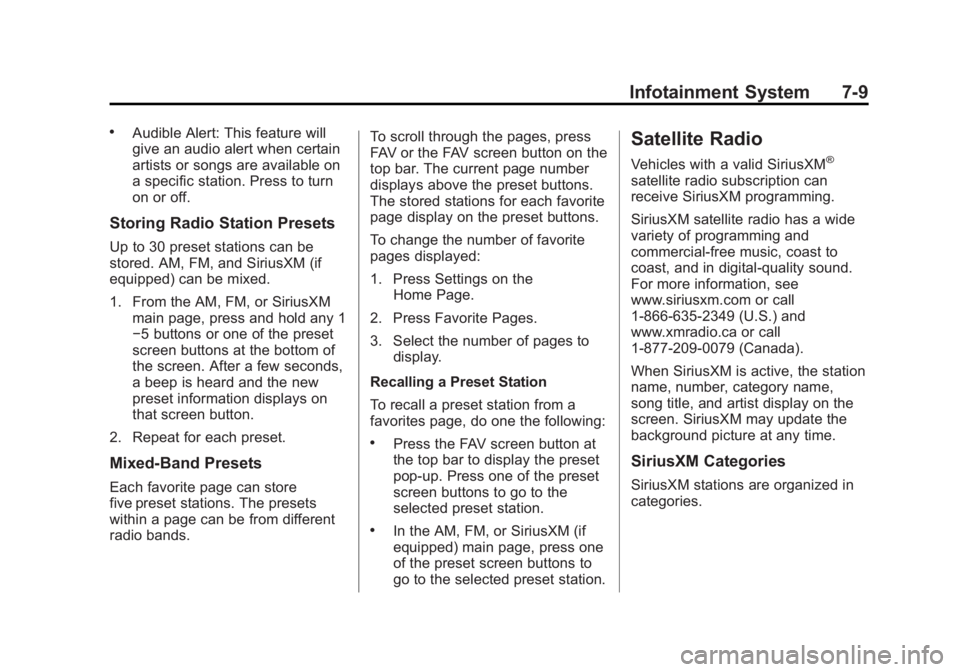
SiriusXM (If Equipped)To access the XM Menu press the
Menu screen button and the
following may display:
Favorites List : Press to display
the SiriusXM favorites list.
XM Channel List : Press to display
a list of SiriusXM channels.
XM Category List : Press to
display a list of SiriusXM categories.
Tune Select : If equipped with
SiriusXM, press and the following
may display:
.Artist: Press to set an audio alert
when the current artist is playing
on a SiriusXM channel.
.Song: Press to set an audio alert
when the current song is playing
on a SiriusXM channel.
.Tune Select Manager: Press
Disable/Enable All Alerts to
enable or disable all alerts.
A checkmark next to the alert
means it is turned on. Press an
alert to turn it off. Press Delete
to delete an alert.
Page 179 of 410
Black plate (9,1)Buick Enclave Owner Manual (GMNA-Localizing-U.S./Canada/Mexico-
6014143) - 2014 - CRC - 8/14/13
Infotainment System 7-9
.Audible Alert: This feature will
give an audio alert when certain
artists or songs are available on
a specific station. Press to turn
on or off.
Storing Radio Station Presets
Up to 30 preset stations can be
stored. AM, FM, and SiriusXM (if
equipped) can be mixed.
1. From the AM, FM, or SiriusXMmain page, press and hold any 1
−5 buttons or one of the preset
screen buttons at the bottom of
the screen. After a few seconds,
a beep is heard and the new
preset information displays on
that screen button.
2. Repeat for each preset.
Mixed-Band Presets
Each favorite page can store
five preset stations. The presets
within a page can be from different
radio bands. To scroll through the pages, press
FAV or the FAV screen button on the
top bar. The current page number
displays above the preset buttons.
The stored stations for each favorite
page display on the preset buttons.
To change the number of favorite
pages displayed:
1. Press Settings on the
Home Page.
2. Press Favorite Pages.
3. Select the number of pages to display.
Recalling a Preset Station
To recall a preset station from a
favorites page, do one the following:
.Press the FAV screen button at
the top bar to display the preset
pop-up. Press one of the preset
screen buttons to go to the
selected preset station.
.In the AM, FM, or SiriusXM (if
equipped) main page, press one
of the preset screen buttons to
go to the selected preset station.
Satellite Radio
Vehicles with a valid SiriusXM®
satellite radio subscription can
receive SiriusXM programming.
SiriusXM satellite radio has a wide
variety of programming and
commercial-free music, coast to
coast, and in digital-quality sound.
For more information, see
www.siriusxm.com or call
1-866-635-2349 (U.S.) and
www.xmradio.ca or call
1-877-209-0079 (Canada).
When SiriusXM is active, the station
name, number, category name,
song title, and artist display on the
screen. SiriusXM may update the
background picture at any time.
SiriusXM Categories
SiriusXM stations are organized in
categories.