change wheel BUICK ENCLAVE 2022 User Guide
[x] Cancel search | Manufacturer: BUICK, Model Year: 2022, Model line: ENCLAVE, Model: BUICK ENCLAVE 2022Pages: 382, PDF Size: 7.67 MB
Page 124 of 382
Buick Enclave Owner Manual (GMNA-Localizing-U.S./Canada/Mexico-
15253195) - 2022 - CRC - 11/3/21
Instruments and Controls 123
5. Touchzto go to the top level of the
Settings menu.
The menu may contain the following:
Rear Seat Reminder
This allows for a chime and a message when
the rear door has been opened before or
during operation of the vehicle.
Touch Off or On.
Climate and Air Quality
Touch and the following may display:
.Auto Fan Speed
.Auto Cooled Seats
.Auto Heated Seats
.Auto Defog
.Auto Rear Defog
.Ionizer
Auto Fan Speed
This setting specifies the amount of airflow
when the climate control fan setting is
Auto Fan.
Touch Low, Medium, or High. Auto Cooled Seats
This setting automatically turns on and
regulates the ventilated seats when the
cabin temperature is warm. See
Heated and
Ventilated Front Seats 041.
Touch Off or On.
Auto Heated Seats
This setting automatically turns on and
regulates the heated seats when the cabin
temperature is cool. The auto heated seats
can be turned off by using the heated seat
buttons on the center stack. See Heated and
Ventilated Front Seats 041.
If equipped with Auto Heated Steering
Wheel, this feature will turn on when the
Auto Heated Seats turn on.
Touch Off or On.
Auto Defog
This setting automatically turns the front
defogger on when the engine is started.
Touch Off or On.
Auto Rear Defog
This setting automatically turns the rear
defogger on when the engine is started.
Touch Off or On. Ionizer
If equipped and on, this feature helps to
clean the air inside the vehicle and remove
contaminants such as pollen, odors, and
dust. See
Dual Automatic Climate Control
System 0190.
Touch Off or On.
Collision / Detection Systems
Touch and the following may display:
.Alert Type
.Forward Collision System
.Front Pedestrian Detection
.Rear Pedestrian Detection
.Rear Cross Traffic Alert
.Lane Change Alert
.Adaptive Cruise Go Notifier
Alert Type
This setting specifies the type of vehicle
feedback provided, either a beep or seat
vibration, when you are in danger of
colliding with an object.
Touch Beeps or Safety Alert Seat.
Page 125 of 382
Buick Enclave Owner Manual (GMNA-Localizing-U.S./Canada/Mexico-
15253195) - 2022 - CRC - 11/3/21
124 Instruments and Controls
Forward Collision System
This setting can alert of a potential crash
with a detected vehicle ahead and can apply
brakes to help reduce a collision’s severity.
SeeAutomatic Emergency Braking (AEB)
0 247.
Touch Off, Alert, or Alert and Brake.
Front Pedestrian Detection
This feature may help avoid or reduce the
harm caused by front-end crashes with
nearby pedestrians.
See Front Pedestrian Braking (FPB) System
0 248.
Select Off, Alert, or Alert and Brake.
Rear Pedestrian Detection
This setting specifies if alerts will display
when the vehicle detects pedestrians behind
when in R (Reverse). See Rear Pedestrian
Alert 0243.
Touch Off, Alert, or Alert and Brake.
Rear Cross Traffic Alert
This setting specifies if an alert will display
when the vehicle detects approaching rear
cross traffic when in R (Reverse). See
Assistance Systems for Parking or Backing
0 239. Touch Off or On.
Lane Change Alert
This setting specifies if an alert will display
on the outside mirror to help you avoid
crashing into a vehicle in your blind spot,
or rapidly approaching your blind spot,
during a lane change maneuver. See
Lane
Change Alert (LCA) 0250.
When Lane Change Alert is disabled, Side
Blind Zone Alert is also disabled.
Touch Off or On.
Adaptive Cruise Go Notifier
This setting determines if an alert will
appear when Adaptive Cruise Control brings
the vehicle to a complete stop and the
vehicle ahead of you starts moving again.
See Adaptive Cruise Control (Advanced)
0 229.
Touch Off or On.
Comfort and Convenience
Touch and the following may display:
.Chime Volume
.Hands Free Liftgate/Trunk Control
.Reverse Tilt Mirror
.Remote Mirror Folding
.Rain Sense Wipers
.Auto Wipe in Reverse Gear
Chime Volume
This setting determines the chime volume
level.
Touch the controls on the infotainment
display to adjust the volume.
Hands Free Liftgate/Trunk Control
The liftgate may be operated with a kicking
motion under the left corner of the rear
bumper. See Liftgate019.
Select Off, On-Open and Close,
or On-Open Only.
Reverse Tilt Mirror
When on, the driver, passenger, or both
driver and passenger outside mirrors will tilt
downward when the vehicle is shifted into
R (Reverse) to improve visibility of the
ground near the rear wheels. They may
move from their tilted position when the
vehicle is shifted out of R (Reverse) or
turned off. See Reverse Tilt Mirrors 028.
Touch Off, On - Driver and Passenger, On -
Driver, or On - Passenger.
Page 127 of 382
Buick Enclave Owner Manual (GMNA-Localizing-U.S./Canada/Mexico-
15253195) - 2022 - CRC - 11/3/21
126 Instruments and Controls
Touch Off or Flash Lights.
Remote Lock Feedback
This setting specifies how the vehicle
responds when the vehicle is locked with
the RKE transmitter.
Touch Off, Lights and Horn, Lights Only,
or Horn Only.
Remote Door Unlock
This setting specifies whether all doors,
or just the driver door, unlock when pressing
Kon the RKE transmitter.
Touch All Doors or Driver Door.
Remote Start Auto Cool Seats
This setting automatically turns on the
ventilated seats when using the remote
start function on warm days. See Heated
and Ventilated Front Seats 041 and
Remote Vehicle Start 014.
Touch Off or On.
Remote Start Auto Heat Seats
This setting automatically turns on the
heated seats when using the remote start
function on cold days. See Heated and
Ventilated Front Seats 041 and
Remote Vehicle Start 014. If equipped with Auto Heated Steering
Wheel, this feature will turn on when the
Remote Start Auto Heated Seats turn on.
Touch Off or On.
Remote Window Operation
If equipped, this feature enables remote
operation of the windows with the RKE
transmitter. See
Remote Keyless Entry (RKE)
System Operation 07.
Touch Off or On.
Passive Door Unlock
This setting specifies which doors unlock
when using the button on the driver door
handle to unlock the vehicle.
Touch Off, All Doors or Driver Door Only.
Passive Door Lock
This setting specifies if the vehicle will
automatically lock, or lock and provide an
alert after all the doors are closed, and you
walk away from the vehicle with the RKE
transmitter. See Remote Keyless Entry (RKE)
System Operation 07.
Touch Off, On with Horn Chirp, or On. Remote Left in Vehicle Alert
This feature sounds an alert when the RKE
transmitter is left in the vehicle. This menu
also enables Remote No Longer in Vehicle
Alert.
Touch Off or On.
Seating Position
Touch and the following may display:
.Seat Entry Memory
.Seat Exit Memory
Seat Entry Memory
This feature automatically recalls the
previously stored 1 or 2 button positions
when the vehicle is changed from off to on
or ACC/ACCESSORY. See Memory Seats039.
Touch Off or On.
Seat Exit Memory
This feature automatically recalls the
previously stored exit button positions when
the vehicle is changed from on or ACC/
ACCESSORY to off if the driver door is open
or opened. See Memory Seats039.
Touch Off or On.
Page 134 of 382

Buick Enclave Owner Manual (GMNA-Localizing-U.S./Canada/Mexico-
15253195) - 2022 - CRC - 11/3/21
Lighting 133
operating, these lamps turn off. Move the
exterior lamp control to
Oor;to disable
this feature.
Hazard Warning Flashers
|: Press to make the front and rear turn
signal lamps flash on and off. This warns
others that you are having trouble.
Press
|again to turn the flashers off.
Turn and Lane-Change Signals
Move the lever all the way up or down to
signal a turn.
An arrow on the instrument cluster will
flash in the direction of the turn or lane
change.
Raise or lower the lever until the arrow
starts to flash to signal a lane change. Hold
it there until the lane change is complete.
If the lever is moved momentarily to the
lane change position, the arrow will flash
three times. It will flash six times if Tow/
Haul Mode is active.
The lever returns to its starting position
when it is released.
If after signaling a turn or lane change, the
arrow flashes rapidly or does not come on, a
signal bulb may be burned out. Have any burned out bulbs replaced. If a
bulb is not burned out, check the fuse. See
Instrument Panel Fuse Block
0292.
Interior Lighting
Instrument Panel Illumination
Control
This feature adjusts the brightness of all
illuminated controls.
D:Move the thumbwheel up or down to
brighten or dim the lights.
The thumbwheel is functional at night,
or when the headlamps or parking lamps
are on.
Page 150 of 382
Buick Enclave Owner Manual (GMNA-Localizing-U.S./Canada/Mexico-
15253195) - 2022 - CRC - 11/3/21
Infotainment System 149
The songs, artists, albums, and genres are
taken from the file’s song information and
are only displayed if present. The radio
displays the file name as the track name if
the song information is not available.
Supported Apple Devices
To view supported devices, see
my.buick.com/learn.
Storing and Recalling Media Favorites
To store media favorites, touch the Browse
menu to display a list of media types.
Touch one of the following Browse options
to save a favorite:
Playlists :Touch
Hnext to any playlist to
store the playlist as a favorite. Touch a
saved favorite to recall a favorite playlist.
The first song in the playlist begins to play.
Artists : Touch
Hnext to any artist to
store the artist as a favorite. Touch a saved
favorite to recall a favorite artist. The first
song in the artist list begins to play.
Songs : Touch
Hnext to any song to store
the song as a favorite. Touch a saved
favorite to recall a favorite song. Albums :
Touch
Hnext to any album to
store the album as a favorite. Touch a saved
favorite to recall a favorite album. The first
song in the album list begins to play.
Genres : Touch
Hnext to any genre to
store the genre as a favorite. Touch a saved
favorite to recall a favorite genre. The first
song of the genre begins to play.
Podcasts : Touch
Hnext to any podcast to
store the podcast as a favorite. Touch a
saved favorite to recall a favorite podcast.
The podcast begins to play.
Audiobooks : Touch
Hnext to any
audiobook to store the audiobook as a
favorite. Touch a saved favorite to recall a
favorite audiobook. The first chapter in the
audiobook begins to play.
Media Playback and Mute
USB playback will be paused if the system is
muted. If the steering wheel mute control is
pressed again, playback will resume.
If the source is changed while in mute,
playback resumes and audio will unmute.
Auxiliary Jack
This vehicle has an auxiliary input jack in
the center console. Possible auxiliary audio
sources include:
.Laptop computer
.Audio music player
This jack is not an audio output. Do not
plug headphones into the auxiliary input
jack. Set up an auxiliary device while the
vehicle is in P (Park).
Connect a 3.5 mm (1/8 in) cable from the
auxiliary device to the auxiliary input jack.
When a device is connected, the system can
play audio from the device over the vehicle
speakers.
If an auxiliary device has already been
connected, but a different source is currently
active, touch More and then touch AUX to
make the source active.
Shuffle and Browse are not available in the
AUX source menu.
Page 153 of 382
Buick Enclave Owner Manual (GMNA-Localizing-U.S./Canada/Mexico-
15253195) - 2022 - CRC - 11/3/21
152 Infotainment System
Make sure to set up preferences before
setting a destination and starting active
guidance.
Map Preferences
Touch to choose between basic map feature
configurations:
Map Colors
.Auto–Touch to automatically change
modes based on lighting conditions.
.Day (Light)
.Night (Dark)
3D Landmark (Default is On) : Touch On or
Off. When turned on, the system will
display all 3D Landmarks on the map
depending on the zoom level.
3D Building (Default is Off) : Touch On or
Off. When turned on, the system will
display all of the possible 3D building shapes
on the map depending on the zoom level.
Show Terrain in 3D (Default is Off) :
If equipped, touch On or Off. When turned
on, the system will display terrain
information on the map in 3D view.
Auto-Zoom (Default is On) : Touch On or
Off. When turned on, the system will
automatically adjust the zoom level when
the vehicle is approaching a turn. After the turn is completed, the system automatically
brings the zoom back to the originally set
level. If the vehicle is approaching a turn
with the next turn occurring shortly after,
the Auto-Zoom will remain on until both
turns are completed.
Route Preferences
Touch to access the Route Preferences. The
choices are:
.Preferred Route
–Choose from two
different route options: Fastest or
Eco-Friendly.
‐ Fastest would be the route with the
shortest drive time.
‐ Eco-Friendly would be the most
fuel-efficient route.
.Avoid on Current Route –Choose any of
the road features to avoid while on route:
‐ Highways
‐ Unpaved Roads
‐ Ferries
‐ Carpool Lanes
‐ Toll Roads
‐ Tunnels
‐ Country Borders Navigation Voice Control
Touch to access the voice control setting
display.
.Navigation Volume
–To adjust the
volume level, touch the up and down
arrows. If the voice guidance prompt is
being heard, volume can also be adjusted
using the knob on the center stack or the
volume switch on the steering wheel.
.Navigation Voice Prompt Level during a
Call. Options available are:
‐ Full Prompt (Selected by default)
‐ Tone Only
‐ None
Traffic Events (If Equipped)
This feature provides a list of events that
are on the route or nearby. Touch
Aand
then select Traffic Events. An OnStar
connected Navigation service plan is
required.
Traffic Preferences (If Equipped)
While in Map View, touch
A, then Settings
and then Map and Navigation Settings to
access Traffic Preferences. When Show
Traffic on Map is turned on, the feature
Page 164 of 382
Buick Enclave Owner Manual (GMNA-Localizing-U.S./Canada/Mexico-
15253195) - 2022 - CRC - 11/3/21
Infotainment System 163
select. Manual interaction in the voice
recognition session is permitted. Interaction
during a voice session may be completed
entirely using voice commands while some
manual commands may expedite a task. If a
selection is made using a manual control,
the voice recognition dialog will progress in
the same way as if the selection were made
using a voice command. Once the system
completes the task, or the session is
terminated, the voice recognition dialog
stops.
An example of this type of manual
intervention is touching an entry of a
displayed number list instead of speaking
the number associated with the entry
desired.
Canceling Voice Recognition
.Touch or say“Cancel”or“Exit” to
terminate the voice recognition session
and show the display where voice
recognition was initiated.
.Pression the steering wheel controls
to terminate the voice recognition session
and show the display where voice
recognition was initiated. Natural Language Commands
Most languages do not support natural
language commands in sentence form. For
those languages, use direct commands like
the examples shown on the display.
Helpful Hints for Speaking Commands
Voice recognition can understand commands
that are naturally stated in sentence form or
direct commands that state the application
and the task.
For best results:
.Listen for the prompt before saying a
command or reply.
.Speak the command naturally, not too
fast, not too slow.
.Use direct commands without a lot of
extra words. For example,
“Call
at work,” “Play” followed by the artist or
song name, or “Tune”followed by the
radio station number.
.Navigation destinations can be made in a
single command using keywords. A few
examples are: “I want directions to an
address,” “I need to find a place of
interest or (POI),” or“Find contact.” The system responds by requesting more
details. For other POIs, say the name of a
category like
“Restaurants,” “Shopping
Malls,” or“Hospitals.”
.Navigating to a destination outside of the
current country takes more than one
command. The first command is to tell
the system where the navigation will take
place, such as an Address, Intersection,
POI, or Contact. If Address or Intersection
is selected, the second command is to
say, “Change Country.” Once the system
responds, say the country before saying
the rest of the address and/or
intersection.
If POI is asked for, say “Change Location,”
then “Change Country.”
Direct commands might be more clearly
understood by the system. An example of a
direct command would be “Call
Examples of these direct commands are
displayed on most of the screens while a
voice session is active. If “Phone”or“Phone
Commands,” is spoken, the system
understands that a phone call is requested
and will respond with questions until
enough details are gathered to make a call.
Page 172 of 382
Buick Enclave Owner Manual (GMNA-Localizing-U.S./Canada/Mexico-
15253195) - 2022 - CRC - 11/3/21
Infotainment System 171
Declining a Call
Press
ito decline, then touch Ignore on
the infotainment display
Switching Between Calls (Call Waiting
Calls Only)
To switch between calls, touch Phone on the
Home Page to display Call View. While in
Call View, touch the call information of the
call on hold to change calls.
Three-Way Calling
Three-way calling must be supported on the
Bluetooth cell phone and enabled by the
wireless service carrier to work.
To start a three-way call while in a
current call:
1. In the Call View, touch Add Call to add another call.
2. Initiate the second call by selecting from Recents, Contacts, or Keypad.
3. When the second call is active, touch the merge icon to conference the three-way
call together.
Ending a Call
.Pression the steering wheel controls.
.Touch#on the infotainment display,
next to a call, to end only that call.
Dual Tone Multi-Frequency (DTMF) Tones
The in-vehicle Bluetooth system can send
numbers during a call. This is used when
calling a menu-driven phone system. Use the
Keypad to enter the number.
Apple CarPlay and Android Auto
If equipped, Android Auto and/or Apple
CarPlay capability may be available through
a compatible smartphone. If available, the
Android Auto and Apple CarPlay icons will
change from gray to color on the Home
Page of the infotainment display.
To use Android Auto and/or Apple CarPlay:
For Wired Phone Projection
1. Download the Android Auto app to your smartphone from the Google Play store.
There is no app required for Apple
CarPlay.
2. Connect your Android phone or Apple iPhone by using the factory-provided
phone USB cable and plugging into a
USB data port. For best performance, it is
highly recommended to use the device’s
factory-provided USB cable, which should be replaced after significant wear to
maintain connection quality. Aftermarket
or third-party cables may not work.
3. When the phone is first connected to activate Apple CarPlay or Android Auto,
accept the terms and conditions on both
the infotainment system and the phone.
4. Follow the instructions on the phone.
The Android Auto and Apple CarPlay icons
on the Home Page will illuminate depending
on the smartphone. Android Auto and/or
Apple CarPlay may automatically launch
upon USB connection. If not, touch the
Android Auto or Apple CarPlay icon on the
Home Page to launch.
Press
{on the center stack to return to the
Home Page.
For Wireless Phone Projection
Verify your phone is wireless compatible by
visiting the Google Android Auto or Apple
CarPlay support page.
1. Download the Android Auto app to your smartphone from the Google Play store.
There is no app required for Apple
CarPlay.
Page 183 of 382
Buick Enclave Owner Manual (GMNA-Localizing-U.S./Canada/Mexico-
15253195) - 2022 - CRC - 11/3/21
182 Infotainment System
.Traction Control–the number of times
the Traction Control System activated to
reduce wheel spin or loss of traction.
.Stability Control –the number of events
which required the use of electronic
stability control.
.Antilock Braking System Active –The
number of Antilock Brake System
activations.
.Tailgating Alerts (if equipped) –the
number of times the driver was alerted
for following a vehicle ahead too closely.
Report Card Data
Cumulative Data is saved for all trips until
the Report Card is reset or until the
maximum count is exceeded. If the
maximum count is exceeded for a Report
Card line item, that item will no longer be
updated in the Report Card until it is reset.
Each item will report a maximum of
1,000 counts. The distance driven will report
a maximum of 64,374 km (40,000 mi).
To delete Report Card data, do one of the
following:
.From the Report Card display, touch
Reset.
.Touch Clear All Teen Keys and PIN from
the Teen Driver menu. This will also
unregister any Teen Driver keys and
delete the PIN.
Forgotten PIN
See your dealer to reset the PIN.
Trademarks and License
Agreements
FCC Information
See Radio Frequency Statement 0359.
"Made for iPod," and "Made for iPhone,"
mean that an electronic accessory has been
designed to connect specifically to iPod or
iPhone, respectively, and has been certified
by the developer to meet Apple
performance standards. Apple is not
responsible for the operation of this device
or its compliance with safety and regulatory
standards. Please note that the use of this accessory with iPod or iPhone may affect
wireless performance. iPhone, iPod, iPod
classic, iPod nano, iPod shuffle, and iPod
touch are trademarks of Apple Inc.,
registered in the U.S. and other countries.
If you decide to continue service after your
trial, your selected subscription plan will
automatically renew thereafter. You will be
charged at then-current rates. Fees and taxes
apply. Please see the SiriusXM Customer
Agreement at siriusxm.com for complete
terms and how to cancel, which includes
calling SiriusXM at 1-866-635-2349. All fees
and programming are subject to change.
Fees and Taxes: Subscription fee, taxes, one
time activation fee, and other fees may
apply. Subscription fee is consumer only. All
fees and programming subject to change.
Subscriptions subject to Customer
Agreement available at www.siriusxm.com.
SiriusXM service is only available in the
48 contiguous United States and Canada.
Page 198 of 382
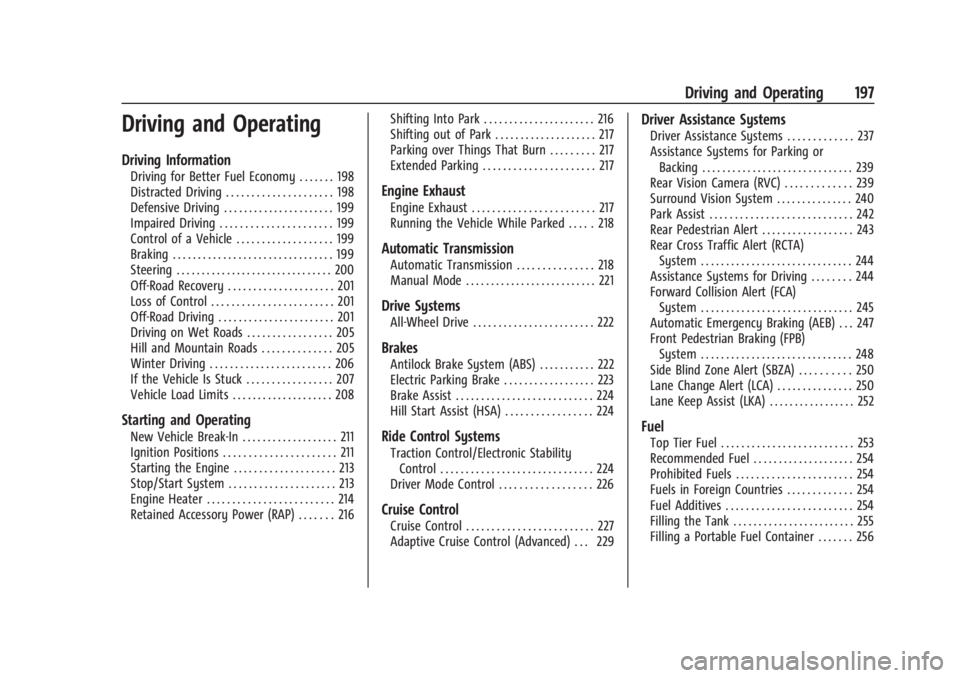
Buick Enclave Owner Manual (GMNA-Localizing-U.S./Canada/Mexico-
15253195) - 2022 - CRC - 11/4/21
Driving and Operating 197
Driving and Operating
Driving Information
Driving for Better Fuel Economy . . . . . . . 198
Distracted Driving . . . . . . . . . . . . . . . . . . . . . 198
Defensive Driving . . . . . . . . . . . . . . . . . . . . . . 199
Impaired Driving . . . . . . . . . . . . . . . . . . . . . . 199
Control of a Vehicle . . . . . . . . . . . . . . . . . . . 199
Braking . . . . . . . . . . . . . . . . . . . . . . . . . . . . . . . . 199
Steering . . . . . . . . . . . . . . . . . . . . . . . . . . . . . . . 200
Off-Road Recovery . . . . . . . . . . . . . . . . . . . . . 201
Loss of Control . . . . . . . . . . . . . . . . . . . . . . . . 201
Off-Road Driving . . . . . . . . . . . . . . . . . . . . . . . 201
Driving on Wet Roads . . . . . . . . . . . . . . . . . 205
Hill and Mountain Roads . . . . . . . . . . . . . . 205
Winter Driving . . . . . . . . . . . . . . . . . . . . . . . . 206
If the Vehicle Is Stuck . . . . . . . . . . . . . . . . . 207
Vehicle Load Limits . . . . . . . . . . . . . . . . . . . . 208
Starting and Operating
New Vehicle Break-In . . . . . . . . . . . . . . . . . . . 211
Ignition Positions . . . . . . . . . . . . . . . . . . . . . . 211
Starting the Engine . . . . . . . . . . . . . . . . . . . . 213
Stop/Start System . . . . . . . . . . . . . . . . . . . . . 213
Engine Heater . . . . . . . . . . . . . . . . . . . . . . . . . 214
Retained Accessory Power (RAP) . . . . . . . 216Shifting Into Park . . . . . . . . . . . . . . . . . . . . . . 216
Shifting out of Park . . . . . . . . . . . . . . . . . . . . 217
Parking over Things That Burn . . . . . . . . . 217
Extended Parking . . . . . . . . . . . . . . . . . . . . . . 217
Engine Exhaust
Engine Exhaust . . . . . . . . . . . . . . . . . . . . . . . . 217
Running the Vehicle While Parked . . . . . 218
Automatic Transmission
Automatic Transmission . . . . . . . . . . . . . . . 218
Manual Mode . . . . . . . . . . . . . . . . . . . . . . . . . . 221
Drive Systems
All-Wheel Drive . . . . . . . . . . . . . . . . . . . . . . . . 222
Brakes
Antilock Brake System (ABS) . . . . . . . . . . . 222
Electric Parking Brake . . . . . . . . . . . . . . . . . . 223
Brake Assist . . . . . . . . . . . . . . . . . . . . . . . . . . . 224
Hill Start Assist (HSA) . . . . . . . . . . . . . . . . . 224
Ride Control Systems
Traction Control/Electronic Stability
Control . . . . . . . . . . . . . . . . . . . . . . . . . . . . . . 224
Driver Mode Control . . . . . . . . . . . . . . . . . . 226
Cruise Control
Cruise Control . . . . . . . . . . . . . . . . . . . . . . . . . 227
Adaptive Cruise Control (Advanced) . . . 229
Driver Assistance Systems
Driver Assistance Systems . . . . . . . . . . . . . 237
Assistance Systems for Parking or Backing . . . . . . . . . . . . . . . . . . . . . . . . . . . . . . 239
Rear Vision Camera (RVC) . . . . . . . . . . . . . 239
Surround Vision System . . . . . . . . . . . . . . . 240
Park Assist . . . . . . . . . . . . . . . . . . . . . . . . . . . . 242
Rear Pedestrian Alert . . . . . . . . . . . . . . . . . . 243
Rear Cross Traffic Alert (RCTA) System . . . . . . . . . . . . . . . . . . . . . . . . . . . . . . 244
Assistance Systems for Driving . . . . . . . . 244
Forward Collision Alert (FCA) System . . . . . . . . . . . . . . . . . . . . . . . . . . . . . . 245
Automatic Emergency Braking (AEB) . . . 247
Front Pedestrian Braking (FPB) System . . . . . . . . . . . . . . . . . . . . . . . . . . . . . . 248
Side Blind Zone Alert (SBZA) . . . . . . . . . . 250
Lane Change Alert (LCA) . . . . . . . . . . . . . . . 250
Lane Keep Assist (LKA) . . . . . . . . . . . . . . . . . 252
Fuel
Top Tier Fuel . . . . . . . . . . . . . . . . . . . . . . . . . . 253
Recommended Fuel . . . . . . . . . . . . . . . . . . . . 254
Prohibited Fuels . . . . . . . . . . . . . . . . . . . . . . . 254
Fuels in Foreign Countries . . . . . . . . . . . . . 254
Fuel Additives . . . . . . . . . . . . . . . . . . . . . . . . . 254
Filling the Tank . . . . . . . . . . . . . . . . . . . . . . . . 255
Filling a Portable Fuel Container . . . . . . . 256