system infor BUICK ENCORE 2018 Infotainment System Guide
[x] Cancel search | Manufacturer: BUICK, Model Year: 2018, Model line: ENCORE, Model: BUICK ENCORE 2018Pages: 88, PDF Size: 0.99 MB
Page 27 of 88
Buick Infotainment System (GMNA-Localizing-U.S./Canada-10999317) -
2018 - CRC - 7/31/17
26 Navigation
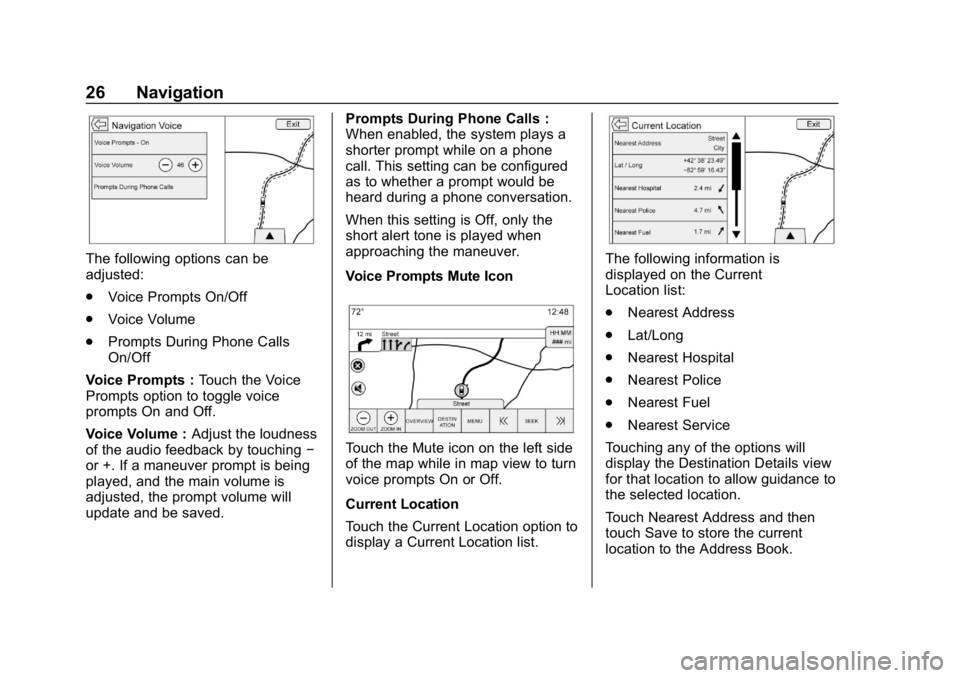
The following options can be
adjusted:
.Voice Prompts On/Off
. Voice Volume
. Prompts During Phone Calls
On/Off
Voice Prompts : Touch the Voice
Prompts option to toggle voice
prompts On and Off.
Voice Volume : Adjust the loudness
of the audio feedback by touching −
or +. If a maneuver prompt is being
played, and the main volume is
adjusted, the prompt volume will
update and be saved. Prompts During Phone Calls :
When enabled, the system plays a
shorter prompt while on a phone
call. This setting can be configured
as to whether a prompt would be
heard during a phone conversation.
When this setting is Off, only the
short alert tone is played when
approaching the maneuver.
Voice Prompts Mute Icon
Touch the Mute icon on the left side
of the map while in map view to turn
voice prompts On or Off.
Current Location
Touch the Current Location option to
display a Current Location list.
The following information is
displayed on the Current
Location list:
.
Nearest Address
. Lat/Long
. Nearest Hospital
. Nearest Police
. Nearest Fuel
. Nearest Service
Touching any of the options will
display the Destination Details view
for that location to allow guidance to
the selected location.
Touch Nearest Address and then
touch Save to store the current
location to the Address Book.
Page 28 of 88
Buick Infotainment System (GMNA-Localizing-U.S./Canada-10999317) -
2018 - CRC - 7/31/17
Navigation 27
Traffic (If Equipped)
Touch to browse the traffic in the
area as well as adjust the traffic
settings. Where traffic information is
available, it is displayed on the map.
Where live traffic flow data is
available, it is displayed as a solid
line adjacent to the road. The road
is displayed in colors to show the
flow rate as:
.Black –Stopped or Closed
. Red –Poor
. Yellow –Slow
. Green –Normal
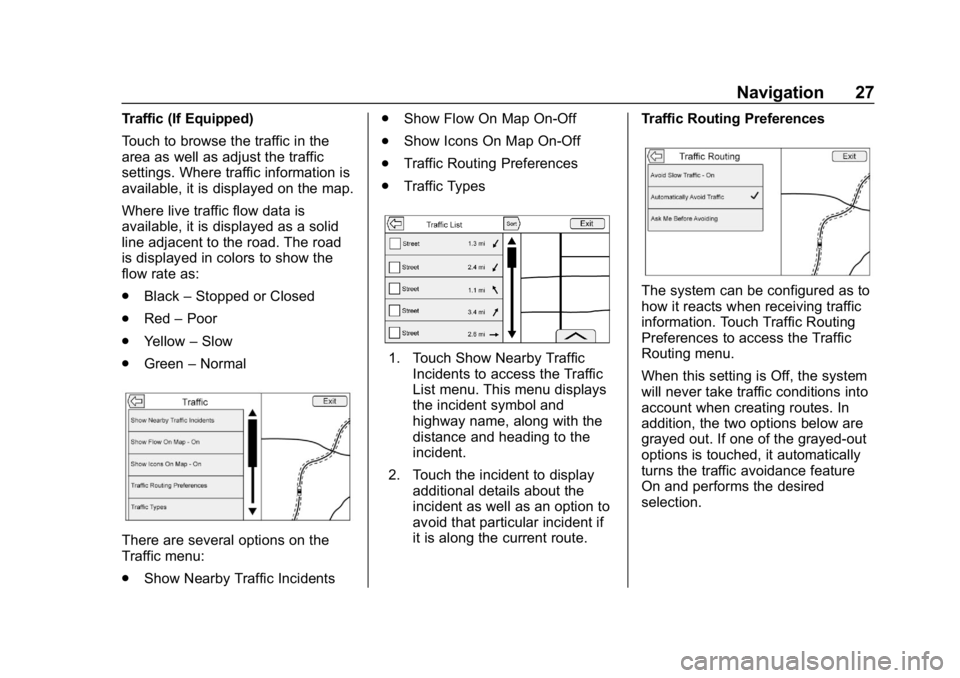
There are several options on the
Traffic menu:
.
Show Nearby Traffic Incidents .
Show Flow On Map On-Off
. Show Icons On Map On-Off
. Traffic Routing Preferences
. Traffic Types
1. Touch Show Nearby Traffic
Incidents to access the Traffic
List menu. This menu displays
the incident symbol and
highway name, along with the
distance and heading to the
incident.
2. Touch the incident to display additional details about the
incident as well as an option to
avoid that particular incident if
it is along the current route. Traffic Routing Preferences
The system can be configured as to
how it reacts when receiving traffic
information. Touch Traffic Routing
Preferences to access the Traffic
Routing menu.
When this setting is Off, the system
will never take traffic conditions into
account when creating routes. In
addition, the two options below are
grayed out. If one of the grayed-out
options is touched, it automatically
turns the traffic avoidance feature
On and performs the desired
selection.
Page 29 of 88
Buick Infotainment System (GMNA-Localizing-U.S./Canada-10999317) -
2018 - CRC - 7/31/17
28 Navigation
The two options, Ask Me Before
Avoiding and Automatically Avoid
Traffic, will adjust the system as
follows:
.If the Automatically Avoid Traffic
option is touched, the system
will automatically adjust the
route based on traffic without
notifying the driver.
. If the Ask Me Before Avoiding
option is touched, the system
will always use Alerts to show
when there is an incident and
allow it to be avoided by
touching the avoid option.
If the Traffic option is touched from
the Map Menu and Traffic is not
available because the SiriusXM
subscription is not valid, a pop-up
will display with information on how
to reactivate the subscription along
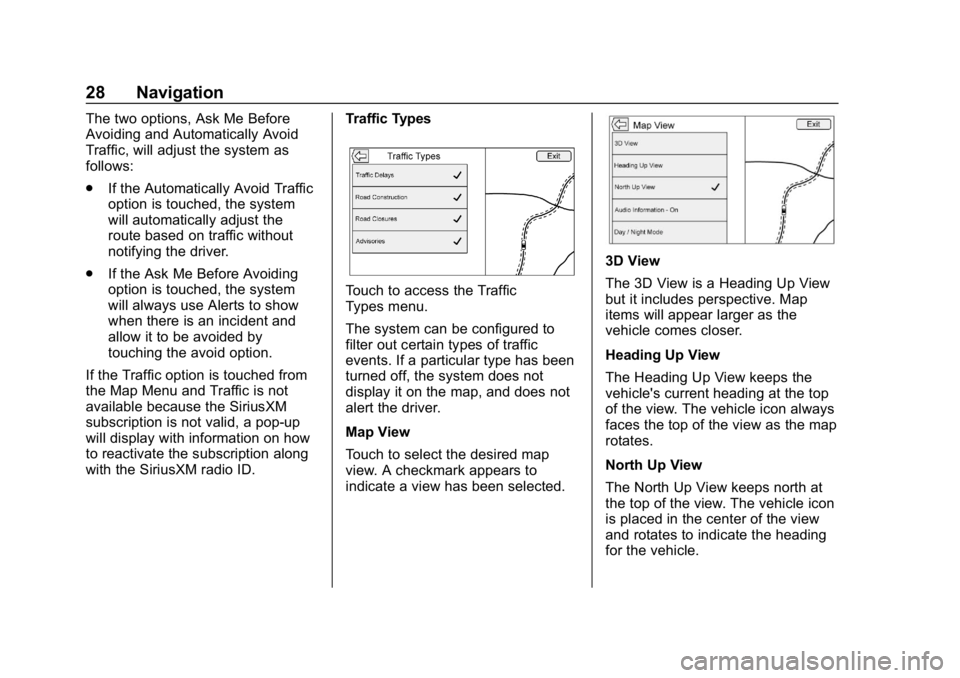
with the SiriusXM radio ID. Traffic Types
Touch to access the Traffic
Types menu.
The system can be configured to
filter out certain types of traffic
events. If a particular type has been
turned off, the system does not
display it on the map, and does not
alert the driver.
Map View
Touch to select the desired map
view. A checkmark appears to
indicate a view has been selected.
3D View
The 3D View is a Heading Up View
but it includes perspective. Map
items will appear larger as the
vehicle comes closer.
Heading Up View
The Heading Up View keeps the
vehicle's current heading at the top
of the view. The vehicle icon always
faces the top of the view as the map
rotates.
North Up View
The North Up View keeps north at
the top of the view. The vehicle icon
is placed in the center of the view
and rotates to indicate the heading
for the vehicle.
Page 30 of 88
Buick Infotainment System (GMNA-Localizing-U.S./Canada-10999317) -
2018 - CRC - 7/31/17
Navigation 29
Audio Information
Touch to turn the audio information
view on or off from the main
map view.
The audio status display contains:
.Station Frequency
. Artist Information
. Song Information
.
r/jor Station and Channel
Controls
Press the
g,7ord,6station
controls to go to the next or
previous strong signal station or
digital channel.
When the audio status pane
displays Artist and Song
information, press
g,7ord,6
to go to the next or previous track
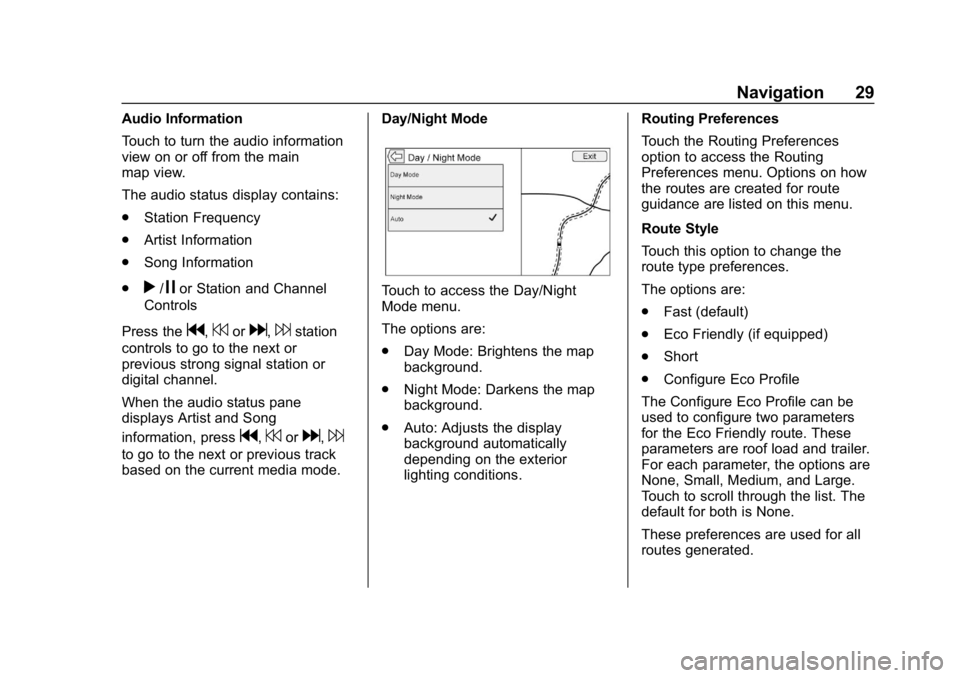
based on the current media mode. Day/Night Mode
Touch to access the Day/Night
Mode menu.
The options are:
.
Day Mode: Brightens the map
background.
. Night Mode: Darkens the map
background.
. Auto: Adjusts the display
background automatically
depending on the exterior
lighting conditions. Routing Preferences
Touch the Routing Preferences
option to access the Routing
Preferences menu. Options on how
the routes are created for route
guidance are listed on this menu.
Route Style
Touch this option to change the
route type preferences.
The options are:
.
Fast (default)
. Eco Friendly (if equipped)
. Short
. Configure Eco Profile
The Configure Eco Profile can be
used to configure two parameters
for the Eco Friendly route. These
parameters are roof load and trailer.
For each parameter, the options are
None, Small, Medium, and Large.
Touch to scroll through the list. The
default for both is None.
These preferences are used for all
routes generated.
Page 33 of 88
Buick Infotainment System (GMNA-Localizing-U.S./Canada-10999317) -
2018 - CRC - 7/31/17
32 Navigation
Scroll Features
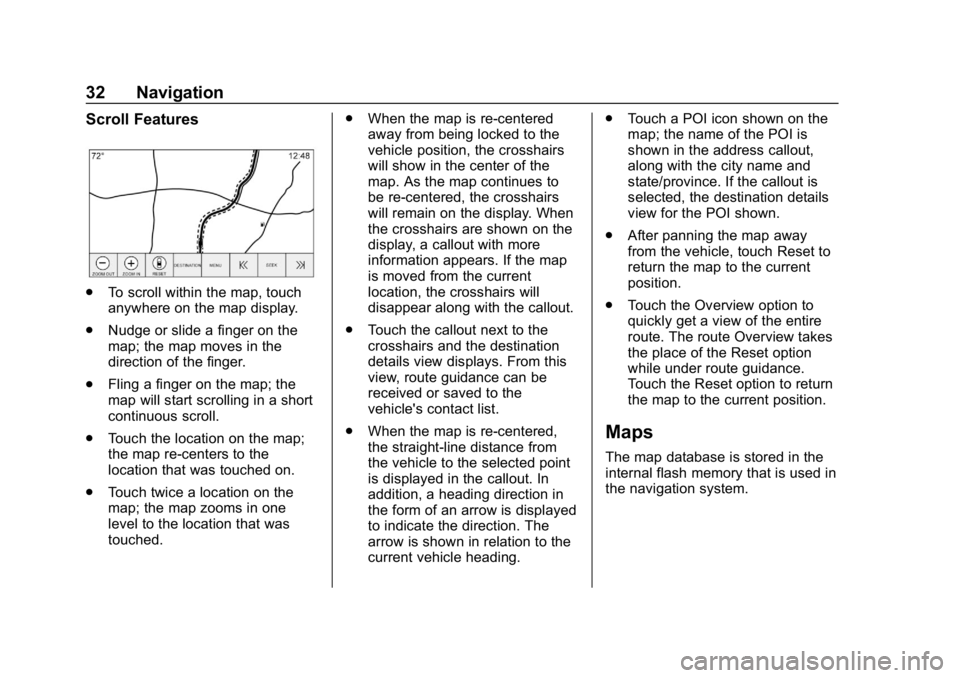
.To scroll within the map, touch
anywhere on the map display.
. Nudge or slide a finger on the
map; the map moves in the
direction of the finger.
. Fling a finger on the map; the
map will start scrolling in a short
continuous scroll.
. Touch the location on the map;
the map re-centers to the
location that was touched on.
. Touch twice a location on the
map; the map zooms in one
level to the location that was
touched. .
When the map is re-centered
away from being locked to the
vehicle position, the crosshairs
will show in the center of the
map. As the map continues to
be re-centered, the crosshairs
will remain on the display. When
the crosshairs are shown on the
display, a callout with more
information appears. If the map
is moved from the current
location, the crosshairs will
disappear along with the callout.
. Touch the callout next to the
crosshairs and the destination
details view displays. From this
view, route guidance can be
received or saved to the
vehicle's contact list.
. When the map is re-centered,
the straight-line distance from
the vehicle to the selected point
is displayed in the callout. In
addition, a heading direction in
the form of an arrow is displayed
to indicate the direction. The
arrow is shown in relation to the
current vehicle heading. .
Touch a POI icon shown on the
map; the name of the POI is
shown in the address callout,
along with the city name and
state/province. If the callout is
selected, the destination details
view for the POI shown.
. After panning the map away
from the vehicle, touch Reset to
return the map to the current
position.
. Touch the Overview option to
quickly get a view of the entire
route. The route Overview takes
the place of the Reset option
while under route guidance.
Touch the Reset option to return
the map to the current position.
Maps
The map database is stored in the
internal flash memory that is used in
the navigation system.
Page 34 of 88
Buick Infotainment System (GMNA-Localizing-U.S./Canada-10999317) -
2018 - CRC - 7/31/17
Navigation 33
Detailed Areas
Road network attributes are
contained in the map database for
detailed areas. Attributes include
information such as street names,
street addresses, and turn
restrictions. A detailed area includes
all major highways, service roads,
and residential roads. The detailed
areas include Places of Interest
(POIs) such as restaurants, airports,
banks, hospitals, police stations,
gas stations, tourist attractions, and
historical monuments. The map
database may not include data for
newly constructed areas or map
database corrections that are
completed after production. The
navigation system provides full
route guidance in the detailed map
areas.
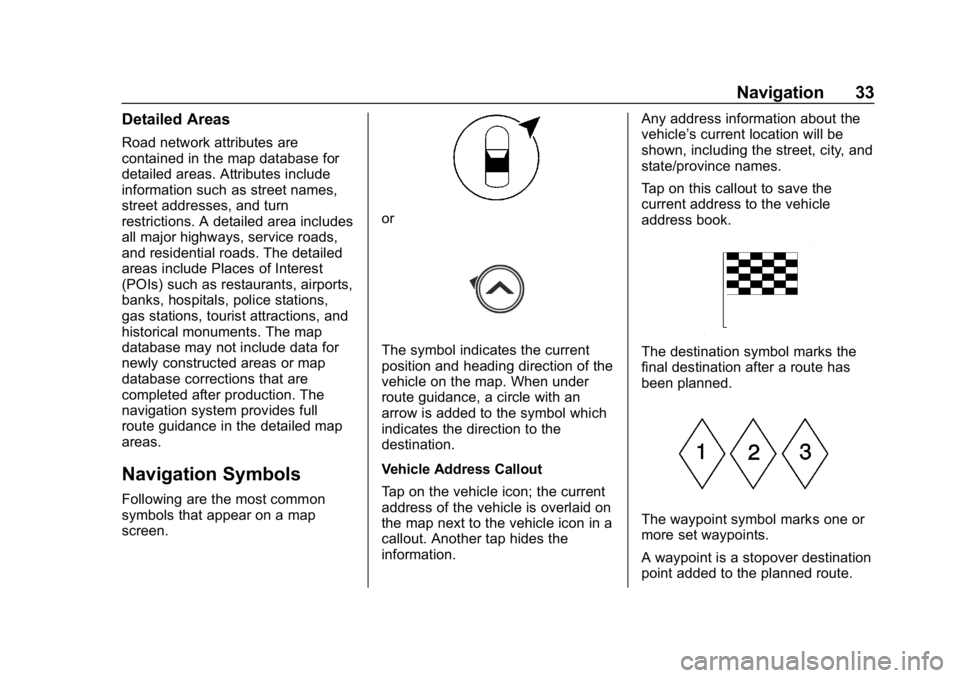
Navigation Symbols
Following are the most common
symbols that appear on a map
screen.
or
The symbol indicates the current
position and heading direction of the
vehicle on the map. When under
route guidance, a circle with an
arrow is added to the symbol which
indicates the direction to the
destination.
Vehicle Address Callout
Tap on the vehicle icon; the current
address of the vehicle is overlaid on
the map next to the vehicle icon in a
callout. Another tap hides the
information.Any address information about the
vehicle’s current location will be
shown, including the street, city, and
state/province names.
Tap on this callout to save the
current address to the vehicle
address book.The destination symbol marks the
final destination after a route has
been planned.
The waypoint symbol marks one or
more set waypoints.
A waypoint is a stopover destination
point added to the planned route.
Page 39 of 88
Buick Infotainment System (GMNA-Localizing-U.S./Canada-10999317) -
2018 - CRC - 7/31/17
38 Navigation
If only one type of result is found,
the single type result screen is
shown. Within each group, they are
listed in confidence order. This
means the highest confidence result
will be at the top.
If multiple types of matches are
found, the result list with the highest
confidence match displays.
Address and Contact matches are
shown in full width list format. The
match results will display unique
icons for full addresses, streets,
intersections, cities, states/
provinces, and countries.
POIs show in a split list format with
the map on the right displaying the
locations of the matches. The brand
icon or category icon will display for
the match results.
When a list displays, the results for
a particular type can be filtered by
touching the filters along the top of
the screen. If there are no particular
results for a selected type, a
message is indicated in the list.For example:
.
For no addresses: “No
Addresses Found Within
. For no POIs: “No POIs Found
Within <75 km/50 mi/ 800 km/
500 mi>.” This distance is shown
depending on what radius is
completed and what current
units are selected.
. For no contacts: “No Contacts
Found.”
The system performs partial
searches on contacts, so typing a
first name or last name would find a
match. The entire contact name
does not need to be entered for it to
be found in a search.
Touching a contact listed on the
results list displays the standard
contact details view to select an
item, such as an address to start
routing, or a phone number to place
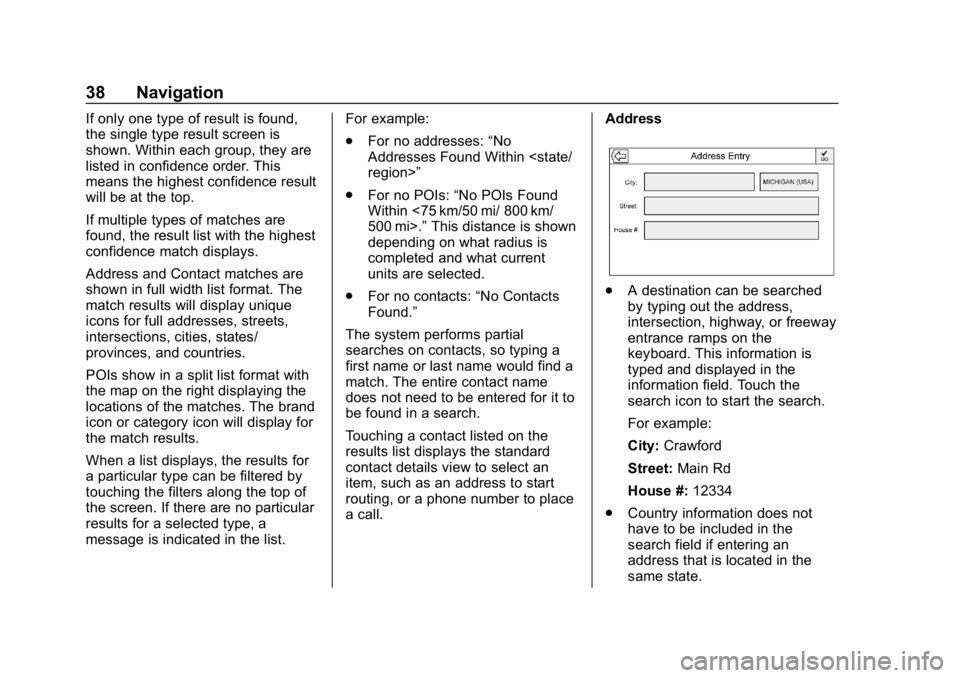
a call. Address
.
A destination can be searched
by typing out the address,
intersection, highway, or freeway
entrance ramps on the
keyboard. This information is
typed and displayed in the
information field. Touch the
search icon to start the search.
For example:
City: Crawford
Street: Main Rd
House #: 12334
. Country information does not
have to be included in the
search field if entering an
address that is located in the
same state.
Page 40 of 88
Buick Infotainment System (GMNA-Localizing-U.S./Canada-10999317) -
2018 - CRC - 7/31/17
Navigation 39
.Whenever the keyboard view is
entered, the last text that was
typed, even if it was not
searched on, will display.
. A partial or complete address
can be typed in the search field.
If a partial address is typed, the
system attempts to use local
knowledge to fill in additional
information. For example, if no
city name or state/province are
given, the system assumes a
search for something in the
current city or a nearby city in
the current state/province. The
system is also capable of
recognizing address formats
according to other regions.
If a destination address or location
being entered is outside of the
country, the country abbreviation
must be added after the address.
Spelling Mistakes
The system is able to offer
alternatives if the searched term is
not found exactly. The system uses
the closest term it finds and
provides those results. The system first searches the
entered term exactly. If no matches
are found, partial words are used.
Search in Process
Touch Search; the results screen
displays with the activity indicator.
There is a non-selectable List item
in the list that says
“Searching”to
indicate that it is in process.
Once the results are found, the
correct list will display.
No Results Found
If no results are found from an
entered search term, a pop-up
displays indicating there are no
results found. Touch OK to return to
the keyboard view.
Results Display
If only a single match is found at the
end of a search, the list is not
shown but the Destination Details
View is shown. Touch Back from the
Destination Details View to go back
to the results list screen. If it was a
POI search, the Continue POI
Search option is available in case
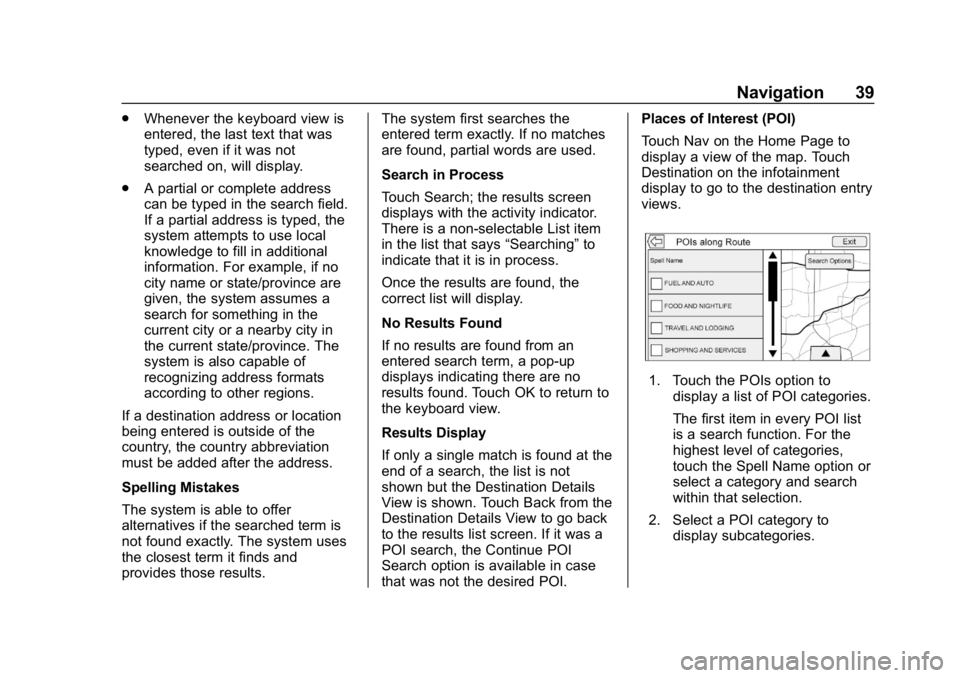
that was not the desired POI. Places of Interest (POI)
Touch Nav on the Home Page to
display a view of the map. Touch
Destination on the infotainment
display to go to the destination entry
views.
1. Touch the POIs option to
display a list of POI categories.
The first item in every POI list
is a search function. For the
highest level of categories,
touch the Spell Name option or
select a category and search
within that selection.
2. Select a POI category to display subcategories.
Page 41 of 88
Buick Infotainment System (GMNA-Localizing-U.S./Canada-10999317) -
2018 - CRC - 7/31/17
40 Navigation
3. If a selected subcategory hasno results in the surrounding
area, the search is expanded
until a result is found.
4. If a high-level category is selected, such as restaurants,
the map zooms in to the region
near the vehicle’s position to
show the nearest matches.
When a list displays, it can be
filtered for a particular type by
touching the filter along the top
of the screen. If there are no
particular results for a selected
filter type, it is indicated in
the list.
5. Pan or zoom the map using the finger gestures to minimize the
POI list and to interact with the
map. The icons that were
shown before continue to be
displayed and updated. The list
is also updated based on
where the map was panned or
zoomed. The search for POIs
is constrained to where the
map has been moved to. 6. If the search map is touched to
re-center, the crosshairs are
shown to indicate the center of
the new search location. If a
POI icon is touched on while in
the full expanded map, a
callout for that location
displays. Touch the callout to
display the destination
details view.
7. Touch the map Reset option to return the map to automatic
zooming and searching. It is
re-centered around the
vehicle’s position, the route,
the destination, or another
location that was specified for
the search. The map Reset is
only displayed if the map was
manually adjusted.
If multiple types of matches are
found, the All list is shown with the
results sorted by confidence order
with the highest confidence result at
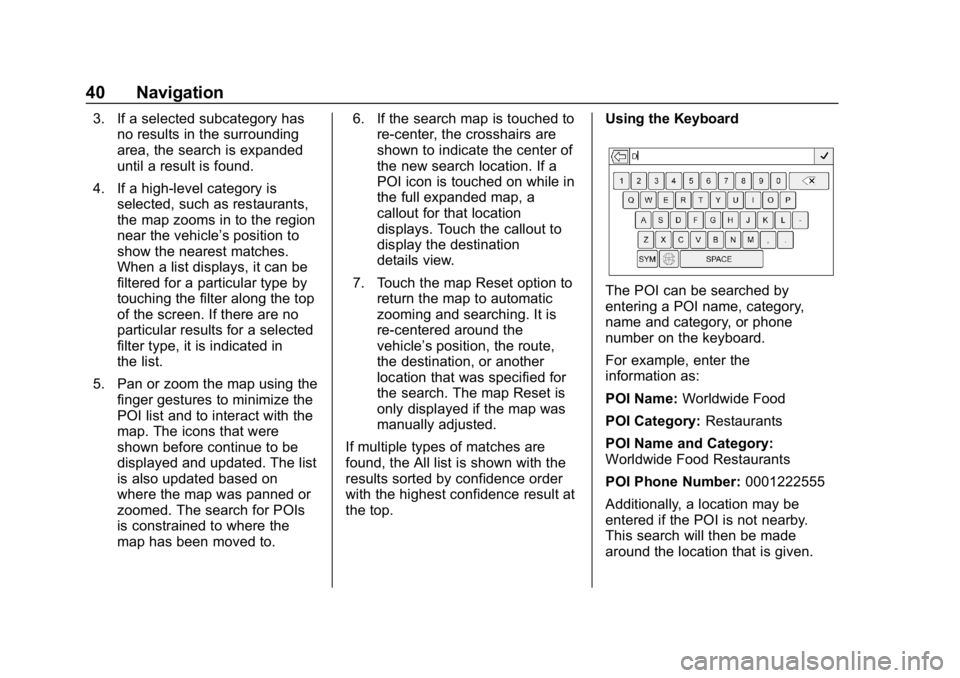
the top. Using the Keyboard
The POI can be searched by
entering a POI name, category,
name and category, or phone
number on the keyboard.
For example, enter the
information as:
POI Name:
Worldwide Food
POI Category: Restaurants
POI Name and Category:
Worldwide Food Restaurants
POI Phone Number: 0001222555
Additionally, a location may be
entered if the POI is not nearby.
This search will then be made
around the location that is given.
Page 42 of 88
Buick Infotainment System (GMNA-Localizing-U.S./Canada-10999317) -
2018 - CRC - 7/31/17
Navigation 41
For example, enter the
information as:
POI Name and Location:
Worldwide Food Chicago IL
The POI keyboard search results
will display in the order in which
they were found.
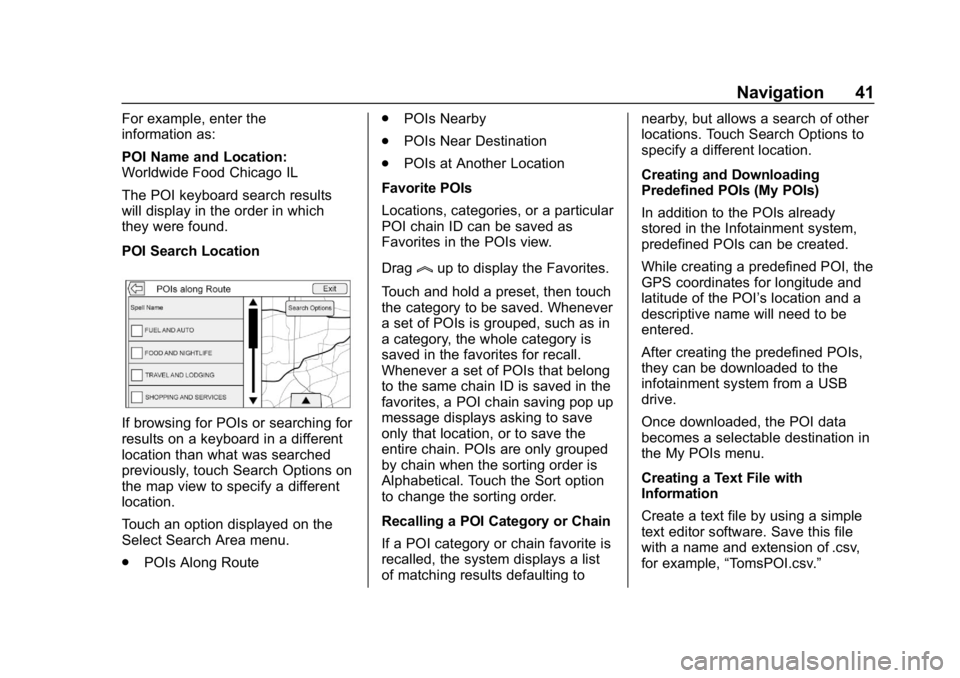
POI Search Location
If browsing for POIs or searching for
results on a keyboard in a different
location than what was searched
previously, touch Search Options on
the map view to specify a different
location.
Touch an option displayed on the
Select Search Area menu.
.POIs Along Route .
POIs Nearby
. POIs Near Destination
. POIs at Another Location
Favorite POIs
Locations, categories, or a particular
POI chain ID can be saved as
Favorites in the POIs view.
Drag
lup to display the Favorites.
Touch and hold a preset, then touch
the category to be saved. Whenever
a set of POIs is grouped, such as in
a category, the whole category is
saved in the favorites for recall.
Whenever a set of POIs that belong
to the same chain ID is saved in the
favorites, a POI chain saving pop up
message displays asking to save
only that location, or to save the
entire chain. POIs are only grouped
by chain when the sorting order is
Alphabetical. Touch the Sort option
to change the sorting order.
Recalling a POI Category or Chain
If a POI category or chain favorite is
recalled, the system displays a list
of matching results defaulting to nearby, but allows a search of other
locations. Touch Search Options to
specify a different location.
Creating and Downloading
Predefined POIs (My POIs)
In addition to the POIs already
stored in the Infotainment system,
predefined POIs can be created.
While creating a predefined POI, the
GPS coordinates for longitude and
latitude of the POI’s location and a
descriptive name will need to be
entered.
After creating the predefined POIs,
they can be downloaded to the
infotainment system from a USB
drive.
Once downloaded, the POI data
becomes a selectable destination in
the My POIs menu.
Creating a Text File with
Information
Create a text file by using a simple
text editor software. Save this file
with a name and extension of .csv,
for example,
“TomsPOI.csv.”