system infor BUICK ENCORE 2018 Infotainment System Guide
[x] Cancel search | Manufacturer: BUICK, Model Year: 2018, Model line: ENCORE, Model: BUICK ENCORE 2018Pages: 88, PDF Size: 0.99 MB
Page 43 of 88
Buick Infotainment System (GMNA-Localizing-U.S./Canada-10999317) -
2018 - CRC - 7/31/17
42 Navigation
Enter the POI information into the
text file in the following format:
.Longitude coordinate, Latitude
coordinate, “Name of POI,”
“Additional information,” “Phone
number.”
Example: 7.0350000,
50.6318040, “Michaels Home,”
“123 Maple Lane,”
“02379234567.”
. The GPS coordinates must be
expressed in decimal degrees
and can be taken from a
geographical map. The
additional information and phone
number strings are optional.
. The POI name and the
additional information string may
not exceed 60 characters.
. POI information for each
destination address must be
entered in a single separate line.
Storing the POI on a USB Device
In the root directory of a USB
device, create a folder name
“myPOIs,” for example, “F:\”is the
root directory of the USB device. In the
“myPOIs” folder, store the text
file with your POIs, for example,
“F:\myPOIs\TomsPOIs.csv.”
Downloading the POI to the
Infotainment System
Connect the USB device containing
the POI information to the USB port
of the infotainment system.
A message displays prompting
whether or not to download the POI
information from the USB drive. All
POIs found are saved even if they
are in multiple folders.
Subfolders can also be created to
organize the POIs into categories,
for example, “F:\myPOIs
\Restaurants\TomsPOIs.csv.”
If the message is dismissed or
ignored, no POI information is
downloaded. This prompt will not
reoccur for the current ignition cycle.
When the system is finished
downloading, a pop-up displays
asking to specify a category for the
new POIs, if desired. Importing and Overwriting
Categories
When POIs are found on a media
device, the date of the file is
examined and compared to the date
for the files already in the system.
If the file being downloaded is
newer than the one in the system,
that particular category of POIs is
overwritten. Any other POIs that had
previously been saved in other
categories are not affected.
Address Book Download
If an Address Book is found on the
connected USB device, the same
alert is used to indicate that
locations have been found and they
can be downloaded. If there is
already content in the vehicle
Address Book, the system prompts
if the stored content should be
overwritten. Select Save to
overwrite the existing Address Book
information. Select Cancel to abort
the import of information.
Page 45 of 88
Buick Infotainment System (GMNA-Localizing-U.S./Canada-10999317) -
2018 - CRC - 7/31/17
44 Navigation
Trips from Contacts can be saved
and recalled. The order is based on
when the trip was last used. When
the trips are saved, they are given a
default title of the final destination
name. If there are no saved trips,
this list item is hidden.
Add New Contact
When creating a new contact, the
navigation system automatically
saves all data from the selected
location into a new contact.
The information saved will store as:
.Location Name saved as
First Name
. Phone Number saved as Work
. Address saved as Work
. POI Information saved as Notes
. Category saved in Category
Field
After touching Create New Contact,
the newly created contact is then
displayed. Favorite Destinations
.
Destinations can be saved as
Favorites for recall later.
Depending on the favorite, when
an address or POI favorite is
recalled, the Destination Details
view is shown.
. When a favorite address is being
routed to, it is shown active.
Touch the active favorite, to
suspend that route.
. Save locations as Favorites for
recall later in the Destination
Details view.
. Save trips from the
Address Book.
Storing Favorites from the Contact
Details List
A contact name or any of the
contact’ s information such as phone
number or address from Contact
Details can be stored as a Favorite.
. Touch and hold on the favorite
location while viewing a contact
on the Contact Details List. The
contact name and all contact
information can be stored. .
Touch to save as a favorite. The
favorite label will be the name of
the contact.
. Touch the Favorite to display the
destination view.
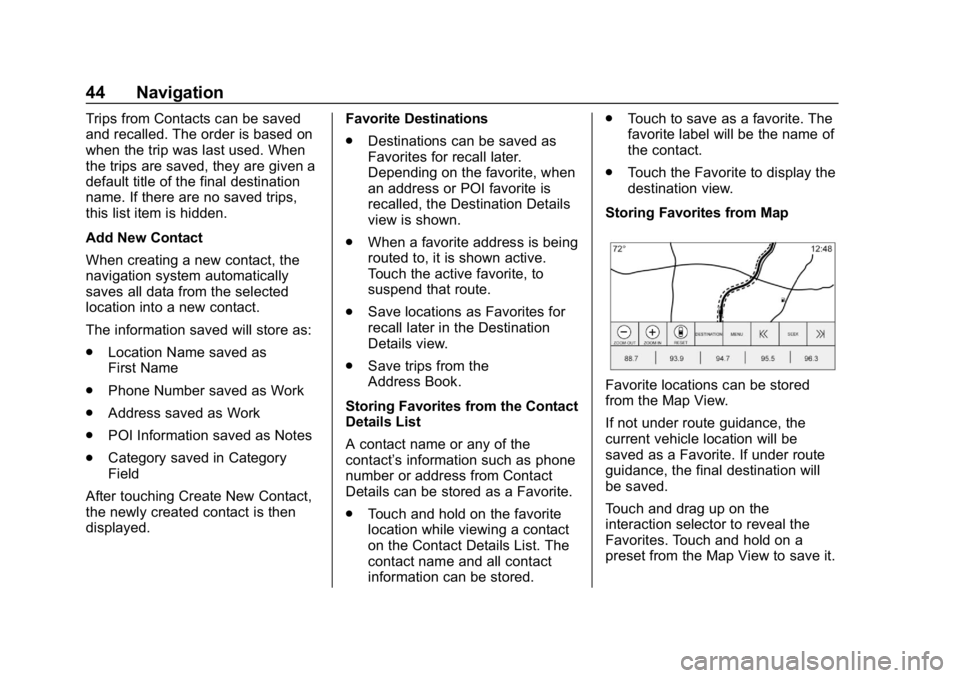
Storing Favorites from Map
Favorite locations can be stored
from the Map View.
If not under route guidance, the
current vehicle location will be
saved as a Favorite. If under route
guidance, the final destination will
be saved.
Touch and drag up on the
interaction selector to reveal the
Favorites. Touch and hold on a
preset from the Map View to save it.
Page 46 of 88
Buick Infotainment System (GMNA-Localizing-U.S./Canada-10999317) -
2018 - CRC - 7/31/17
Navigation 45
Route Guidance
.Touch Go to go to the main
navigation view and to start
route guidance.
. If the system has an active
route, a pop-up will display,
“What would you like to do with
this destination?” The options
are: Add As Waypoint, Set New
Destination, or Cancel.
. If a waypoint is added, it is
placed in the location that leads
to the most efficient route.
. There is a maximum number of
waypoints that can be added to
the system. When the maximum
number of waypoints has been
reached, a pop-up displays
indicating that a waypoint must first be deleted before a new one
can be added. The system will
hold this waypoint into a
Pending Waypoints list and it will
automatically be added to the
route once a position is
available, either by arriving at a
waypoint, or by deleting one.
. To save a location, touch
lto
display the Favorites. Touch and
hold on a favorite location to
save the shown location as a
Favorite.
Estimated Time of Arrival (ETA)
and Distance
. When under route guidance, the
system shows the ETA or travel
time, or the driving distance.
. The ETA and travel time are
calculated using any available
traffic information.
. If in a waypoint trip, the ETA,
travel time, and driving distance
are all shown relative to the final
destination. .
The final ETA is shown taking
into consideration any time zone
crossings that the route has
traveled through.
. Touch the ETA information area
to switch between the estimated
arrival time, total driving time
resulting, and driving distance.
Current Street Name
The current street name that the
vehicle is driving on is displayed
along the bottom center of the
display.
When driving off-road or on an
unknown road, “Off Road Location”
displays.
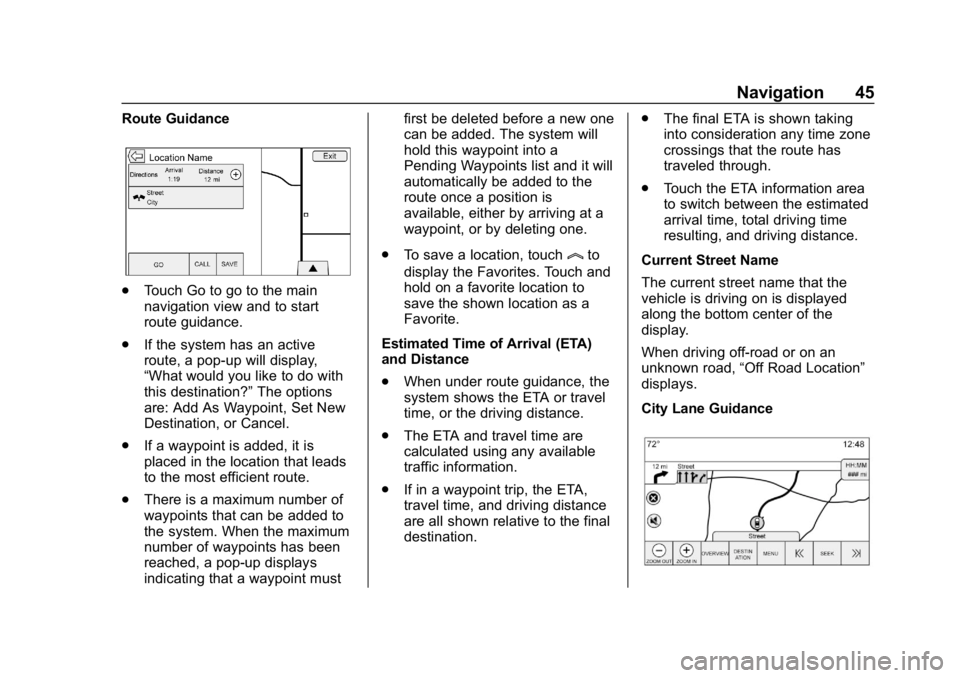
City Lane Guidance
Page 47 of 88
Buick Infotainment System (GMNA-Localizing-U.S./Canada-10999317) -
2018 - CRC - 7/31/17
46 Navigation
When a maneuver is approached
that has city lane guidance
information, it replaces the normal
maneuver indicator.
The arrows will expand toward the
center of the screen so that the
maneuvers can be identified in an
easier way.
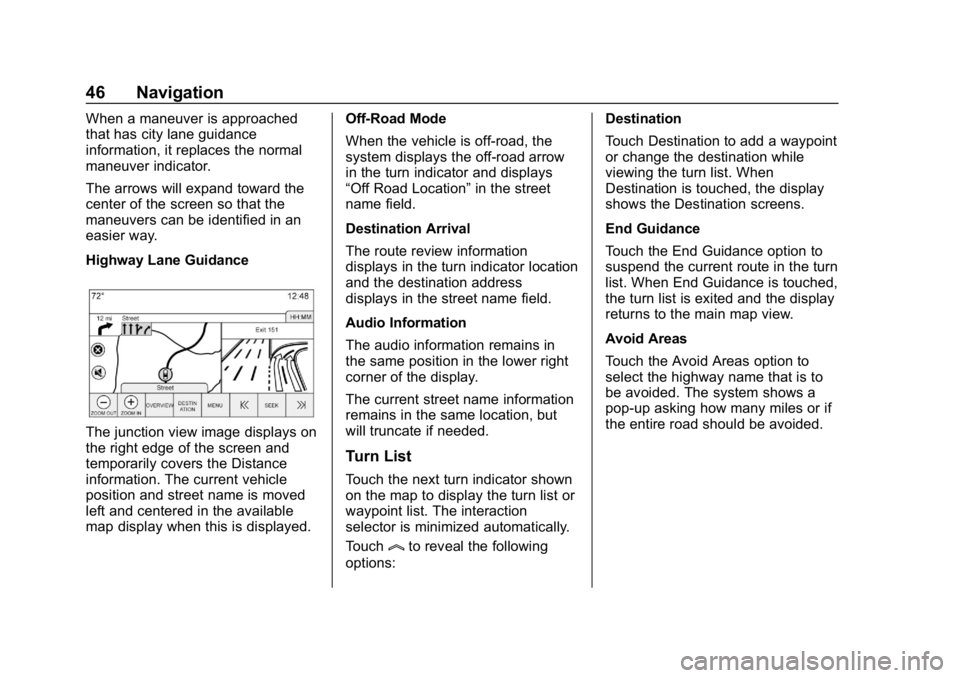
Highway Lane Guidance
The junction view image displays on
the right edge of the screen and
temporarily covers the Distance
information. The current vehicle
position and street name is moved
left and centered in the available
map display when this is displayed.Off-Road Mode
When the vehicle is off-road, the
system displays the off-road arrow
in the turn indicator and displays
“Off Road Location”
in the street
name field.
Destination Arrival
The route review information
displays in the turn indicator location
and the destination address
displays in the street name field.
Audio Information
The audio information remains in
the same position in the lower right
corner of the display.
The current street name information
remains in the same location, but
will truncate if needed.
Turn List
Touch the next turn indicator shown
on the map to display the turn list or
waypoint list. The interaction
selector is minimized automatically.
Touch
lto reveal the following
options: Destination
Touch Destination to add a waypoint
or change the destination while
viewing the turn list. When
Destination is touched, the display
shows the Destination screens.
End Guidance
Touch the End Guidance option to
suspend the current route in the turn
list. When End Guidance is touched,
the turn list is exited and the display
returns to the main map view.
Avoid Areas
Touch the Avoid Areas option to
select the highway name that is to
be avoided. The system shows a
pop-up asking how many miles or if
the entire road should be avoided.
Page 48 of 88
Buick Infotainment System (GMNA-Localizing-U.S./Canada-10999317) -
2018 - CRC - 7/31/17
Navigation 47
Turn List
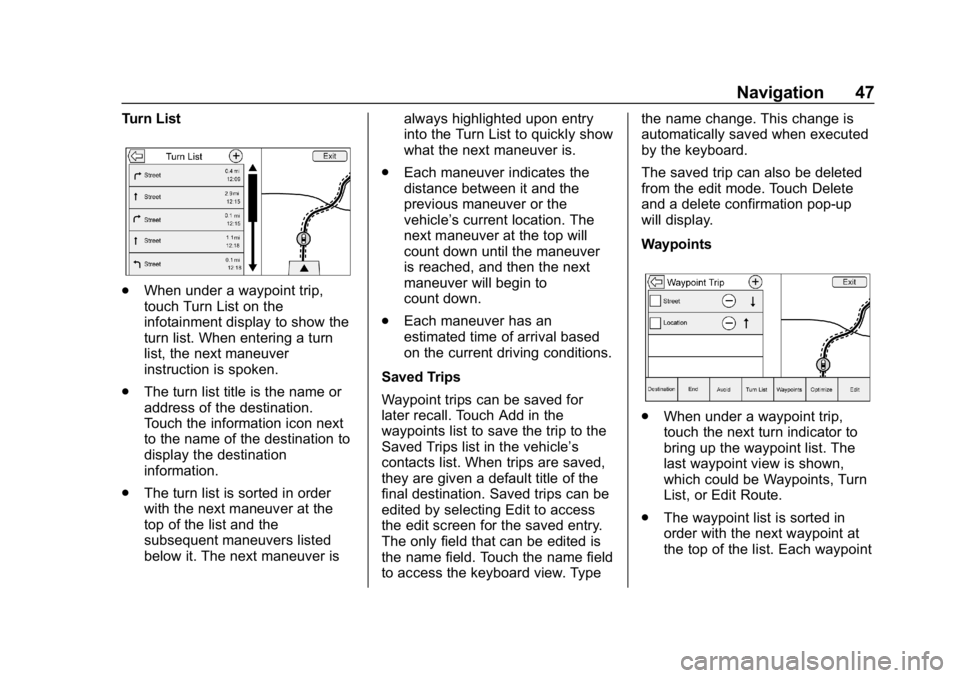
.When under a waypoint trip,
touch Turn List on the
infotainment display to show the
turn list. When entering a turn
list, the next maneuver
instruction is spoken.
. The turn list title is the name or
address of the destination.
Touch the information icon next
to the name of the destination to
display the destination
information.
. The turn list is sorted in order
with the next maneuver at the
top of the list and the
subsequent maneuvers listed
below it. The next maneuver is always highlighted upon entry
into the Turn List to quickly show
what the next maneuver is.
. Each maneuver indicates the
distance between it and the
previous maneuver or the
vehicle’s current location. The
next maneuver at the top will
count down until the maneuver
is reached, and then the next
maneuver will begin to
count down.
. Each maneuver has an
estimated time of arrival based
on the current driving conditions.
Saved Trips
Waypoint trips can be saved for
later recall. Touch Add in the
waypoints list to save the trip to the
Saved Trips list in the vehicle’ s
contacts list. When trips are saved,
they are given a default title of the
final destination. Saved trips can be
edited by selecting Edit to access
the edit screen for the saved entry.
The only field that can be edited is
the name field. Touch the name field
to access the keyboard view. Type the name change. This change is
automatically saved when executed
by the keyboard.
The saved trip can also be deleted
from the edit mode. Touch Delete
and a delete confirmation pop-up
will display.
Waypoints
.
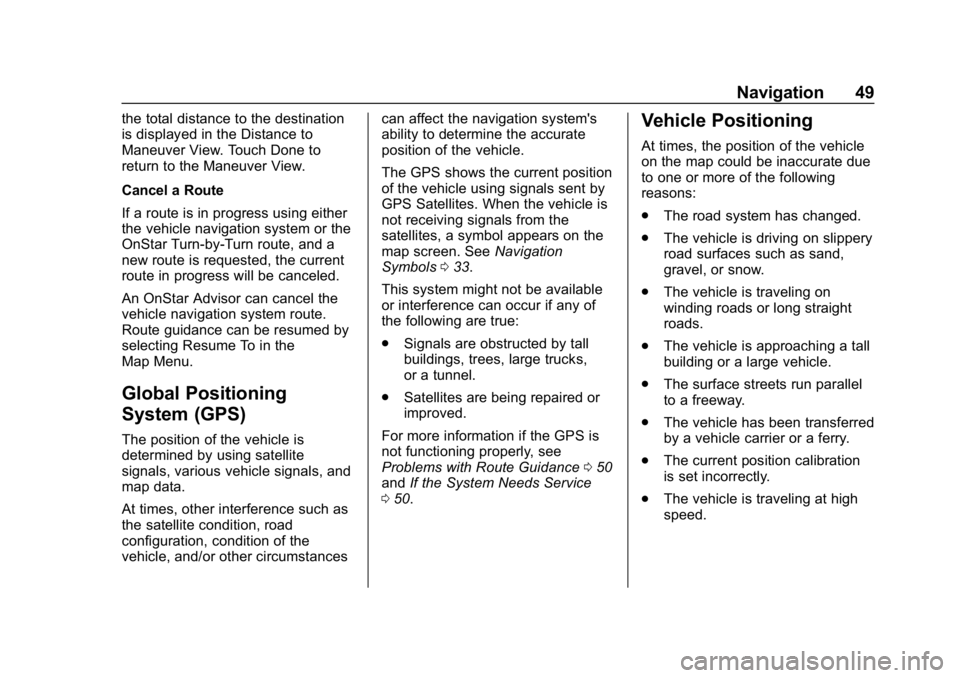
When under a waypoint trip,
touch the next turn indicator to
bring up the waypoint list. The
last waypoint view is shown,
which could be Waypoints, Turn
List, or Edit Route.
. The waypoint list is sorted in
order with the next waypoint at
the top of the list. Each waypoint
Page 50 of 88
Buick Infotainment System (GMNA-Localizing-U.S./Canada-10999317) -
2018 - CRC - 7/31/17
Navigation 49
the total distance to the destination
is displayed in the Distance to
Maneuver View. Touch Done to
return to the Maneuver View.
Cancel a Route
If a route is in progress using either
the vehicle navigation system or the
OnStar Turn-by-Turn route, and a
new route is requested, the current
route in progress will be canceled.
An OnStar Advisor can cancel the
vehicle navigation system route.
Route guidance can be resumed by
selecting Resume To in the
Map Menu.
Global Positioning
System (GPS)
The position of the vehicle is
determined by using satellite
signals, various vehicle signals, and
map data.
At times, other interference such as
the satellite condition, road
configuration, condition of the
vehicle, and/or other circumstancescan affect the navigation system's
ability to determine the accurate
position of the vehicle.
The GPS shows the current position
of the vehicle using signals sent by
GPS Satellites. When the vehicle is
not receiving signals from the
satellites, a symbol appears on the
map screen. See
Navigation
Symbols 033.
This system might not be available
or interference can occur if any of
the following are true:
. Signals are obstructed by tall
buildings, trees, large trucks,
or a tunnel.
. Satellites are being repaired or
improved.
For more information if the GPS is
not functioning properly, see
Problems with Route Guidance 050
and If the System Needs Service
0 50.
Vehicle Positioning
At times, the position of the vehicle
on the map could be inaccurate due
to one or more of the following
reasons:
.
The road system has changed.
. The vehicle is driving on slippery
road surfaces such as sand,
gravel, or snow.
. The vehicle is traveling on
winding roads or long straight
roads.
. The vehicle is approaching a tall
building or a large vehicle.
. The surface streets run parallel
to a freeway.
. The vehicle has been transferred
by a vehicle carrier or a ferry.
. The current position calibration
is set incorrectly.
. The vehicle is traveling at high
speed.
Page 52 of 88
Buick Infotainment System (GMNA-Localizing-U.S./Canada-10999317) -
2018 - CRC - 7/31/17
Navigation 51
Map Data Updates
The map data in the vehicle is the
most up-to-date information
available when the vehicle was
produced. The map data is updated
periodically, provided that the map
information has changed.
For questions about the operation of
the navigation system or the update
process, contact the GM Nav Disc
Center toll-free phone number,
1-877-NAV-DISC (1-877-628-3472)
or go to the center’s website,
www.gmnavdisc.com. If updates are
needed, call the GM Nav Disc
Center or order online.
Database Coverage
Explanations
Coverage areas vary with respect to
the level of map detail available for
any given area. Some areas feature
greater levels of detail than others.
If this happens, it does not mean
there is a problem with the system.
As the map data is updated, more
detail can become available for
areas that previously had limited
detail. See Map Data Updates 051.
Page 53 of 88
Buick Infotainment System (GMNA-Localizing-U.S./Canada-10999317) -
2018 - CRC - 7/31/17
52 Voice Recognition
Voice Recognition
Voice recognition allows for
hands-free operation within the
navigation, audio, phone, and
weather applications. This feature
can be started by pressing
gon the
steering wheel controls or by
touching
gon the infotainment
display.
However, not all features within
these areas are supported by voice
commands. Generally, only complex
tasks that require multiple manual
interactions to complete are
supported by voice commands.
For example, tasks that take more
than one or two touches such as
selecting a song or artist to play
from a media device would be
supported by voice commands.
Other tasks, like adjusting the
volume or seeking up or down, are
audio features that are easily
performed by pressing one or two
controls, and are not supported by
voice commands. In general there are flexible ways to
speak commands for completing the
tasks. Most of them, except
destination entry and voice keypad,
can be completed in a single
command. If the task takes more
than one command to complete, the
first command should be to indicate
the kind of task to be performed, like
“Navigation Destination Entry.”
The
system replies with prompts that
lead you through a dialog to enter
the necessary information. For
example, if a destination for route
guidance is needed, say
“Navigation” or“Destination Entry.”
Voice recognition can be used when
the ignition is on or when Retained
Accessory Power (RAP) is active.
See “Retained Accessory Power
(RAP)” in the owner ’s manual.
Using Voice Recognition
Voice recognition becomes available
once the system has been
initialized. This begins when the
ignition is turned on. Initialization
may take a few moments. 1. Press
gon the steering wheel
controls to activate voice
recognition, or touch
gon the
infotainment display.
2. The audio system mutes and the system plays a prompt
followed by a beep.
3. Wait until after the beep completes, then clearly speak
one of the commands
described in this section.
A voice recognition system
prompt can be interrupted while
it is playing by pressing
gon
the steering wheel controls
again.
For example, if the prompt
seems to be taking too long to
finish, press
gagain and the
beep should happen
right away.
Page 54 of 88
Buick Infotainment System (GMNA-Localizing-U.S./Canada-10999317) -
2018 - CRC - 7/31/17
Voice Recognition 53
There are two voice prompt modes
supported:
.Long verbal prompts: The longer
prompts provide more
information regarding the
supported actions.
. Short prompts: The short
prompts provide simple
instructions about what can be
stated.
If a command is not spoken, the
voice recognition system says a
help prompt.
Prompts and Screen Displays
While a voice recognition session is
active, there will be corresponding
options on screens displayed.
Manual interaction in the voice
recognition session is permitted.
Interaction during a voice session
may be completed entirely using
voice commands, or some
selections may expedite a session.
If a selection is made using a
manual control, the dialog will
progress in the same way as if the
selection was made through a voice
command. Once the system is able to complete the task, or the session
is terminated, the voice recognition
dialog stops.
An example of this type of manual
intervention is touching an entry of a
displayed number list instead of
speaking the number associated
with the entry desired.
Canceling Voice Recognition
.
Touch the Home Page. Touching
this icon will terminate a voice
recognition session which was
initiated by touching the icon on
the infotainment display.
. Touch or say “Cancel”or“Exit”
to terminate the voice
recognition session and display
the screen from which voice
recognition was initiated.
. Press
con the steering wheel
controls to terminate the voice
session and display the screen
from which voice recognition
was initiated. Most languages do not support
natural language commands in
sentence form. For those
languages, use direct commands
like the examples on the display.
Helpful Hints for Speaking
Commands
Voice recognition can understand
commands that are either naturally
stated in sentence form, or direct
commands that state the application
and the task.
For best results:
.
Listen for the prompt and wait
for the beep before saying a
command or reply.
. Say “Help” or look at the
infotainment display for example
commands.
. Voice recognition prompt can be
interrupted while it is playing by
pressing
gon the steering
wheel controls again.
For example, if the prompt
seems to be taking too long to
finish, to speak the command
Page 58 of 88
Buick Infotainment System (GMNA-Localizing-U.S./Canada-10999317) -
2018 - CRC - 7/31/17
Voice Recognition 57
Voice command option changes
through media content limits are:
.Song files including other
individual files of all media types
such as audiobook chapters,
podcast episodes, and videos.
. Album type folders including
types such as albums and
audiobooks.
There are no restrictions if the
number of song files and albums is
less than 4,000. When the number
of song files connected to the
system is between 4,000 and 8,000,
the content cannot be accessed
directly with one command like
“Play
The restriction is that the command
“Play Song” must be spoken first;
the system will then ask for the song
name. The reply command would be
to say the name of the song to play.
Similar limits exist for album
content. If there are more than
4,000 albums, but less than 8,000,
the content cannot be accessed
directly with one command like,
“Play
“Play Album” must first be
spoken; the system will then ask for
the album name. The reply would
be to say the name of the album
to play.
Once the number of songs has
exceeded approximately 8,000,
there is no support for accessing the
songs directly through voice
commands. There will still be
access to the media content by
using commands for playlists,
artists, and genres.
The access commands for playlists,
artists, and genres are prohibited
after the number of this type of
media exceeds 4,000.
The system will provide feedback
the first time voice recognition is
initiated if it has become apparent
that any of these limits are reached
during a device initializing process.
Voice Recognition for
Navigation
“Navigation” :Begin a dialog to
enter specific destination
information. “Navigation Commands”
:Begin a
dialog to enter specific destination
information.
“Destination Address” :Begin a
dialog to enter a specific destination
address, which includes the entire
address consisting of the house
number, street name, and city and
state/province.
“Destination Intersection” :Begin
a dialog to enter a specific
destination intersection.
“Destination Place of Interest” :
Begin a dialog to enter a destination
Place of Interest category or major
brand name (if equipped).
Not all brand names of businesses
are available for voice entry. Most
major chains, such as chains with
more than 20 locations, should be
available to search for by name, but
the name must be precisely spoken.
Nicknames or short names for the
businesses will not likely be found.
Lesser known businesses might
have to be located by category,
such as fast food, hotels, or banks.