anc BUICK ENCORE 2019 Infotainment System Guide
[x] Cancel search | Manufacturer: BUICK, Model Year: 2019, Model line: ENCORE, Model: BUICK ENCORE 2019Pages: 86, PDF Size: 1.01 MB
Page 3 of 86
Buick Infotainment System (GMNA-Localizing-U.S./Canada-12690019) -
2019 - crc - 6/26/18
2 Introduction
Introduction
Infotainment
The names, logos, emblems,
slogans, vehicle model names, and
vehicle body designs appearing in
this manual including but not limited
to GM, the GM logo, BUICK, the
BUICK Emblem, and the names
ENCLAVE, ENCORE, ENVISION,
and LACROSSE, are trademarks
and/or service marks of General
Motors LLC, its subsidiaries,
affiliates, or licensors.
For vehicles first sold in Canada,
substitute the name General Motors
of Canada Company for Buick Motor
Division wherever it appears in this
manual.The information in this manual
supplements the owner
’s manual.
This manual describes features that
may or may not be on the vehicle
because of optional equipment that
was not purchased on the vehicle,
model variants, country
specifications, features/applications
that may not be available in your
region, or changes subsequent to
the printing of this manual.
Keep this manual with the owner ’s
manual in the vehicle, so it will be
there if it is needed. If the vehicle is
sold, leave this manual in the
vehicle.
Overview
Introduction
Read the following pages to
become familiar with the
infotainment system features.
{Warning
Taking your eyes off the road for
too long or too often while using
any infotainment feature can
cause a crash. You or others
could be injured or killed. Do not
give extended attention to
infotainment tasks while driving.
Limit your glances at the vehicle
displays and focus your attention
on driving. Use voice commands
whenever possible.
The infotainment system has built-in
features intended to help avoid
distraction by disabling some
features when driving. These
features may gray out when they
are unavailable. Many infotainment
features are also available through
the instrument cluster and steering
wheel controls.
Litho in U.S.A.
Part No. 84134605 B Second Printing©2018 General Motors LLC. All Rights Reserved.
Page 4 of 86
Buick Infotainment System (GMNA-Localizing-U.S./Canada-12690019) -
2019 - crc - 6/26/18
Introduction 3
Before driving:
.Become familiar with the system
operation, center stack controls,
and infotainment display.
. Set up the audio by presetting
favorite stations, setting the
tone, and adjusting the
speakers.
. Set up cell phone and mobile
device numbers in advance so
they can be called easily by
pressing a single control or by
using a single voice command.
See “Distracted Driving” in the
owner ’s manual.
To play the infotainment system with
the ignition off, see “Retained
Accessory Power (RAP)” in the
owner ’s manual.
Infotainment System
The infotainment system is
controlled by using the infotainment
display, controls on the center stack,
steering wheel controls, and voice
recognition.
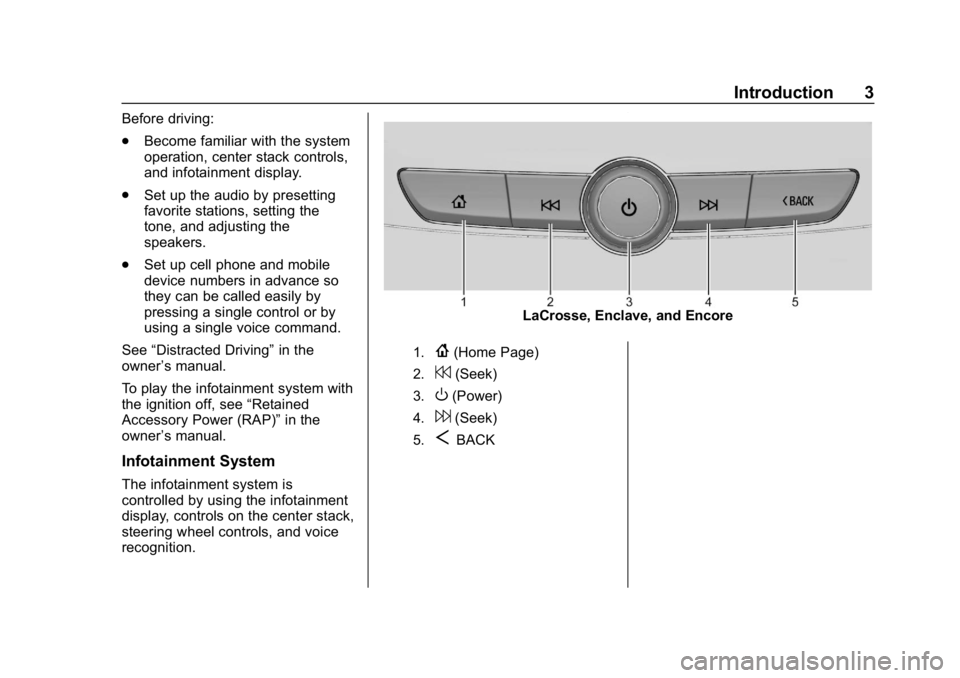
LaCrosse, Enclave, and Encore
1.{(Home Page)
2.7(Seek)
3.O(Power)
4.6(Seek)
5.SBACK
Page 10 of 86
Buick Infotainment System (GMNA-Localizing-U.S./Canada-12690019) -
2019 - crc - 6/26/18
Introduction 9
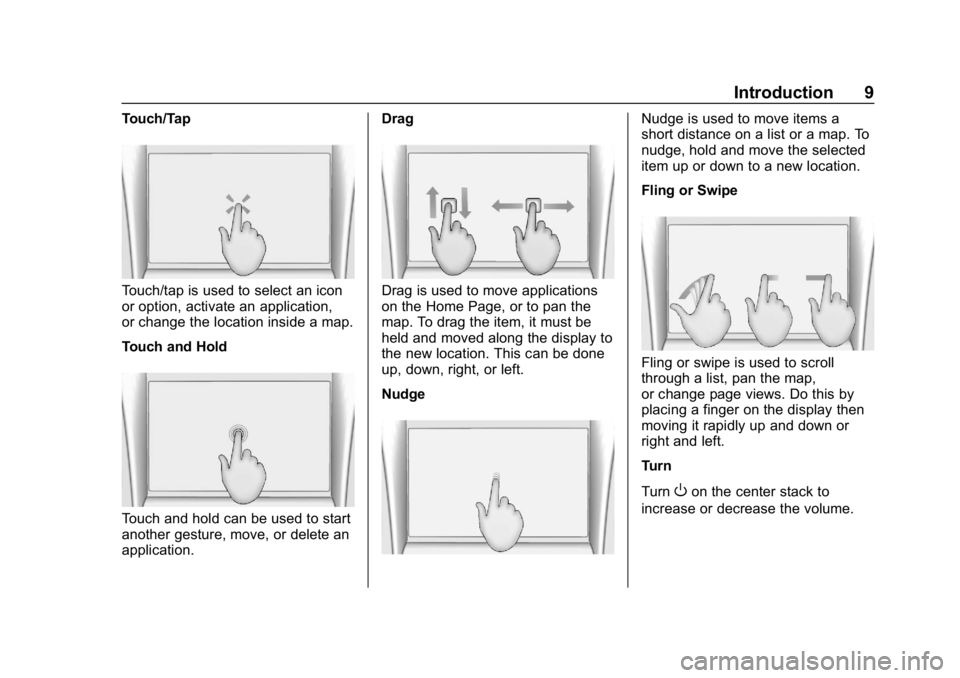
Touch/Tap
Touch/tap is used to select an icon
or option, activate an application,
or change the location inside a map.
Touch and Hold
Touch and hold can be used to start
another gesture, move, or delete an
application.Drag
Drag is used to move applications
on the Home Page, or to pan the
map. To drag the item, it must be
held and moved along the display to
the new location. This can be done
up, down, right, or left.
Nudge
Nudge is used to move items a
short distance on a list or a map. To
nudge, hold and move the selected
item up or down to a new location.
Fling or Swipe
Fling or swipe is used to scroll
through a list, pan the map,
or change page views. Do this by
placing a finger on the display then
moving it rapidly up and down or
right and left.
Turn
Turn
Oon the center stack to
increase or decrease the volume.
Page 12 of 86
Buick Infotainment System (GMNA-Localizing-U.S./Canada-12690019) -
2019 - crc - 6/26/18
Radio 11
Radio
AM-FM Radio
Playing the Radio
While on the audio main page the
available sources are: AM, FM,
SXM, if equipped, MyMedia, USB,
Bluetooth, and AUX Input.
.Touch Audio on the Home Page
to access Radio on the
infotainment display or press
RADIO on the center stack to
scroll through AM, FM, and SXM
(if equipped).
. Touch the Audio icon on the
Home Page to access Media on
the infotainment display or press
MEDIA on the center stack to
scroll through MyMedia, USB,
Bluetooth, and AUX Input.
Infotainment System Settings
Press RADIO on the center stack or
touch the Radio icon on the
infotainment display to access
broadcast sources. Touch the Menu icon on the
infotainment display or press MENU
on the center stack to display the
following menus:
Tone Settings:
.
Bass, Midrange, Treble,
or Surround, if equipped: Touch
+ or –to adjust. Surround
adjusts the headrest speaker
volume only.
. Balance: Touch
SorTfor more
sound from the left or right
speakers. The middle position
balances the sound between the
left and right speakers.
. Fade: Touch
yorzfor more
sound from the front or rear
speakers. The middle position
balances the sound between the
front and rear speakers.
DSP Modes (If Equipped):
. Bose Centerpoint surround
sound system has four DSP
modes including: ‐
Normal: Adjusts the audio to
provide the best sound for all
seating positions.
‐ Driver: Adjusts the audio to
provide the best sound for the
driver.
‐ Rear: Adjusts the audio to
provide the best sound for the
rear seat occupants.
‐ Centerpoint: Turns on Bose
Centerpoint surround
technology. This setting
creates a surround sound from
nearly any audio source;
existing stereo, and MP3
players. For more information
on Bose Centerpoint surround
technology, see
www.boseautomotive.com.
Categories : Touch Categories
under the Audio menu to access the
categories list for AM or FM. The list
contains names associated with the
AM and FM stations. Touch a
category name to display a list of
stations for that category. Selecting
Page 14 of 86
Buick Infotainment System (GMNA-Localizing-U.S./Canada-12690019) -
2019 - crc - 6/26/18
Radio 13
The tune arrows on the right side of
the Direct Tune display tunes
through the complete station list one
station step at a time per touch.
A touch and hold advances
10 frequency steps per second.
Touch (X) to delete one number at a
time. Touch and hold (X) to delete
all numbers.
In AM-FM modes, touch the left or
right arrows on the infotainment
display for the radio to go to the
next or previous strong station.
Touch Direct Tune to advance to the
next or previous frequency step in
AM or FM mode or directly enter or
tune to the frequency on the
keypad.
HD radio multicast stations cannot
be tuned directly through the Direct
Tune feature. Only the analog or
HD1 station can use that feature.
Use the TUNE icon on the
infotainment display to adjust to the
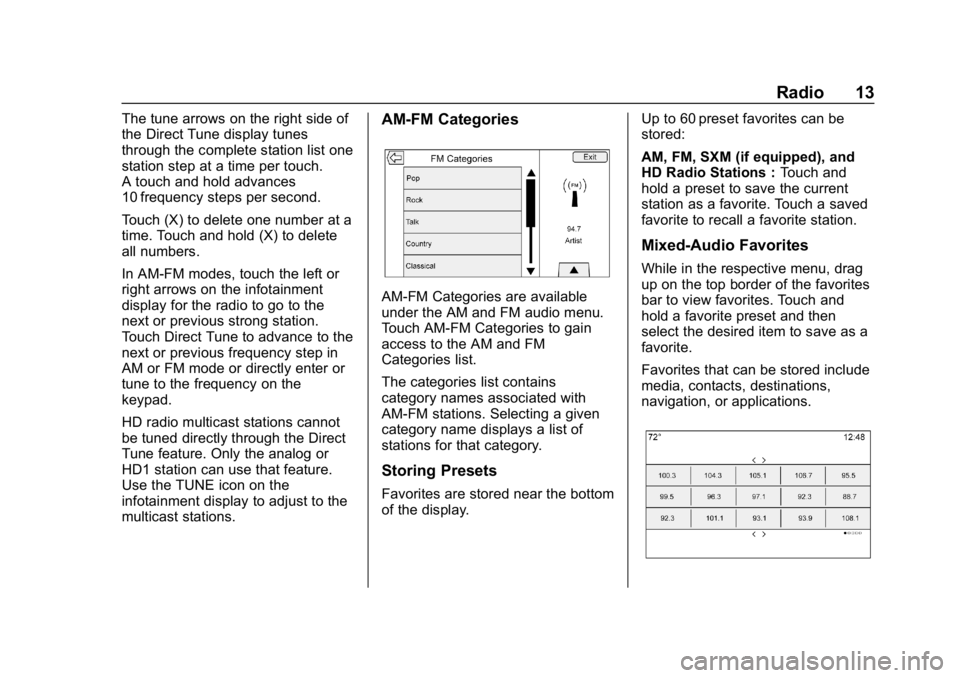
multicast stations.AM-FM Categories
AM-FM Categories are available
under the AM and FM audio menu.
Touch AM-FM Categories to gain
access to the AM and FM
Categories list.
The categories list contains
category names associated with
AM-FM stations. Selecting a given
category name displays a list of
stations for that category.
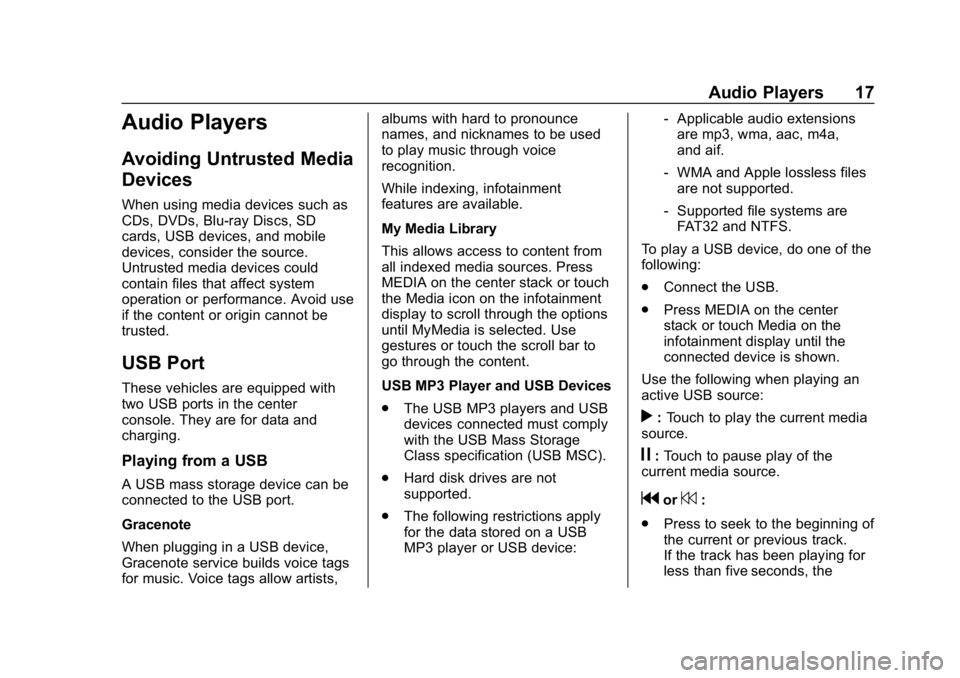
Storing Presets
Favorites are stored near the bottom
of the display.Up to 60 preset favorites can be
stored:
AM, FM, SXM (if equipped), and
HD Radio Stations :
Touch and
hold a preset to save the current
station as a favorite. Touch a saved
favorite to recall a favorite station.
Mixed-Audio Favorites
While in the respective menu, drag
up on the top border of the favorites
bar to view favorites. Touch and
hold a favorite preset and then
select the desired item to save as a
favorite.
Favorites that can be stored include
media, contacts, destinations,
navigation, or applications.
Page 18 of 86
Buick Infotainment System (GMNA-Localizing-U.S./Canada-12690019) -
2019 - crc - 6/26/18
Audio Players 17
Audio Players
Avoiding Untrusted Media
Devices
When using media devices such as
CDs, DVDs, Blu-ray Discs, SD
cards, USB devices, and mobile
devices, consider the source.
Untrusted media devices could
contain files that affect system
operation or performance. Avoid use
if the content or origin cannot be
trusted.
USB Port
These vehicles are equipped with
two USB ports in the center
console. They are for data and
charging.
Playing from a USB
A USB mass storage device can be
connected to the USB port.
Gracenote
When plugging in a USB device,
Gracenote service builds voice tags
for music. Voice tags allow artists,albums with hard to pronounce
names, and nicknames to be used
to play music through voice
recognition.
While indexing, infotainment
features are available.
My Media Library
This allows access to content from
all indexed media sources. Press
MEDIA on the center stack or touch
the Media icon on the infotainment
display to scroll through the options
until MyMedia is selected. Use
gestures or touch the scroll bar to
go through the content.
USB MP3 Player and USB Devices
.
The USB MP3 players and USB
devices connected must comply
with the USB Mass Storage
Class specification (USB MSC).
. Hard disk drives are not
supported.
. The following restrictions apply
for the data stored on a USB
MP3 player or USB device: ‐
Applicable audio extensions
are mp3, wma, aac, m4a,
and aif.
‐ WMA and Apple lossless files
are not supported.
‐ Supported file systems are
FAT32 and NTFS.
To play a USB device, do one of the
following:
. Connect the USB.
. Press MEDIA on the center
stack or touch Media on the
infotainment display until the
connected device is shown.
Use the following when playing an
active USB source:
r: Touch to play the current media
source.
j: Touch to pause play of the
current media source.
gor7:
. Press to seek to the beginning of
the current or previous track.
If the track has been playing for
less than five seconds, the
Page 19 of 86
Buick Infotainment System (GMNA-Localizing-U.S./Canada-12690019) -
2019 - crc - 6/26/18
18 Audio Players
previous track plays. If playing
longer than five seconds, the
current track restarts.
. Press and hold to reverse
quickly through playback.
Release to return to playing
speed. Elapsed time displays.
dor6:
. Press to seek to the next track.
. Press and hold to advance
quickly through playback.
Release to return to playing
speed. Elapsed time displays.
Z:Touch the shuffle icon on the
infotainment display to shuffle
through the available media.
/: Touch the replay icon on the
infotainment display to show the
timebar. Move the timebar to
interact with the currently
playing song.
Tone : Touch Tone on the
infotainment display to access Tone
Settings. Set Bass, Midrange,
Treble, Balance, and Fade. USB Menu
Touch Menu to display the USB
menu. The following may be
available:
Shuffle :
Touch to play the tracks
randomly. Touch again to stop
shuffle.
Tone : Touch + or –to adjust the
tone settings. See AM-FM Radio
0 11.
Auto Volume (If Equipped) : This
feature adjusts the volume based on
the speed of the vehicle. See
AM-FM Radio 011.
Bose AudioPilot Noise
Compensation Technology (If
Equipped) : This feature adjusts
the volume based on the noise in
the vehicle and speed. See AM-FM
Radio 011.
USB Browse Menu
Touch anywhere between the top
and bottom menus to view the
Browse menu and the following
options appear near the bottom of
the display: Playlists:
1. Touch to view the playlists stored on the USB.
2. Select a playlist to view the list of all songs in that playlist.
3. Select a song from the list to begin playback.
Artists: 1. Touch to view the list of artists stored on the USB.
2. Select an artist name to view a list of all albums by the artist.
3. To select a song, touch All Songs or touch an album and
then select a song from the list.
Albums: 1. Touch to view the albums on the USB.
2. Touch the album to view a list of all songs on the album.
3. Touch a song from the list to begin playback.
Page 21 of 86
Buick Infotainment System (GMNA-Localizing-U.S./Canada-12690019) -
2019 - crc - 6/26/18
20 Audio Players
Loss of Audio
If a phone currently paired over
Bluetooth is plugged in with a USB
cable, the system will automatically
mute the phone audio. Playback
can be resumed by changing the
audio source from Bluetooth to USB
cable.
Source USB from Media on the
infotainment display to resume
playback.
Bluetooth Streaming Audio and
Voice Recognition
SeeBluetooth Audio 021 for
information using voice recognition
with Bluetooth streaming audio.
Make sure all devices have the
latest software downloaded.
Auxiliary Jack
This vehicle has an auxiliary input
jack in the center console under the
armrest. Possible auxiliary audio
sources include:
. Laptop computer
. Audio music player This jack is not an audio output. Do
not plug headphones into the
auxiliary input jack. Set up an
auxiliary device while the vehicle is
in P (Park).
Connect a 3.5 mm (1/8 in) cable
from the auxiliary device to the
auxiliary input jack. When a device
is connected, the system can play
audio from the device over the
vehicle speakers.
If an auxiliary device has already
been connected, but a different
source is currently active, touch
Media on the infotainment display to
scroll through audio sources, until
the AUX source displays.
Playing from the AUX Port
An auxiliary device is played
through the audio system and
controlled through the device itself.
AUX Menu
Press MENU on the center stack to
display the AUX menu and the
following may display:
Tone Settings :
Select to adjust
Bass, Midrange, Treble, Balance,
Fade, and EQ (Equalizer). See
AM-FM Radio 011.
Auto Volume (If Equipped) : This
feature adjusts the volume based on
the vehicle speed. See AM-FM
Radio 011.
Bose AudioPilot Noise
Compensation Technology (If
Equipped) : This feature adjusts
the volume based on the noise in
the vehicle and speed. See AM-FM
Radio 011.
DSP Modes (If Equipped) : With a
Bose Centerpoint sound system,
adjusts the DSP modes. See “DSP
Modes (If Equipped)” inAM-FM
Radio 011.
Page 23 of 86
Buick Infotainment System (GMNA-Localizing-U.S./Canada-12690019) -
2019 - crc - 6/26/18
22 OnStar System
OnStar System
4G LTE
If equipped with 4G LTE, up to
seven devices, such as
smartphones, tablets, and laptops,
can be connected to high-speed
Internet through the vehicle’s built-in
Wi-Fi hotspot.
Call 1-888-4ONSTAR
(1-888-466-7827) to connect to an
OnStar Advisor for assistance. See
www.onstar.com for vehicle
availability, details, and system
limitations. Service and connectivity
may vary by make, model, year,
carrier, availability, and conditions.
4G LTE service is available in select
markets. 4G LTE performance is
based on industry averages and
vehicle systems design. Some
services require a data plan.
The OnStar App
If equipped, the infotainment system
has OnStar controls in the
embedded OnStar app on the Home
Page. All OnStar functions that can
be performed with the buttons can
be done using the app. To open the
app, select the OnStar icon on the
Home Page. Features vary by
region and model. Features are
subject to change. For more
information on this feature, see
my.buick.com/learn
Page 24 of 86
Buick Infotainment System (GMNA-Localizing-U.S./Canada-12690019) -
2019 - crc - 6/26/18
Navigation 23
Navigation
Using the Navigation
System
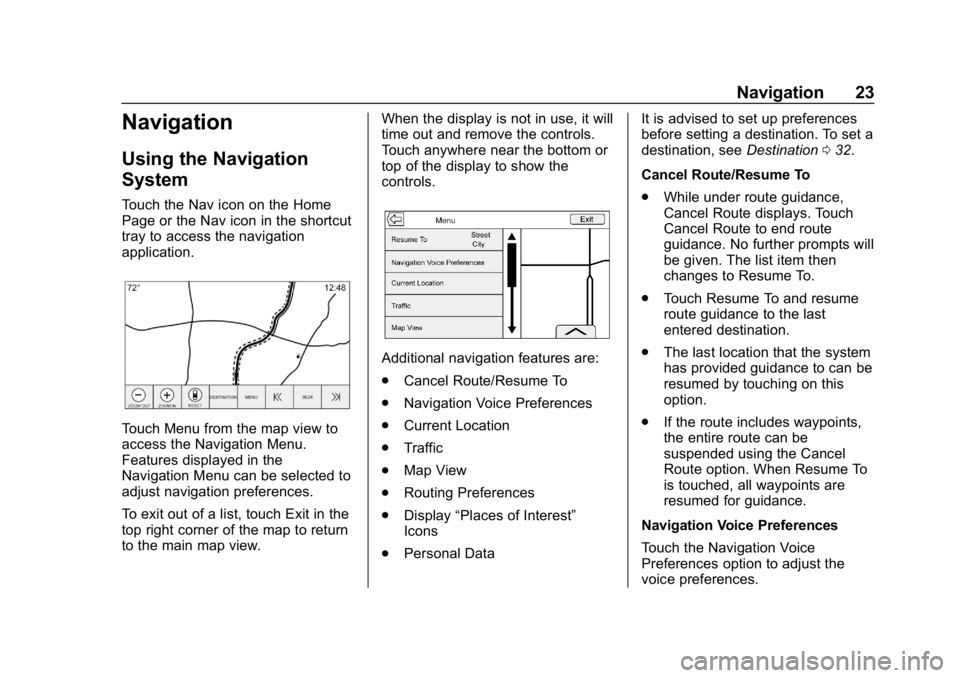
Touch the Nav icon on the Home
Page or the Nav icon in the shortcut
tray to access the navigation
application.
Touch Menu from the map view to
access the Navigation Menu.
Features displayed in the
Navigation Menu can be selected to
adjust navigation preferences.
To exit out of a list, touch Exit in the
top right corner of the map to return
to the main map view.When the display is not in use, it will
time out and remove the controls.
Touch anywhere near the bottom or
top of the display to show the
controls.
Additional navigation features are:
.
Cancel Route/Resume To
. Navigation Voice Preferences
. Current Location
. Traffic
. Map View
. Routing Preferences
. Display “Places of Interest”
Icons
. Personal Data It is advised to set up preferences
before setting a destination. To set a
destination, see
Destination032.
Cancel Route/Resume To
. While under route guidance,
Cancel Route displays. Touch
Cancel Route to end route
guidance. No further prompts will
be given. The list item then
changes to Resume To.
. Touch Resume To and resume
route guidance to the last
entered destination.
. The last location that the system
has provided guidance to can be
resumed by touching on this
option.
. If the route includes waypoints,
the entire route can be
suspended using the Cancel
Route option. When Resume To
is touched, all waypoints are
resumed for guidance.
Navigation Voice Preferences
Touch the Navigation Voice
Preferences option to adjust the
voice preferences.