phone BUICK ENCORE GX 2021 User Guide
[x] Cancel search | Manufacturer: BUICK, Model Year: 2021, Model line: ENCORE GX, Model: BUICK ENCORE GX 2021Pages: 370, PDF Size: 12.38 MB
Page 130 of 370
Buick Encore GX Owner Manual (GMNA-Localizing-U.S./Canada/Mexico-
14608036) - 2021 - CRC - 9/21/20
Infotainment System 129
.Set up the audio by presetting favorite
stations, setting the tone, and adjusting
the speakers.
.Set up phone numbers in advance so they
can be called easily by pressing a single
control or by using a single voice
command.
See Distracted Driving 0187.
Active Noise Cancellation (ANC)
If equipped, ANC reduces engine noise in the
vehicle’s interior. ANC requires the
factory-installed audio system, radio,
speakers, amplifier (if equipped), induction
system, and exhaust system to work
properly. Deactivation is required by your
dealer if related aftermarket equipment is
installed.
Overview
Infotainment System
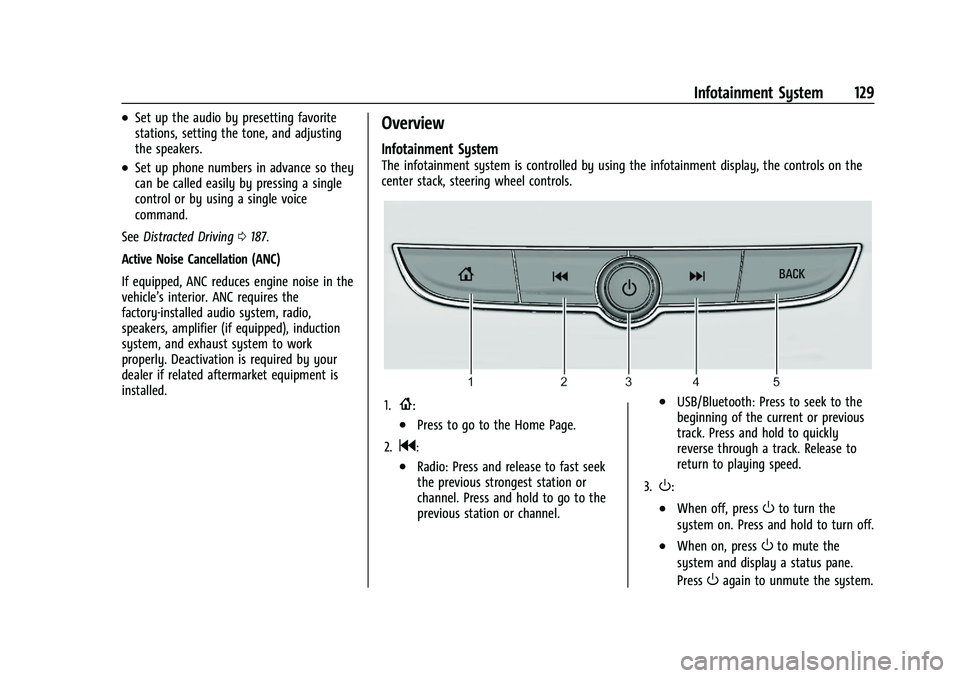
The infotainment system is controlled by using the infotainment display, the controls on the
center stack, steering wheel controls.
1.{:
.Press to go to the Home Page.
2.
g:
.Radio: Press and release to fast seek
the previous strongest station or
channel. Press and hold to go to the
previous station or channel.
.USB/Bluetooth: Press to seek to the
beginning of the current or previous
track. Press and hold to quickly
reverse through a track. Release to
return to playing speed.
3.
O:
.When off, pressOto turn the
system on. Press and hold to turn off.
.When on, pressOto mute the
system and display a status pane.
Press
Oagain to unmute the system.
Page 132 of 370
Buick Encore GX Owner Manual (GMNA-Localizing-U.S./Canada/Mexico-
14608036) - 2021 - CRC - 9/21/20
Infotainment System 131
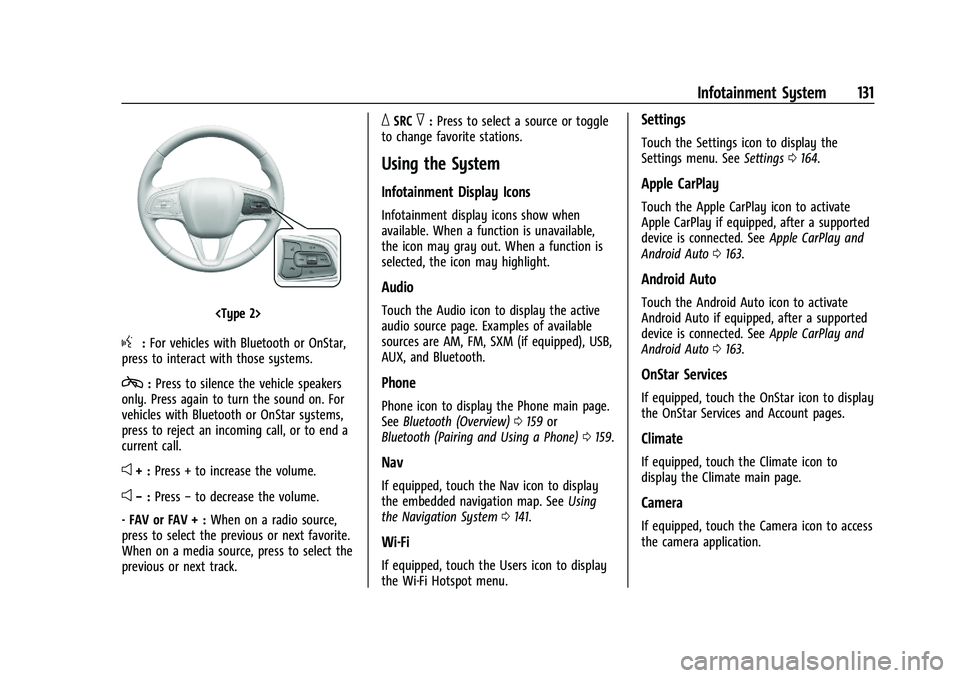
g:For vehicles with Bluetooth or OnStar,
press to interact with those systems.
c: Press to silence the vehicle speakers
only. Press again to turn the sound on. For
vehicles with Bluetooth or OnStar systems,
press to reject an incoming call, or to end a
current call.
e+ : Press + to increase the volume.
e−:Press −to decrease the volume.
- FAV or FAV + : When on a radio source,
press to select the previous or next favorite.
When on a media source, press to select the
previous or next track.
_SRC^: Press to select a source or toggle
to change favorite stations.
Using the System
Infotainment Display Icons
Infotainment display icons show when
available. When a function is unavailable,
the icon may gray out. When a function is
selected, the icon may highlight.
Audio
Touch the Audio icon to display the active
audio source page. Examples of available
sources are AM, FM, SXM (if equipped), USB,
AUX, and Bluetooth.
Phone
Phone icon to display the Phone main page.
See Bluetooth (Overview) 0159 or
Bluetooth (Pairing and Using a Phone) 0159.
Nav
If equipped, touch the Nav icon to display
the embedded navigation map. See Using
the Navigation System 0141.
Wi-Fi
If equipped, touch the Users icon to display
the Wi-Fi Hotspot menu.
Settings
Touch the Settings icon to display the
Settings menu. See Settings0164.
Apple CarPlay
Touch the Apple CarPlay icon to activate
Apple CarPlay if equipped, after a supported
device is connected. See Apple CarPlay and
Android Auto 0163.
Android Auto
Touch the Android Auto icon to activate
Android Auto if equipped, after a supported
device is connected. See Apple CarPlay and
Android Auto 0163.
OnStar Services
If equipped, touch the OnStar icon to display
the OnStar Services and Account pages.
Climate
If equipped, touch the Climate icon to
display the Climate main page.
Camera
If equipped, touch the Camera icon to access
the camera application.
Page 140 of 370
Buick Encore GX Owner Manual (GMNA-Localizing-U.S./Canada/Mexico-
14608036) - 2021 - CRC - 9/21/20
Infotainment System 139
Podcasts :Touch to view the podcasts on
the USB and get a list of podcast episodes.
Audiobooks:
1. Touch to view the audiobooks stored on the USB.
2. Touch an audiobook to get a list of chapters.
3. Touch the chapter from the list to begin playback.
File System and Naming
File systems supported by the USB are:
.FAT32
.NTFS
.HFS+
The songs, artists, albums, and genres are
taken from the file’s song information and
are only displayed if present. The radio
displays the file name as the track name if
the song information is not available.
Supported Apple Devices
To view supported devices, see
my.buick.com/learn.
Storing and Recalling Media Favorites
To store media favorites, touch Browse to
display a list of media types. Select from one of the following Browse
options to save a favorite:
Playlists :
Touch
Hnext to any playlist to
store the playlist as a favorite. Touch a
saved favorite to recall a favorite playlist.
The first song in the playlist begins to play.
Artists : Touch
Hnext to any artist to
store the artist as a favorite. Touch a saved
favorite to recall a favorite artist. The first
song in the artist list begins to play.
Songs : Touch
Hnext to any song to store
the song as a favorite. Touch a saved
favorite to recall a favorite song.
Albums : Touch
Hnext to any album to
store the album as a favorite. Touch a saved
favorite to recall a favorite album. The first
song in the album list begins to play.
Genres : Touch
Hnext to any genre to
store the genre as a favorite. Touch a saved
favorite to recall a favorite genre. The first
song of the genre begins to play.
Podcasts : Touch
Hnext to any podcast to
store the podcast as a favorite. Touch a
saved favorite to recall a favorite podcast.
The podcast begins to play. Audiobooks :
Touch
Hnext to any
audiobook to store the audiobook as a
favorite. Touch a saved favorite to recall a
favorite audiobook. The first chapter in the
audiobook begins to play.
Media Playback and Mute
USB playback will be paused if the system is
muted. If the steering wheel mute control is
pressed again, playback will resume.
If the source is changed while in mute,
playback resumes and audio will unmute.
Auxiliary Jack
This vehicle has an auxiliary input jack in
the center stack. Possible auxiliary audio
sources include:
.Laptop computer
.Audio music player
This jack is not an audio output. Do not
plug headphones into the auxiliary input
jack. Set up an auxiliary device while the
vehicle is in P (Park).
Connect a 3.5 mm (1/8 in) cable from the
auxiliary device to the auxiliary input jack.
When a device is connected, the system can
play audio from the device over the vehicle
speakers.
Page 141 of 370
Buick Encore GX Owner Manual (GMNA-Localizing-U.S./Canada/Mexico-
14608036) - 2021 - CRC - 9/21/20
140 Infotainment System
If an auxiliary device has already been
connected, but a different source is currently
active, touch More and then touch AUX to
make the source active.
Shuffle and Browse are not available in the
AUX source menu.
Bluetooth Audio
Music may be played from a paired
Bluetooth device. SeeBluetooth (Overview)
0 159 or
Bluetooth (Pairing and Using a Phone) 0159
for help pairing a device.
Volume and song selection may be
controlled by using the infotainment
controls or the mobile device. If Bluetooth is
selected and no sound is present, check the
volume setting on both your mobile device
and the infotainment system.
Launch music by touching Bluetooth from
the recent sources list on the left of the
display or by touching More and then
touching the Bluetooth device.
To play music via Bluetooth:
1. Power on the device, and pair to connect the device. 2. Once paired, touch Audio from the Home
Page, then touch Bluetooth from the
recent sources list on the left of the
display.
Bluetooth Sound Menu
See “Infotainment System Sound Menu”
under AM-FM Radio 0133.
Manage Bluetooth Devices
From the Home Page: 1. Touch the Audio icon.
2. Touch More.
3. Touch Bluetooth.
4. Touch Devices to add or delete devices.
When touching Bluetooth, the system may
not be able to launch the audio player on
the connected device to start playing. When
the vehicle is not moving, use the mobile
device to begin playback.
All devices launch audio differently. When
selecting Bluetooth as a source, the system
may show as paused on the display. Press
play on the device or touch
pon the
display to begin playback. Browse functionality will be provided where
supported by the Bluetooth device. This
media content will not be part of the
MyMedia source mode.
Some smartphones support sending
Bluetooth music information to display on
the system. When the system receives this
information, it will check to see if any is
available and display it. For more
information about supported Bluetooth
features, see my.buick.com/learn.
OnStar System
4G LTE
If equipped with 4G LTE, up to seven
devices, such as smartphones, tablets, and
laptops, can be connected to high-speed
Internet through the vehicle’s built-in Wi-Fi
hotspot.
Call 1-888-4ONSTAR (1-888-466-7827) to
connect to an OnStar Advisor for assistance.
See www.onstar.com for vehicle availability,
details, and system limitations. Service and
connectivity may vary by make, model,
year, carrier, availability, and conditions. 4G
LTE service is available in select markets. 4G
Page 147 of 370
Buick Encore GX Owner Manual (GMNA-Localizing-U.S./Canada/Mexico-
14608036) - 2021 - CRC - 9/21/20
146 Infotainment System
Destination
Receiving Destination Directions from
Different Sources
Destinations can be received or transferred
from different sources to the Nav application
for route guidance. If equipped, some of
these sources may include:
.Navigation from search results.
.OnStar Advisor destination download.
.An address from the Contacts list.
.An application on the smartphone that
can send destinations to the vehicle.
.An application downloaded to the vehicle
such as OnStar Services that can send
destinations to the navigation system.
Waypoints
Add up to five waypoints, which are
additional destinations, along the route. To
add an additional stop or waypoint:1. From active guidance, touch
}.
2. Search for the destination using One-Box, Voice search, or the Quick Category
icons.
3. Choose search results Along Route, Nearby, or Near Destination. 4. Choose the desired waypoint and touch
Add to Trip or replace the current
destination by touching New Destination.
Route options are not available for
waypoints.
Arriving at a Waypoint
When approaching a waypoint, the system
will display a Destination Arrival view. To
continue on to the next destination touch
the Drive to message on the infotainment
display.
If the vehicle passes the waypoint or gets
out of the current route, the system will
automatically reroute back to this waypoint.
At the same time, it will show a Drive to
icon along with the next waypoint address
so the current waypoint can be skipped and
guidance can resume to the next waypoint
or destination.
Editing a Waypoint
When waypoints are added during active
guidance, the system allows a stop to be
deleted or the order to be changed. To edit
a waypoint:
1. Touch
A. 2. Touch Edit Destinations.
.Modify destination order by touching
and holding the arrow until it is
highlighted. Drag to move the
waypoint up or down the list.
.Delete a waypoint by touchingY.
A pop-up will appear to confirm
waypoint removal. Once the request
is confirmed, the system will remove
the address from the destinations list.
Touch
zon the top right corner so
the system can recalculate the route.
If there is only one address in the
destinations list, the system will
disable the move and delete
functions. The system will not allow
the final destination to be deleted.
Map Information
Road network attributes are contained in the
map database for map information.
Attributes include information such as street
names, street addresses, and turn
restrictions. A detailed area includes all
major highways, service roads, and
residential roads. The detailed areas include
Places of Interest (POIs) such as restaurants,
Page 154 of 370
Buick Encore GX Owner Manual (GMNA-Localizing-U.S./Canada/Mexico-
14608036) - 2021 - CRC - 9/21/20
Infotainment System 153
.Automatic rerouting might display a route
returning to the set waypoint if heading
for a destination without passing through
a set waypoint.
.The route prohibits the entry of a vehicle
due to a regulation by time or season or
any other regulation which may be given.
.Some routes might not be searched.
.The route to the destination might not be
shown if there are new roads, if roads
have recently changed, or if certain roads
are not listed in the map data. SeeMaps
0 144.
To recalibrate the vehicle's position on the
map, park with the vehicle running for two
to five minutes, until the vehicle position
updates. Make sure the vehicle is parked in
a location that is safe and has a clear view
of the sky and away from large
obstructions.
If the System Needs Service
If the navigation system needs service, see
your dealer.
Map Data Updates
The map data in the vehicle is the most
up-to-date information available when the
vehicle was produced. The map data is updated periodically, provided that the map
information has changed and the vehicle has
a relevant service plan.
Over-the-Air-Vehicle Map Updates
If equipped, the infotainment system can
receive map updates over the air. Map
updates occur within a 161 km (100 mi)
radius around the home address on file. This
boundary will adjust over time based on
driving patterns. The vehicle uses a
Cloud-connected service to receive the date
and downloads it to the system’s onboard
SD card, if equipped. A data plan or
compatible mobile device hotspot is
required. The SD card is required for
navigation system function.
When a map update is available, a prompt
will appear on the infotainment display.
Once the update is accepted, it will
download and run in the background
without interruption any infotainment
functions. The download will carry over
ignition cycles, stopping and starting where
it left off. The updates can be set to
download automatically.
See www.gmnavdisc.com for details on
ordering, purchasing, and installing a new or
replacement SD card. Features are subject to
change. For more information on this
feature, see my.buick.com/learn.Database Coverage Explanations
Coverage areas vary with respect to the
level of map detail available for any given
area. Some areas feature greater levels of
detail than others. If this happens, it does
not mean there is a problem with the
system. As the map data is updated, more
detail can become available for areas that
previously had limited detail. See
Map Data
Updates 0153.
Voice Recognition
If equipped, voice recognition allows for
hands-free operation within the navigation,
audio, phone, and weather applications. This
feature can be started by pressing
gon the
steering wheel or touching
gon the
infotainment display.
Page 156 of 370
Buick Encore GX Owner Manual (GMNA-Localizing-U.S./Canada/Mexico-
14608036) - 2021 - CRC - 9/21/20
Infotainment System 155
the voice recognition dialog will progress in
the same way as if the selection were made
using a voice command. Once the system
completes the task, or the session is
terminated, the voice recognition dialog
stops.
An example of this type of manual
intervention is touching an entry of a
displayed number list instead of speaking
the number associated with the entry
desired.
Canceling Voice Recognition
.Touch or say“Cancel”or“Exit” to
terminate the voice recognition session
and show the display where voice
recognition was initiated.
.Pression the steering wheel controls
to terminate the voice recognition session
and show the display where voice
recognition was initiated.
Natural Language Commands
Most languages do not support natural
language commands in sentence form. For
those languages, use direct commands like
the examples shown on the display.
Helpful Hints for Speaking Commands
Voice recognition can understand commands
that are naturally stated in sentence form or
direct commands that state the application
and the task.
For best results:
.Listen for the prompt before saying a
command or reply.
.Speak the command naturally, not too
fast, not too slow.
.Use direct commands without a lot of
extra words. For example, “Call
at work,” “Play” followed by the artist or
song name, or “Tune”followed by the
radio station number.
.Navigation destinations can be made in a
single command using keywords. A few
examples are: “I want directions to an
address,” “I need to find a place of
interest or (POI),” or“Find contact.”
The system responds by requesting more
details. For other POIs, say the name of a
category like “Restaurants,” “Shopping
Malls,” or“Hospitals.”
.Navigating to a destination outside of the
current country takes more than one
command. The first command is to tell
the system where the navigation will take place, such as an Address, Intersection,
POI, or Contact. If Address or Intersection
is selected, the second command is to
say,
“Change Country.” Once the system
responds, say the country before saying
the rest of the address and/or
intersection.
If POI is asked for, say “Change Location,”
then “Change Country.”
Direct commands might be more clearly
understood by the system. An example of a
direct command would be “Call
Examples of these direct commands are
displayed on most of the screens while a
voice session is active. If “Phone”or“Phone
Commands,” is spoken, the system
understands that a phone call is requested
and will respond with questions until
enough details are gathered to make a call.
If a cell phone number has been saved with
a name and a place, the direct command
should include both, for example “Call
Using Voice Recognition for List Options
When a list is displayed, a voice prompt will
ask to confirm or select an option from
that list.
Page 159 of 370
Buick Encore GX Owner Manual (GMNA-Localizing-U.S./Canada/Mexico-
14608036) - 2021 - CRC - 9/21/20
158 Infotainment System
The system will provide feedback the first
time voice recognition is initiated if it has
become apparent that any of these limits
are reached during a device initializing
process.
Voice recognition performance will degrade
to some extent based on many factors when
adding large amounts of data to recognize.
If this is the case, perhaps accessing songs
through playlists or artist name would work
better.
Voice Recognition for Navigation (If
Equipped)
“Navigation”:Begin a dialog to enter
specific destination information.
“Navigation Commands” :Begin a dialog to
enter specific destination information.
“Address” :Begin a dialog to enter a
specific destination address, which includes
the entire address consisting of the house
number, street name, city, state/province,
and country. Do not include the ZIP code.
“Place of Interest” :Begin a dialog to enter
a destination Place of Interest category or
major brand name. The name must be precisely spoken.
Nicknames or short names for the
businesses will not likely be found. Lesser
known businesses might have to be located
by category, such as fast food, hotels,
or banks.
“Navigate to Contact”
:Begin a dialog to
enter a specific destination contact name.
“Cancel Route” :End route guidance.
“Take Me Home” :Create a route to a
stored home location.
Voice Recognition for the Phone
“Call
stored contact. The command may include
location if the contact has location numbers
stored.
“Call
Mobile,” or“On Other” :Initiate a call to a
stored contact and location at home, at
work, on mobile device, or on another
phone.
“Call
to a cell phone number of seven digits, 10
digits, or three digit emergency numbers.
“Pair Phone” :Begin the Bluetooth pairing
process. Follow the instructions on the
infotainment display. “Redial”
:Initiate a call to the last dialed
number.
“Switch Phone” :Select a different
connected cell phone for outgoing calls.
“Voice Keypad” :Begin a dialog to enter
special numbers like international numbers.
The numbers can be entered in groups of
digits with each group of digits being
repeated back by the system. If the group
of digits is not correct, the command
“Delete” will remove the last group of digits
and allow them to be re-entered. Once the
entire number has been entered, the
command “Call”will start dialing the
number.
Phone Assistant Voice Recognition
Press and holdgon the steering wheel
controls to pass through and launch Google
phone assistant or Siri.
For the low radio, whether connected by
Bluetooth or phone projection, the only
available voice recognition is either Siri
(iPhone) or the Google Assistant (Android).
Page 160 of 370
Buick Encore GX Owner Manual (GMNA-Localizing-U.S./Canada/Mexico-
14608036) - 2021 - CRC - 9/21/20
Infotainment System 159
Phone
Bluetooth (Overview)
The Bluetooth-capable system can interact
with many mobile devices, allowing:
.Placement and receipt of calls in a
hands-free mode.
.Sharing of the device’s address book or
contact list with the vehicle.
To minimize driver distraction, before
driving, and with the vehicle parked:
.Become familiar with the features of the
mobile device. Organize the phone book
and contact lists clearly and delete
duplicate or rarely used entries.
If possible, program speed dial or other
shortcuts.
.Review the controls and operation of the
infotainment system.
.Pair mobile device(s) to the vehicle. The
system may not work with all mobile
devices. See “Pairing”later in this section.
Vehicles with a Bluetooth system can use a
Bluetooth-capable mobile device with a
Hands-Free Profile to make and receive
phone calls. The infotainment system and
voice recognition are used to control the
system. The system can be used while the ignition is on or in ACC/ACCESSORY. The
range of the Bluetooth system can be up to
9.1 m (30 ft). Not all mobile devices support
all functions and not all mobile devices work
with the Bluetooth system. See
my.buick.com for more information about
compatible mobile devices.
Controls
Use the controls on the center stack and the
steering wheel to operate the Bluetooth
system.
Steering Wheel Controls
g:
Press to answer incoming calls and start
voice recognition on your connected
Bluetooth mobile device.
c: Press to end a call, decline a call,
or cancel an operation. Press to mute or
unmute the infotainment system when not
on a call.
Infotainment System Controls
For information about how to navigate the
menu system using the infotainment
controls, see Using the System 0131.
Audio System
When using the Bluetooth mobile device
system, sound comes through the vehicle's
front audio system speakers and overrides
the audio system. The volume level while on
a mobile device call can be adjusted by
pressing the steering wheel controls or the
volume control on the center stack. The
adjusted volume level remains in memory
for later calls. The volume cannot be
lowered beyond a certain level.
Bluetooth (Pairing and Using a
Phone)
Pairing
A Bluetooth-enabled mobile device must be
paired to the Bluetooth system and then
connected to the vehicle before it can be
used. See the mobile device manufacturer's
user guide for Bluetooth functions before
pairing the device.
Pairing Information
.If no mobile device has been connected,
the Phone main page on the infotainment
display will show the Connect Phone
option. Touch this option to connect.
Page 161 of 370
Buick Encore GX Owner Manual (GMNA-Localizing-U.S./Canada/Mexico-
14608036) - 2021 - CRC - 9/21/20
160 Infotainment System
Another way to connect is to touch the
Phones tab at the top right of the display
and then touch Add Phone.
.A Bluetooth smartphone with music
capability can be paired to the vehicle as
a smartphone and a music player at the
same time.
.Up to 10 devices can be paired to the
Bluetooth system.
.The pairing process is disabled when the
vehicle is moving.
.Pairing only needs to be completed once,
unless the pairing information on the cell
phone changes or the cell phone is
deleted from the system.
.If multiple paired cell phones are within
range of the system, the system connects
to the paired cell phone that is set to
First to Connect. If there is no cell phone
set to First to Connect, it will link to the
cell phone which was used last. To link to
a different paired cell phone, see“Linking
to a Different Phone” later in this section.
Pairing a Phone 1. Make sure Bluetooth has been enabled on the cell phone before the pairing
process is started. 2. Touch the Phone icon on the Home Page
or the phone icon on the shortcut tray
near the bottom of the display.
3. Touch Phones at the top of the infotainment display. There is also a
Connect Phones option in the middle of
the Phone display which will shortcut to
the Phone List menu.
4. Touch Add Phone.
5. Select the vehicle name shown on the infotainment display from your cell
phone’s Bluetooth Settings list.
6. Follow the instructions on the cell phone to confirm the six-digit code showing on
the infotainment display and touch Pair.
The code on the cell phone and
infotainment display will need to be
acknowledged for a successful pair.
7. Start the pairing process on the cell phone to be paired to the vehicle. See
the cell phone manufacturer's user guide
for information on this process. Once the
cell phone is paired, it will show under
Connected. 8. If the vehicle name does not appear on
your cell phone, there are a few ways to
start the pairing process over:
.Turn the cell phone off and then
back on.
.Go back to the beginning of the
Phone menus on the infotainment
display and restart the pairing
process.
.Reset the cell phone, but this step
should be done as a last effort.
9. If the cell phone prompts to accept connection or allow phone book
download, touch Always Accept and
Allow. The phone book may not be
available if not accepted.
10. Repeat Steps 1−8 to pair additional cell phones.
First to Connect Paired Phones
If multiple paired cell phones are within
range of the system, the system connects to
the paired cell phone that is set as First to
Connect. To enable a paired cell phone as
the First to Connect phone: 1. Make sure the cell phone is turned on.
2. Touch Settings, then touch System.