Page 202 BUICK ENCORE GX 2023 User Guide
[x] Cancel search | Manufacturer: BUICK, Model Year: 2023, Model line: ENCORE GX, Model: BUICK ENCORE GX 2023Pages: 367, PDF Size: 5.99 MB
Page 111 of 367
Buick Encore GX Owner Manual (GMNA-Localizing-U.S./Canada/Mexico-
16263917) - 2023 - CRC - 2/24/22
110 Instruments and Controls
amber. SeeTire Pressure Monitor System
0 292 and
Tire Pressure Monitor Operation 0293.
Following Distance : When Adaptive Cruise
Control (ACC) is not engaged, the current
follow time to the vehicle ahead is displayed
as a time value on this page. If equipped
and when ACC has been engaged, the
display switches to the gap setting page.
This page shows the current gap setting
along with the vehicle ahead indicator.
Brake Pad Life : This displays an estimate of
the remaining life of the front and rear
brake pads. Messages will display based on
brake pad wear and the state of the system.
Reset the Brake Pad Life display after
replacing the brake pads. See Brake Pad Life
System 0266
Units : Choose US, Imperial, or metric units
by pressing
lor the thumbwheel while
the desired item is highlighted.
ECO Drive Assist Menu (ECO) Items
This menu is only available on some
vehicles. Press MENU on the turn signal
lever until the ECO menu is displayed. Use
mor thumbwheel up/down to scroll through the menu items. Not all items are
available on every vehicle. The following is a
list of all possible menu items:
Fuel Economy :
The center displays the
approximate instantaneous fuel economy as
a number and bar graph. Displayed above
the bar graph is a running average of fuel
economy for the most recently traveled
selected distance. Displayed below the bar
graph is the best average fuel economy that
has been achieved for the selected distance.
The selected distance is displayed at the top
of the page as “last xxx mi/km.”
Top Consumers : List of top comfort
consumers currently switched on is
displayed in descending order. Fuel saving
potential is indicated.
During sporadic driving conditions, the
engine will activate the heated rear window
automatically. In this event, the heated rear
window is indicated as one of the top
consumers, without activation by the driver.
Economy Trend : Shows history of the
Average Fuel Economy from the last 50 km
(30 mi). Each bar represents about 5 km
(3 mi) of driving. During driving the bars will
shift to always reflect the most recent
distance on the right side. Press and hold
lor thumbwheel to clear the graph. ECO Index :
Provides feedback on the
efficiency of current driving behavior. The
bar graph shows a value that is based on
current fuel consumption compared to what
is expected from the vehicle with good and
bad driving habits.
Driver Information Center (DIC)
(Uplevel)
The DIC displays are shown in the center of
the instrument cluster in the Info app. See
Instrument Cluster 093. The displays show
the status of many vehicle systems. The
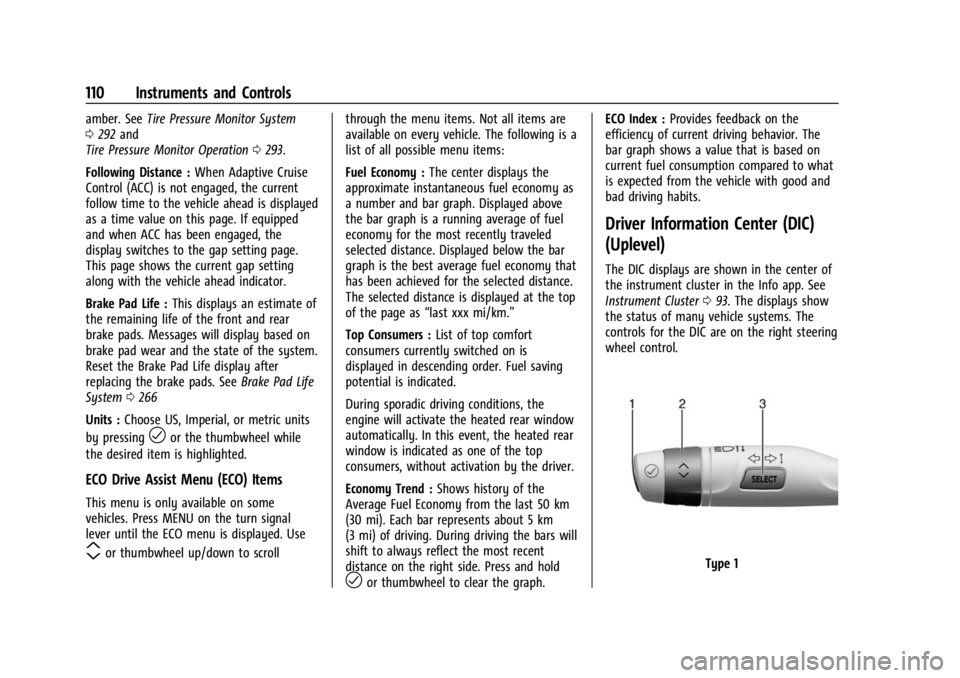
controls for the DIC are on the right steering
wheel control.
Type 1
Page 112 of 367
Buick Encore GX Owner Manual (GMNA-Localizing-U.S./Canada/Mexico-
16263917) - 2023 - CRC - 2/24/22
Instruments and Controls 111
The DIC has different displays which can be
accessed by using the DIC buttons on the
turn signal lever.
DIC Buttons
1.
l:Press to set, or press and hold to
clear, the menu item displayed.
2.
m: Use the band to scroll through the
items in each menu.
3. SELECT : Press to access the cluster
applications. This button is also used to
return to or exit the last screen displayed on
the DIC.
If equipped with steering wheel controls, see
“Driver Information Center (DIC) (Uplevel)”
later in this section.
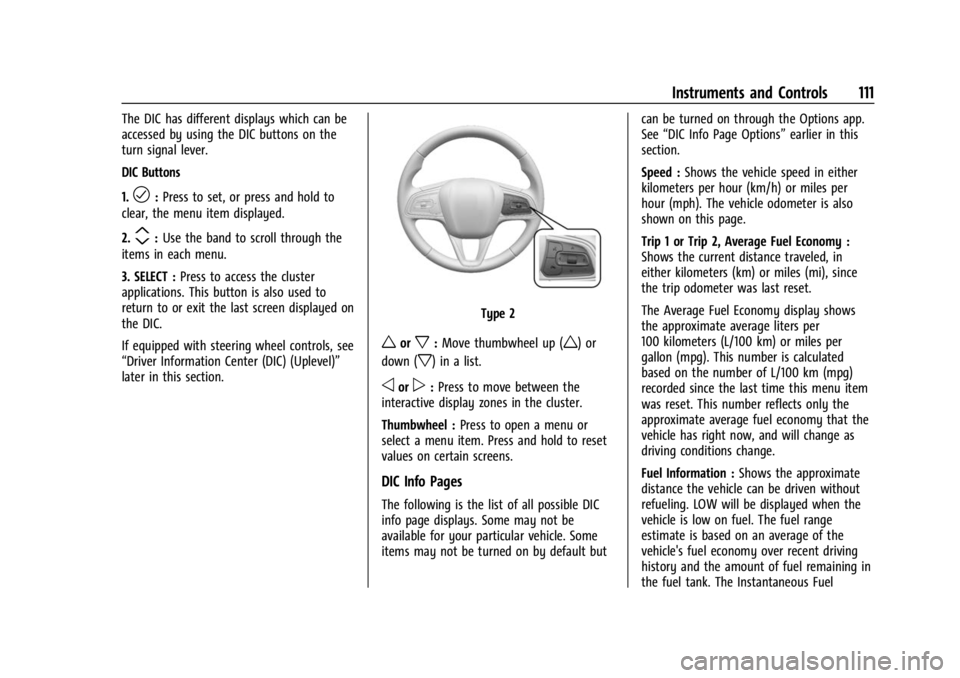
Type 2
worx: Move thumbwheel up (w) or
down (
x) in a list.
oorp: Press to move between the
interactive display zones in the cluster.
Thumbwheel : Press to open a menu or
select a menu item. Press and hold to reset
values on certain screens.
DIC Info Pages
The following is the list of all possible DIC
info page displays. Some may not be
available for your particular vehicle. Some
items may not be turned on by default but can be turned on through the Options app.
See
“DIC Info Page Options” earlier in this
section.
Speed : Shows the vehicle speed in either
kilometers per hour (km/h) or miles per
hour (mph). The vehicle odometer is also
shown on this page.
Trip 1 or Trip 2, Average Fuel Economy :
Shows the current distance traveled, in
either kilometers (km) or miles (mi), since
the trip odometer was last reset.
The Average Fuel Economy display shows
the approximate average liters per
100 kilometers (L/100 km) or miles per
gallon (mpg). This number is calculated
based on the number of L/100 km (mpg)
recorded since the last time this menu item
was reset. This number reflects only the
approximate average fuel economy that the
vehicle has right now, and will change as
driving conditions change.
Fuel Information : Shows the approximate
distance the vehicle can be driven without
refueling. LOW will be displayed when the
vehicle is low on fuel. The fuel range
estimate is based on an average of the
vehicle's fuel economy over recent driving
history and the amount of fuel remaining in
the fuel tank. The Instantaneous Fuel
Page 113 of 367
Buick Encore GX Owner Manual (GMNA-Localizing-U.S./Canada/Mexico-
16263917) - 2023 - CRC - 2/24/22
112 Instruments and Controls
Economy display shows the current fuel
economy in either liters per 100 kilometers
(L/100 km) or miles per gallon (mpg). This
number reflects only the approximate fuel
economy that the vehicle has right now and
changes frequently as driving conditions
change.
Oil Life :Shows an estimate of the oil's
remaining useful life. If REMAINING OIL LIFE
99% is displayed, that means 99% of the
current oil life remains.
When the remaining oil life is low, the
CHANGE ENGINE OIL SOON message will
appear on the display. The oil should be
changed as soon as possible. See Engine Oil
0 256. In addition to the engine oil life
system monitoring the oil life, additional
maintenance is recommended. See
Maintenance Schedule 0323.
The Oil Life display must be reset after each
oil change. It will not reset itself. Do not
reset the Oil Life display at any time other
than when the oil has just been changed.
It cannot be reset accurately until the next
oil change. To reset, see Engine Oil Life
System 0258.
Tire Pressure : Shows the approximate
pressures of all four tires. Tire pressure is
displayed in either kilopascal (kPa) or in pounds per square inch (psi). If the pressure
is low, the value for that tire is shown in
amber. See
Tire Pressure Monitor System
0 292 and
Tire Pressure Monitor Operation 0293.
Air Filter Life : Shows an estimate of the
engine air filter’s remaining useful life and
the state of the system. Engine Air Filter Life
95% means 95% of the current air filter life
remains. Messages will display based on the
engine air filter life and the state of the
system. When the REPLACE AT NEXT OIL
CHANGE message displays, the engine air
filter should be replaced at the time of the
next oil change. When the REPLACE SOON
message displays, the engine air filter
should be replaced at the earliest
convenience.
The Air Filter Life display must be reset after
the engine air filter replacement. To reset,
see Engine Air Filter Life System 0259.
Brake Pad Life : This displays an estimate of
the remaining life of the front and rear
brake pads. Messages will display based on
brake pad wear and the state of the system.
Reset the Brake Pad Life display after
replacing the brake pads. See Brake Pad Life
System 0266. Fuel Economy :
Displays average fuel
economy, the best fuel economy over the
selected distance, and a bar graph showing
instantaneous fuel economy.
Follow Distance : When Adaptive Cruise
Control (ACC) is not engaged, the current
follow time to the vehicle ahead is displayed
as a time value on this page.
If equipped and when ACC has been
engaged, the display switches to the gap
setting page.
This page shows the current gap setting
along with the vehicle ahead indicator.
Top Consumers : List of top comfort
consumers currently switched on is
displayed in descending order. Fuel saving
potential is indicated.
During sporadic driving conditions, the
engine will activate the heated rear window
automatically. In this event, the heated rear
window is indicated as one of the top
consumers, without activation by the driver.
Economy Trend : Shows history of the
Average Fuel Economy from the last 50 km
(30 mi). Each bar represents about 5 km
(3 mi) of driving. During driving the bars will
shift to always reflect the most recent
Page 129 of 367
Buick Encore GX Owner Manual (GMNA-Localizing-U.S./Canada/Mexico-
16263917) - 2023 - CRC - 2/24/22
128 Infotainment System
Infotainment System
Introduction
Introduction . . . . . . . . . . . . . . . . . . . . . . . . . . . 128
Overview . . . . . . . . . . . . . . . . . . . . . . . . . . . . . . 129
Steering Wheel Controls . . . . . . . . . . . . . . . 130
Using the System . . . . . . . . . . . . . . . . . . . . . . 131
Software Updates . . . . . . . . . . . . . . . . . . . . . . 133
Radio
AM-FM Radio . . . . . . . . . . . . . . . . . . . . . . . . . . 133
HD Radio Technology . . . . . . . . . . . . . . . . . . 135
Radio Data System (RDS) . . . . . . . . . . . . . . 135
Satellite Radio . . . . . . . . . . . . . . . . . . . . . . . . . 136
Radio Reception . . . . . . . . . . . . . . . . . . . . . . . 136
Multi-Band Antenna . . . . . . . . . . . . . . . . . . . 136
Audio Players
Avoiding Untrusted Media Devices . . . . . 137
USB Port . . . . . . . . . . . . . . . . . . . . . . . . . . . . . . . 137
Auxiliary Jack . . . . . . . . . . . . . . . . . . . . . . . . . . 139
Bluetooth Audio . . . . . . . . . . . . . . . . . . . . . . . 139
Navigation
Using the Navigation System . . . . . . . . . . 140
Maps . . . . . . . . . . . . . . . . . . . . . . . . . . . . . . . . . . 143
Navigation Symbols . . . . . . . . . . . . . . . . . . . 144
Destination . . . . . . . . . . . . . . . . . . . . . . . . . . . . 144
Global Positioning System (GPS) . . . . . . . 150
Vehicle Positioning . . . . . . . . . . . . . . . . . . . . 150
Problems with Route Guidance . . . . . . . . 150If the System Needs Service . . . . . . . . . . . 151
Map Data Updates . . . . . . . . . . . . . . . . . . . . . 151
Database Coverage Explanations . . . . . . . 151
Voice Recognition
Voice Recognition . . . . . . . . . . . . . . . . . . . . . . 151
Phone
Bluetooth (Overview) . . . . . . . . . . . . . . . . . . 156
Bluetooth (Pairing and Using a
Phone) . . . . . . . . . . . . . . . . . . . . . . . . . . . . . . . 157
Apple CarPlay and Android Auto . . . . . . . 161
Settings
Settings . . . . . . . . . . . . . . . . . . . . . . . . . . . . . . . 162
Teen Driver . . . . . . . . . . . . . . . . . . . . . . . . . . . . 165
Trademarks and License Agreements
Trademarks and License Agreements . . . . . . . . . . . . . . . . . . . . . . . . . 168
Introduction
Read the following pages to become familiar
with the features.
{Warning
Taking your eyes off the road for too
long or too often while using any
infotainment feature can cause a crash.
You or others could be injured or killed.
Do not give extended attention to
infotainment tasks while driving. Limit
your glances at the vehicle displays and
focus your attention on driving. Use voice
commands whenever possible.
The infotainment system has built-in
features intended to help avoid distraction
by disabling some features when driving.
These features may gray out when they are
unavailable. Many infotainment features are
also available through the instrument cluster
and steering wheel controls.
Page 130 of 367
Buick Encore GX Owner Manual (GMNA-Localizing-U.S./Canada/Mexico-
16263917) - 2023 - CRC - 2/24/22
Infotainment System 129
Before driving:
.Become familiar with the operation,
center stack controls, steering wheel
controls, and infotainment display.
.Set up the audio by presetting favorite
stations, setting the tone, and adjusting
the speakers.
.Set up phone numbers in advance so they
can be called easily by pressing a single
control or by using a single voice
command.
See Distracted Driving 0185.
Active Noise Cancellation (ANC)
If equipped, ANC reduces engine noise in the
vehicle’s interior. ANC requires the
factory-installed audio system, radio,
speakers, amplifier (if equipped), induction
system, and exhaust system to work
properly. Deactivation is required by your
dealer if related aftermarket equipment is
installed.
Overview
Infotainment System
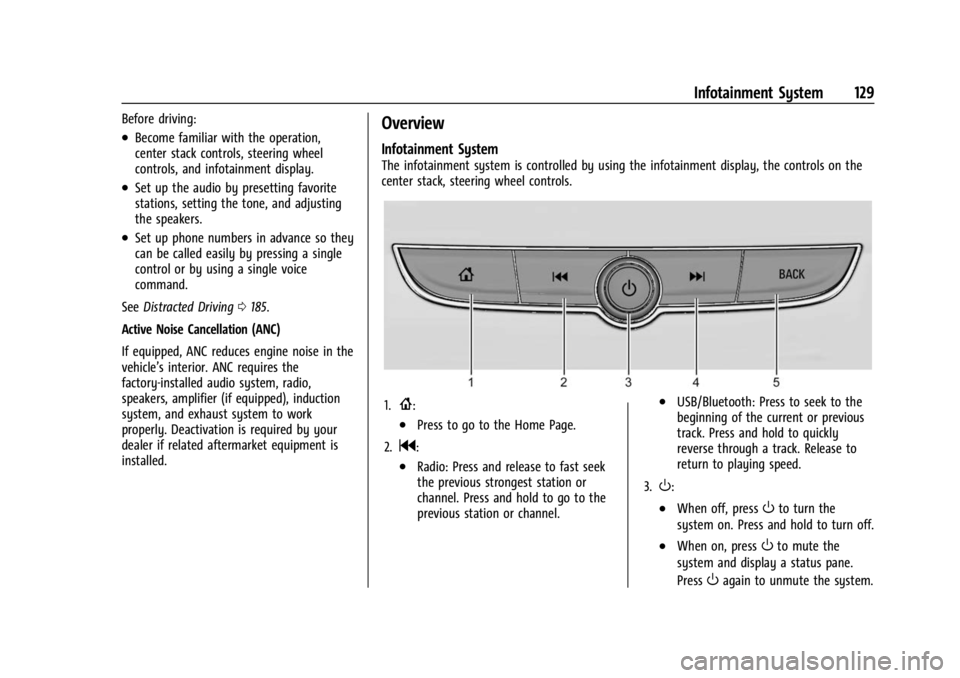
The infotainment system is controlled by using the infotainment display, the controls on the
center stack, steering wheel controls.
1.{:
.Press to go to the Home Page.
2.
g:
.Radio: Press and release to fast seek
the previous strongest station or
channel. Press and hold to go to the
previous station or channel.
.USB/Bluetooth: Press to seek to the
beginning of the current or previous
track. Press and hold to quickly
reverse through a track. Release to
return to playing speed.
3.
O:
.When off, pressOto turn the
system on. Press and hold to turn off.
.When on, pressOto mute the
system and display a status pane.
Press
Oagain to unmute the system.
Page 132 of 367
Buick Encore GX Owner Manual (GMNA-Localizing-U.S./Canada/Mexico-
16263917) - 2023 - CRC - 2/24/22
Infotainment System 131
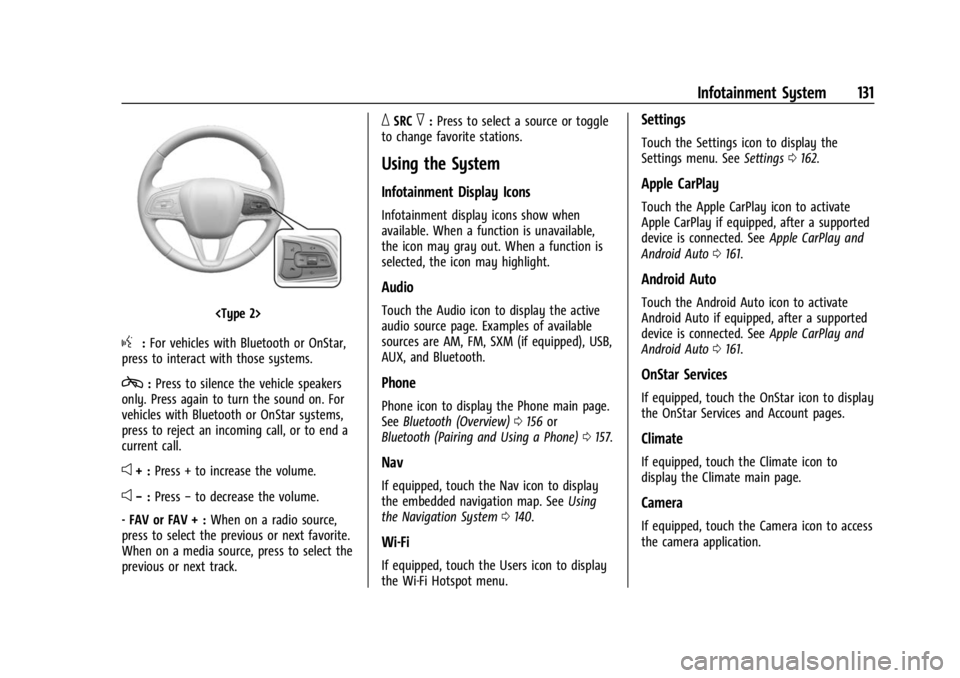
g:For vehicles with Bluetooth or OnStar,
press to interact with those systems.
c: Press to silence the vehicle speakers
only. Press again to turn the sound on. For
vehicles with Bluetooth or OnStar systems,
press to reject an incoming call, or to end a
current call.
e+ : Press + to increase the volume.
e−:Press −to decrease the volume.
- FAV or FAV + : When on a radio source,
press to select the previous or next favorite.
When on a media source, press to select the
previous or next track.
_SRC^: Press to select a source or toggle
to change favorite stations.
Using the System
Infotainment Display Icons
Infotainment display icons show when
available. When a function is unavailable,
the icon may gray out. When a function is
selected, the icon may highlight.
Audio
Touch the Audio icon to display the active
audio source page. Examples of available
sources are AM, FM, SXM (if equipped), USB,
AUX, and Bluetooth.
Phone
Phone icon to display the Phone main page.
See Bluetooth (Overview) 0156 or
Bluetooth (Pairing and Using a Phone) 0157.
Nav
If equipped, touch the Nav icon to display
the embedded navigation map. See Using
the Navigation System 0140.
Wi-Fi
If equipped, touch the Users icon to display
the Wi-Fi Hotspot menu.
Settings
Touch the Settings icon to display the
Settings menu. See Settings0162.
Apple CarPlay
Touch the Apple CarPlay icon to activate
Apple CarPlay if equipped, after a supported
device is connected. See Apple CarPlay and
Android Auto 0161.
Android Auto
Touch the Android Auto icon to activate
Android Auto if equipped, after a supported
device is connected. See Apple CarPlay and
Android Auto 0161.
OnStar Services
If equipped, touch the OnStar icon to display
the OnStar Services and Account pages.
Climate
If equipped, touch the Climate icon to
display the Climate main page.
Camera
If equipped, touch the Camera icon to access
the camera application.
Page 133 of 367
Buick Encore GX Owner Manual (GMNA-Localizing-U.S./Canada/Mexico-
16263917) - 2023 - CRC - 2/24/22
132 Infotainment System
SiriusXM
If equipped, touch the SiriusXM icon to
display the SiriusXM radio service.
Shortcut Tray
The shortcut tray is near the bottom of the
display. It shows up to four applications.
Infotainment Display Features
Infotainment display features show on the
display when available. When a feature is
unavailable, it may gray out. When a
feature is touched, it may highlight.
Infotainment Gestures
Depending on your radio, use the following
finger gestures to control the infotainment
system.
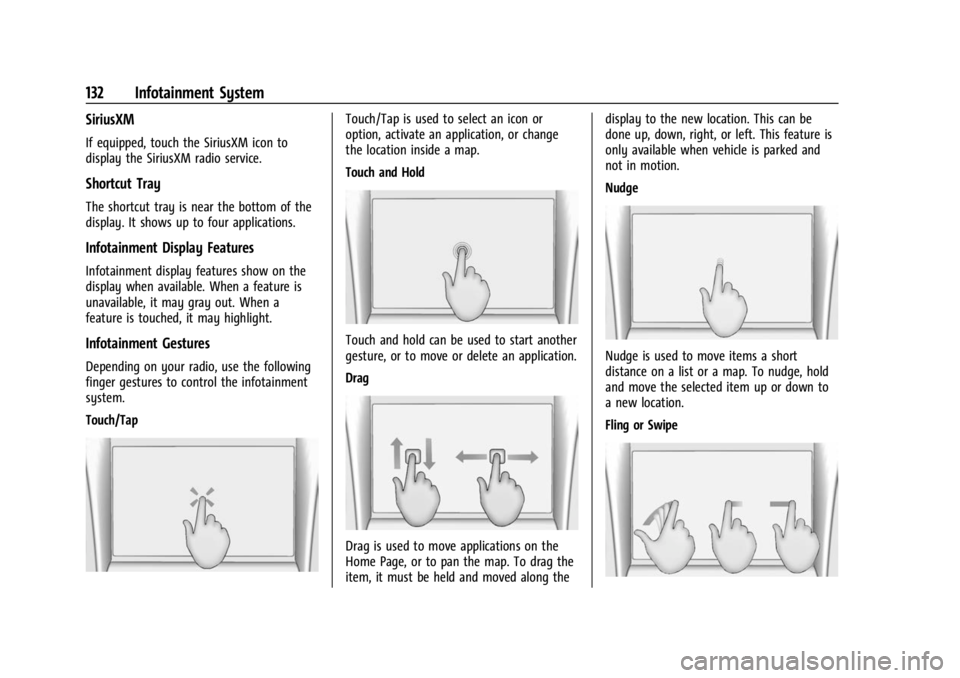
Touch/Tap
Touch/Tap is used to select an icon or
option, activate an application, or change
the location inside a map.
Touch and Hold
Touch and hold can be used to start another
gesture, or to move or delete an application.
Drag
Drag is used to move applications on the
Home Page, or to pan the map. To drag the
item, it must be held and moved along thedisplay to the new location. This can be
done up, down, right, or left. This feature is
only available when vehicle is parked and
not in motion.
Nudge
Nudge is used to move items a short
distance on a list or a map. To nudge, hold
and move the selected item up or down to
a new location.
Fling or Swipe
Page 134 of 367
Buick Encore GX Owner Manual (GMNA-Localizing-U.S./Canada/Mexico-
16263917) - 2023 - CRC - 2/24/22
Infotainment System 133
Fling or swipe is used to scroll through a
list, pan the map, or change page views. Do
this by placing a finger on the display then
moving it rapidly up and down or right
and left.
Cleaning High Gloss Surfaces and Vehicle
Information and Radio Displays
For vehicles with high gloss surfaces or
vehicle displays, use a microfiber cloth to
wipe surfaces. Before wiping the surface
with the microfiber cloth, use a soft bristle
brush to remove dirt that could scratch the
surface. Then use the microfiber cloth by
gently rubbing to clean. Never use window
cleaners or solvents. Periodically hand wash
the microfiber cloth separately, using mild
soap. Do not use bleach or fabric softener.
Rinse thoroughly and air dry before
next use.
Software Updates
Over-the-Air Software Updates
If equipped, see“Updates”underSettings
0 162 for details on software updates.
Radio
AM-FM Radio
Playing the Radio
From the Home Page, touch the Audio icon
to display the active audio source page.
Choose from the three most recently used
sources listed at the left side of the display
or touch the More icon to display a list of
available sources. Examples of available
sources are AM, FM, SXM (if equipped),
MyMedia (if available), USB, AUX (if
equipped), and Bluetooth.
Infotainment System Sound Menu
From any of the audio source main pages,
touch Sound to display the following:
Equalizer : Touch to adjust Bass, Midrange,
Treble, and Surround (if equipped) using the
options on the infotainment display.
Fade/Balance : Touch to adjust by using the
controls on the infotainment display or by
tapping/dragging the crosshair.
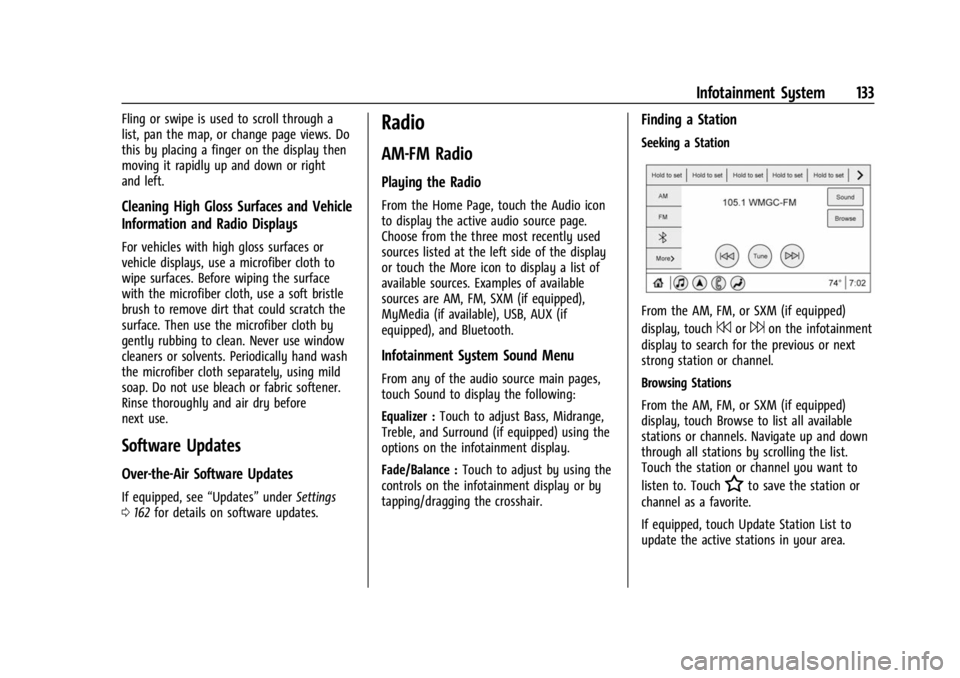
Finding a Station
Seeking a Station
From the AM, FM, or SXM (if equipped)
display, touch
7or6on the infotainment
display to search for the previous or next
strong station or channel.
Browsing Stations
From the AM, FM, or SXM (if equipped)
display, touch Browse to list all available
stations or channels. Navigate up and down
through all stations by scrolling the list.
Touch the station or channel you want to
listen to. Touch
Hto save the station or
channel as a favorite.
If equipped, touch Update Station List to
update the active stations in your area.
Page 138 of 367
Buick Encore GX Owner Manual (GMNA-Localizing-U.S./Canada/Mexico-
16263917) - 2023 - CRC - 2/24/22
Infotainment System 137
Audio Players
Avoiding Untrusted Media Devices
When using media devices such as USB and
mobile devices, consider the source.
Untrusted media devices could contain files
that affect system operation or performance
and should be avoided.
USB Port
Audio stored on a USB device may be
listened to.
Depending on your vehicle, it may be
equipped with two USB ports in the center
console under the armrest and another two
on the center stack. These ports are for data
and charging. There may also be two USB
ports at the rear of the center console and a
USB port on each side of the third row seats
for charging only.
Caution
To avoid vehicle damage, unplug all
accessories and disconnect all accessory
cables from the vehicle when not in use.
Accessory cables left plugged into the
vehicle, unconnected to a device, could be
(Continued)
Caution (Continued)
damaged or cause an electrical short if
the unconnected end comes in contact
with liquids or another power source such
as the accessory power outlet.
Playing from a USB
A USB mass storage device can be connected
to the USB port.
Audio extensions supported by the USB may
include:
.MP3
.AAC
.OGG
.3GP
My Media Library
MyMedia is only available when more than
one indexed device is connected. It allows
access to content from all indexed media
sources. MyMedia will show as an available
source in the Source page.
USB MP3 Player and USB Devices
The USB MP3 players and USB devices
connected must comply with the USB Mass
Storage Class specification (USB MSC). To play a USB device:
1. Connect the USB.
2. Touch Audio from the Home Page.
3. Select USB device.
Use the following when playing an active
USB source:
p: Touch to play the current media source.
j: Touch to pause playback of the current
media source.
7:
.Touch to seek the beginning of the
current or previous track.
.Touch and hold to reverse quickly
through playback. Release to return to
playing speed. Elapsed time displays.
6:
.Touch to seek the next track.
.Touch and hold to advance quickly
through playback. Release to return to
playing speed. Elapsed time displays.
Shuffle : Touch the shuffle icon to play
music in random order.
Page 141 of 367
Buick Encore GX Owner Manual (GMNA-Localizing-U.S./Canada/Mexico-
16263917) - 2023 - CRC - 2/24/22
140 Infotainment System
Volume and song selection may be
controlled by using the infotainment
controls or the mobile device. If Bluetooth is
selected and no volume is present, check the
volume setting on the infotainment system.
Music can be launched by touching
Bluetooth from the recent sources list on
the left of the display or by touching the
More option and then touching the
Bluetooth device.
To play music via Bluetooth:1. Power on the device, and pair to connect the device.
2. Once paired, touch Audio from the Home Page, then touch Bluetooth from the
recent sources list on the left of the
display.
Bluetooth Sound Menu
See “Infotainment System Sound Menu”
under AM-FM Radio 0133.
Manage Bluetooth Devices
From the Home Page: 1. Touch Audio.
2. Touch Devices to add or delete devices. When touching Bluetooth, the radio may
not be able to launch the audio player on
the connected device to start playing. When
the vehicle is not moving, use the mobile
device to begin playback.
All devices launch audio differently. When
selecting Bluetooth as a source, the radio
may show as paused on the display. Press
play on the device or touch
pon the
vehicle display to begin playback.
Browse functionality will be provided where
supported by the Bluetooth device. This
media content will not be part of the
MyMedia source mode.
Some smartphones support sending
Bluetooth music information to display on
the radio. When the radio receives this
information, it will check to see if any is
available and display it. For more
information about supported Bluetooth
features, visit your brand website. See
Online Account 0337 for details.
See Radio Frequency Statement 0343.
Navigation
Using the Navigation System
If equipped, launch the Nav application by
touching the Nav icon on the Home Page or
on the shortcut tray near the bottom of the
infotainment display.
When the Nav application is launched for
the first time, a product walkthrough is
available. Use of the feature requires the
Terms and Conditions and the Privacy
statement to be confirmed. If available and
signed into a profile, it is also suggested to
enable and confirm Predictive Navigation.
Predictive Navigation (If Equipped)
If Predictive Navigation is available and
confirmed, this feature learns preferences by
remembering where the vehicle has been.
It uses the locations and navigation history
to personalize routes and results.
Predictive Navigation may learn elements
such as:
.Personalized routes based on preferred
streets.
.Search results that provide best matches
at the top of the list.
.Predictive traffic.