change wheel BUICK ENVISION 2016 User Guide
[x] Cancel search | Manufacturer: BUICK, Model Year: 2016, Model line: ENVISION, Model: BUICK ENVISION 2016Pages: 432, PDF Size: 5.68 MB
Page 156 of 432
Buick Envision Owner Manual (GMNA-Localizing-U.S./Canada/Mexico-
8534310) - 2016 - crc - 2/29/16
Lighting 155
Lighting
Exterior Lighting
Exterior Lamp Controls . . . . . . . 155
Exterior Lamps OffReminder . . . . . . . . . . . . . . . . . . . 157
Headlamp High/Low-Beam Changer . . . . . . . . . . . . . . . . . . . . 157
Flash-to-Pass . . . . . . . . . . . . . . . . 157
Daytime Running Lamps (DRL) . . . . . . . . . . . . . . . 157
Automatic Headlamp System . . . . . . . . . . . . . . . . . . . . . . 157
Adaptive Forward Lighting (AFL) . . . . . . . . . . . . . . . 158
Headlamp Leveling Control . . . 158
Hazard Warning Flashers . . . . . 159
Turn and Lane-Change Signals . . . . . . . . . . . . . . . . . . . . . . 159
Fog Lamps . . . . . . . . . . . . . . . . . . . 160
Interior Lighting
Instrument Panel Illumination
Control . . . . . . . . . . . . . . . . . . . . . . 160
Courtesy Lamps . . . . . . . . . . . . . . 160
Dome Lamps . . . . . . . . . . . . . . . . . 160
Reading Lamps . . . . . . . . . . . . . . 161
Lighting Features
Entry Lighting . . . . . . . . . . . . . . . . 161
Exit Lighting . . . . . . . . . . . . . . . . . . 162
Battery Power Protection . . . . . 162
Exterior Lighting Battery Saver . . . . . . . . . . . . . . . . . . . . . . . 162
Exterior Lighting
Exterior Lamp Controls
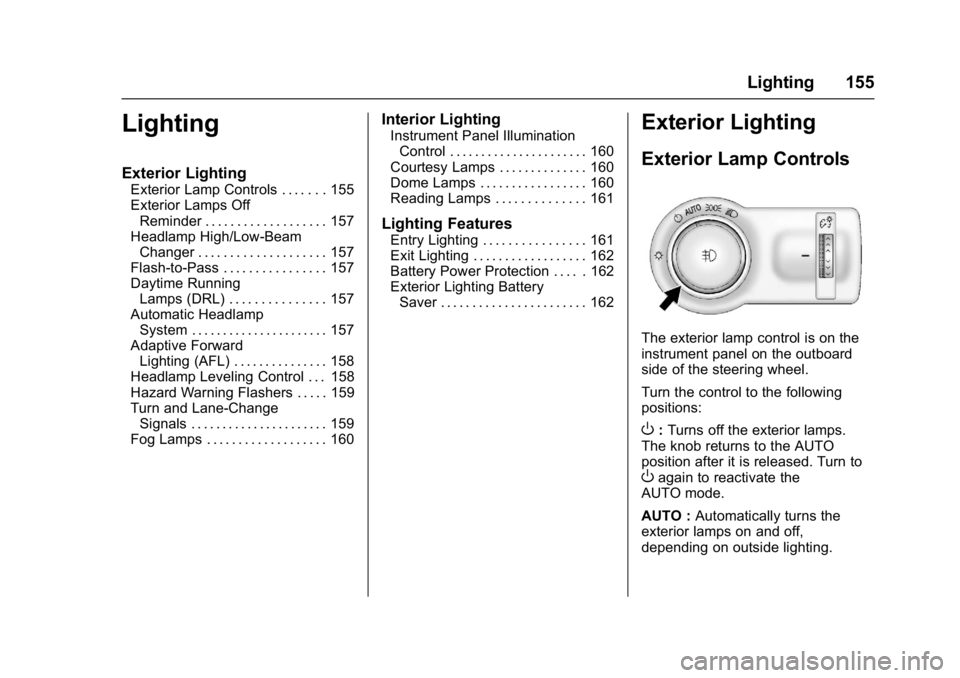
The exterior lamp control is on the
instrument panel on the outboard
side of the steering wheel.
Turn the control to the following
positions:
O: Turns off the exterior lamps.
The knob returns to the AUTO
position after it is released. Turn to
Oagain to reactivate the
AUTO mode.
AUTO : Automatically turns the
exterior lamps on and off,
depending on outside lighting.
Page 161 of 432

Buick Envision Owner Manual (GMNA-Localizing-U.S./Canada/Mexico-
8534310) - 2016 - crc - 2/29/16
160 Lighting
Fog Lamps
The ignition and the parking lamps
or headlamps must be on for the
front fog lamps to work.
#:If equipped, press to turn on or
off. An indicator light on the
instrument cluster comes on when
the fog lamps are on.
Some localities have laws that
require the headlamps to be on
along with the fog lamps.
Interior Lighting
Instrument Panel
Illumination Control
The brightness of the instrument
panel lighting and steering wheel
controls can be adjusted.
D: Move and hold the thumbwheel
up or down to brighten or dim the
lights.
Courtesy Lamps
The courtesy lamps come on when
any door is opened and the dome
lamp is in the
1position.
Dome Lamps
The dome lamp is in the overhead
console.
To change the dome lamp settings,
press:
*: Turns the lamp off, even when
a door is open.
1: The lamp comes on when a
door is opened.
+: Turns the lamp on.
Page 221 of 432
Buick Envision Owner Manual (GMNA-Localizing-U.S./Canada/Mexico-
8534310) - 2016 - crc - 2/29/16
220 Infotainment System
Phone
Bluetooth (Overview)
The Bluetooth-capable system can
interact with many cell phones,
allowing:
.Placement and receipt of calls in
a hands-free mode.
. Sharing of the cell phone’s
address book or contact list with
the vehicle.
To minimize driver distraction,
before driving, and with the vehicle
parked:
. Become familiar with the
features of the cell phone.
Organize the phone book and
contact lists clearly and delete
duplicate or rarely used entries.
If possible, program speed dial
or other shortcuts.
. Review the controls and
operation of the infotainment
system. .
Pair cell phone(s) to the vehicle.
The system may not work with
all cell phones. See “Pairing”in
this section.
Vehicles with a Bluetooth system
can use a Bluetooth-capable cell
phone with a Hands-Free Profile to
make and receive phone calls. The
infotainment system and voice
recognition are used to control the
system. The system can be used
while in ON/RUN or ACC/
ACCESSORY. The range of the
Bluetooth system can be up to 9.1 m
(30 ft). Not all phones support all
functions and not all phones work
with the Bluetooth system. In the
U.S. and Canada, see
www.gm.com/bluetooth for more
information about compatible
phones.
Bluetooth Controls
Use the buttons on the infotainment
system and the steering wheel to
operate the Bluetooth system. Steering Wheel Controls
g(Push to Talk) :
Press to answer
incoming calls, confirm system
information, and start voice
recognition.
c(End Call) : Press to end a call,
decline a call, or cancel an
operation. Press to mute or unmute
the infotainment system when not
on a call.
Infotainment System Controls
For information about how to
navigate the menu system using the
infotainment controls, see
Overview 0164.
PHONE : Touch this screen button
on the Home Page to enter the
phone main menu.
Audio System
When using the Bluetooth system,
sound comes through the vehicle's
front audio system speakers and
overrides the audio system. Press
just above the chrome volume bar
during a call to change the volume
level. The adjusted volume level
Page 224 of 432
Buick Envision Owner Manual (GMNA-Localizing-U.S./Canada/Mexico-
8534310) - 2016 - crc - 2/29/16
Infotainment System 223
To make a call using the Recent
Calls menu:1. Touch the PHONE screen button.
2. Select RECENT.
3. Select the name or number to call.
4. If necessary, select between Missed, Recent, and Sent calls
by selecting the View button in
the top right corner of the list.
Making a Call Using the
Keypad
To make a call by dialing the
numbers:
1. Touch the PHONE screen button.
2. Select KEYPAD and enter a phone number.
3. Select Call to start dialing the number.
Accepting or Declining a Call
When an incoming call is received,
the infotainment system mutes and
a ring tone is heard in the vehicle. Accepting a Call
To accept a call:
.
Press
gon the steering wheel
controls.
. Touch Answer on the center
stack display.
Declining a Call
To decline a call:
. Press
con the steering wheel
controls.
. Touch Ignore on the center stack
display.
Call Waiting
Call waiting must be supported on
the Bluetooth phone and enabled by
the wireless service carrier to work.
Accepting a Call
To accept a call-waiting call:
.Press
gon the steering wheel
controls.
. Touch Switch on the center
stack display. Declining a Call
To decline a call-waiting call:
.
Press
con the steering wheel
controls.
. Touch Ignore on the center stack
display.
Switching Between Calls (Call
Waiting Calls Only)
To switch between calls, touch the
PHONE icon on the Home Page to
display “Call View.” While in Call
View, touch the call information of
the call on hold to change calls.
Three-Way Calling
Three-way calling must be
supported on the Bluetooth phone
and enabled by the wireless service
carrier to work.
To start a three-way call while in a
current call:
1. In the Call View, select Add to add another call.
2. Initiate the second call by selecting from RECENT,
CONTACTS, or KEYPAD.
Page 225 of 432
Buick Envision Owner Manual (GMNA-Localizing-U.S./Canada/Mexico-
8534310) - 2016 - crc - 2/29/16
224 Infotainment System
3. When the second call is active,touch Merge to conference the
three-way call together.
4. Once all calls are merged, the Merge button becomes an
Unmerge button. Touch to
unmerge the calls.
Some wireless service carriers
may not allow a merged call to
become unmerged.
Ending a Call
.Presscon the steering wheel
controls.
. Touch End on the center stack
display to end all existing calls,
or touch End next to a call to
end only that call.
Dual Tone Multi-Frequency
(DTMF) Tones
The in-vehicle Bluetooth system can
send numbers during a call. This is
used when calling a menu-driven
phone system.
1. Touch the PHONE screen button. 2. While in the Call View, touch
the up arrow to raise the
Interaction Selector.
3. Select KEYPAD and enter the number.
Voice Mail
The default voice mail number is the
phone number of the outgoing
phone source. The voice mail
number can be changed in
Bluetooth settings.
To dial a voice mail number:
1. Touch the PHONE screen button.
2. Select VOICE MAIL.
3. Select Call.
4. Enter the DTMF tones using the keypad if needed.
Bluetooth (Voice
Recognition)
Using Bluetooth Voice
Recognition
To use voice recognition, press thegbutton on the steering wheel. Use
the commands below for the various
voice features. For additional
information, say “Help”while in a
voice recognition menu. See Voice
Recognition 0213 for help using
voice recognition commands.
Making a Call
Calls can be made using the
following commands.
Using the “Dial”or“Call”
Command
To call a number:
1. Press
g. The system responds
“Command Please,” followed
by a tone.
2. Say “Dial”or“Call” followed by
the complete phone number.
Page 245 of 432
Buick Envision Owner Manual (GMNA-Localizing-U.S./Canada/Mexico-
8534310) - 2016 - crc - 2/29/16
244 Climate Controls
The display only indicates climate
control functions when the system is
in rear independent mode.
Manual Operation
9:Turn clockwise or
counterclockwise to increase or
decrease the fan speed. Turn
completely counterclockwise to turn
the fan/power off.
TEMP : Turn clockwise or
counterclockwise to increase or
decrease the airflow temperature
into the passenger area. If the
SYNC button is pressed on the front
climate controls, the rear climate
temperature is linked to the driver
temperature setting. MODE :
Press to change the
direction of the airflow in the vehicle.
Repeatedly press the button until
the desired mode appears on the
display. Multiple presses will cycle
through the delivery selections.
If the air delivery mode is directing
all the air to the floor, the rear fan
speed indicator will change when
the knob is turned, but the airflow
amount will not. This is normal
operation for the system.
MorL: If equipped, pressMorLto heat the left or right outboard seat
cushion. See Heated Rear
Seats 058.
Air Vents
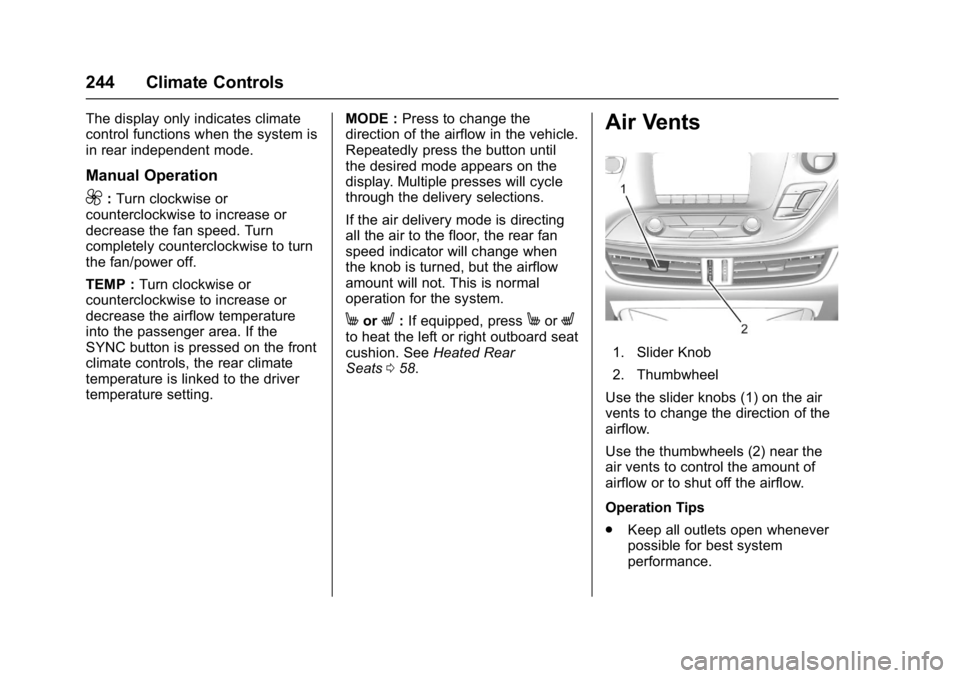
1. Slider Knob
2. Thumbwheel
Use the slider knobs (1) on the air
vents to change the direction of the
airflow.
Use the thumbwheels (2) near the
air vents to control the amount of
airflow or to shut off the airflow.
Operation Tips
. Keep all outlets open whenever
possible for best system
performance.
Page 248 of 432
Buick Envision Owner Manual (GMNA-Localizing-U.S./Canada/Mexico-
8534310) - 2016 - crc - 2/29/16
Driving and Operating 247
Driving and
Operating
Driving Information
Driver Behavior . . . . . . . . . . . . . . . 248
Driving Environment . . . . . . . . . . 248
Vehicle Design . . . . . . . . . . . . . . . 248
Distracted Driving . . . . . . . . . . . . 249
Defensive Driving . . . . . . . . . . . . . 249
Drunk Driving . . . . . . . . . . . . . . . . . 250
Control of a Vehicle . . . . . . . . . . . 250
Braking . . . . . . . . . . . . . . . . . . . . . . . 250
Steering . . . . . . . . . . . . . . . . . . . . . . 250
Off-Road Recovery . . . . . . . . . . . 251
Loss of Control . . . . . . . . . . . . . . . 251
Driving on Wet Roads . . . . . . . . 252
Hill and Mountain Roads . . . . . 253
Winter Driving . . . . . . . . . . . . . . . . 253
If the Vehicle Is Stuck . . . . . . . . 255
Vehicle Load Limits . . . . . . . . . . . 255
Starting and Operating
New Vehicle Break-In . . . . . . . . . 259
Ignition Positions . . . . . . . . . . . . . 259
Starting the Engine . . . . . . . . . . . 261
Engine Heater . . . . . . . . . . . . . . . . 263
Retained AccessoryPower (RAP) . . . . . . . . . . . . . . . . 264
Shifting Into Park . . . . . . . . . . . . . 264 Shifting out of Park . . . . . . . . . . . 265
Parking over Things
That Burn . . . . . . . . . . . . . . . . . . . 265
Engine Exhaust
Engine Exhaust . . . . . . . . . . . . . . 266
Running the Vehicle WhileParked . . . . . . . . . . . . . . . . . . . . . . 266
Automatic Transmission
Automatic Transmission . . . . . . 267
Manual Mode . . . . . . . . . . . . . . . . . 269
Drive Systems
All-Wheel Drive . . . . . . . . . . . . . . . 270
Brakes
Antilock BrakeSystem (ABS) . . . . . . . . . . . . . . . 270
Electric Parking Brake . . . . . . . . 271
Brake Assist . . . . . . . . . . . . . . . . . . 272
Hill Start Assist (HSA) . . . . . . . . 272
Ride Control Systems
Traction Control/Electronic
Stability Control . . . . . . . . . . . . . 273
Cruise Control
Cruise Control . . . . . . . . . . . . . . . . 275
Adaptive Cruise Control . . . . . . 277
Driver Assistance Systems
Driver Assistance Systems . . . 284 Assistance Systems for
Parking or Backing . . . . . . . . . . 285
Assistance Systems for Driving . . . . . . . . . . . . . . . . . . . . . . 289
Forward Collision Alert (FCA)
System . . . . . . . . . . . . . . . . . . . . . . 290
Front Automatic Braking (FAB) System . . . . . . . . . . . . . . . . . . . . . . 292
Side Blind Zone Alert (SBZA) . . . . . . . . . . . . . . . . 293
Lane Change Alert (LCA) . . . . . 294
Lane Departure Warning (LDW) . . . . . . . . . . . . . 296
Lane Keep Assist (LKA) . . . . . . 296
Fuel
Fuel . . . . . . . . . . . . . . . . . . . . . . . . . . 298
California Fuel Requirements . . . . . . . . . . . . . . . 299
Fuels in Foreign Countries . . . 299
Fuel Additives . . . . . . . . . . . . . . . . 299
Filling the Tank . . . . . . . . . . . . . . . 299
Filling a Portable Fuel Container . . . . . . . . . . . . . . . . . . . 301
Trailer Towing
General TowingInformation . . . . . . . . . . . . . . . . . . 301
Driving Characteristics and
Towing Tips . . . . . . . . . . . . . . . . . 301
Trailer Towing . . . . . . . . . . . . . . . . 304
Page 256 of 432
Buick Envision Owner Manual (GMNA-Localizing-U.S./Canada/Mexico-
8534310) - 2016 - crc - 2/29/16
Driving and Operating 255
If the Vehicle Is Stuck
Slowly and cautiously spin the
wheels to free the vehicle when
stuck in sand, mud, ice, or snow.
If stuck too severely for the traction
system to free the vehicle, turn the
traction system off and use the
rocking method. SeeTraction
Control/Electronic Stability
Control 0273.
{Warning
If the vehicle's tires spin at high
speed, they can explode, and you
or others could be injured. The
vehicle can overheat, causing an
engine compartment fire or other
damage. Spin the wheels as little
as possible and avoid going
above 56 km/h (35 mph).
Rocking the Vehicle to Get
it Out
Turn the steering wheel left and
right to clear the area around the
front wheels. Turn off any traction
system. Shift back and forth between R (Reverse) and a low
forward gear, spinning the wheels
as little as possible. To prevent
transmission wear, wait until the
wheels stop spinning before shifting
gears. Release the accelerator
pedal while shifting, and press
lightly on the accelerator pedal
when the transmission is in gear.
Slowly spinning the wheels in the
forward and reverse directions
causes a rocking motion that could
free the vehicle. If that does not get
the vehicle out after a few tries, it
might need to be towed out. If the
vehicle does need to be towed out,
see
Towing the Vehicle 0368.
Vehicle Load Limits
It is very important to know how
much weight the vehicle can
carry. This weight is called the
vehicle capacity weight and
includes the weight of all
occupants, cargo, and all
nonfactory-installed options.
Two labels on the vehicle may
show how much weight it may properly carry, the Tire and
Loading Information label and
the Certification/Tire label.
{Warning
Do not load the vehicle any
heavier than the Gross
Vehicle Weight Rating
(GVWR), or either the
maximum front or rear Gross
Axle Weight Rating (GAWR).
This can cause systems to
break and change the way the
vehicle handles. This could
cause loss of control and a
crash. Overloading can also
reduce stopping distance,
damage the tires, and shorten
the life of the vehicle.
Page 271 of 432

Buick Envision Owner Manual (GMNA-Localizing-U.S./Canada/Mexico-
8534310) - 2016 - crc - 2/29/16
270 Driving and Operating
Drive Systems
All-Wheel Drive
Vehicles with this feature transfer
engine power, as required, to all
four wheels. It is fully automatic, and
adjusts itself as needed for road
conditions.
When using a compact spare tire on
an AWD vehicle, the system
automatically detects the compact
spare and reduces AWD
performance to protect the system.
An AWD message may be
displayed. To restore full AWD
operation and prevent excessive
wear on the system, replace the
compact spare with a full-size tire as
soon as possible. SeeCompact
Spare Tire 0364.
Brakes
Antilock Brake
System (ABS)
This vehicle has an Antilock Brake
System (ABS), an advanced
electronic braking system that helps
prevent a braking skid.
When the vehicle begins to drive
away, ABS checks itself.
A momentary motor or clicking noise
may be heard while this test is going
on, and it may even be noticed that
the brake pedal moves a little. This
is normal.
If there is a problem with ABS, this
warning light stays on. See Antilock
Brake System (ABS) Warning
Light 0122. If driving safely on a wet road and it
becomes necessary to slam on the
brakes and continue braking to
avoid a sudden obstacle, a
computer senses the wheels are
slowing down. If one of the wheels
is about to stop rolling, the computer
will separately work the brakes at
each wheel.
ABS can change the brake pressure
to each wheel, as required, faster
than any driver could. This can help
you steer around the obstacle while
braking hard.
As the brakes are applied, the
computer keeps receiving updates
on wheel speed and controls
braking pressure accordingly.
Remember: ABS does not change
the time needed to get a foot up to
the brake pedal or always decrease
stopping distance. If you get too
close to the vehicle in front of you,
there will not be enough time to
apply the brakes if that vehicle
suddenly slows or stops. Always
leave enough room up ahead to
stop, even with ABS.
Page 276 of 432

Buick Envision Owner Manual (GMNA-Localizing-U.S./Canada/Mexico-
8534310) - 2016 - crc - 2/29/16
Driving and Operating 275
To turn TCS and StabiliTrak on
again, press and release the
g
button. The traction off lightiand
StabiliTrak OFF light
gin the
instrument cluster turn off.
Adding accessories can affect the
vehicle performance. See
Accessories and
Modifications 0310.
Cruise Control
With cruise control the vehicle can
maintain a speed of about 40 km/h
(25 mph) or more without keeping
your foot on the accelerator. Cruise
control does not work at speeds
below 40 km/h (25 mph).
{Warning
Cruise control can be dangerous
where you cannot drive safely at
a steady speed. Do not use
cruise control on winding roads or
in heavy traffic.
Cruise control can be dangerous
on slippery roads. On such roads,
fast changes in tire traction can
cause excessive wheel slip, and
you could lose control. Do not use
cruise control on slippery roads.
With the Traction Control
System (TCS), the system may
begin to limit wheel spin while you
are using cruise control. If this
happens, the cruise control will automatically disengage. See
Traction Control/Electronic Stability
Control
0273. If a collision alert
occurs when cruise control is
activated, cruise control is
disengaged. See Forward Collision
Alert (FCA) System 0290. When
road conditions allow you to safely
use it again, cruise control can be
turned back on.
If the brakes are applied, cruise
control disengages.
5: Press to turn cruise control on
or off. A white indicator comes on in
the instrument cluster when cruise
control is turned on.