infotainment BUICK ENVISION 2016 User Guide
[x] Cancel search | Manufacturer: BUICK, Model Year: 2016, Model line: ENVISION, Model: BUICK ENVISION 2016Pages: 432, PDF Size: 5.68 MB
Page 166 of 432
Buick Envision Owner Manual (GMNA-Localizing-U.S./Canada/Mexico-
8534310) - 2016 - crc - 2/29/16
Infotainment System 165
Infotainment System
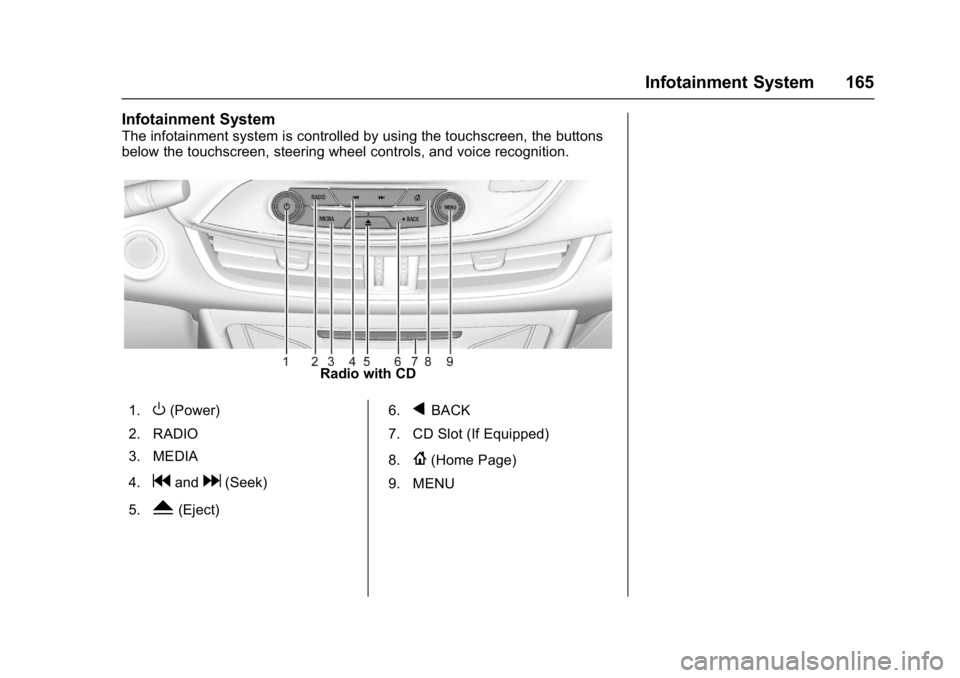
The infotainment system is controlled by using the touchscreen, the buttons
below the touchscreen, steering wheel controls, and voice recognition.
Radio with CD
1.
O(Power)
2. RADIO
3. MEDIA
4.
gandd(Seek)
5.
Y(Eject) 6.
qBACK
7. CD Slot (If Equipped)
8.
{(Home Page)
9. MENU
Page 167 of 432
Buick Envision Owner Manual (GMNA-Localizing-U.S./Canada/Mexico-
8534310) - 2016 - crc - 2/29/16
166 Infotainment System
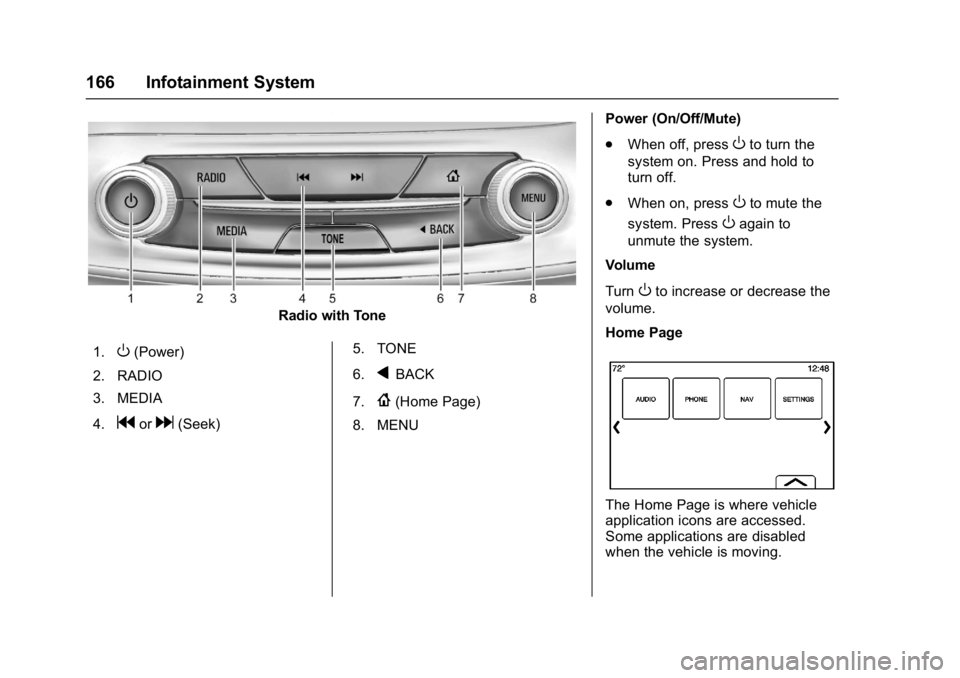
Radio with Tone
1.
O(Power)
2. RADIO
3. MEDIA
4.
gord(Seek) 5. TONE
6.
qBACK
7.
{(Home Page)
8. MENU Power (On/Off/Mute)
.
When off, press
Oto turn the
system on. Press and hold to
turn off.
. When on, press
Oto mute the
system. Press
Oagain to
unmute the system.
Volume
Turn
Oto increase or decrease the
volume.
Home Page
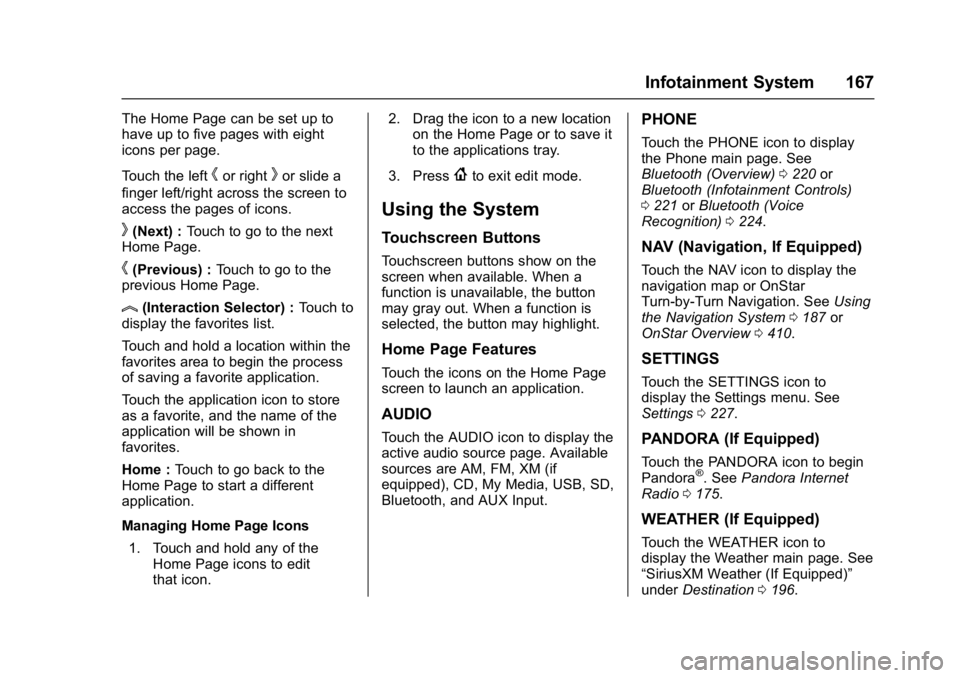
The Home Page is where vehicle
application icons are accessed.
Some applications are disabled
when the vehicle is moving.
Page 168 of 432
Buick Envision Owner Manual (GMNA-Localizing-U.S./Canada/Mexico-
8534310) - 2016 - crc - 2/29/16
Infotainment System 167
The Home Page can be set up to
have up to five pages with eight
icons per page.
Touch the left
hor rightkor slide a
finger left/right across the screen to
access the pages of icons.
k(Next) : Touch to go to the next
Home Page.
h(Previous) : Touch to go to the
previous Home Page.
l(Interaction Selector) : Touch to
display the favorites list.
Touch and hold a location within the
favorites area to begin the process
of saving a favorite application.
Touch the application icon to store
as a favorite, and the name of the
application will be shown in
favorites.
Home : Touch to go back to the
Home Page to start a different
application.
Managing Home Page Icons
1. Touch and hold any of the Home Page icons to edit
that icon. 2. Drag the icon to a new location
on the Home Page or to save it
to the applications tray.
3. Press
{to exit edit mode.
Using the System
Touchscreen Buttons
Touchscreen buttons show on the
screen when available. When a
function is unavailable, the button
may gray out. When a function is
selected, the button may highlight.
Home Page Features
Touch the icons on the Home Page
screen to launch an application.
AUDIO
Touch the AUDIO icon to display the
active audio source page. Available
sources are AM, FM, XM (if
equipped), CD, My Media, USB, SD,
Bluetooth, and AUX Input.
PHONE
Touch the PHONE icon to display
the Phone main page. See
Bluetooth (Overview) 0220 or
Bluetooth (Infotainment Controls)
0 221 orBluetooth (Voice
Recognition) 0224.
NAV (Navigation, If Equipped)
Touch the NAV icon to display the
navigation map or OnStar
Turn-by-Turn Navigation. See Using
the Navigation System 0187 or
OnStar Overview 0410.
SETTINGS
Touch the SETTINGS icon to
display the Settings menu. See
Settings 0227.
PANDORA (If Equipped)
Touch the PANDORA icon to begin
Pandora®. See Pandora Internet
Radio 0175.
WEATHER (If Equipped)
Touch the WEATHER icon to
display the Weather main page. See
“SiriusXM Weather (If Equipped)”
under Destination 0196.
Page 169 of 432

Buick Envision Owner Manual (GMNA-Localizing-U.S./Canada/Mexico-
8534310) - 2016 - crc - 2/29/16
168 Infotainment System
ONSTAR (If Equipped)
Touch the ONSTAR icon to display
the OnStar main page and start
OnStar voice recognition. See
OnStar Overview0410.
Applications Tray
The applications tray is at the top
center of the screen. The
applications tray can have three to
five applications.
To add an application from the
Home Page to the applications tray:
1. Touch and hold any icon on the Home Page to enter edit mode.
2. Drag the icon to the applications tray.
To remove an item from the
applications tray, drag the icon
from the applications tray back
to the Home Page. Adding or removing applications
from the applications tray will not
remove them from the Home Page.
Infotainment Gestures
Use the following finger gestures to
control the infotainment system.
Touch/Tap
Touch/Tap is used to select a button
or option, activate an application,
or change the location inside a map.
Touch and Hold
Touch and hold can be used to start
another gesture, move, or delete an
application.
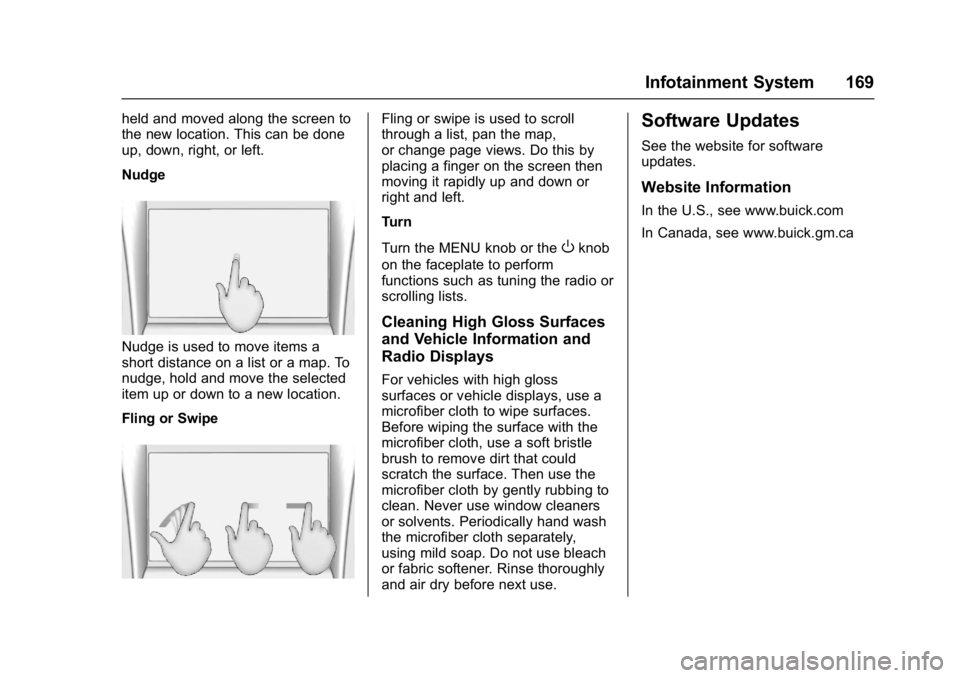
Drag
Drag is used to move applications
on the Home Page, or to pan the
map. To drag the item, it must be
Page 170 of 432
Buick Envision Owner Manual (GMNA-Localizing-U.S./Canada/Mexico-
8534310) - 2016 - crc - 2/29/16
Infotainment System 169
held and moved along the screen to
the new location. This can be done
up, down, right, or left.
Nudge
Nudge is used to move items a
short distance on a list or a map. To
nudge, hold and move the selected
item up or down to a new location.
Fling or Swipe
Fling or swipe is used to scroll
through a list, pan the map,
or change page views. Do this by
placing a finger on the screen then
moving it rapidly up and down or
right and left.
Turn
Turn the MENU knob or the
Oknob
on the faceplate to perform
functions such as tuning the radio or
scrolling lists.
Cleaning High Gloss Surfaces
and Vehicle Information and
Radio Displays
For vehicles with high gloss
surfaces or vehicle displays, use a
microfiber cloth to wipe surfaces.
Before wiping the surface with the
microfiber cloth, use a soft bristle
brush to remove dirt that could
scratch the surface. Then use the
microfiber cloth by gently rubbing to
clean. Never use window cleaners
or solvents. Periodically hand wash
the microfiber cloth separately,
using mild soap. Do not use bleach
or fabric softener. Rinse thoroughly
and air dry before next use.
Software Updates
See the website for software
updates.
Website Information
In the U.S., see www.buick.com
In Canada, see www.buick.gm.ca
Page 171 of 432
Buick Envision Owner Manual (GMNA-Localizing-U.S./Canada/Mexico-
8534310) - 2016 - crc - 2/29/16
170 Infotainment System
Radio
AM-FM Radio
Playing the Radio
While on the audio main page the
available sources are: AM, FM, XM
(if equipped), CD, My Media, USB,
SD, Bluetooth, and AUX Input.
.Touch the RADIO screen button
to scroll through AM, FM,
or SiriusXM
®(if equipped).
. Touch the MEDIA screen button
to scroll through CD (if
equipped), My Media, USB, SD,
Bluetooth, and AUX Input.
Infotainment System Settings
Touch the RADIO screen button to
access broadcast sources.
Touch the MENU screen button or
press the MENU knob to display the
following menus: Tone Settings :
.
Bass, Midrange, Treble,
Surround (if equipped): Touch +
or−to adjust. Surround adjusts
the headrest speaker
volume only.
. Balance : Touch
SorTfor
more sound from the left or right
speakers. The middle position
balances the sound between the
left and right speakers.
. Fade : Touch
yorzfor more
sound from the front or rear
speakers. The middle position
balances the sound between the
front and rear speakers.
Tag Song (If Equipped) : Touch to
bookmark a song on an Apple
device for later purchase using
iTunes
®.
Timeshift (If Equipped) : Timeshift
is the recording of a radio station for
up to 25 minutes. See “Timeshifting
(If Equipped)” later in this section. DSP Modes (If Equipped) :
.
Bose
®Studio Surround®and
Bose®Centerpoint®Surround
sound system has four DSP
modes:
‐ Normal : Adjusts the audio to
provide the best sound for all
seating positions.
‐ Driver : Adjusts the audio to
provide the best sound for the
driver.
‐ Rear : Adjusts the audio to
provide the best sound for the
rear seat occupants.
‐ Centerpoint : Turns on Bose
Centerpoint surround
technology. This setting
creates a surround sound
listening experience from
nearly any audio source;
existing stereo, CD collection,
and MP3 players. For more
information on Bose
Centerpoint surround
technology, see
www.bose.com/centerpoint.
Page 172 of 432
Buick Envision Owner Manual (GMNA-Localizing-U.S./Canada/Mexico-
8534310) - 2016 - crc - 2/29/16
Infotainment System 171
Auto Volume (If Equipped) :This
feature adjusts the volume based on
vehicle speed. The options are OFF,
Low, Medium - Low, Medium,
Medium - High, or High. Press
q
BACK on the faceplate or touch the
Back screen button to go back to
the previous menu.
Bose AudioPilot Noise
Compensation Technology (If
Equipped) : This feature adjusts
the volume based on the noise in
the vehicle and the speed. When
turned on, AudioPilot technology
detects noise and vehicle speed to
continuously adjust the audio signal
so that music will sound the same at
a set volume level. This feature is
most effective at lower radio volume
settings where background noise
can affect how well the music is
being played. See www.bose.com/
audiopilot. This feature can be
turned on or off. Press
qBACK on
the faceplate or touch the Back
screen button to go back to the
previous menu. HD Radio™
:For AM and FM only,
touch to turn HD reception on or off.
Touch the Back screen button to go
back to the previous menu.
EQ (Equalizer) : If equipped with a
Bose Sound System, the available
choices are Manual and Talk.
Update Station List : For AM and
FM only, touch to update the station
list. Press
qBACK on the faceplate
or touch the Back screen button to
go back to the previous menu.
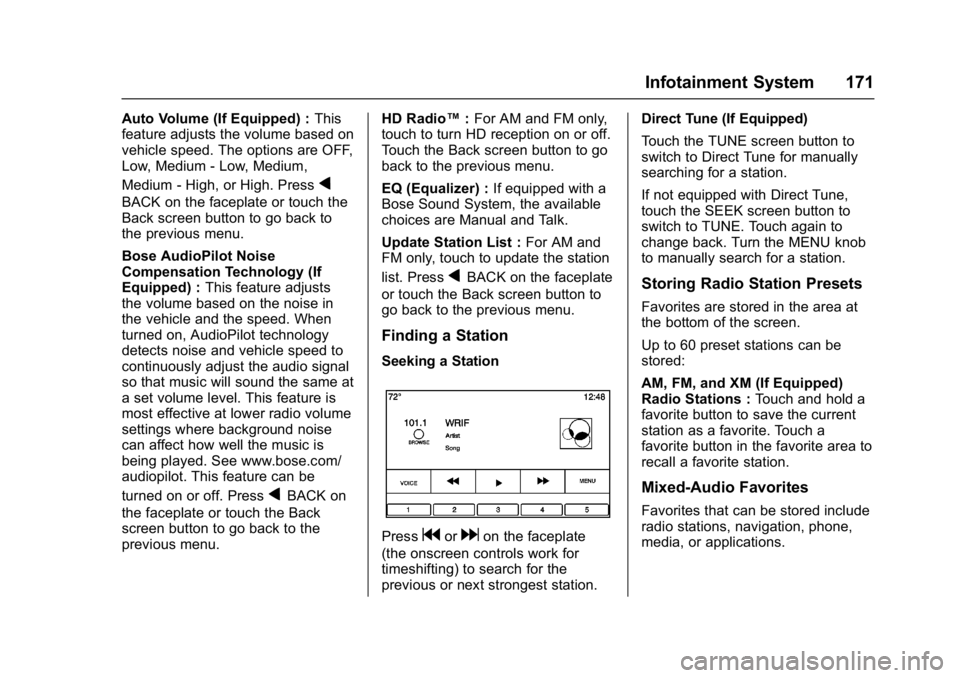
Finding a Station
Seeking a Station
Pressgordon the faceplate
(the onscreen controls work for
timeshifting) to search for the
previous or next strongest station. Direct Tune (If Equipped)
Touch the TUNE screen button to
switch to Direct Tune for manually
searching for a station.
If not equipped with Direct Tune,
touch the SEEK screen button to
switch to TUNE. Touch again to
change back. Turn the MENU knob
to manually search for a station.
Storing Radio Station Presets
Favorites are stored in the area at
the bottom of the screen.
Up to 60 preset stations can be
stored:
AM, FM, and XM (If Equipped)
Radio Stations :
Touch and hold a
favorite button to save the current
station as a favorite. Touch a
favorite button in the favorite area to
recall a favorite station.
Mixed-Audio Favorites
Favorites that can be stored include
radio stations, navigation, phone,
media, or applications.
Page 173 of 432
Buick Envision Owner Manual (GMNA-Localizing-U.S./Canada/Mexico-
8534310) - 2016 - crc - 2/29/16
172 Infotainment System
To scroll through the favorites:
.Drag anywhere on the screen
buttons along the bottom to raise
up the favorites. To close the
favorites, drag them down.
. Slide a finger to the right or left
to scroll through each page of
favorites.
Tone Settings : Touch and hold a
Favorite button to save the current
tone settings as a favorite in the
tone settings screen. Touch the
reveal tab on the bottom of the
screen to display Favorites. Touch a
screen button in the favorite area to
recall a favorite tone setting.
The number of favorites displayed is
automatically adjusted by default,
but can be manually adjusted in the
Settings menu under Radio and
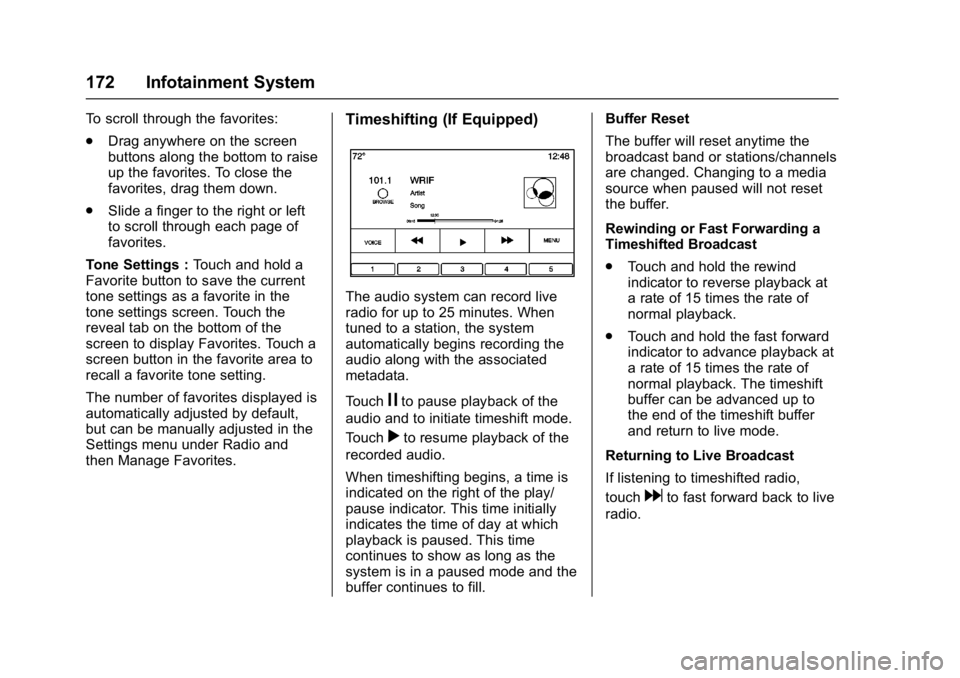
then Manage Favorites.Timeshifting (If Equipped)
The audio system can record live
radio for up to 25 minutes. When
tuned to a station, the system
automatically begins recording the
audio along with the associated
metadata.
Touch
jto pause playback of the
audio and to initiate timeshift mode.
Touch
rto resume playback of the
recorded audio.
When timeshifting begins, a time is
indicated on the right of the play/
pause indicator. This time initially
indicates the time of day at which
playback is paused. This time
continues to show as long as the
system is in a paused mode and the
buffer continues to fill. Buffer Reset
The buffer will reset anytime the
broadcast band or stations/channels
are changed. Changing to a media
source when paused will not reset
the buffer.
Rewinding or Fast Forwarding a
Timeshifted Broadcast
.
Touch and hold the rewind
indicator to reverse playback at
a rate of 15 times the rate of
normal playback.
. Touch and hold the fast forward
indicator to advance playback at
a rate of 15 times the rate of
normal playback. The timeshift
buffer can be advanced up to
the end of the timeshift buffer
and return to live mode.
Returning to Live Broadcast
If listening to timeshifted radio,
touch
dto fast forward back to live
radio.
Page 174 of 432
Buick Envision Owner Manual (GMNA-Localizing-U.S./Canada/Mexico-
8534310) - 2016 - crc - 2/29/16
Infotainment System 173
Timeshifting and Station/Channel
Lists
If browsing a station/channel list is
started while listening to the
timeshift content, the list content is
shown in live time, not
buffered time.
Skipping Back in a Broadcast
For programs with metadata,
touching the previous button less
than five seconds into a program
will make the system skip to the
beginning of the previous program.
If more than five seconds into the
current song/program, the system
starts at the beginning of the current
program. If no metadata is available,
the system skips back 30 seconds.
Reaching the End of the Buffer
If the audio is paused and the
25-minute buffer is reached, the
buffer continues recording content
on a first-in, first-out basis. When
playback is started, the content
played will be the last 25 minutes in
the buffer.HD Radio Technology
If equipped, HD Radio™Technology
is a free service with features such
as static-free sound, more
programming choices on local FM
HD2, HD3, and higher, and
on-screen information such as artist
and song title.
Channel Access
To access HD Radio channels:
1. Tune the radio to the channel. HD Radio must be turned on in
the Menu. If the channel is
broadcasting HD Radio
Technology, the radio will
automatically switch to digital
audio, indicated with an HD
Radio Technology logo.
2. Touch
gordto tune to the
previous or next HD Radio
channel.
There may be a delay before the
channel starts playing.
The HD Radio channel number is
indicated next to the logo.
See AM-FM Radio 0170. For a list of all channels, see
www.hdradio.com.
Troubleshooting
Digital Audio Delay :
Wait for the
signal to process. This can take
several seconds.
Volume Change, Audio Skip,
Echo, Digital Audio Lost : Channel
signal strength may be weak or the
channel is out of range. Verify
proper reception on another
channel.
If the HD Radio signal loses
reception while listening to channel
HD1, the radio will go back to the
main non-HD Radio channel.
If the HD Radio signal loses
reception while listening to channels
HD2 to HD8, the radio mutes until
the signal can be recovered or until
the channel is changed.
HD can be disabled if driving in a
weak signal area. Touch Menu from
the AM/FM screens, then touch HD
Radio to toggle HD on and off.
Page 175 of 432
Buick Envision Owner Manual (GMNA-Localizing-U.S./Canada/Mexico-
8534310) - 2016 - crc - 2/29/16
174 Infotainment System
Satellite Radio
SiriusXM®Satellite Radio
Service (If Equipped)
Vehicles with a valid SiriusXM
satellite radio subscription can
receive SiriusXM programming.
SiriusXM satellite radio has a wide
variety of programming and
commercial-free music, coast to
coast, and in digital-quality sound.
See www.siriusxm.com or call
1-866-635-2349 in the U.S. In
Canada, see www.xmradio.ca or call
1-877-209-0079.
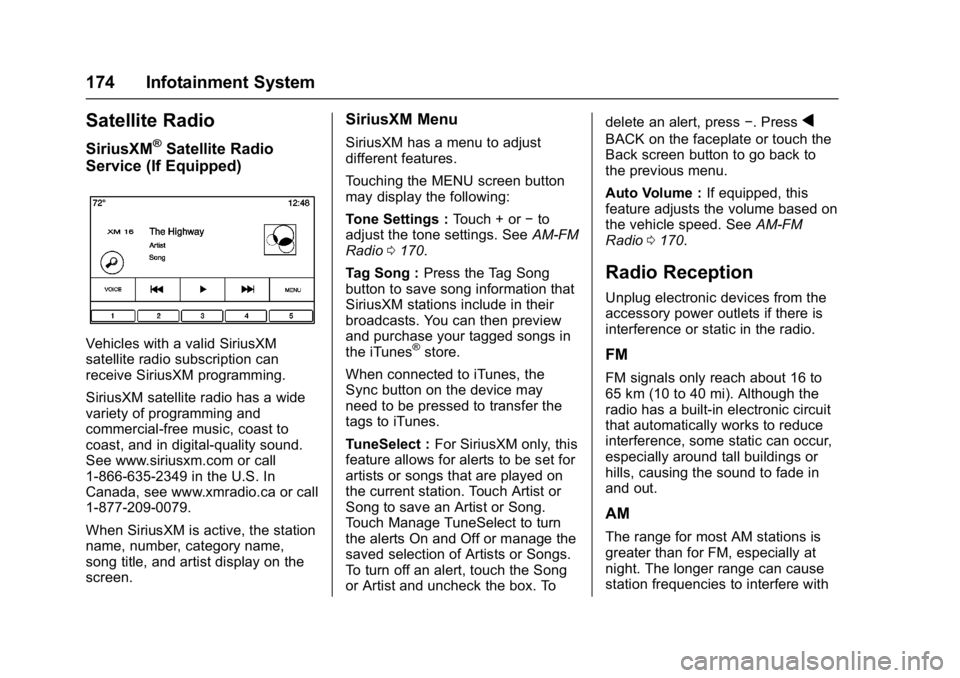
When SiriusXM is active, the station
name, number, category name,
song title, and artist display on the
screen.
SiriusXM Menu
SiriusXM has a menu to adjust
different features.
Touching the MENU screen button
may display the following:
Tone Settings : Touch + or−to
adjust the tone settings. See AM-FM
Radio 0170.
Tag Song : Press the Tag Song
button to save song information that
SiriusXM stations include in their
broadcasts. You can then preview
and purchase your tagged songs in
the iTunes
®store.
When connected to iTunes, the
Sync button on the device may
need to be pressed to transfer the
tags to iTunes.
TuneSelect : For SiriusXM only, this
feature allows for alerts to be set for
artists or songs that are played on
the current station. Touch Artist or
Song to save an Artist or Song.
Touch Manage TuneSelect to turn
the alerts On and Off or manage the
saved selection of Artists or Songs.
To turn off an alert, touch the Song
or Artist and uncheck the box. To delete an alert, press
−. Press
q
BACK on the faceplate or touch the
Back screen button to go back to
the previous menu.
Auto Volume :If equipped, this
feature adjusts the volume based on
the vehicle speed. See AM-FM
Radio 0170.
Radio Reception
Unplug electronic devices from the
accessory power outlets if there is
interference or static in the radio.
FM
FM signals only reach about 16 to
65 km (10 to 40 mi). Although the
radio has a built-in electronic circuit
that automatically works to reduce
interference, some static can occur,
especially around tall buildings or
hills, causing the sound to fade in
and out.
AM
The range for most AM stations is
greater than for FM, especially at
night. The longer range can cause
station frequencies to interfere with