reset BUICK ENVISION 2016 User Guide
[x] Cancel search | Manufacturer: BUICK, Model Year: 2016, Model line: ENVISION, Model: BUICK ENVISION 2016Pages: 432, PDF Size: 5.68 MB
Page 132 of 432
Buick Envision Owner Manual (GMNA-Localizing-U.S./Canada/Mexico-
8534310) - 2016 - crc - 2/29/16
Instruments and Controls 131
Speed Signs :Displays sign
information, which comes from a
roadway database in the onboard
navigation.
Driver Information Center
(DIC) (Uplevel)
The DIC displays are shown in the
center of the instrument cluster in
the Info App. See Instrument Cluster
0 111. The Info App is only available
when the vehicle is in ON/RUN. The
displays show the status of many
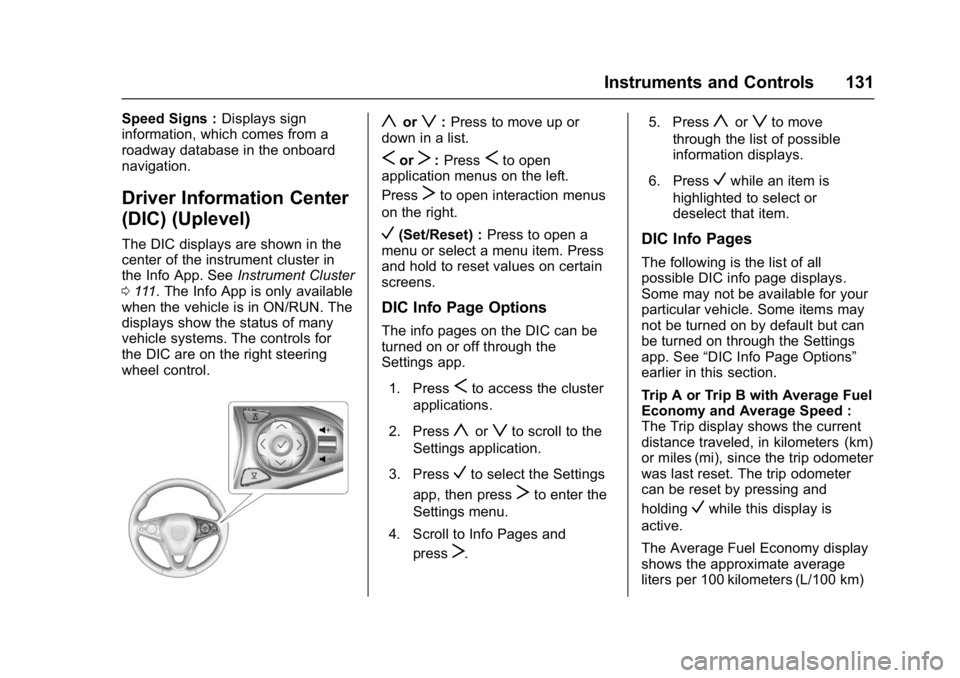
vehicle systems. The controls for
the DIC are on the right steering
wheel control.
yorz: Press to move up or
down in a list.
SorT: PressSto open
application menus on the left.
Press
Tto open interaction menus
on the right.
V(Set/Reset) : Press to open a
menu or select a menu item. Press
and hold to reset values on certain
screens.
DIC Info Page Options
The info pages on the DIC can be
turned on or off through the
Settings app.
1. Press
Sto access the cluster
applications.
2. Press
yorzto scroll to the
Settings application.
3. Press
Vto select the Settings
app, then press
Tto enter the
Settings menu.
4. Scroll to Info Pages and press
T. 5. Press
yorzto move
through the list of possible
information displays.
6. Press
Vwhile an item is
highlighted to select or
deselect that item.
DIC Info Pages
The following is the list of all
possible DIC info page displays.
Some may not be available for your
particular vehicle. Some items may
not be turned on by default but can
be turned on through the Settings
app. See “DIC Info Page Options”
earlier in this section.
Trip A or Trip B with Average Fuel
Economy and Average Speed :
The Trip display shows the current
distance traveled, in kilometers (km)
or miles (mi), since the trip odometer
was last reset. The trip odometer
can be reset by pressing and
holding
Vwhile this display is
active.
The Average Fuel Economy display
shows the approximate average
liters per 100 kilometers (L/100 km)
Page 133 of 432
Buick Envision Owner Manual (GMNA-Localizing-U.S./Canada/Mexico-
8534310) - 2016 - crc - 2/29/16
132 Instruments and Controls
or miles per gallon (mpg). This
number is calculated based on the
number of L/100 km (mpg) recorded
since the last time this menu item
was reset. This number reflects only
the approximate average fuel
economy that the vehicle has right
now, and will change as driving
conditions change. The Average
Fuel Economy can be reset by
pressing and holding
Vwhile this
display is active.
The Average Speed display shows
the average speed of the vehicle in
kilometers per hour (km/h) or miles
per hour (mph). This average is
calculated based on the various
vehicle speeds recorded since the
last reset of this value. The average
speed can be reset by pressing and
holding
Vwhile this display is
active.
Fuel Range and Instantaneous
Fuel Economy : Displays the
approximate distance the vehicle
can be driven without refueling.
LOW will be displayed when the
vehicle is low on fuel. The fuel
range estimate is based on an average of the vehicle's fuel
economy over recent driving history
and the amount of fuel remaining in
the fuel tank.
Displays the current fuel economy in
liters per 100 kilometers (L/100 km)
or miles per gallon (mpg). This
number reflects only the
approximate fuel economy that the
vehicle has right now and changes
frequently as driving conditions
change.
Oil Life :
Displays an estimate of
the oil's remaining useful life.
If REMAINING OIL LIFE 99% is
displayed, that means 99% of the
current oil life remains.
When the remaining oil life is low,
the CHANGE ENGINE OIL SOON
message will appear on the display.
See Engine Oil Messages 0139.
The oil should be changed as soon
as possible. See Engine Oil0314.
In addition to the engine oil life
system monitoring the oil life,
additional maintenance is
recommended in the Maintenance
Schedule. See Maintenance
Schedule 0382. The Oil Life display must be reset
after each oil change. It will not
reset itself. Do not reset the Oil Life
display accidentally at any time
other than when the oil has just
been changed. It cannot be reset
accurately until the next oil change.
To reset the engine oil life system,
press and hold
Vfor several
seconds while the Oil Life display is
active. See Engine Oil Life
System 0316.
Tire Pressure : Displays the
approximate pressures of all four
tires. Tire pressure is displayed in
kilopascal (kPa) or pounds per
square inch (psi). If the pressure is
low, the value for that tire is shown
in amber. See Tire Pressure Monitor
System 0347 andTire Pressure
Monitor Operation 0348.
Fuel Economy : The right hand
side displays the best average fuel
economy (AFE) that is achieved for
a selected distance. The left hand
side displays a running average of
fuel economy for the most recently
traveled selected distance. The
center bar graph displays the
Page 134 of 432
Buick Envision Owner Manual (GMNA-Localizing-U.S./Canada/Mexico-
8534310) - 2016 - crc - 2/29/16
Instruments and Controls 133
instantaneous fuel economy.
Quickly press the
Vbutton to
display a page for selecting one of
the distance options. Move the up/
down arrow to choose the selection,
and
Vto change the setting. When
viewing best AFE, a several second
press and hold of
Vwill reset the
best value. The best value will show
“- - -“ until the selected distance has
been traveled. The display provides
feedback on how current driving
behavior in the bar graph affects the
running average in the left display
and how well recent driving
compares to the best that has been
achieved.
Speed Limit : Displays sign
information, which comes from a
roadway database in the onboard
navigation.
Follow Distance Indicator/Gap
Setting : The current follow time to
the vehicle ahead is displayed as a
time value on this page when ACC
is not engaged. When ACC has
been engaged, the Follow Distance
Indicator page switches to the Gap Setting page. This page shows the
current gap setting along with the
vehicle ahead indicator.
ECO Index :
The bar graph on the
left hand side provides feedback on
the efficiency of current driving
behavior. The graph shows
a percentage value that is based on
current fuel consumption compared
to what is expected from the vehicle
with good and bad driving habits.
Each box represents 10%, with all
boxes filled being 100%. More
economical driving will result in
being in the ECO box.
Instantaneous Fuel Economy is also
shown on the right hand side. This
display cannot be reset.
Blank Page : This page shows no
information.
Head-Up Display (HUD)
{Warning
If the HUD image is too bright or
too high in your field of view, it
may take you more time to see
(Continued)
Warning (Continued)
things you need to see when it is
dark outside. Be sure to keep the
HUD image dim and placed low in
your field of view.
If equipped with HUD, some
information concerning the
operation of the vehicle is projected
onto the windshield. The image is
projected through the HUD lens on
top of the instrument panel. The
information appears as an image
focused out toward the front of the
vehicle.
Caution
If you try to use the HUD image
as a parking aid, you may
misjudge the distance and
damage your vehicle. Do not use
the HUD image as a parking aid.
The HUD information can be
displayed in various languages in
some vehicles. The speedometer
Page 140 of 432
Buick Envision Owner Manual (GMNA-Localizing-U.S./Canada/Mexico-
8534310) - 2016 - crc - 2/29/16
Instruments and Controls 139
HOOD OPEN
This message displays and a chime
may sound if the hood is not fully
closed. Stop and turn off the
vehicle, check the hood for
obstructions, and close the hood
again. Check to see if the message
still appears on the DIC.
REAR ACCESS OPEN
This message will display when the
liftgate is open. Close the liftgate
completely.
Engine Cooling System
Messages
A/C OFF DUE TO HIGH
ENGINE TEMP
This message displays when the
engine coolant becomes hotter than
the normal operating temperature.
To avoid added strain on a hot
engine, the air conditioning
compressor automatically turns off.
When the coolant temperature
returns to normal, the airconditioning compressor turns back
on. The vehicle can continue to be
driven.
If this message continues to appear,
have the system repaired by your
dealer as soon as possible to avoid
damage to the engine.
ENGINE OVERHEATED
—
IDLE ENGINE
This message displays when the
engine coolant temperature is too
hot. Stop and allow the vehicle to
idle until it cools down.
ENGINE OVERHEATED —
STOP ENGINE
This message displays and a
continuous chime sounds if the
engine cooling system reaches
unsafe temperatures for operation.
Stop and turn off the vehicle as
soon as it is safe to do so to avoid
severe damage. This message
clears when the engine has cooled
to a safe operating temperature.
HIGH COOLANT
TEMPERATURE
This message displays if the coolant
temperature is hot. See Engine
Overheating 0323.
Engine Oil Messages
CHANGE ENGINE OIL SOON
This message displays when the
engine oil needs to be changed.
When you change the engine oil, be
sure to reset the oil life system. See
Engine Oil Life System 0316, Driver
Information Center (DIC) (Base
Level) 0128 orDriver Information
Center (DIC) (Uplevel) 0131,
Engine Oil 0314, and Maintenance
Schedule 0382.
ENGINE OIL HOT, IDLE
ENGINE
This message displays when the
engine oil temperature is too hot.
Stop and allow the vehicle to idle
until it cools down.
Page 144 of 432

Buick Envision Owner Manual (GMNA-Localizing-U.S./Canada/Mexico-
8534310) - 2016 - crc - 2/29/16
Instruments and Controls 143
Ride Control System
Messages
AWD OFF
This message displays when the
All-Wheel Drive (AWD) System is
temporarily disabled. The system
may disable due to spare tire
installation or a driving condition
that could result in system damage.
The system does not require service
when this message is displayed.
The AWD system will resume
normal operation when driving
conditions permit. SeeAll-Wheel
Drive 0270.
SERVICE AWD
This message displays when there
is a problem with the All-Wheel
Drive (AWD) System. See your
dealer for service.
SERVICE TRACTION
CONTROL
This message displays when there
is a problem with the Traction
Control System (TCS). When this
message is displayed, the system will not limit wheel spin. Adjust your
driving accordingly. See your dealer
for service.
SERVICE STABILITRAK
This message displays if there is a
problem with the StabiliTrak system.
If this message appears, try to reset
the system. Stop; turn off the engine
for at least 15 seconds; then start
the engine again. If this message
still comes on, it means there is a
problem. See your dealer for
service. The vehicle is safe to drive;
however, you do not have the
benefit of StabiliTrak, so reduce
your speed and drive accordingly.
STABILITRAK INITIALIZING
This message may come on if the
StabiliTrak system has not fully
initialized because of road
conditions or the incorrect tire size.
When the StabiliTrak system is fully
initialized, the message will turn off.
See
Traction Control/Electronic
Stability Control 0273. If this
message continues to be displayed for multiple ignition cycles and on
different road surfaces, see your
dealer for service.
Airbag System Messages
SERVICE AIRBAG
This message displays if there is a
problem with the airbag system. See
your dealer for service.
Security Messages
THEFT ATTEMPTED
This message displays if the vehicle
detects a tamper condition.
Steering System
Messages
STEERING ASSIST IS
REDUCED
This message may display if a
problem occurs with the electric
power steering system. If this
message appears, steering effort
may be slightly higher than normal.
The vehicle is still safe to drive. Use
caution while in reduced assist
Page 165 of 432
Buick Envision Owner Manual (GMNA-Localizing-U.S./Canada/Mexico-
8534310) - 2016 - crc - 2/29/16
164 Infotainment System
Introduction
Overview
Introduction
Read the following pages to
become familiar with the
infotainment system features.
{Warning
Taking your eyes off the road for
too long or too often while using
any infotainment feature can
cause a crash. You or others
could be injured or killed. Do not
give extended attention to
infotainment tasks while driving.
Limit your glances at the vehicle
displays and focus your attention
on driving. Use voice commands
whenever possible.The infotainment system has built-in
features intended to help avoid
distraction by disabling some
functions when driving. These
functions may gray out when they
are unavailable. Many infotainment
features are also available through
the instrument cluster and steering
wheel controls.
Before driving:
.
Become familiar with the
operation, faceplate buttons, and
screen buttons.
. Set up the audio by presetting
favorite stations, setting the
tone, and adjusting the
speakers. .
Set up phone numbers in
advance so they can be called
easily by pressing a single
button or by using a single voice
command if equipped with
Bluetooth phone capability.
See Defensive Driving 0249.
To play the infotainment system with
the ignition off, see Retained
Accessory Power (RAP) 0264.
Page 172 of 432
Buick Envision Owner Manual (GMNA-Localizing-U.S./Canada/Mexico-
8534310) - 2016 - crc - 2/29/16
Infotainment System 171
Auto Volume (If Equipped) :This
feature adjusts the volume based on
vehicle speed. The options are OFF,
Low, Medium - Low, Medium,
Medium - High, or High. Press
q
BACK on the faceplate or touch the
Back screen button to go back to
the previous menu.
Bose AudioPilot Noise
Compensation Technology (If
Equipped) : This feature adjusts
the volume based on the noise in
the vehicle and the speed. When
turned on, AudioPilot technology
detects noise and vehicle speed to
continuously adjust the audio signal
so that music will sound the same at
a set volume level. This feature is
most effective at lower radio volume
settings where background noise
can affect how well the music is
being played. See www.bose.com/
audiopilot. This feature can be
turned on or off. Press
qBACK on
the faceplate or touch the Back
screen button to go back to the
previous menu. HD Radio™
:For AM and FM only,
touch to turn HD reception on or off.
Touch the Back screen button to go
back to the previous menu.
EQ (Equalizer) : If equipped with a
Bose Sound System, the available
choices are Manual and Talk.
Update Station List : For AM and
FM only, touch to update the station
list. Press
qBACK on the faceplate
or touch the Back screen button to
go back to the previous menu.
Finding a Station
Seeking a Station
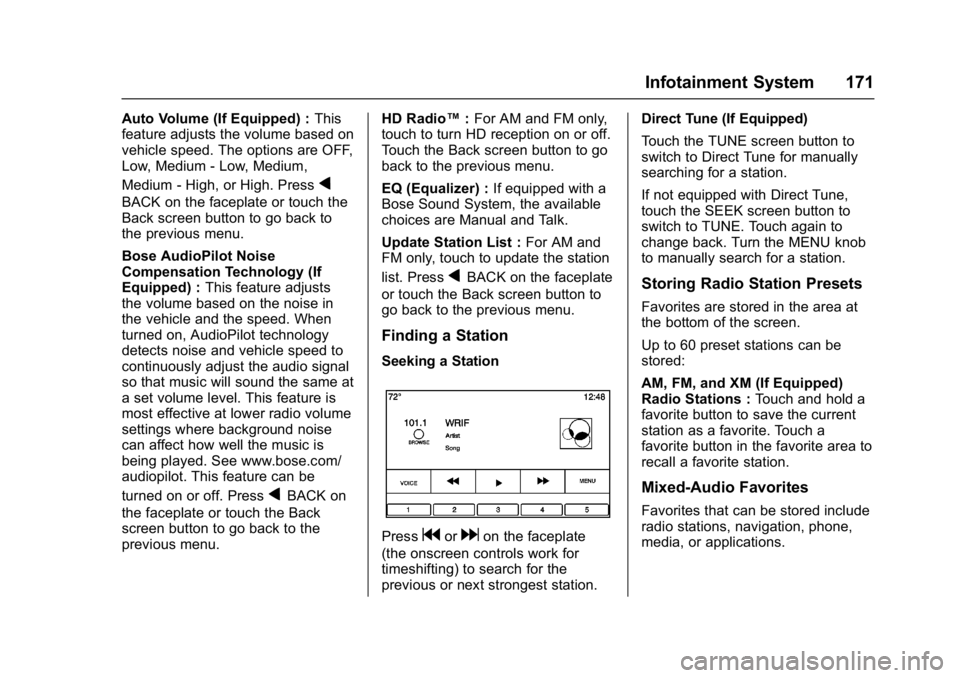
Pressgordon the faceplate
(the onscreen controls work for
timeshifting) to search for the
previous or next strongest station. Direct Tune (If Equipped)
Touch the TUNE screen button to
switch to Direct Tune for manually
searching for a station.
If not equipped with Direct Tune,
touch the SEEK screen button to
switch to TUNE. Touch again to
change back. Turn the MENU knob
to manually search for a station.
Storing Radio Station Presets
Favorites are stored in the area at
the bottom of the screen.
Up to 60 preset stations can be
stored:
AM, FM, and XM (If Equipped)
Radio Stations :
Touch and hold a
favorite button to save the current
station as a favorite. Touch a
favorite button in the favorite area to
recall a favorite station.
Mixed-Audio Favorites
Favorites that can be stored include
radio stations, navigation, phone,
media, or applications.
Page 173 of 432
Buick Envision Owner Manual (GMNA-Localizing-U.S./Canada/Mexico-
8534310) - 2016 - crc - 2/29/16
172 Infotainment System
To scroll through the favorites:
.Drag anywhere on the screen
buttons along the bottom to raise
up the favorites. To close the
favorites, drag them down.
. Slide a finger to the right or left
to scroll through each page of
favorites.
Tone Settings : Touch and hold a
Favorite button to save the current
tone settings as a favorite in the
tone settings screen. Touch the
reveal tab on the bottom of the
screen to display Favorites. Touch a
screen button in the favorite area to
recall a favorite tone setting.
The number of favorites displayed is
automatically adjusted by default,
but can be manually adjusted in the
Settings menu under Radio and
then Manage Favorites.Timeshifting (If Equipped)
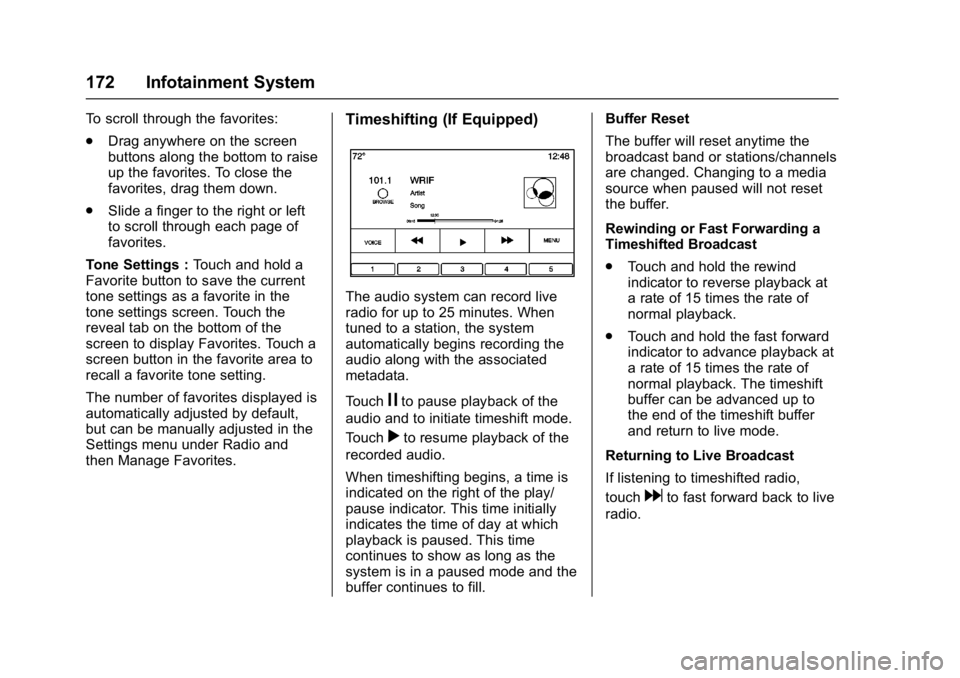
The audio system can record live
radio for up to 25 minutes. When
tuned to a station, the system
automatically begins recording the
audio along with the associated
metadata.
Touch
jto pause playback of the
audio and to initiate timeshift mode.
Touch
rto resume playback of the
recorded audio.
When timeshifting begins, a time is
indicated on the right of the play/
pause indicator. This time initially
indicates the time of day at which
playback is paused. This time
continues to show as long as the
system is in a paused mode and the
buffer continues to fill. Buffer Reset
The buffer will reset anytime the
broadcast band or stations/channels
are changed. Changing to a media
source when paused will not reset
the buffer.
Rewinding or Fast Forwarding a
Timeshifted Broadcast
.
Touch and hold the rewind
indicator to reverse playback at
a rate of 15 times the rate of
normal playback.
. Touch and hold the fast forward
indicator to advance playback at
a rate of 15 times the rate of
normal playback. The timeshift
buffer can be advanced up to
the end of the timeshift buffer
and return to live mode.
Returning to Live Broadcast
If listening to timeshifted radio,
touch
dto fast forward back to live
radio.
Page 193 of 432
Buick Envision Owner Manual (GMNA-Localizing-U.S./Canada/Mexico-
8534310) - 2016 - crc - 2/29/16
192 Infotainment System
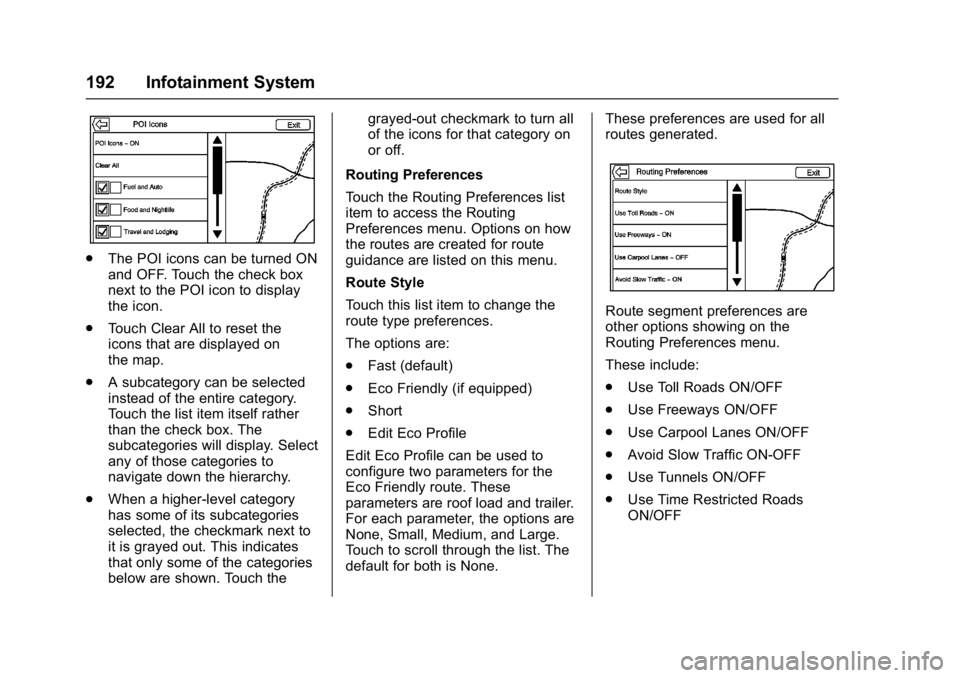
.The POI icons can be turned ON
and OFF. Touch the check box
next to the POI icon to display
the icon.
. Touch Clear All to reset the
icons that are displayed on
the map.
. A subcategory can be selected
instead of the entire category.
Touch the list item itself rather
than the check box. The
subcategories will display. Select
any of those categories to
navigate down the hierarchy.
. When a higher-level category
has some of its subcategories
selected, the checkmark next to
it is grayed out. This indicates
that only some of the categories
below are shown. Touch the grayed-out checkmark to turn all
of the icons for that category on
or off.
Routing Preferences
Touch the Routing Preferences list
item to access the Routing
Preferences menu. Options on how
the routes are created for route
guidance are listed on this menu.
Route Style
Touch this list item to change the
route type preferences.
The options are:
. Fast (default)
. Eco Friendly (if equipped)
. Short
. Edit Eco Profile
Edit Eco Profile can be used to
configure two parameters for the
Eco Friendly route. These
parameters are roof load and trailer.
For each parameter, the options are
None, Small, Medium, and Large.
Touch to scroll through the list. The
default for both is None. These preferences are used for all
routes generated.
Route segment preferences are
other options showing on the
Routing Preferences menu.
These include:
.
Use Toll Roads ON/OFF
. Use Freeways ON/OFF
. Use Carpool Lanes ON/OFF
. Avoid Slow Traffic ON-OFF
. Use Tunnels ON/OFF
. Use Time Restricted Roads
ON/OFF
Page 195 of 432
Buick Envision Owner Manual (GMNA-Localizing-U.S./Canada/Mexico-
8534310) - 2016 - crc - 2/29/16
194 Infotainment System
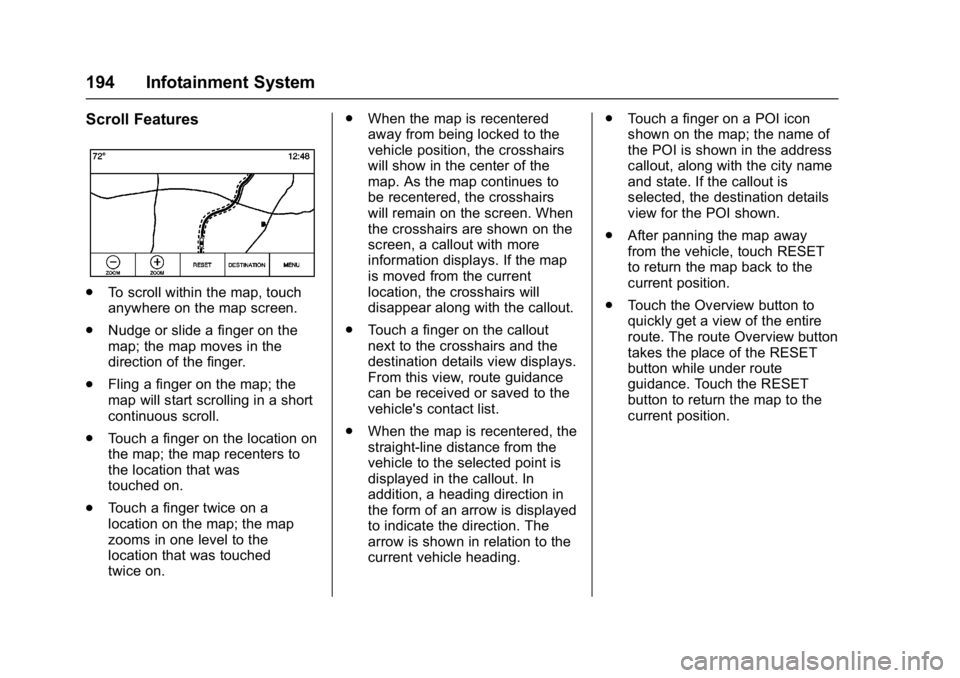
Scroll Features
.To scroll within the map, touch
anywhere on the map screen.
. Nudge or slide a finger on the
map; the map moves in the
direction of the finger.
. Fling a finger on the map; the
map will start scrolling in a short
continuous scroll.
. Touch a finger on the location on
the map; the map recenters to
the location that was
touched on.
. Touch a finger twice on a
location on the map; the map
zooms in one level to the
location that was touched
twice on. .
When the map is recentered
away from being locked to the
vehicle position, the crosshairs
will show in the center of the
map. As the map continues to
be recentered, the crosshairs
will remain on the screen. When
the crosshairs are shown on the
screen, a callout with more
information displays. If the map
is moved from the current
location, the crosshairs will
disappear along with the callout.
. Touch a finger on the callout
next to the crosshairs and the
destination details view displays.
From this view, route guidance
can be received or saved to the
vehicle's contact list.
. When the map is recentered, the
straight-line distance from the
vehicle to the selected point is
displayed in the callout. In
addition, a heading direction in
the form of an arrow is displayed
to indicate the direction. The
arrow is shown in relation to the
current vehicle heading. .
Touch a finger on a POI icon
shown on the map; the name of
the POI is shown in the address
callout, along with the city name
and state. If the callout is
selected, the destination details
view for the POI shown.
. After panning the map away
from the vehicle, touch RESET
to return the map back to the
current position.
. Touch the Overview button to
quickly get a view of the entire
route. The route Overview button
takes the place of the RESET
button while under route
guidance. Touch the RESET
button to return the map to the
current position.