wheel BUICK ENVISION 2016 Owner's Guide
[x] Cancel search | Manufacturer: BUICK, Model Year: 2016, Model line: ENVISION, Model: BUICK ENVISION 2016Pages: 432, PDF Size: 5.68 MB
Page 124 of 432
Buick Envision Owner Manual (GMNA-Localizing-U.S./Canada/Mexico-
8534310) - 2016 - crc - 2/29/16
Instruments and Controls 123
antilock brakes and there is a
problem with the regular brakes.
SeeBrake System Warning
Light 0121.
See Brake System Messages 0137
for all brake-related DIC messages.
Lane Keep Assist (LKA)
Light
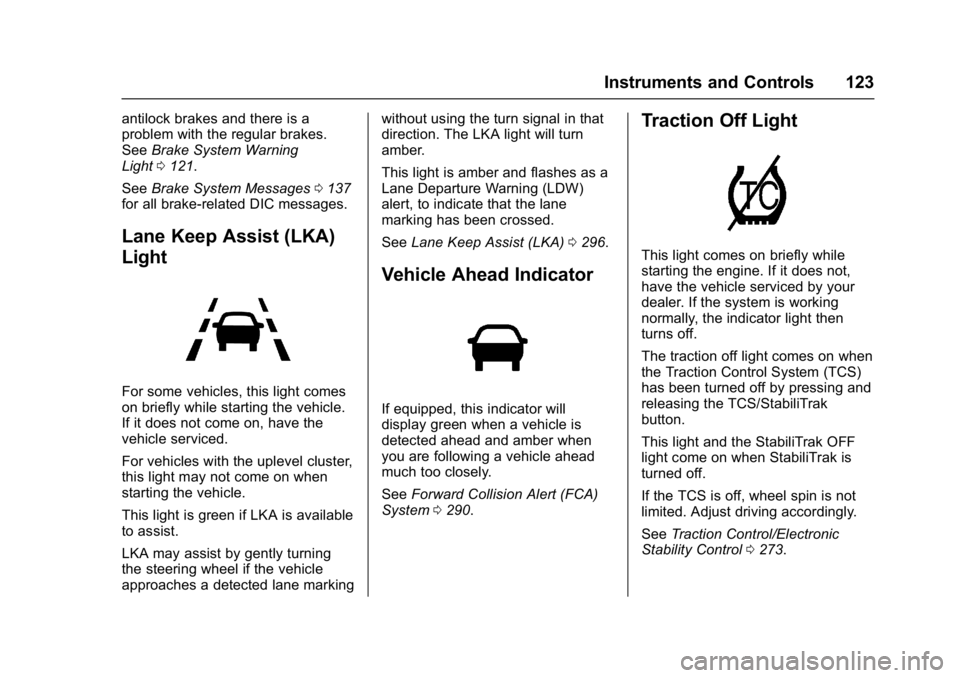
For some vehicles, this light comes
on briefly while starting the vehicle.
If it does not come on, have the
vehicle serviced.
For vehicles with the uplevel cluster,
this light may not come on when
starting the vehicle.
This light is green if LKA is available
to assist.
LKA may assist by gently turning
the steering wheel if the vehicle
approaches a detected lane marking without using the turn signal in that
direction. The LKA light will turn
amber.
This light is amber and flashes as a
Lane Departure Warning (LDW)
alert, to indicate that the lane
marking has been crossed.
See
Lane Keep Assist (LKA) 0296.
Vehicle Ahead Indicator
If equipped, this indicator will
display green when a vehicle is
detected ahead and amber when
you are following a vehicle ahead
much too closely.
See Forward Collision Alert (FCA)
System 0290.
Traction Off Light
This light comes on briefly while
starting the engine. If it does not,
have the vehicle serviced by your
dealer. If the system is working
normally, the indicator light then
turns off.
The traction off light comes on when
the Traction Control System (TCS)
has been turned off by pressing and
releasing the TCS/StabiliTrak
button.
This light and the StabiliTrak OFF
light come on when StabiliTrak is
turned off.
If the TCS is off, wheel spin is not
limited. Adjust driving accordingly.
See Traction Control/Electronic
Stability Control 0273.
Page 129 of 432
Buick Envision Owner Manual (GMNA-Localizing-U.S./Canada/Mexico-
8534310) - 2016 - crc - 2/29/16
128 Instruments and Controls
Door Ajar Light
For vehicles equipped with this light,
it comes on when a door is open or
not securely latched. Before driving,
check that all doors are properly
closed. SeeDoor Ajar Messages
0 138 for more information.
Information Displays
Driver Information Center
(DIC) (Base Level)
The DIC displays are shown in the
center of the instrument cluster in
the Info App. See Instrument Cluster
0 111. The Info App is only available
when the vehicle is in ON/RUN. The
displays show the status of many
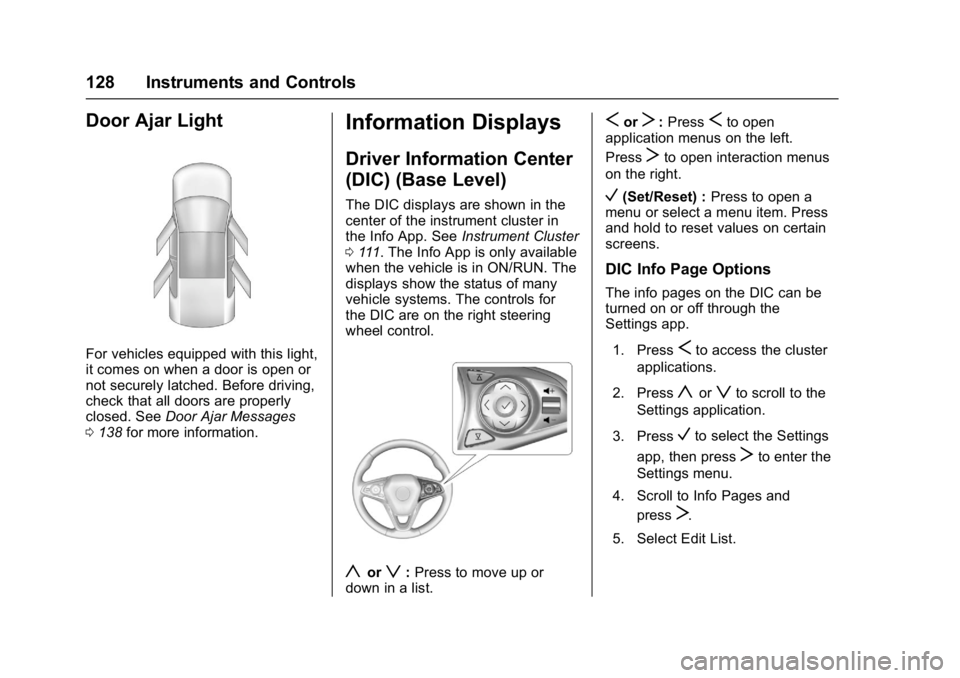
vehicle systems. The controls for
the DIC are on the right steering
wheel control.
yorz: Press to move up or
down in a list.
SorT: PressSto open
application menus on the left.
Press
Tto open interaction menus
on the right.
V(Set/Reset) : Press to open a
menu or select a menu item. Press
and hold to reset values on certain
screens.
DIC Info Page Options
The info pages on the DIC can be
turned on or off through the
Settings app.
1. Press
Sto access the cluster
applications.
2. Press
yorzto scroll to the
Settings application.
3. Press
Vto select the Settings
app, then press
Tto enter the
Settings menu.
4. Scroll to Info Pages and press
T.
5. Select Edit List.
Page 132 of 432
Buick Envision Owner Manual (GMNA-Localizing-U.S./Canada/Mexico-
8534310) - 2016 - crc - 2/29/16
Instruments and Controls 131
Speed Signs :Displays sign
information, which comes from a
roadway database in the onboard
navigation.
Driver Information Center
(DIC) (Uplevel)
The DIC displays are shown in the
center of the instrument cluster in
the Info App. See Instrument Cluster
0 111. The Info App is only available
when the vehicle is in ON/RUN. The
displays show the status of many
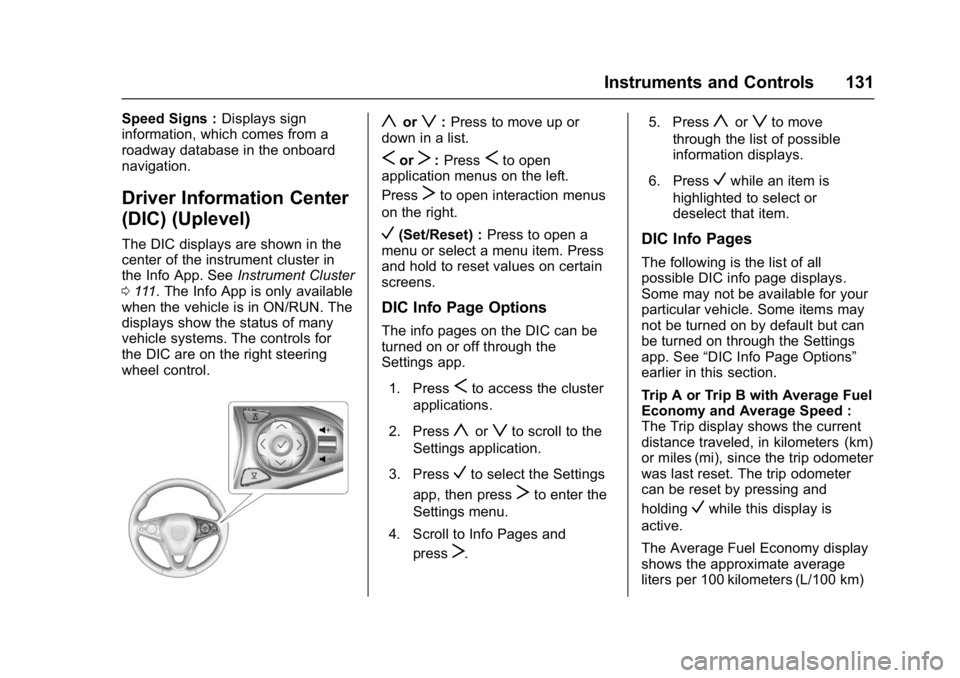
vehicle systems. The controls for
the DIC are on the right steering
wheel control.
yorz: Press to move up or
down in a list.
SorT: PressSto open
application menus on the left.
Press
Tto open interaction menus
on the right.
V(Set/Reset) : Press to open a
menu or select a menu item. Press
and hold to reset values on certain
screens.
DIC Info Page Options
The info pages on the DIC can be
turned on or off through the
Settings app.
1. Press
Sto access the cluster
applications.
2. Press
yorzto scroll to the
Settings application.
3. Press
Vto select the Settings
app, then press
Tto enter the
Settings menu.
4. Scroll to Info Pages and press
T. 5. Press
yorzto move
through the list of possible
information displays.
6. Press
Vwhile an item is
highlighted to select or
deselect that item.
DIC Info Pages
The following is the list of all
possible DIC info page displays.
Some may not be available for your
particular vehicle. Some items may
not be turned on by default but can
be turned on through the Settings
app. See “DIC Info Page Options”
earlier in this section.
Trip A or Trip B with Average Fuel
Economy and Average Speed :
The Trip display shows the current
distance traveled, in kilometers (km)
or miles (mi), since the trip odometer
was last reset. The trip odometer
can be reset by pressing and
holding
Vwhile this display is
active.
The Average Fuel Economy display
shows the approximate average
liters per 100 kilometers (L/100 km)
Page 135 of 432
Buick Envision Owner Manual (GMNA-Localizing-U.S./Canada/Mexico-
8534310) - 2016 - crc - 2/29/16
134 Instruments and Controls
reading and other numerical values
can be displayed in either English or
metric units.
The language selection is changed
through the radio and the units of
measurement is changed through
the instrument cluster. SeeVehicle
Personalization 0146 and“Cluster
Menu” underInstrument
Cluster 0111.
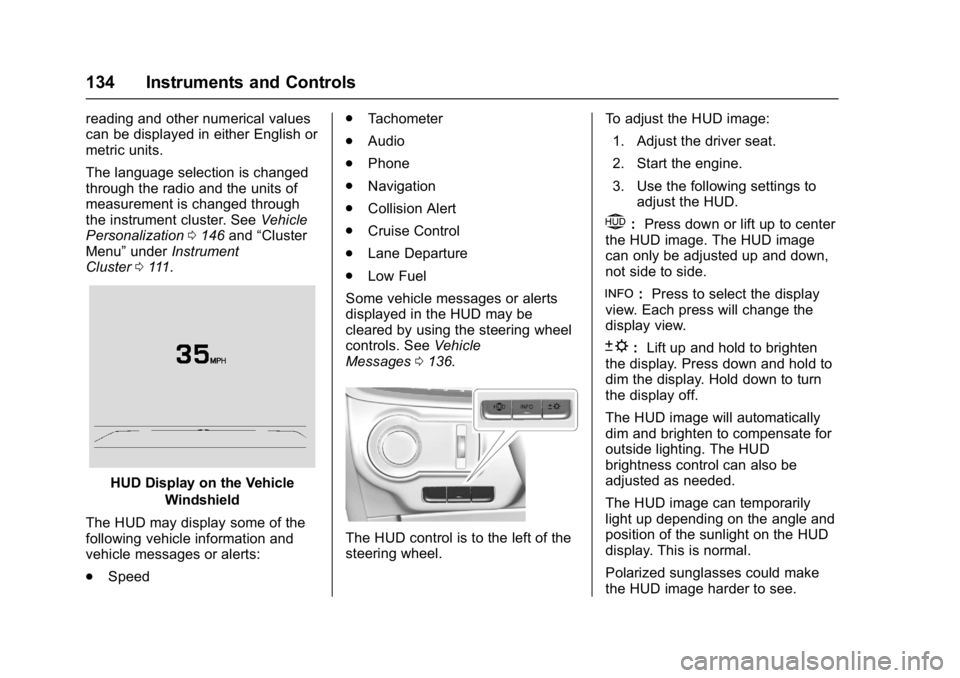
HUD Display on the Vehicle
Windshield
The HUD may display some of the
following vehicle information and
vehicle messages or alerts:
. Speed .
Tachometer
. Audio
. Phone
. Navigation
. Collision Alert
. Cruise Control
. Lane Departure
. Low Fuel
Some vehicle messages or alerts
displayed in the HUD may be
cleared by using the steering wheel
controls. See Vehicle
Messages 0136.
The HUD control is to the left of the
steering wheel. To adjust the HUD image:
1. Adjust the driver seat.
2. Start the engine.
3. Use the following settings to adjust the HUD.
$:Press down or lift up to center
the HUD image. The HUD image
can only be adjusted up and down,
not side to side.
!: Press to select the display
view. Each press will change the
display view.
D: Lift up and hold to brighten
the display. Press down and hold to
dim the display. Hold down to turn
the display off.
The HUD image will automatically
dim and brighten to compensate for
outside lighting. The HUD
brightness control can also be
adjusted as needed.
The HUD image can temporarily
light up depending on the angle and
position of the sunlight on the HUD
display. This is normal.
Polarized sunglasses could make
the HUD image harder to see.
Page 136 of 432
Buick Envision Owner Manual (GMNA-Localizing-U.S./Canada/Mexico-
8534310) - 2016 - crc - 2/29/16
Instruments and Controls 135
HUD Views
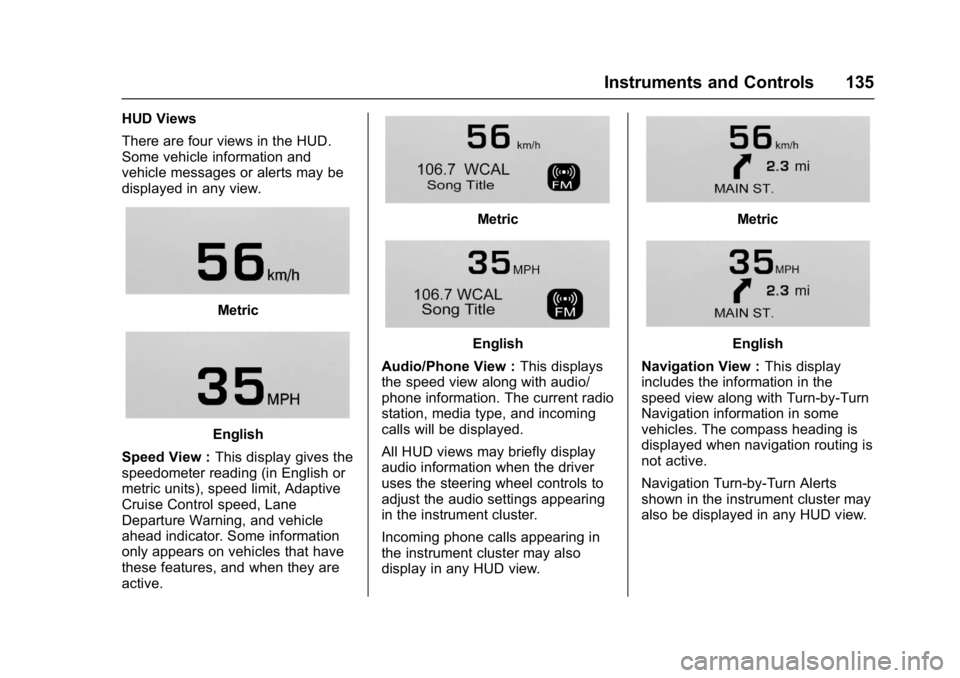
There are four views in the HUD.
Some vehicle information and
vehicle messages or alerts may be
displayed in any view.
Metric
English
Speed View : This display gives the
speedometer reading (in English or
metric units), speed limit, Adaptive
Cruise Control speed, Lane
Departure Warning, and vehicle
ahead indicator. Some information
only appears on vehicles that have
these features, and when they are
active.
Metric
English
Audio/Phone View : This displays
the speed view along with audio/
phone information. The current radio
station, media type, and incoming
calls will be displayed.
All HUD views may briefly display
audio information when the driver
uses the steering wheel controls to
adjust the audio settings appearing
in the instrument cluster.
Incoming phone calls appearing in
the instrument cluster may also
display in any HUD view.
Metric
English
Navigation View : This display
includes the information in the
speed view along with Turn-by-Turn
Navigation information in some
vehicles. The compass heading is
displayed when navigation routing is
not active.
Navigation Turn-by-Turn Alerts
shown in the instrument cluster may
also be displayed in any HUD view.
Page 143 of 432
Buick Envision Owner Manual (GMNA-Localizing-U.S./Canada/Mexico-
8534310) - 2016 - crc - 2/29/16
142 Instruments and Controls
This message could be due to the
camera being blocked. Cleaning the
outside of the windshield behind the
rearview mirror may correct the
issue.
PARK ASSIST OFF
This message displays when the
Parking Assist system has been
turned off or when there is a
temporary condition causing the
system to be disabled.
SERVICE AUTOMATIC
COLLISION PREP
If this message displays, take the
vehicle to your dealer to repair the
system. Adaptive Cruise Control
(ACC), Forward Collision Alert
(FCA), and/or the Front Automatic
Braking (FAB) System may not
work. Do not use these systems
until the vehicle has been repaired.
SERVICE DRIVER ASSIST
SYSTEM
If this message displays, take the
vehicle to your dealer to repair the
system.Adaptive Cruise Control (ACC),
Forward Collision Alert (FCA), Front
Automatic Braking (FAB) System,
Assistance Systems for Parking or
Backing, and/or Lane Keep Assist
(LKA) may not work. Do not use
these systems until the vehicle has
been repaired.
SERVICE FRONT CAMERA
If this message remains on after
continued driving, take the vehicle
to your dealer for service. Do not
use the Lane Keep Assist (LKA),
Lane Departure Warning (LDW),
and Forward Collision Alert (FCA)
features.
SERVICE PARK ASSIST
This message displays if there is a
problem with the Parking Assist
system. Do not use this system to
help you park. See your dealer for
service.
SERVICE SIDE DETECTION
SYSTEM
If this message remains on after
continued driving, the vehicle needs
service. Side Blind Zone Alert(SBZA), Lane Change Alert (LCA),
and Rear Cross Traffic Alert (RCTA)
features will not work. Take the
vehicle to your dealer.
SIDE DETECTION SYSTEM
UNAVAILABLE
This message indicates that Side
Blind Zone Alert (SBZA), Lane
Change Alert (LCA), and Rear
Cross Traffic Alert (RCTA) are
disabled either because the sensor
is blocked and cannot detect
vehicles in the blind zone, or the
vehicle is passing through an open
area, such as the desert, where
there is insufficient data for
operation. This message may also
activate during heavy rain or due to
road spray. The vehicle does not
need service. For cleaning, see
"Washing the Vehicle" under
Exterior Care
0371.
TAKE STEERING
If LKA does not detect active driver
steering, an alert and chime may be
provided. Move the steering wheel
to dismiss. See Lane Keep Assist
(LKA) 0296.
Page 144 of 432

Buick Envision Owner Manual (GMNA-Localizing-U.S./Canada/Mexico-
8534310) - 2016 - crc - 2/29/16
Instruments and Controls 143
Ride Control System
Messages
AWD OFF
This message displays when the
All-Wheel Drive (AWD) System is
temporarily disabled. The system
may disable due to spare tire
installation or a driving condition
that could result in system damage.
The system does not require service
when this message is displayed.
The AWD system will resume
normal operation when driving
conditions permit. SeeAll-Wheel
Drive 0270.
SERVICE AWD
This message displays when there
is a problem with the All-Wheel
Drive (AWD) System. See your
dealer for service.
SERVICE TRACTION
CONTROL
This message displays when there
is a problem with the Traction
Control System (TCS). When this
message is displayed, the system will not limit wheel spin. Adjust your
driving accordingly. See your dealer
for service.
SERVICE STABILITRAK
This message displays if there is a
problem with the StabiliTrak system.
If this message appears, try to reset
the system. Stop; turn off the engine
for at least 15 seconds; then start
the engine again. If this message
still comes on, it means there is a
problem. See your dealer for
service. The vehicle is safe to drive;
however, you do not have the
benefit of StabiliTrak, so reduce
your speed and drive accordingly.
STABILITRAK INITIALIZING
This message may come on if the
StabiliTrak system has not fully
initialized because of road
conditions or the incorrect tire size.
When the StabiliTrak system is fully
initialized, the message will turn off.
See
Traction Control/Electronic
Stability Control 0273. If this
message continues to be displayed for multiple ignition cycles and on
different road surfaces, see your
dealer for service.
Airbag System Messages
SERVICE AIRBAG
This message displays if there is a
problem with the airbag system. See
your dealer for service.
Security Messages
THEFT ATTEMPTED
This message displays if the vehicle
detects a tamper condition.
Steering System
Messages
STEERING ASSIST IS
REDUCED
This message may display if a
problem occurs with the electric
power steering system. If this
message appears, steering effort
may be slightly higher than normal.
The vehicle is still safe to drive. Use
caution while in reduced assist
Page 156 of 432
Buick Envision Owner Manual (GMNA-Localizing-U.S./Canada/Mexico-
8534310) - 2016 - crc - 2/29/16
Lighting 155
Lighting
Exterior Lighting
Exterior Lamp Controls . . . . . . . 155
Exterior Lamps OffReminder . . . . . . . . . . . . . . . . . . . 157
Headlamp High/Low-Beam Changer . . . . . . . . . . . . . . . . . . . . 157
Flash-to-Pass . . . . . . . . . . . . . . . . 157
Daytime Running Lamps (DRL) . . . . . . . . . . . . . . . 157
Automatic Headlamp System . . . . . . . . . . . . . . . . . . . . . . 157
Adaptive Forward Lighting (AFL) . . . . . . . . . . . . . . . 158
Headlamp Leveling Control . . . 158
Hazard Warning Flashers . . . . . 159
Turn and Lane-Change Signals . . . . . . . . . . . . . . . . . . . . . . 159
Fog Lamps . . . . . . . . . . . . . . . . . . . 160
Interior Lighting
Instrument Panel Illumination
Control . . . . . . . . . . . . . . . . . . . . . . 160
Courtesy Lamps . . . . . . . . . . . . . . 160
Dome Lamps . . . . . . . . . . . . . . . . . 160
Reading Lamps . . . . . . . . . . . . . . 161
Lighting Features
Entry Lighting . . . . . . . . . . . . . . . . 161
Exit Lighting . . . . . . . . . . . . . . . . . . 162
Battery Power Protection . . . . . 162
Exterior Lighting Battery Saver . . . . . . . . . . . . . . . . . . . . . . . 162
Exterior Lighting
Exterior Lamp Controls
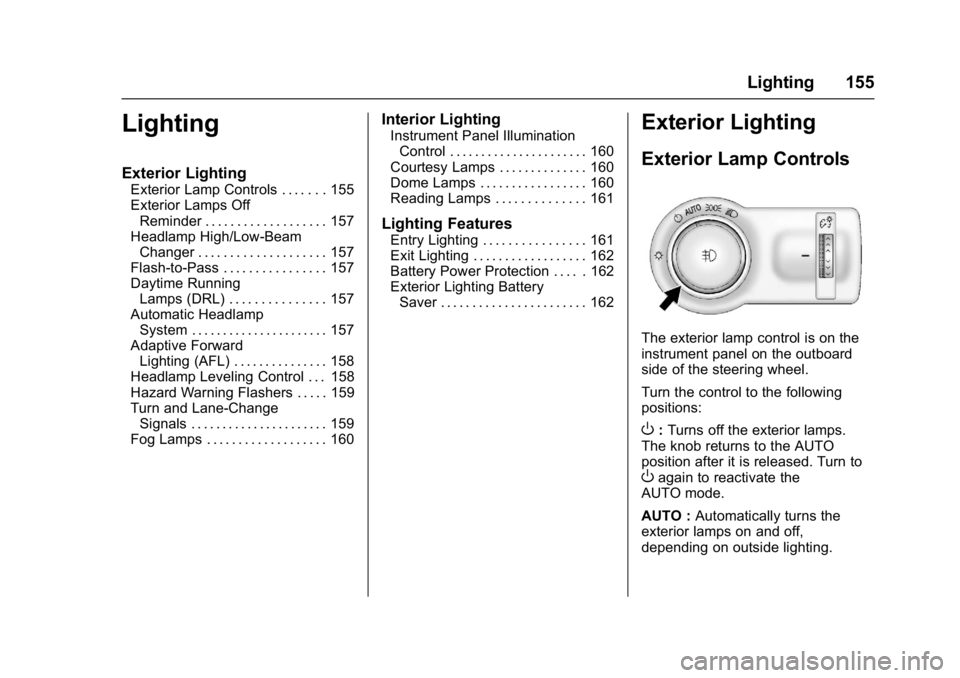
The exterior lamp control is on the
instrument panel on the outboard
side of the steering wheel.
Turn the control to the following
positions:
O: Turns off the exterior lamps.
The knob returns to the AUTO
position after it is released. Turn to
Oagain to reactivate the
AUTO mode.
AUTO : Automatically turns the
exterior lamps on and off,
depending on outside lighting.
Page 161 of 432

Buick Envision Owner Manual (GMNA-Localizing-U.S./Canada/Mexico-
8534310) - 2016 - crc - 2/29/16
160 Lighting
Fog Lamps
The ignition and the parking lamps
or headlamps must be on for the
front fog lamps to work.
#:If equipped, press to turn on or
off. An indicator light on the
instrument cluster comes on when
the fog lamps are on.
Some localities have laws that
require the headlamps to be on
along with the fog lamps.
Interior Lighting
Instrument Panel
Illumination Control
The brightness of the instrument
panel lighting and steering wheel
controls can be adjusted.
D: Move and hold the thumbwheel
up or down to brighten or dim the
lights.
Courtesy Lamps
The courtesy lamps come on when
any door is opened and the dome
lamp is in the
1position.
Dome Lamps
The dome lamp is in the overhead
console.
To change the dome lamp settings,
press:
*: Turns the lamp off, even when
a door is open.
1: The lamp comes on when a
door is opened.
+: Turns the lamp on.
Page 165 of 432
Buick Envision Owner Manual (GMNA-Localizing-U.S./Canada/Mexico-
8534310) - 2016 - crc - 2/29/16
164 Infotainment System
Introduction
Overview
Introduction
Read the following pages to
become familiar with the
infotainment system features.
{Warning
Taking your eyes off the road for
too long or too often while using
any infotainment feature can
cause a crash. You or others
could be injured or killed. Do not
give extended attention to
infotainment tasks while driving.
Limit your glances at the vehicle
displays and focus your attention
on driving. Use voice commands
whenever possible.The infotainment system has built-in
features intended to help avoid
distraction by disabling some
functions when driving. These
functions may gray out when they
are unavailable. Many infotainment
features are also available through
the instrument cluster and steering
wheel controls.
Before driving:
.
Become familiar with the
operation, faceplate buttons, and
screen buttons.
. Set up the audio by presetting
favorite stations, setting the
tone, and adjusting the
speakers. .
Set up phone numbers in
advance so they can be called
easily by pressing a single
button or by using a single voice
command if equipped with
Bluetooth phone capability.
See Defensive Driving 0249.
To play the infotainment system with
the ignition off, see Retained
Accessory Power (RAP) 0264.