instrument cluster BUICK ENVISION 2018 User Guide
[x] Cancel search | Manufacturer: BUICK, Model Year: 2018, Model line: ENVISION, Model: BUICK ENVISION 2018Pages: 365, PDF Size: 5.56 MB
Page 120 of 365
Buick Envision Owner Manual (GMNA-Localizing-U.S./Canada/Mexico-
11434432) - 2018 - CRC - 10/25/17
Instruments and Controls 119
Cluster Menu
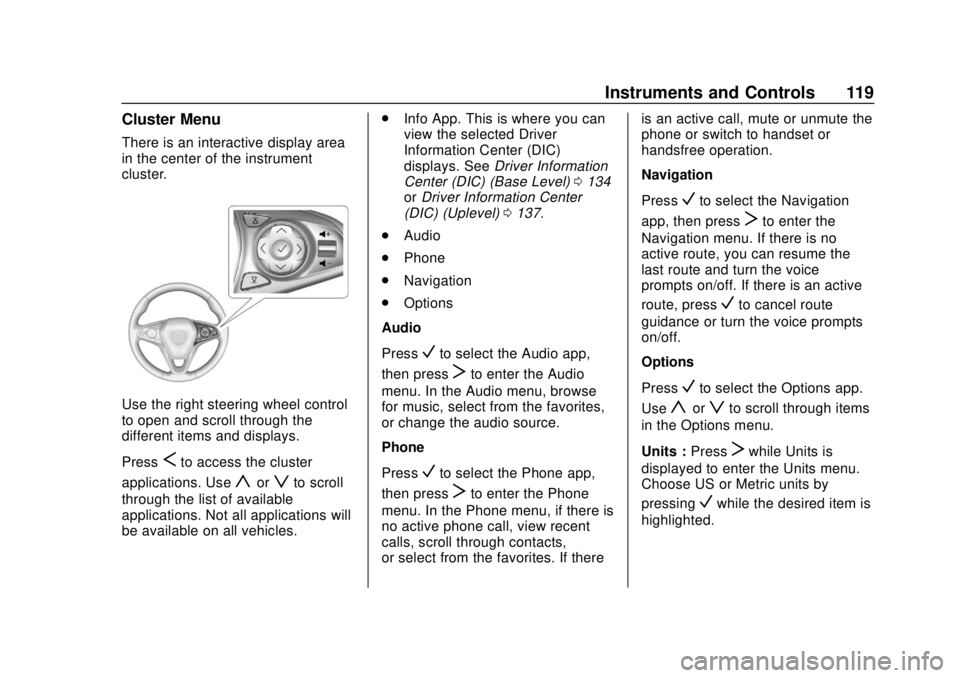
There is an interactive display area
in the center of the instrument
cluster.
Use the right steering wheel control
to open and scroll through the
different items and displays.
Press
Sto access the cluster
applications. Use
yorzto scroll
through the list of available
applications. Not all applications will
be available on all vehicles. .
Info App. This is where you can
view the selected Driver
Information Center (DIC)
displays. See Driver Information
Center (DIC) (Base Level) 0134
or Driver Information Center
(DIC) (Uplevel) 0137.
. Audio
. Phone
. Navigation
. Options
Audio
Press
Vto select the Audio app,
then press
Tto enter the Audio
menu. In the Audio menu, browse
for music, select from the favorites,
or change the audio source.
Phone
Press
Vto select the Phone app,
then press
Tto enter the Phone
menu. In the Phone menu, if there is
no active phone call, view recent
calls, scroll through contacts,
or select from the favorites. If there is an active call, mute or unmute the
phone or switch to handset or
handsfree operation.
Navigation
Press
Vto select the Navigation
app, then press
Tto enter the
Navigation menu. If there is no
active route, you can resume the
last route and turn the voice
prompts on/off. If there is an active
route, press
Vto cancel route
guidance or turn the voice prompts
on/off.
Options
Press
Vto select the Options app.
Use
yorzto scroll through items
in the Options menu.
Units : Press
Twhile Units is
displayed to enter the Units menu.
Choose US or Metric units by
pressing
Vwhile the desired item is
highlighted.
Page 121 of 365

Buick Envision Owner Manual (GMNA-Localizing-U.S./Canada/Mexico-
11434432) - 2018 - CRC - 10/25/17
120 Instruments and Controls
Info Pages :PressTwhile Info
Pages is displayed to enter the Info
Pages menu and select the items to
be displayed in the Info App.
See Driver Information Center (DIC)
(Base Level) 0134 orDriver
Information Center (DIC) (Uplevel)
0 137.
Speed Warning : The Speed
Warning display allows the driver to
set a speed that they do not want to
exceed. To set the Speed Warning,
press
Twhen Speed Warning is
displayed. Press
yorzto adjust
the value. Press
Vto set the speed.
Once the speed is set, this feature
can be turned off by pressing
V
while viewing this page. If the
selected speed limit is exceeded, a
pop-up warning is displayed with a
chime.
Head-up Display (HUD) Rotation :
This feature allows for adjusting the
angle of the HUD image. Press
V
on the steering wheel controls while
Head-up Display Rotation is
highlighted to enter Adjust Mode. Press
yorzto adjust the angle
of the HUD display. Press
SorTto
highlight OK, then press
Vto save
the setting. To cancel the setting,
select Cancel. The vehicle must be
in P (Park).
Software Information (Uplevel
Cluster) : Displays the open source
software information.
Speedometer
The speedometer shows the
vehicle's speed in either kilometers
per hour (km/h) or miles per
hour (mph).
Odometer
The odometer shows how far the
vehicle has been driven, in either
kilometers or miles.
Trip Odometer
The trip odometer shows how far
the vehicle has been driven since
the trip odometer was last reset. The trip odometer is accessed and
reset through the Driver Information
Center (DIC). See
Driver
Information Center (DIC) (Base
Level) 0134 orDriver Information
Center (DIC) (Uplevel) 0137.
Tachometer
The tachometer displays the engine
speed in revolutions per
minute (rpm).
For vehicles with the Stop/Start
system, when the ignition is on, the
tachometer indicates the vehicle
status. When pointing to AUTO
STOP, the engine is off but the
vehicle is on and can move. The
engine could auto start at any time.
When the indicator points to OFF,
the vehicle is off.
When the engine is on, the
tachometer will indicate the engine’s
revolutions per minute (rpm). The
tachometer may vary by several
hundred rpm’s, during Auto Stop
mode, when the engine is shutting
off and restarting.
Page 124 of 365

Buick Envision Owner Manual (GMNA-Localizing-U.S./Canada/Mexico-
11434432) - 2018 - CRC - 10/25/17
Instruments and Controls 123
Uplevel English
This gauge shows the engine
coolant temperature.
If the indicator needle moves to the
hot side of the gauge toward the
shaded area, the engine is too hot.
If the vehicle has been operated
under normal driving conditions, pull
off the road, stop the vehicle, and
turn off the engine as soon as
possible.
Seat Belt Reminders
Driver Seat Belt Reminder
Light
There is a driver seat belt reminder
light on the instrument cluster.
When the vehicle is started, this
light flashes and a chime may come
on to remind the driver to fasten
their seat belt. Then the light stays
on solid until the belt is buckled.
This cycle may continue several
times if the driver remains or
becomes unbuckled while the
vehicle is moving.
If the driver seat belt is buckled,
neither the light nor the chime
comes on.
Passenger Seat Belt Reminder
Light
The vehicle may also have a
passenger seat belt reminder light.
When the vehicle is started, this
light flashes and a chime may come
on to remind passengers to fasten
their seat belt. Then the light stays
on solid until the belt is buckled.
This cycle continues several times if
the front passenger remains or
becomes unbuckled while the
vehicle is moving.
If the front passenger seat belt is
buckled, neither the chime nor the
light comes on.
The front passenger seat belt
reminder light and chime may turn
on if an object is put on the seat
such as a briefcase, handbag,
grocery bag, laptop, or other
Page 130 of 365
Buick Envision Owner Manual (GMNA-Localizing-U.S./Canada/Mexico-
11434432) - 2018 - CRC - 10/25/17
Instruments and Controls 129
the engine again to reset the
system. If the ABS light stays on,
or comes on again while driving, the
vehicle needs service. A chime may
also sound when the light comes on
steady.
If the ABS light is the only light on,
the vehicle has regular brakes, but
the antilock brakes are not
functioning.
If both the ABS and the brake
system warning light are on, the
vehicle's antilock brakes are not
functioning and there is a problem
with the regular brakes. See your
dealer for service.
SeeBrake System Warning Light
0 127.Lane Keep Assist (LKA)
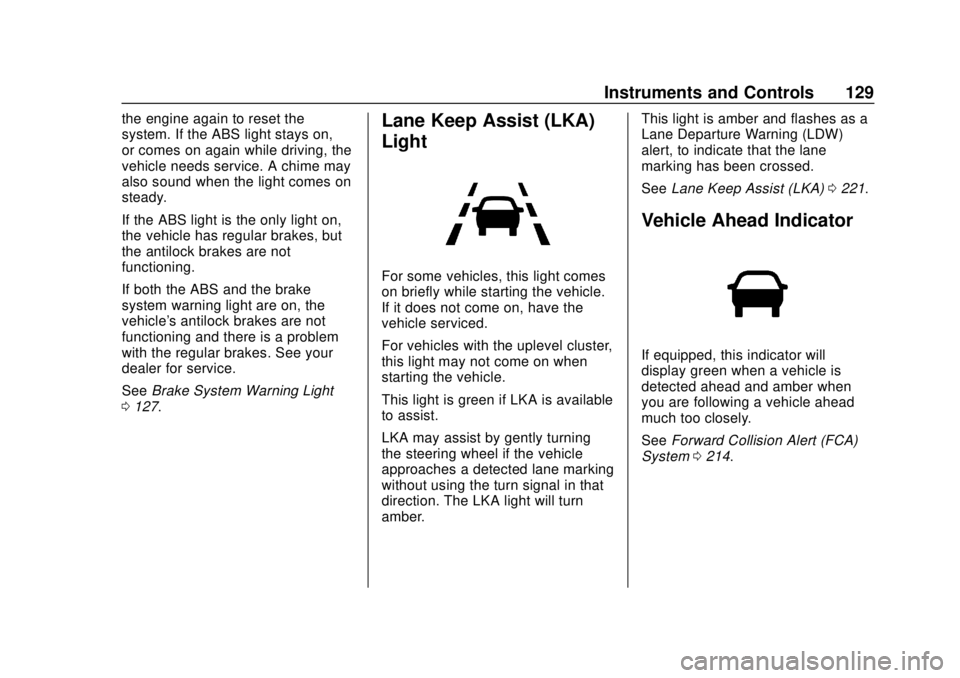
Light
For some vehicles, this light comes
on briefly while starting the vehicle.
If it does not come on, have the
vehicle serviced.
For vehicles with the uplevel cluster,
this light may not come on when
starting the vehicle.
This light is green if LKA is available
to assist.
LKA may assist by gently turning
the steering wheel if the vehicle
approaches a detected lane marking
without using the turn signal in that
direction. The LKA light will turn
amber. This light is amber and flashes as a
Lane Departure Warning (LDW)
alert, to indicate that the lane
marking has been crossed.
See
Lane Keep Assist (LKA) 0221.
Vehicle Ahead Indicator
If equipped, this indicator will
display green when a vehicle is
detected ahead and amber when
you are following a vehicle ahead
much too closely.
See Forward Collision Alert (FCA)
System 0214.
Page 134 of 365
Buick Envision Owner Manual (GMNA-Localizing-U.S./Canada/Mexico-
11434432) - 2018 - CRC - 10/25/17
Instruments and Controls 133
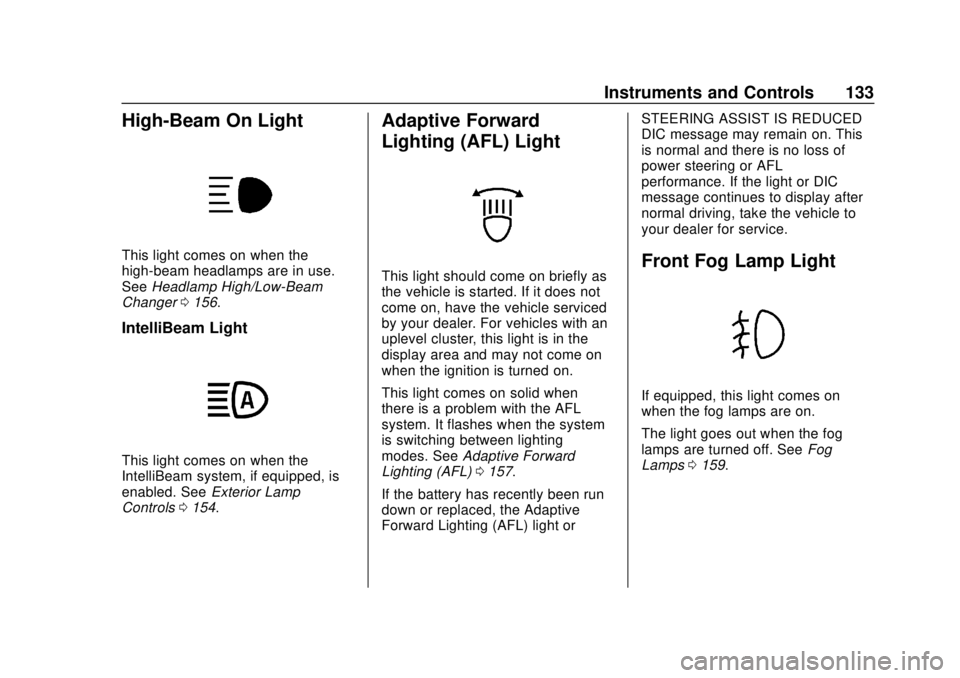
High-Beam On Light
This light comes on when the
high-beam headlamps are in use.
SeeHeadlamp High/Low-Beam
Changer 0156.
IntelliBeam Light
This light comes on when the
IntelliBeam system, if equipped, is
enabled. See Exterior Lamp
Controls 0154.
Adaptive Forward
Lighting (AFL) Light
This light should come on briefly as
the vehicle is started. If it does not
come on, have the vehicle serviced
by your dealer. For vehicles with an
uplevel cluster, this light is in the
display area and may not come on
when the ignition is turned on.
This light comes on solid when
there is a problem with the AFL
system. It flashes when the system
is switching between lighting
modes. See Adaptive Forward
Lighting (AFL) 0157.
If the battery has recently been run
down or replaced, the Adaptive
Forward Lighting (AFL) light or STEERING ASSIST IS REDUCED
DIC message may remain on. This
is normal and there is no loss of
power steering or AFL
performance. If the light or DIC
message continues to display after
normal driving, take the vehicle to
your dealer for service.Front Fog Lamp Light
If equipped, this light comes on
when the fog lamps are on.
The light goes out when the fog
lamps are turned off. See
Fog
Lamps 0159.
Page 135 of 365
Buick Envision Owner Manual (GMNA-Localizing-U.S./Canada/Mexico-
11434432) - 2018 - CRC - 10/25/17
134 Instruments and Controls
Lamps On Reminder
For vehicles with the lamps on
reminder light, it comes on when the
lights are in use.
Cruise Control Light
The cruise control light is white
when the cruise control is on and
ready, and turns green when the
cruise control is set and active.
SeeCruise Control 0199.
Adaptive Cruise Control Light
This light is white when the Adaptive
Cruise Control (ACC, if equipped) is
on and ready, and turns green when
the ACC is set and active. See
Adaptive Cruise Control 0201.
Door Ajar Light
For vehicles equipped with this light,
it comes on when a door is open or
not securely latched. Before driving,
check that all doors are properly
closed.
Information Displays
Driver Information Center
(DIC) (Base Level)
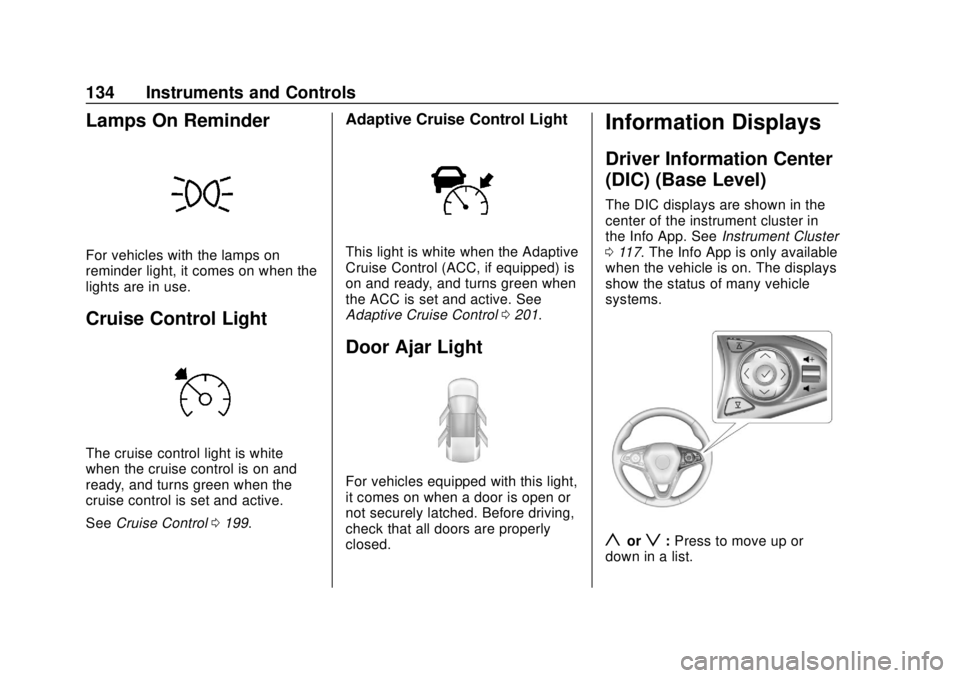
The DIC displays are shown in the
center of the instrument cluster in
the Info App. See Instrument Cluster
0 117. The Info App is only available
when the vehicle is on. The displays
show the status of many vehicle
systems.
yorz: Press to move up or
down in a list.
Page 136 of 365

Buick Envision Owner Manual (GMNA-Localizing-U.S./Canada/Mexico-
11434432) - 2018 - CRC - 10/25/17
Instruments and Controls 135
SorT:PressSto open
application menus on the left.
Press
Tto open interaction menus
on the right.
V: Press to open a menu or select
a menu item. Press and hold to
reset values on certain screens.
DIC Info Page Options
The info pages on the DIC can be
turned on or off through the
Options app.
1. Press
Sto access the cluster
applications.
2. Press
yorzto scroll to the
Options application.
3. Press
Vto select the Options
app, then press
Tto enter the
Options menu.
4. Scroll to Info Pages and press
T.
5. Select Edit List.
6. Press
yorzto move
through the list of possible
information displays. 7. Press
Vwhile an item is
highlighted to select or
deselect that item. When an
item is selected, a checkmark
will appear next to it.
DIC Info Pages
The following is the list of all
possible DIC info page displays.
Some may not be available for your
particular vehicle. Some items may
not be turned on by default but can
be turned on through the Options
app. See “DIC Info Page Options”
earlier in this section.
Current Speed : Displays the
vehicle speed in kilometers per
hour (km/h) or miles per hour (mph).
Trip A and Average Fuel Economy
or Trip B and Average Fuel
Economy : Shows the current
distance traveled, in kilometers (km)
or miles (mi), since the trip odometer
was last reset. The trip odometer
can be reset by pressing and
holding
Vwhile this display is
active. The Average Fuel Economy display
shows the approximate average
liters per 100 kilometers (L/100 km)
or miles per gallon (mpg). This
number is calculated based on the
number of L/100 km (mpg) recorded
since the last time this menu item
was reset. This number reflects only
the approximate average fuel
economy that the vehicle has right
now, and will change as driving
conditions change. The Average
Fuel Economy can be reset by
pressing and holding
Vwhile this
display is active.
Fuel Range and Instantaneous
Fuel Economy : Displays the
approximate distance the vehicle
can be driven without refueling.
LOW will be displayed when the
vehicle is low on fuel. The fuel
range estimate is based on an
average of the vehicle's fuel
economy over recent driving history
and the amount of fuel remaining in
the fuel tank.
Also displays the current fuel
economy in liters per
100 kilometers (L/100 km) or miles
Page 138 of 365

Buick Envision Owner Manual (GMNA-Localizing-U.S./Canada/Mexico-
11434432) - 2018 - CRC - 10/25/17
Instruments and Controls 137
Best Average Fuel Economy :The
right side displays the best average
fuel economy (AFE) that is achieved
for a selected distance. The left side
displays a running average of fuel
economy for the most recently
traveled selected distance. The
center bar graph displays the
instantaneous fuel economy.
Quickly press
Vto display a page
for selecting one of the distance
options. Move the up/down arrow to
choose the selection, and
Vto
change the setting. When viewing
best AFE, a several second press
and hold of
Vwill reset the best
value. The best value will show
“- - -” until the selected distance has
been traveled. The display provides
feedback on how current driving
behavior in the bar graph affects the
running average in the left display
and how well recent driving
compares to the best that has been
achieved.
Speed Signs : Displays sign
information, which comes from a
roadway database in the onboard
navigation.
Driver Information Center
(DIC) (Uplevel)
The DIC displays are shown in the
center of the instrument cluster in
the Info App. See Instrument Cluster
0 117. The Info App is only available
when the vehicle is on. The displays
show the status of many vehicle
systems.
yorz: Press to move up or
down in a list.
SorT: PressSto open
application menus on the left.
Press
Tto open interaction menus
on the right.
V: Press to open a menu or select
a menu item. Press and hold to
reset values on certain screens.
DIC Info Page Options
The info pages on the DIC can be
turned on or off through the
Options app.
1. Press
Sto access the cluster
applications.
2. Press
yorzto scroll to the
Options application.
3. Press
Vto select the Options
app, then press
Tto enter the
Options menu.
4. Scroll to Info Pages and press
T.
5. Press
yorzto move
through the list of possible
information displays.
Page 142 of 365
Buick Envision Owner Manual (GMNA-Localizing-U.S./Canada/Mexico-
11434432) - 2018 - CRC - 10/25/17
Instruments and Controls 141
!:Press to select the display
view. Each press will change the
display view.
D: Lift up and hold to brighten the
display. Press down and hold to dim
the display. Hold down to turn the
display off.
The HUD image will automatically
dim and brighten to compensate for
outside lighting. The HUD
brightness control can also be
adjusted as needed.
The HUD image can temporarily
light up depending on the angle and
position of the sunlight on the HUD
display. This is normal.
Polarized sunglasses could make
the HUD image harder to see.
Head-Up Display (HUD) Rotation
Option
This feature allows for adjusting the
angle of the HUD image.
Press
Von the steering wheel
controls while Head-up Display
Rotation is highlighted to enter
Adjust Mode. Press
yorzto adjust the angle of the HUD display.
Press
SorTto highlight OK, then
press
Vto save the setting.
CANCEL can also be selected to
cancel the setting. The vehicle must
be in P (Park).
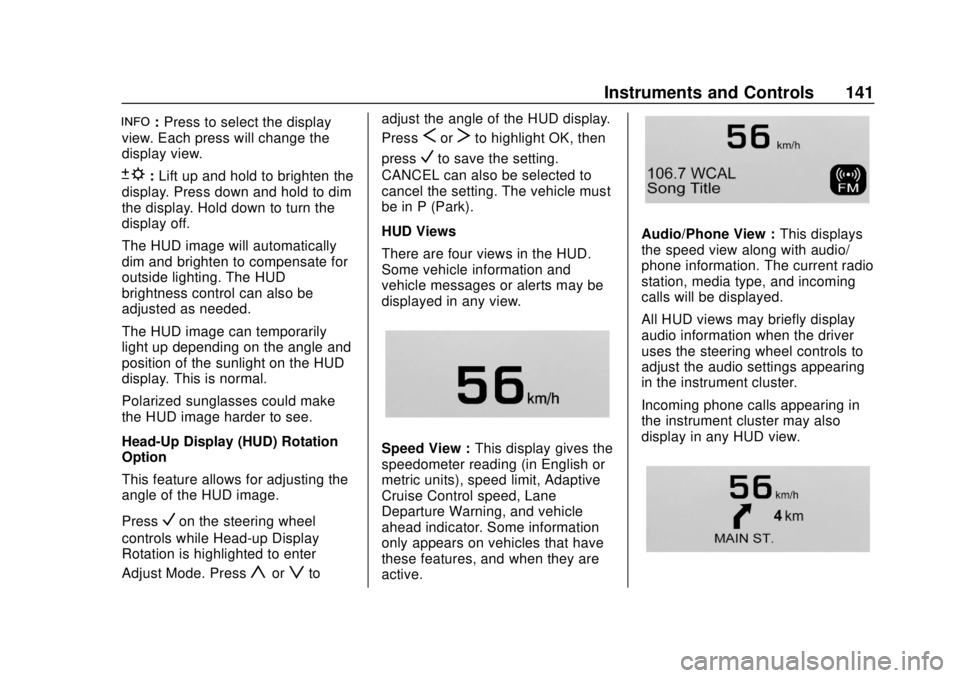
HUD Views
There are four views in the HUD.
Some vehicle information and
vehicle messages or alerts may be
displayed in any view.
Speed View : This display gives the
speedometer reading (in English or
metric units), speed limit, Adaptive
Cruise Control speed, Lane
Departure Warning, and vehicle
ahead indicator. Some information
only appears on vehicles that have
these features, and when they are
active.
Audio/Phone View : This displays
the speed view along with audio/
phone information. The current radio
station, media type, and incoming
calls will be displayed.
All HUD views may briefly display
audio information when the driver
uses the steering wheel controls to
adjust the audio settings appearing
in the instrument cluster.
Incoming phone calls appearing in
the instrument cluster may also
display in any HUD view.
Page 143 of 365
Buick Envision Owner Manual (GMNA-Localizing-U.S./Canada/Mexico-
11434432) - 2018 - CRC - 10/25/17
142 Instruments and Controls
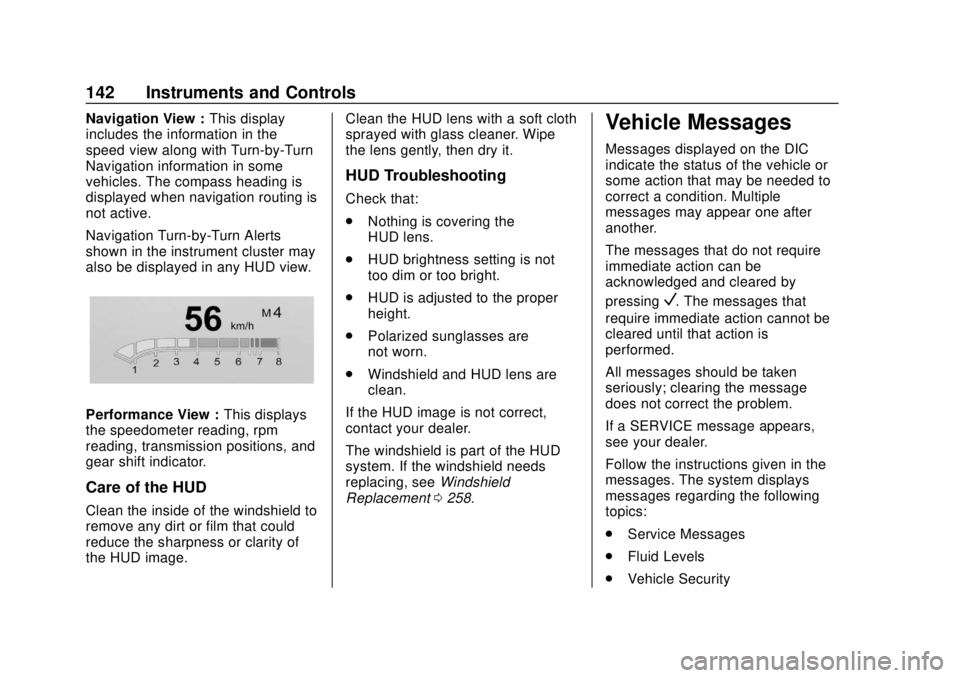
Navigation View :This display
includes the information in the
speed view along with Turn-by-Turn
Navigation information in some
vehicles. The compass heading is
displayed when navigation routing is
not active.
Navigation Turn-by-Turn Alerts
shown in the instrument cluster may
also be displayed in any HUD view.
Performance View : This displays
the speedometer reading, rpm
reading, transmission positions, and
gear shift indicator.
Care of the HUD
Clean the inside of the windshield to
remove any dirt or film that could
reduce the sharpness or clarity of
the HUD image. Clean the HUD lens with a soft cloth
sprayed with glass cleaner. Wipe
the lens gently, then dry it.
HUD Troubleshooting
Check that:
.
Nothing is covering the
HUD lens.
. HUD brightness setting is not
too dim or too bright.
. HUD is adjusted to the proper
height.
. Polarized sunglasses are
not worn.
. Windshield and HUD lens are
clean.
If the HUD image is not correct,
contact your dealer.
The windshield is part of the HUD
system. If the windshield needs
replacing, see Windshield
Replacement 0258.
Vehicle Messages
Messages displayed on the DIC
indicate the status of the vehicle or
some action that may be needed to
correct a condition. Multiple
messages may appear one after
another.
The messages that do not require
immediate action can be
acknowledged and cleared by
pressing
V. The messages that
require immediate action cannot be
cleared until that action is
performed.
All messages should be taken
seriously; clearing the message
does not correct the problem.
If a SERVICE message appears,
see your dealer.
Follow the instructions given in the
messages. The system displays
messages regarding the following
topics:
. Service Messages
. Fluid Levels
. Vehicle Security