wheel BUICK ENVISION 2018 Owner's Guide
[x] Cancel search | Manufacturer: BUICK, Model Year: 2018, Model line: ENVISION, Model: BUICK ENVISION 2018Pages: 365, PDF Size: 5.56 MB
Page 120 of 365
Buick Envision Owner Manual (GMNA-Localizing-U.S./Canada/Mexico-
11434432) - 2018 - CRC - 10/25/17
Instruments and Controls 119
Cluster Menu
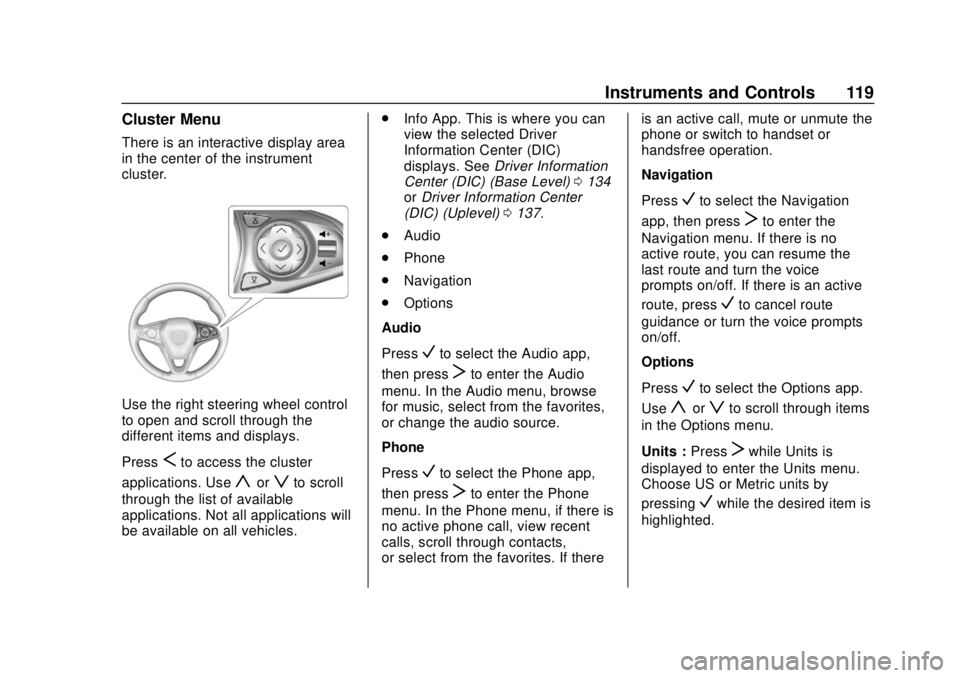
There is an interactive display area
in the center of the instrument
cluster.
Use the right steering wheel control
to open and scroll through the
different items and displays.
Press
Sto access the cluster
applications. Use
yorzto scroll
through the list of available
applications. Not all applications will
be available on all vehicles. .
Info App. This is where you can
view the selected Driver
Information Center (DIC)
displays. See Driver Information
Center (DIC) (Base Level) 0134
or Driver Information Center
(DIC) (Uplevel) 0137.
. Audio
. Phone
. Navigation
. Options
Audio
Press
Vto select the Audio app,
then press
Tto enter the Audio
menu. In the Audio menu, browse
for music, select from the favorites,
or change the audio source.
Phone
Press
Vto select the Phone app,
then press
Tto enter the Phone
menu. In the Phone menu, if there is
no active phone call, view recent
calls, scroll through contacts,
or select from the favorites. If there is an active call, mute or unmute the
phone or switch to handset or
handsfree operation.
Navigation
Press
Vto select the Navigation
app, then press
Tto enter the
Navigation menu. If there is no
active route, you can resume the
last route and turn the voice
prompts on/off. If there is an active
route, press
Vto cancel route
guidance or turn the voice prompts
on/off.
Options
Press
Vto select the Options app.
Use
yorzto scroll through items
in the Options menu.
Units : Press
Twhile Units is
displayed to enter the Units menu.
Choose US or Metric units by
pressing
Vwhile the desired item is
highlighted.
Page 121 of 365

Buick Envision Owner Manual (GMNA-Localizing-U.S./Canada/Mexico-
11434432) - 2018 - CRC - 10/25/17
120 Instruments and Controls
Info Pages :PressTwhile Info
Pages is displayed to enter the Info
Pages menu and select the items to
be displayed in the Info App.
See Driver Information Center (DIC)
(Base Level) 0134 orDriver
Information Center (DIC) (Uplevel)
0 137.
Speed Warning : The Speed
Warning display allows the driver to
set a speed that they do not want to
exceed. To set the Speed Warning,
press
Twhen Speed Warning is
displayed. Press
yorzto adjust
the value. Press
Vto set the speed.
Once the speed is set, this feature
can be turned off by pressing
V
while viewing this page. If the
selected speed limit is exceeded, a
pop-up warning is displayed with a
chime.
Head-up Display (HUD) Rotation :
This feature allows for adjusting the
angle of the HUD image. Press
V
on the steering wheel controls while
Head-up Display Rotation is
highlighted to enter Adjust Mode. Press
yorzto adjust the angle
of the HUD display. Press
SorTto
highlight OK, then press
Vto save
the setting. To cancel the setting,
select Cancel. The vehicle must be
in P (Park).
Software Information (Uplevel
Cluster) : Displays the open source
software information.
Speedometer
The speedometer shows the
vehicle's speed in either kilometers
per hour (km/h) or miles per
hour (mph).
Odometer
The odometer shows how far the
vehicle has been driven, in either
kilometers or miles.
Trip Odometer
The trip odometer shows how far
the vehicle has been driven since
the trip odometer was last reset. The trip odometer is accessed and
reset through the Driver Information
Center (DIC). See
Driver
Information Center (DIC) (Base
Level) 0134 orDriver Information
Center (DIC) (Uplevel) 0137.
Tachometer
The tachometer displays the engine
speed in revolutions per
minute (rpm).
For vehicles with the Stop/Start
system, when the ignition is on, the
tachometer indicates the vehicle
status. When pointing to AUTO
STOP, the engine is off but the
vehicle is on and can move. The
engine could auto start at any time.
When the indicator points to OFF,
the vehicle is off.
When the engine is on, the
tachometer will indicate the engine’s
revolutions per minute (rpm). The
tachometer may vary by several
hundred rpm’s, during Auto Stop
mode, when the engine is shutting
off and restarting.
Page 128 of 365
Buick Envision Owner Manual (GMNA-Localizing-U.S./Canada/Mexico-
11434432) - 2018 - CRC - 10/25/17
Instruments and Controls 127
If the light remains on, see your
dealer.
Emissions Inspection and
Maintenance Programs
If the vehicle requires an Emissions
Inspection/Maintenance test, the
test equipment will likely connect to
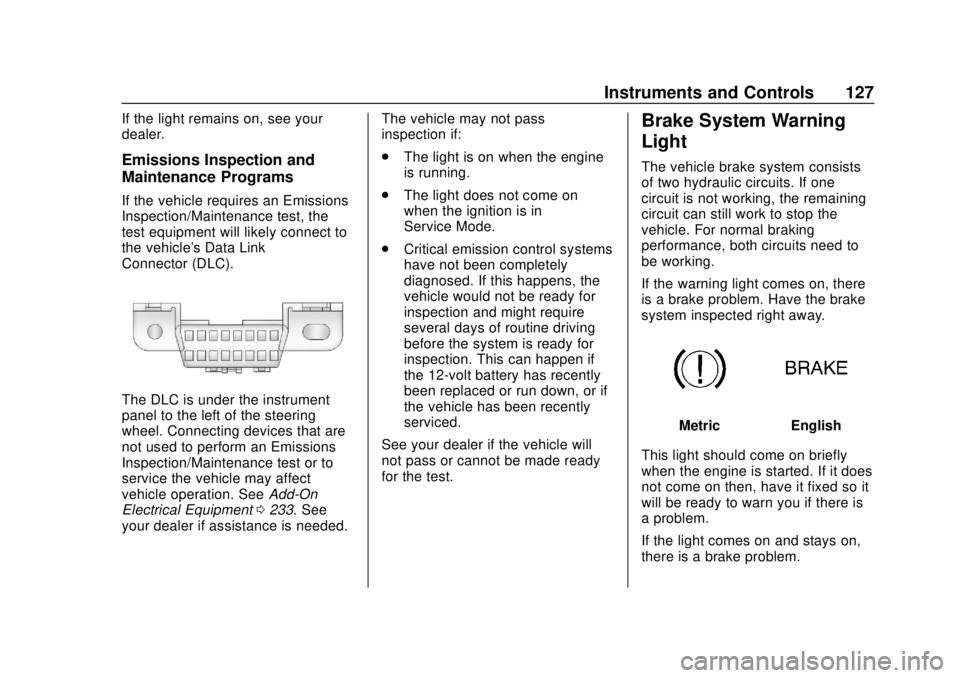
the vehicle's Data Link
Connector (DLC).
The DLC is under the instrument
panel to the left of the steering
wheel. Connecting devices that are
not used to perform an Emissions
Inspection/Maintenance test or to
service the vehicle may affect
vehicle operation. SeeAdd-On
Electrical Equipment 0233. See
your dealer if assistance is needed. The vehicle may not pass
inspection if:
.
The light is on when the engine
is running.
. The light does not come on
when the ignition is in
Service Mode.
. Critical emission control systems
have not been completely
diagnosed. If this happens, the
vehicle would not be ready for
inspection and might require
several days of routine driving
before the system is ready for
inspection. This can happen if
the 12-volt battery has recently
been replaced or run down, or if
the vehicle has been recently
serviced.
See your dealer if the vehicle will
not pass or cannot be made ready
for the test.
Brake System Warning
Light
The vehicle brake system consists
of two hydraulic circuits. If one
circuit is not working, the remaining
circuit can still work to stop the
vehicle. For normal braking
performance, both circuits need to
be working.
If the warning light comes on, there
is a brake problem. Have the brake
system inspected right away.
MetricEnglish
This light should come on briefly
when the engine is started. If it does
not come on then, have it fixed so it
will be ready to warn you if there is
a problem.
If the light comes on and stays on,
there is a brake problem.
Page 130 of 365
Buick Envision Owner Manual (GMNA-Localizing-U.S./Canada/Mexico-
11434432) - 2018 - CRC - 10/25/17
Instruments and Controls 129
the engine again to reset the
system. If the ABS light stays on,
or comes on again while driving, the
vehicle needs service. A chime may
also sound when the light comes on
steady.
If the ABS light is the only light on,
the vehicle has regular brakes, but
the antilock brakes are not
functioning.
If both the ABS and the brake
system warning light are on, the
vehicle's antilock brakes are not
functioning and there is a problem
with the regular brakes. See your
dealer for service.
SeeBrake System Warning Light
0 127.Lane Keep Assist (LKA)
Light
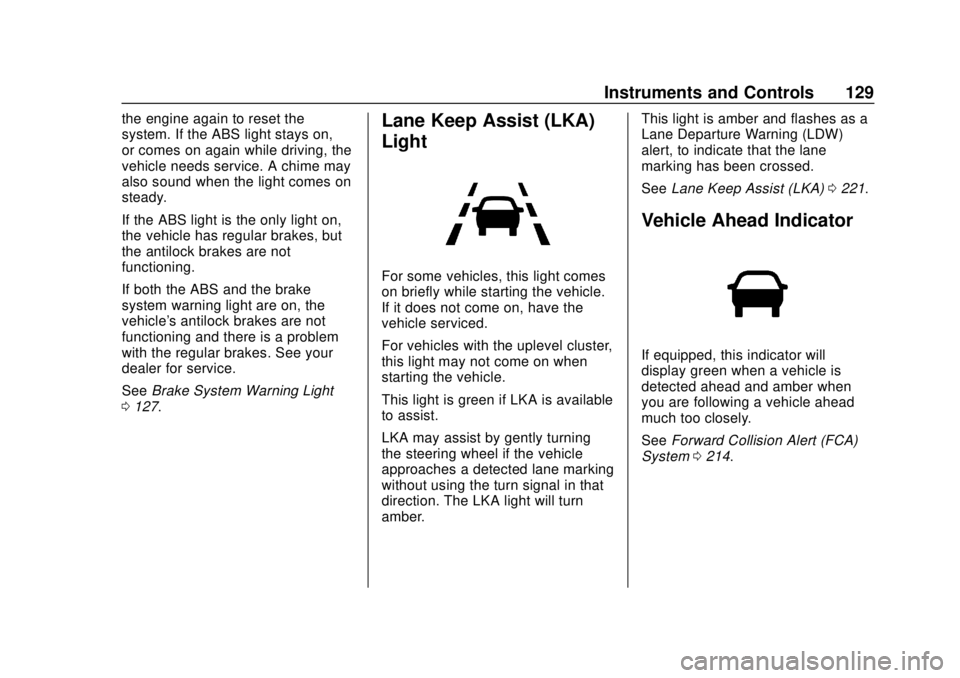
For some vehicles, this light comes
on briefly while starting the vehicle.
If it does not come on, have the
vehicle serviced.
For vehicles with the uplevel cluster,
this light may not come on when
starting the vehicle.
This light is green if LKA is available
to assist.
LKA may assist by gently turning
the steering wheel if the vehicle
approaches a detected lane marking
without using the turn signal in that
direction. The LKA light will turn
amber. This light is amber and flashes as a
Lane Departure Warning (LDW)
alert, to indicate that the lane
marking has been crossed.
See
Lane Keep Assist (LKA) 0221.
Vehicle Ahead Indicator
If equipped, this indicator will
display green when a vehicle is
detected ahead and amber when
you are following a vehicle ahead
much too closely.
See Forward Collision Alert (FCA)
System 0214.
Page 131 of 365

Buick Envision Owner Manual (GMNA-Localizing-U.S./Canada/Mexico-
11434432) - 2018 - CRC - 10/25/17
130 Instruments and Controls
Traction Off Light
This light comes on briefly while
starting the engine. If it does not,
have the vehicle serviced by your
dealer. If the system is working
normally, the indicator light then
turns off.
The traction off light comes on when
the Traction Control System (TCS)
has been turned off by pressing and
releasing the TCS/StabiliTrak
button.
This light and the StabiliTrak OFF
light come on when StabiliTrak is
turned off.
If the TCS is off, wheel spin is not
limited. Adjust driving accordingly.
SeeTraction Control/Electronic
Stability Control 0197.
StabiliTrak OFF Light
This light comes on briefly while
starting the engine. If it does not,
have the vehicle serviced by your
dealer.
This light comes on when the
StabiliTrak system is turned off.
If StabiliTrak is off, the Traction
Control System (TCS) is also off.
If StabiliTrak and TCS are off, the
system does not assist in controlling
the vehicle. Turn on the TCS and
the StabiliTrak systems, and the
warning light turns off.
See Traction Control/Electronic
Stability Control 0197.
Traction Control System
(TCS)/StabiliTrak Light
This light comes on briefly when the
engine is started.
If the light does not come on, have
the vehicle serviced by your dealer.
If the system is working normally,
the indicator light turns off.
If the light is on and not flashing, the
TCS and potentially the StabiliTrak
system have been disabled.
A Driver Information Center (DIC)
message may display. Check the
DIC messages to determine which
feature(s) is no longer functioning
and whether the vehicle requires
service.
If the light is on and flashing, the
TCS and/or the StabiliTrak system
is actively working.
Page 141 of 365
Buick Envision Owner Manual (GMNA-Localizing-U.S./Canada/Mexico-
11434432) - 2018 - CRC - 10/25/17
140 Instruments and Controls
Warning (Continued)
dark outside. Be sure to keep the
HUD image dim and placed low in
your field of view.
If equipped with HUD, some
information concerning the
operation of the vehicle is projected
onto the windshield. The image is
projected through the HUD lens on
top of the instrument panel. The
information appears as an image
focused out toward the front of the
vehicle.
Caution
If you try to use the HUD image
as a parking aid, you may
misjudge the distance and
damage your vehicle. Do not use
the HUD image as a parking aid.
The HUD information can be
displayed in various languages in
some vehicles.
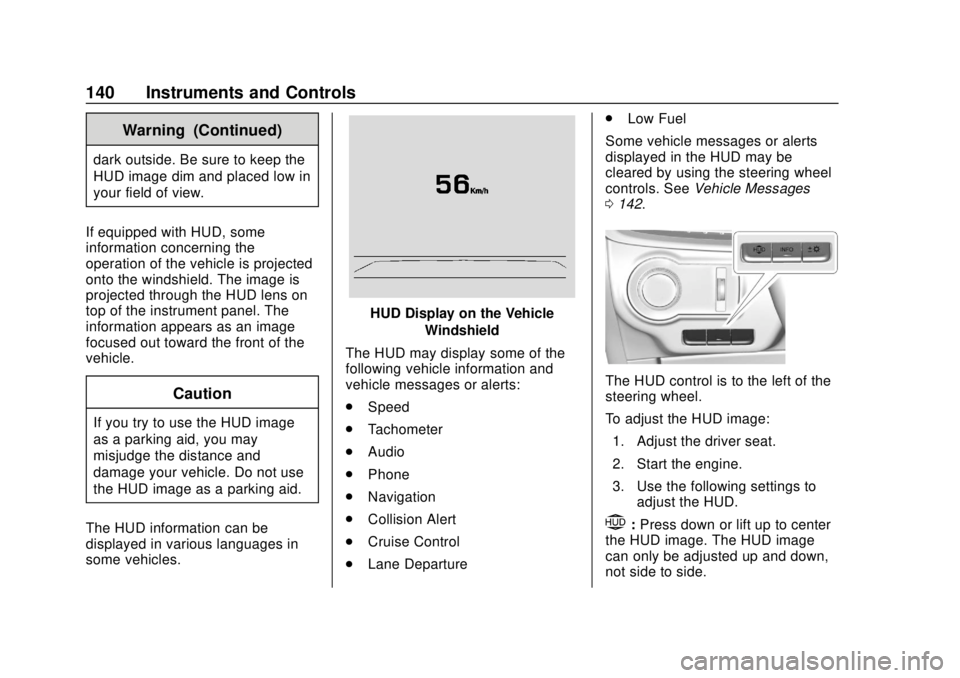
HUD Display on the Vehicle Windshield
The HUD may display some of the
following vehicle information and
vehicle messages or alerts:
. Speed
. Tachometer
. Audio
. Phone
. Navigation
. Collision Alert
. Cruise Control
. Lane Departure .
Low Fuel
Some vehicle messages or alerts
displayed in the HUD may be
cleared by using the steering wheel
controls. See Vehicle Messages
0 142.
The HUD control is to the left of the
steering wheel.
To adjust the HUD image:
1. Adjust the driver seat.
2. Start the engine.
3. Use the following settings to adjust the HUD.
$:Press down or lift up to center
the HUD image. The HUD image
can only be adjusted up and down,
not side to side.
Page 142 of 365
Buick Envision Owner Manual (GMNA-Localizing-U.S./Canada/Mexico-
11434432) - 2018 - CRC - 10/25/17
Instruments and Controls 141
!:Press to select the display
view. Each press will change the
display view.
D: Lift up and hold to brighten the
display. Press down and hold to dim
the display. Hold down to turn the
display off.
The HUD image will automatically
dim and brighten to compensate for
outside lighting. The HUD
brightness control can also be
adjusted as needed.
The HUD image can temporarily
light up depending on the angle and
position of the sunlight on the HUD
display. This is normal.
Polarized sunglasses could make
the HUD image harder to see.
Head-Up Display (HUD) Rotation
Option
This feature allows for adjusting the
angle of the HUD image.
Press
Von the steering wheel
controls while Head-up Display
Rotation is highlighted to enter
Adjust Mode. Press
yorzto adjust the angle of the HUD display.
Press
SorTto highlight OK, then
press
Vto save the setting.
CANCEL can also be selected to
cancel the setting. The vehicle must
be in P (Park).
HUD Views
There are four views in the HUD.
Some vehicle information and
vehicle messages or alerts may be
displayed in any view.
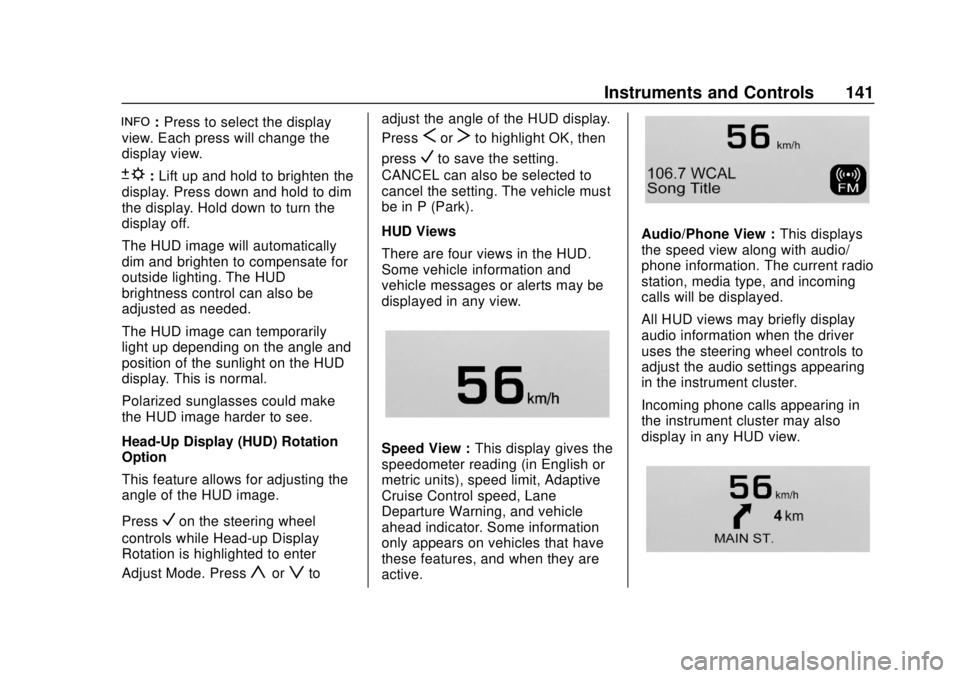
Speed View : This display gives the
speedometer reading (in English or
metric units), speed limit, Adaptive
Cruise Control speed, Lane
Departure Warning, and vehicle
ahead indicator. Some information
only appears on vehicles that have
these features, and when they are
active.
Audio/Phone View : This displays
the speed view along with audio/
phone information. The current radio
station, media type, and incoming
calls will be displayed.
All HUD views may briefly display
audio information when the driver
uses the steering wheel controls to
adjust the audio settings appearing
in the instrument cluster.
Incoming phone calls appearing in
the instrument cluster may also
display in any HUD view.
Page 155 of 365
Buick Envision Owner Manual (GMNA-Localizing-U.S./Canada/Mexico-
11434432) - 2018 - CRC - 10/25/17
154 Lighting
Lighting
Exterior Lighting
Exterior Lamp Controls . . . . . . . 154
Exterior Lamps OffReminder . . . . . . . . . . . . . . . . . . . 156
Headlamp High/Low-Beam Changer . . . . . . . . . . . . . . . . . . . . 156
Flash-to-Pass . . . . . . . . . . . . . . . . 156
Daytime Running Lamps (DRL) . . . . . . . . . . . . . . . 156
Automatic Headlamp System . . . . . . . . . . . . . . . . . . . . . . 157
Adaptive Forward Lighting (AFL) . . . . . . . . . . . . . . . 157
Headlamp Leveling Control . . . 158
Hazard Warning Flashers . . . . . 158
Turn and Lane-Change Signals . . . . . . . . . . . . . . . . . . . . . . 158
Fog Lamps . . . . . . . . . . . . . . . . . . . 159
Interior Lighting
Instrument Panel Illumination
Control . . . . . . . . . . . . . . . . . . . . . . 159
Courtesy Lamps . . . . . . . . . . . . . . 159
Dome Lamps . . . . . . . . . . . . . . . . . 159
Reading Lamps . . . . . . . . . . . . . . 160
Lighting Features
Entry Lighting . . . . . . . . . . . . . . . . 160
Exit Lighting . . . . . . . . . . . . . . . . . . 161
Battery Power Protection . . . . . 161
Exterior Lighting Battery Saver . . . . . . . . . . . . . . . . . . . . . . . 161Exterior Lighting
Exterior Lamp Controls
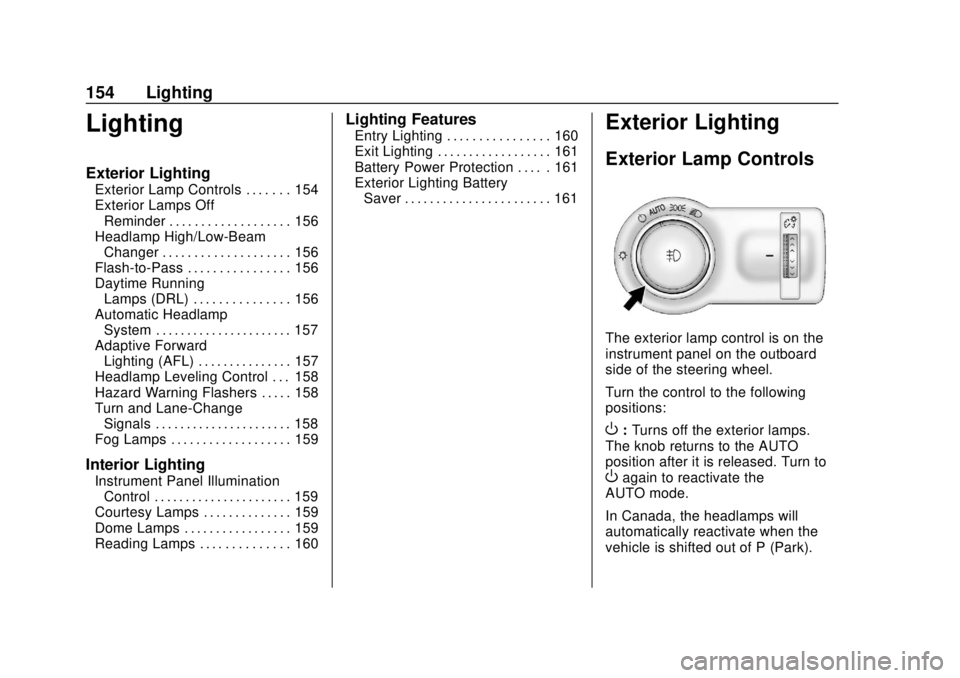
The exterior lamp control is on the
instrument panel on the outboard
side of the steering wheel.
Turn the control to the following
positions:
O: Turns off the exterior lamps.
The knob returns to the AUTO
position after it is released. Turn to
Oagain to reactivate the
AUTO mode.
In Canada, the headlamps will
automatically reactivate when the
vehicle is shifted out of P (Park).
Page 160 of 365

Buick Envision Owner Manual (GMNA-Localizing-U.S./Canada/Mexico-
11434432) - 2018 - CRC - 10/25/17
Lighting 159
Fog Lamps
The ignition and the parking lamps
or headlamps must be on for the
front fog lamps to work.
#:If equipped, press to turn on or
off. An indicator light on the
instrument cluster comes on when
the fog lamps are on.
Some localities have laws that
require the headlamps to be on
along with the fog lamps.
Interior Lighting
Instrument Panel
Illumination Control
The brightness of the instrument
panel lighting and steering wheel
controls can be adjusted.
D: Move and hold the thumbwheel
up or down to brighten or dim the
lights.
Courtesy Lamps
The courtesy lamps come on when
any door is opened and the dome
lamp is in the
1position.
Dome Lamps
The dome lamp is in the overhead
console.
To change the dome lamp settings,
press:
*: Turns the lamp off, even when
a door is open.
1: The lamp comes on when a
door is opened.
+: Turns the lamp on.
Page 169 of 365
Buick Envision Owner Manual (GMNA-Localizing-U.S./Canada/Mexico-
11434432) - 2018 - CRC - 10/25/17
168 Climate Controls
Air Vents
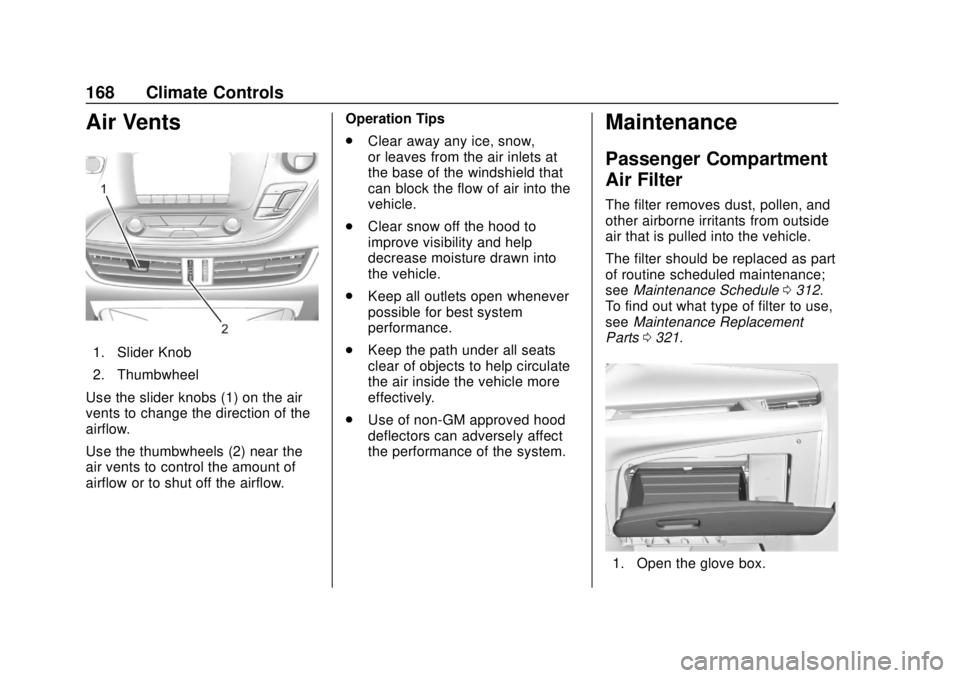
1. Slider Knob
2. Thumbwheel
Use the slider knobs (1) on the air
vents to change the direction of the
airflow.
Use the thumbwheels (2) near the
air vents to control the amount of
airflow or to shut off the airflow. Operation Tips
.
Clear away any ice, snow,
or leaves from the air inlets at
the base of the windshield that
can block the flow of air into the
vehicle.
. Clear snow off the hood to
improve visibility and help
decrease moisture drawn into
the vehicle.
. Keep all outlets open whenever
possible for best system
performance.
. Keep the path under all seats
clear of objects to help circulate
the air inside the vehicle more
effectively.
. Use of non-GM approved hood
deflectors can adversely affect
the performance of the system.
Maintenance
Passenger Compartment
Air Filter
The filter removes dust, pollen, and
other airborne irritants from outside
air that is pulled into the vehicle.
The filter should be replaced as part
of routine scheduled maintenance;
see Maintenance Schedule 0312.
To find out what type of filter to use,
see Maintenance Replacement
Parts 0321.
1. Open the glove box.