Seat BUICK ENVISION 2019 Manual PDF
[x] Cancel search | Manufacturer: BUICK, Model Year: 2019, Model line: ENVISION, Model: BUICK ENVISION 2019Pages: 377, PDF Size: 6.03 MB
Page 113 of 377
Buick Envision Owner Manual (GMNA-Localizing-U.S./Canada/Mexico-
12032235) - 2019 - CRC - 6/27/18
112 Instruments and Controls
Instruments and
Controls
Controls
Steering Wheel Adjustment . . . 113
Steering Wheel Controls . . . . . . 113
Heated Steering Wheel . . . . . . . 113
Horn . . . . . . . . . . . . . . . . . . . . . . . . . . 113
Windshield Wiper/Washer . . . . 113
Rear Window Wiper/Washer . . . . . . . . . . . . . . . . . . . . . . 115
Headlamp Washer . . . . . . . . . . . . 116
Compass . . . . . . . . . . . . . . . . . . . . . 116
Clock . . . . . . . . . . . . . . . . . . . . . . . . . 116
Power Outlets . . . . . . . . . . . . . . . . 117
Wireless Charging . . . . . . . . . . . . 119
Warning Lights, Gauges, and
Indicators
Warning Lights, Gauges, and Indicators . . . . . . . . . . . . . . . . . . . 121
Instrument Cluster . . . . . . . . . . . . 122
Speedometer . . . . . . . . . . . . . . . . . 125
Odometer . . . . . . . . . . . . . . . . . . . . . 125
Trip Odometer . . . . . . . . . . . . . . . . 125
Tachometer . . . . . . . . . . . . . . . . . . . 125
Fuel Gauge . . . . . . . . . . . . . . . . . . . 126 Engine Oil Temperature
Gauge . . . . . . . . . . . . . . . . . . . . . . 127
Engine Coolant Temperature Gauge . . . . . . . . . . . . . . . . . . . . . . 128
Voltmeter Gauge . . . . . . . . . . . . . 129
Seat Belt Reminders . . . . . . . . . 129
Airbag Readiness Light . . . . . . . 130
Passenger Airbag Status
Indicator . . . . . . . . . . . . . . . . . . . . 130
Charging System Light . . . . . . . 131
Malfunction Indicator Lamp (Check Engine Light) . . . . . . . . 132
Brake System Warning Light . . . . . . . . . . . . . . . . . . . . . . . . 133
Electric Parking Brake Light . . . . . . . . . . . . . . . . . . . . . . . . 134
Service Electric Parking Brake Light . . . . . . . . . . . . . . . . . . . . . . . . 134
Antilock Brake System (ABS) Warning Light . . . . . . . . . . . . . . . 135
Lane Keep Assist (LKA) Light . . . . . . . . . . . . . . . . . . . . . . . . 135
Vehicle Ahead Indicator . . . . . . 136
Traction Off Light . . . . . . . . . . . . . 136
StabiliTrak OFF Light . . . . . . . . . 136
Traction Control System (TCS)/ StabiliTrak Light . . . . . . . . . . . . . 137
Engine Coolant Temperature Warning Light . . . . . . . . . . . . . . . 137
Tire Pressure Light . . . . . . . . . . . 137 Engine Oil Pressure Light . . . . 138
Low Fuel Warning Light . . . . . . 138
Security Light . . . . . . . . . . . . . . . . . 139
High-Beam On Light . . . . . . . . . . 139
Front Fog Lamp Light . . . . . . . . . 139
Lamps On Reminder . . . . . . . . . 139
Cruise Control Light . . . . . . . . . . 139
Door Ajar Light . . . . . . . . . . . . . . . 140
Information Displays
Driver Information Center (DIC)
(Base Level) . . . . . . . . . . . . . . . . 140
Driver Information Center (DIC) (Uplevel) . . . . . . . . . . . . . . . . . . . . 143
Head-Up Display (HUD) . . . . . . 145
Vehicle Messages
Vehicle Messages . . . . . . . . . . . . 149
Engine Power Messages . . . . . 149
Vehicle Speed Messages . . . . . 149
Vehicle Personalization
Vehicle Personalization . . . . . . . 150
Universal Remote System
Universal Remote System . . . . 157
Universal Remote System Programming . . . . . . . . . . . . . . . 157
Universal Remote System Operation . . . . . . . . . . . . . . . . . . . 159
Page 119 of 377
Buick Envision Owner Manual (GMNA-Localizing-U.S./Canada/Mexico-
12032235) - 2019 - CRC - 6/27/18
118 Instruments and Controls
{Warning
Power is always supplied to the
rear cargo power outlet. Do not
leave electrical equipment
plugged in when the vehicle is not
in use because the vehicle could
catch fire and cause injury or
death.
Certain accessory plugs may not be
compatible with the accessory
power outlet and could overload
vehicle and adapter fuses. If a
problem is experienced, see your
dealer.
When adding electrical equipment,
be sure to follow the proper
installation instructions included with
the equipment. See Add-On
Electrical Equipment 0242.
Caution
Hanging heavy equipment from
the power outlet can cause
damage not covered by the
vehicle warranty. The power
outlets are designed for
accessory power plugs only, such
as cell phone charge cords.
Power Outlet 110/120 Volt
Alternating Current
If equipped, this power outlet can be
used to plug in electrical equipment
that uses a maximum limit of 400
watts.
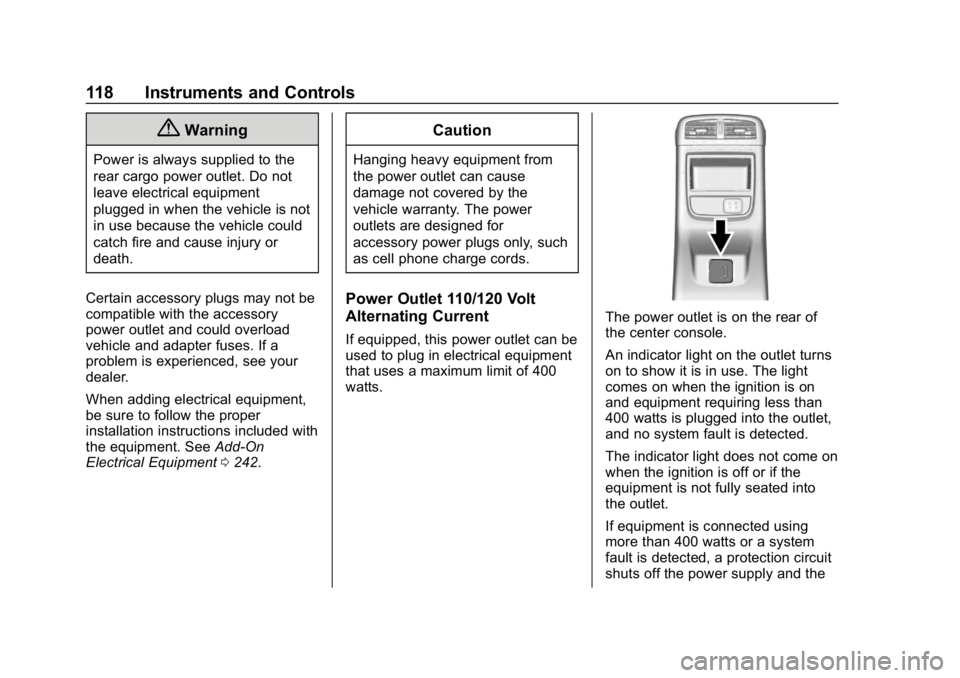
The power outlet is on the rear of
the center console.
An indicator light on the outlet turns
on to show it is in use. The light
comes on when the ignition is on
and equipment requiring less than
400 watts is plugged into the outlet,
and no system fault is detected.
The indicator light does not come on
when the ignition is off or if the
equipment is not fully seated into
the outlet.
If equipment is connected using
more than 400 watts or a system
fault is detected, a protection circuit
shuts off the power supply and the
Page 121 of 377
Buick Envision Owner Manual (GMNA-Localizing-U.S./Canada/Mexico-
12032235) - 2019 - CRC - 6/27/18
120 Instruments and Controls
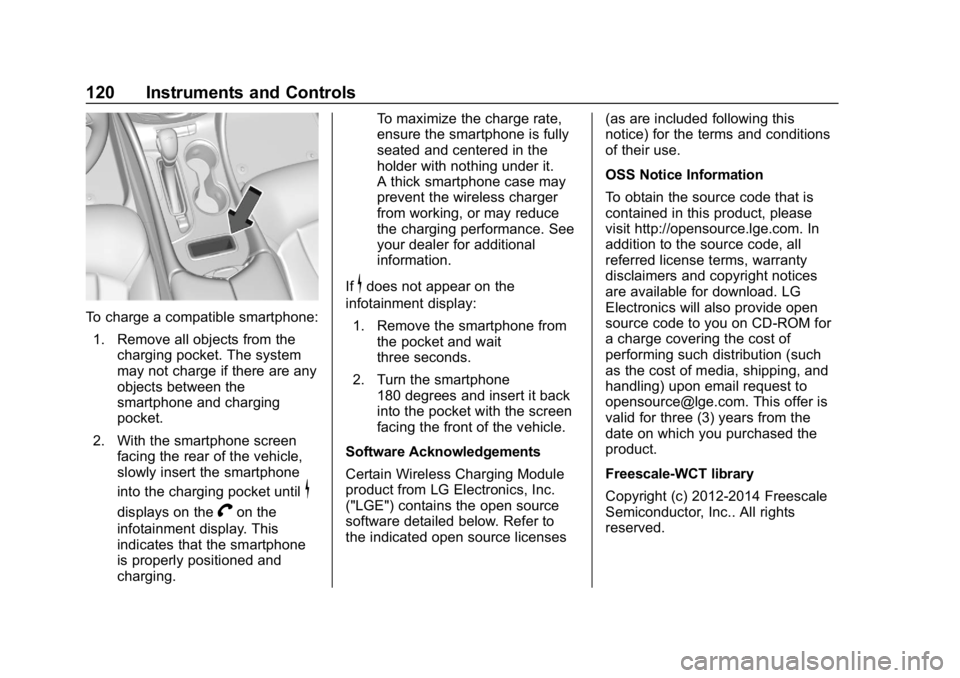
To charge a compatible smartphone:1. Remove all objects from the charging pocket. The system
may not charge if there are any
objects between the
smartphone and charging
pocket.
2. With the smartphone screen facing the rear of the vehicle,
slowly insert the smartphone
into the charging pocket until
$
displays on theVon the
infotainment display. This
indicates that the smartphone
is properly positioned and
charging. To maximize the charge rate,
ensure the smartphone is fully
seated and centered in the
holder with nothing under it.
A thick smartphone case may
prevent the wireless charger
from working, or may reduce
the charging performance. See
your dealer for additional
information.
If
$does not appear on the
infotainment display:
1. Remove the smartphone from the pocket and wait
three seconds.
2. Turn the smartphone 180 degrees and insert it back
into the pocket with the screen
facing the front of the vehicle.
Software Acknowledgements
Certain Wireless Charging Module
product from LG Electronics, Inc.
("LGE") contains the open source
software detailed below. Refer to
the indicated open source licenses (as are included following this
notice) for the terms and conditions
of their use.
OSS Notice Information
To obtain the source code that is
contained in this product, please
visit http://opensource.lge.com. In
addition to the source code, all
referred license terms, warranty
disclaimers and copyright notices
are available for download. LG
Electronics will also provide open
source code to you on CD-ROM for
a charge covering the cost of
performing such distribution (such
as the cost of media, shipping, and
handling) upon email request to
[email protected]. This offer is
valid for three (3) years from the
date on which you purchased the
product.
Freescale-WCT library
Copyright (c) 2012-2014 Freescale
Semiconductor, Inc.. All rights
reserved.
Page 130 of 377
Buick Envision Owner Manual (GMNA-Localizing-U.S./Canada/Mexico-
12032235) - 2019 - CRC - 6/27/18
Instruments and Controls 129
Voltmeter Gauge
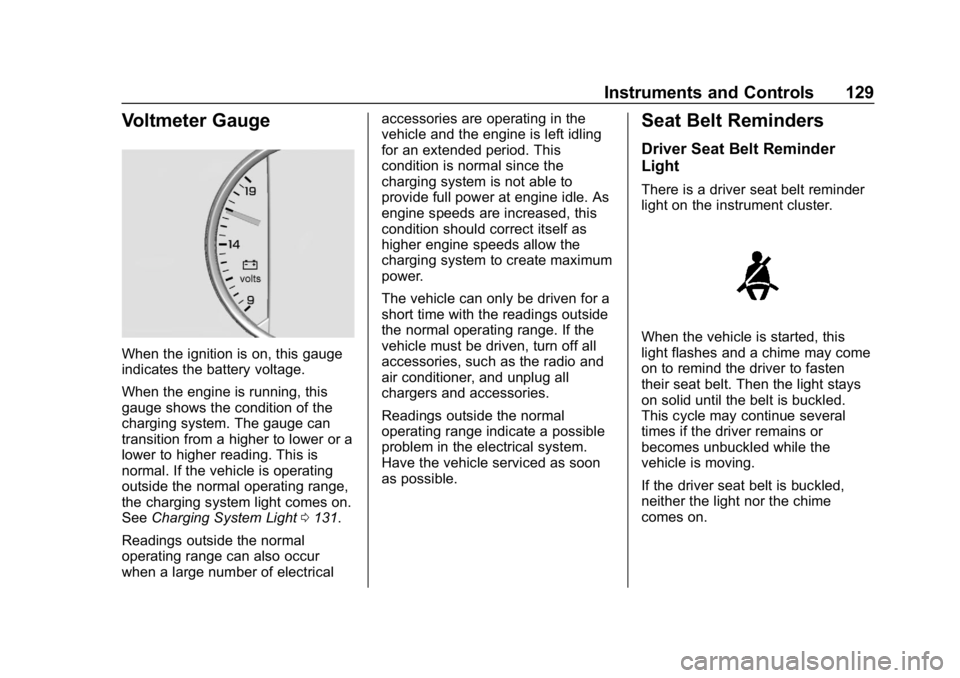
When the ignition is on, this gauge
indicates the battery voltage.
When the engine is running, this
gauge shows the condition of the
charging system. The gauge can
transition from a higher to lower or a
lower to higher reading. This is
normal. If the vehicle is operating
outside the normal operating range,
the charging system light comes on.
SeeCharging System Light 0131.
Readings outside the normal
operating range can also occur
when a large number of electrical accessories are operating in the
vehicle and the engine is left idling
for an extended period. This
condition is normal since the
charging system is not able to
provide full power at engine idle. As
engine speeds are increased, this
condition should correct itself as
higher engine speeds allow the
charging system to create maximum
power.
The vehicle can only be driven for a
short time with the readings outside
the normal operating range. If the
vehicle must be driven, turn off all
accessories, such as the radio and
air conditioner, and unplug all
chargers and accessories.
Readings outside the normal
operating range indicate a possible
problem in the electrical system.
Have the vehicle serviced as soon
as possible.
Seat Belt Reminders
Driver Seat Belt Reminder
Light
There is a driver seat belt reminder
light on the instrument cluster.
When the vehicle is started, this
light flashes and a chime may come
on to remind the driver to fasten
their seat belt. Then the light stays
on solid until the belt is buckled.
This cycle may continue several
times if the driver remains or
becomes unbuckled while the
vehicle is moving.
If the driver seat belt is buckled,
neither the light nor the chime
comes on.
Page 131 of 377

Buick Envision Owner Manual (GMNA-Localizing-U.S./Canada/Mexico-
12032235) - 2019 - CRC - 6/27/18
130 Instruments and Controls
Passenger Seat Belt Reminder
Light
The vehicle may also have a
passenger seat belt reminder light.
When the vehicle is started, this
light flashes and a chime may come
on to remind passengers to fasten
their seat belt. Then the light stays
on solid until the belt is buckled.
This cycle continues several times if
the front passenger remains or
becomes unbuckled while the
vehicle is moving.
If the front passenger seat belt is
buckled, neither the chime nor the
light comes on.
The front passenger seat belt
reminder light and chime may turn
on if an object is put on the seat
such as a briefcase, handbag,
grocery bag, laptop, or otherelectronic device. To turn off the
reminder light and/or chime, remove
the object from the seat or buckle
the seat belt.
Airbag Readiness Light
This light shows if there is an
electrical problem with the airbag
system. The system check includes
the airbag sensor(s), the passenger
sensing system, the pretensioners,
the airbag modules, the wiring, and
the crash sensing and diagnostic
module. For more information on the
airbag system, see
Airbag System
0 73.
The airbag readiness light comes on
for several seconds when the
vehicle is started. If the light does
not come on then, have it fixed
immediately.
{Warning
If the airbag readiness light stays
on after the vehicle is started or
comes on while driving, it means
the airbag system might not be
working properly. The airbags in
the vehicle might not inflate in a
crash, or they could even inflate
without a crash. To help avoid
injury, have the vehicle serviced
right away.
If there is a problem with the airbag
system, a Driver Information Center
(DIC) message may also come on.
Passenger Airbag Status
Indicator
The vehicle has a passenger
sensing system. See Passenger
Sensing System 080 for important
safety information. The overhead
console has a passenger airbag
status indicator.
Page 147 of 377
Buick Envision Owner Manual (GMNA-Localizing-U.S./Canada/Mexico-
12032235) - 2019 - CRC - 6/27/18
146 Instruments and Controls
The language selection is changed
through the radio and the units of
measurement is changed through
the instrument cluster. SeeVehicle
Personalization 0150 and“Options”
under Instrument Cluster 0122.
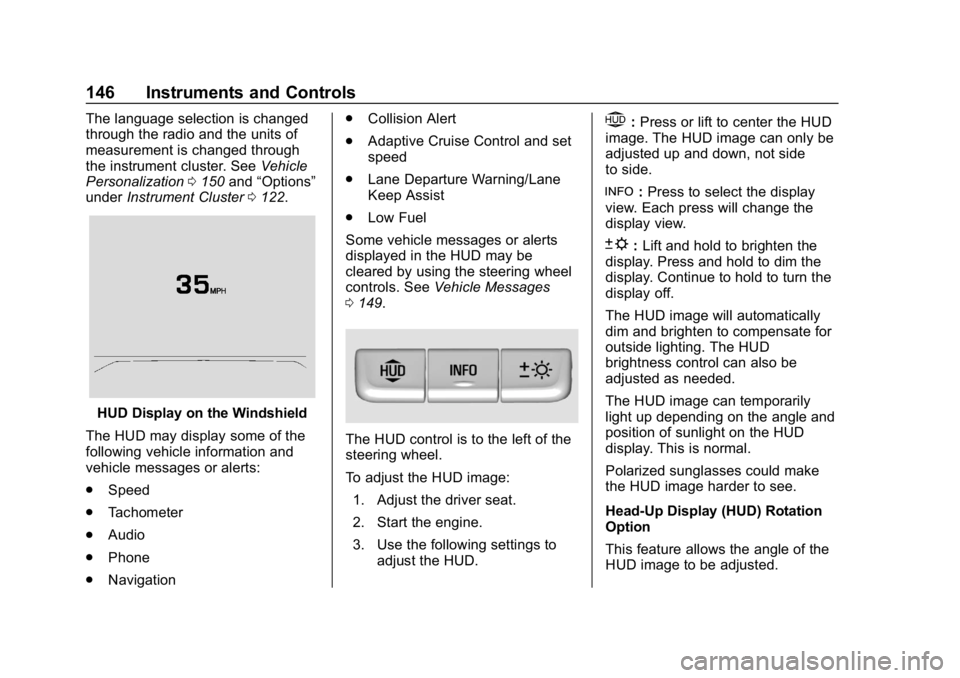
HUD Display on the Windshield
The HUD may display some of the
following vehicle information and
vehicle messages or alerts:
. Speed
. Tachometer
. Audio
. Phone
. Navigation .
Collision Alert
. Adaptive Cruise Control and set
speed
. Lane Departure Warning/Lane
Keep Assist
. Low Fuel
Some vehicle messages or alerts
displayed in the HUD may be
cleared by using the steering wheel
controls. See Vehicle Messages
0 149.
The HUD control is to the left of the
steering wheel.
To adjust the HUD image:
1. Adjust the driver seat.
2. Start the engine.
3. Use the following settings to adjust the HUD.
$:Press or lift to center the HUD
image. The HUD image can only be
adjusted up and down, not side
to side.
!: Press to select the display
view. Each press will change the
display view.
D: Lift and hold to brighten the
display. Press and hold to dim the
display. Continue to hold to turn the
display off.
The HUD image will automatically
dim and brighten to compensate for
outside lighting. The HUD
brightness control can also be
adjusted as needed.
The HUD image can temporarily
light up depending on the angle and
position of sunlight on the HUD
display. This is normal.
Polarized sunglasses could make
the HUD image harder to see.
Head-Up Display (HUD) Rotation
Option
This feature allows the angle of the
HUD image to be adjusted.
Page 150 of 377
Buick Envision Owner Manual (GMNA-Localizing-U.S./Canada/Mexico-
12032235) - 2019 - CRC - 6/27/18
Instruments and Controls 149
Vehicle Messages
Messages displayed on the DIC
indicate the status of the vehicle or
some action that may be needed to
correct a condition. Multiple
messages may appear one after
another.
The messages that do not require
immediate action can be
acknowledged and cleared by
pressing
V. The messages that
require immediate action cannot be
cleared until that action is
performed.
All messages should be taken
seriously; clearing the message
does not correct the problem.
If a SERVICE message appears,
see your dealer.
Follow the instructions given in the
messages. The system displays
messages regarding the following
topics:
. Service Messages
. Fluid Levels
. Vehicle Security .
Brakes
. Steering
. Ride Control Systems
. Driver Assistance Systems
. Cruise Control
. Lighting and Bulb Replacement
. Wiper/Washer Systems
. Doors and Windows
. Seat Belts
. Airbag Systems
. Engine and Transmission
. Tire Pressure
. Battery
Engine Power Messages
ENGINE POWER IS REDUCED
This message displays when the
vehicle's propulsion power is
reduced. A reduction in propulsion
power can affect the vehicle's ability
to accelerate. If this message is on, but there is no observed reduction
in performance, proceed to your
destination. The performance may
be reduced the next time the vehicle
is driven. The vehicle may be driven
while this message is on, but
maximum acceleration and speed
may be reduced. Anytime this
message stays on, or displays
repeatedly, the vehicle should be
taken to your dealer for service as
soon as possible.
Vehicle Speed Messages
SPEED LIMITED TO
XXX KM/H (MPH)
This message shows that the
vehicle speed has been limited to
the speed displayed. The limited
speed is a protection for various
propulsion and vehicle systems,
such as lubrication, thermal,
suspension, Teen Driver if
equipped, or tires.
Page 151 of 377
Buick Envision Owner Manual (GMNA-Localizing-U.S./Canada/Mexico-
12032235) - 2019 - CRC - 6/27/18
150 Instruments and Controls
Vehicle
Personalization
The audio system controls are used
to access the personalization
menus for customizing vehicle
features. See“Using the System” in
the infotainment manual.
The following are all possible
personalization features. Depending
on the vehicle, some may not be
available.
To access the personalization
menus:
1. Select SETTINGS on the Home Page of the infotainment
system display.
2. Select the desired feature to display a list of available
options.
3. Select the desired option.
4. Select the desired option setting.
5. Press
SBACK to return to the
previous menu.
Personalization Menus
The following list of features may be
available:
. Time and Date
. Rear Seat Reminder
. Language
. Valet Mode
. Teen Driver
. Radio
. Vehicle
. Bluetooth
. Apple CarPlay
. Android Auto
. Voice
. Display
. Rear Camera
. Return to Factory Settings
. Software Information
. Wi-Fi
Each menu is detailed in the
following information.
Time and Date
Manually set the time and date. See
Clock 0116.
Rear Seat Reminder
This allows for a chime and a
message when the rear door has
been opened before or during
operation of the vehicle.
Select Off or On.
Language
Select Language, then select from
the available language(s).
Valet Mode
To turn Valet Mode on and off, see
“Valet Mode” under“Settings” in the
infotainment manual.
Teen Driver
See “Teen Driver” under“Settings”
in the infotainment manual.
Radio
To manage the radio features, see
“Radio” under“Settings” in the
infotainment manual.
Page 152 of 377

Buick Envision Owner Manual (GMNA-Localizing-U.S./Canada/Mexico-
12032235) - 2019 - CRC - 6/27/18
Instruments and Controls 151
Vehicle
Select and the following may
display:
.Climate and Air Quality
. Collision/Detection Systems
. Comfort and Convenience
. Lighting
. Power Door Locks
. Remote Lock, Unlock, Start
Climate and Air Quality
Select and the following may
display:
.Auto Fan Speed
. Auto Heated Seats
. Auto Defog
. Auto Rear Defog
. Ionizer
Auto Fan Speed
This feature will set the auto fan
speed.
Select Low, Medium, or High. Auto Heated Seats
This feature will enable the heated
seats to turn on after pressing
ENGINE START/STOP when it is
cold outside.
Select Off or On.
Auto Defog
When set to On, the front defog will
automatically react to temperature
and humidity conditions that may
cause fogging.
Select Off or On.
Auto Rear Defog
This allows the Auto Rear Defog to
be turned on or off. This feature will
automatically turn on the rear
window defogger when it is cold
outside.
Select Off or On.
Ionizer
If equipped and on, this feature
purifies the air in the interior of the
vehicle. See
Dual Automatic Climate
Control System 0169.
Select Off or On.
Collision/Detection Systems
Select and the following may
display:
. Alert Type
. Forward Collision System
. Rear Cross Traffic Alert
. Adaptive Cruise Go Notifier
. Lane Change Alert
Alert Type
This feature will set crash alerts to
beeps or seat vibrations. This
setting affects all crash alerts
including Forward Collision, Lane
Departure Warning, Adaptive Cruise
Control, and Park Assist alerts.
Select Beeps or Safety Alert Seat.
Forward Collision System
This feature will turn on or off the
Forward Collision Alert (FCA) and
Forward Automatic Braking (FAB).
The Off setting disables all FCA and
FAB functions. With the Alert and
Brake setting, both FCA and FAB
Page 153 of 377
Buick Envision Owner Manual (GMNA-Localizing-U.S./Canada/Mexico-
12032235) - 2019 - CRC - 6/27/18
152 Instruments and Controls
are available. The Alert setting
disables FAB. SeeForward
Automatic Braking (FAB) 0224.
Select Off, Alert, or Alert and Brake.
Rear Cross Traffic Alert
This allows the feature to be turned
on or off.
Select Off or On.
Adaptive Cruise Go Notifier
This feature will give a reminder that
Adaptive Cruise Control provides
when it has brought the vehicle to a
complete stop behind another
stopping vehicle, and then that
vehicle drives on.
Select Off or On.
Lane Change Alert
This allows the feature to be turned
on or off.
When Lane Change Alert is
disabled, Side Blind Zone Alert is
also disabled.
Select Off or On.Comfort and Convenience
Select and the following may
display:
. Auto Memory Recall
. Easy Exit Options
. Chime Volume
. Hands Free Liftgate Control
. Reverse Tilt Mirror
. Rainsense Wipers
. Auto Wipe in Reverse Gear
. Extended Hill Start Assist
Auto Memory Recall
This feature automatically recalls
the current driver ’s previously stored
1 or 2 button positions when the
ignition is changed from off to on or
ACC/ACCESSORY. See Memory
Seats 058.
Select Off or On.
Easy Exit Options
This feature automatically recalls
the previously stored exit button
position when exiting the vehicle.
See Memory Seats 058. Select Off or On.
Chime Volume
This allows the selection of the
chime volume level.
Touch + or
−to adjust the volume.
Hands Free Liftgate Control
The liftgate may be operated with a
kicking motion under the rear
bumper. See Liftgate039.
Select Off, On-Open and Close,
or On-Open Only.
Reverse Tilt Mirror
When on, the driver, passenger,
or both driver and passenger mirrors
will tilt downward when the vehicle
is shifted to R (Reverse). See
Reverse Tilt Mirrors 048.
Select Off, On-Driver and
Passenger, On-Driver,
or On-Passenger.
Rainsense Wipers
This allows the Rainsense Wipers
feature to be disabled or enabled.
Select On or Off.