instrument cluster BUICK ENVISION 2020 User Guide
[x] Cancel search | Manufacturer: BUICK, Model Year: 2020, Model line: ENVISION, Model: BUICK ENVISION 2020Pages: 363, PDF Size: 7.26 MB
Page 127 of 363
Buick Envision Owner Manual (GMNA-Localizing-U.S./Canada/Mexico-
13555857) - 2020 - CRC - 2/25/19
126 Instruments and Controls Indicator page switches to the Gap
Setting page. This page shows the
current gap setting along with the
vehicle ahead indicator.
Best Average Fuel Economy : The
right side displays the best average
fuel economy (AFE) that is achieved
for a selected distance. The left side
displays a running average of fuel
economy for the most recently
traveled selected distance. The
center bar graph displays the
instantaneous fuel economy.
Quickly press
V to display a page
for selecting one of the distance
options. Move the up/down arrow to
choose the selection, and
V to
change the setting. When viewing
best AFE, a several second press
and hold of
V will reset the best
value. The best value will show “ - -
- ” until the selected distance has
been traveled. The display provides
feedback on how current driving
behavior in the bar graph affects the
running average in the left display and how well recent driving
compares to the best that has been
achieved.
Speed Signs : Displays sign
information, which comes from a
roadway database in the onboard
navigation.
Driver Information Center
(DIC) (Uplevel) The DIC displays are shown in the
center of the instrument cluster in
the Info App. See Instrument Cluster
0 105 . The Info App is only
available when the vehicle is on.
The displays show the status of
many vehicle systems.
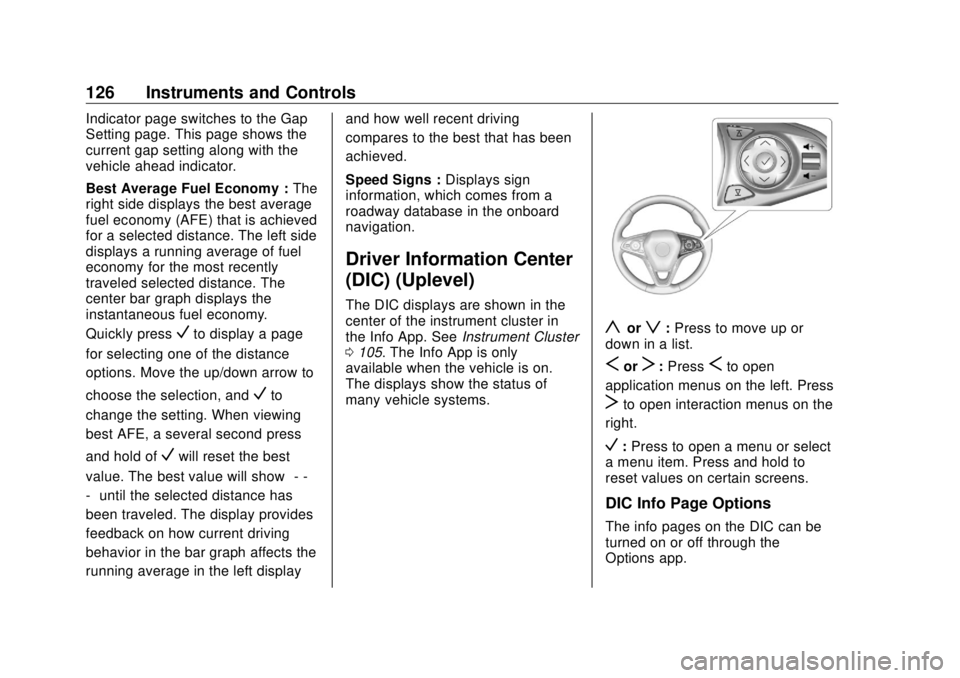
y or
z : Press to move up or
down in a list.
S or
T : Press
S to open
application menus on the left. Press
T to open interaction menus on the
right.
V : Press to open a menu or select
a menu item. Press and hold to
reset values on certain screens.
DIC Info Page Options
The info pages on the DIC can be
turned on or off through the
Options app.
Page 128 of 363
Buick Envision Owner Manual (GMNA-Localizing-U.S./Canada/Mexico-
13555857) - 2020 - CRC - 2/25/19
Instruments and Controls 1271. Press
S to access the cluster
applications.
2. Press
y or
z to scroll to the
Options application.
3. Press
V to select the Options
app, then press
T to enter the
Options menu.
4. Scroll to Info Pages and
press
T .
5. Press
y or
z to move
through the list of possible
information displays.
6. Press
V while an item is
highlighted to select or
deselect that item.
DIC Info Pages The following is the list of all
possible DIC info page displays.
Some may not be available for your
particular vehicle. Some items may
not be turned on by default but can
be turned on through the Options
app. See “ DIC Info Page Options ”
earlier in this section. Trip A or Trip B with Average Fuel
Economy and Average Speed :
Shows the current distance traveled,
in kilometers (km) or miles (mi),
since the trip odometer was last
reset. The trip odometer can be
reset by pressing and holding
Vwhile this display is active.
The Average Fuel Economy display
shows the approximate average
liters per 100 kilometers (L/100 km)
or miles per gallon (mpg). This
number is calculated based on the
number of L/100 km (mpg) recorded
since the last time this menu item
was reset. This number reflects only
the approximate average fuel
economy that the vehicle has right
now, and will change as driving
conditions change. The Average
Fuel Economy can be reset by
pressing and holding
V while this
display is active.
The Average Speed display shows
the average speed of the vehicle in
kilometers per hour (km/h) or miles
per hour (mph). This average is
calculated based on the various vehicle speeds recorded since the
last reset of this value. The average
speed can be reset by pressing and
holding
V while this display is
active.
Fuel Range and Instantaneous
Fuel Economy : Displays the
approximate distance the vehicle
can be driven without refueling.
LOW will be displayed when the
vehicle is low on fuel. The fuel
range estimate is based on an
average of the vehicle's fuel
economy over recent driving history
and the amount of fuel remaining in
the fuel tank.
Displays the current fuel economy in
liters per 100 kilometers (L/100 km)
or miles per gallon (mpg). This
number reflects only the
approximate fuel economy that the
vehicle has right now and changes
frequently as driving conditions
change.
Page 130 of 363
Buick Envision Owner Manual (GMNA-Localizing-U.S./Canada/Mexico-
13555857) - 2020 - CRC - 2/25/19
Instruments and Controls 129current fuel consumption compared
to what is expected from the vehicle
with good and bad driving habits.
Each box represents 10%, with all
boxes filled being 100%. More
economical driving will result in
being in the ECO box.
Instantaneous Fuel Economy is also
shown on the right side. This display
cannot be reset.
Blank Page : This page shows no
information.
Head-Up Display (HUD)
{ WarningIf the HUD image is too bright or
too high in your field of view, it
may take you more time to see
things you need to see when it is
dark outside. Be sure to keep the
HUD image dim and placed low in
your field of view.
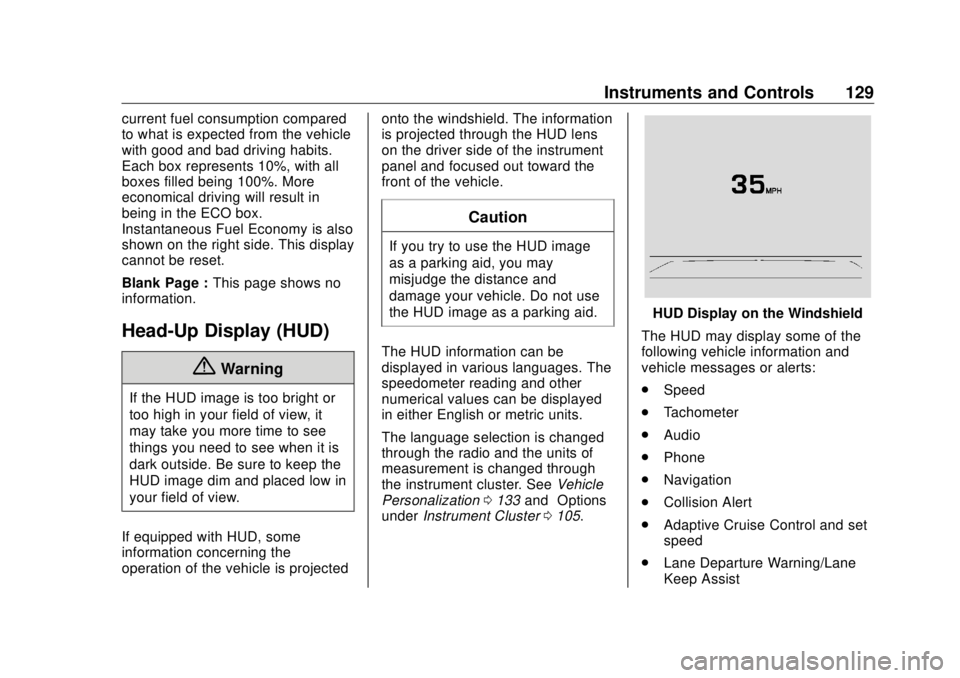
If equipped with HUD, some
information concerning the
operation of the vehicle is projected onto the windshield. The information
is projected through the HUD lens
on the driver side of the instrument
panel and focused out toward the
front of the vehicle.
CautionIf you try to use the HUD image
as a parking aid, you may
misjudge the distance and
damage your vehicle. Do not use
the HUD image as a parking aid.
The HUD information can be
displayed in various languages. The
speedometer reading and other
numerical values can be displayed
in either English or metric units.
The language selection is changed
through the radio and the units of
measurement is changed through
the instrument cluster. See Vehicle
Personalization 0 133 and “ Options ”
under Instrument Cluster 0 105 . HUD Display on the Windshield
The HUD may display some of the
following vehicle information and
vehicle messages or alerts:
.
Speed
.
Tachometer
.
Audio
.
Phone
.
Navigation
.
Collision Alert
.
Adaptive Cruise Control and set
speed
.
Lane Departure Warning/Lane
Keep Assist
Page 132 of 363
Buick Envision Owner Manual (GMNA-Localizing-U.S./Canada/Mexico-
13555857) - 2020 - CRC - 2/25/19
Instruments and Controls 131
English
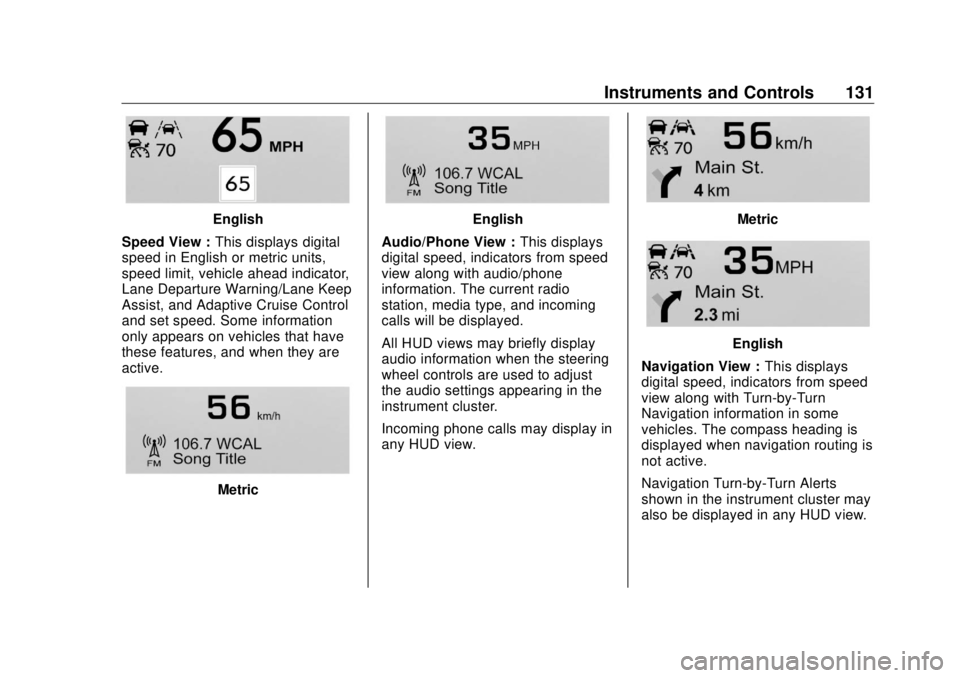
Speed View : This displays digital
speed in English or metric units,
speed limit, vehicle ahead indicator,
Lane Departure Warning/Lane Keep
Assist, and Adaptive Cruise Control
and set speed. Some information
only appears on vehicles that have
these features, and when they are
active.
Metric English
Audio/Phone View : This displays
digital speed, indicators from speed
view along with audio/phone
information. The current radio
station, media type, and incoming
calls will be displayed.
All HUD views may briefly display
audio information when the steering
wheel controls are used to adjust
the audio settings appearing in the
instrument cluster.
Incoming phone calls may display in
any HUD view. Metric
English
Navigation View : This displays
digital speed, indicators from speed
view along with Turn-by-Turn
Navigation information in some
vehicles. The compass heading is
displayed when navigation routing is
not active.
Navigation Turn-by-Turn Alerts
shown in the instrument cluster may
also be displayed in any HUD view.
Page 146 of 363

Buick Envision Owner Manual (GMNA-Localizing-U.S./Canada/Mexico-
13555857) - 2020 - CRC - 2/25/19
Lighting 145AUTO : Automatically turns the
exterior lamps on and off,
depending on outside lighting.
; : Turns on the parking lamps,
including all lamps, except the
headlamps.
2 : Turns on the headlamps
together with the parking lamps and
instrument panel lights.
IntelliBeam System If equipped, this system turns the
vehicle's high-beam headlamps on
and off according to surrounding
traffic conditions.
The system turns the high-beam
headlamps on when it is dark
enough and there is no other traffic
present.
This light
b comes on in the
instrument cluster when the
IntelliBeam system is enabled. Turning On and Enabling
IntelliBeam
To enable the IntelliBeam system,
with the turn signal lever in the
neutral position, turn the exterior
lamp control to AUTO.
Driving with IntelliBeam
The system only activates the high
beams when driving over 40 km/h
(25 mph).
The blue high-beam on light
appears on the instrument cluster
when the high beams are on.
There is a sensor near the top
center of the windshield that
automatically controls the system.
Keep this area of the windshield
clear of debris to allow for best
system performance.
The high-beam headlamps remain
on, under the automatic control,
until one of the following situations
occurs:
.
The system detects an
approaching vehicle's
headlamps. .
The system detects a preceding
vehicle's taillamps.
.
The outside light is bright
enough that high-beam
headlamps are not required.
.
The vehicle's speed drops below
20 km/h (12 mph).
.
The IntelliBeam system is
disabled by the high/low-beam
changer or the flash-to-pass
feature. If this happens, the high/
low-beam changer must be
activated two times within
two seconds to reactivate the
IntelliBeam system. The
instrument cluster light will come
on to indicate the IntelliBeam
system is reactivated. See
Headlamp High/Low-Beam
Changer 0 146 and
Flash-to-Pass 0 146 .
The high beams may not turn off
automatically if the system cannot
detect another vehicle's lamps
because of any of the following:
Page 147 of 363

Buick Envision Owner Manual (GMNA-Localizing-U.S./Canada/Mexico-
13555857) - 2020 - CRC - 2/25/19
146 Lighting .
The other vehicle's lamps are
missing, damaged, obstructed
from view, or otherwise
undetected.
.
The other vehicle's lamps are
covered with dirt, snow, and/or
road spray.
.
The other vehicle's lamps cannot
be detected due to dense
exhaust, smoke, fog, snow, road
spray, mist, or other airborne
obstructions.
.
The vehicle's windshield is dirty,
cracked, or obstructed by
something that blocks the view
of the light sensor.
.
The vehicle is loaded such that
the front end points upward,
causing the light sensor to aim
high and not detect headlamps
and taillamps.
.
Driving on winding or hilly roads.
The automatic high-beam
headlamps may need to be disabled
if any of the above conditions exist. Exterior Lamps Off
Reminder A warning chime sounds if the driver
door is opened while the ignition is
off and the exterior lamps are on.
Headlamp High/
Low-Beam Changer
3 : Push the turn signal lever away
from you and release, to turn the
high beams on. To return to low
beams, push the lever again or pull
it toward you and release.
This indicator light turns on in the
instrument cluster when the
high-beam headlamps are on. Flash-to-Pass To flash the high beams, pull the
turn signal lever toward you, and
release.
Daytime Running
Lamps (DRL) DRL can make it easier for others to
see the front of the vehicle during
the day. Fully functional DRL are
required on all vehicles first sold in
Canada.
The DRL system comes on when
the following conditions are met:
.
The ignition is on.
.
The exterior lamp control is
in AUTO.
.
The transmission is not in
P (Park).
.
The light sensor determines it is
daytime.
When the DRL system is on, only
the DRL are on. The taillamps,
sidemarker lamps, instrument panel
lights, and other lamps will not
be on.
Page 149 of 363

Buick Envision Owner Manual (GMNA-Localizing-U.S./Canada/Mexico-
13555857) - 2020 - CRC - 2/25/19
148 Lighting
| : Press this button to make the
front and rear turn signal lamps
flash on and off. Press again to turn
the flashers off.
The hazard warning flashers turn on
automatically if the airbags deploy.
Turn and Lane-Change
Signals
Move the lever all the way up or
down to signal a turn.
An arrow on the instrument cluster
flashes in the direction of the turn or
lane change.
Raise or lower the lever until the
arrow starts to flash to signal a lane
change. Hold it there until the lane change is completed. If the lever is
briefly pressed and released, the
turn signal flashes three times.
The turn and lane-change signal
can be turned off manually by
moving the lever back to its original
position.
If after signaling a turn or lane
change, the arrow flashes rapidly or
does not come on, a signal bulb
may be burned out.
Replace any burned out bulbs. If a
bulb is not burned out, check the
fuse. See Fuses and Circuit
Breakers 0 258 .
Fog Lamps The ignition and the parking lamps
or headlamps must be on for the
front fog lamps to work. # : If equipped, press to turn on or
off. An indicator light on the
instrument cluster comes on when
the fog lamps are on.
Some localities have laws that
require the headlamps to be on
along with the fog lamps.
Page 190 of 363

Buick Envision Owner Manual (GMNA-Localizing-U.S./Canada/Mexico-
13555857) - 2020 - CRC - 2/25/19
Driving and Operating 189vehicle wheel brakes to assist the
driver in keeping the vehicle on the
intended path.
If cruise control is being used and
TCS or StabiliTrak/ESC begins to
limit wheel spin, cruise control will
disengage. Cruise control may be
turned back on when road
conditions allow.
Both systems come on
automatically when the vehicle is
started and begins to move. The
systems may be heard or felt while
they are operating or while
performing diagnostic checks. This
is normal and does not mean there
is a problem with the vehicle.
It is recommended to leave both
systems on for normal driving
conditions, but it may be necessary
to turn TCS off if the vehicle gets
stuck in sand, mud, ice, or snow.
See If the Vehicle Is Stuck 0 168
and “ Turning the Systems Off and
On ” later in this section. The indicator light for both systems
is in the instrument cluster. This
light will:
.
Flash when TCS is limiting
wheel spin.
.
Flash when StabiliTrak/ESC is
activated.
.
Turn on and stay on when either
system is not working.
If either system fails to turn on or to
activate,
d comes on and stays on
to indicate that the system is
inactive and is not assisting the
driver in maintaining control. The
vehicle is safe to drive, but driving
should be adjusted accordingly.
If
d comes on and stays on:
1. Stop the vehicle.
2. Turn the engine off and wait
15 seconds. 3. Start the engine.
Drive the vehicle. If
d comes on
and stays on, the vehicle may need
more time to diagnose the problem.
If the condition persists, see your
dealer.
Turning the Systems Off
and On
CautionDo not repeatedly brake or
accelerate heavily when TCS is
off. The vehicle driveline could be
damaged.
Page 191 of 363
Buick Envision Owner Manual (GMNA-Localizing-U.S./Canada/Mexico-
13555857) - 2020 - CRC - 2/25/19
190 Driving and Operating
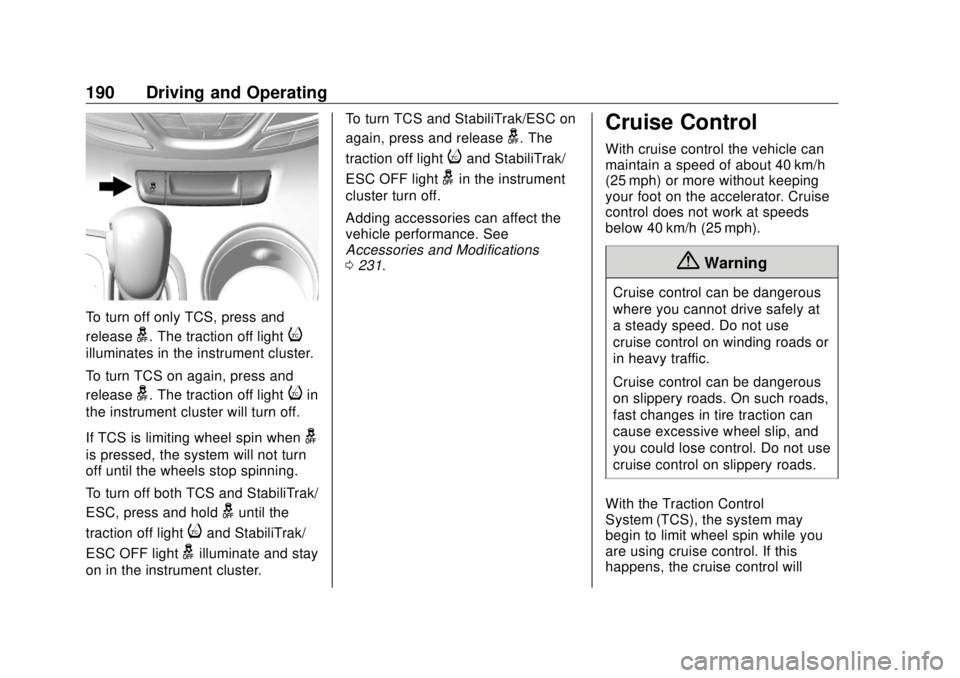
To turn off only TCS, press and
release
g . The traction off light
iilluminates in the instrument cluster.
To turn TCS on again, press and
release
g . The traction off light
i in
the instrument cluster will turn off.
If TCS is limiting wheel spin when
gis pressed, the system will not turn
off until the wheels stop spinning.
To turn off both TCS and StabiliTrak/
ESC, press and hold
g until the
traction off light
i and StabiliTrak/
ESC OFF light
g illuminate and stay
on in the instrument cluster. To turn TCS and StabiliTrak/ESC on
again, press and release
g . The
traction off light
i and StabiliTrak/
ESC OFF light
g in the instrument
cluster turn off.
Adding accessories can affect the
vehicle performance. See
Accessories and Modifications
0 231 .
Cruise Control With cruise control the vehicle can
maintain a speed of about 40 km/h
(25 mph) or more without keeping
your foot on the accelerator. Cruise
control does not work at speeds
below 40 km/h (25 mph).
{ WarningCruise control can be dangerous
where you cannot drive safely at
a steady speed. Do not use
cruise control on winding roads or
in heavy traffic.
Cruise control can be dangerous
on slippery roads. On such roads,
fast changes in tire traction can
cause excessive wheel slip, and
you could lose control. Do not use
cruise control on slippery roads.
With the Traction Control
System (TCS), the system may
begin to limit wheel spin while you
are using cruise control. If this
happens, the cruise control will
Page 192 of 363
Buick Envision Owner Manual (GMNA-Localizing-U.S./Canada/Mexico-
13555857) - 2020 - CRC - 2/25/19
Driving and Operating 191automatically disengage. See
Traction Control/Electronic Stability
Control 0 188 . If a collision alert
occurs when cruise control is
activated, cruise control is
disengaged. See Forward Collision
Alert (FCA) System 0 207 . When
road conditions allow you to safely
use it again, cruise control can be
turned back on.
If the brakes are applied, cruise
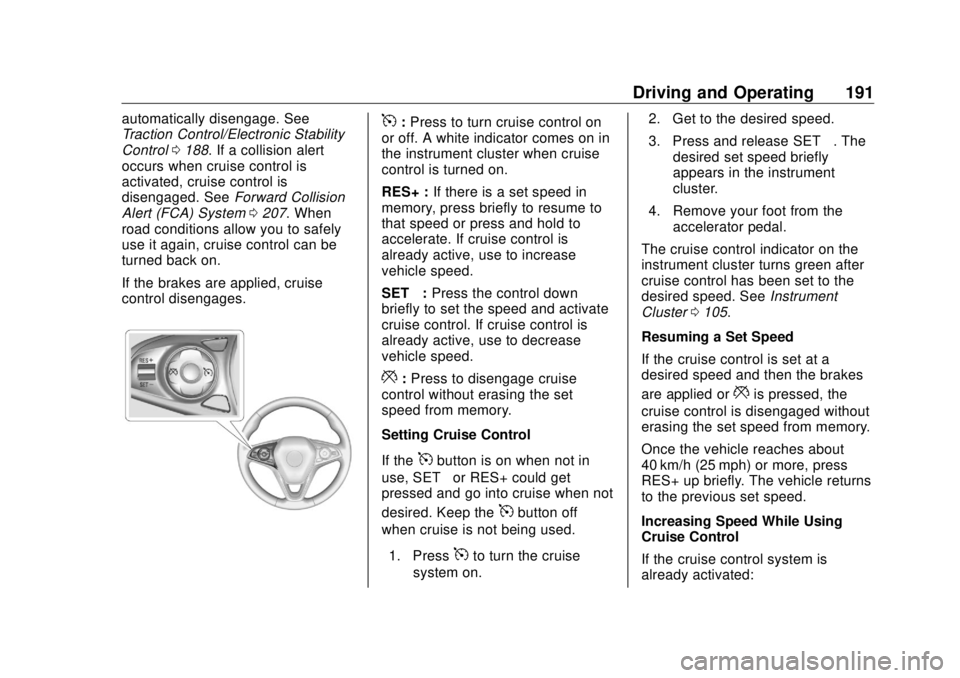
control disengages. 5 : Press to turn cruise control on
or off. A white indicator comes on in
the instrument cluster when cruise
control is turned on.
RES+ : If there is a set speed in
memory, press briefly to resume to
that speed or press and hold to
accelerate. If cruise control is
already active, use to increase
vehicle speed.
SET − : Press the control down
briefly to set the speed and activate
cruise control. If cruise control is
already active, use to decrease
vehicle speed.
* : Press to disengage cruise
control without erasing the set
speed from memory.
Setting Cruise Control
If the
5 button is on when not in
use, SET – or RES+ could get
pressed and go into cruise when not
desired. Keep the
5 button off
when cruise is not being used.
1. Press
5 to turn the cruise
system on. 2. Get to the desired speed.
3. Press and release SET – . The
desired set speed briefly
appears in the instrument
cluster.
4. Remove your foot from the
accelerator pedal.
The cruise control indicator on the
instrument cluster turns green after
cruise control has been set to the
desired speed. See Instrument
Cluster 0 105 .
Resuming a Set Speed
If the cruise control is set at a
desired speed and then the brakes
are applied or
* is pressed, the
cruise control is disengaged without
erasing the set speed from memory.
Once the vehicle reaches about
40 km/h (25 mph) or more, press
RES+ up briefly. The vehicle returns
to the previous set speed.
Increasing Speed While Using
Cruise Control
If the cruise control system is
already activated: