instrument cluster BUICK ENVISION 2020 Owner's Manual
[x] Cancel search | Manufacturer: BUICK, Model Year: 2020, Model line: ENVISION, Model: BUICK ENVISION 2020Pages: 363, PDF Size: 7.26 MB
Page 194 of 363
Buick Envision Owner Manual (GMNA-Localizing-U.S./Canada/Mexico-
13555857) - 2020 - CRC - 2/25/19
Driving and Operating 193Electronic Stability Control (ESC)
system activates, the ACC may
automatically disengage. See
Traction Control/Electronic Stability
Control 0 188 . When road
conditions allow ACC to be safely
used, the ACC can be turned
back on.
ACC will not engage if the TCS or
StabiliTrak/ESC system is disabled.
{ WarningACC has limited braking ability
and may not have time to slow
the vehicle down enough to avoid
a collision with another vehicle
you are following. This can occur
when vehicles suddenly slow or
stop ahead, or enter your lane.
Also see “ Alerting the Driver ” in
this section. Complete attention is
always required while driving and
you should be ready to take
action and apply the brakes. See
Defensive Driving 0 163 .{ WarningACC will not detect or brake for
children, pedestrians, animals,
or other objects.
Do not use ACC when:
.
On winding and hilly roads
or when the sensors are
blocked by snow, ice, or dirt.
The system may not detect
a vehicle ahead. Keep the
entire front of the vehicle
clean.
.
Visibility is low, such as in
fog, rain, or snow
conditions. ACC
performance is limited under
these conditions.
.
On slippery roads where
fast changes in tire traction
can cause excessive
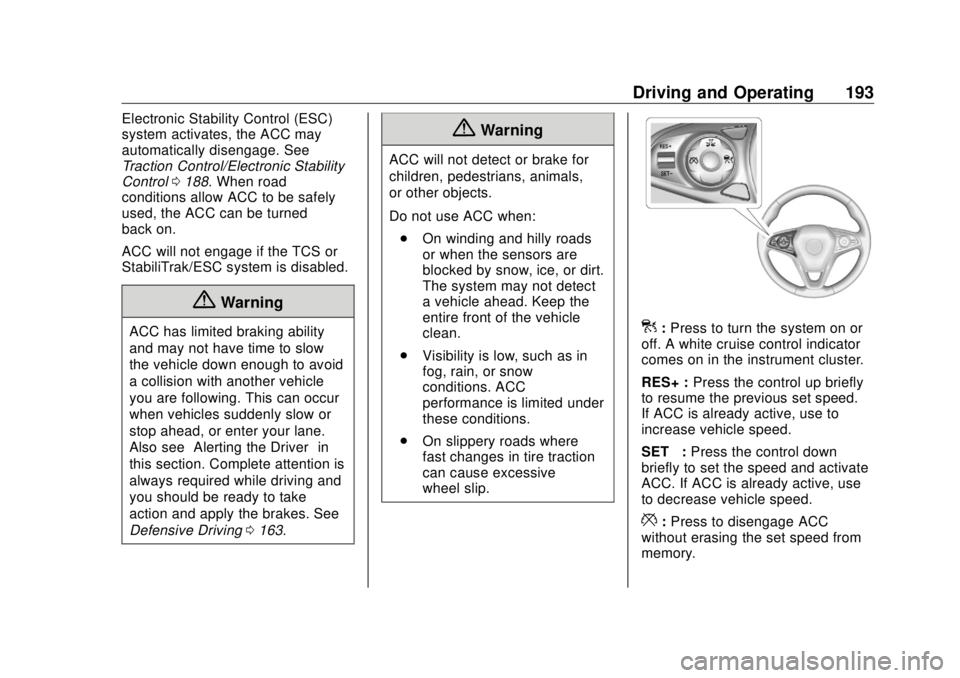
wheel slip. ] : Press to turn the system on or
off. A white cruise control indicator
comes on in the instrument cluster.
RES+ : Press the control up briefly
to resume the previous set speed.
If ACC is already active, use to
increase vehicle speed.
SET – : Press the control down
briefly to set the speed and activate
ACC. If ACC is already active, use
to decrease vehicle speed.
* : Press to disengage ACC
without erasing the set speed from
memory.
Page 195 of 363
Buick Envision Owner Manual (GMNA-Localizing-U.S./Canada/Mexico-
13555857) - 2020 - CRC - 2/25/19
194 Driving and Operating
3 : Press to select a following gap
time (or distance) setting for ACC of
Far, Medium, or Near.
Switching Between ACC and
Regular Cruise Control
To switch between ACC and regular
cruise control, press and hold
* .
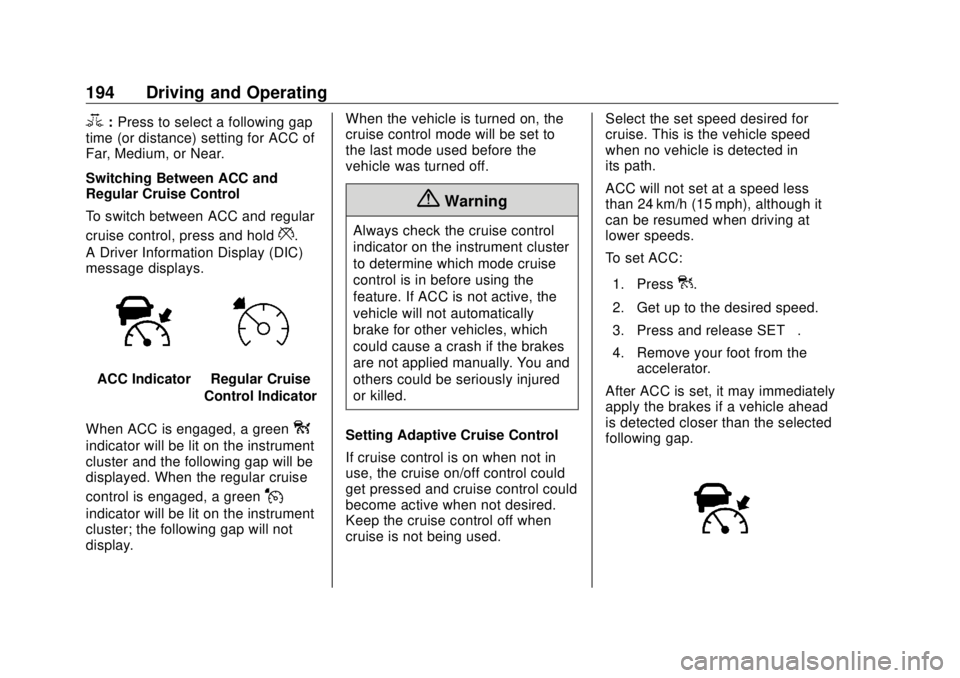
A Driver Information Display (DIC)
message displays.
ACC Indicator Regular Cruise
Control Indicator
When ACC is engaged, a green
oindicator will be lit on the instrument
cluster and the following gap will be
displayed. When the regular cruise
control is engaged, a green
Jindicator will be lit on the instrument
cluster; the following gap will not
display. When the vehicle is turned on, the
cruise control mode will be set to
the last mode used before the
vehicle was turned off.
{ WarningAlways check the cruise control
indicator on the instrument cluster
to determine which mode cruise
control is in before using the
feature. If ACC is not active, the
vehicle will not automatically
brake for other vehicles, which
could cause a crash if the brakes
are not applied manually. You and
others could be seriously injured
or killed.
Setting Adaptive Cruise Control
If cruise control is on when not in
use, the cruise on/off control could
get pressed and cruise control could
become active when not desired.
Keep the cruise control off when
cruise is not being used. Select the set speed desired for
cruise. This is the vehicle speed
when no vehicle is detected in
its path.
ACC will not set at a speed less
than 24 km/h (15 mph), although it
can be resumed when driving at
lower speeds.
To set ACC:
1. Press
] .
2. Get up to the desired speed.
3. Press and release SET – .
4. Remove your foot from the
accelerator.
After ACC is set, it may immediately
apply the brakes if a vehicle ahead
is detected closer than the selected
following gap.
Page 196 of 363
Buick Envision Owner Manual (GMNA-Localizing-U.S./Canada/Mexico-
13555857) - 2020 - CRC - 2/25/19
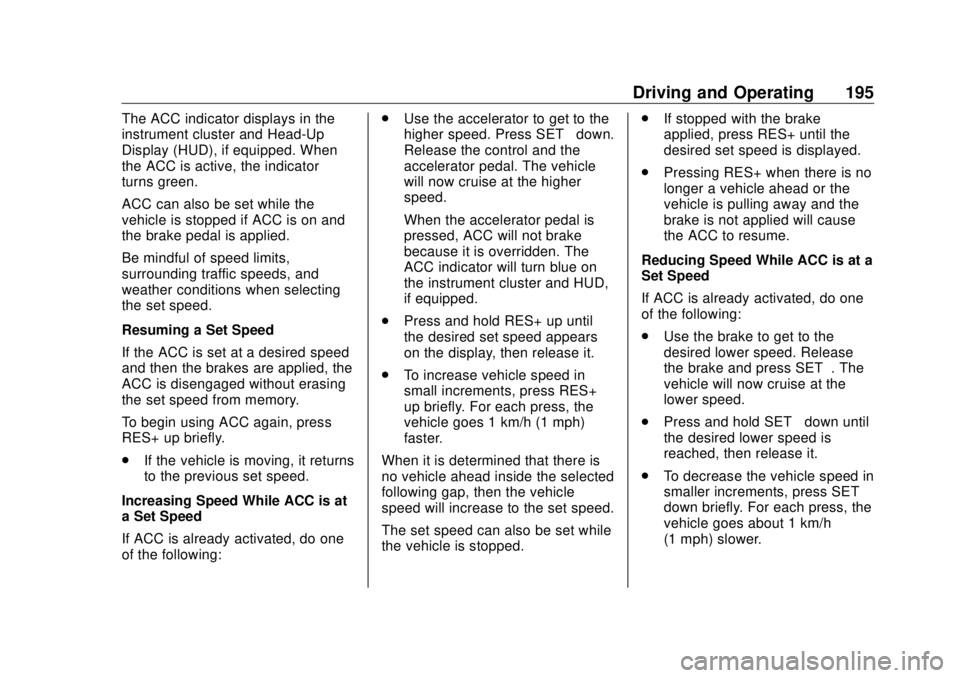
Driving and Operating 195The ACC indicator displays in the
instrument cluster and Head-Up
Display (HUD), if equipped. When
the ACC is active, the indicator
turns green.
ACC can also be set while the
vehicle is stopped if ACC is on and
the brake pedal is applied.
Be mindful of speed limits,
surrounding traffic speeds, and
weather conditions when selecting
the set speed.
Resuming a Set Speed
If the ACC is set at a desired speed
and then the brakes are applied, the
ACC is disengaged without erasing
the set speed from memory.
To begin using ACC again, press
RES+ up briefly.
.
If the vehicle is moving, it returns
to the previous set speed.
Increasing Speed While ACC is at
a Set Speed
If ACC is already activated, do one
of the following: .
Use the accelerator to get to the
higher speed. Press SET – down.
Release the control and the
accelerator pedal. The vehicle
will now cruise at the higher
speed.
When the accelerator pedal is
pressed, ACC will not brake
because it is overridden. The
ACC indicator will turn blue on
the instrument cluster and HUD,
if equipped.
.
Press and hold RES+ up until
the desired set speed appears
on the display, then release it.
.
To increase vehicle speed in
small increments, press RES+
up briefly. For each press, the
vehicle goes 1 km/h (1 mph)
faster.
When it is determined that there is
no vehicle ahead inside the selected
following gap, then the vehicle
speed will increase to the set speed.
The set speed can also be set while
the vehicle is stopped. .
If stopped with the brake
applied, press RES+ until the
desired set speed is displayed.
.
Pressing RES+ when there is no
longer a vehicle ahead or the
vehicle is pulling away and the
brake is not applied will cause
the ACC to resume.
Reducing Speed While ACC is at a
Set Speed
If ACC is already activated, do one
of the following:
.
Use the brake to get to the
desired lower speed. Release
the brake and press SET – . The
vehicle will now cruise at the
lower speed.
.
Press and hold SET – down until
the desired lower speed is
reached, then release it.
.
To decrease the vehicle speed in
smaller increments, press SET −
down briefly. For each press, the
vehicle goes about 1 km/h
(1 mph) slower.
Page 197 of 363
Buick Envision Owner Manual (GMNA-Localizing-U.S./Canada/Mexico-
13555857) - 2020 - CRC - 2/25/19
196 Driving and Operating The set speed can also be
decreased while the vehicle is
stopped.
.
If stopped with the brake
applied, press SET – until the
desired set speed is displayed.
Selecting the Follow Distance
When a slower moving vehicle is
detected ahead within the selected
following gap, ACC will adjust the
vehicle's speed and attempt to
maintain the follow distance gap
selected.
Press
3 on the steering wheel to
adjust the following gap. When
pressed, the current gap setting
displays briefly on the instrument
cluster and HUD, if equipped.
Subsequent presses cycle the gap
button through three settings: Far,
Medium, or Near. The gap setting
will be maintained until it is
changed.
Since each gap setting corresponds
to a following time (Far, Medium,
or Near), the following distance will
vary based on vehicle speed. The faster the vehicle speed, the further
back your vehicle will follow a
vehicle detected ahead. Consider
traffic and weather conditions when
selecting the following gap. The
range of selectable gaps may not be
appropriate for all drivers and
driving conditions.
Changing the gap setting
automatically changes the alert
timing sensitivity (Far, Medium,
or Near) for the Forward Collision
Alert (FCA) feature. See Forward
Collision Alert (FCA) System 0 207 .
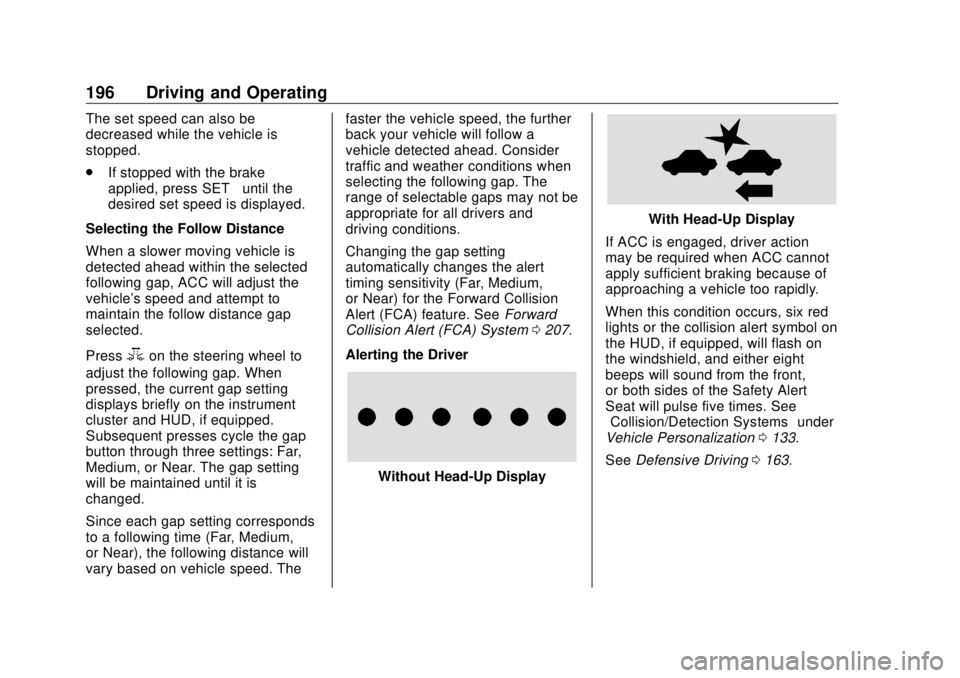
Alerting the Driver
Without Head-Up Display With Head-Up Display
If ACC is engaged, driver action
may be required when ACC cannot
apply sufficient braking because of
approaching a vehicle too rapidly.
When this condition occurs, six red
lights or the collision alert symbol on
the HUD, if equipped, will flash on
the windshield, and either eight
beeps will sound from the front,
or both sides of the Safety Alert
Seat will pulse five times. See
“ Collision/Detection Systems ” under
Vehicle Personalization 0 133 .
See Defensive Driving 0 163 .
Page 198 of 363
Buick Envision Owner Manual (GMNA-Localizing-U.S./Canada/Mexico-
13555857) - 2020 - CRC - 2/25/19
Driving and Operating 197Approaching and Following a
Vehicle
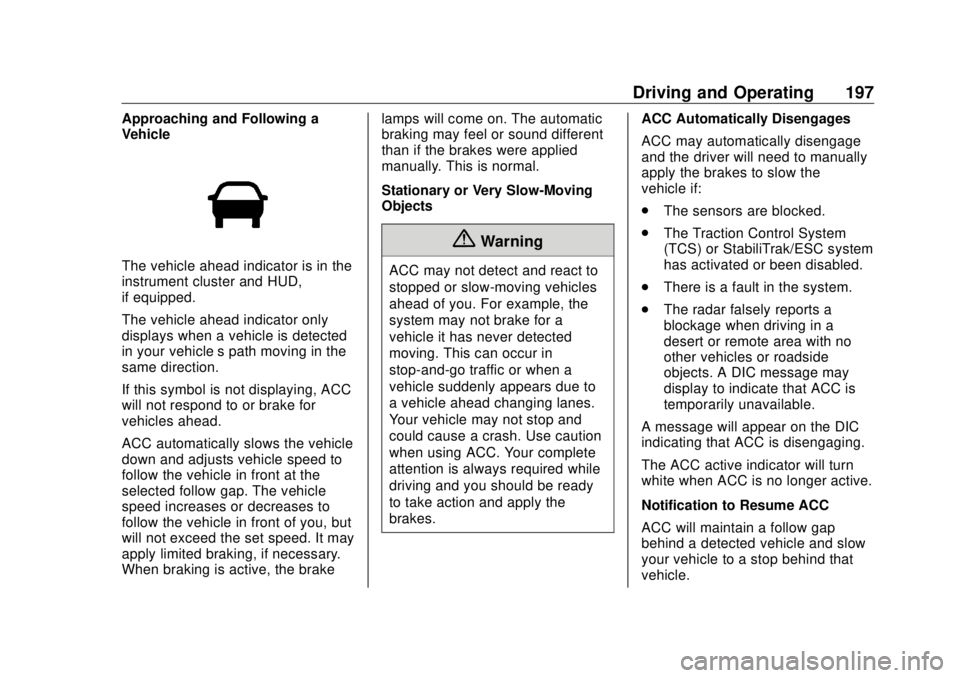
The vehicle ahead indicator is in the
instrument cluster and HUD,
if equipped.
The vehicle ahead indicator only
displays when a vehicle is detected
in your vehicle ’ s path moving in the
same direction.
If this symbol is not displaying, ACC
will not respond to or brake for
vehicles ahead.
ACC automatically slows the vehicle
down and adjusts vehicle speed to
follow the vehicle in front at the
selected follow gap. The vehicle
speed increases or decreases to
follow the vehicle in front of you, but
will not exceed the set speed. It may
apply limited braking, if necessary.
When braking is active, the brake lamps will come on. The automatic
braking may feel or sound different
than if the brakes were applied
manually. This is normal.
Stationary or Very Slow-Moving
Objects
{ WarningACC may not detect and react to
stopped or slow-moving vehicles
ahead of you. For example, the
system may not brake for a
vehicle it has never detected
moving. This can occur in
stop-and-go traffic or when a
vehicle suddenly appears due to
a vehicle ahead changing lanes.
Your vehicle may not stop and
could cause a crash. Use caution
when using ACC. Your complete
attention is always required while
driving and you should be ready
to take action and apply the
brakes. ACC Automatically Disengages
ACC may automatically disengage
and the driver will need to manually
apply the brakes to slow the
vehicle if:
.
The sensors are blocked.
.
The Traction Control System
(TCS) or StabiliTrak/ESC system
has activated or been disabled.
.
There is a fault in the system.
.
The radar falsely reports a
blockage when driving in a
desert or remote area with no
other vehicles or roadside
objects. A DIC message may
display to indicate that ACC is
temporarily unavailable.
A message will appear on the DIC
indicating that ACC is disengaging.
The ACC active indicator will turn
white when ACC is no longer active.
Notification to Resume ACC
ACC will maintain a follow gap
behind a detected vehicle and slow
your vehicle to a stop behind that
vehicle.
Page 199 of 363
Buick Envision Owner Manual (GMNA-Localizing-U.S./Canada/Mexico-
13555857) - 2020 - CRC - 2/25/19
198 Driving and Operating If the stopped vehicle ahead has
driven away and ACC has not
resumed, the vehicle ahead
indicator will flash as a reminder to
check traffic before proceeding. In
addition, three beeps will sound.
See “ Adaptive Cruise Go Notifier ” in
“ Collision/Detection Systems ” under
Vehicle Personalization 0 133 .
When the vehicle ahead drives
away, press RES+ or the
accelerator pedal to resume ACC.
If stopped for more than
two minutes or if the driver door is
opened and the driver seat belt is
unbuckled, the ACC automatically
applies the Electric Parking Brake
(EPB) to hold the vehicle. The EPB
status light will turn on. See Electric
Parking Brake 0 186 . To release the
EPB, press the accelerator pedal.
A DIC warning message may
display indicating to shift to P (Park)
before exiting the vehicle. { WarningIf ACC has stopped the vehicle,
and if ACC is disengaged, turned
off, or canceled, the vehicle will
no longer be held at a stop. The
vehicle can move. When ACC is
holding the vehicle at a stop,
always be prepared to manually
apply the brakes.
{ WarningLeaving the vehicle without
placing it in P (Park) can be
dangerous. Do not leave the
vehicle while it is being held at a
stop by ACC. Always place the
vehicle in P (Park) and turn off
the ignition before leaving the
vehicle.
ACC Override
If using the accelerator pedal while
ACC is active, automatic braking will
not occur. The ACC indicator will turn blue on the instrument cluster
and HUD, if equipped. ACC will
resume operation when the
accelerator pedal is not being
pressed.
{ WarningThe ACC will not automatically
apply the brakes if your foot is
resting on the accelerator pedal.
You could crash into a vehicle
ahead of you.
Curves in the Road
{ Warning
On curves, ACC may not detect a
vehicle ahead in your lane. You
could be startled if the vehicle
accelerates up to the set speed,
especially when following a
vehicle exiting or entering exit
ramps. You could lose control of
the vehicle or crash. Do not use
(Continued)
Page 205 of 363

Buick Envision Owner Manual (GMNA-Localizing-U.S./Canada/Mexico-
13555857) - 2020 - CRC - 2/25/19
204 Driving and Operating
{ WarningThe camera(s) do not display
children, pedestrians, bicyclists,
crossing traffic, animals, or any
other object outside of the
cameras ’ field of view, below the
bumper, or under the vehicle.
Shown distances may be different
from actual distances. Do not
drive or park the vehicle using
only these camera(s). Always
check behind and around the
vehicle before driving. Failure to
use proper care may result in
injury, death, or vehicle damage.
Park Assist
With RPA, and if equipped with FPA,
as the vehicle moves at speeds of
less than 8 km/h (5 mph) the
sensors on the bumpers may detect
objects up to 1.8 m (6 ft) behind and
1.2 m (4 ft) in front of the vehicle
within a zone 25 cm (10 in) high off
the ground and below bumper level.
These detection distances may be
shorter during warmer or humid weather. Blocked sensors will not
detect objects and can also cause
false detections. Keep the sensors
clean of mud, dirt, snow, ice, and
slush; and clean sensors after a car
wash in freezing temperatures.
{ WarningThe Park Assist system does not
detect children, pedestrians,
bicyclists, animals, or objects
located below the bumper or that
are too close or too far from the
vehicle. It is not available at
speeds greater than 8 km/h
(5 mph). To prevent injury, death,
or vehicle damage, even with
Park Assist, always check the
area around the vehicle and
check all mirrors before moving
forward or backing. The instrument cluster may have a
park assist display with bars that
show “ distance to object ” and object
location information for RPA, and on
some vehicles, FPA. As the object
gets closer, more bars light up and
the bars change color from yellow to
amber to red.
When an object is first detected in
the rear, one beep will be heard
from the rear, or both sides of the
Safety Alert Seat will pulse two
times. When an object is very close
(<0.6 m (2 ft) in the vehicle rear,
or <0.3 m (1 ft) in the vehicle front),
five beeps will sound from the front
or rear depending on object
Page 228 of 363

Buick Envision Owner Manual (GMNA-Localizing-U.S./Canada/Mexico-
13555857) - 2020 - CRC - 2/25/19
Driving and Operating 227slack so the combination can turn.
Never allow safety chains to drag on
the ground.
Trailer Brakes Loaded trailers over 450 kg
(1,000 lb) must be equipped with
brake systems and with brakes for
each axle. Trailer braking equipment
conforming to Canadian Standards
Association (CSA) requirement
CAN3-D313, or its equivalent, is
recommended.
State or local regulations may
require trailers to have their own
braking system if the loaded weight
of the trailer exceeds certain
minimums that can vary from state
to state. Read and follow the
instructions for the trailer brakes so
they are installed, adjusted, and
maintained properly.
{ Warning
Never attempt to tap into your
vehicle's hydraulic brake system
when installing a trailer brake
(Continued) Warning (Continued) controller. If you do, both the
vehicle antilock brakes and the
trailer brakes may not function,
which could result in a crash. You
or others could be seriously
injured or killed.
Trailer Lamps Always check all trailer lamps are
working at the beginning of each
trip, and periodically on longer trips.
Turn Signals When Towing a
Trailer When properly connected, the trailer
turn signals will illuminate to indicate
the vehicle is turning, changing
lanes, or stopping. When towing a
trailer, the arrows on the instrument
cluster will illuminate even if the
trailer is not properly connected or
the bulbs are burned out. Trailer Tires Special Trailer (ST) tires differ from
vehicle tires. Trailer tires are
designed with stiff sidewalls to help
prevent sway and to support heavy
loads. These features can make it
difficult to determine if the trailer tire
pressures are low only based on a
visual inspection.
Always check all trailer tire
pressures before each trip when the
tires are cool. Low trailer tire
pressure is a leading cause of trailer
tire blowouts.
Trailer tires deteriorate over time.
The trailer tire sidewall will show the
week and year the tire was
manufactured. Many trailer tire
manufacturers recommend
replacing tires more than six
years old.
Overloading is another leading
cause of trailer tire blow-outs. Never
load your trailer with more weight
than the tires are designed to
support. The load rating is on the
trailer tire sidewall.
Page 276 of 363

Buick Envision Owner Manual (GMNA-Localizing-U.S./Canada/Mexico-
13555857) - 2020 - CRC - 3/12/19
Vehicle Care 275
Tire Pressure Monitor
Operation This vehicle may have a Tire
Pressure Monitor System (TPMS).
The TPMS is designed to warn the
driver when a low tire pressure
condition exists. TPMS sensors are
mounted onto each tire and wheel
assembly, excluding the spare tire
and wheel assembly. The TPMS
sensors monitor the air pressure in
the tires and transmit the tire
pressure readings to a receiver
located in the vehicle.
When a low tire pressure condition
is detected, the TPMS illuminates
the low tire pressure warning light
located on the instrument cluster.
If the warning light comes on, stop
as soon as possible and inflate the
tires to the recommended pressure shown on the Tire and Loading
Information label. See Vehicle Load
Limits 0 169 .
A message to check the pressure in
a specific tire displays in the Driver
Information Center (DIC). The low
tire pressure warning light and the
DIC warning message come on at
each ignition cycle until the tires are
inflated to the correct inflation
pressure. Using the DIC, tire
pressure levels can be viewed. For
additional information and details
about the DIC operation and
displays see Driver Information
Center (DIC) (Base Level) 0 123 or
Driver Information Center (DIC)
(Uplevel) 0 126 .
The low tire pressure warning light
may come on in cool weather when
the vehicle is first started, and then
turn off as the vehicle is driven. This
could be an early indicator that the
air pressure is getting low and
needs to be inflated to the proper
pressure.
A Tire and Loading Information
label, attached to your vehicle,
shows the size of the original equipment tires and the correct
inflation pressure for the tires when
they are cold. See Vehicle Load
Limits 0 169 , for an example of the
Tire and Loading Information label
and its location. Also see Tire
Pressure 0 272 .
The TPMS can warn about a low
tire pressure condition but it does
not replace normal tire
maintenance. See Tire Inspection
0 279 , Tire Rotation 0 279 and
Tires 0 265 .
CautionTire sealant materials are not all
the same. A non-approved tire
sealant could damage the TPMS
sensors. TPMS sensor damage
caused by using an incorrect tire
sealant is not covered by the
vehicle warranty. Always use only
the GM approved tire sealant
available through your dealer or
included in the vehicle.
Page 305 of 363
Buick Envision Owner Manual (GMNA-Localizing-U.S./Canada/Mexico-
13555857) - 2020 - CRC - 3/12/19
304 Vehicle Care disc brake pads for wear and rotors
for surface condition. Inspect all
other brake parts.
Steering, Suspension, and
Chassis Components Visually inspect steering,
suspension, and chassis
components for damaged, loose,
or missing parts or signs of wear at
least once a year.
Inspect power steering for proper
attachment, connections, binding,
leaks, cracks, chafing, etc.
Visually check constant velocity joint
boots and axle seals for leaks.
Body Component Lubrication Lubricate all key lock cylinders,
hood hinges, liftgate hinges, and the
steel fuel door hinge, unless the
components are plastic. Applying
silicone grease on weatherstrips
with a clean cloth will make them
last longer, seal better, and not stick
or squeak. Underbody Maintenance At least twice a year, spring and fall,
use plain water to flush any
corrosive materials from the
underbody. Take care to thoroughly
clean any areas where mud and
other debris can collect.
Do not directly power wash the
transfer case and/or front/rear axle
output seals. High pressure water
can overcome the seals and
contaminate the fluid. Contaminated
fluid will decrease the life of the
transfer case and/or axles and
should be replaced.
Sheet Metal Damage If the vehicle is damaged and
requires sheet metal repair or
replacement, make sure the body
repair shop applies anti-corrosion
material to parts repaired or
replaced to restore corrosion
protection.
Original manufacturer replacement
parts will provide the corrosion
protection while maintaining the
vehicle warranty. Finish Damage Quickly repair minor chips and
scratches with touch-up materials
available from your dealer to avoid
corrosion. Larger areas of finish
damage can be corrected in your
dealer's body and paint shop.
Chemical Paint Spotting Airborne pollutants can fall upon
and attack painted vehicle surfaces
causing blotchy, ring-shaped
discolorations, and small, irregular
dark spots etched into the paint
surface. See “ Finish Care ”
previously in this section.
Interior Care To prevent dirt particle abrasions,
regularly clean the vehicle's interior.
Immediately remove any soils.
Newspapers or dark garments can
transfer color to the vehicle ’ s
interior.
Use a soft bristle brush to remove
dust from knobs and crevices on the
instrument cluster. Using a mild
soap solution, immediately remove