ad blue BUICK ENVISION 2020 Owners Manual
[x] Cancel search | Manufacturer: BUICK, Model Year: 2020, Model line: ENVISION, Model: BUICK ENVISION 2020Pages: 363, PDF Size: 7.26 MB
Page 135 of 363
Buick Envision Owner Manual (GMNA-Localizing-U.S./Canada/Mexico-
13555857) - 2020 - CRC - 2/25/19
134 Instruments and Controls Personalization Menus The following list of features may be
available:
.
Time and Date
.
Rear Seat Reminder
.
Language
.
Valet Mode
.
Teen Driver
.
Radio
.
Vehicle
.
Bluetooth
.
Apple CarPlay
.
Android Auto
.
Voice
.
Display
.
Rear Camera
.
Return to Factory Settings
.
Software Information
.
Wi-Fi
Each menu is detailed in the
following information. Time and Date Manually set the time and date. See
Clock 0 99 .
Rear Seat Reminder This allows for a chime and a
message when the rear door has
been opened before or during
operation of the vehicle.
Select Off or On.
Language Select Language, then select from
the available language(s).
Valet Mode To turn Valet Mode on and off, see
“ Valet Mode ” under “ Settings ” in the
infotainment manual.
Teen Driver
See “ Teen Driver ” under “ Settings ”
in the infotainment manual.
Radio
To manage the radio features, see
“ Radio ” under “ Settings ” in the
infotainment manual. Vehicle Select and the following may
display:
.
Climate and Air Quality
.
Collision/Detection Systems
.
Comfort and Convenience
.
Lighting
.
Power Door Locks
.
Remote Lock, Unlock, Start
Climate and Air Quality Select and the following may
display:
.
Auto Fan Speed
.
Auto Heated Seats
.
Auto Defog
.
Auto Rear Defog
.
Ionizer
Auto Fan Speed
This feature will set the auto fan
speed.
Select Low, Medium, or High.
Page 139 of 363
Buick Envision Owner Manual (GMNA-Localizing-U.S./Canada/Mexico-
13555857) - 2020 - CRC - 2/25/19
138 Instruments and Controls Passive Door Unlock
This allows selection of which doors
will unlock when using the button on
the driver door to unlock the vehicle.
Select All Doors or Driver Door.
Passive Door Lock
This feature can be turned on or off,
or can be used to select feedback.
See Remote Keyless Entry (RKE)
System Operation 0 8 .
Select Off, On with Horn
Chirp, or On.
Remote Left in Vehicle Alert
This feature sounds an alert when
the RKE transmitter is left in the
vehicle. This menu also enables
Remote No Longer in Vehicle Alert.
Select Off or On.
Bluetooth
Select and the following may
display:
.
Pair New Device
.
Device Management
.
Ringtones .
Voice Mail Numbers
.
Text Message Alerts
Pair New Device
Select to pair a new device. See
“ Pairing ” under “ Bluetooth ” in the
infotainment manual.
Device Management
Select to connect to a different
phone source, disconnect a phone,
or delete a phone.
Ringtones
Press to change the ring tone for
the specific phone. The phone does
not need to be connected to change
the ring tone.
Voice Mail Numbers
This feature displays the voice mail
number for all connected phones.
To change the voice mail number,
select EDIT or press the EDIT
button. Type a new number, then
select SAVE or press the SAVE
button. Text Message Alerts
This feature allows text messages
to be received. See “ Text
Messaging ” under “ Phone ” in the
infotainment manual.
Select Off or On.
Apple CarPlay Select and the following may
display:
.
Apple CarPlay
.
Manage Apple CarPlay Devices
Apple CarPlay
This feature allows Apple devices to
be connected to the infotainment
system through a USB port. See
“ Apple CarPlay and Android Auto ” in
the infotainment manual.
Select Off or On.
Manage Apple CarPlay Devices
Select to manage Apple devices.
Apple CarPlay must be on for this
feature to be accessed. See “ Apple
CarPlay and Android Auto ” in the
infotainment manual.
Page 146 of 363

Buick Envision Owner Manual (GMNA-Localizing-U.S./Canada/Mexico-
13555857) - 2020 - CRC - 2/25/19
Lighting 145AUTO : Automatically turns the
exterior lamps on and off,
depending on outside lighting.
; : Turns on the parking lamps,
including all lamps, except the
headlamps.
2 : Turns on the headlamps
together with the parking lamps and
instrument panel lights.
IntelliBeam System If equipped, this system turns the
vehicle's high-beam headlamps on
and off according to surrounding
traffic conditions.
The system turns the high-beam
headlamps on when it is dark
enough and there is no other traffic
present.
This light
b comes on in the
instrument cluster when the
IntelliBeam system is enabled. Turning On and Enabling
IntelliBeam
To enable the IntelliBeam system,
with the turn signal lever in the
neutral position, turn the exterior
lamp control to AUTO.
Driving with IntelliBeam
The system only activates the high
beams when driving over 40 km/h
(25 mph).
The blue high-beam on light
appears on the instrument cluster
when the high beams are on.
There is a sensor near the top
center of the windshield that
automatically controls the system.
Keep this area of the windshield
clear of debris to allow for best
system performance.
The high-beam headlamps remain
on, under the automatic control,
until one of the following situations
occurs:
.
The system detects an
approaching vehicle's
headlamps. .
The system detects a preceding
vehicle's taillamps.
.
The outside light is bright
enough that high-beam
headlamps are not required.
.
The vehicle's speed drops below
20 km/h (12 mph).
.
The IntelliBeam system is
disabled by the high/low-beam
changer or the flash-to-pass
feature. If this happens, the high/
low-beam changer must be
activated two times within
two seconds to reactivate the
IntelliBeam system. The
instrument cluster light will come
on to indicate the IntelliBeam
system is reactivated. See
Headlamp High/Low-Beam
Changer 0 146 and
Flash-to-Pass 0 146 .
The high beams may not turn off
automatically if the system cannot
detect another vehicle's lamps
because of any of the following:
Page 196 of 363
Buick Envision Owner Manual (GMNA-Localizing-U.S./Canada/Mexico-
13555857) - 2020 - CRC - 2/25/19
Driving and Operating 195The ACC indicator displays in the
instrument cluster and Head-Up
Display (HUD), if equipped. When
the ACC is active, the indicator
turns green.
ACC can also be set while the
vehicle is stopped if ACC is on and
the brake pedal is applied.
Be mindful of speed limits,
surrounding traffic speeds, and
weather conditions when selecting
the set speed.
Resuming a Set Speed
If the ACC is set at a desired speed
and then the brakes are applied, the
ACC is disengaged without erasing
the set speed from memory.
To begin using ACC again, press
RES+ up briefly.
.
If the vehicle is moving, it returns
to the previous set speed.
Increasing Speed While ACC is at
a Set Speed
If ACC is already activated, do one
of the following: .
Use the accelerator to get to the
higher speed. Press SET – down.
Release the control and the
accelerator pedal. The vehicle
will now cruise at the higher
speed.
When the accelerator pedal is
pressed, ACC will not brake
because it is overridden. The
ACC indicator will turn blue on
the instrument cluster and HUD,
if equipped.
.
Press and hold RES+ up until
the desired set speed appears
on the display, then release it.
.
To increase vehicle speed in
small increments, press RES+
up briefly. For each press, the
vehicle goes 1 km/h (1 mph)
faster.
When it is determined that there is
no vehicle ahead inside the selected
following gap, then the vehicle
speed will increase to the set speed.
The set speed can also be set while
the vehicle is stopped. .
If stopped with the brake
applied, press RES+ until the
desired set speed is displayed.
.
Pressing RES+ when there is no
longer a vehicle ahead or the
vehicle is pulling away and the
brake is not applied will cause
the ACC to resume.
Reducing Speed While ACC is at a
Set Speed
If ACC is already activated, do one
of the following:
.
Use the brake to get to the
desired lower speed. Release
the brake and press SET – . The
vehicle will now cruise at the
lower speed.
.
Press and hold SET – down until
the desired lower speed is
reached, then release it.
.
To decrease the vehicle speed in
smaller increments, press SET −
down briefly. For each press, the
vehicle goes about 1 km/h
(1 mph) slower.
Page 199 of 363
Buick Envision Owner Manual (GMNA-Localizing-U.S./Canada/Mexico-
13555857) - 2020 - CRC - 2/25/19
198 Driving and Operating If the stopped vehicle ahead has
driven away and ACC has not
resumed, the vehicle ahead
indicator will flash as a reminder to
check traffic before proceeding. In
addition, three beeps will sound.
See “ Adaptive Cruise Go Notifier ” in
“ Collision/Detection Systems ” under
Vehicle Personalization 0 133 .
When the vehicle ahead drives
away, press RES+ or the
accelerator pedal to resume ACC.
If stopped for more than
two minutes or if the driver door is
opened and the driver seat belt is
unbuckled, the ACC automatically
applies the Electric Parking Brake
(EPB) to hold the vehicle. The EPB
status light will turn on. See Electric
Parking Brake 0 186 . To release the
EPB, press the accelerator pedal.
A DIC warning message may
display indicating to shift to P (Park)
before exiting the vehicle. { WarningIf ACC has stopped the vehicle,
and if ACC is disengaged, turned
off, or canceled, the vehicle will
no longer be held at a stop. The
vehicle can move. When ACC is
holding the vehicle at a stop,
always be prepared to manually
apply the brakes.
{ WarningLeaving the vehicle without
placing it in P (Park) can be
dangerous. Do not leave the
vehicle while it is being held at a
stop by ACC. Always place the
vehicle in P (Park) and turn off
the ignition before leaving the
vehicle.
ACC Override
If using the accelerator pedal while
ACC is active, automatic braking will
not occur. The ACC indicator will turn blue on the instrument cluster
and HUD, if equipped. ACC will
resume operation when the
accelerator pedal is not being
pressed.
{ WarningThe ACC will not automatically
apply the brakes if your foot is
resting on the accelerator pedal.
You could crash into a vehicle
ahead of you.
Curves in the Road
{ Warning
On curves, ACC may not detect a
vehicle ahead in your lane. You
could be startled if the vehicle
accelerates up to the set speed,
especially when following a
vehicle exiting or entering exit
ramps. You could lose control of
the vehicle or crash. Do not use
(Continued)
Page 339 of 363

Buick Envision Owner Manual (GMNA-Localizing-U.S./Canada/Mexico-
13555857) - 2020 - CRC - 2/25/19
338 Customer Information
Cybersecurity GM collects information about the
use of your vehicle including
operational and safety related
information. We collect this
information to provide, evaluate,
improve, and troubleshoot our
products and services and to
develop new products and services.
The protection of vehicle electronics
systems and customer data from
unauthorized outside electronic
access or control is important to
GM. GM maintains appropriate
security standards, practices,
guidelines and controls aimed at
defending the vehicle and the
vehicle service ecosystem against
unauthorized electronic access,
detecting possible malicious activity
in related networks, and responding
to suspected cybersecurity incidents
in a timely, coordinated and effective
manner. Security incidents could
impact your safety or compromise
your private data. To minimize
security risks, please do not connect
your vehicle electronic systems to
unauthorized devices or connect your vehicle to any unknown or
untrusted networks (such as
Bluetooth, Wi-Fi or similar
technology). In the event you
suspect any security incident
impacting your data or the safe
operation of your vehicle, please
stop operating your vehicle and
contact your dealer.
Event Data Recorders This vehicle is equipped with an
event data recorder (EDR). The
main purpose of an EDR is to
record, in certain crash or near
crash-like situations, such as an air
bag deployment or hitting a road
obstacle, data that will assist in
understanding how a vehicle ’ s
systems performed. The EDR is
designed to record data related to
vehicle dynamics and safety
systems for a short period of time,
typically 30 seconds or less. The
EDR in this vehicle is designed to
record such data as:
.
How various systems in your
vehicle were operating; .
Whether or not the driver and
passenger safety belts were
buckled/fastened;
.
How far (if at all) the driver was
depressing the accelerator and/
or brake pedal; and,
.
How fast the vehicle was
traveling.
These data can help provide a
better understanding of the
circumstances in which crashes and
injuries occur.
Note
EDR data are recorded by your
vehicle only if a non-trivial crash
situation occurs; no data are
recorded by the EDR under normal
driving conditions and no personal
data (e.g., name, gender, age, and
crash location) are recorded.
However, other parties, such as law
enforcement, could combine the
EDR data with the type of
personally identifying data routinely
acquired during a crash
investigation.
Page 341 of 363
Buick Envision Owner Manual (GMNA-Localizing-U.S./Canada/Mexico-
13555857) - 2020 - CRC - 2/25/19
340 OnStar
OnStar OnStar Overview OnStar Overview . . . . . . . . . . . . . 340
OnStar Services Emergency . . . . . . . . . . . . . . . . . . . 341
Security . . . . . . . . . . . . . . . . . . . . . . 342
OnStar Additional Information OnStar Additional
Information . . . . . . . . . . . . . . . . . . 342
OnStar Overview
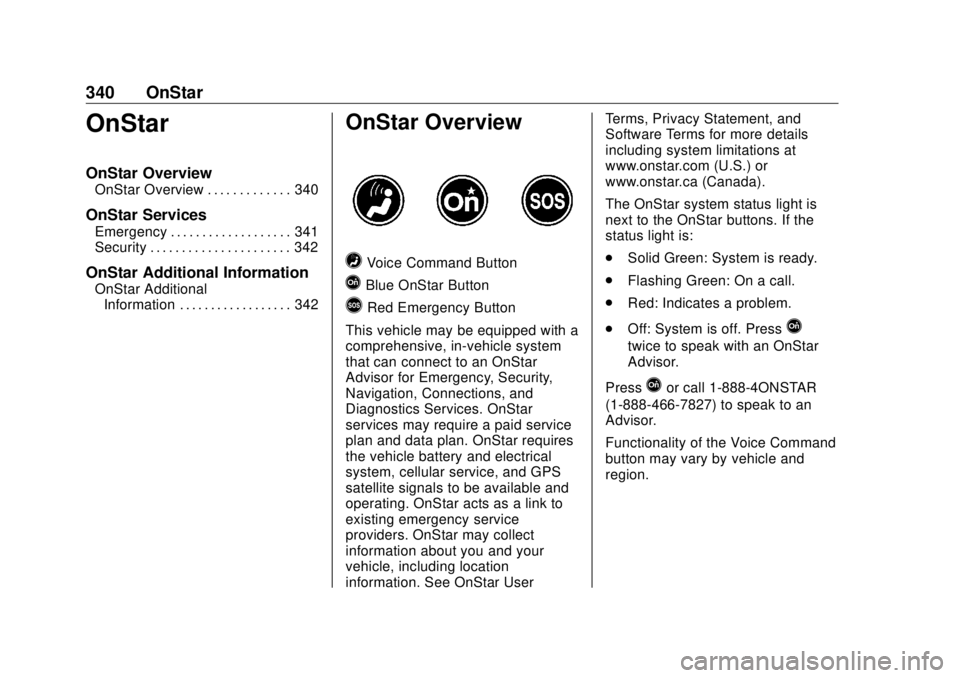
= Voice Command Button
Q Blue OnStar Button
> Red Emergency Button
This vehicle may be equipped with a
comprehensive, in-vehicle system
that can connect to an OnStar
Advisor for Emergency, Security,
Navigation, Connections, and
Diagnostics Services. OnStar
services may require a paid service
plan and data plan. OnStar requires
the vehicle battery and electrical
system, cellular service, and GPS
satellite signals to be available and
operating. OnStar acts as a link to
existing emergency service
providers. OnStar may collect
information about you and your
vehicle, including location
information. See OnStar User Terms, Privacy Statement, and
Software Terms for more details
including system limitations at
www.onstar.com (U.S.) or
www.onstar.ca (Canada).
The OnStar system status light is
next to the OnStar buttons. If the
status light is:
.
Solid Green: System is ready.
.
Flashing Green: On a call.
.
Red: Indicates a problem.
.
Off: System is off. Press
Q twice to speak with an OnStar
Advisor.
Press
Q or call 1-888-4ONSTAR
(1-888-466-7827) to speak to an
Advisor.
Functionality of the Voice Command
button may vary by vehicle and
region.