instrument cluster BUICK ENVISION 2022 User Guide
[x] Cancel search | Manufacturer: BUICK, Model Year: 2022, Model line: ENVISION, Model: BUICK ENVISION 2022Pages: 369, PDF Size: 14.04 MB
Page 107 of 369
Buick Envision Owner Manual (GMNA-Localizing-U.S./Canada/Mexico-
15218978) - 2022 - CRC - 5/12/21
106 Instruments and Controls
Average Speed :Displays the average
vehicle speed of the vehicle in kilometers
per hour (km/h) or miles per hour (mph).
This average is based on the various vehicle
speeds recorded since the last reset. Reset
the average speed by pressing the
thumbwheel while this display is active to
show a confirmation window to select yes
or no.
Timer : This display can be used as a timer.
To start the timer, press the thumbwheel
while this display is active. The display will
show the amount of time that has passed
since the timer was last reset. To stop the
timer, press the thumbwheel briefly while
this display is active and the timer is
running.
Press the thumbwheel while this display is
active to reset the timer.
Follow Distance/Gap Setting : When
Adaptive Cruise Control (ACC) is not
engaged, the current follow time to the
vehicle ahead is displayed as a time value
on this page. When ACC has been engaged,
the display switches to the gap setting
page. This page shows the current gap
setting along with the vehicle ahead telltale. Driver Assistance :
If equipped, shows
information for Lane Keep Assist (LKA) and
Forward Collision Alert (FCA).
Battery Voltage : Shows the current battery
voltage.
Economy Trend : Shows history of the
Average Fuel Economy from the last 50 km
(30 mi). Each bar represents about 5 km
(3 mi) of driving. During driving the bars will
shift to always reflect the most recent
distance on the right side. Press the
thumbwheel to open the menu while this
display is active to clear the graph. Select
yes or no and press the thumbwheel.
Off Road : If equipped, displays vehicle pitch
and roll information, road wheel angle, and
All-Wheel Drive (AWD) status.
Blank Page : Allows for no information to
be displayed in the cluster info display
areas.
Info Page Options : Scroll to choose which
info pages appear on the DIC. Press the
thumbwheel to select or deselect.Head-Up Display (HUD)
{Warning
If the HUD image is too bright or too
high in your field of view, it may take
you more time to see things you need to
see when it is dark outside. Be sure to
keep the HUD image dim and placed low
in your field of view.
If equipped with HUD, some information
concerning the operation of the vehicle is
projected onto the windshield. The image is
projected through the HUD lens on top of
the instrument panel. The information
appears as an image focused out toward the
front of the vehicle.
Caution
If you try to use the HUD image as a
parking aid, you may misjudge the
distance and damage your vehicle. Do not
use the HUD image as a parking aid.
The HUD information can be displayed in
various languages in some vehicles. The
speedometer reading and other numerical
values can be displayed in either English or
metric units.
Page 108 of 369
Buick Envision Owner Manual (GMNA-Localizing-U.S./Canada/Mexico-
15218978) - 2022 - CRC - 5/12/21
Instruments and Controls 107
The language selection is changed through
the radio and the units of measurement is
changed through the instrument cluster. See
Settings0161 and “Options” under
Instrument Cluster 090.
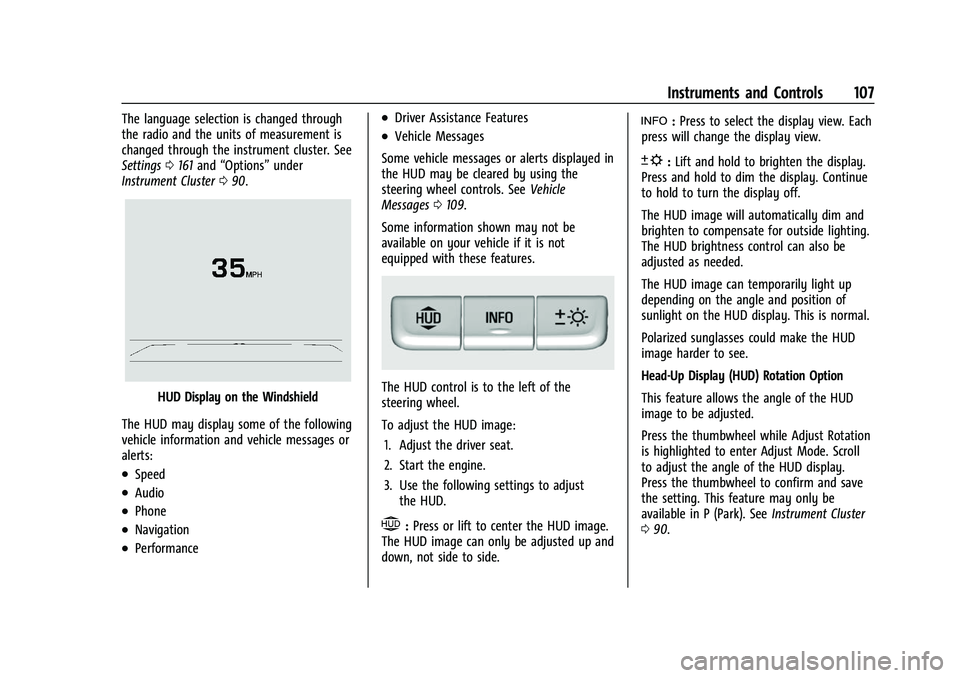
HUD Display on the Windshield
The HUD may display some of the following
vehicle information and vehicle messages or
alerts:
.Speed
.Audio
.Phone
.Navigation
.Performance
.Driver Assistance Features
.Vehicle Messages
Some vehicle messages or alerts displayed in
the HUD may be cleared by using the
steering wheel controls. See Vehicle
Messages 0109.
Some information shown may not be
available on your vehicle if it is not
equipped with these features.
The HUD control is to the left of the
steering wheel.
To adjust the HUD image: 1. Adjust the driver seat.
2. Start the engine.
3. Use the following settings to adjust the HUD.
$:Press or lift to center the HUD image.
The HUD image can only be adjusted up and
down, not side to side.
!: Press to select the display view. Each
press will change the display view.
D: Lift and hold to brighten the display.
Press and hold to dim the display. Continue
to hold to turn the display off.
The HUD image will automatically dim and
brighten to compensate for outside lighting.
The HUD brightness control can also be
adjusted as needed.
The HUD image can temporarily light up
depending on the angle and position of
sunlight on the HUD display. This is normal.
Polarized sunglasses could make the HUD
image harder to see.
Head-Up Display (HUD) Rotation Option
This feature allows the angle of the HUD
image to be adjusted.
Press the thumbwheel while Adjust Rotation
is highlighted to enter Adjust Mode. Scroll
to adjust the angle of the HUD display.
Press the thumbwheel to confirm and save
the setting. This feature may only be
available in P (Park). See Instrument Cluster
0 90.
Page 109 of 369
Buick Envision Owner Manual (GMNA-Localizing-U.S./Canada/Mexico-
15218978) - 2022 - CRC - 5/12/21
108 Instruments and Controls
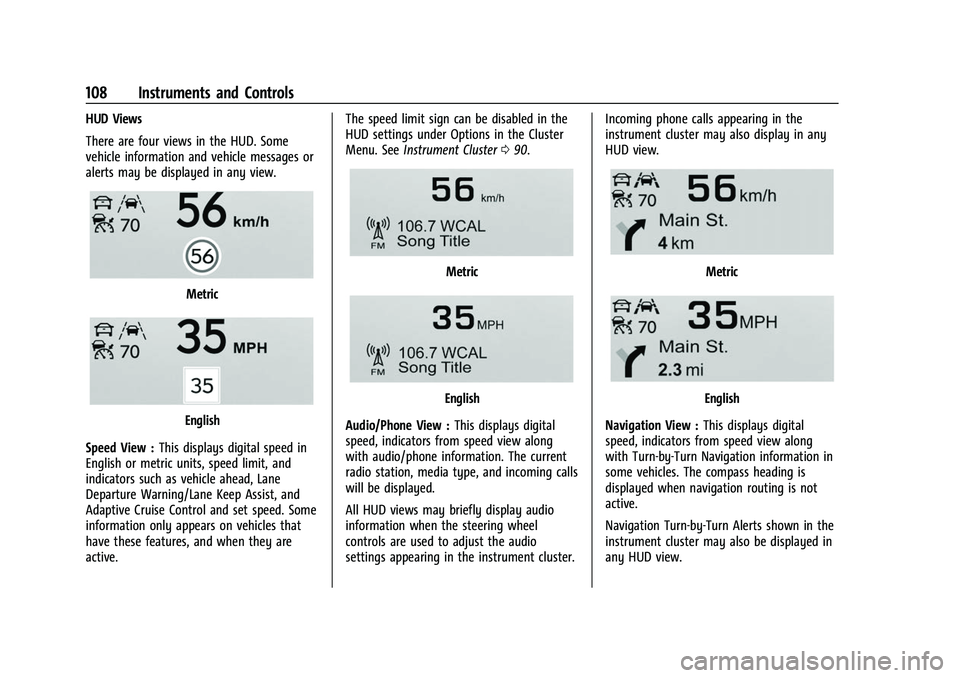
HUD Views
There are four views in the HUD. Some
vehicle information and vehicle messages or
alerts may be displayed in any view.
Metric
English
Speed View : This displays digital speed in
English or metric units, speed limit, and
indicators such as vehicle ahead, Lane
Departure Warning/Lane Keep Assist, and
Adaptive Cruise Control and set speed. Some
information only appears on vehicles that
have these features, and when they are
active. The speed limit sign can be disabled in the
HUD settings under Options in the Cluster
Menu. See
Instrument Cluster 090.
Metric
English
Audio/Phone View : This displays digital
speed, indicators from speed view along
with audio/phone information. The current
radio station, media type, and incoming calls
will be displayed.
All HUD views may briefly display audio
information when the steering wheel
controls are used to adjust the audio
settings appearing in the instrument cluster. Incoming phone calls appearing in the
instrument cluster may also display in any
HUD view.
Metric
English
Navigation View : This displays digital
speed, indicators from speed view along
with Turn-by-Turn Navigation information in
some vehicles. The compass heading is
displayed when navigation routing is not
active.
Navigation Turn-by-Turn Alerts shown in the
instrument cluster may also be displayed in
any HUD view.
Page 119 of 369
Buick Envision Owner Manual (GMNA-Localizing-U.S./Canada/Mexico-
15218978) - 2022 - CRC - 5/12/21
118 Lighting
Lighting
Exterior Lighting
Exterior Lamp Controls . . . . . . . . . . . . . . . . . 118
Exterior Lamps Off Reminder . . . . . . . . . . . 121
Headlamp High/Low-Beam Changer . . . . 121
Flash-to-Pass . . . . . . . . . . . . . . . . . . . . . . . . . . . 121
Daytime Running Lamps (DRL) . . . . . . . . . 121
Automatic Headlamp System . . . . . . . . . . 121
Adaptive Forward Lighting (AFL) . . . . . . . 122
Hazard Warning Flashers . . . . . . . . . . . . . . 123
Turn and Lane-Change Signals . . . . . . . . . 123
Interior Lighting
Instrument Panel IlluminationControl . . . . . . . . . . . . . . . . . . . . . . . . . . . . . . . 123
Courtesy Lamps . . . . . . . . . . . . . . . . . . . . . . . 124
Dome Lamps . . . . . . . . . . . . . . . . . . . . . . . . . . 124
Reading Lamps . . . . . . . . . . . . . . . . . . . . . . . . 124
Lighting Features
Entry Lighting . . . . . . . . . . . . . . . . . . . . . . . . . 125
Exit Lighting . . . . . . . . . . . . . . . . . . . . . . . . . . . 125
Battery Load Management . . . . . . . . . . . . . 125
Battery Power Protection . . . . . . . . . . . . . . 126
Exterior Lighting Battery Saver . . . . . . . . 126
Exterior Lighting
Exterior Lamp Controls
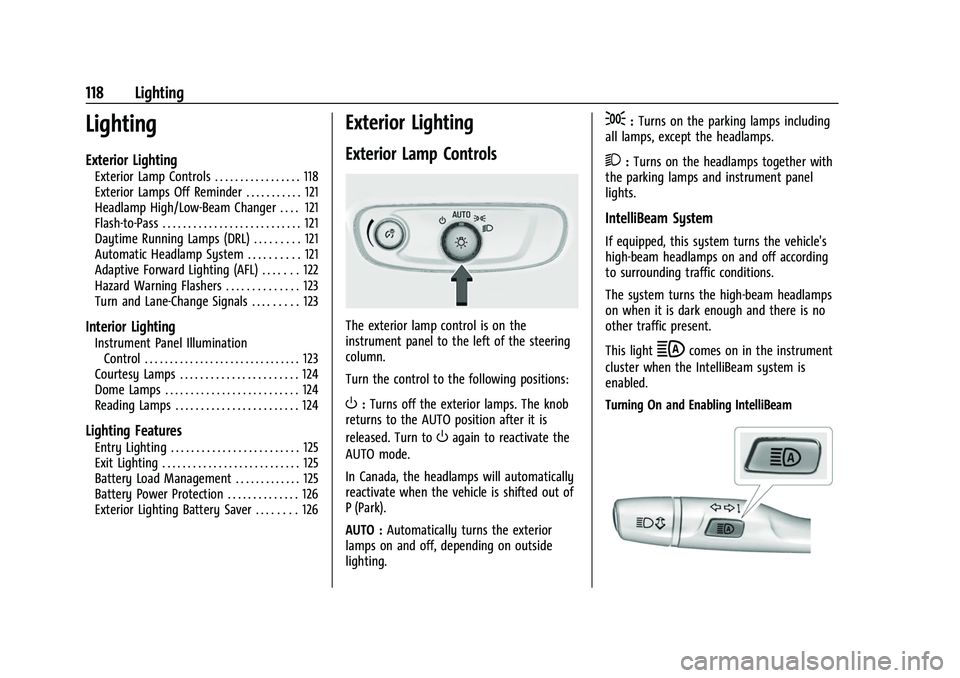
The exterior lamp control is on the
instrument panel to the left of the steering
column.
Turn the control to the following positions:
O: Turns off the exterior lamps. The knob
returns to the AUTO position after it is
released. Turn to
Oagain to reactivate the
AUTO mode.
In Canada, the headlamps will automatically
reactivate when the vehicle is shifted out of
P (Park).
AUTO : Automatically turns the exterior
lamps on and off, depending on outside
lighting.
;: Turns on the parking lamps including
all lamps, except the headlamps.
2: Turns on the headlamps together with
the parking lamps and instrument panel
lights.
IntelliBeam System
If equipped, this system turns the vehicle's
high-beam headlamps on and off according
to surrounding traffic conditions.
The system turns the high-beam headlamps
on when it is dark enough and there is no
other traffic present.
This light
bcomes on in the instrument
cluster when the IntelliBeam system is
enabled.
Turning On and Enabling IntelliBeam
Page 120 of 369
Buick Envision Owner Manual (GMNA-Localizing-U.S./Canada/Mexico-
15218978) - 2022 - CRC - 5/12/21
Lighting 119
To enable the IntelliBeam system, press
bon the turn signal lever when it is
dark outside and the exterior lamp control is
in AUTO or
2.
Driving with IntelliBeam
The system only activates the high beams
when driving over 40 km/h (25 mph).
The blue high-beam on light appears on the
instrument cluster when the high beams
are on.
There is a sensor near the top center of the
windshield that automatically controls the
system. Keep this area of the windshield
clear of debris to allow for best system
performance.
The high-beam headlamps remain on, under
the automatic control, until one of the
following occurs:
.The system detects an approaching
vehicle's headlamps.
.The system detects a preceding vehicle's
taillamps.
.The outside light is bright enough that
high-beam headlamps are not required.
.The vehicle's speed drops below 20 km/h
(12 mph).
.The IntelliBeam system is disabled by the
button on the turn signal lever. If this
happens, press
bon the turn signal
lever when the exterior lamp control is in
the AUTO or
2position to reactivate the
IntelliBeam system. The instrument
cluster light will come on to indicate the
IntelliBeam system is reactivated.
The high beams may not turn off
automatically if the system cannot detect
another vehicle's lamps because of any of
the following:
.The other vehicle's lamps are missing,
damaged, obstructed from view,
or otherwise undetected.
.The other vehicle's lamps are covered
with dirt, snow, and/or road spray.
.The other vehicle's lamps cannot be
detected due to dense exhaust, smoke,
fog, snow, road spray, mist, or other
airborne obstructions.
.The vehicle's windshield is dirty, cracked,
or obstructed by something that blocks
the view of the light sensor.
.The vehicle is loaded such that the front
end points upward, causing the light
sensor to aim high and not detect
headlamps and taillamps.
.Driving on winding or hilly roads.
The automatic high-beam headlamps may
need to be disabled if any of the above
conditions exist.
Adaptive Headlight System
If equipped, this Adaptive Headlight System
allows the high beam to function as the
main driving light at night. The sensor in
the windshield detects the lights of
oncoming or preceding vehicles.
The system turns on all the high-beam
headlamp LED segment when it is dark
enough and there is no other traffic present.
This light
bcomes on in the instrument
cluster when the Adaptive Headlight System
is enabled.
Page 121 of 369

Buick Envision Owner Manual (GMNA-Localizing-U.S./Canada/Mexico-
15218978) - 2022 - CRC - 5/12/21
120 Lighting
Turning On and Enabling the Adaptive
Headlight System
To enable the Adaptive Headlight System,
press
bon the turn signal lever when it
is dark outside and the exterior lamp control
is in AUTO or
2.
Driving with the Adaptive Headlight System
The system only activates the high beams
when driving over 40 km/h (25 mph).
There is a sensor near the top center of the
windshield that automatically detects the
lights of oncoming and preceding vehicles.
Keep this area of the windshield clear of
debris to allow for best system performance.
Individual segments of the headlamp high
beam are faded out according to the traffic
situation, preventing high beam light from glaring oncoming or preceding traffic. This
gives the best light distribution without
glaring other road users.
The Adaptive Headlight System remains on,
under the automatic control, until one of
the following situations occurs:
.Fog Lamps are turned On.
.The outside light is bright enough that
high-beam headlamps are not required.
.The vehicle's speed drops below 20 km/h
(12 mph).
.The Adaptive Headlight System is disabled
by the button on the turn signal lever.
If this happens, press
bon the turn
signal lever when the exterior lamp
control is in the or AUTO or
2position
to reactivate the Adaptive Headlight
System. The instrument cluster light will
come on to indicate the Adaptive
Headlight System is reactivated.
The high beams may not turn off
automatically if the system cannot detect
another vehicle's lamps because of any of
the following:
.The other vehicle's lamps are missing,
damaged, obstructed from view,
or otherwise undetected.
.The other vehicle's lamps are covered
with dirt, snow, and/or road spray.
.The other vehicle's lamps cannot be
detected due to dense exhaust, smoke,
fog, snow, road spray, mist, or other
airborne obstructions.
.The vehicle's windshield is dirty, cracked,
or obstructed by something that blocks
the view of the light sensor.
.The vehicle is loaded such that the front
end points upward, causing the light
sensor to aim high and not detect
headlamps and taillamps.
.The vehicle is being driven on winding or
hilly roads.
The Adaptive Headlight System may need to
be disabled if any of the above conditions
exist.
Town Light
Activated automatically in situations with
low exterior ambient light.
The light is wide and symmetrical. The
special beam pattern is designed to avoid
glare for other road users.
Page 122 of 369
Buick Envision Owner Manual (GMNA-Localizing-U.S./Canada/Mexico-
15218978) - 2022 - CRC - 5/12/21
Lighting 121
Country Light
Activated automatically when low beams
come on. This is the normal low beam light
pattern.
The illumination of the current lane and the
side of the road is improved, reducing glare
to oncoming and preceding vehicles.
The high beams may not turn off
automatically if the system cannot detect
another vehicle's lamps because of any of
the following:
.The other vehicle's lamps are missing,
damaged, obstructed from view,
or otherwise undetected.
.The other vehicle's lamps are covered
with dirt, snow, and/or road spray.
.The other vehicle's lamps cannot be
detected due to dense exhaust, smoke,
fog, snow, road spray, mist, or other
airborne obstructions.
.The vehicle's windshield is dirty, cracked,
or obstructed by something that blocks
the view of the light sensor.
.The vehicle is loaded such that the front
end points upward, causing the light
sensor to aim high and not detect
headlamps and taillamps.
.Driving on winding or hilly roads.The automatic high-beam headlamps may
need to be disabled if any of the above
conditions exist.
Exterior Lamps Off Reminder
A warning chime sounds if the driver door is
opened while the ignition is off and the
exterior lamps are on.
Headlamp High/Low-Beam
Changer
3:
Push the turn signal lever away from
you and release, to turn the high beams on.
To return to low beams, push the lever
again or pull it toward you and release.
This indicator light turns on in the
instrument cluster when the high-beam
headlamps are on.
Flash-to-Pass
To flash the high beams, pull the turn signal
lever toward you, and release.
Daytime Running Lamps (DRL)
DRL can make it easier for others to see the
front of the vehicle during the day.
The DRL system comes on when the
following conditions are met:
.The ignition is on.
.The exterior lamp control is in AUTO.
.The light sensor determines it is daytime.
When the DRL system is on, only the DRL
are on. The taillamps, sidemarker lamps,
instrument panel lights, and other lamps
will not be on.
When it begins to get dark, the automatic
headlamp system switches from DRL to the
headlamps.
To turn off the DRL, turn the exterior lamp
control to the off position and then release.
For vehicles first sold in Canada, off will only
work when the vehicle is parked.
Automatic Headlamp System
When it is dark enough outside, the
automatic headlamp system turns on the
headlamps at the normal brightness, along
Page 123 of 369

Buick Envision Owner Manual (GMNA-Localizing-U.S./Canada/Mexico-
15218978) - 2022 - CRC - 5/12/21
122 Lighting
with the taillamps, sidemarker, parking
lamps, and the instrument panel lights. The
radio lights will also be dim.
To turn off the automatic headlamp system,
turn the exterior lamp control to
Pand
then release it.
The vehicle has a light sensor on the top of
the instrument panel that controls the
automatic headlamp system. Do not cover
the sensor, otherwise the headlamps may
come on when they are not needed.
The system may also turn on the headlamps
when driving through a parking garage,
heavy overcast weather, or a tunnel. This is
normal. There is a delay in the transition between
the daytime and nighttime operation of the
automatic headlamp system so that driving
under bridges or bright overhead street
lights does not affect the system. The
automatic headlamp system is only affected
when the light sensor detects a change in
lighting lasting longer than the delay.
If the vehicle is started in a dark garage, the
automatic headlamp system will come on
immediately. Once the vehicle leaves the
garage, there is a slight delay for the
automatic headlamp system to change if it
is bright enough outside. During that delay,
the instrument cluster may not be as bright
as usual. Make sure the instrument panel
brightness control is in the full bright
position. See
Instrument Panel Illumination
Control 0123.
To idle the vehicle with the automatic
headlamp system off, turn the control to
the off position.
The headlamps will also stay on after you
exit the vehicle.
The regular headlamp system can be turned
on when needed.
Lights On with Wipers
If the windshield wipers are activated in
daylight with the engine on, and the
exterior lamp control is in AUTO, the
headlamps, parking lamps, and other
exterior lamps come on. The transition time
for the lamps coming on varies based on
wiper speed. When the wipers are not
operating, these lamps turn off. Move the
exterior lamp control to
Por;to
disable this feature.
Adaptive Forward Lighting (AFL)
On vehicles with the AFL system, the
headlamps move horizontally while turning
the steering wheel to provide greater road
illumination in curves.
To activate AFL, set the exterior lamp
control to the AUTO or
2position.
To adjust the AFL setting, see Vehicle
Personalization 0110.
Page 124 of 369
Buick Envision Owner Manual (GMNA-Localizing-U.S./Canada/Mexico-
15218978) - 2022 - CRC - 5/12/21
Lighting 123
Moving the control out of the AUTO or2
position will deactivate the system.
Headlamps can move horizontally when the
vehicle speed is greater than approximately
3 km/h (2 mph). Headlamps will not move
horizontally when the transmission is in
R (Reverse).
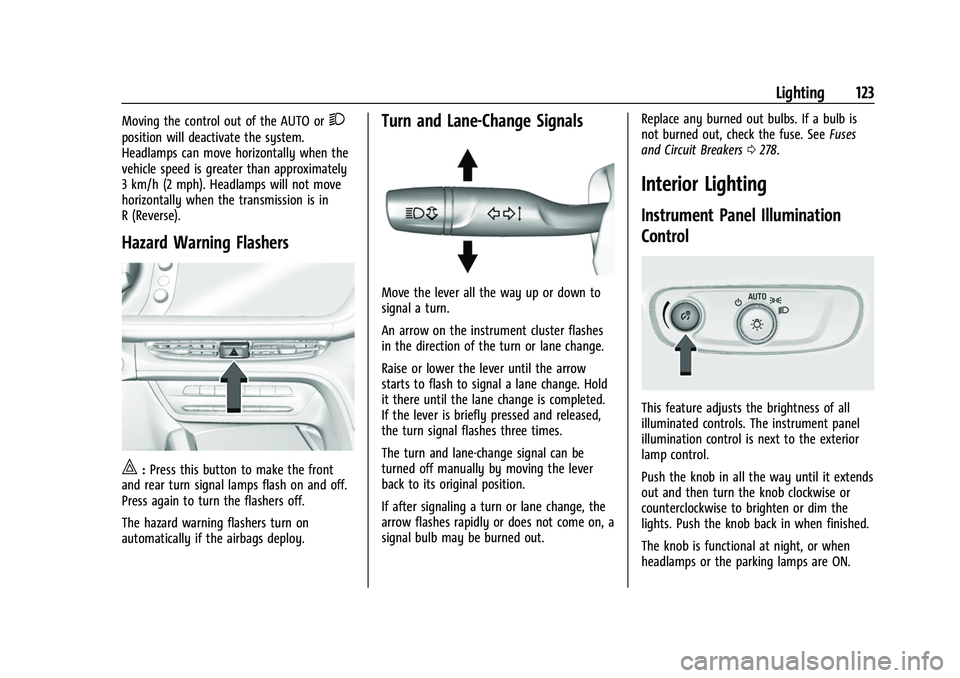
Hazard Warning Flashers
|:Press this button to make the front
and rear turn signal lamps flash on and off.
Press again to turn the flashers off.
The hazard warning flashers turn on
automatically if the airbags deploy.
Turn and Lane-Change Signals
Move the lever all the way up or down to
signal a turn.
An arrow on the instrument cluster flashes
in the direction of the turn or lane change.
Raise or lower the lever until the arrow
starts to flash to signal a lane change. Hold
it there until the lane change is completed.
If the lever is briefly pressed and released,
the turn signal flashes three times.
The turn and lane-change signal can be
turned off manually by moving the lever
back to its original position.
If after signaling a turn or lane change, the
arrow flashes rapidly or does not come on, a
signal bulb may be burned out. Replace any burned out bulbs. If a bulb is
not burned out, check the fuse. See
Fuses
and Circuit Breakers 0278.
Interior Lighting
Instrument Panel Illumination
Control
This feature adjusts the brightness of all
illuminated controls. The instrument panel
illumination control is next to the exterior
lamp control.
Push the knob in all the way until it extends
out and then turn the knob clockwise or
counterclockwise to brighten or dim the
lights. Push the knob back in when finished.
The knob is functional at night, or when
headlamps or the parking lamps are ON.
Page 128 of 369
Buick Envision Owner Manual (GMNA-Localizing-U.S./Canada/Mexico-
15218978) - 2022 - CRC - 5/12/21
Infotainment System 127
Infotainment System
Introduction
Introduction . . . . . . . . . . . . . . . . . . . . . . . . . . . 127
Overview . . . . . . . . . . . . . . . . . . . . . . . . . . . . . . 128
Steering Wheel Controls . . . . . . . . . . . . . . . 129
Using the System . . . . . . . . . . . . . . . . . . . . . 129
Software Updates . . . . . . . . . . . . . . . . . . . . . . 132
Radio
AM-FM Radio . . . . . . . . . . . . . . . . . . . . . . . . . . 132
HD Radio Technology . . . . . . . . . . . . . . . . . . 134
Radio Data System (RDS) . . . . . . . . . . . . . . 134
Satellite Radio . . . . . . . . . . . . . . . . . . . . . . . . . 135
Radio Reception . . . . . . . . . . . . . . . . . . . . . . . . 135
Multi-Band Antenna . . . . . . . . . . . . . . . . . . . 135
Audio Players
Avoiding Untrusted Media Devices . . . . 136
USB Port . . . . . . . . . . . . . . . . . . . . . . . . . . . . . . . 136
Bluetooth Audio . . . . . . . . . . . . . . . . . . . . . . . 139
Navigation
Using the Navigation System . . . . . . . . . . 139
Maps . . . . . . . . . . . . . . . . . . . . . . . . . . . . . . . . . . 142
Navigation Symbols . . . . . . . . . . . . . . . . . . . 142
Destination . . . . . . . . . . . . . . . . . . . . . . . . . . . . 143
Global Positioning System (GPS) . . . . . . . 149
Vehicle Positioning . . . . . . . . . . . . . . . . . . . . 149
Problems with Route Guidance . . . . . . . . 149
If the System Needs Service . . . . . . . . . . . 150Map Data Updates . . . . . . . . . . . . . . . . . . . . 150
Database Coverage Explanations . . . . . . . 150
Voice Recognition
Voice Recognition . . . . . . . . . . . . . . . . . . . . . 150
Phone
Bluetooth (Overview) . . . . . . . . . . . . . . . . . . 156
Bluetooth (Pairing and Using a
Phone) . . . . . . . . . . . . . . . . . . . . . . . . . . . . . . . 156
Apple CarPlay and Android Auto . . . . . . 160
Settings
Settings . . . . . . . . . . . . . . . . . . . . . . . . . . . . . . . . 161
Teen Driver . . . . . . . . . . . . . . . . . . . . . . . . . . . . 169
Trademarks and License Agreements
Trademarks and License Agreements . . . 171
Introduction
Read the following pages to become familiar
with the features.
{Warning
Taking your eyes off the road for too
long or too often while using any
infotainment feature can cause a crash.
You or others could be injured or killed.
Do not give extended attention to
infotainment tasks while driving. Limit
your glances at the vehicle displays and
focus your attention on driving. Use voice
commands whenever possible.
The infotainment system has built-in
features intended to help avoid distraction
by disabling some features when driving.
These features may gray out when they are
unavailable. Many infotainment features are
also available through the instrument cluster
and steering wheel controls.
Before driving:
.Become familiar with the operation,
center stack controls, steering wheel
controls, and infotainment display.