ad blue BUICK ENVISION 2022 Owners Manual
[x] Cancel search | Manufacturer: BUICK, Model Year: 2022, Model line: ENVISION, Model: BUICK ENVISION 2022Pages: 369, PDF Size: 14.04 MB
Page 29 of 369

Buick Envision Owner Manual (GMNA-Localizing-U.S./Canada/Mexico-
15218978) - 2022 - CRC - 5/12/21
28 Keys, Doors, and Windows
{Warning
The Rear Camera Mirror (RCM) has a
limited view. Portions of the road,
vehicles, and other objects may not be
seen. Do not drive or park the vehicle
using only this camera. Objects may
appear closer than they are. Check the
outside mirrors or glance over your
shoulder when making lane changes or
merging. Failure to use proper care may
result in injury, death, or vehicle damage.
Troubleshooting
See your dealer for service if a blue screen
and
3are displayed in the mirror, and
the display shuts off. Also, push the tab as
indicated to return to the automatic
dimming mode.
The Rear Camera Mirror may not work
properly or display a clear image if:
.There is glare from the sun or headlamps.
This may obstruct objects from view.
If needed, push the tab to turn off the
display.
.Dirt, snow, or other debris blocks the
camera lens. Clean the lens with a soft
damp cloth, or if equipped, with the Rear
Camera Washer. See Rear Window Wiper/
Washer 085.
.The camera’s mounting on the vehicle has
been damaged, and/or the position or the
mounting angle of the camera has
changed.
Windows
{
Warning
Never leave a child, a helpless adult, or a
pet alone in a vehicle, especially with the
windows closed in warm or hot weather.
They can be overcome by the extreme
heat and suffer permanent injuries or
even death from heat stroke.
Page 40 of 369

Buick Envision Owner Manual (GMNA-Localizing-U.S./Canada/Mexico-
15218978) - 2022 - CRC - 5/12/21
Seats and Restraints 39
.During Manual memory recall:
Release 1, 2, or
Bmemory button
.During Auto Seat Entry Memory Recall:
Turn vehicle off
Press SET, 1, 2, or
Bmemory buttons
.During Auto Seat Exit Memory Recall:
Press SET, 1, 2, or
Bmemory buttons
Obstructions
If something has blocked the seat while
recalling a memory position, the recall may
stop. Remove the obstruction and try the
recall again. If the memory position still
does not recall, see your dealer.
Heated and Ventilated Front
Seats
{Warning
If temperature change or pain to the skin
cannot be felt, the seat heater may cause
burns. To reduce the risk of burns, use
care when using the seat heater,
especially for long periods of time. Do
not place anything on the seat that
insulates against heat, such as a blanket, (Continued)
Warning (Continued)
cushion, cover, or similar item. This may
cause the seat heater to overheat. An
overheated seat heater may cause a burn
or may damage the seat.
Heated and Ventilated Seat Buttons Shown,
Heated Seat Buttons Similar
If equipped, the buttons are near the
climate controls on the center stack. To
operate, the engine must be running.
Lift
xoryfor the highest heated seat
setting. Lifting the heated seat button again
will keep the heated seat at the highest
setting. Press the heated seat button down to lower the heat level or turn the heated
seat off. The passenger seat may take
longer to heat up.
Press
xory, if available, for the highest
ventilated seat setting. Pressing the
ventilated seat button again will keep the
ventilated seat at the highest setting. Lift
the ventilated seat button to lower the vent
level or turn the ventilated seat off.
A ventilated seat has a fan that pulls or
pushes air through the seat. The air is not
cooled.
The indicator lights next to the buttons
indicate three for the highest setting and
one for the lowest. If the heated seats are
on high, the level may automatically be
lowered after approximately 30 minutes.
When a heated seat is turned on, the
indicator on button turns red. When a
ventilated seat is turned on, the indicator on
button turns blue. Three indicators
illuminate for the highest setting and one
for the lowest.
Auto Heated and Ventilated Seats
If the vehicle is equipped with auto heated
or ventilated seats, and the engine is
running, this feature will automatically
Page 88 of 369
Buick Envision Owner Manual (GMNA-Localizing-U.S./Canada/Mexico-
15218978) - 2022 - CRC - 5/12/21
Instruments and Controls 87
Caution
Hanging heavy equipment from the
power outlet can cause damage not
covered by the vehicle warranty. The
power outlets are designed for accessory
power plugs only, such as cell phone
charge cords.
Power Outlet 110 Volt Alternating
Current
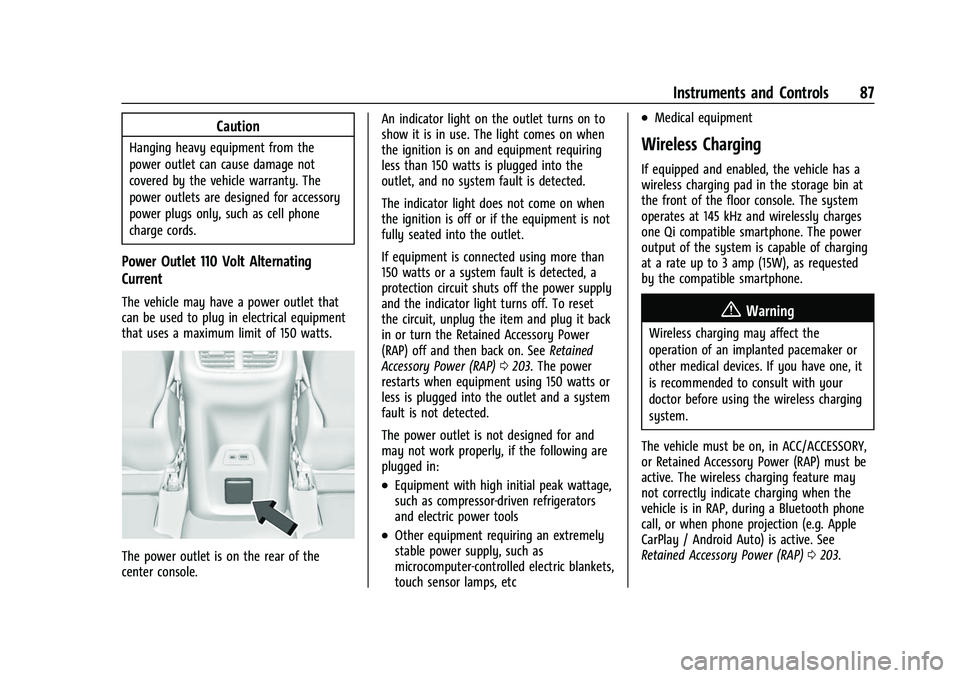
The vehicle may have a power outlet that
can be used to plug in electrical equipment
that uses a maximum limit of 150 watts.
The power outlet is on the rear of the
center console.An indicator light on the outlet turns on to
show it is in use. The light comes on when
the ignition is on and equipment requiring
less than 150 watts is plugged into the
outlet, and no system fault is detected.
The indicator light does not come on when
the ignition is off or if the equipment is not
fully seated into the outlet.
If equipment is connected using more than
150 watts or a system fault is detected, a
protection circuit shuts off the power supply
and the indicator light turns off. To reset
the circuit, unplug the item and plug it back
in or turn the Retained Accessory Power
(RAP) off and then back on. See
Retained
Accessory Power (RAP) 0203. The power
restarts when equipment using 150 watts or
less is plugged into the outlet and a system
fault is not detected.
The power outlet is not designed for and
may not work properly, if the following are
plugged in:
.Equipment with high initial peak wattage,
such as compressor-driven refrigerators
and electric power tools
.Other equipment requiring an extremely
stable power supply, such as
microcomputer-controlled electric blankets,
touch sensor lamps, etc
.Medical equipment
Wireless Charging
If equipped and enabled, the vehicle has a
wireless charging pad in the storage bin at
the front of the floor console. The system
operates at 145 kHz and wirelessly charges
one Qi compatible smartphone. The power
output of the system is capable of charging
at a rate up to 3 amp (15W), as requested
by the compatible smartphone.
{Warning
Wireless charging may affect the
operation of an implanted pacemaker or
other medical devices. If you have one, it
is recommended to consult with your
doctor before using the wireless charging
system.
The vehicle must be on, in ACC/ACCESSORY,
or Retained Accessory Power (RAP) must be
active. The wireless charging feature may
not correctly indicate charging when the
vehicle is in RAP, during a Bluetooth phone
call, or when phone projection (e.g. Apple
CarPlay / Android Auto) is active. See
Retained Accessory Power (RAP) 0203.
Page 120 of 369
Buick Envision Owner Manual (GMNA-Localizing-U.S./Canada/Mexico-
15218978) - 2022 - CRC - 5/12/21
Lighting 119
To enable the IntelliBeam system, press
bon the turn signal lever when it is
dark outside and the exterior lamp control is
in AUTO or
2.
Driving with IntelliBeam
The system only activates the high beams
when driving over 40 km/h (25 mph).
The blue high-beam on light appears on the
instrument cluster when the high beams
are on.
There is a sensor near the top center of the
windshield that automatically controls the
system. Keep this area of the windshield
clear of debris to allow for best system
performance.
The high-beam headlamps remain on, under
the automatic control, until one of the
following occurs:
.The system detects an approaching
vehicle's headlamps.
.The system detects a preceding vehicle's
taillamps.
.The outside light is bright enough that
high-beam headlamps are not required.
.The vehicle's speed drops below 20 km/h
(12 mph).
.The IntelliBeam system is disabled by the
button on the turn signal lever. If this
happens, press
bon the turn signal
lever when the exterior lamp control is in
the AUTO or
2position to reactivate the
IntelliBeam system. The instrument
cluster light will come on to indicate the
IntelliBeam system is reactivated.
The high beams may not turn off
automatically if the system cannot detect
another vehicle's lamps because of any of
the following:
.The other vehicle's lamps are missing,
damaged, obstructed from view,
or otherwise undetected.
.The other vehicle's lamps are covered
with dirt, snow, and/or road spray.
.The other vehicle's lamps cannot be
detected due to dense exhaust, smoke,
fog, snow, road spray, mist, or other
airborne obstructions.
.The vehicle's windshield is dirty, cracked,
or obstructed by something that blocks
the view of the light sensor.
.The vehicle is loaded such that the front
end points upward, causing the light
sensor to aim high and not detect
headlamps and taillamps.
.Driving on winding or hilly roads.
The automatic high-beam headlamps may
need to be disabled if any of the above
conditions exist.
Adaptive Headlight System
If equipped, this Adaptive Headlight System
allows the high beam to function as the
main driving light at night. The sensor in
the windshield detects the lights of
oncoming or preceding vehicles.
The system turns on all the high-beam
headlamp LED segment when it is dark
enough and there is no other traffic present.
This light
bcomes on in the instrument
cluster when the Adaptive Headlight System
is enabled.
Page 128 of 369
Buick Envision Owner Manual (GMNA-Localizing-U.S./Canada/Mexico-
15218978) - 2022 - CRC - 5/12/21
Infotainment System 127
Infotainment System
Introduction
Introduction . . . . . . . . . . . . . . . . . . . . . . . . . . . 127
Overview . . . . . . . . . . . . . . . . . . . . . . . . . . . . . . 128
Steering Wheel Controls . . . . . . . . . . . . . . . 129
Using the System . . . . . . . . . . . . . . . . . . . . . 129
Software Updates . . . . . . . . . . . . . . . . . . . . . . 132
Radio
AM-FM Radio . . . . . . . . . . . . . . . . . . . . . . . . . . 132
HD Radio Technology . . . . . . . . . . . . . . . . . . 134
Radio Data System (RDS) . . . . . . . . . . . . . . 134
Satellite Radio . . . . . . . . . . . . . . . . . . . . . . . . . 135
Radio Reception . . . . . . . . . . . . . . . . . . . . . . . . 135
Multi-Band Antenna . . . . . . . . . . . . . . . . . . . 135
Audio Players
Avoiding Untrusted Media Devices . . . . 136
USB Port . . . . . . . . . . . . . . . . . . . . . . . . . . . . . . . 136
Bluetooth Audio . . . . . . . . . . . . . . . . . . . . . . . 139
Navigation
Using the Navigation System . . . . . . . . . . 139
Maps . . . . . . . . . . . . . . . . . . . . . . . . . . . . . . . . . . 142
Navigation Symbols . . . . . . . . . . . . . . . . . . . 142
Destination . . . . . . . . . . . . . . . . . . . . . . . . . . . . 143
Global Positioning System (GPS) . . . . . . . 149
Vehicle Positioning . . . . . . . . . . . . . . . . . . . . 149
Problems with Route Guidance . . . . . . . . 149
If the System Needs Service . . . . . . . . . . . 150Map Data Updates . . . . . . . . . . . . . . . . . . . . 150
Database Coverage Explanations . . . . . . . 150
Voice Recognition
Voice Recognition . . . . . . . . . . . . . . . . . . . . . 150
Phone
Bluetooth (Overview) . . . . . . . . . . . . . . . . . . 156
Bluetooth (Pairing and Using a
Phone) . . . . . . . . . . . . . . . . . . . . . . . . . . . . . . . 156
Apple CarPlay and Android Auto . . . . . . 160
Settings
Settings . . . . . . . . . . . . . . . . . . . . . . . . . . . . . . . . 161
Teen Driver . . . . . . . . . . . . . . . . . . . . . . . . . . . . 169
Trademarks and License Agreements
Trademarks and License Agreements . . . 171
Introduction
Read the following pages to become familiar
with the features.
{Warning
Taking your eyes off the road for too
long or too often while using any
infotainment feature can cause a crash.
You or others could be injured or killed.
Do not give extended attention to
infotainment tasks while driving. Limit
your glances at the vehicle displays and
focus your attention on driving. Use voice
commands whenever possible.
The infotainment system has built-in
features intended to help avoid distraction
by disabling some features when driving.
These features may gray out when they are
unavailable. Many infotainment features are
also available through the instrument cluster
and steering wheel controls.
Before driving:
.Become familiar with the operation,
center stack controls, steering wheel
controls, and infotainment display.
Page 130 of 369
Buick Envision Owner Manual (GMNA-Localizing-U.S./Canada/Mexico-
15218978) - 2022 - CRC - 5/12/21
Infotainment System 129
4. To move an application to another page,drag the icon to the edge of the display
toward the desired page.
5. Continue dragging and dropping application icons as desired.
Steering Wheel Controls
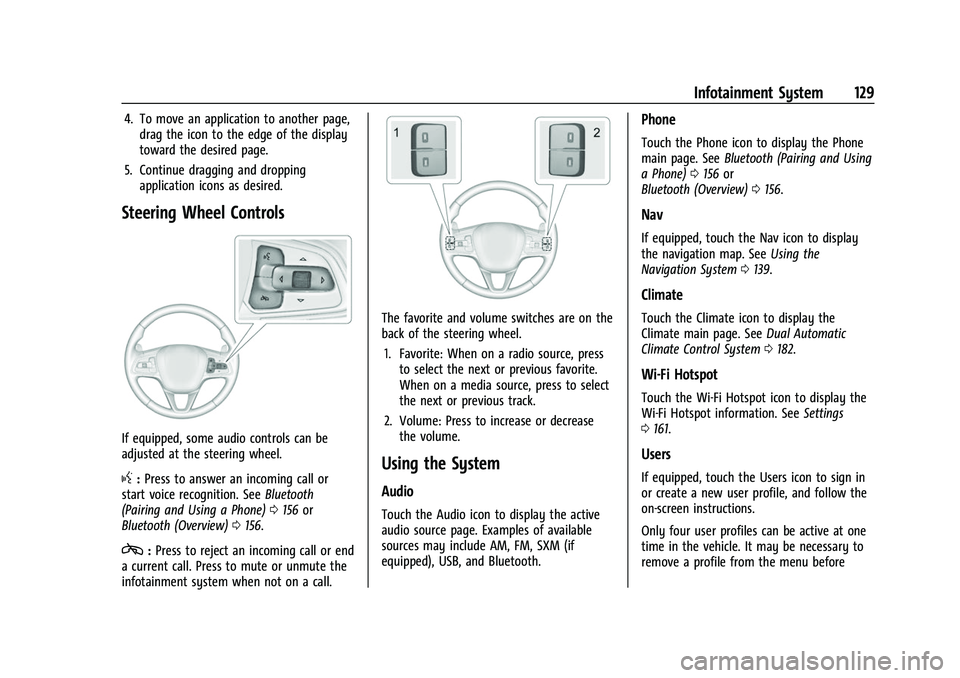
If equipped, some audio controls can be
adjusted at the steering wheel.
g:Press to answer an incoming call or
start voice recognition. See Bluetooth
(Pairing and Using a Phone) 0156 or
Bluetooth (Overview) 0156.
c:Press to reject an incoming call or end
a current call. Press to mute or unmute the
infotainment system when not on a call.
The favorite and volume switches are on the
back of the steering wheel.
1. Favorite: When on a radio source, press to select the next or previous favorite.
When on a media source, press to select
the next or previous track.
2. Volume: Press to increase or decrease the volume.
Using the System
Audio
Touch the Audio icon to display the active
audio source page. Examples of available
sources may include AM, FM, SXM (if
equipped), USB, and Bluetooth.
Phone
Touch the Phone icon to display the Phone
main page. See Bluetooth (Pairing and Using
a Phone) 0156 or
Bluetooth (Overview) 0156.
Nav
If equipped, touch the Nav icon to display
the navigation map. See Using the
Navigation System 0139.
Climate
Touch the Climate icon to display the
Climate main page. See Dual Automatic
Climate Control System 0182.
Wi-Fi Hotspot
Touch the Wi-Fi Hotspot icon to display the
Wi-Fi Hotspot information. See Settings
0 161.
Users
If equipped, touch the Users icon to sign in
or create a new user profile, and follow the
on-screen instructions.
Only four user profiles can be active at one
time in the vehicle. It may be necessary to
remove a profile from the menu before
Page 133 of 369
Buick Envision Owner Manual (GMNA-Localizing-U.S./Canada/Mexico-
15218978) - 2022 - CRC - 5/12/21
132 Infotainment System
Pinch
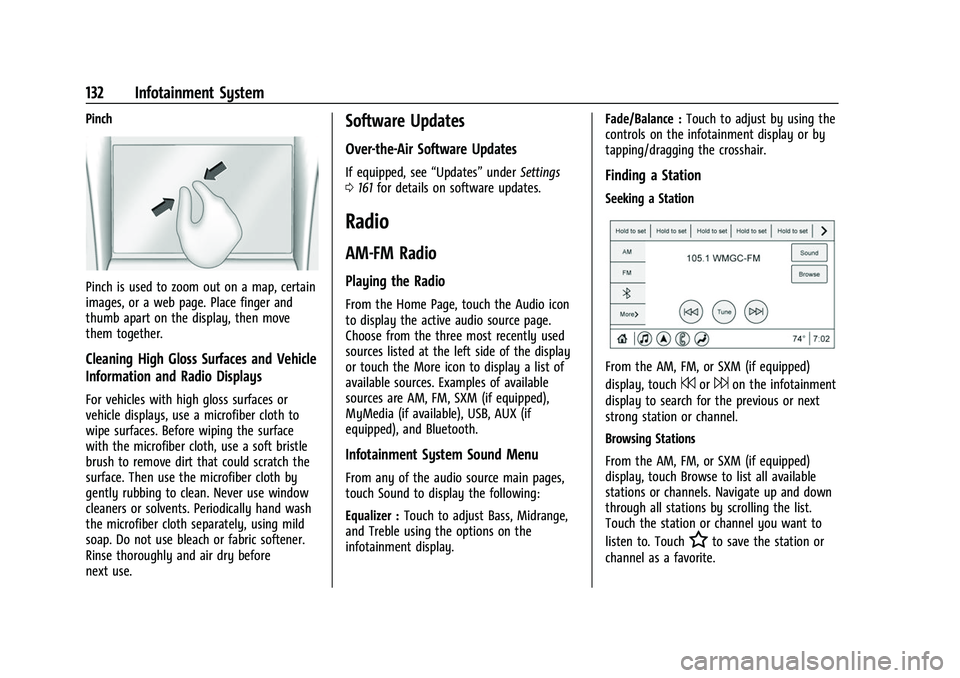
Pinch is used to zoom out on a map, certain
images, or a web page. Place finger and
thumb apart on the display, then move
them together.
Cleaning High Gloss Surfaces and Vehicle
Information and Radio Displays
For vehicles with high gloss surfaces or
vehicle displays, use a microfiber cloth to
wipe surfaces. Before wiping the surface
with the microfiber cloth, use a soft bristle
brush to remove dirt that could scratch the
surface. Then use the microfiber cloth by
gently rubbing to clean. Never use window
cleaners or solvents. Periodically hand wash
the microfiber cloth separately, using mild
soap. Do not use bleach or fabric softener.
Rinse thoroughly and air dry before
next use.
Software Updates
Over-the-Air Software Updates
If equipped, see“Updates”underSettings
0 161 for details on software updates.
Radio
AM-FM Radio
Playing the Radio
From the Home Page, touch the Audio icon
to display the active audio source page.
Choose from the three most recently used
sources listed at the left side of the display
or touch the More icon to display a list of
available sources. Examples of available
sources are AM, FM, SXM (if equipped),
MyMedia (if available), USB, AUX (if
equipped), and Bluetooth.
Infotainment System Sound Menu
From any of the audio source main pages,
touch Sound to display the following:
Equalizer : Touch to adjust Bass, Midrange,
and Treble using the options on the
infotainment display. Fade/Balance :
Touch to adjust by using the
controls on the infotainment display or by
tapping/dragging the crosshair.
Finding a Station
Seeking a Station
From the AM, FM, or SXM (if equipped)
display, touch
7or6on the infotainment
display to search for the previous or next
strong station or channel.
Browsing Stations
From the AM, FM, or SXM (if equipped)
display, touch Browse to list all available
stations or channels. Navigate up and down
through all stations by scrolling the list.
Touch the station or channel you want to
listen to. Touch
Hto save the station or
channel as a favorite.
Page 140 of 369
Buick Envision Owner Manual (GMNA-Localizing-U.S./Canada/Mexico-
15218978) - 2022 - CRC - 5/12/21
Infotainment System 139
Bluetooth Audio
If equipped, music may be played from a
paired Bluetooth device. SeeBluetooth
(Pairing and Using a Phone) 0156 or
Bluetooth (Overview) 0156 for help pairing
a device.
Volume and song selection may be
controlled by using the infotainment
controls. If Bluetooth is selected and no
volume is present, check the volume setting
on the mobile device.
Music can be launched by touching
Bluetooth from the recent sources list on
the left of the display or by touching the
More option and then touching the
Bluetooth device.
To play music via Bluetooth:
1. Power on the device, and pair to connect the device.
2. Once paired, touch Audio from the Home Page, then touch Bluetooth from the
recent sources list on the left of the
display.
Bluetooth Sound Menu
See “Infotainment System Sound Menu”
under AM-FM Radio 0132. Manage Bluetooth Devices
From the Home Page:
1. Touch Audio.
2. Touch Devices to add or delete devices.
When using the Bluetooth audio source, the
radio may not be able to launch specific
applications on your device. Use the device
to start audio playback when it is safe to
do so.
All devices launch audio differently. When
selecting Bluetooth audio as a source, the
radio may show as paused on the display.
Touch
rto begin playback.
Browse functionality will be provided where
supported by the Bluetooth device. This
media content will not be part of the
MyMedia source mode.
Some smartphones support sending
Bluetooth music information to display on
the radio. When the radio receives this
information, it will check to see if any is
available and display it. For more
information about supported Bluetooth
features, see your dealer.
Navigation
Using the Navigation System
If equipped, launch the Nav application by
touching the Nav icon on the Home Page or
on the shortcut tray near the bottom of the
infotainment display.
When the Nav application is launched for
the first time, a product walkthrough is
available. Use of the feature requires the
Terms and Conditions and the Privacy
statement to be confirmed. If available and
signed into a profile, it is also suggested to
enable and confirm Predictive Navigation.
Predictive Navigation (If Equipped)
If Predictive Navigation is available and
confirmed, this feature learns preferences by
remembering where the vehicle has been.
It uses the locations and navigation history
to personalize routes and results.
Predictive Navigation may learn elements
such as:
.Personalized routes based on preferred
streets.
.Search results that provide best matches
at the top of the list.
Page 156 of 369
Buick Envision Owner Manual (GMNA-Localizing-U.S./Canada/Mexico-
15218978) - 2022 - CRC - 5/12/21
Infotainment System 155
Voice Recognition for Navigation (if
equipped)
“Navigation”:Begin a dialog to enter
specific destination information.
“Navigation Commands” :Begin a dialog to
enter specific destination information.
“Destination Address” :Begin a dialog to
enter a specific destination address, which
includes the entire address consisting of the
house number, street name, and city and
country.
“Destination Intersection” :Begin a dialog
to enter a specific destination intersection.
“Destination Place of Interest” :Begin a
dialog to enter a destination Place of
Interest category or major brand name (if
equipped).
Not all brand names of businesses are
available for voice entry. Most major chains,
such as chains with more than 20 locations,
should be available to search for by name,
but the name must be precisely spoken.
Nicknames or short names for the
businesses will not likely be found. Lesser
known businesses might have to be located
by category, such as fast food, hotels,
or banks. “Destination Contact”
:Begin a dialog to
enter a specific destination contact name.
“Cancel Route” :End route guidance.
Voice Recognition for the Phone
“Call
entered contact. The command may include
location if the contact has location numbers
stored.
“Call
“On Mobile,” or“On Other” :Initiate a call
to an entered contact and location at home,
at work, on mobile device, or on another
phone.
“Call
standard phone number or emergency
number.
Say “Call
system reads back the number, repeat the
“Call” command to initiate the call. If the
number is not correct, “Delete”will delete
the number and allow it to be entered
again. If the number is not complete, speak
the remaining digits.
“Pair Phone” :Begin the Bluetooth pairing
process. Follow instructions on the radio
display. “Switch Phone”
:Select a different phone
for outgoing calls.
“Voice Keypad” :Begins a dialog to enter
special numbers like international numbers.
The numbers can be entered in groups of
digits with each group of digits being
repeated back by the system. If the group
of digits is not correct, the command
“Delete” will remove the last group of digits
and allow them to be re-entered. Once the
entire number has been entered, the
command “Call”will start dialing the
number.
“Voice Mail” :Initiate a call to voice mail
numbers.
Phone Assistant Voice Recognition
Press and holdgon the steering wheel
controls to pass through and launch Google
phone assistant or Siri.
For the low radio, whether connected by
Bluetooth or phone projection, the only
available voice recognition is either Siri
(iPhone) or the Google Assistant (Android).
Page 157 of 369
Buick Envision Owner Manual (GMNA-Localizing-U.S./Canada/Mexico-
15218978) - 2022 - CRC - 5/12/21
156 Infotainment System
Phone
Bluetooth (Overview)
The Bluetooth-capable system can interact
with many mobile devices, allowing:
.Placement and receipt of calls in a
hands-free mode.
.Sharing of the device’s address book or
contact list with the vehicle.
To minimize driver distraction, before
driving, and with the vehicle parked:
.Become familiar with the features of the
mobile device. Organize the phone book
and contact lists clearly and delete
duplicate or rarely used entries.
If possible, program speed dial or other
shortcuts.
.Review the controls and operation of the
infotainment system.
.Pair mobile device(s) to the vehicle. The
system may not work with all mobile
devices. See “Pairing”later in this section.
Vehicles with a Bluetooth system can use a
Bluetooth-capable mobile device with a
Hands-Free Profile to make and receive
phone calls. The infotainment system and
voice recognition are used to control the
system. The system can be used while the ignition is on or in ACC/ACCESSORY. The
range of the Bluetooth system can be up to
9.1 m (30 ft). Not all mobile devices support
all functions and not all mobile devices work
with the Bluetooth system. See
my.buick.com for more information about
compatible mobile devices.
Controls
Use the controls on the center stack and the
steering wheel to operate the Bluetooth
system.
Steering Wheel Controls
g:
Press to answer incoming calls and start
voice recognition on your connected
Bluetooth mobile device.
i: Press to end a call, decline a call,
or cancel an operation. Press to mute or
unmute the infotainment system when not
on a call.
Infotainment System Controls
For information about how to navigate the
menu system using the infotainment
controls, see Using the System 0129.
Audio System
When using the Bluetooth mobile device
system, sound comes through the vehicle's
front audio system speakers and overrides
the audio system. The volume level while on
a mobile device call can be adjusted by
pressing the steering wheel controls or the
volume control on the center stack. The
adjusted volume level remains in memory
for later calls. The volume cannot be
lowered beyond a certain level.
Bluetooth (Pairing and Using a
Phone)
Pairing
A Bluetooth-enabled mobile device must be
paired to the Bluetooth system and then
connected to the vehicle before it can be
used. See the mobile device manufacturer's
user guide for Bluetooth functions before
pairing the device.
Pairing Information
.If no mobile device has been connected,
the Phone main page on the infotainment
display will show the Connect Phone
option. Touch this option to connect.