Anc BUICK ENVISION 2023 Owners Manual
[x] Cancel search | Manufacturer: BUICK, Model Year: 2023, Model line: ENVISION, Model: BUICK ENVISION 2023Pages: 356, PDF Size: 7.42 MB
Page 201 of 356

Buick Envision Owner Manual (GMNA-Localizing-U.S./Canada/Mexico-
16060855) - 2023 - CRC - 2/9/22
200 Driving and Operating
3. Open the door.
4. Shift to N (Neutral).
5. Turn off the engine and release thebrake pedal.
6. The indicator should continue to show N. If it does not, start the engine and
repeat Steps 2–5.
7. Exit the vehicle and close the door. The vehicle is now ready for the car wash.
8. The vehicle may automatically shift to P (Park) upon re-entry.
Car Wash Mode (Engine On –Driver in
Vehicle)
To place the vehicle in N (Neutral) with the
engine on and the vehicle occupied:
1. Drive to the entrance of the car wash.
2. Apply the brake pedal.
3. Shift into N (Neutral).
4. Release the brake pedal. The vehicle is now ready for the car wash.
Car Wash Mode (Engine On –Driver out of
Vehicle
To place the vehicle in N (Neutral) with the
engine on and the vehicle unoccupied:
1. Drive to the entrance of the car wash. 2. Apply the brake pedal.
3. Open the door.
4. Shift into N (Neutral), then release the
brake pedal.
5. The indicator should continue to show N. If it does not, repeat Steps 2–4.
6. Exit the vehicle and close the door. The vehicle is now ready for the car wash.
7. The vehicle may automatically shift into P (Park) upon re-entry.
Caution
A transmission hot message may display
if the automatic transmission fluid is too
hot. Driving under this condition can
damage the vehicle. Stop and idle the
engine to cool the automatic
transmission fluid. This message clears
when the transmission fluid has cooled
sufficiently.
D : This position is for normal driving.
If more power is needed for passing, press
the accelerator pedal down. If the vehicle is shifted into D (Drive) while
the speed is too high, the transmission will
get ready to engage D (Drive). Reduce the
vehicle speed, then the transmission will
engage D (Drive).
To shift into D (Drive):
1. Bring the vehicle to a complete stop.
2. Pull the D (Drive) switch on the center console.
To shift out of D (Drive): 1. Bring the vehicle to a complete stop.
2. Shift to the desired gear.
Downshifting the transmission in slippery
road conditions could result in skidding. See
“Skidding” underLoss of Control 0184.
Caution
Spinning the tires or holding the vehicle
in one place on a hill using only the
accelerator pedal may damage the
transmission. The repair will not be
covered by the vehicle warranty. If the
vehicle is stuck, do not spin the tires.
When stopping on a hill, use the brakes
to hold the vehicle in place.
M : SeeManual Mode 0201.
Page 203 of 356

Buick Envision Owner Manual (GMNA-Localizing-U.S./Canada/Mexico-
16060855) - 2023 - CRC - 2/9/22
202 Driving and Operating
the system is active. When a non-AWD
Mode is selected, the light will flash briefly
while the system disengages and a 2WD
light will be displayed when the AWD
system is off. SeeDriver Mode Control
0 208.
When a compact spare tire is installed on an
AWD vehicle, the system will automatically
detect the compact spare and reduce AWD
performance to protect the system. To
restore AWD operation and prevent
excessive wear on the system, replace the
compact spare with a full-size tire as soon as
possible. See Compact Spare Tire 0300.
Brakes
Antilock Brake System (ABS)
The Antilock Brake System (ABS) helps
prevent a braking skid and maintain steering
while braking hard.
ABS performs a system check when the
vehicle is first driven. A momentary motor
or clicking noise may be heard while this
test is going on, and the brake pedal may
move slightly. This is normal.
If there is a problem with ABS, this warning
light stays on. See Antilock Brake System
(ABS) Warning Light 0100.
ABS does not change the time needed to
get a foot on the brake pedal and does not
always decrease stopping distance. If you
get too close to the vehicle ahead, there will
not be enough time to apply the brakes if
that vehicle suddenly slows or stops. Always
leave enough room ahead to stop, even
with ABS.
Using ABS
Do not pump the brakes. Just hold the brake
pedal down firmly. Hearing or feeling ABS
operate is normal.
Braking in Emergencies
ABS allows steering and braking at the same
time. In many emergencies, steering can
help even more than braking.
Electric Parking Brake
The Electric Parking Brake (EPB) can always
be applied, even if the vehicle is off. In case
of insufficient electrical power, the EPB
cannot be applied or released. To prevent
draining the battery, avoid unnecessary
repeated cycles of the EPB.
The system has a red parking brake status
light and an amber service parking brake
warning light. See Electric Parking Brake
Light 0100 and
Service Electric Parking Brake Light 0100.
There are also parking brake-related Driver
Information Center (DIC) messages.
Page 207 of 356

Buick Envision Owner Manual (GMNA-Localizing-U.S./Canada/Mexico-
16060855) - 2023 - CRC - 2/9/22
206 Driving and Operating
Traction and Stability Menu
To turn TCS off, select Traction from the
menu. The Traction Off Light
idisplays in
the instrument cluster. See Traction Off Light
0 102.
If TCS is limiting wheel spin, the TCS will not
turn off until the wheels stop spinning.
To turn TCS back on, select Options from the
display and then select Traction from
the menu.
To turn StabiliTrak/ESC off, select Options
from the display and then select Stability
from the menu. The StabiliTrak Off Light
g
will display in the instrument cluster. See
StabiliTrak OFF Light 0102.
TCS cannot be on when StabiliTrak/ESC is
off. If TCS is on when StabiliTrak/ESC is
turned off, both systems will turn off.
To turn StabiliTrak/ESC back on, select
Options from the display and then select
Stability from the menu. StabiliTrak/ESC will
turn on, but TCS will remain off.
To turn both TCS and StabiliTrak/ESC back
on, select Options from the display and then
select Traction from the menu and both
systems will be turned back on.
Adding accessories can affect the vehicle
performance. See Accessories and
Modifications 0252. Up-Level Cluster
To turn Traction (TCS) or StabiliTrak (ESC) off
and on, access the Traction and Stability
display from the Options application.
Traction and Stability Display
The current status of each system is
displayed next to the Traction and Stability
icons. To turn either system off or on, select
Menu to access the Traction and Stability
menu screen.
Page 208 of 356

Buick Envision Owner Manual (GMNA-Localizing-U.S./Canada/Mexico-
16060855) - 2023 - CRC - 2/9/22
Driving and Operating 207
Traction and Stability Menu
To turn TCS off, select Traction Off from the
menu. The Traction Off Light
idisplays in
the instrument cluster. See Traction Off Light
0 102.
If TCS is limiting wheel spin, the TCS will not
turn off until the wheels stop spinning.
To turn TCS back on, select Traction On from
the menu.
Select Stability from the Traction and
Stability menu to access the Stability Menu. Stability Menu
To turn StabiliTrak/ESC off, select Stability
Off from the menu. The StabiliTrak Off Light
gwill display in the instrument cluster. See
StabiliTrak OFF Light 0102.
TCS cannot be on when StabiliTrak/ESC is
off. If TCS is on when StabiliTrak/ESC is
turned off, both systems will turn off.
To turn StabiliTrak/ESC back on, select
Stability On from the menu. TCS will
remain off.
To turn both TCS and StabiliTrak/ESC back
on, select Traction On from the Traction and
Stability menu and both systems will be
turned back on.
Adding accessories can affect the vehicle
performance. See Accessories and
Modifications 0252.
Hill Descent Control (HDC)
HDC can be used when driving downhill.
It sets and maintains vehicle speed while
descending a very steep incline in a forward
or reverse gear.
Press5to enable or disable HDC. Vehicle
speed must be below 50 km/h (31 mph).
The HDC light displays on the instrument
cluster when enabled.
Page 209 of 356

Buick Envision Owner Manual (GMNA-Localizing-U.S./Canada/Mexico-
16060855) - 2023 - CRC - 2/9/22
208 Driving and Operating
HDC can maintain vehicle speeds between
3 and 22 km/h (2 and 14 mph) on an incline
greater than or equal to a 10% grade.
A blinking HDC light indicates the system is
actively applying the brakes to maintain
vehicle speed.
When HDC is activated, the initial HDC
speed is set to the current driving speed.
It can be increased or decreased by pressing
+RES or–SET on the steering wheel or by
applying the accelerator or brake pedal. This
adjusted speed becomes the new set speed.
HDC will remain enabled between 22 and
60 km/h (14 and 37 mph); however vehicle
speed cannot be set or maintained in this
range. It will automatically disable if the
vehicle speed is above 80 km/h (50 mph) or
above 60 km/h (37 mph) for at least
30 seconds. Press
5again to re-enable HDC.
Driver Mode Control
Driver Mode Control (DMC) allows the driver
to adjust the overall driving experience to
better suit preference by adjusting multiple
subsystems. Driver Mode availability and
affected vehicle subsystems are dependent
upon vehicle trim level, region, and optional
features. If the vehicle is in Tour Mode or AWD
Mode, it will stay in that mode through
future ignition cycles. If the vehicle is in any
other mode, it will return to Tour Mode
when the vehicle is restarted. When a mode
is selected, an indicator will come on in the
instrument cluster.
Driver Mode Control Switch
To activate each mode, press the MODE
button on the center console.
Tour Mode : Use for normal city and
highway driving to provide a smooth ride.
This setting provides balance between
comfort and handling. This is the standard/ default mode. There is no persistent
indicator in the instrument cluster for
this mode.
AWD Mode :
AWD Mode provides drive
torque to all four wheels. Select AWD Mode
to improve traction and control on slippery
road surfaces, such as gravel, sand, wet
pavement, snow, and ice. When in AWD
Mode, the AWD Mode indicator light will be
on. For more information on AWD Mode,
see All-Wheel Drive 0201.
Sport Mode : Use where road conditions or
personal preference demand a more
controlled response.
Sport Mode improves vehicle handling and
acceleration on dry pavement. When active,
Sport Mode modifies steering efforts,
transmission shifting, AWD torque and
suspension tuning, if equipped.
Off-Road Mode : Use this mode for off-road
recreational driving. Off-Road Mode should
be used to improve driving at moderate
speeds, on grass, gravel, dirt, unpaved roads,
or snow-covered roads. The accelerator pedal
is tuned for off-road use. This mode modifies
pedal mapping, AWD, ABS, ESC, and TCS
Performance.
Page 212 of 356
Buick Envision Owner Manual (GMNA-Localizing-U.S./Canada/Mexico-
16060855) - 2023 - CRC - 2/9/22
Driving and Operating 211
Adaptive Cruise Control
(Advanced)
If equipped, Adaptive Cruise Control (ACC)
allows the cruise control set speed and a
following gap to be selected. Read this
entire section before using the system. The
following gap is the following time (or
distance) between your vehicle and a vehicle
detected directly ahead in your path,
moving in the same direction. If no vehicle
is detected in your path, ACC works like
regular cruise control. ACC uses a camera
and radar sensor(s) to detect other vehicles.
SeeRadio Frequency Statement 0331.
If a vehicle is detected in your path, ACC can
apply acceleration or limited, moderate
braking to maintain the selected following
gap. To disengage ACC, apply the brake.
If ACC is controlling your vehicle speed
when the Traction Control System (TCS) or
StabiliTrak/Electronic Stability Control (ESC)
system activates, the ACC may automatically
disengage. See Traction Control/Electronic
Stability Control 0204. When road
conditions allow ACC to be safely used, ACC
can be turned back on. Disabling the TCS or StabiliTrak/ESC system
will disengage and prevent engagement
of ACC.
ACC can reduce the need for you to
frequently brake and accelerate, especially
when used on expressways, freeways, and
interstate highways. When used on other
roads, you may need to take over the
control of braking or acceleration more
often.
{Warning
ACC has limited braking ability and may
not have time to slow the vehicle down
enough to avoid a collision with another
vehicle you are following. This can occur
when vehicles suddenly slow or stop
ahead, or enter your lane. Also see
“Alerting the Driver”
in this section.
Complete attention is always required
while driving and you should be ready to
take action and apply the brakes. See
Defensive Driving 0182.
{Warning
ACC will not detect or brake for children,
pedestrians, animals, or other objects.
Do not use ACC when:
.On winding and hilly roads or when
the camera sensor is blocked by snow,
ice, or dirt. The system may not
detect a vehicle ahead. Keep the
windshield and headlamps clean.
.When visibility is poor due to rain,
snow, fog, dirt, insect residue, or dust;
when other foreign objects obscure
the camera’s view; or when the
vehicle in front or oncoming traffic
causes additional environmental
obstructions, such as road spray. ACC
performance is limited under these
conditions.
.On slippery roads where fast changes
in tire traction can cause excessive
wheel slip
.With extremely heavy cargo loaded in
the cargo area or rear seat
.When towing a trailer
Page 213 of 356
Buick Envision Owner Manual (GMNA-Localizing-U.S./Canada/Mexico-
16060855) - 2023 - CRC - 2/9/22
212 Driving and Operating
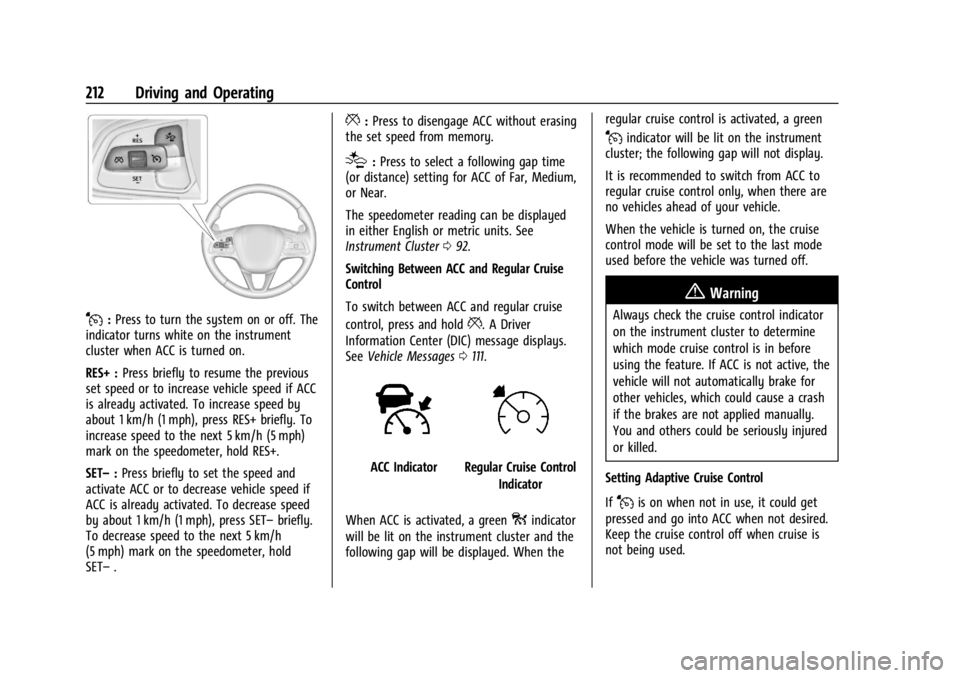
J:Press to turn the system on or off. The
indicator turns white on the instrument
cluster when ACC is turned on.
RES+ : Press briefly to resume the previous
set speed or to increase vehicle speed if ACC
is already activated. To increase speed by
about 1 km/h (1 mph), press RES+ briefly. To
increase speed to the next 5 km/h (5 mph)
mark on the speedometer, hold RES+.
SET– :Press briefly to set the speed and
activate ACC or to decrease vehicle speed if
ACC is already activated. To decrease speed
by about 1 km/h (1 mph), press SET– briefly.
To decrease speed to the next 5 km/h
(5 mph) mark on the speedometer, hold
SET– .
*:Press to disengage ACC without erasing
the set speed from memory.
[: Press to select a following gap time
(or distance) setting for ACC of Far, Medium,
or Near.
The speedometer reading can be displayed
in either English or metric units. See
Instrument Cluster 092.
Switching Between ACC and Regular Cruise
Control
To switch between ACC and regular cruise
control, press and hold
*. A Driver
Information Center (DIC) message displays.
See Vehicle Messages 0111.
ACC IndicatorRegular Cruise Control
Indicator
When ACC is activated, a green
oindicator
will be lit on the instrument cluster and the
following gap will be displayed. When the regular cruise control is activated, a green
Jindicator will be lit on the instrument
cluster; the following gap will not display.
It is recommended to switch from ACC to
regular cruise control only, when there are
no vehicles ahead of your vehicle.
When the vehicle is turned on, the cruise
control mode will be set to the last mode
used before the vehicle was turned off.
{Warning
Always check the cruise control indicator
on the instrument cluster to determine
which mode cruise control is in before
using the feature. If ACC is not active, the
vehicle will not automatically brake for
other vehicles, which could cause a crash
if the brakes are not applied manually.
You and others could be seriously injured
or killed.
Setting Adaptive Cruise Control
If
Jis on when not in use, it could get
pressed and go into ACC when not desired.
Keep the cruise control off when cruise is
not being used.
Page 215 of 356
Buick Envision Owner Manual (GMNA-Localizing-U.S./Canada/Mexico-
16060855) - 2023 - CRC - 2/9/22
214 Driving and Operating
.To increase vehicle speed in larger
increments, hold RES+. While holding
RES+, the vehicle speed increases to the
next 5 km/h (5 mph) step, then continues
to increase by 5 km/h (5 mph) at a time.
The set speed can also be increased while
the vehicle is stopped.
.If stopped with the brake applied, press
RES+ until the desired set speed is
displayed.
.If ACC is holding the vehicle at a stop and
there is another vehicle directly ahead,
pressing RES+ will increase the set speed.
.Pressing RES+ when there is no longer a
vehicle ahead or the vehicle ahead is
pulling away and the brake is not applied
will cause the ACC to resume.
When it is determined that there is no
vehicle ahead or the vehicle ahead is beyond
the selected following gap, then the vehicle
speed will increase to the set speed.
Reducing Speed While ACC is at a Set Speed
If ACC is already activated, do one of the
following:
.Use the brake to get to the desired lower
speed. Release the brake and press SET–.
The vehicle will now cruise at the lower
speed.
.Press and hold SET– down until the
desired lower speed is reached, then
release it.
.To decrease the vehicle speed in smaller
increments, press SET− down briefly. For
each press, the vehicle goes about 1 km/h
or (1 mph) slower.
.To decrease the vehicle speed in larger
increments, hold SET−. While holding
SET−, the vehicle speed decreases to the
next 5 km/h (5 mph) step, then continues
to decrease by 5 km/h (5 mph) at a time.
The set speed can also be decreased while
the vehicle is stopped.
.If stopped with the brake applied, press
or hold SET− until the desired set speed is
displayed.
Selecting the Follow Distance
When a slower moving vehicle is detected
ahead within the selected following gap,
ACC will adjust the vehicle's speed and
attempt to maintain the follow distance gap
selected.
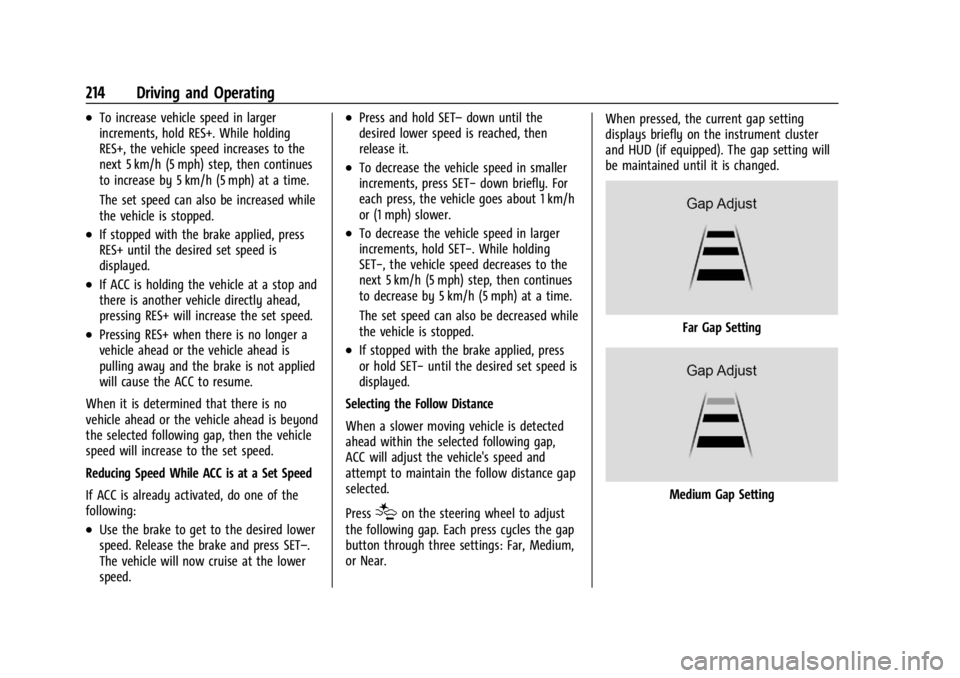
Press
[on the steering wheel to adjust
the following gap. Each press cycles the gap
button through three settings: Far, Medium,
or Near. When pressed, the current gap setting
displays briefly on the instrument cluster
and HUD (if equipped). The gap setting will
be maintained until it is changed.
Far Gap Setting
Medium Gap Setting
Page 216 of 356
Buick Envision Owner Manual (GMNA-Localizing-U.S./Canada/Mexico-
16060855) - 2023 - CRC - 2/9/22
Driving and Operating 215
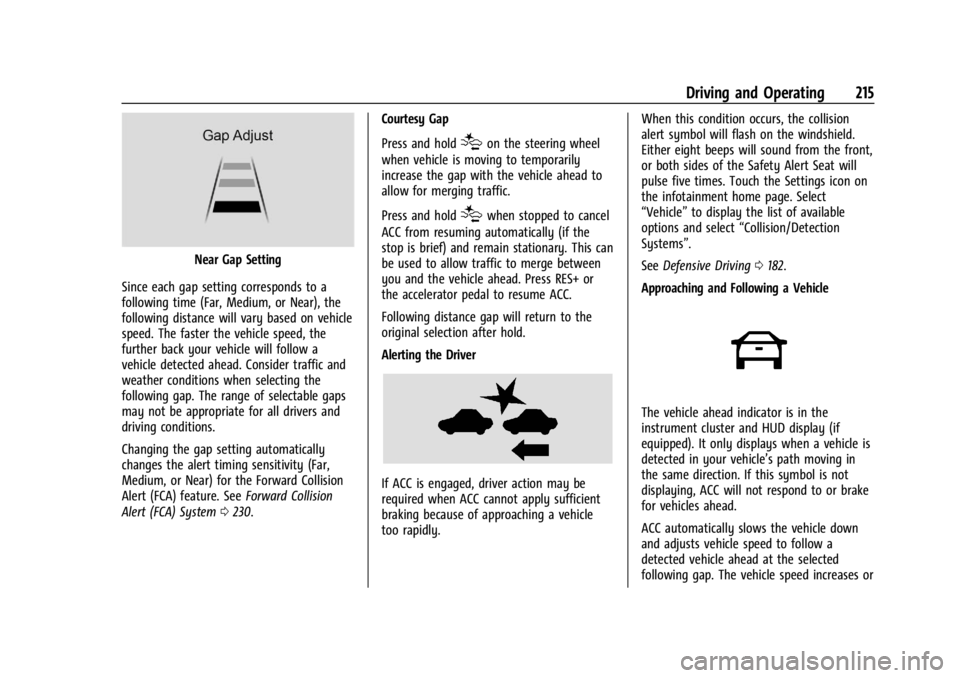
Near Gap Setting
Since each gap setting corresponds to a
following time (Far, Medium, or Near), the
following distance will vary based on vehicle
speed. The faster the vehicle speed, the
further back your vehicle will follow a
vehicle detected ahead. Consider traffic and
weather conditions when selecting the
following gap. The range of selectable gaps
may not be appropriate for all drivers and
driving conditions.
Changing the gap setting automatically
changes the alert timing sensitivity (Far,
Medium, or Near) for the Forward Collision
Alert (FCA) feature. See Forward Collision
Alert (FCA) System 0230. Courtesy Gap
Press and hold
[on the steering wheel
when vehicle is moving to temporarily
increase the gap with the vehicle ahead to
allow for merging traffic.
Press and hold
[when stopped to cancel
ACC from resuming automatically (if the
stop is brief) and remain stationary. This can
be used to allow traffic to merge between
you and the vehicle ahead. Press RES+ or
the accelerator pedal to resume ACC.
Following distance gap will return to the
original selection after hold.
Alerting the Driver
If ACC is engaged, driver action may be
required when ACC cannot apply sufficient
braking because of approaching a vehicle
too rapidly. When this condition occurs, the collision
alert symbol will flash on the windshield.
Either eight beeps will sound from the front,
or both sides of the Safety Alert Seat will
pulse five times. Touch the Settings icon on
the infotainment home page. Select
“Vehicle”
to display the list of available
options and select “Collision/Detection
Systems”.
See Defensive Driving 0182.
Approaching and Following a Vehicle
The vehicle ahead indicator is in the
instrument cluster and HUD display (if
equipped). It only displays when a vehicle is
detected in your vehicle’s path moving in
the same direction. If this symbol is not
displaying, ACC will not respond to or brake
for vehicles ahead.
ACC automatically slows the vehicle down
and adjusts vehicle speed to follow a
detected vehicle ahead at the selected
following gap. The vehicle speed increases or
Page 217 of 356
Buick Envision Owner Manual (GMNA-Localizing-U.S./Canada/Mexico-
16060855) - 2023 - CRC - 2/9/22
216 Driving and Operating
decreases to follow a detected vehicle in
front of your vehicle when that vehicle is
traveling slower than your vehicle set speed.
It may apply limited braking, if necessary.
When braking is active, the brake lamps will
come on. The automatic braking may feel or
sound different than if the brakes were
applied manually. This is normal.
Passing a Vehicle While Using ACC
If the set speed is high enough, and the left
turn signal is used to pass a vehicle ahead
in the selected following gap, ACC may
assist by gradually accelerating the vehicle
prior to the lane change.
{Warning
When using ACC to pass a vehicle or
perform a lane change, the following
distance to the vehicle being passed may
be reduced. ACC may not apply sufficient
acceleration or braking when passing a
vehicle or performing a lane change.
Always be ready to manually accelerate
or brake to complete the pass or lane
change.Stationary or Very Slow-Moving Objects
{Warning
ACC may not detect and react to stopped
or slow-moving vehicles ahead of you. For
example, the system may not brake for a
vehicle it has never detected moving. This
can occur in stop-and-go traffic or when a
vehicle suddenly appears due to a vehicle
ahead changing lanes. Your vehicle may
not stop and could cause a crash. Use
caution when using ACC. Your complete
attention is always required while driving
and you should be ready to take action
and apply the brakes.
Irregular Objects Affecting ACC
ACC may have difficulty detecting the
following objects:
.Vehicles with cargo extending from the
back end.
.Non-standard shaped vehicles, such as
vehicle transport, vehicles with a side car
fitted, or horse carriages.
.Objects that are close to the front of your
vehicle. ACC Automatically Disengages
ACC may automatically disengage and the
driver will need to manually apply the
brakes to slow the vehicle if:
.The sensors are blocked.
.The Traction Control System (TCS) or
StabiliTrak/ESC system has activated or
been disabled.
.There is a fault in the system.
.The radar falsely reports blockage when
driving in a desert or remote area with
no other vehicles or roadside objects.
.A DIC message may display to indicate
that ACC is temporarily unavailable.
The ACC indicator will turn white when ACC
is no longer active.
In some cases, when ACC is temporarily
unavailable, regular cruise control may be
used. See “Switching Between ACC and
Regular Cruise Control” in this section.
Always consider driving conditions before
using either cruise control system.
Notification to Resume ACC
ACC will maintain a follow gap behind a
detected vehicle and slow your vehicle to a
stop behind that vehicle.