display BUICK LACROSSE 2005 User Guide
[x] Cancel search | Manufacturer: BUICK, Model Year: 2005, Model line: LACROSSE, Model: BUICK LACROSSE 2005Pages: 410, PDF Size: 2.59 MB
Page 139 of 410

2. Press the PASS button or the up or down arrows
on the passenger side to turn the passenger
temperature set on and off. When turned on, the
passenger temperature will be the same as
the driver setting. Press the up or down arrow on
passenger side to adjust the passenger temperature
setting.
When the passenger temperature set is off, the
passenger display will be off and the driver’s
set temperature will be for the driver and passenger.
In cold weather, the system will start at reduced
fan speeds to avoid blowing cold air into the vehicle
until warmer air is available. The system will start
out blowing air at the oor but may change
modes automatically as the vehicle warms up to
maintain the chosen temperature setting. The length
of time needed for warm up will depend on the
outside temperature and the length of time that has
elapsed since the vehicle was last driven.
3. Wait for the system to regulate. This may take from
10 to 30 minutes. Then, adjust the temperature, if
necessary.
Do not cover the solar sensor located in the center
of the instrument panel, near the windshield. For
more information on the solar sensor, see “Sensors”
later in this section.4. Press OFF to turn the climate control system off.
Only the rear defog and heated seats will function.
Press AUTO or any other button except the
heated seats or rear defog to turn the climate
control system back on.
This control has 4 types of operation.
Automatic can set/change the temperature
only. AUTO and temperature only will appear
on the display.
Semi-Automatic Fan can set/change the
temperature and mode. The fan operates
automatically. The temperature and mode will
appear on the display.
Semi-Automatic Mode can set/change the
temperature and fan speed. The mode operates
automatically. The fan speed and temperature will
appear on the display.
Manual can set/change the temperature, mode and
fan. The fan speed, temperature and mode will
appear on the display.
If your vehicle has the remote start feature, the climate
control system will automatically regulate the inside
temperature of your vehicle when the remote start
system is activated. Normal operation and the last
setting of the climate control system will return after the
key is turned to the ON position.
3-25
Page 140 of 410
Manual Operation
During daylight hours, the instrument panel brightness
control might need to be adjusted to the highest setting,
in order to see the indicator lights for the various
climate control settings.
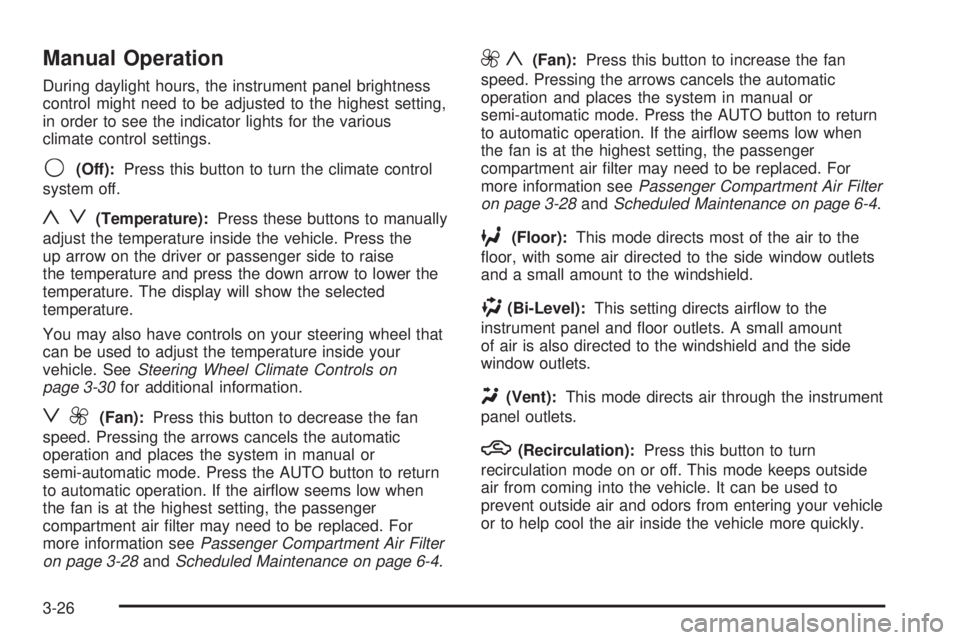
9(Off):Press this button to turn the climate control
system off.
yz(Temperature):Press these buttons to manually
adjust the temperature inside the vehicle. Press the
up arrow on the driver or passenger side to raise
the temperature and press the down arrow to lower the
temperature. The display will show the selected
temperature.
You may also have controls on your steering wheel that
can be used to adjust the temperature inside your
vehicle. SeeSteering Wheel Climate Controls on
page 3-30for additional information.
z9(Fan):Press this button to decrease the fan
speed. Pressing the arrows cancels the automatic
operation and places the system in manual or
semi-automatic mode. Press the AUTO button to return
to automatic operation. If the airow seems low when
the fan is at the highest setting, the passenger
compartment air lter may need to be replaced. For
more information seePassenger Compartment Air Filter
on page 3-28andScheduled Maintenance on page 6-4.
9y(Fan):Press this button to increase the fan
speed. Pressing the arrows cancels the automatic
operation and places the system in manual or
semi-automatic mode. Press the AUTO button to return
to automatic operation. If the airow seems low when
the fan is at the highest setting, the passenger
compartment air lter may need to be replaced. For
more information seePassenger Compartment Air Filter
on page 3-28andScheduled Maintenance on page 6-4.
6(Floor):This mode directs most of the air to the
oor, with some air directed to the side window outlets
and a small amount to the windshield.
)(Bi-Level):This setting directs airow to the
instrument panel and oor outlets. A small amount
of air is also directed to the windshield and the side
window outlets.
Y(Vent):This mode directs air through the instrument
panel outlets.
h(Recirculation):Press this button to turn
recirculation mode on or off. This mode keeps outside
air from coming into the vehicle. It can be used to
prevent outside air and odors from entering your vehicle
or to help cool the air inside the vehicle more quickly.
3-26
Page 146 of 410
Speedometer and Odometer
Your speedometer lets you see your speed in both
miles per hour (mph) and kilometers per hour (km/h).
Your vehicle’s odometer works together with the
driver information center. You can set a Trip A and
Trip B odometer. See “Trip Information” underDIC
Operation and Displays on page 3-47.
The odometer mileage can be checked without the
vehicle running. Simply press the odometer/trip switch
on the instrument panel cluster.
If your vehicle ever needs a new odometer installed, the
new one will be set to the correct mileage total of the
old odometer.
Tachometer
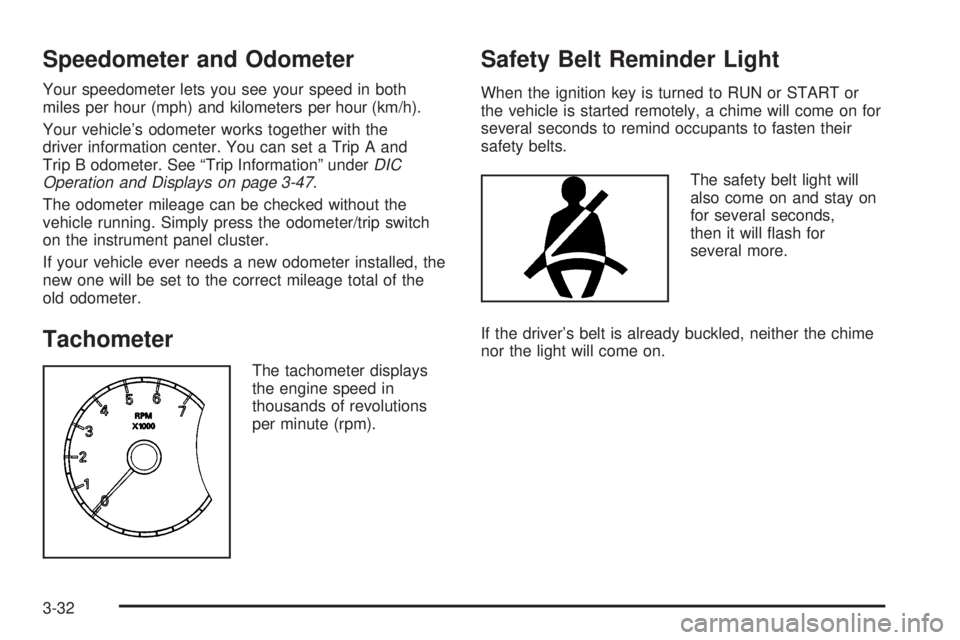
The tachometer displays
the engine speed in
thousands of revolutions
per minute (rpm).
Safety Belt Reminder Light
When the ignition key is turned to RUN or START or
the vehicle is started remotely, a chime will come on for
several seconds to remind occupants to fasten their
safety belts.
The safety belt light will
also come on and stay on
for several seconds,
then it will ash for
several more.
If the driver’s belt is already buckled, neither the chime
nor the light will come on.
3-32
Page 161 of 410
Driver Information Center (DIC)
Your vehicle may have a Driver Information
Center (DIC).
All messages will appear in the DIC display located in
the instrument panel cluster, below the speedometer.
The DIC buttons are located on the center of the
instrument panel, below the center outlets.
The DIC comes on when the ignition is on. After a short
delay, the DIC on the uplevel vehicle will display the
WELCOME DRIVER (1 or 2) if a personalized key 1 or 2
is used, and then the information that was last
displayed before the engine was turned off.
The DIC on the base level vehicle displays the odometer
and trip odometers only.
The DIC on the uplevel vehicle displays the odometer,
trip odometers, fuel economy, trip computer, vehicle
system, and compass display information. It also
displays warning messages if a system problem is
detected. In addition, the DIC on the uplevel vehicle
displays phone numbers that are called using the
OnStar
®system, if equipped. SeeOnStar®System on
page 2-34.The outside air temperature automatically appears in
the bottom right corner of the uplevel DIC display when
viewing the trip/odometer screens, fuel screens and
some of the gages screens. If the outside air
temperature is at or below 37°F (3°C), the temperature
reading will toggle between displaying the outside
temperature and the word ICE for two minutes. If there
is a problem with the system that controls the
temperature display, the letters OC (open circuit) or SC
(short circuit) will appear on the display. If this occurs,
have the vehicle serviced by your GM dealer.
The DIC on the uplevel vehicle also allows some
features to be customized or personalized. SeeDIC
Vehicle Personalization on page 3-71for more
information.
DIC Operation and Displays
The DIC has different modes which can be accessed by
pressing the DIC buttons located on the center of the
instrument panel. Depending on whether your vehicle
has the base level or uplevel DIC, the buttons and
modes available will differ.
The buttons on the base level vehicle are the
trip/odometer and English/Metric buttons.
The buttons on the uplevel vehicle are the trip/odometer,
set/reset, gages, fuel, and option buttons.
The button functions are detailed in the following pages.
3-47
Page 162 of 410
DIC Buttons
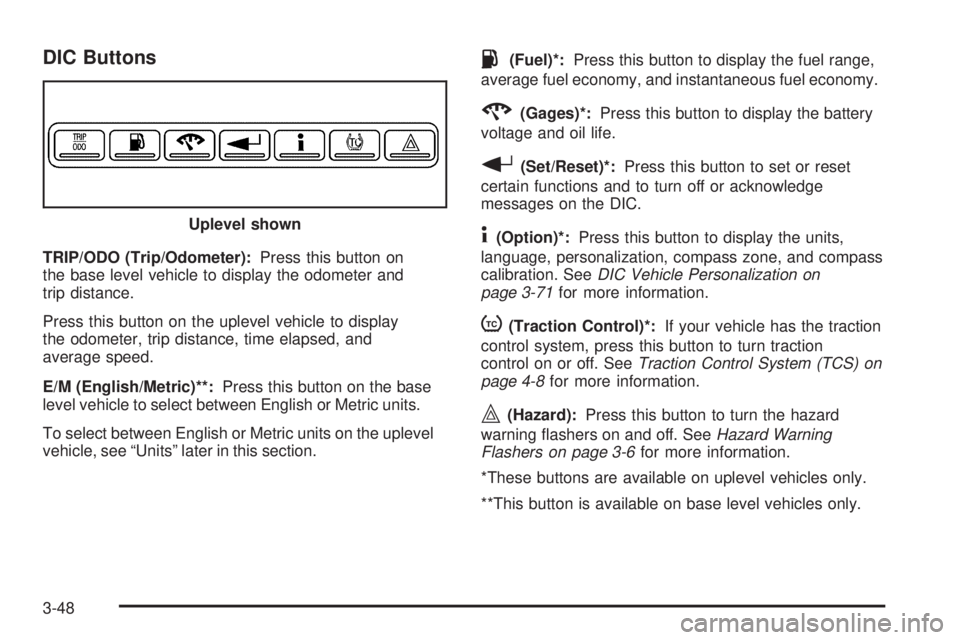
TRIP/ODO (Trip/Odometer):Press this button on
the base level vehicle to display the odometer and
trip distance.
Press this button on the uplevel vehicle to display
the odometer, trip distance, time elapsed, and
average speed.
E/M (English/Metric)**:Press this button on the base
level vehicle to select between English or Metric units.
To select between English or Metric units on the uplevel
vehicle, see “Units” later in this section.
.(Fuel)*:Press this button to display the fuel range,
average fuel economy, and instantaneous fuel economy.
2(Gages)*:Press this button to display the battery
voltage and oil life.
r(Set/Reset)*:Press this button to set or reset
certain functions and to turn off or acknowledge
messages on the DIC.
4(Option)*:Press this button to display the units,
language, personalization, compass zone, and compass
calibration. SeeDIC Vehicle Personalization on
page 3-71for more information.
t(Traction Control)*:If your vehicle has the traction
control system, press this button to turn traction
control on or off. SeeTraction Control System (TCS) on
page 4-8for more information.
|(Hazard):Press this button to turn the hazard
warning ashers on and off. SeeHazard Warning
Flashers on page 3-6for more information.
*These buttons are available on uplevel vehicles only.
**This button is available on base level vehicles only. Uplevel shown
3-48
Page 163 of 410
Trip/Odometer Menu Items
TRIP/ODO (Trip Odometer):Press this button to scroll
through the following menu items:
Odometer
Press the trip/odometer button until the odometer
displays. This mode shows the distance the vehicle has
been driven in either miles or kilometers.
Trip A and Trip B
Press the trip/odometer button until A or B displays. This
mode shows the current distance traveled in either
miles or kilometers since the last reset for each
trip odometer. Both trip odometers can be used at the
same time.
Each trip odometer can be reset to zero separately by
pressing the set/reset button on the uplevel vehicle or by
pressing and holding the trip odometer button on the
base level vehicle while the desired trip odometer
is displayed.
The display will show the odometer on the top line and
the trip odometer information, either A or B, on the
bottom line.
Time Elapsed (Uplevel Only)
Press the trip/odometer button until TIME ELAPSED :00
displays. This mode is like a stopwatch, in that you
can clock the time it takes to get from one point
to another. Each of the elds for the hours, minutes,
and seconds are two numeric digits.
Once TIME ELAPSED :00 is displayed, press the
set/reset button on the uplevel vehicle to start the timing
feature. Press the set/reset button again to stop it. If
you will be starting and stopping your vehicle, during a
trip for instance, the TIME ELAPSED feature will
automatically start timing where it left off when you last
stopped. To reset it, press and hold the set/reset
button for approximately 1.5 seconds. The display will
return to zero. Press the trip/odometer button to
exit from the TIME ELAPSED display.
Average Speed (Uplevel Only)
Press the trip/odometer button until AVERAGE SPEED
displays. This mode shows the average speed of
the vehicle in miles per hour (mph) or kilometers per
hour (km/h). This average is calculated based on
the various vehicle speed recorded since the last reset
of this value. To reset the value, press the trip/odometer
button to display AVERAGE SPEED, then press and
hold the set/reset button on the uplevel vehicle.
The display will return to zero.
3-49
Page 164 of 410
Fuel Menu Items (Uplevel Only)
.
(Fuel):Press this button to scroll through the
following menu items:
Fuel Range
Press the fuel button until FUEL RANGE displays.
This mode shows the approximate number of
remaining miles or kilometers the vehicle can be
driven without refueling.
Fuel range is based on several factors, including
distance travelled, fuel used, fuel capacity, etc. This
estimate will change if driving conditions change.
For example, if driving in traffic and making frequent
stops, this mode may read one number, but if the vehicle
is driven on a freeway, the number may change even
though the same amount of fuel is in the fuel tank. This
is because different driving conditions produce
different fuel economies. Generally, freeway driving
produces better fuel economy than city driving.
Fuel range cannot be reset.
If your vehicle is low on fuel, FUEL RANGE LOW will
display followed by the LOW FUEL message. See “LOW
FUEL” underDIC Warnings and Messages on
page 3-53for more information.
Average Fuel Economy
Press the fuel button until AVG ECONOMY displays.
This mode shows the approximate average miles per
gallon (mpg) or liters per 100 kilometers (L/100 km). This
number is calculated based on the number of mpg
(L/100 km) recorded since the last time this menu item
was reset. To reset AVG ECONOMY, press and hold the
set/reset button. The display will return to zero.
Instantaneous Fuel Economy
Press the fuel button until INST ECONOMY displays.
This mode shows the current fuel economy at a
particular moment and will change frequently as driving
conditions change. This mode shows the instantaneous
fuel economy in miles per gallon (mpg) or liters per
100 kilometers (L/100 km). Unlike average fuel
economy, this screen cannot be reset.
Gages Menu Items (Uplevel Only)
2
(Gages):Press this button to scroll through the
following menu items:
Battery
Press the gages button until BATTERY displays. This
mode shows the current battery voltage.
3-50
Page 165 of 410
If there is a problem with the battery charging system, a
DIC message will display. SeeDIC Warnings and
Messages on page 3-53for more information.
Your vehicle’s charging system regulates voltage based
on the state of the battery. The battery voltage may
uctuate when viewing this information on the DIC. This
is normal.
Oil Life
Press the gages button until OIL LIFE displays. This
mode shows an estimate of the oil’s remaining useful
life. If you see OIL LIFE 99% on the display, that means
99% of the current oil life remains. The engine oil life
system will alert you to change your oil on a schedule
consistent with your driving conditions.
When the remaining oil life is low, the CHANGE OIL
SOON message will appear on the display. You should
change your oil as soon as possible. SeeEngine Oil
on page 5-15. In addition to the engine oil life system
monitoring the oil life, additional maintenance is
recommended in the Maintenance Schedule in this
manual. SeeScheduled Maintenance on page 6-4for
more information.
Remember, you must reset the OIL LIFE yourself after
each oil change. It will not reset itself. Also, be
careful not to reset the OIL LIFE accidentally at any
time other than when the oil has just been changed. It
cannot be reset accurately until the next oil change.To reset the engine oil life system, press and hold the
set/reset button while OIL LIFE is displayed. The display
will show 100% when the system is reset. SeeEngine
Oil Life System on page 5-18for more information.
Option Menu Items (Uplevel Only)
4
(Option):Press this button to scroll through the
following menu items:
Units
Press the option button until UNITS displays. This mode
allows you to select between English or Metric units
of measurement. Once in this mode, press the set/reset
button to select between ENGLISH or METRIC units.
Language
Press the option button until the language screen
displays. This mode allows you to select the language
in which the DIC messages will appear. Once in
this mode, press the set/reset button to select among
the following choices:
English
Francais (French)
Espanol (Spanish)
3-51
Page 166 of 410
Personalization
Press the option button until PERSONAL PROGRAM
displays. Your vehicle may have personalization
capabilities that allow you to program certain features to
a preferred setting for up to two drivers.
Your vehicle may also have customization
capabilities that allow you to program certain features to
one preferred setting. Customization features can
only be programmed to one setting on the vehicle and
cannot be programmed to a preferred setting for up
to two drivers. SeeDIC Vehicle Personalization
on page 3-71for additional information on personal
programming.
Compass Zone
Under certain circumstances, such as during a long
distance cross-country trip, it will be necessary to
compensate for compass variance and reset the zone
through the DIC.
Compass variance is the difference between the earth’s
magnetic north and true geographic north. If not
adjusted to account for compass variance, the compass
in the vehicle could give false readings.
In order to do this, the compass must be set or
calibrated to the variance zone in which the vehicle
is travelling.To adjust for compass variance, use the following
procedure:
Compass Variance Procedure
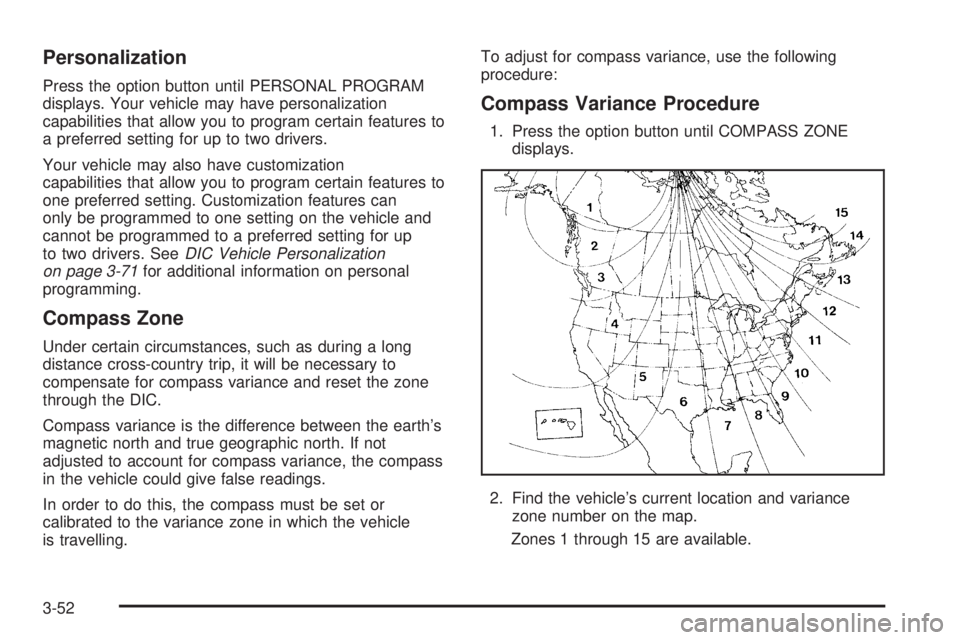
1. Press the option button until COMPASS ZONE
displays.
2. Find the vehicle’s current location and variance
zone number on the map.
Zones 1 through 15 are available.
3-52
Page 167 of 410
3. Press the set/reset button to scroll through and
select the appropriate variance zone.
The direction the vehicle is moving will be displayed
in the top right corner of the DIC display.
4. If you need to calibrate the compass, use the
compass calibration procedure. See “Compass
Calibration Procedure” following.
Compass Calibration
The compass is manually calibrated. Only calibrate the
compass in a safe location where driving the vehicle
in circles is not a problem.
To calibrate the compass, use the following procedure:
Compass Calibration Procedure
1. Press the option button until the COMPASS
CALIBRATION screen is displayed.
2. Press the set/reset button to start the compass
calibration.
3. The DIC will display CALIBRATION BEGUN DRIVE
IN CIRCLES. Drive the vehicle in a circle until the
DIC displays CALIBRATION FINISHED. The
DIC will display CALIBRATION FINISHED for
several seconds and then will display the
COMPASS CALIBRATION screen.
DIC Warnings and Messages
Messages are displayed on the uplevel DIC to notify the
driver that the status of the vehicle has changed and
that some action may be needed by the driver to
correct the condition. Multiple messages may appear
one after another.
Some messages may not require immediate action, but
you can press any of the DIC buttons on the uplevel
vehicle to acknowledge that you received the message
and clear it from the DIC display.
Some messages cannot be cleared from the DIC
display because they are more urgent. These messages
require action before they can be cleared.
If there are any active warning messages when the
vehicle is turned off, two chimes will sound and the DIC
will go into a reminder mode. The reminder mode
displays any active message. If there are multiple
messages, the DIC will display each message for
ve seconds. After each active message is displayed
once, the reminder mode will turn off.
You should take any messages that appear on the
display seriously and remember that clearing the
messages will only make the messages disappear, not
correct the problem.
The following are the possible messages that can be
displayed and some information about them.
3-53