radio BUICK LACROSSE 2009 Owner's Guide
[x] Cancel search | Manufacturer: BUICK, Model Year: 2009, Model line: LACROSSE, Model: BUICK LACROSSE 2009Pages: 428
Page 213 of 428
To use repeat:
To repeat playing a track, press and release this
button. RPT # displays. Press this button again
to turn off repeat play.
To repeat playing a CD, press and hold this button
for two seconds. REPEAT CD # displays. Press
this button again to turn off repeat play.
4 RDM (Random):Depending on the radio, press
to hear the tracks in random, rather than sequential,
order. RANDOM ON displays. Press again to turn off
random play.
For the radio with a Six-Disc CD player, press to listen to
the tracks in random, on one CD or on all of the CDs.
To use random on a Six-Disc CD player:
To play the tracks on a CD in random order, press
and release the random button. RANDOM ONE
displays. Press again to turn off random play.
To play the tracks on all of the CDs that are loaded
in random order, press and hold this button for more
than two seconds. A beep sounds and RANDOM
ALL displays. Press again to turn off random play.
oSEEKp:Press the left arrow to go to the start of
the current or the previous track. Press the right arrow
to go to the start of the next track.
To scan tracks, press and hold either arrow for more
than two seconds. SCAN displays. The radio goes to the
next track, plays 10 seconds, then goes to the next track.
To scan one CD on a Six-Disc CD player, press and
hold either SEEK arrow for more than two seconds until
TRACK SCAN displays and a beep sounds. The radio
goes to the next track, plays for 10 seconds, then goes
to the next track.
Press either arrow again, to stop scanning.
To scan all loaded CDs, press and hold either arrow for
more than four seconds until ALL CD SCAN displays and
a beep sounds. Use this feature to listen to 10 seconds of
the rst track of each loaded CD.
Press either arrow again, to stop scanning.
DISP (Display):Press to see how long the current track
has been playing. The elapsed time of the track displays.
To change the default on the display, track, or elapsed
time, press until the desired display appears, then hold
the button for two seconds. The radio produces one beep
and the selected display becomes the default.
3-91
Page 214 of 428
BAND:Press to listen to the radio while a CD is
playing. The inactive CD remains inside the radio for
future listening.
CD:Press to play a CD while listening to the radio.
The CD symbol displays when a CD is loaded.
EQ (Equalization):Press to select an equalization
setting while playing a CD. The equalization is set while
a CD is played. See “EQ” listed previously for more
information. If an EQ setting is selected for a CD,
it is activated each time a CD is played.
Z(Eject):Press to eject a CD. Eject is activated
while either the ignition or radio is off. CDs can
be loaded while the ignition and radio is off if this
button is pressed rst.
Playing an MP3 CD-R Disc
The vehicle’s radio may have the MP3 CD-R disc
capability feature. For more information, seeUsing
an MP3 on page 3-95later in this section.
Using List Mode
The Six-Disc CD player has a feature called song list.
This feature is capable of saving 20 track selections.
To save tracks into the song list feature:
1. Turn the CD player on and load it with at least one
CD. See “LOAD” listed previously in this section for
more information.
2. Check to see that the CD player is not in song list
mode. LIST should not display. If LIST is displayed,
press the LIST button to turn it off.
3. Select the desired CD by pressing the numbered
pushbutton and then use the
parrow to locate
the track to be saved. The track begins to play.
4. Press and hold the LIST button to save the track
into memory. When LIST is pressed, one beep
sounds immediately. After two seconds of
continuously pressing the LIST button, TRACK
ADD displays and two beeps sound to conrm the
track has been saved.
5. Repeat Steps 3 and 4 for saving other selections.
S-LIST FULL displays if more than 20 selections
are saved.
3-92
Page 215 of 428
To play the song list, press the LIST button. One beep
sounds and S-LIST displays. The recorded tracks
begins to play in the order they were saved.
Seek through the song list by using the SEEK arrows.
Seeking past the last saved track returns to the rst
saved track.
To delete tracks from the song list:
1. Turn the CD player on.
2. Press the LIST button to turn song list on.
LIST displays.
3. Press either SEEK arrow to select the desired track
to be deleted.
4. Press and hold the LIST button for two seconds.
When LIST is pressed, one beep sounds
immediately. After two seconds of continuously
pressing the LIST button, TRACK DELETE displays
and the radio beeps twice to conrm that the track
has been deleted.After a track has been deleted, the remaining tracks
are moved up the list. When another track is added to
the song list, the track is added to the end of the list.
To delete the entire song list:
1. Turn the CD player on.
2. Press the LIST button to turn song list on.
LIST displays.
3. Press and hold the LIST button for more than
four seconds. The radio beeps once, followed
by two beeps after two seconds, and a nal beep
sounds after four seconds. LIST EMPTY displays
indicating the song list has been deleted.
If a CD is ejected, and the song list contains saved
tracks from that CD, those tracks are automatically
deleted from the song list. Any tracks saved to the
song list again are added to the bottom of the list.
To end song list mode, press the LIST button. The radio
beeps once and LIST is removed from the display.
3-93
Page 216 of 428
CD Messages
CHECK CD:If this message displays and/or the CD
comes out, it could be for one of the following reasons:
It is very hot. When the temperature returns to
normal, the CD should play.
The road is very rough. When the road becomes
smoother, the CD should play.
The CD is dirty, scratched, wet, or upside down.
The air is very humid. If so, wait about an hour and
try again.
The format of the CD might not be compatible.
Depending on the radio, see “MP3 Format”
later in this section.
There could have been a problem while burning
the CD.
The label could be caught in the CD player.
If the CD is not playing correctly, for any other reason,
try a known good CD.
If any error occurs repeatedly or if an error cannot
be corrected, contact your dealer/retailer. If the radio
displays an error message, write it down and provide
it to your dealer/retailer when reporting the problem.
Care of CDs
CD sound quality can be reduced due to CD quality,
the method of recording, the quality of the music that has
been recorded, and the way the CD has been handled.
Handle them carefully. Store CD(s) in their original cases
or other protective cases and away from direct sunlight
and dust. The CD player scans the bottom surface of the
disc. If the surface of a CD is damaged, such as cracked,
broken, or scratched, the CD does not play properly or
not at all. Do not touch the bottom side of a CD while
handling it; this could damage the surface. Pick up CDs
by grasping the outer edges or the edge of the hole and
the outer edge.
If the surface of a CD is soiled, take a soft, lint free
cloth or dampen a clean, soft cloth in a mild, neutral
detergent solution mixed with water, and clean it.
Make sure the wiping process starts from the center
to the edge.
3-94
Page 217 of 428
Care of the CD Player
Do not add any label to a CD, it could get caught in the
CD player. If a CD is recorded on a personal computer
and a description label is needed, try labeling the top
of the recorded CD with a marking pen.
The use of CD lens cleaners for CDs is not advised,
due to the risk of contaminating the lens of the CD optics
with lubricants internal to the CD player mechanism.
Notice:If a label is added to a CD, or more than
one CD is inserted into the slot at a time, or an
attempt is made to play scratched or damaged CDs,
the CD player could be damaged. While using the CD
player, use only CDs in good condition without any
label, load one CD at a time, and keep the CD player
and the loading slot free of foreign materials, liquids,
and debris.
If an error displays, see “CD Messages” later in this
section.
Using an MP3
MP3 CD-R Disc
MP3 Format
If you burn an MP3 disc on a personal computer:
Make sure the MP3 les are recorded on a
CD-R disc.
Do not mix standard audio and MP3 les on
one disc.
Make sure playlists have a .mp3 or .wpl extension,
other le extensions may not work.
Files can be recorded with a variety of xed or
variable bit rates. Song title, artist name, and album
will be available for display by the radio when
recorded using ID3 tags version 1 and 2.
Create a folder structure that makes it easy to nd
songs while driving. Organize songs by albums
using one folder for each album. Each folder
or album should contain 18 songs or less.
Make sure to nalize the disc when burning an MP3
disc, using multiple sessions. It is usually better to
burn the disc all at once.
3-95
Page 218 of 428
The player is able to read and play a maximum of
50 folders, 50 playlists, 10 sessions, and 255 les.
Long le names, folder names, or playlist names could
use more disc memory space than necessary. To
conserve disc space, keep the length of the le, folder, or
playlist name brief. MP3 CDs do not require le folders.
The system can support up to 11 folders in depth. The
depth of the folders should be kept down to make it easier
while locating a folder during playback. All items over the
maximum are ignored.
Root Directory
The root directory is treated as a folder. If the root
directory has compressed audio les, the directory
displays as F1 ROOT. All les contained directly under
the root directory are accessed prior to any root directory
folders. However, playlists (Px) always are accessed
before root folders or les.
Empty Directory or Folder
If a root directory or a folder exists somewhere in the
le structure that contains only folders/subfolders and
no compressed les directly beneath them, the player
advances to the next folder in the le structure that
contains compressed audio les and the empty folder
does not display.
No Folder
If a CD has no folder, only compressed les or playlists
are located under the root folder. The next and
previous folder functions have no function on a CD that
is recorded without folders or playlists. When displaying
the name of the folder the radio displays ROOT.
Order of Play
Tracks are played in the following order:
Play begins from the rst track in the rst playlist
and continues sequentially through all tracks in
each playlist. When the last track of the last playlist
has played, play continues from the rst track of
the rst playlist.
If the CD does not contain any playlists, then play
begins from the rst track under the root directory.
When all tracks from the root directory have played,
play continues from les according to their numerical
listing. After playing the last track from the last folder,
play begins again at the rst track of the rst folder or
root directory.
When play enters a new folder, the display does
not automatically show the new folder name unless
the folder mode is chosen as the default display.
See “DISP” later in this section for more information.
The new track name displays.
3-96
Page 219 of 428
File System and Naming
The song name that displays is the song name that is
contained in the ID3 tag. If the song name is not present
in the ID3 tag, then the radio displays the le name
without the extension (such as .mp3) as the track name.
Track names longer than 32 characters or four pages
are shortened. The display does not show parts of words
on the last page of text, and the extension of the
lename is not displayed.
Preprogrammed Playlists
Preprogrammed playlists which were created by
WinAmp™, MusicMatch™, or Real Jukebox™ software
can be accessed, however, there is no editing capability.
These playlists are treated as special folders containing
compressed audio song les.
Playing an MP3
Insert a CD partway into the slot, label side up.
The player pulls it in, and READING DISC displays.
The CD should begin playing and the CD symbol
displays. See “Playing a CD” earlier in this section.
3
N(Repeat):Repeat lets one track, the entire folder,
or playlist be repeated.
Press and release this button until REPEAT TRACK,
REPEAT FOLDER, or REPEAT P-LIST displays.
The current track, folder or playlist continues to repeat.
Press and release this button until REPEAT OFF displays
to turn off repeated play.4 RDM (Random):Press to hear tracks in random,
rather than sequential order. The entire folder, playlist,
or CD can be played in random order.
Press and release this pushbutton until RANDOM
FOLDER, RANDOM P-LIST (playlist), or RANDOM
DISC displays. Once all of the tracks in the current folder
or playlist have played, the system moves on to the
next folder or playlist, and plays all of the tracks
in random order.
While in random, pressing and releasing
oorpSEEK
arrow takes you to the previous or to the next random
track.
Press and release this pushbutton until RANDOM OFF
displays, to turn off random play.
5
!(Previous Folder):Press to go to the rst track in
the previous folder. Press this button while in random
folder mode to go to the previous folder and randomly
play the tracks in that folder.
6
#(Next Folder):Press to go to the rst track in the
next folder. Press this button while in random folder
mode to go to the next folder and randomly play
the tracks in that folder.
3-97
Page 220 of 428
DISP (Display):Press to change between track mode,
folder/playlist mode, and ID3 tag. The display shows
only eight characters, but there can be up to four pages
of text. If there are more than eight characters in the
song, folder, or playlist name, pressing this knob within
two seconds goes to the next page of text. If there
are no other pages to be shown, pressing this button
within two seconds goes to the next display mode.
Song name and time of day mode displays
the current song name and time of day.
Folder/playlist mode displays the current folder or
playlist number the track number and the elapsed
time of the track.
Song name and track number mode displays the
current song name and track number.
ID3 Tag and folder mode displays the ID3 tag
information and the folder number.
Song and folder mode displays the number of
songs in the folder and the folder number.
INFO (Information):INFO displays when a current
track has ID3 tag information. Press this button to
display the artist name and album contained in the tag.
BAND:Press to listen to the radio when a CD is
playing. The inactive CD remains inside the radio
for future listening.
XM Radio Messages
XL (Explicit Language Channels):These
channels, or any others, can be blocked by
calling 1-800-852-XMXM (9696).
Updating:The encryption code in the receiver is being
updated, and no action is required. This process should
take no longer than 30 seconds.
No Signal:The system is functioning correctly, but the
vehicle is in a location that is blocking the XM signal.
When the vehicle is moved into an open area, the signal
should return.
Loading XM:The audio system is acquiring and
processing audio and text data. No action is needed.
This message should disappear shortly.
CH Off Air:This channel is not currently in service.
Tune in to another channel.
CH Unauth:This channel is blocked or cannot be
received with your XM Subscription package.
CH Unavail:This previously assigned channel is no
longer assigned. Tune to another station. If this station
was one of the presets, choose another station for
that preset button.
3-98
Page 221 of 428
No Info:No artist, song title, category, or text
information is available at this time on this channel.
The system is working properly.
Not Found:There are no channels available for the
selected category. The system is working properly.
XM Locked:The XM receiver in the vehicle may
have previously been in another vehicle. For security
purposes, XM receivers cannot be swapped between
vehicles. If this message is received after having
the vehicle serviced, check with your dealer/retailer.
Radio ID:If tuned to channel 0, this message will
alternate with the XM Radio 8 digit radio ID label.
This label is needed to activate the service.
Unknown:If this message is received when tuned
to channel 0, there may be a receiver fault. Consult
with your dealer/retailer.
Chk XMRcvr:If this message does not clear within a
short period of time, the receiver may have a fault.
Consult with your dealer/retailer.Bluetooth®
Vehicles with a Bluetooth system can use a Bluetooth
capable cell phone with a Hands Free Prole to make and
receive phone calls. The system can be used while the
key is in ON/RUN or ACC/ACCESSORY position. The
range of the Bluetooth system can be up to 30 ft. (9.1 m).
Not all phones support all functions, and not all phones
are guaranteed to work with the in-vehicle Bluetooth
system. See gm.com/bluetooth for more information
on compatible phones.
Voice Recognition
The Bluetooth system uses voice recognition to interpret
voice commands to dial phone numbers and name tags.
Noise:Keep interior noise levels to a minimum. The
system may not recognize voice commands if there is
too much background noise.
When to Speak:A short tone sounds after the system
responds indicating when it is waiting for a voice
command. Wait until the tone and then speak.
How to Speak:Speak clearly in a calm and
natural voice.
3-99
Page 232 of 428
Other Information
The Bluetooth®word mark and logos are owned by
the Bluetooth®SIG, Inc. and any use of such marks by
General Motors is under license. Other trademarks and
trade names are those of their respective owners.
This device complies with Part 15 of the FCC Rules.
Operation is subject to the following two conditions:
1. This device may not cause harmful interference.
2. This device must accept any interference received,
including interference that may cause undesired
operation.
This device complies with RSS-210 of Industry Canada.
Operation is subject to the following two conditions:
1. This device may not cause interference.
2. This device must accept any interference received,
including interference that may cause undesired
operation of the device.
Changes or modications to this system by other than
an authorized service facility could void authorization to
use this equipment.
Theft-Deterrent Feature
THEFTLOCK®is designed to discourage theft of the
vehicle’s radio by learning a portion of the Vehicle
Identication Number (VIN). The radio does not operate
if it is stolen or moved to a different vehicle.
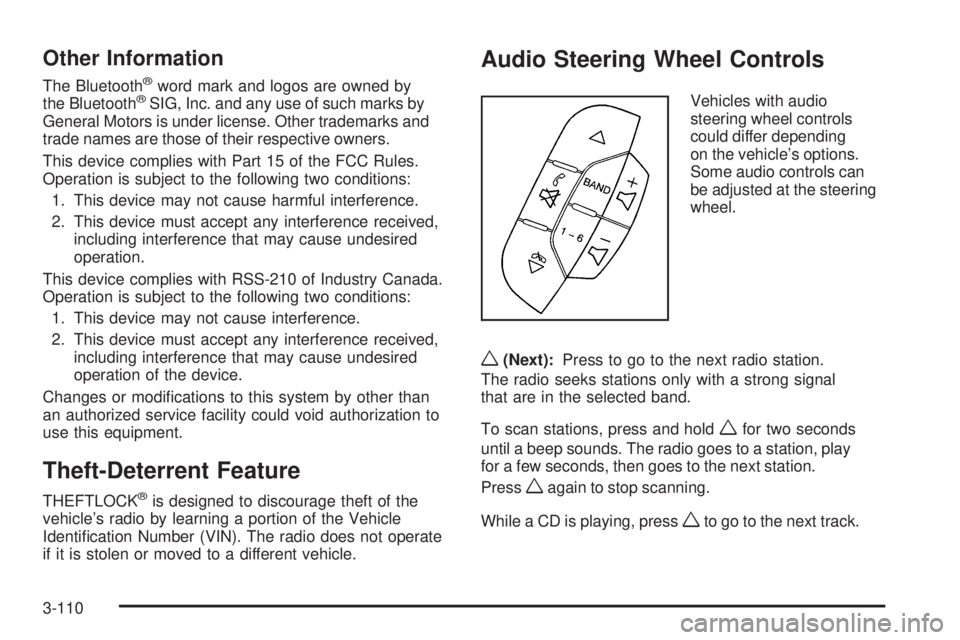
Audio Steering Wheel Controls
Vehicles with audio
steering wheel controls
could differ depending
on the vehicle’s options.
Some audio controls can
be adjusted at the steering
wheel.
w(Next):Press to go to the next radio station.
The radio seeks stations only with a strong signal
that are in the selected band.
To scan stations, press and hold
wfor two seconds
until a beep sounds. The radio goes to a station, play
for a few seconds, then goes to the next station.
Press
wagain to stop scanning.
While a CD is playing, press
wto go to the next track.
3-110