lock BUICK LACROSSE 2010 Service Manual
[x] Cancel search | Manufacturer: BUICK, Model Year: 2010, Model line: LACROSSE, Model: BUICK LACROSSE 2010Pages: 414
Page 120 of 414
4-32 Instruments and Controls
The HUD image can temporarily
light up depending on the angle and
position of the sunlight on the
HUD display. This is normal and
will change when the angle of the
sunlight on the HUD display
changes.
Polarized sunglasses could make
the HUD image harder to see.
Care of the HUD
Clean the inside of the windshield
as needed to remove any dirt or film
that could reduce the sharpness or
clarity of the HUD image.
To clean the HUD lens, use a soft,
clean cloth that has household glass
cleaner sprayed on it. Wipe the
HUD lens gently, then dry it. Do not
spray cleaner directly on the lens
because the cleaner could leak into
the unit.
If You Cannot See the HUD
Image When the Ignition Is On
.Is anything covering the
HUD lens?
.Is the HUD dimmer setting bright
enough?
.Is the HUD image adjusted to
the proper height?
.Are you wearing polarized
sunglasses?
.Still no HUD image? Check the
fuse in the instrument panel fuse
block. SeeInstrument Panel
Fuse Block on page 9‑41.
If the HUD Image Is Not Clear
.Is the HUD image too bright?
.Are the windshield and HUD
lens clean?
If the HUD image is not correct,
contact your dealer/retailer.
Keep in mind that the windshield is
part of the HUD system.
Vehicle Messages
Messages are displayed on the DIC
to notify the driver that the status of
the vehicle has changed and that
some action may be needed by the
driver to correct the condition.
Multiple messages may appear one
after another.
Some messages may not require
immediate action, but you can press
SET to acknowledge that you
received the messages and to clear
them from the display. Some
messages cannot be cleared from
the DIC display because they are
more urgent. These messages
require action before they can be
cleared. You should take any
messages that appear on the
display seriously and remember that
clearing the messages will only
make the messages disappear, not
correct the problem. You will find the
possible messages that can be
displayed and some information
about them grouped by subject in
the following information.
Page 124 of 414
4-36 Instruments and Controls
message stays on, the vehicle
should be taken to your dealer/
retailer for service as soon as
possible.
Fuel System Messages
Fuel Level Low
This message displays when the
vehicle is low on fuel. Refuel as
soon as possible.
Tighten Gas Cap
This message displays when the
fuel cap is not on tight. Tighten the
fuel cap.
Key and Lock Messages
No Remote Detected
This message displays when the
transmitter battery is weak on
vehicles with Keyless Access. See
“Starting the Vehicle with a Low
Battery”under“Remote Keyless
Transmitter Operation (Keyless
Access)” for more information.
Replace Battery In Remote Key
This message displays when the
battery in the Remote Keyless Entry
(RKE) transmitter needs to be
replaced.
Lamp Messages
AFL (Adaptive Forward
Lighting) Lamps Need Service
This message displays when the
Adaptive Forward Lighting (AFL)
system is disabled and needs
service. See your dealer/retailer.
SeeAdaptive Forward Lighting
(AFL)
on page 5‑3for more
information.
Ride Control System
Messages
Service Rear Axle
This message displays when there
is a problem with the All-Wheel
Drive (AWD) System. See your
dealer/retailer for service.
Service Traction Control
This message displays when there
is a problem with the Traction
Control System (TCS). When this
message is displayed, the system
will not limit wheel spin. Adjust your
driving accordingly. See your dealer/
retailer for service.
Service Stabilitrak
This message displays if there is a
problem with the StabiliTrak®
system. If this message appears, try
to reset the system. Stop; turn off
the engine for at least 15 seconds;
then start the engine again. If this
message still comes on, it means
there is a problem. See your dealer/
retailer for service. The vehicle is
safe to drive, however, you do not
have the benefit of StabiliTrak, so
reduce your speed and drive
accordingly.
Page 126 of 414
4-38 Instruments and Controls
Window Messages
Open, Then Close Driver
Window
This message is displayed when the
window needs to be reprogrammed.
If the vehicle's battery has been
recharged or disconnected, you will
need to reprogram each front
window for the express up feature to
work. SeePower Windows
on
page 1‑17for more information.
Open, Then Close Passenger
Window
This message is displayed when the
window needs to be reprogrammed.
If the vehicle's battery has been
recharged or disconnected, you will
need to reprogram each front
window for the express up feature to
work. See Power Windows
on
page 1‑17for more information.
Vehicle
Personalization
The audio system controls are used
to access the personalization
menus for customizing vehicle
features.
CONFIG (Configuration): Press to
access the Configuration
Settings Menu.
MENU / SELECT Knob: Press the
center of this knob to enter the
menus and select menu items.
Turn the knob to scroll through the
menus.
0BACK: Press to exit or move
backwards in a menu.
Entering the Personalization
Menus
1. Press CONFIG to access the Configuration Settings menu.
2. Turn the MENU / SELECT knob to highlight Vehicle Settings. 3. Press the center of the
MENU / SELECT knob to select
the Vehicle Settings menu.
The following list of menu items will
be available:
.Climate and Air Quality
.Comfort and Convenience
.Collision/Detection Systems
.Language
.Lighting
.Power Door Locks
.Remote Lock/Unlock/Start
.Return to Factory Settings
Turn the MENU / SELECT knob to
highlight the menu. Press the knob
to select it. Each of the menus is
detailed in the following information.
Page 129 of 414
Instruments and Controls 4-41
Turn the MENU / SELECT knob to
select the language. Press the knob
to confirm and go back to the
last menu.
Lighting
Select the Lighting menu and the
following will be displayed:
.Exit Lighting
.Vehicle Locator Lights
Exit Lighting
This allows the selection of how
long the exterior lamps stay on
when leaving the vehicle when it is
dark outside.
Press the MENU / SELECT knob
when Exit Lighting is highlighted.
Turn the knob to select Off,
30 Seconds, 1 Minute, or 2 Minutes.
Press the knob to confirm and go
back to the last menu. Vehicle Locator Lights
This allows the vehicle locator lights
to be turned on or off.
Press the MENU / SELECT knob
when Vehicle Locator Lights is
highlighted. Turn the knob to select
On or Off. Press the knob to confirm
and go back to the last menu.Power Door Locks
Select Power Door Locks and the
following will be displayed:
.Unlocked Door Anti Lock Out
.Auto Door Unlock
.Delayed Door Lock
Unlocked Door Anti Lock Out
When on, this feature will keep the
driver door from locking when the
door is open. If off is selected, the
Delayed Door Lock menu will be
available and the door will lock as
programmed through this menu. Press the MENU / SELECT knob
when Auto Door Unlock is
highlighted. Turn the knob to select
On or Off. Press the knob to confirm
and go back to the last menu.
Delayed Door Lock
When on, this feature will delay the
locking of the doors until
five seconds after the last door is
closed. You will hear three chimes
to signal delayed locking is in use.
Pressing either the power lock
button or the lock button on the
RKE transmitter twice will override
the delayed locking feature and
immediately lock all of the doors.
Press the MENU / SELECT knob
when Delayed Door Lock is
highlighted. Turn the knob to select
On or Off. Press the knob to confirm
and go back to the last menu.
Page 130 of 414
4-42 Instruments and Controls
Auto Door Unlock
This allows selection of which of the
doors will automatically unlock when
the vehicle is shifted into P (Park).
Press the MENU / SELECT knob
when Auto Door Unlock is
highlighted. Turn the knob to select
All Doors, Driver Door, or Off. Press
the knob to confirm and go back to
the last menu.
Remote Lock/Unlock/Start
Select Remote Lock/Unlock/Start
and the following will be displayed:
.Unlock Feedback (Lights)
.Locking Feedback
.Door Unlock Options
.Remote Vehicle Start
.Remote RecallUnlock Feedback (Lights)
When on, the exterior lamps will
flash when unlocking the vehicle
with the RKE transmitter.
Press the MENU / SELECT knob
when Unlock Feedback (Lights) is
highlighted. Turn the knob to select
Flash Lights or Off. Press the knob
to confirm and go back to the
last menu.
Locking Feedback
This allows selection of what type of
feedback is given when locking the
vehicle with the RKE transmitter.
Press the MENU / SELECT knob
when Locking Feedback is
highlighted. Turn the knob to select
Lights and Horn, Lights Only, Horn
Only, or Off. Press the knob to
confirm and go back to the
last menu. Door Unlock Options
This allows selection of which doors
will unlock when pressing the unlock
button on the RKE transmitter.
Press the MENU / SELECT knob
when Door Unlock Options is
highlighted. Turn the knob to select
All Doors or Driver Door Only. When
set to Driver Door Only, the driver
door will unlock the first time the
unlock button is pressed and all
doors will unlock when the button is
pressed a second time. When set to
All Doors, all of the doors will unlock
at the first press of the unlock
button. Press the knob to confirm
and go back to the last menu.
Remote Vehicle Start
This allows the Remote Vehicle
Start to be turned on or off, if the
vehicle has this feature.
Press the MENU / SELECT knob
when Remote Vehicle Start is
highlighted. Turn the knob to select
On or Off. Press the knob to confirm
and go back to the last menu.
Page 131 of 414
Instruments and Controls 4-43
Remote Recall
This allows the Remote Recall
feature to be turned on or off.
Remote Recall is when the
memorized settings will be recalled
as you unlock and enter the vehicle.
Press the MENU / SELECT knob
when Remote Recall is highlighted.
Turn the knob to select On or Off.
Press the knob to confirm and go
back to the last menu.
Return to Factory Settings
Select Return to Factory Settings to
return all of the vehicle
personalization to the default
settings. Turn the knob to select
Yes or No. Press the knob to
confirm and go back to the
last menu.
OnStar System®
OnStar®System
OnStar®uses several innovative
technologies and live advisors to
provide a wide range of safety,
security, navigation, diagnostics,
and calling services.
Automatic Crash Response
In a crash, built in sensors can
automatically alert an OnStar
advisor who is immediately
connected to the vehicle to see if
you need help.
How OnStar Service Works
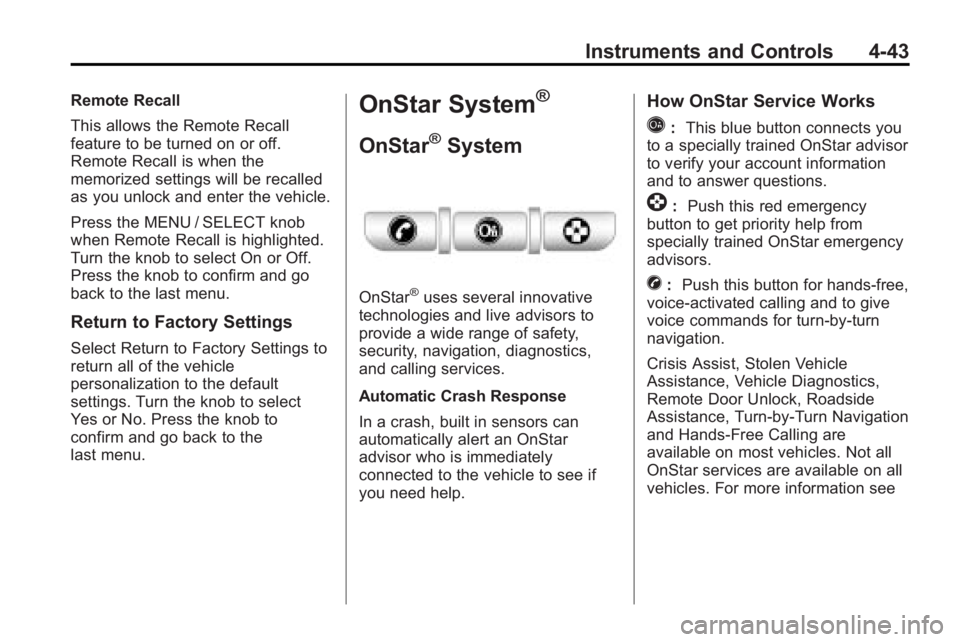
Q: This blue button connects you
to a specially trained OnStar advisor
to verify your account information
and to answer questions.
]: Push this red emergency
button to get priority help from
specially trained OnStar emergency
advisors.
X: Push this button for hands-free,
voice-activated calling and to give
voice commands for turn-by-turn
navigation.
Crisis Assist, Stolen Vehicle
Assistance, Vehicle Diagnostics,
Remote Door Unlock, Roadside
Assistance, Turn-by-Turn Navigation
and Hands-Free Calling are
available on most vehicles. Not all
OnStar services are available on all
vehicles. For more information see
Page 150 of 414
6-4 Infotainment System
E. TUNE
.Radio: Manually selects
radio stations.
.CD: Selects tracks.
F. CD/AUX
.Selects the CD player or an
external audio source.
G.
g
.Radio: Seeks the previous
station.
.CD: Select the previous
track or rewinds within a
track.
H.
ZCD Eject
.Removes a disc from the
CD slot. I.
l
.Radio: Seeks the next
station.
.CD: Select the next track or
fast forwards within a track.
J. RADIO/BAND
.Changes the band while
listening to the radio.
.Selects the radio when
listening to a different audio
source.
K. Menu Knob
.Opens menus, highlights
menu items, or sets
numeric values while in
a menu.
L. SELECT
.Selects menu items. M. CONFIG
.Opens the settings menu.
N.
0BACK
.Menu: Moves one
level back.
.Character Input: Deletes
the last character.
O.
H
.Opens the clock menu.
P. TONE
.Opens the tone menu.
Q.
5
.Opens the phone
main menu.
.Mutes the audio system.
Page 152 of 414
6-6 Infotainment System
E. TUNE/k
.Manually selects radio
stations and pauses time
shifted content.
.CD/DVD: Select tracks,
pauses playback, and stops
playback.
.MEM: Select tracks and
pauses playback.
F. RADIO/BAND
.Changes the band while
listening to the radio.
.Selects the radio when
listening to a different audio
source.
G.
g
.Radio: Seeks the previous
station.
.CD: Selects the previous
track or rewinds within
a track.
.MEM: Selects the previous
track or rewinds within
a track. H.
ZCD Eject
.Removes a disc from the
CD slot.
I. REC
O
.AUX: Records content from
audio CDs, MP3/WMA
CDs, and USB mass
storage devices..
J. DEL
.MEM: Deletes the current
track from MEM.
K.
l
.Radio: Seeks the next
station.
.CD: Selects the next track
or fast forwards within a
track.
.MEM: Selects the next
track or fast forwards within
a track. L. SELECT
.Selects menu items.
M. Menu Knob
.Opens menus, highlights
menu items, or sets
numeric values while in
a menu.
N.
0BACK
.Menu: Moves one
level back.
.Character Input: Deletes
the last character.
O. TONE
.Opens the tone menu.
P.
H
.Opens the clock menu.
Q. CONFIG
.Opens the settings menu.
Page 163 of 414
Infotainment System 6-17
Pausing XM with the Vehicle
Turned Off
If XM is paused when the vehicle is
turned off, the radio continues to
buffer the current radio station for
up to 20 minutes. If the vehicle is
turned back on within 20 minutes,
the radio resumes playback from the
paused point.
XM Messages
XL (Explicit Language
Channels):These channels, or any
others, can be blocked by request,
by calling 1-800-852-XMXM (9696).
XM Updating: The encryption code
in the receiver is being updated, no
action is required. This process
should take no longer than
30 seconds. Loading XM:
The audio system is
acquiring and processing audio and
text data, no action is needed. This
message should disappear shortly.
Channel Off Air: This channel is
not currently in service. Tune in to
another channel.
Channel Unauth: This channel is
blocked or cannot be received with
your XM Subscription package.
Channel Unavailable: This
previously assigned channel is no
longer assigned. Tune to another
station.
No Artist Info: The system is
working properly. No artist
information is available at this time
on this channel. No Title Info:
The system is
working properly. No song title
information is available at this time
on this channel.
No CAT Info: The system is
working properly. No category
information is available at this time
on this channel.
No Information: The system is
working properly. No text or
informational messages are
available at this time on this
channel.
No XM Signal: The system is
working properly. The vehicle may
be in a location that where the XM
signal is being blocked. When the
vehicle is moved into an open area,
the signal should return.
Page 180 of 414
6-34 Infotainment System
Rear Seat
Infotainment
Rear Seat Entertainment
(RSE) System
The vehicle may have a DVD Rear
Seat Entertainment (RSE) system.
The RSE system works with the
vehicle's infotainment system. The
DVD player is part of the front radio.
The RSE system includes a radio
with a DVD player, two rear seat
video display screens, audio/video
jacks, two wireless headphones,
and a remote control. SeeCD/DVD
Player
on page 6‑22or the
separate navigation system manual
for more information on the vehicle's
DVD system.
Before Driving
The RSE is for rear seat
passengers only. The driver cannot
safely view the video screen while
driving. In severe or extreme weather
conditions the RSE system may not
work until the temperature is within
the operating range. The operating
range is above
−20°C (−4°F) and
below 60°C (140°F). If the
temperature is outside of this range,
heat or cool the vehicle until it is
within the operating range.
Global Off
Depending on the infotainment
system, the RSE system may have
a Global Off feature. The Global Off
feature disables all RSE system
features. Press and hold the radio
power button for more than
three seconds for Global Off to
disable the RSE features. A padlock
icon may display on the
infotainment screen when the
Global Off feature is on. On some
infotainment systems, the Global Off
feature can be turned off by
performing one of the following:
.Press and hold the radio
power button for more than
three seconds.
.Insert or eject any disc.
.Insert a DVD video disc.
.Press the Remote Control power
button.
.Press the MEM/DVD/AUX button
or the
kbutton when a DVD
video disc is in the player.
.Press the SRC button on the
steering wheel when a DVD
video disc is in the player.
.Cycle the ignition.
Headphones
RSE includes two 2-channel
wireless headphones. Channel 1 is
dedicated to the DVD player, and
Channel 2 is dedicated to any
external auxiliary device connected
to the A/V jacks. The headphones
are used to listen to various
multi-media. The wireless
headphones have an On/Off button,
channel 1/2 switch, and a volume
control. Turn the headphones off
when not in use.