lock BUICK LACROSSE 2013 Get To Know Guide
[x] Cancel search | Manufacturer: BUICK, Model Year: 2013, Model line: LACROSSE, Model: BUICK LACROSSE 2013Pages: 102, PDF Size: 0.85 MB
Page 30 of 102
Black plate (30,1)Buick LaCrosse Infotainment System - 2013 - CRC - 12/12/12
30 Infotainment System
Thumbs Up or Thumbs Down
Error
If there is an error trying to rate a
track with the
,or-buttons, the
message “Thumbs Down Error” or
“Thumbs Up Error” will display.
Press OK to retry.
Loss of Audio
Loss of Pandora audio can happen
in different ways:
.Weak or lost data connection.
.Device needs to be charged.
.Application needs to be
relaunched.
.Connection between phone and
radio lost.
.If any iPhone, iPod touch,
or iPad is connected to
Bluetooth and the dock
connector, go to the Airplay icon
on the device and select dock
connector or disconnect and
reconnect the dock connector on
the device.
.The volume is too low. Turn up
the volume on the device.
.The battery saver and task
manager applications on the
phone can cause Pandora to
function incorrectly. Remove
those apps from the phone or
remove Pandora and Bluetooth
from the task lists.
If the connection is lost between the
application and device, a message
“Please unlock your phone or restart
the phone app and try again” will
display. Press OK to retry.
If pressing OK does not clear the
issue on the phone, see "Please
Unlock Your Phone or Restart
Phone App and Try Again” under
"Common Pandora Messages"
following.
Common Pandora Messages
Please See Device: When not
logged in or when authentication
failed, see the device. Press OK to
continue. Paused or Audio Paused:
Playback is paused on the radio or
on the device. Presskor play on
the device.
No Stations Found: Logged in but
no stations have been created.
Press OK to continue.
Please Unlock Your Phone or
Restart Phone App and Try
Again: Communication failure
between the radio and the phone
application or the device is locked.
Devices that allow multitasking may
require an extra step to quit the
Pandora application. Close Pandora
on the device and launch again.
Unlock the phone and check that
Home Page is shown on the phone/
device.
See the cell phone manufacturer's
user guide.
See www.pandora.com/help for
more information. If the service will
not work, see your dealer for
assistance.
Page 31 of 102
Black plate (31,1)Buick LaCrosse Infotainment System - 2013 - CRC - 12/12/12
Infotainment System 31
Stitcher Internet Radio
Stitcher SmartRadio™is an Internet
radio service that streams news,
sports, and entertainment shows
through the audio system. Create
personalized, on-demand stations
or discover new shows through
Stitcher's preset stations. To set
up an account, download the
application from the Android
Market or iTunes Store, or go to
www.stitcher.com.
A phone or tablet with Internet
connection is required for this
application. Personal cell phone
data plans are used. Make sure the
latest version is installed on the
device and the volume on the
device is turned up.
BlackBerry phones are not
supported for this application. To install Stitcher:.On an Android phone or Tablet
with Internet connection, go to
the Android Play Store, search
for Stitcher, and install to the
phone, not to the SD card.
.On an iPhone, iPad, or iPod
touch, go to the iTunes store
and search for Stitcher.
Launching Stitcher
Connect the iPhone, iPad, or iPod
touch to the USB port, or connect
Android through Bluetooth. See
Auxiliary Devices on page 44
or
Bluetooth on page 85. For first-time
use, set up the stations before
connecting to the vehicle. The
Stitcher icon will be available on the
Home Page and source pop-up
displays if the latest application is
installed on the device. Using the iPhone, iPod Touch,
or iPad
1. Plug the device into the USB
port. The phone screen must be
unlocked.
2. Use one of the following to launch:
.Press the application on the
device.
.Press Stitcher on the
Home Page.
.Pressb/gand say
“Stitcher” or“Tune Stitcher.”
3. If Stitcher does not begin playing, select a category and
then a station.
After Stitcher has been launched,
press SOURCE, SRCE, or SRC on
the steering wheel controls to
access Stitcher features.
If nothing happens when the
available Stitcher screen button is
pressed, download the latest
Stitcher application and retry.
Page 32 of 102
Black plate (32,1)Buick LaCrosse Infotainment System - 2013 - CRC - 12/12/12
32 Infotainment System
Stitcher will always be highlighted
on the Home Page when an iPhone,
iPad, or iPod touch is connected
using the USB port. To use, log into
your account.
If the“Please See Device” message
is shown, the login screen may
display on the device.
If the “Please unlock your phone or
restart the app” message is shown,
the phone may be locked. Unlock
the phone, close the app, then
restart the app and making sure the
home page is visible on the phone/
device.
Using an Android Phone
1. Pair the Android phone using Bluetooth.
2. Use one of the following to launch:
.Press the application on the
device.
.Press Stitcher on the
Home Page.
.Pressb/gand say
“Stitcher” or“Tune Stitcher.”
3. If Stitcher does not begin playing, select a category and
then a station.
After Stitcher has been launched,
press SOURCE, SRCE, or SRC on
the steering wheel controls to
access Stitcher features.
If nothing happens when the
available Stitcher screen button is
pressed, download the latest
Stitcher application and retry.
If the “Please See Device” message
is shown, the login screen may
display on the device.
If the “Please unlock your phone or
restart the app” message is shown,
the phone may be locked. Unlock
the phone, close the app, then
restart the app to ensure proper
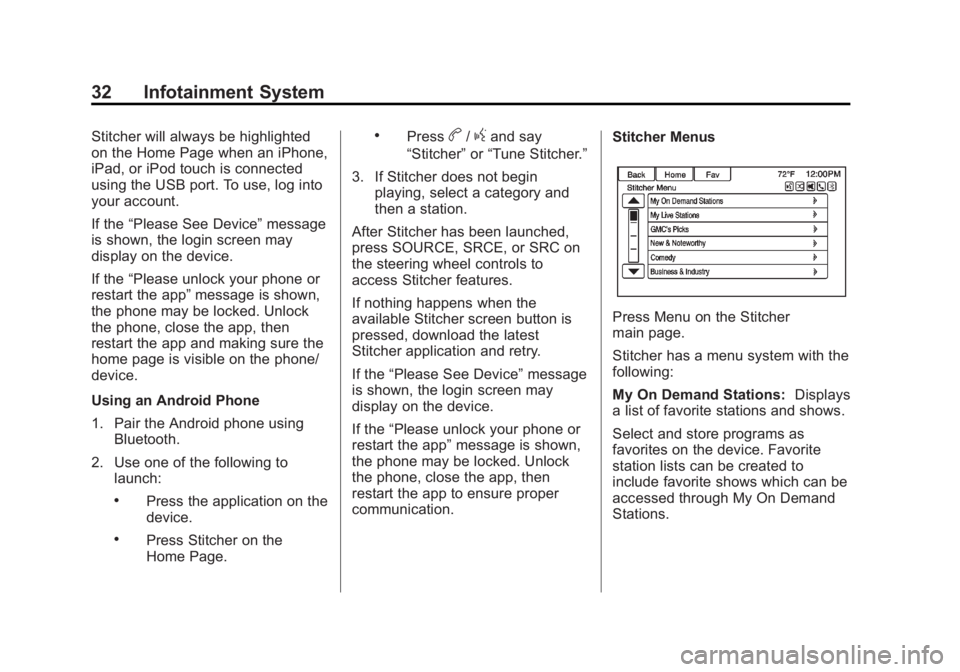
communication. Stitcher Menus
Press Menu on the Stitcher
main page.
Stitcher has a menu system with the
following:
My On Demand Stations:
Displays
a list of favorite stations and shows.
Select and store programs as
favorites on the device. Favorite
station lists can be created to
include favorite shows which can be
accessed through My On Demand
Stations.
Page 34 of 102
Black plate (34,1)Buick LaCrosse Infotainment System - 2013 - CRC - 12/12/12
34 Infotainment System
3. Open and close the driver door,wait about 30 seconds, and try
to connect the device again.
The battery saver and task manager
applications on the phone can
cause Stitcher to function
incorrectly. Remove those apps
from the phone or remove Stitcher
and Bluetooth from the task lists.
Unable to Start Stitcher
If the device is unable to launch
Stitcher:
.Check that the latest version of
Stitcher is installed.
.Check that there is an active
account logged into Stitcher.
.For Android devices, check that
the device is paired with the
vehicle, and the Bluetooth icon
on the display is highlighted.
.For iPhone, iPod touch, or iPad
devices, check that the USB
cable is connected to the USB
port and the screen is unlocked
and the Home Page is showing.
.Close Stitcher on the device and
launch again. Devices that allow
multitasking may require an
extra step to quit the Stitcher
application. See the cell phone
manufacturer's user guide.
Loss of Audio
Loss of Stitcher audio can happen
due to:
.Weak or lost data connection.
.Device needs to be charged.
.Application needs to be
relaunched.
.Connection between phone and
radio is lost.
.If any iPhone, iPod touch,
or iPad is connected to
Bluetooth and the dock
connector, go to the Airplay icon
on the device and select dock
connector or disconnect and
reconnect the dock connector on
the device.
.The volume is too low. Turn up
the volume on the device. If the connection is lost between the
application and device, a message
“Please unlock your phone or restart
the phone app and try again”
will
display. Press OK to retry.
If pressing OK does not clear the
issue, see “Please unlock your
phone or restart phone app and try
again” under“Common Stitcher
Messages” following.
Common Stitcher Messages
Please Try Again Later: A
general error has occurred. A data
connection may be unavailable
due to a weak or lost signal or the
Stitcher service being temporarily
down. Press OK to continue.
Paused or Audio Paused:
Playback is paused on the radio or
on the device. Press
kor play on
the device.
Please See Device: When user is
not logged in or when authentication
failed, see device. Press OK to
continue. Disconnect the phone
Page 35 of 102
Black plate (35,1)Buick LaCrosse Infotainment System - 2013 - CRC - 12/12/12
Infotainment System 35
from the radio and follow the
Stitcher account login process on
the phone.
No Stations Found:Logged in but
no stations have been created.
Press OK to continue.
Please Choose a New Station:
The end of the station has been
reached and there is no more
content to play. Select a new station
through the Stitcher menu.
Please Unlock Your Phone or
Restart Phone App and Try
Again: Communication failure
between the radio and the phone
application or the device is locked.
See www.stitcher.com/help for
more information. If the service
will not work, send an e-mail to
[email protected] or see your
dealer for assistance.Pictures
Pictures can only be viewed using
USB devices. If pictures are on an
SD card, transfer to a USB device
or use a USB-SD adapter. File sizes
above approximately four mega
pixels may not show. Only jpeg,
bmp, gif, and png files are
supported.
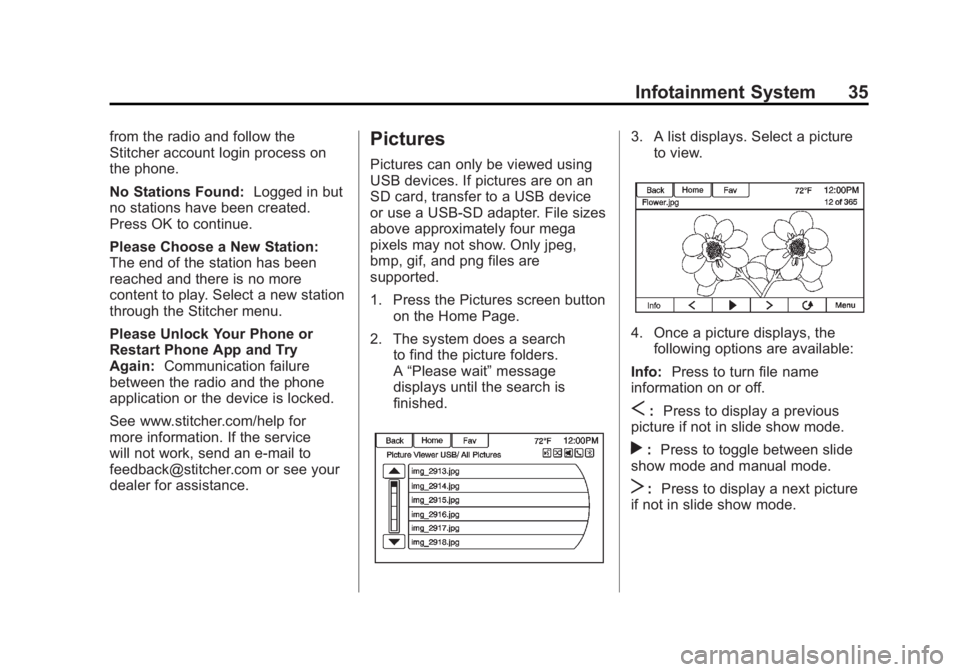
1. Press the Pictures screen button on the Home Page.
2. The system does a search to find the picture folders.
A“Please wait” message
displays until the search is
finished.
3. A list displays. Select a picture to view.
4. Once a picture displays, thefollowing options are available:
Info: Press to turn file name
information on or off.
S: Press to display a previous
picture if not in slide show mode.
r: Press to toggle between slide
show mode and manual mode.
T: Press to display a next picture
if not in slide show mode.
Page 36 of 102
Black plate (36,1)Buick LaCrosse Infotainment System - 2013 - CRC - 12/12/12
36 Infotainment System
E:Press to manually rotate a
picture 90 degrees
counterclockwise.
Menu: Press to open the Picture
Viewer Settings screen. Slide
Picture Viewer Main, Slideshow
Timer, and Shuffle Images display
as options for configuring the view
of images stored in the system.
If the displayed picture screen is not
used within six seconds, the upper
and lower bar options will disappear.
Touch-tap the screen to re-display
the upper and lower bar.Audio Players
CD Player
The CD player is capable of playing:
.Most audio CDs
.CD-R
.CD-RW
.MP3, unprotected WMA, and
AAC formats
When playing any compatible
recordable disc, the sound quality
may be reduced due to the disc, the
method of recording, the quality of
the music recorded, or how the disc
has been handled.
There may be increased skipping,
difficulty reading recorded tracks,
finding tracks, and/or loading and
ejecting. If these problems occur,
check the disc for damage or try a
known good disc. To avoid damage to the CD player:
.Do not use scratched or
damaged discs.
.Do not apply labels to discs. The
labels could get caught in the
player.
.Insert only one disc at a time.
.Keep the loading slot free of
foreign materials, liquids, and
debris.
.Use a marking pen to label the
top of the disc.
Loading and Ejecting Discs
To load a disc:
1. Turn the vehicle on.
2. Insert a disc into the slot, right
side up. The player pulls it in the
rest of the way. If the disc is
damaged or improperly loaded,
there is an error and the disc
ejects.
The disc automatically plays once
loaded.
Page 46 of 102
Black plate (46,1)Buick LaCrosse Infotainment System - 2013 - CRC - 12/12/12
46 Infotainment System
When selecting Bluetooth audio as
a source, the radio may source to
the Bluetooth Audio Paused screen
with no audio playing. Press play on
the device or push
kto begin
playback. This may happen
depending on how the device
communicates over Bluetooth.
Some phones support sending
Bluetooth music information to
display on the radio. When the radio
receives this information, it will
check to see if any album art is
available and display it.
When playing music on the radio
from a Bluetooth device, make sure
the Bluetooth device is unlocked
and the intended music application
is showing on the home screen.
For iPhone/iPod touch and iPad
devices, Bluetooth Audio will not
work if the device is connected
through the USB and Bluetooth at
the same time.
Rear Seat
Infotainment
Rear Seat Entertainment
(RSE) System
The vehicle may be equipped with a
DVD Rear Seat Entertainment
(RSE) system. The RSE system
works with the vehicle's infotainment
system.
The RSE system includes a radio
with a DVD player, two rear seat
video display screens, audio/video
jacks, two wireless headphones,
and a remote control.
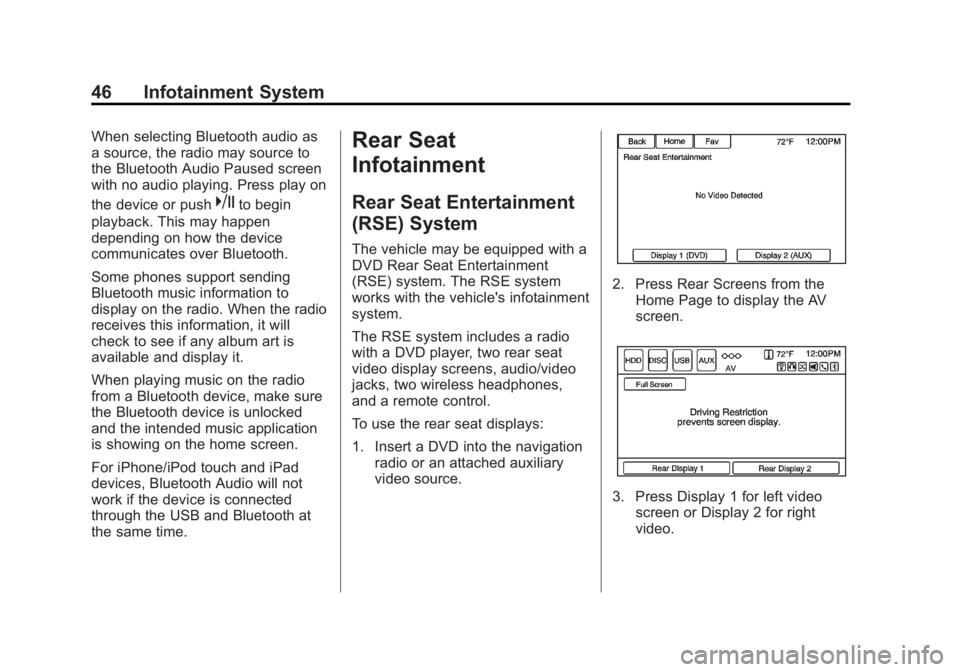
To use the rear seat displays:
1. Insert a DVD into the navigation radio or an attached auxiliary
video source.
2. Press Rear Screens from theHome Page to display the AV
screen.
3. Press Display 1 for left videoscreen or Display 2 for right
video.
Page 50 of 102
Black plate (50,1)Buick LaCrosse Infotainment System - 2013 - CRC - 12/12/12
50 Infotainment System
2. Move the screen to the desiredviewing position.
Push the video screen down into its
locked position when it is not in use,
the screen turns off automatically.
Only the left RSE seatback console
contains the infrared transmitters for
the wireless headphones and may
be visible as eight illuminated LEDs.
These LEDs are not on the right
video screen. Both seatback
consoles contain an infrared
receiver for the remote control. They
are at the top of each console.
Notice: Avoid directly touching
the video screen, as damage may
occur. See “Cleaning the Video
Screens” later in this section for
more information.
Video Screen Input Jack
Each video screen has a video input
jack to allow video cables to be
connected from an auxiliary device
such as a camcorder or a video
game system. This signal will override any video provided by the
RSE. The RSE system must be on
for this input to operate.
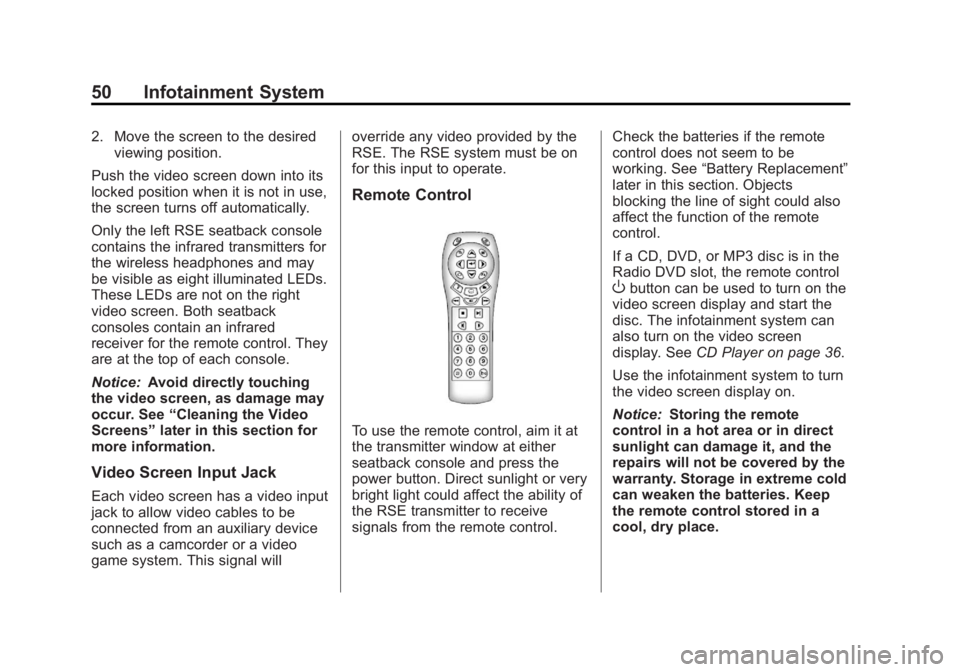
Remote Control
To use the remote control, aim it at
the transmitter window at either
seatback console and press the
power button. Direct sunlight or very
bright light could affect the ability of
the RSE transmitter to receive
signals from the remote control.
Check the batteries if the remote
control does not seem to be
working. See
“Battery Replacement”
later in this section. Objects
blocking the line of sight could also
affect the function of the remote
control.
If a CD, DVD, or MP3 disc is in the
Radio DVD slot, the remote control
Obutton can be used to turn on the
video screen display and start the
disc. The infotainment system can
also turn on the video screen
display. See CD Player on page 36.
Use the infotainment system to turn
the video screen display on.
Notice: Storing the remote
control in a hot area or in direct
sunlight can damage it, and the
repairs will not be covered by the
warranty. Storage in extreme cold
can weaken the batteries. Keep
the remote control stored in a
cool, dry place.
Page 58 of 102
Black plate (58,1)Buick LaCrosse Infotainment System - 2013 - CRC - 12/12/12
58 Infotainment System
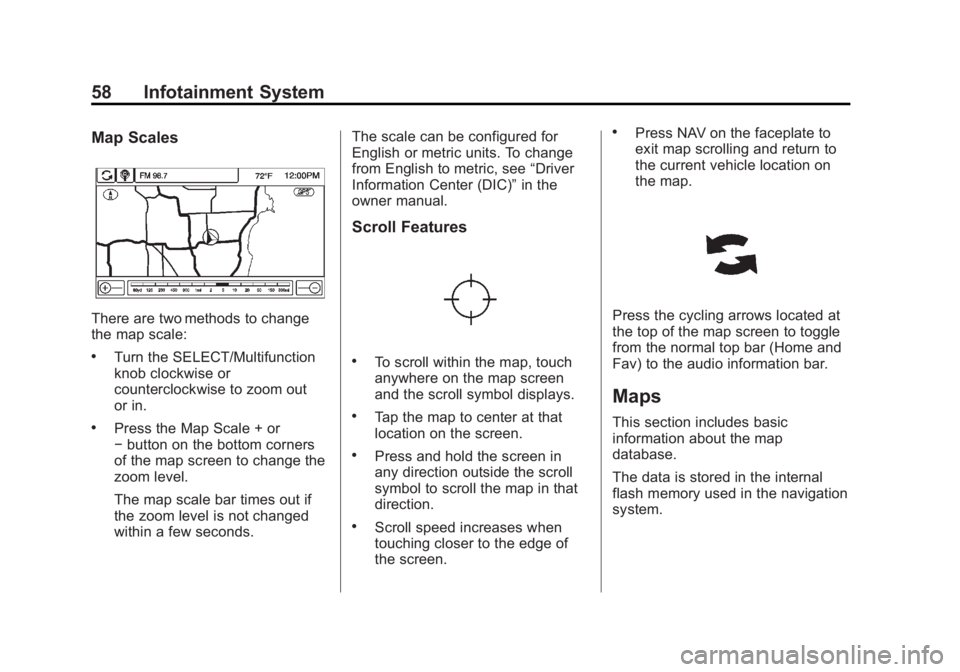
Map Scales
There are two methods to change
the map scale:
.Turn the SELECT/Multifunction
knob clockwise or
counterclockwise to zoom out
or in.
.Press the Map Scale + or
−button on the bottom corners
of the map screen to change the
zoom level.
The map scale bar times out if
the zoom level is not changed
within a few seconds. The scale can be configured for
English or metric units. To change
from English to metric, see
“Driver
Information Center (DIC)” in the
owner manual.
Scroll Features
.To scroll within the map, touch
anywhere on the map screen
and the scroll symbol displays.
.Tap the map to center at that
location on the screen.
.Press and hold the screen in
any direction outside the scroll
symbol to scroll the map in that
direction.
.Scroll speed increases when
touching closer to the edge of
the screen.
.Press NAV on the faceplate to
exit map scrolling and return to
the current vehicle location on
the map.
Press the cycling arrows located at
the top of the map screen to toggle
from the normal top bar (Home and
Fav) to the audio information bar.
Maps
This section includes basic
information about the map
database.
The data is stored in the internal
flash memory used in the navigation
system.
Page 71 of 102
Black plate (71,1)Buick LaCrosse Infotainment System - 2013 - CRC - 12/12/12
Infotainment System 71
.All other buttons on the pop-up
screen operate as described
under“Route Guidance Not
Active.”
Previous Destinations
Previously downloaded OnStar
destinations are saved under
Previous Destinations in the
navigation system, where they can
be accessed or saved to the
Address Book.
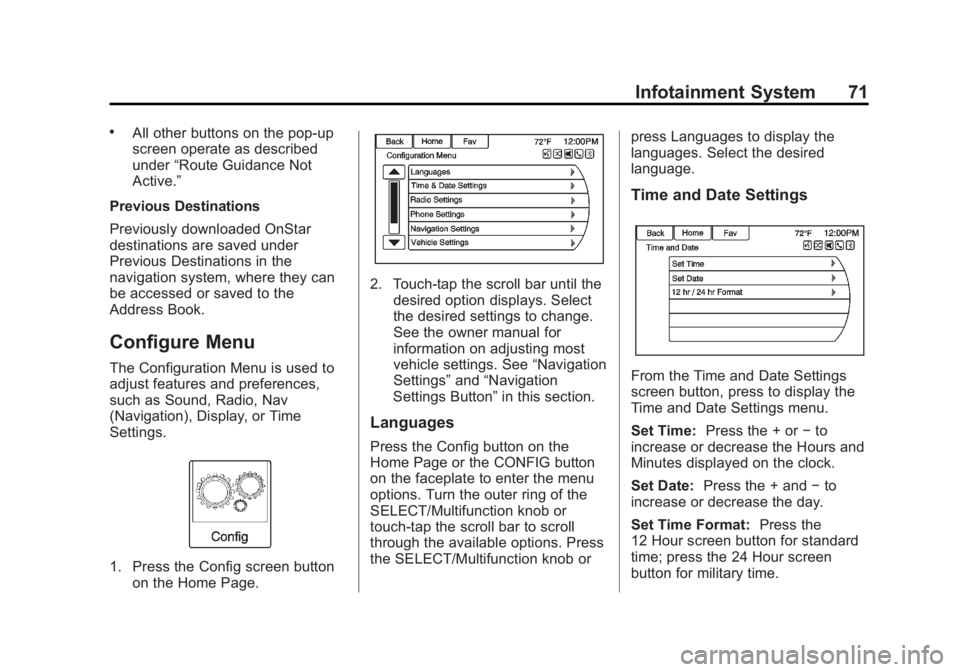
Configure Menu
The Configuration Menu is used to
adjust features and preferences,
such as Sound, Radio, Nav
(Navigation), Display, or Time
Settings.
1. Press the Config screen button on the Home Page.
2. Touch-tap the scroll bar until thedesired option displays. Select
the desired settings to change.
See the owner manual for
information on adjusting most
vehicle settings. See “Navigation
Settings” and“Navigation
Settings Button” in this section.
Languages
Press the Config button on the
Home Page or the CONFIG button
on the faceplate to enter the menu
options. Turn the outer ring of the
SELECT/Multifunction knob or
touch-tap the scroll bar to scroll
through the available options. Press
the SELECT/Multifunction knob or press Languages to display the
languages. Select the desired
language.
Time and Date Settings
From the Time and Date Settings
screen button, press to display the
Time and Date Settings menu.
Set Time:
Press the + or −to
increase or decrease the Hours and
Minutes displayed on the clock.
Set Date: Press the + and −to
increase or decrease the day.
Set Time Format: Press the
12 Hour screen button for standard
time; press the 24 Hour screen
button for military time.