manual radio set BUICK LACROSSE 2013 User Guide
[x] Cancel search | Manufacturer: BUICK, Model Year: 2013, Model line: LACROSSE, Model: BUICK LACROSSE 2013Pages: 422, PDF Size: 5.74 MB
Page 170 of 422
Black plate (8,1)Buick LaCrosse Owner Manual - 2013 - crc - 9/7/12
7-8 Infotainment System
System Settings
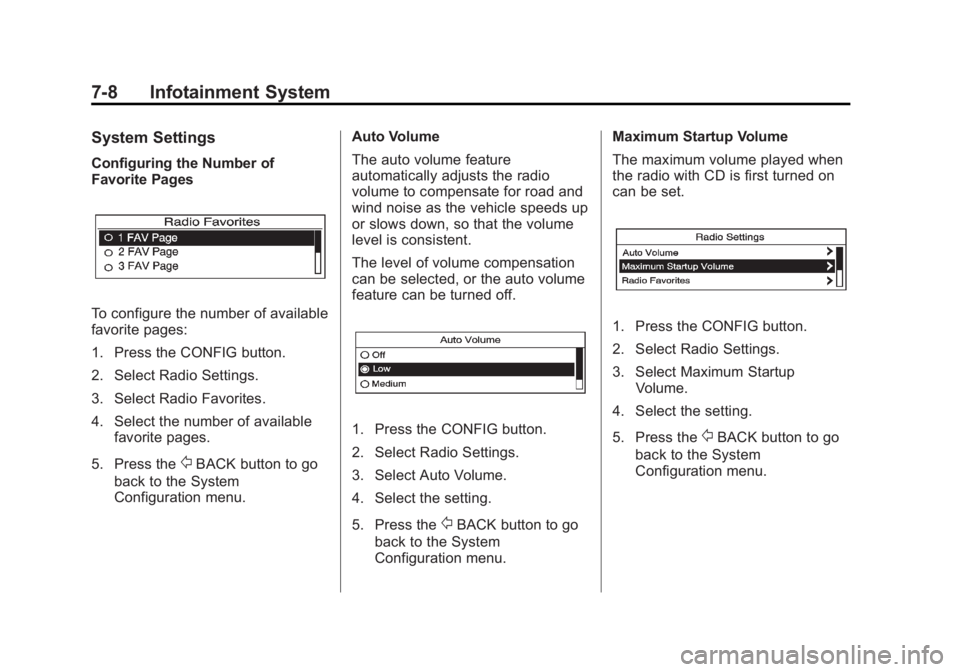
Configuring the Number of
Favorite Pages
To configure the number of available
favorite pages:
1. Press the CONFIG button.
2. Select Radio Settings.
3. Select Radio Favorites.
4. Select the number of availablefavorite pages.
5. Press the
/BACK button to go
back to the System
Configuration menu. Auto Volume
The auto volume feature
automatically adjusts the radio
volume to compensate for road and
wind noise as the vehicle speeds up
or slows down, so that the volume
level is consistent.
The level of volume compensation
can be selected, or the auto volume
feature can be turned off.
1. Press the CONFIG button.
2. Select Radio Settings.
3. Select Auto Volume.
4. Select the setting.
5. Press the
/BACK button to go
back to the System
Configuration menu. Maximum Startup Volume
The maximum volume played when
the radio with CD is first turned on
can be set.
1. Press the CONFIG button.
2. Select Radio Settings.
3. Select Maximum Startup
Volume.
4. Select the setting.
5. Press the
/BACK button to go
back to the System
Configuration menu.
Page 171 of 422
Black plate (9,1)Buick LaCrosse Owner Manual - 2013 - crc - 9/7/12
Infotainment System 7-9
Radio
AM-FM Radio
Playing the Radio
Audio Source
VOL/
O(Volume/Power):
1. Press to turn the radio on or off.
2. Turn to increase or decrease the volume.
The steering wheel controls can
also be used to adjust the volume.
See Steering Wheel Controls on
page 5‑2.
RADIO/BAND:
1. Press to change the band while listening to the radio.
2. Select the radio while listening to another audio source.
Infotainment System Menus
Tone Settings
To access the tone settings, press
the TONE button on the faceplate. Use the tone settings to adjust the
following features:
.Setting the tone
.Adjusting the speakers
Setting the Tone
To adjust the tone:
.Treble: Press Treble and then
press + or −to change the level.
.Middle (Midrange): Press Middle
and then press + or −to change
the level.
.Bass: Press Bass and then
press + or −to change the level.
Adjusting the Speakers
To adjust the speaker balance:
.Press the left arrow on the
bottom for more sound from the
left speakers or the right arrow
on the bottom for more sound
from the right speakers. The
middle position balances the
sound between the left and right
speakers. To adjust the speaker fade:
.Press the upper arrow for more
sound from the front speakers
and the lower arrow for more
sound from the rear speakers.
The middle position balances
the sound between the front and
rear speakers.
EQ Settings
The EQ settings are selected
through the tone menu. Press the
left or right arrows to cycle through
the EQ options. The available
choices are Talk and Manual.
Finding a Station
To select the band, see “Audio
Source” earlier in this section.
Turn the Multifunction knob to find a
radio station. To select a preset
station, choose a preset button.
Seeking a Station
Press
gorlto search for a
station.
Page 172 of 422
Black plate (10,1)Buick LaCrosse Owner Manual - 2013 - crc - 9/7/12
7-10 Infotainment System
Changing the Sources
Press the RADIO/BAND button on
the faceplate to change (AM, FM,
SiriusXM
®, CD, or AUX) audio
sources.
Storing Radio Station Presets
There are a few ways to store
presets.
Up to 36 preset stations can be
stored. AM, FM, and SiriusXM,
if equipped, can be mixed.
1. From the AM, FM, or SiriusXM main page, press and hold one
of the preset screen buttons at
the bottom of the screen. After a
few seconds, a beep will be
heard and the new preset
information will display on that
screen button.
2. Touch and hold a preset button to store the currently active
station. After a few seconds, a
beep will be heard and the new
preset information will display on
a small pop-up display at the
bottom of the screen. 3. Repeat the steps for each
preset.
To change the number of preset
pages, see “Mixed-Band Presets”
following.
Recalling a Preset Station
To recall a preset station, do the
following:
.Press the FAV button on the
faceplate to display the FAV
pop-up. Select the desired
preset from the pop-up.
.Press the FAV screen button at
the top bar to display the preset
pop-up that appears at the
bottom of the page. Press one of
the preset screen buttons to go
to the selected preset station.
.In the AM, FM, or SiriusXM (if
equipped) main page, press one
of the preset screen buttons to
go to the selected preset station.
Mixed-Band Presets
Each page can store six preset
stations. The presets within a page
can be from different radio bands.
To scroll through the pages, press
the FAV button on the faceplate or
the FAV screen button on the top
bar. The current page number
displays above the preset buttons.
The stored stations for each FAV
page display on the preset buttons
at the bottom of the screen. The
number of FAV pages displayed can
be changed in the Radio Settings in
the Configuration Menu.
Satellite Radio
SiriusXM®Satellite Radio
Service
Vehicles with an SiriusXM satellite
radio tuner and an SiriusXM satellite
radio subscription can receive
SiriusXM programming.
SiriusXM is a satellite radio service
based in the 48 contiguous United
States and 10 Canadian provinces.
Page 173 of 422
Black plate (11,1)Buick LaCrosse Owner Manual - 2013 - crc - 9/7/12
Infotainment System 7-11
SiriusXM satellite radio has a wide
variety of programming and
commercial-free music, coast to
coast, and in digital-quality sound.
A service fee is required to receive
the SiriusXM service. For more
information, see www.siriusxm.com
or call 1-866-635-2349 (U.S) and
www.xmradio.ca or call
1-877-209-0079 (Canada).
When SiriusXM is active, the
channel name and number,
category name, song title, and artist
display on the screen.
SiriusXM Categories (Radio
with CD)
SiriusXM stations are organized in
categories.
Removing or Adding Categories
1. Press the CONFIG button. Turnthe Multifunction knob until
Radio displays. Press SELECT
or press Radio to display the
radio settings menu.
2. Select the Show/Hide XM Categories screen button. 3. Press the category buttons on
the screen to show or hide the
category.
SiriusXM Categories (Radio
with CD and Touchscreen)
Adding or Removing Categories
1. From the Home Page press the
Config screen button or the
CONFIG button on the
infotainment system.
2. Select Radio Settings from the Config Menu list.
3. Select Add/Remove XM Categories.
4. From the Add/Remove XM Categories screen, select or
deselect any category to be
used in XM mode. A checkmark
will indicate that the category is
selected. Turning SiriusXM Album Art On
or Off
1. From the Home Page press the
Config screen button or the
CONFIG button on the
infotainment system.
2. Select Radio Settings from the Config Menu list.
3. Select XM Album Art to turn on or off.
SiriusXM Messages
XL (Explicit Language
Channels): These channels, or any
others, can be blocked by request,
by calling 1-800-929-2100 in the
U.S., and 1-877-438-9677 in
Canada.
XM Updating: The encryption code
in the receiver is being updated. No
action is required. This process
should take no longer than
30 seconds.
Page 180 of 422
Black plate (18,1)Buick LaCrosse Owner Manual - 2013 - crc - 9/7/12
7-18 Infotainment System
file structure that contains a
compressed audio file. The empty
folder(s) are not displayed or
numbered.
No Folder
When the CD only contains
compressed audio files without any
folders or playlists, all files are
located under the root folder.
File System and Naming
The displayed song title is taken
from the file's ID3 tag. If a song title
is not present in the ID3 tag, the
radio displays the file name as the
track name.
Auxiliary Devices
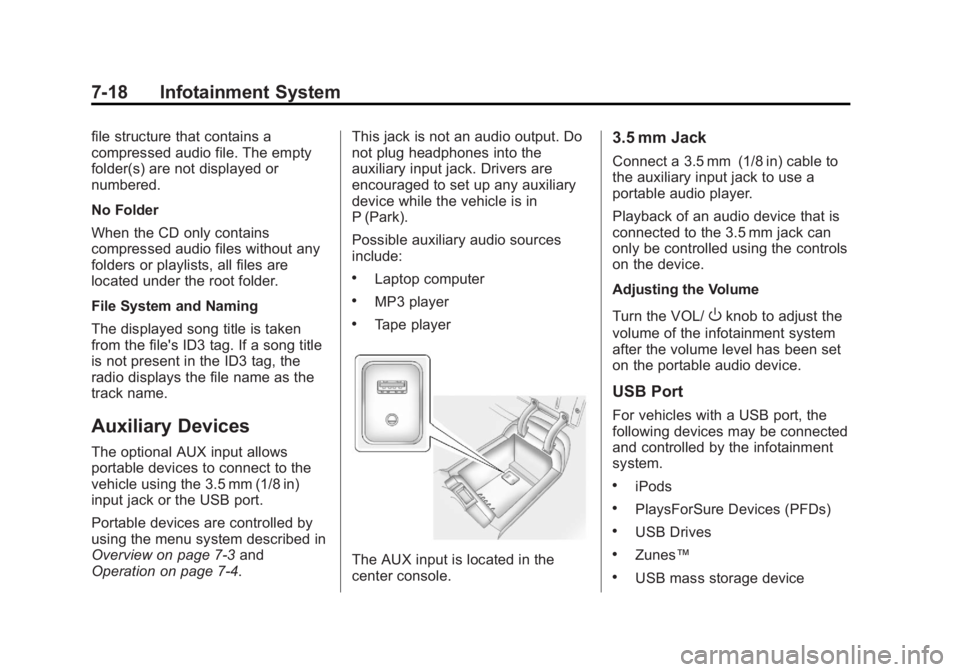
The optional AUX input allows
portable devices to connect to the
vehicle using the 3.5 mm (1/8 in)
input jack or the USB port.
Portable devices are controlled by
using the menu system described in
Overview on page 7‑3and
Operation on page 7‑4. This jack is not an audio output. Do
not plug headphones into the
auxiliary input jack. Drivers are
encouraged to set up any auxiliary
device while the vehicle is in
P (Park).
Possible auxiliary audio sources
include:
.Laptop computer
.MP3 player
.Tape player
The AUX input is located in the
center console.
3.5 mm Jack
Connect a 3.5 mm (1/8 in) cable to
the auxiliary input jack to use a
portable audio player.
Playback of an audio device that is
connected to the 3.5 mm jack can
only be controlled using the controls
on the device.
Adjusting the Volume
Turn the VOL/
Oknob to adjust the
volume of the infotainment system
after the volume level has been set
on the portable audio device.
USB Port
For vehicles with a USB port, the
following devices may be connected
and controlled by the infotainment
system.
.iPods
.PlaysForSure Devices (PFDs)
.USB Drives
.Zunes™
.USB mass storage device
Page 184 of 422
Black plate (22,1)Buick LaCrosse Owner Manual - 2013 - crc - 9/7/12
7-22 Infotainment System
How to Speak:Speak clearly in a
calm and natural voice.
Audio System
When using the Bluetooth system,
sound comes through the vehicle's
front audio system speakers and
overrides the audio system. Use the
VOL/
Oknob during a call to
change the volume level. The
adjusted volume level remains in
memory for later calls. The system
maintains a minimum volume level.
Other Information
The Bluetooth®word mark and
logos are owned by the Bluetooth®
SIG, Inc. and any use of such marks
by General Motors is under license.
Other trademarks and trade names
are those of their respective owners.
See Radio Frequency Statement on
page 13‑20 for information
regarding Part 15 of the Federal
Communications Commission (FCC)
rules and Industry Canada
Standards RSS-GEN/210/220/310.
Bluetooth (Infotainment
Controls)
For information about how to
navigate the menu system using the
infotainment controls, see Overview
on page 7‑3 orAM-FM Radio on
page 7‑9.
Pairing
A Bluetooth-enabled cell phone
must be paired to the Bluetooth
system and then connected to the
vehicle before it can be used. See
your cell phone manufacturer's user
guide for Bluetooth functions before
pairing the cell phone. If a Bluetooth
phone is not connected, calls will be
made using OnStar Hands-Free
Calling, if available. See OnStar
Overview on page 14‑1 for more
information.
Pairing Information
.A Bluetooth phone with MP3
capability cannot be paired to
the vehicle as a phone and an
MP3 player at the same time.
.Up to five cell phones can be
paired to the Bluetooth system.
.The pairing process is disabled
when the vehicle is moving.
.Pairing only needs to be
completed once, unless the
pairing information on the cell
phone changes or the cell phone
is deleted from the system.
.Only one paired cell phone can
be connected to the Bluetooth
system at a time.
.If multiple paired cell phones are
within range of the system, the
system connects to the first
available paired cell phone in the
order that they were first paired
to the system. To link to a
different paired phone, see
“Linking to a Different Phone”
later in this section.
Pairing a Phone
1. Press the CONFIG button.
2. Select Phone Settings or Bluetooth Settings (depending
on the radio).
Page 185 of 422
Black plate (23,1)Buick LaCrosse Owner Manual - 2013 - crc - 9/7/12
Infotainment System 7-23
3. Select Bluetooth.
4. Select Pair Device (Phone).A four-digit Personal
Identification Number (PIN)
appears on the display. The PIN
is used is Step 6.
5. Start the pairing process on the cell phone to be paired to the
vehicle. See the cell phone
manufacturer's user guide for
information on this process.
6. Locate the device named “Your
Vehicle” in the list on the cell
phone. Follow the instructions
on the cell phone to enter the
PIN provided in Step 4. After the
PIN is successfully entered, the
system prompts you to provide a
name for the paired cell phone.
This name will be used to
indicate which phones are
paired and connected to the
vehicle. The system responds
with “
successfully paired” after the
pairing process is complete. 7. Repeat Steps 1–6 to pair
additional phones.
Listing All Paired and Connected
Phones
1. Press the CONFIG button.
2. Select Phone Settings or Bluetooth Settings (depending
on the radio).
3. Select Bluetooth.
4. Select Device List.
Deleting a Paired Phone
1. Press the CONFIG button.
2. Select Phone Settings or Bluetooth Settings (depending
on the radio).
3. Select Bluetooth.
4. Select Device List.
5. Select the phone to delete and follow the on screen prompts. Linking to a Different Phone
To link to a different phone, the new
phone must be in the vehicle and
available to be connected to the
Bluetooth system before the
process is started.
1. Press the CONFIG button.
2. Select Phone Settings or
Bluetooth Settings (depending
on the radio).
3. Select Bluetooth.
4. Select Device List.
5. Select the new phone to link to and follow the on screen
prompts.
If delete is selected, the
highlighted phone will be
deleted.
Making a Call Using
Phone Book
For cell phones that support the
phone book feature, the Bluetooth
system can use the contacts stored
on your cell phone to make calls.
Page 199 of 422
Black plate (5,1)Buick LaCrosse Owner Manual - 2013 - crc - 9/7/12
Climate Controls 8-5
When the indicator light is on, air is
recirculated inside the vehicle. If the
indicator light is off, outside air will
flow into the vehicle. Press AUTO or
@to return to automatic
operation.
Auto Defog: The climate control
system may have a sensor to
automatically detect high humidity
inside the vehicle. When high
humidity is detected, the climate
control system may adjust to
outside air supply and turn on the
air conditioner. The fan speed may
slightly increase to help prevent
fogging. If the climate control
system does not detect possible
window fogging, it returns to normal
operation. For eAssist vehicles,
there may be shorter and less
frequent auto stops when auto
defog is in use.
To turn Auto Defog off or on, see
“Climate and Air Quality” under
Vehicle Personalization on
page 5‑39.
Rear Window Defogger
=(Rear Window Defogger):
Press to turn the rear window
defogger on or off.
The rear window defogger turns off
automatically after about
10 minutes. If turned on again it
runs for about five minutes before
turning off. The defogger can also
be turned off by turning the ignition
to ACC/ACCESSORY or
LOCK/OFF.
The rear window defogger can be
set to automatic operation. See
“Climate and Air Quality” under
Vehicle Personalization on
page 5‑39. When auto rear defog is
selected, the rear window defogger
turns on automatically when the
interior temperature is cold and the
outside temperature is about 4°C
(40°F) and below. The auto rear
defogger turns off automatically
after about 10 minutes, or after
five minutes if the outside
temperature is not as cold. For eAssist vehicles, auto rear
defog will only run during a remote
start and the feature is not available
in the Vehicle Personalization menu.
For vehicles with heated outside
rearview mirrors, they turn on when
the rear window defogger button is
on and help to clear fog or frost from
the surface of the mirror. See
Heated Mirrors on page 2‑16.
Notice:
Do not try to clear frost
or other material from the inside
of the front windshield and rear
window with a razor blade or
anything else that is sharp. This
may damage the rear window
defogger grid and affect the
radio's ability to pick up stations
clearly. The repairs would not be
covered by the vehicle warranty.
((Heated Steering Wheel): For
vehicles with this feature, press to
turn on or off. See Heated Steering
Wheel on page 5‑3.
Page 204 of 422
Black plate (2,1)Buick LaCrosse Owner Manual - 2013 - crc - 9/7/12
9-2 Driving and Operating
Towing
General TowingInformation . . . . . . . . . . . . . . . . . 9-51
Driving Characteristics and Towing Tips . . . . . . . . . . . . . . . . 9-51
Trailer Towing (Except
eAssist) . . . . . . . . . . . . . . . . . . . . 9-54
Trailer Towing (eAssist) . . . . . . 9-56
Towing Equipment . . . . . . . . . . . 9-56
Conversions and Add-Ons
Add-On Electrical Equipment . . . . . . . . . . . . . . . . . 9-57
Driving Information
Distracted Driving
Distraction comes in many forms
and can take your focus from the
task of driving. Exercise good
judgment and do not let other
activities divert your attention away
from the road. Many local
governments have enacted laws
regarding driver distraction. Become
familiar with the local laws in
your area.
To avoid distracted driving, always
keep your eyes on the road, hands
on the wheel, and mind on the drive.
.Do not use a phone in
demanding driving situations.
Use a hands-free method to
place or receive necessary
phone calls.
.Watch the road. Do not read,
take notes, or look up
information on phones or other
electronic devices.
.Designate a front seat
passenger to handle potential
distractions.
.Become familiar with vehicle
features before driving, such as
programming favorite radio
stations and adjusting climate
control and seat settings.
Program all trip information into
any navigation device prior to
driving.
.Wait until the vehicle is parked
to retrieve items that have fallen
to the floor.
.Stop or park the vehicle to tend
to children.
.Keep pets in an appropriate
carrier or restraint.
.Avoid stressful conversations
while driving, whether with a
passenger or on a cell phone.
Page 314 of 422
Black plate (54,1)Buick LaCrosse Owner Manual - 2013 - crc - 9/7/12
10-54 Vehicle Care
.Operating electronic devices or
being near facilities using radio
wave frequencies similar to the
TPMS could cause the TPMS
sensors to malfunction.
If the TPMS is not functioning
properly it cannot detect or signal a
low tire condition. See your dealer
for service if the TPMS malfunction
light and DIC message comes on
and stays on.
TPMS Sensor Matching
Process
Each TPMS sensor has a unique
identification code. The identification
code needs to be matched to a new
tire/wheel position after rotating the
vehicle’s tires or replacing one or
more of the TPMS sensors. The
TPMS sensor matching process
should also be performed after
replacing a spare tire with a road
tire containing the TPMS sensor.
The malfunction light and the DIC
message should go off at the next
ignition cycle. The sensors are
matched to the tire/wheel positions, using a TPMS relearn tool, in the
following order: driver side front tire,
passenger side front tire, passenger
side rear tire, and driver side rear.
See your dealer for service or to
purchase a relearn tool.
There are two minutes to match the
first tire/wheel position, and
five minutes overall to match all four
tire/wheel positions. If it takes
longer, the matching process stops
and must be restarted.
The TPMS sensor matching
process is:
1. Set the parking brake.
2. Turn the ignition to ON/RUN with
the engine off or place the
vehicle power mode in ON/RUN/
START. See Ignition Positions
(Keyless Access) on page 9‑15
or Ignition Positions (Key
Access) on page 9‑17.
3. Use the MENU button to select the Vehicle Information Menu in
the Driver Information
Center (DIC). 4. Use the thumbwheel to scroll to
the Tire Pressure Menu Item
screen.
5. Press the SET/CLR button to begin the sensor matching
process.
A message asking if the process
should begin should appear.
6. Press the SET/CLR button again to confirm the selection.
The horn sounds twice to signal
the receiver is in relearn mode
and the TIRE LEARNING
ACTIVE message displays on
the DIC screen.
7. Start with the driver side front tire.
8. Place the relearn tool against the tire sidewall, near the valve
stem. Then press the button to
activate the TPMS sensor.
A horn chirp confirms that the
sensor identification code has
been matched to this tire and
wheel position.