phone BUICK LESABRE 2003 Owner's Manual
[x] Cancel search | Manufacturer: BUICK, Model Year: 2003, Model line: LESABRE, Model: BUICK LESABRE 2003Pages: 380, PDF Size: 2.75 MB
Page 100 of 380
Directions and Connections Plan
·
All Safe and Sound Plan services
·Route Support
·RideAssist
·Information and Convenience Services
Luxury and Leisure Plan
·
All Directions and Connections Plan services
·Personal Concierge
OnStaržPersonal Calling
With OnStaržPersonal Calling, you have a safer way to
stay connected while driving. It's a hands-free wireless
phone that's integrated into your vehicle. You can place
calls nationwide using voice-activated dialing with no
contracts and no additional roaming charges. To ®nd out
more about OnStar
žPersonal Calling, refer to the
OnStaržowner's guide in your vehicle's glove box, or
call OnStaržat 1-888-4-ONSTAR (1-888-466-7827).
OnStaržVirtual Advisor
With OnStaržVirtual Advisor you can listen to your
favorite news, entertainment and information topics,
such as traffic and weather reports, stock quotes
and sports scores. You listen to your e-mail through
your vehicle's speakers, and reply with your hands on
the wheel and your eyes on the road.
HomeLinkžTransmitter
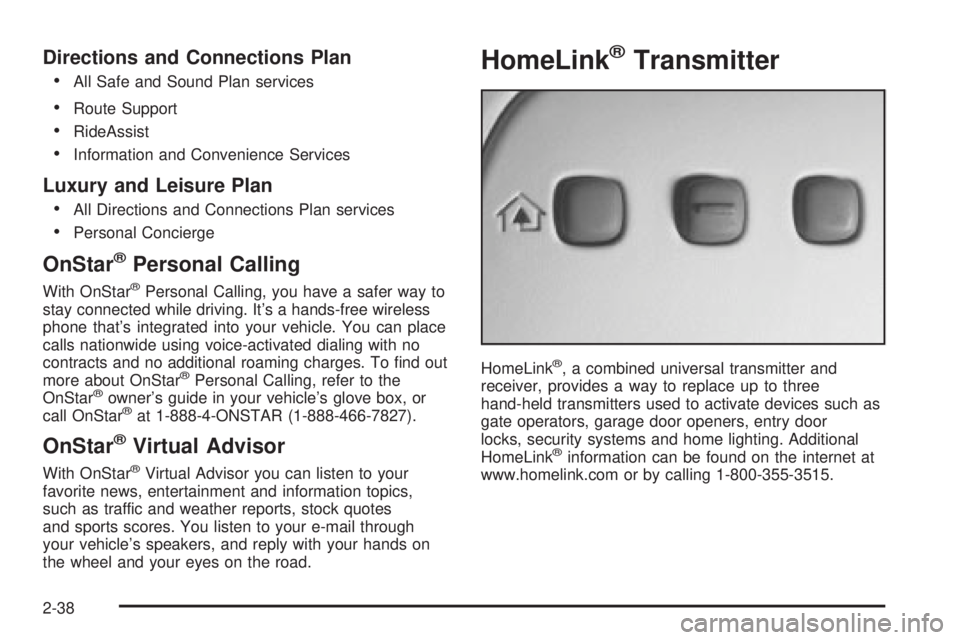
HomeLinkž, a combined universal transmitter and
receiver, provides a way to replace up to three
hand-held transmitters used to activate devices such as
gate operators, garage door openers, entry door
locks, security systems and home lighting. Additional
HomeLink
žinformation can be found on the internet at
www.homelink.com or by calling 1-800-355-3515.
2-38
Page 104 of 380

Resetting Defaults
To reset HomeLinkžto default settings do the following:
1. Hold down the two outside buttons for about
20 seconds until the indicator light begins to ¯ash.
2. Continue to hold both buttons until the HomeLink
ž
indicator light turns off.
3. Release both buttons.
For questions or comments, contact HomeLink
žat
1-800-355-3515, or on the internet at
www.homelink.com.
Storage Areas
Glove Box
Use the door key to lock and unlock the glove box. To
open, lift the latch release on the left side of the
glove box door.
Center Console Storage Area
Your vehicle has a center console with two storage
compartments and cupholders. The cupholders have
removable liners to hold beverage containers of different
sizes. To access the cupholders and the front storage
area, push the doors covering them back into the
console. In the front storage area you will ®nd a place to
store a cellular phone, as well as a built-in writing
surface. Underneath this tray is a CD storage area and
another door which can be opened to retrieve items
which may fall into the space between the console and
the sliding door. To access the CD storage area,
place your ®nger in the oval in the top tray and lift up.
To access the rear storage area, press the lift latch
at the front edge of the armrest and pull up. Inside are
areas which can be used to store a variety of items.
The back of the console may contain either additional
cupholders or air vents for the rear seat passengers.
You will also ®nd two accessory power outlets located
inside the rear storage area. These outlets can be used
for accessories requiring power, such as a cellular
phone. See
Accessory Power Outlets on page 3-22.
2-42
Page 130 of 380
3. Now press the image height adjuster switch to
position the image as low as possible, while still
keeping it in full view.
4. Slide the dimmer lever downward until the HUD
image is no brighter than necessary.
To turn the HUD display off, slide the dimmer lever all
the way down.
If the sun comes out and the sky becomes cloudy, you
may need to adjust the HUD brightness using the
dimmer lever. Polarized sunglasses could make the
HUD image harder to see.
To change the display from English to metric units, push
the ENG/MET button located to the left of the steering
column.
Clean the inside of the windshield as necessary to
remove any dirt or ®lm that reduces the sharpness or
clarity of the HUD image.
To clean the HUD lens, spray household glass cleaner
on a soft, clean cloth. Gently wipe and dry the HUD
lens. Do not spray cleaner directly on the lens to avoid
cleaner leaking inside the unit.
If the ignition is on and you can't see the HUD image,
check to see if:
·Something is covering the HUD unit.
·The HUD dimmer lever is adjusted properly.
·The HUD image is adjusted to the proper height.
·A fuse is blown. SeeFuses and Circuit Breakers on
page 5-86
.Keep in mind that your windshield is part of the HUD
system. If you ever have your windshield replaced,
be sure to get one that is designed for HUD or your HUD
image may look blurred or out of focus.
Accessory Power Outlets
The accessory power outlets can be used to plug in
electrical equipment such as a cellular telephone or
CB radio.
Your vehicle may have up to three power outlets
depending on the type of front seat you have. If your
vehicle has front bucket seats with a center console, you
will ®nd two outlets inside the rear storage compartment.
(An extra power outlet can be found in the ashtray.)
Your vehicle may have a small cap that must be pulled
down to access the accessory power outlet. If it
does, when not using the outlet be sure to cover it with
the protective cap.
The accessory power outlets will only operate when the
ignition key is in RUN and for 10 minutes after turning
the ignition off. If you would like the outlets to operate
regardless of ignition position, and for extended periods
of time, see ªEngine Compartment Fuse Blockº under
Fuses and Circuit Breakers on page 5-86or contact
your dealer.
3-22
Page 163 of 380

Audio System(s)
Notice:Before you add any sound equipment to
your vehicle ± like a tape player, CB radio, mobile
telephone or two-way radio ± be sure you can
add what you want. If you can, it's very important to
do it properly. Added sound equipment may
interfere with the operation of your vehicle's engine,
radio or other systems, and even damage them.
Your vehicle's systems may interfere with the
operation of sound equipment that has been added
improperly.
So, before adding sound equipment, check with
your dealer and be sure to check federal rules
covering mobile radio and telephone units.
Your audio system has been designed to operate easily
and to give years of listening pleasure. You will get
the most enjoyment out of it if you acquaint yourself with
it ®rst. Figure out which radio you have in your vehicle,
®nd out what your audio system can do and how to
operate all of its controls to be sure you're getting the
most out of the advanced engineering that went into it.Your vehicle has a feature called Retained Accessory
Power (RAP). With RAP, you can play your audio
system even after the ignition is turned off. See
ªRetained Accessory Power (RAP)º underIgnition
Positions on page 2-22.
Setting the Time
Press and hold H until the correct hour appears on the
display. AM will also appear for morning hours.
Press and hold M until the correct minute appears on
the display. The time may be set with the ignition on
or off.
To synchronize the time with an FM station broadcasting
Radio Data System (RDS) information, press and
hold H and M at the same time until TIME UPDATED
appears on the display. If the time is not available from
the station, NO UPDATE will appear on the display
instead.
3-55
Page 167 of 380

Finding a PTY Station
To select and ®nd a desired PTY perform the following:
1. Press P-TYP. The PTY symbol will be displayed
on the screen.
2. Select a category by turning the AUDIO knob.
3. Once the desired category is displayed, press either
SEEK arrow to select the category and take you to
the category's ®rst station.
4. If you want to go to another station within that
category and P-TYPE is displayed, press either
SEEK arrow once. If the category is not displayed,
press either SEEK arrow twice to display the
category and then to go to another station.
5. If PTY times out and is no longer on the display, go
back to Step 1.
SCAN:You can also scan through the channels within
a category by performing the following:
1. Press P-TYP. The PTY symbol will be displayed on
the screen.
2. Select a category by turning the AUDIO knob.
3. Once the desired category is displayed, press and
hold either SEEK arrow, and the radio will begin
scanning within your chosen category.
4. Press and hold either SEEK arrow again to stop at
a particular station.BAND (Alternate Frequency):Alternate frequency
allows the radio to switch to a stronger station with the
same program type. Press and hold BAND for two
seconds to turn alternate frequency on. AF ON
will appear on the display. The radio may switch to
stronger stations. Press and hold BAND again for two
seconds to turn alternate frequency off. AF OFF
will appear on the display. The radio will not switch to
other stations. When you turn the ignition off and then on
again, the alternate frequency feature will remain in
the last chosen position.
RDS Messages
ALERT!:Alert warns of local or national emergencies.
When an alert announcement comes on the current
radio station, ALERT! will appear on the display. You will
hear the announcement, even if the volume is muted
or a compact disc is playing. If a compact disc is playing,
play will stop during the announcement. You will not
be able to turn off alert announcements.
ALERT! will not be affected by tests of the emergency
broadcast system. This feature is not supported by
all RDS stations.
INFO (Information):If the current station has a
message, INFO will appear on the display. Press this
button to see the message. The message may display
the artist and song title, call in phone numbers, etc.
3-59
Page 175 of 380
ALERT! will not be affected by tests of the emergency
broadcast system. This feature is not supported by
all RDS stations.
INFO (Information):If the current station has a
message, INFO will appear on the display. Press this
button to see the message. The message may display
the artist and song title, call in phone numbers, etc.
If the whole message is not displayed, parts of it
will appear every three seconds. To scroll through the
message at your own speed, press the INFO button
repeatedly. A new group of words will appear on
the display with each press. Once the complete
message has been displayed, INFO will disappear from
the display until another new message is received.
The old message can be displayed by pressing
the INFO button until a new message is received or a
different station is tuned to.
TRAF (Traffic):If TRAF appears on the display, the
tuned station broadcasts traffic announcements.
To receive the traffic announcement from the tuned
station, press this button. Brackets will be displayed
around TRAF and when a traffic announcement comes
on the tuned radio station you will hear it.
If the current tuned station does not broadcast traffic
announcements, press this button and the radio
will seek to a station that does. When the radio ®nds astation that broadcasts traffic announcements, it will
stop and brackets will be displayed around TRAF. When
a traffic announcement comes on the tuned radio
station you will hear it. If no station is found, NO
TRAFFIC will appear on the display.
If the brackets are on the display and TRAF is not, you
can then press the TRAF button to remove the brackets
or use the TUNE knob or the SEEK arrows to go to a
station that supports traffic announcements. If no station
is found, NO TRAFFIC will appear on the display.
Your radio will play the traffic announcements even if the
volume is muted or interrupt the play of a cassette tape or
CD if the last tuned station broadcasts traffic
announcements.
This function does not apply to XMŸ Satellite Radio
Service.
Radio Messages
CAL (CALIBRATE):Your audio system has been
calibrated for your vehicle from the factory. If this
message appears on the display it means that your
radio has not been con®gured properly for your vehicle
and must be returned to the dealership for service.
3-67
Page 189 of 380

Diversity Antenna System
Your AM-FM antennas are located in the windshield and
rear window. Be sure that the inside surfaces of the
windshield and rear window are not scratched and that
the lines on the glass are not damaged. If the inside
surfaces are damaged, they could interfere with
radio reception. Also, for proper radio reception, the
antenna connectors at the top-center of the front
and rear windows need to be properly attached to the
posts on the glass.
Notice:Do not apply aftermarket glass tinting with
metallic ®lm. The metallic ®lm in some tinting
materials will interfere with or distort the incoming
radio reception. Any damage caused to your
backglass antenna due to metallic tinting materials
will not be covered by your warranty.
Notice:Do not try to clear frost or other material
from the inside of the rear window with a razor blade
or anything else that is sharp. This may damage
the rear defogger grid and affect your radio's ability
to pick up stations clearly. The repairs wouldn't
be covered by your warranty.
If, when you turn on your rear window defogger, you
hear static on your radio station, it could mean that
a defogger grid line has been damaged. If this is true,
the grid line must be repaired.If you choose to add an aftermarket cellular telephone
to your vehicle, and the antenna needs to be attached to
the glass, be sure that you do not damage the grid
lines for the AM-FM antennas or place the cellular
telephone antenna over the grid lines.
XMŸ Satellite Radio Antenna
System (United States Only)
Your XMŸ Satellite Radio antenna is located on the
roof of your vehicle. Keep this antenna clear of
snow and ice build up for clear radio reception.
The performance of your XM system may be affected if
your sunroof is open.
Chime Level Adjustment
The volume level of the vehicle's chimes can be
controlled by the radio. To change the volume level,
press and hold pushbutton 6 with the ignition on and the
radio power off. The chime volume level will change
from the normal level to loud, and LOUD will be
displayed on the radio. To change back to the default or
normal setting, press and hold pushbutton 6 again.
The chime level will change from the loud level
to normal, and NORMAL will be displayed.
3-81
Page 192 of 380

Your Driving, the Road, and
Your Vehicle
Defensive Driving
The best advice anyone can give about driving is: Drive
defensively.
Please start with a very important safety device in your
vehicle: Buckle up. See
Safety Belts: They Are for
Everyone on page 1-6.
Defensive driving really means ªbe ready for anything.º
On city streets, rural roads or freeways, it means
ªalways expect the unexpected.º
Assume that pedestrians or other drivers are going to
be careless and make mistakes. Anticipate what
they might do. Be ready for their mistakes.
Rear-end collisions are about the most preventable of
accidents. Yet they are common. Allow enough following
distance. It's the best defensive driving maneuver, in
both city and rural driving. You never know when
the vehicle in front of you is going to brake or turn
suddenly.Defensive driving requires that a driver concentrate on
the driving task. Anything that distracts from the driving
task Ð such as concentrating on a cellular telephone call,
reading, or reaching for something on the ¯oor Ð makes
proper defensive driving more difficult and can even
cause a collision, with resulting injury. Ask a passenger to
help do things like this, or pull off the road in a safe place
to do them yourself. These simple defensive driving
techniques could save your life.Drunken Driving
Death and injury associated with drinking and driving is
a national tragedy. It's the number one contributor to
the highway death toll, claiming thousands of victims
every year.
Alcohol affects four things that anyone needs to drive a
vehicle:
·Judgment
·Muscular Coordination
·Vision
·Attentiveness.
4-2
Page 209 of 380

{CAUTION:
Wet brakes can cause accidents. They won't
work as well in a quick stop and may cause
pulling to one side. You could lose control of
the vehicle.
After driving through a large puddle of water
or a car wash, apply your brake pedal lightly
until your brakes work normally.
Hydroplaning
Hydroplaning is dangerous. So much water can build up
under your tires that they can actually ride on the
water. This can happen if the road is wet enough and
you're going fast enough. When your vehicle is
hydroplaning, it has little or no contact with the road.Hydroplaning doesn't happen often. But it can if your
tires do not have much tread or if the pressure in one or
more is low. It can happen if a lot of water is standing
on the road. If you can see re¯ections from trees,
telephone poles or other vehicles, and raindrops
ªdimpleº the water's surface, there could be
hydroplaning.
Hydroplaning usually happens at higher speeds. There
just isn't a hard and fast rule about hydroplaning.
The best advice is to slow down when it is raining.
Driving Through Deep Standing Water
Notice:If you drive too quickly through deep
puddles or standing water, water can come in
through your engine's air intake and badly damage
your engine. Never drive through water that is
slightly lower than the underbody of your vehicle. If
you can't avoid deep puddles or standing water,
drive through them very slowly.
4-19
Page 353 of 380

Customer Assistance Information......................7-2
Customer Satisfaction Procedure......................7-2
Online Owner Center......................................7-3
Customer Assistance for Text Telephone
(TTY) Users...............................................7-4
Customer Assistance Offices............................7-4
GM Mobility Program for Persons with
Disabilities..................................................7-5
Roadside Assistance Program..........................7-6
Courtesy Transportation...................................7-7Reporting Safety Defects..................................7-9
Reporting Safety Defects to the United States
Government...............................................7-9
Reporting Safety Defects to the Canadian
Government..............................................7-10
Reporting Safety Defects to General Motors.....7-10
Service Publications Ordering Information.........7-10
Section 7 Customer Assistance Information
7-1