clock BUICK LUCERNE 2006 User Guide
[x] Cancel search | Manufacturer: BUICK, Model Year: 2006, Model line: LUCERNE, Model: BUICK LUCERNE 2006Pages: 416, PDF Size: 2.6 MB
Page 207 of 416
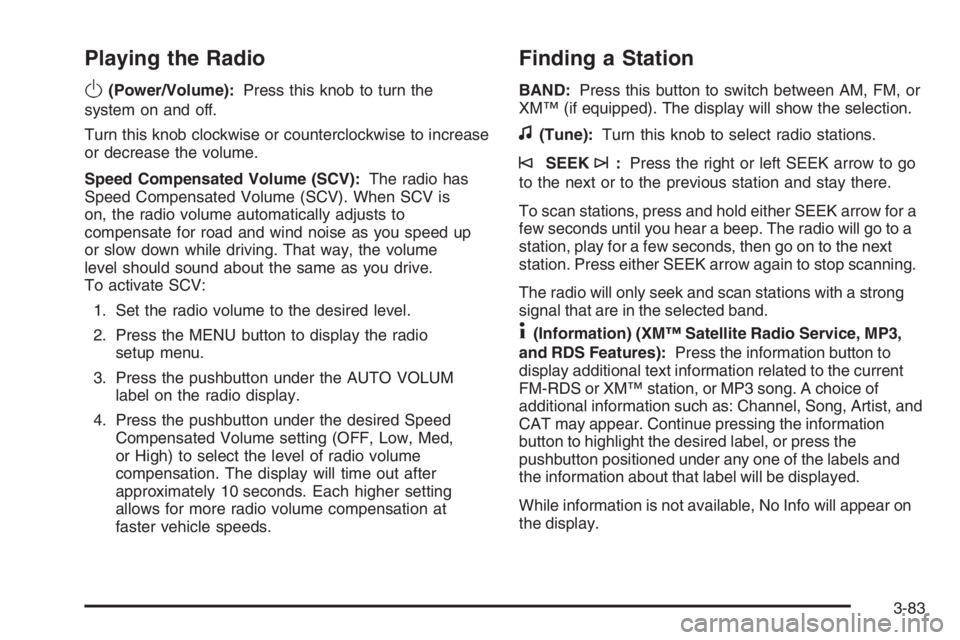
Playing the Radio
O
(Power/Volume):Press this knob to turn the
system on and off.
Turn this knob clockwise or counterclockwise to increase
or decrease the volume.
Speed Compensated Volume (SCV):The radio has
Speed Compensated Volume (SCV). When SCV is
on, the radio volume automatically adjusts to
compensate for road and wind noise as you speed up
or slow down while driving. That way, the volume
level should sound about the same as you drive.
To activate SCV:
1. Set the radio volume to the desired level.
2. Press the MENU button to display the radio
setup menu.
3. Press the pushbutton under the AUTO VOLUM
label on the radio display.
4. Press the pushbutton under the desired Speed
Compensated Volume setting (OFF, Low, Med,
or High) to select the level of radio volume
compensation. The display will time out after
approximately 10 seconds. Each higher setting
allows for more radio volume compensation at
faster vehicle speeds.
Finding a Station
BAND:Press this button to switch between AM, FM, or
XM™ (if equipped). The display will show the selection.
f(Tune):Turn this knob to select radio stations.
©SEEK¨:Press the right or left SEEK arrow to go
to the next or to the previous station and stay there.
To scan stations, press and hold either SEEK arrow for a
few seconds until you hear a beep. The radio will go to a
station, play for a few seconds, then go on to the next
station. Press either SEEK arrow again to stop scanning.
The radio will only seek and scan stations with a strong
signal that are in the selected band.
4(Information) (XM™ Satellite Radio Service, MP3,
and RDS Features):Press the information button to
display additional text information related to the current
FM-RDS or XM™ station, or MP3 song. A choice of
additional information such as: Channel, Song, Artist, and
CAT may appear. Continue pressing the information
button to highlight the desired label, or press the
pushbutton positioned under any one of the labels and
the information about that label will be displayed.
While information is not available, No Info will appear on
the display.
3-83
Page 209 of 416
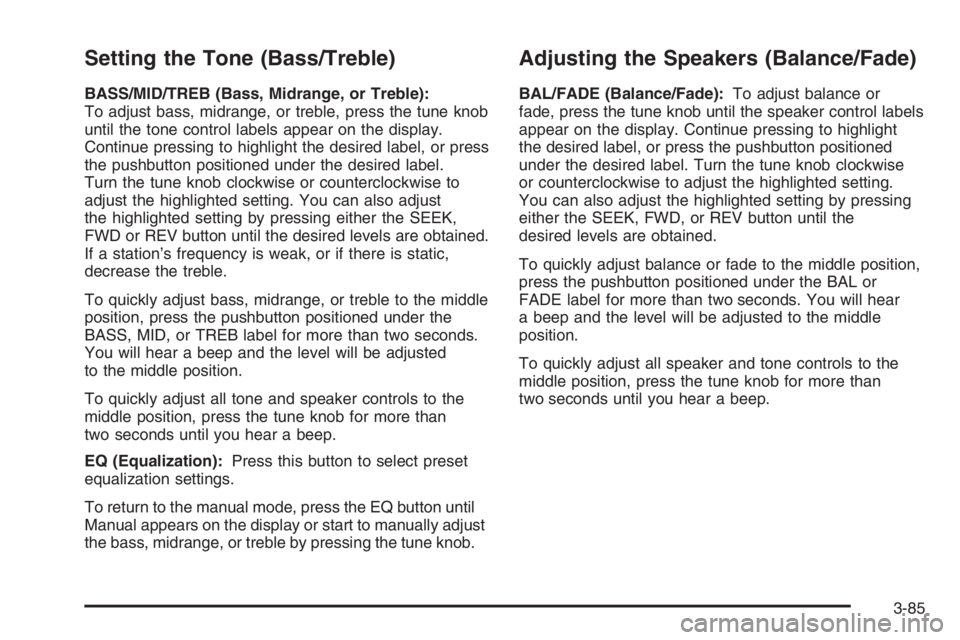
Setting the Tone (Bass/Treble)
BASS/MID/TREB (Bass, Midrange, or Treble):
To adjust bass, midrange, or treble, press the tune knob
until the tone control labels appear on the display.
Continue pressing to highlight the desired label, or press
the pushbutton positioned under the desired label.
Turn the tune knob clockwise or counterclockwise to
adjust the highlighted setting. You can also adjust
the highlighted setting by pressing either the SEEK,
FWD or REV button until the desired levels are obtained.
If a station’s frequency is weak, or if there is static,
decrease the treble.
To quickly adjust bass, midrange, or treble to the middle
position, press the pushbutton positioned under the
BASS, MID, or TREB label for more than two seconds.
You will hear a beep and the level will be adjusted
to the middle position.
To quickly adjust all tone and speaker controls to the
middle position, press the tune knob for more than
two seconds until you hear a beep.
EQ (Equalization):Press this button to select preset
equalization settings.
To return to the manual mode, press the EQ button until
Manual appears on the display or start to manually adjust
the bass, midrange, or treble by pressing the tune knob.
Adjusting the Speakers (Balance/Fade)
BAL/FADE (Balance/Fade):To adjust balance or
fade, press the tune knob until the speaker control labels
appear on the display. Continue pressing to highlight
the desired label, or press the pushbutton positioned
under the desired label. Turn the tune knob clockwise
or counterclockwise to adjust the highlighted setting.
You can also adjust the highlighted setting by pressing
either the SEEK, FWD, or REV button until the
desired levels are obtained.
To quickly adjust balance or fade to the middle position,
press the pushbutton positioned under the BAL or
FADE label for more than two seconds. You will hear
a beep and the level will be adjusted to the middle
position.
To quickly adjust all speaker and tone controls to the
middle position, press the tune knob for more than
two seconds until you hear a beep.
3-85
Page 222 of 416
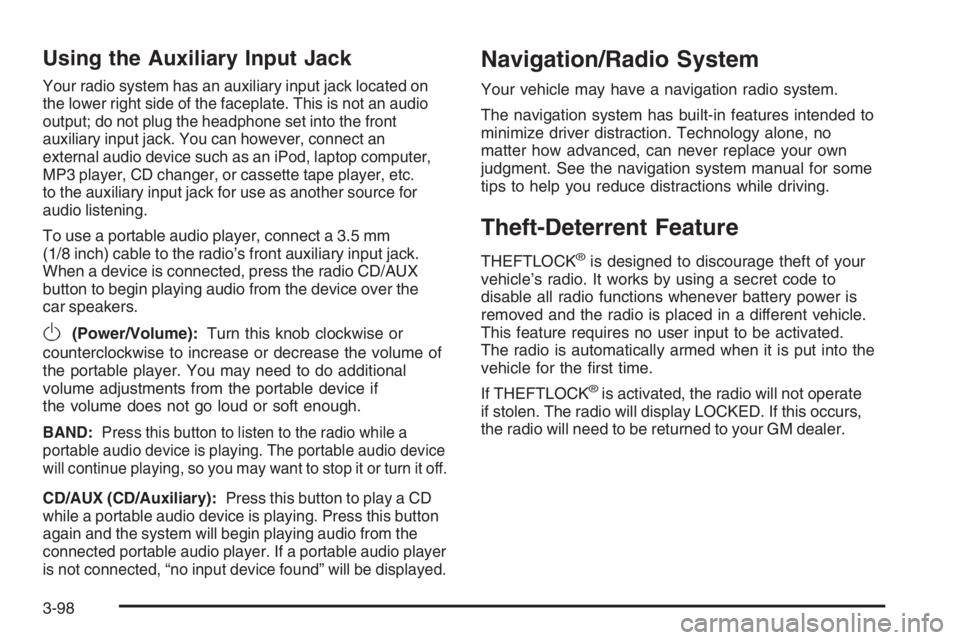
Using the Auxiliary Input Jack
Your radio system has an auxiliary input jack located on
the lower right side of the faceplate. This is not an audio
output; do not plug the headphone set into the front
auxiliary input jack. You can however, connect an
external audio device such as an iPod, laptop computer,
MP3 player, CD changer, or cassette tape player, etc.
to the auxiliary input jack for use as another source for
audio listening.
To use a portable audio player, connect a 3.5 mm
(1/8 inch) cable to the radio’s front auxiliary input jack.
When a device is connected, press the radio CD/AUX
button to begin playing audio from the device over the
car speakers.
O(Power/Volume):Turn this knob clockwise or
counterclockwise to increase or decrease the volume of
the portable player. You may need to do additional
volume adjustments from the portable device if
the volume does not go loud or soft enough.
BAND:Press this button to listen to the radio while a
portable audio device is playing. The portable audio device
will continue playing, so you may want to stop it or turn it off.
CD/AUX (CD/Auxiliary):Press this button to play a CD
while a portable audio device is playing. Press this button
again and the system will begin playing audio from the
connected portable audio player. If a portable audio player
is not connected, “no input device found” will be displayed.
Navigation/Radio System
Your vehicle may have a navigation radio system.
The navigation system has built-in features intended to
minimize driver distraction. Technology alone, no
matter how advanced, can never replace your own
judgment. See the navigation system manual for some
tips to help you reduce distractions while driving.
Theft-Deterrent Feature
THEFTLOCK®is designed to discourage theft of your
vehicle’s radio. It works by using a secret code to
disable all radio functions whenever battery power is
removed and the radio is placed in a different vehicle.
This feature requires no user input to be activated.
The radio is automatically armed when it is put into the
vehicle for the rst time.
If THEFTLOCK
®is activated, the radio will not operate
if stolen. The radio will display LOCKED. If this occurs,
the radio will need to be returned to your GM dealer.
3-98
Page 238 of 416
Steering in Emergencies
There are times when steering can be more effective than
braking. For example, you come over a hill and nd a
truck stopped in your lane, or a car suddenly pulls out
from nowhere, or a child darts out from between parked
cars and stops right in front of you. You can avoid these
problems by braking — if you can stop in time. But
sometimes you cannot; there is not room. That is the time
for evasive action — steering around the problem.
Your vehicle can perform very well in emergencies like
these. First apply your brakes.
SeeBraking on page 4-6. It is better to remove as
much speed as you can from a possible collision. Then
steer around the problem, to the left or right depending
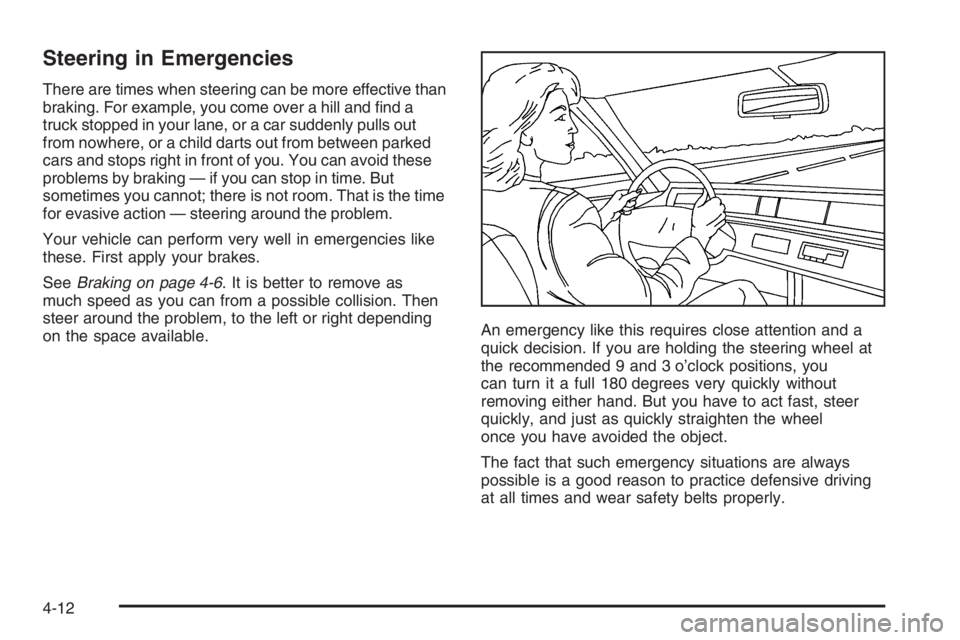
on the space available.An emergency like this requires close attention and a
quick decision. If you are holding the steering wheel at
the recommended 9 and 3 o’clock positions, you
can turn it a full 180 degrees very quickly without
removing either hand. But you have to act fast, steer
quickly, and just as quickly straighten the wheel
once you have avoided the object.
The fact that such emergency situations are always
possible is a good reason to practice defensive driving
at all times and wear safety belts properly.
4-12
Page 276 of 416

Filling the Tank
{CAUTION:
Fuel vapor burns violently and a fuel re can
cause bad injuries. To help avoid injuries to
you and others, read and follow all the
instructions on the pump island. Turn off your
engine when you are refueling. Do not smoke
if you are near fuel or refueling your vehicle.
Keep sparks, ames, and smoking materials
away from fuel. Do not leave the fuel pump
unattended when refueling your vehicle — this
is against the law in some places. Keep
children away from the fuel pump; never let
children pump fuel.The tethered fuel cap is located behind a hinged fuel
door on the driver’s side of the vehicle.
To open the fuel door, apply pressure in the center of
the rear edge of the fuel door and it will pop open.
To remove the fuel cap, turn it slowly to the left
(counterclockwise). The fuel cap has a spring in it; if the
cap is released too soon, it will spring back to the
right.
While refueling, hang the tethered fuel cap from the
hook on the fuel door.
5-8
Page 277 of 416

{CAUTION:
If you spill fuel and then something ignites it,
you could be badly burned. Fuel can spray out
on you if you open the fuel cap too quickly.
This spray can happen if your tank is nearly
full, and is more likely in hot weather. Open
the fuel cap slowly and wait for any hiss noise
to stop. Then unscrew the cap all the way.
Be careful not to spill fuel. Do not top off or overll the
tank and wait a few seconds after you have nished
pumping before removing the nozzle. Clean fuel
from painted surfaces as soon as possible. See
Washing Your Vehicle on page 5-87.
When replacing the fuel cap, turn it to the right
(clockwise) until it clicks. Make sure the cap is fully
installed. The diagnostic system can determine if the fuel
cap has been left off or improperly installed. This
would allow fuel to evaporate into the atmosphere. See
Malfunction Indicator Lamp on page 3-44.If your vehicle has a Driver Information Center (DIC),
the TIGHTEN GAS CAP message will be displayed if the
fuel cap is not properly installed.{CAUTION:
If a re starts while you are refueling, do not
remove the nozzle. Shut off the ow of fuel by
shutting off the pump or by notifying the
station attendant. Leave the area immediately.
Notice:If you need a new fuel cap, be sure to get
the right type. Your dealer can get one for you.
If you get the wrong type, it may not t properly.
This may cause your malfunction indicator lamp to
light and may damage your fuel tank and emissions
system. SeeMalfunction Indicator Lamp on
page 3-44.
5-9
Page 300 of 416
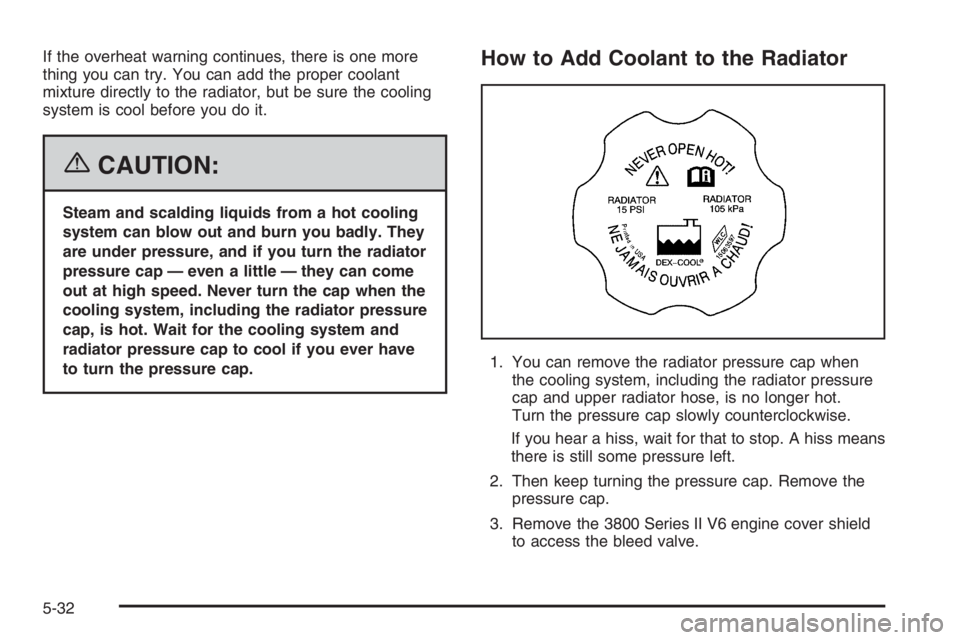
If the overheat warning continues, there is one more
thing you can try. You can add the proper coolant
mixture directly to the radiator, but be sure the cooling
system is cool before you do it.
{CAUTION:
Steam and scalding liquids from a hot cooling
system can blow out and burn you badly. They
are under pressure, and if you turn the radiator
pressure cap — even a little — they can come
out at high speed. Never turn the cap when the
cooling system, including the radiator pressure
cap, is hot. Wait for the cooling system and
radiator pressure cap to cool if you ever have
to turn the pressure cap.
How to Add Coolant to the Radiator
1. You can remove the radiator pressure cap when
the cooling system, including the radiator pressure
cap and upper radiator hose, is no longer hot.
Turn the pressure cap slowly counterclockwise.
If you hear a hiss, wait for that to stop. A hiss means
there is still some pressure left.
2. Then keep turning the pressure cap. Remove the
pressure cap.
3. Remove the 3800 Series II V6 engine cover shield
to access the bleed valve.
5-32
Page 301 of 416

3.1. Clean the area around the engine oil ll tube
and cap before removing. Twist the oil ll
tube, with cap attached, counterclockwise
and remove it.
3.2. Lift the engine cover shield at the front, slide
the catch tab out of the engine bracket and
remove the cover shield.
3.3. Put the oil ll tube, with cap attached, in the
valve cover oil ll hole until you are ready to
replace the cover shield.4. After the engine cools,
open the coolant air
bleed valve. There
is one bleed valve. It is
located on the
thermostat housing.
5. Fill the radiator with the proper DEX-COOL
®coolant
mixture, up to the base of the ller neck. See
Engine Coolant on page 5-23for more information
about the proper coolant mixture.
If you see a stream of coolant coming from an air
bleed valve, close the valve. Otherwise, close
the valve after the radiator is lled.
6. Rinse or wipe any spilled coolant from the engine
and the compartment.
7. Replace the 3800 Series II V6 engine cover shield.
7.1. Remove the oil ll tube, with cap attached,
from the valve cover.
7.2. Insert the catch tab on the cover shield
under the bracket on the engine.
7.3. Place the hole in the cover shield over the
hole in the valve cover. Install oil ll tube and
cap by twisting clockwise.
5-33
Page 305 of 416
Notice:In cold weather, water can freeze and crack
the engine, radiator, heater core and other parts.
Use the recommended coolant and the proper
coolant mixture.
{CAUTION:
You can be burned if you spill coolant on hot
engine parts. Coolant contains ethylene glycol
and it will burn if the engine parts are hot
enough. Do not spill coolant on a hot engine.
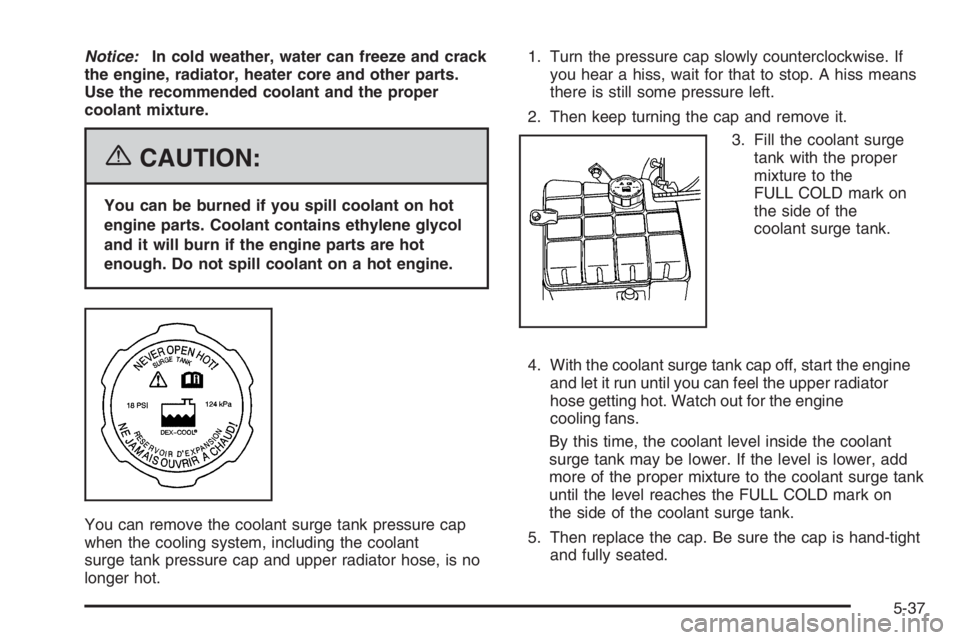
You can remove the coolant surge tank pressure cap
when the cooling system, including the coolant
surge tank pressure cap and upper radiator hose, is no
longer hot.1. Turn the pressure cap slowly counterclockwise. If
you hear a hiss, wait for that to stop. A hiss means
there is still some pressure left.
2. Then keep turning the cap and remove it.
3. Fill the coolant surge
tank with the proper
mixture to the
FULL COLD mark on
the side of the
coolant surge tank.
4. With the coolant surge tank cap off, start the engine
and let it run until you can feel the upper radiator
hose getting hot. Watch out for the engine
cooling fans.
By this time, the coolant level inside the coolant
surge tank may be lower. If the level is lower, add
more of the proper mixture to the coolant surge tank
until the level reaches the FULL COLD mark on
the side of the coolant surge tank.
5. Then replace the cap. Be sure the cap is hand-tight
and fully seated.
5-37
Page 319 of 416
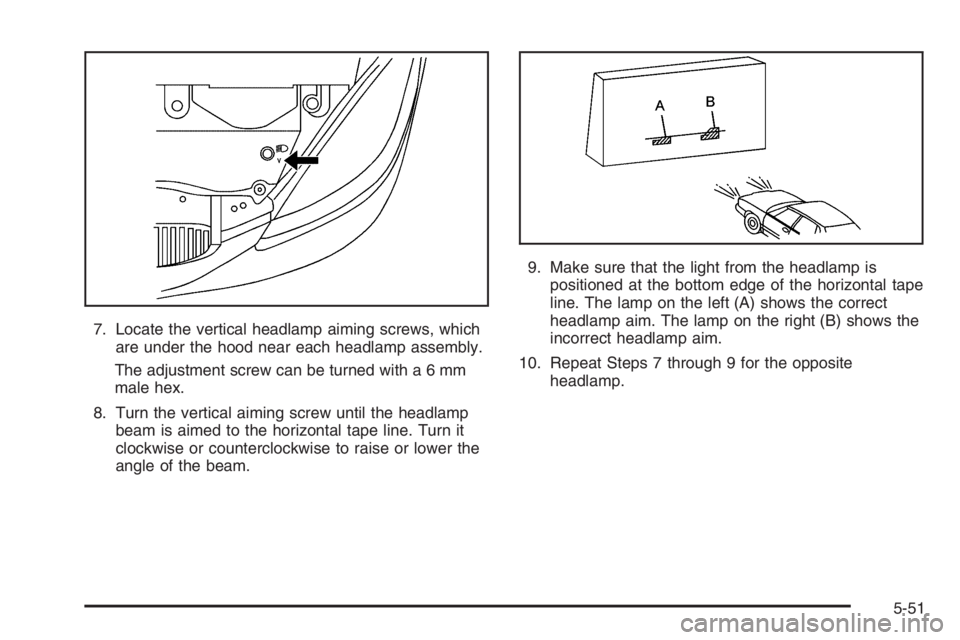
7. Locate the vertical headlamp aiming screws, which
are under the hood near each headlamp assembly.
The adjustment screw can be turned with a 6 mm
male hex.
8. Turn the vertical aiming screw until the headlamp
beam is aimed to the horizontal tape line. Turn it
clockwise or counterclockwise to raise or lower the
angle of the beam.9. Make sure that the light from the headlamp is
positioned at the bottom edge of the horizontal tape
line. The lamp on the left (A) shows the correct
headlamp aim. The lamp on the right (B) shows the
incorrect headlamp aim.
10. Repeat Steps 7 through 9 for the opposite
headlamp.
5-51