steering BUICK LUCERNE 2010 Owner's Guide
[x] Cancel search | Manufacturer: BUICK, Model Year: 2010, Model line: LUCERNE, Model: BUICK LUCERNE 2010Pages: 474
Page 170 of 474
Setting Cruise Control
The cruise control light on the instrument panel cluster
comes on after the cruise control has been set to the
desired speed. SeeInstrument Panel Cluster
on
page 4‑30.
{WARNING:
If you leave your cruise control on when you are
not using cruise, you might hit a button and go
into cruise when you do not want to. You could be
startled and even lose control. Keep the cruise
control switch off until you want to use cruise
control.
1. Press the
Tbutton to turn the cruise system on.
2. Get up to the desired speed.
3. Press and release the SET– button located on the
steering wheel.
4. Take your foot off the accelerator.
Resuming a Set Speed
If cruise control is set at a desired speed and then the
brakes are applied, the cruise control is disengaged
without erasing the set speed from memory.
Once the vehicle speed is 40 km/h (25 mph) or greater,
press the +RES button on the steering wheel. The
vehicle returns to the previously selected speed and
stays there.
Increasing Speed While Using Cruise
Control
If the cruise control system is already activated,
.Press and hold the +RES button on the steering
wheel until the desired speed is reached, then
release it.
.To increase vehicle speed in small increments,
press the +RES button. Each time this is done, the
vehicle goes about 1.6 km/h (1 mph) faster.
4-10
Page 171 of 474
Reducing Speed While Using Cruise
Control
If the cruise control system is already activated,
.Press and hold the SET–button on the steering
wheel until the lower speed desired is reached,
then release it.
.To slow down in small amounts, press the SET–
button briefly. Each time this is done, the vehicle
goes about 1.6 km/h (1 mph) slower.
Passing Another Vehicle While Using
Cruise Control
Use the accelerator pedal to increase vehicle speed.
When you take your foot off the pedal, the vehicle will
slow down to the cruise speed you set earlier.
Using Cruise Control on Hills
How well the cruise control will work on hills depends
upon the vehicle speed, load and the steepness of the
hills. When going up steep hills, you might have to step
on the accelerator pedal to maintain your speed. When
going downhill, you might have to brake or shift to a
lower gear to keep your speed down. If the brakes are
applied the cruise control will turn off.
Ending Cruise Control
There are three ways to end cruise control:
.To disengage cruise control, step lightly on the
brake pedal, or
.Press the[button on the steering wheel.
.To turn off the cruise control, press theTbutton
on the steering wheel.
4-11
Page 172 of 474
Erasing Speed Memory
The cruise control set speed memory is erased from
memory by pressing
Tor if the ignition is turned off.
Exterior Lamps
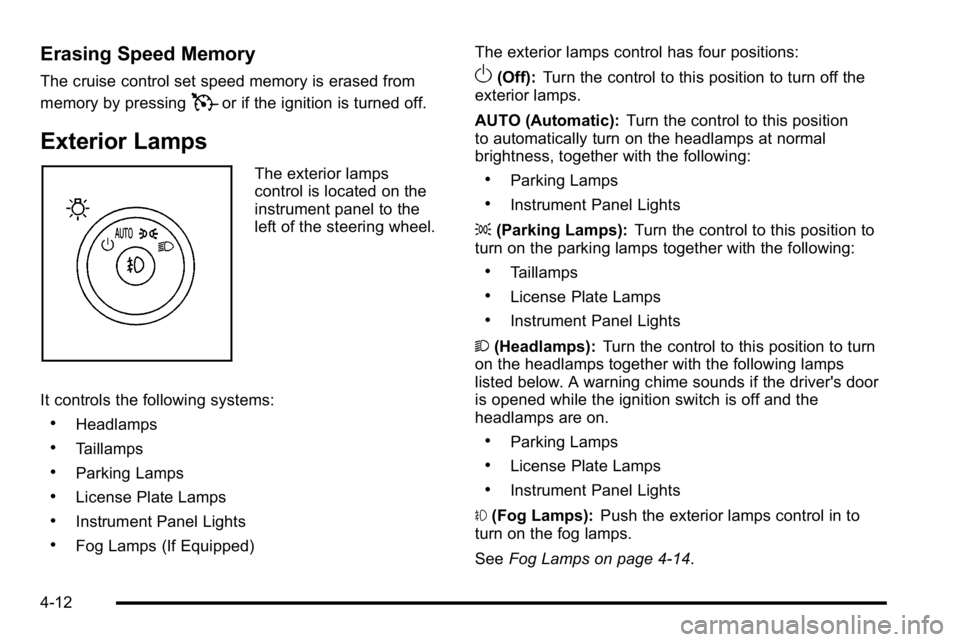
The exterior lamps
control is located on the
instrument panel to the
left of the steering wheel.
It controls the following systems:
.Headlamps
.Taillamps
.Parking Lamps
.License Plate Lamps
.Instrument Panel Lights
.Fog Lamps (If Equipped) The exterior lamps control has four positions:
O(Off):
Turn the control to this position to turn off the
exterior lamps.
AUTO (Automatic): Turn the control to this position
to automatically turn on the headlamps at normal
brightness, together with the following:
.Parking Lamps
.Instrument Panel Lights
; (Parking Lamps): Turn the control to this position to
turn on the parking lamps together with the following:
.Taillamps
.License Plate Lamps
.Instrument Panel Lights
2 (Headlamps): Turn the control to this position to turn
on the headlamps together with the following lamps
listed below. A warning chime sounds if the driver's door
is opened while the ignition switch is off and the
headlamps are on.
.Parking Lamps
.License Plate Lamps
.Instrument Panel Lights
# (Fog Lamps): Push the exterior lamps control in to
turn on the fog lamps.
See Fog Lamps on page 4‑14.
4-12
Page 174 of 474
Fog Lamps
The fog lamps button is on the exterior lamps control to
the left of the steering column.
#(Fog Lamps):Press the exterior lamps button to
turn the fog lamps on or off. A light comes on in the
instrument panel cluster when the fog lamps are in use.
See Instrument Panel Cluster
on page 4‑30. The
ignition must be in the ON/RUN position for the fog
lamps to work.
The fog lamps will go off when the headlamps are
changed to high-beam.
Some localities have laws that require the headlamps to
be on along with the fog lamps.
Cornering Lamps
For vehicles with this feature, the cornering lamps come
on when: the headlamps or parking lamps are on, the
vehicle is not in P (Park), and you signal a turn with the
turn signal/multifunction lever. They provide more light
for cornering.
Exterior Lighting Battery Saver
If the exterior lamp button has been left on, the exterior
lamps will turn off about 10 minutes after the ignition is
turned to LOCK/OFF and a door has been opened. This
protects against draining the battery if the headlamps or
parking lamps are accidentally left on. If you need to
leave the lamps on for more than 10 minutes, use the
exterior lamp control to turn the lamps back on after the
ignition is turned to LOCK/OFF and any door is opened.
Instrument Panel Brightness
D (Instrument Panel Brightness): This feature
controls the brightness of the instrument panel lights.
The knob for this control is located next to the exterior
lamps control.
Push the knob in and release when it pops out. Turn
the knob clockwise to increase the brightness of the
instrument panel lights and counter clockwise to
decrease the brightness. Turning the knob completely
clockwise to the detent will turn on the courtesy lamps.
4-14
Page 186 of 474

Sensors
The solar sensor, located in the defrost grille, in the
middle of the instrument panel, monitors the solar
radiation. Do not cover the solar sensor or the system
will not work properly.
There is also an interior temperature sensor located
next to the steering wheel that measures the
temperature of the air inside the vehicle.There is also an exterior temperature sensor located
behind the front grille. This sensor reads the outside air
temperature and helps maintain the temperature inside
the vehicle. Any cover on the front of the vehicle could
cause a false temperature reading to display.
In order to prevent false temperature readings at
startup, the displayed temperature will not change until
the following occurs:
.Vehicle speed is above 10 mph (16 km/h) for
five minutes.
.Vehicle speed is above 32 mph (51 km/h) for
two and a half minutes.
The climate control system uses the information from
these sensors to maintain your comfort setting by
adjusting the outlet temperature, fan speed, and the
air delivery mode. The system may also supply cooler
air to the side of the vehicle facing the sun. The
recirculation mode will also be used as needed to
maintain cool outlet temperatures.
4-26
Page 220 of 474

SERVICE BRAKE SYSTEM
This message displays if the ignition is on to inform the
driver that the brake fluid level is low. Have the brake
system serviced by your dealer as soon as possible.
The brake system warning light also appears on the
instrument panel cluster when this message appears
on the DIC. SeeBrake System Warning Light
on
page 4‑36.
SERVICE LANE DEPARTURE SYSTEM
If your vehicle has the Lane Departure Warning (LDW)
system, this message may display to indicate that the
LDW system is not working properly. If this message
remains on after continued driving, the system needs
service. See your dealer. See Lane Departure Warning
(LDW)
on page 3‑42for more information.
SERVICE PARK ASSIST
If your vehicle has this feature, this message displays if
there is a problem with the Ultrasonic Rear Parking
Assist (URPA) system. Do not use this system to help
you park. See Ultrasonic Rear Parking Assist (URPA)
on page 3‑37for more information. See your dealer for
service.
SERVICE POWER STEERING
Your vehicle may have a speed variable assist steering
system. See Steering on page 5‑8.
This message displays if a problem is detected with the
speed variable assist steering system. When this
message is displayed, you may notice that the effort
required to steer the vehicle decreases or feels lighter,
but you will still be able to steer the vehicle.
SERVICE SIDE BLIND ZONE ALERT
SYSTEM
If your vehicle has the Side Blind Zone Alert (SBZA)
system and this message displays, both SBZA displays
will remain on indicating there is a problem with the
SBZA system. If these displays remain on after
continued driving, the system needs service. See your
dealer. See Side Blind Zone Alert (SBZA)
on page 3‑39for more information.
4-60
Page 222 of 474

SERVICE TRACTION CONTROL
This message displays when the Traction Control
System (TCS) is not functioning properly. A warning
light also appears on the instrument panel cluster. See
Traction Control System (TCS) Warning Light
on
page 4‑38. See Traction Control System (TCS)on
page 5‑6for more information. Have the TCS serviced
by your dealer as soon as possible.
SERVICE TRANSMISSION
This message displays when there is a problem with the
transmission. See your dealer for service.
SERVICE VEHICLE SOON
This message displays when a non-emissions related
malfunction occurs. Have the vehicle serviced by your
dealer as soon as possible.
SIDE BLIND ZONE ALERT
SYSTEM OFF
If your vehicle has the Side Blind Zone Alert (SBZA)
system, this message displays when the SBZA system
has been turned off. See Side Blind Zone Alert (SBZA)
on page 3‑39andDIC Operation and Displayson
page 4‑47for more information.
SIDE BLIND ZONE SYS. UNAVAILABLE
If your vehicle has the Side Blind Zone Alert (SBZA)
system, this message displays when the SBZA system
is disabled because the sensor is blocked and cannot
detect vehicles in your blind zone. The sensor may be
blocked by mud, dirt, snow, ice, or slush. This message
may also display during heavy rain or due to road spray.
It may also come on when driving in isolated areas
with no guardrails, trees, or road signs and light traffic.
Your vehicle does not need service. For cleaning
instructions, see Washing Your Vehicle
on page 6‑104.
See Side Blind Zone Alert (SBZA)on page 3‑39for
more information.
SPEED LIMITED TO XXX MPH (km/h)
This message displays when your vehicle speed is
limited to 128 km/h (80 mph) because the vehicle
detects a problem in the speed variable assist steering,
magnetic ride control, or automatic leveling control
systems. Have your vehicle serviced by your dealer.
STABILITRAK NOT READY
If your vehicle has StabiliTrak, this message may
display and the Traction Control System and StabiliTrak
Warning Light on the instrument panel cluster may be
on after first driving the vehicle and exceeding 30 km/h
(19 mph) for 30 seconds. The StabiliTrak system is not
functional until the light has turned off. See StabiliTrak
®
Systemon page 5‑6for more information.
4-62
Page 231 of 474

EASY EXIT RECALL
If your vehicle has this feature, it allows you to select
your preference for the automatic easy exit seat feature.
SeeMemory Seat and Mirrors
on page 2‑7for more
information.
Press the customization button until EASY EXIT
RECALL appears on the DIC display. Press the set/
reset button once to access the settings for this feature.
Then press the menu up/down button to scroll through
the following settings:
DOOR BUTTON ONLY: No automatic seat exit recall
will occur. The recall will only occur after pressing the
easy exit seat button.
BUTTON AND KEY OUT (default): If the features are
enabled through the EASY EXIT SETUP menu, the
driver's seat will move back, and if the vehicle has the
power tilt wheel and telescopic steering feature, the
power steering column will move up and forward when
the key is removed from the ignition or after pressing
the easy exit seat button. The automatic easy exit seat
movement will only occur one time after the key is
removed from the ignition. If the automatic movement
has already occurred, and you put the key back in the
ignition and remove it again, the seat and steering
column will stay in the original exit position, unless a
memory recall took place prior to removing the key
again. NO CHANGE:
No change will be made to this feature.
The current setting will remain.
To select a setting, press the set/reset button while the
desired setting is displayed on the DIC.
EASY EXIT SETUP
If your vehicle has this feature, it allows you to select
which areas will recall with the automatic easy exit
seat feature. It also allows you to turn off the automatic
easy exit feature. See Memory Seat and Mirrors
on
page 2‑7and “EASY EXIT RECALL” earlier for more
information.
Press the customization button until EASY EXIT SETUP
appears on the DIC display. Press the set/reset button
once to access the settings for this feature. Then press
the menu up/down button to scroll through the following
settings:
OFF: No automatic seat exit will recall.
SEAT ONLY: The driver's seat will recall.
TILT ONLY: The steering wheel tilt feature will recall.
4-71
Page 232 of 474

TELESCOPE ONLY:The steering column telescope
feature will recall.
SEAT/TILT: The driver's seat and the steering wheel tilt
feature will recall.
SEAT/TELESCOPE: The driver's seat and the steering
column telescope feature will recall.
TILT/TELESCOPE: The steering wheel tilt and steering
column telescope features will recall.
ALL (default): The driver's seat and the steering wheel
tilt and steering column telescope features will recall,
if your vehicle has this option.
NO CHANGE: No change will be made to this feature.
The current setting will remain.
To select a setting, press the set/reset button while the
desired setting is displayed on the DIC.MEMORY SEAT RECALL
If your vehicle has this feature, it allows you to select
your preference for the remote memory seat recall
feature. See Memory Seat and Mirrors
on page 2‑7for more information.
Press the customization button until MEMORY SEAT
RECALL appears on the DIC display. Press the set/
reset button once to access the settings for this feature.
Then press the customization button to scroll through
the following settings:
OFF (default): No remote memory seat recall will
occur.
ON: The driver's seat and outside mirrors will
automatically move to the stored driving position when
the unlock button on the Remote Keyless Entry (RKE)
transmitter is pressed. The steering column will also
move on vehicles with the power tilt and telescopic
steering feature. See Power Tilt Wheel and Telescopic
Steering Column
on page 4‑4for more information.
See “Relearn Remote Key” underDIC Operation and
Displays
on page 4‑47for more information on
matching transmitters to driver ID numbers.
NO CHANGE: No change will be made to this feature.
The current setting will remain.
To select a setting, press the set/reset button while the
desired setting is displayed on the DIC.
4-72
Page 239 of 474
Storing a Radio Station as a Favorite
Drivers are encouraged to set up their radio station
favorites while the vehicle is in P (Park). Tune to
favorite stations using the presets, favorites button, and
steering wheel controls if the vehicle has this feature.
SeeDefensive Driving on page 5‑2.
If the vehicle has XM and has a FAV button, a
maximum of 36 stations can be programmed as
favorites using the six pushbuttons positioned below the
radio station frequency tabs and by using the radio
favorites page button (FAV button).
FAV (Favorites): Press to go through up to six pages
of favorites, each having six favorite stations available
per page. Each page of favorites can contain any
combination of AM, FM, or XM stations. To store a
station as a favorite:
1. Tune to the desired radio station.
2. Press the FAV button to display the page where you want the station stored.
3. Press and hold one of the six pushbuttons until a beep sounds. When that pushbutton is pressed
and released, the station that was set, returns.
4. Repeat the steps for each pushbutton radio station you want stored as a favorite. The number of favorites pages can be setup using the
MENU button. To setup the number of favorites pages:
1. Press the MENU button to display the radio setup menu.
2. Press the pushbutton located below the FAV 1-6 tab.
3. Select the desired number of favorites pages by pressing the pushbutton located below the
displayed page numbers.
4. Press the FAV button, or let the menu time out, to return to the original main radio screen showing
the radio station frequency tabs and to begin the
process of programming favorites for the chosen
amount of numbered pages.
Setting the Tone (Bass/Midrange/Treble)
BASS/MID/TREB (Bass, Midrange, or Treble): The
radio may display some or all tones, such as BASS,
MID, and TREB. To adjust the tone settings, press the
fknob until the tone control tabs display. Press the
pushbutton positioned under the desired tab, then turn
the
fknob clockwise or counterclockwise to adjust the
highlighted setting. The highlighted setting can also be
adjusted by pressing either SEEK arrow,
\FWD,
or
sREV button until the desired levels are obtained.
If a station's frequency is weak, or has static, decrease
the treble.
4-79