page 7 BUICK LUCERNE 2011 Owner's Manual
[x] Cancel search | Manufacturer: BUICK, Model Year: 2011, Model line: LUCERNE, Model: BUICK LUCERNE 2011Pages: 450, PDF Size: 3.63 MB
Page 226 of 450
Black plate (70,1)Buick Lucerne Owner Manual - 2011
4(Information):For vehicles with XM, MP3, WMA,
or RDS features, press
4to display additional text
information related to the current FM-RDS or XM
station; or CD, MP3, WMA song. Song title information
will be displayed on the top line of the display while the
artist information will be displayed on the bottom line,
if the information is available during XM, CD, MP3,
or WMA playback. When information is not available,
“No Info” displays.
Auto Text (Satellite Radio Service, CD, MP3, and
WMA features): If additional information is available
for the current song being played, Auto Text will
automatically page/scroll the information every
three seconds above the FAV presets on the radio
display.
To activate Auto Text:
1. Press MENU to display the radio setup menu.
2. Press the softkey under AUTO TXT tab on the radio display.
3. Press the softkey under the ON tab on the radio display.
If
4is pressed and the song title or artist information is
longer than what can be displayed, the extra information
will page every three seconds when Auto Text is
activated.
Finding a Station
BAND: Press to choose between FM, AM, or XM™
(if equipped).
f(Tune): Turn to select radio stations.
©SEEK:Press to seek or scan stations with a strong
signal in the selected band.
.To seek stations, press and release the©SEEK
button to go to the previous station and stay there.
.To scan stations, press and hold the©SEEK
button for a few seconds until the radio beeps
once. The radio goes to a station, plays for a
few seconds, then goes to the next station. Press
the
©SEEK button again to stop scanning.
.To scan preset stations in the selected band, press
and hold the
©SEEK button for four seconds until
a double beep sounds. The radio goes to a stored
preset, plays for a few seconds, then goes to the
next stored preset. Press the
©SEEK button again
to stop scanning preset stations.
4-70
Page 227 of 450
Black plate (71,1)Buick Lucerne Owner Manual - 2011
¨SEEK:Press to seek or scan stations with a strong
signal in the selected band.
.To seek stations, press and release the¨SEEK
button to go to the next station and stay there.
.To scan stations, press and hold the¨SEEK
button for a few seconds until the radio beeps
once. The radio goes to a station, plays for a few
seconds, then goes to the next station. Press
the
¨SEEK button again to stop scanning.
.To scan preset stations in the selected band, press
and hold the
¨SEEK button for four seconds until
a double beep sounds. The radio goes to a stored
preset, plays for a few seconds, then goes to the
next stored preset. Press the
¨SEEK button again
to stop scanning preset stations.
Storing a Radio Station
Drivers are encouraged to set up radio station favorites
while the vehicle is in P (Park). Tune to favorite stations
using the softkeys, favorites button, and steering wheel
controls. See Defensive Driving on page 5‑2. FAV (Favorites):
A maximum of 36 stations can be
stored as favorites using the six softkeys located below
the radio station frequency tabs and by using the radio
favorites page button (FAV button). Press FAV to go
through up to six pages of favorites, each having
six favorite stations available per page. Each page of
favorites can contain any combination of AM, FM, or XM
stations.
To setup the number of favorites pages:
1. Press the MENU button to display the radio setup menu.
2. Press the softkey located below the FAV 1-6 tab.
3. Select the desired number of favorites pages by pressing the softkey located below the displayed
page numbers.
4. Press the FAV button, or let the menu time out, to return to the original main radio screen showing
the radio station frequency tabs and to begin
programming favorites.
4-71
Page 228 of 450
Black plate (72,1)Buick Lucerne Owner Manual - 2011
To store a station as a favorite:1. Tune to the desired radio station.
2. Press the FAV button to display the page where to store the station.
3. Press and hold one of the six softkeys until a beep sounds.
4. Repeat the steps for each radio station to be stored as a favorite.
Setting the Tone (Bass/Midrange/Treble)
BASS/MID/TREB (Bass, Midrange, or Treble): The
radio may display some or all tones such as BASS,
MID, and TREB.
To adjust the tone settings:
1. Press the
fknob until the tone control tabs
display.
2. Press the softkey below the desired tab, then turn the
fknob to adjust the highlighted setting.
The highlighted setting can also be adjusted by
pressing either SEEK arrow, or by pressing
the
\FWD orsREV buttons.
The radio may be capable of adjusting bass, midrange,
or treble to the middle position by pressing the softkey
below the BASS, MID, or TREB tab for more than
two seconds. The radio beeps once and the level
adjusts to the middle position. The radio may also be capable of adjusting all tone
and speaker controls to the middle position by pressing
the
fknob for more than two seconds until the radio
beeps once.
If a station's frequency is weak, or has static, decrease
the treble.
EQ (Equalization): Press this button to select preset
equalization settings.
To return to the manual mode, press the EQ button until
Manual displays or start to manually adjust the bass,
midrange, or treble by pressing the
fknob.
Adjusting the Speakers (Balance/Fade)
To adjust balance or fade:
1. Press the
fknob until the speaker control labels
display.
2. Press the softkey under the desired tab, or continue pressing the
fknob to highlight the
desired tab.
3. Turn the
fknob to adjust the highlighted setting.
The highlighted setting can also be adjusted by
pressing either SEEK arrow.
On some radios, the
\FWD andsREV buttons
can also be used to adjust the highlighted level.
4-72
Page 230 of 450
Black plate (74,1)Buick Lucerne Owner Manual - 2011
Removed categories can be restored by pressing the
softkey under the Add tab when a removed category
displays or by pressing the softkey below the Restore
All tab.
Categories cannot be removed or added while the
vehicle is moving faster than 8 km/h (5 mph).
Radio Messages
Calibration Error:Displays if the radio is no longer
calibrated properly for the vehicle. The vehicle must be
returned to your dealer for service.
Loc or Locked: Displays when the THEFTLOCK
®
system has activated. Take the vehicle to your dealer
for service.
If any error occurs repeatedly or if an error cannot be
corrected, contact your dealer.
XM Satellite Radio Service
XM is a satellite radio service that is based in the
48 contiguous United States and 10 Canadian
provinces. XM Satellite Radio has a wide variety
of programming and commercial-free music,
coast-to-coast, and in digital-quality sound. A service
fee is required to receive the XM service. If XM Service
needs to be reactivated, the radio will display "No
Subscription Please Renew" on channel XM1. For more information, contact XM at www.xmradio.com
or call 1-800-929-2100 in the U.S. and www.xmradio.ca
or call 1-877-438-9677 in Canada.
Radio Messages for XM Only
See
XM Radio Messageson page 4‑84later in this
section for further detail.
Loading a CD
Insert a CD partway into the slot, label side up. The
player pulls it in and the CD begins playing.
When the CD is inserted, the CD symbol displays. As
each new track starts to play, the track number displays.
The CD player can play the smaller 3 inch (8 cm) single
CDs with an adapter ring. Full-size CDs and the smaller
CDs are loaded in the same manner.
Ejecting a CD
Z
EJECT: Press to eject the CD. If the CD is not
removed, after several seconds, the CD automatically
pulls back into the player.
4-74
Page 231 of 450
Black plate (75,1)Buick Lucerne Owner Manual - 2011
Playing a CD
If the ignition or radio is turned off with a CD in the
player, the CD stays in the player. When the ignition
or radio is turned on, the CD starts to play where it
stopped, if it was the last selected audio source.
f(Tune):Turn to select tracks on the CD currently
playing.
©SEEK: Press to go to the start of the current track,
if more than ten seconds have played. Press and hold
or press multiple times to continue moving backward
through the tracks on the CD.
¨SEEK: Press to go to the next track. Press and hold
or press multiple times to continue moving forward
through the tracks on the CD.
sREV (Reverse): Press and hold to reverse playback
quickly within a track. Sound is heard at a reduced
volume and the elapsed time of the track displays.
Release to resume playing the track.
\FWD (Fast Forward): Press and hold to advance
playback quickly within a track. Sound is heard at a
reduced volume and the elapsed time of the track
displays. Release to resume playing the track.
RDM (Random): Tracks can be listened to in random,
rather than sequential order. To use random:
1. Press the softkey below RDM tab until Random Current Disc displays.
2. Press the softkey again to turn off random play.
BAND: Press to listen to the radio while a CD is
playing. The CD remains inside the radio for future
listening.
CD/AUX (CD/Auxiliary): Press to play a CD while
listening to the radio. The CD icon and a message
showing the track number displays when a CD is in
the player. Press this button again and the system
automatically searches for an auxiliary input device,
such as a portable audio player. If a portable audio
player is not connected, No Aux Input Device Found
may display.
Playing an MP3 CD-R or CD-RW Disc
For more information, see Using an MP3on page 4‑78later in this section.
4-75
Page 233 of 450
Black plate (77,1)Buick Lucerne Owner Manual - 2011
Notice:If a label is added to a CD, more than one
CD is inserted into the slot at a time, or an attempt
is made to play scratched or damaged CDs, the
CD player could be damaged. While using the CD
player, use only CDs in good condition without any
label, load one CD at a time, and keep the CD player
and the loading slot free of foreign materials,
liquids, and debris.
If an error displays, see “CD Messages”earlier in this
section.
Using the Auxiliary Input Jack
The radio system may have a 3.5 mm (1/8 in) auxiliary
input jack located on the faceplate. This is not an audio
output; do not plug the headphone set into the front
auxiliary input jack. An external audio device such as an
iPod
®, laptop computer, MP3 player, CD changer, etc.
can be connected to the auxiliary input jack for use as
another audio source.
Drivers are encouraged to set up any auxiliary device
while the vehicle is in P (Park). See Defensive Driving
on page 5‑2for more information on driver distraction. To use a portable audio player, connect a 3.5 mm
(1/8 in) cable to the radio's front auxiliary input jack.
When a device is connected, press the radio CD/AUX
button to begin playing audio from the device over the
vehicle speakers.
O(Power/Volume):
Turn to adjust the volume.
Additional volume adjustments may have to be made
from the portable device if the volume is too quiet or
too loud.
BAND: Press to listen to the radio while a portable
audio device is playing. The portable audio device
continues playing until it is stopped or turned off.
CD/AUX (CD/Auxiliary): Press to play a CD while a
portable audio device is playing. Press again and the
system begins playing audio from the connected
portable audio player. If a portable audio player is not
connected, No Aux Input Device Found may display.
Using the USB Port
Radio's with a USB port can control a USB storage
device or an iPod®using the radio buttons and knobs.
See Using an MP3on page 4‑78for information about
how to connect and control a USB storage device or
an iPod.
4-77
Page 235 of 450
Black plate (79,1)Buick Lucerne Owner Manual - 2011
USB Supported File and Folder Structure
The radio supports:
.Up to 700 folders.
.Up to 8 folders in depth.
.Up to 65,535 files.
.Folder and file names up to 64 bytes.
.Files with an .mp3 or .wma file extension.
.AAC files stored on an iPod.
.FAT16
.FAT32
Root Directory
The root directory is treated as a folder. Files are stored
in the root directory when the disc or storage device
does not contain folders. Files accessed from the root
directory of a CD display as F1 ROOT.
Empty Folder
Folders that do not contain files are skipped, and the
player advances to the next folder that contains files.
Order of Play
Tracks are played in the following order:
.Play begins from the first track in the first playlist
and continues sequentially through all tracks in
each playlist. When the last track of the last playlist
has played, play continues from the first track of
the first playlist.
.Play begins from the first track in the first folder
and continues sequentially through all tracks in
each folder. When the last track of the last folder
has played, play continues from the first track of
the first folder.
When play enters a new folder, the display does not
automatically show the new folder name unless the
folder mode has been chosen as the default display.
The new track name displays.
File System and Naming
The song name that displays is the song name that
is contained in the ID3 tag. If the song name is not
present in the ID3 tag, then the radio displays the file
name without the extension (such as .mp3) as the
track name.
Track names longer than 32 characters or four pages
are shortened. The display does not show parts of
words on the last page of text and the extension of the
filename is not displayed.
4-79
Page 243 of 450
Black plate (87,1)Buick Lucerne Owner Manual - 2011
Voice Recognition
The Bluetooth system uses voice recognition to
interpret voice commands to dial phone numbers and
name tags.
For additional information say“Help”while you are in a
voice recognition menu.
Noise: Keep interior noise levels to a minimum. The
system may not recognize voice commands if there is
too much background noise.
When to Speak: A short tone sounds after the system
responds indicating when it is waiting for a voice
command. Wait until the tone and then speak.
How to Speak: Speak clearly in a calm and natural
voice.
Audio System
When using the in‐vehicle Bluetooth system, sound
comes through the vehicle's front audio system
speakers and overrides the audio system. Use the
audio system volume knob, during a call, to change the
volume level. The adjusted volume level remains in
memory for later calls. To prevent missed calls, a
minimum volume level is used if the volume is turned
down too low.
Bluetooth Controls
Use the buttons located on the steering wheel to
operate the in‐vehicle Bluetooth system. See Audio
Steering Wheel Controls
on page 4‑94for more
information.
b g(Push To Talk): Press to answer incoming calls,
to confirm system information, and to start speech
recognition.
c x(Phone On Hook): Press to end a call, reject a
call, or to cancel an operation.
Pairing
A Bluetooth cell phone must be paired to the Bluetooth
system and then connected to the vehicle before it can
be used. See your cell phone manufacturers user guide
for Bluetooth functions before pairing the cell phone. If a
Bluetooth phone is not connected, calls will be made
using OnStar
®Hands‐Free Calling, if available. Refer to
the OnStar owner's guide for more information.
4-87
Page 250 of 450
Black plate (94,1)Buick Lucerne Owner Manual - 2011
Other Information
The Bluetooth®word mark and logos are owned by the
Bluetooth®SIG, Inc. and any use of such marks by
General Motors is under license. Other trademarks and
trade names are those of their respective owners.
See Radio Frequency Statement
on page 8‑18for FCC
information.
Theft-Deterrent Feature
TheftLock®is designed to discourage theft of the
vehicle's radio by learning a portion of the Vehicle
Identification Number (VIN). The radio does not operate
if it is stolen or moved to a different vehicle.
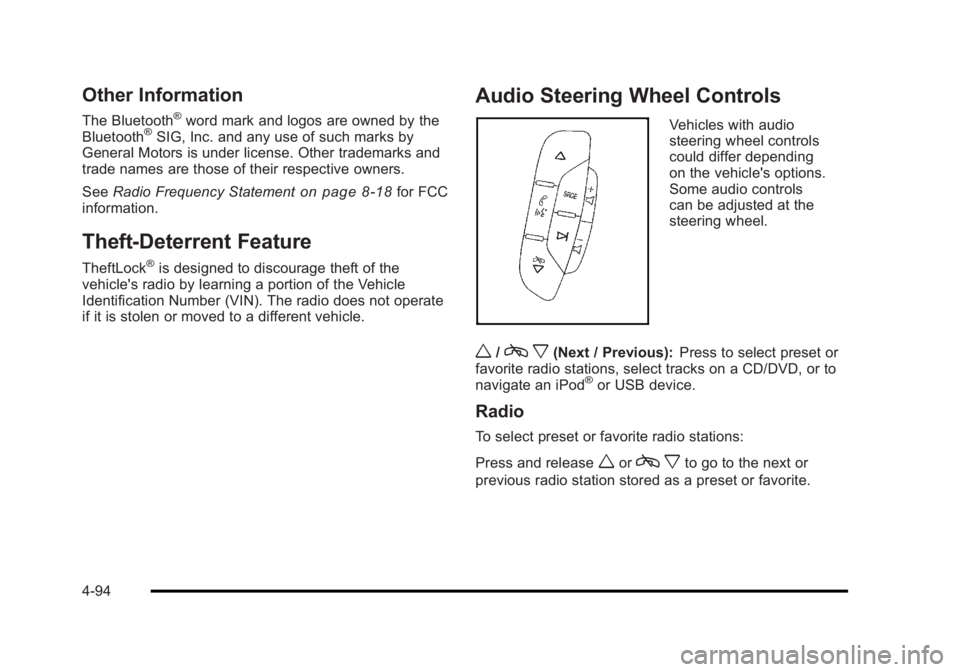
Audio Steering Wheel Controls
Vehicles with audio
steering wheel controls
could differ depending
on the vehicle's options.
Some audio controls
can be adjusted at the
steering wheel.
w/c x(Next / Previous): Press to select preset or
favorite radio stations, select tracks on a CD/DVD, or to
navigate an iPod
®or USB device.
Radio
To select preset or favorite radio stations:
Press and release
worc xto go to the next or
previous radio station stored as a preset or favorite.
4-94
Page 252 of 450
Black plate (96,1)Buick Lucerne Owner Manual - 2011
Navigating an iPod or USB Device on the
Music Navigator Screen (Vehicles with a
Navigation System)
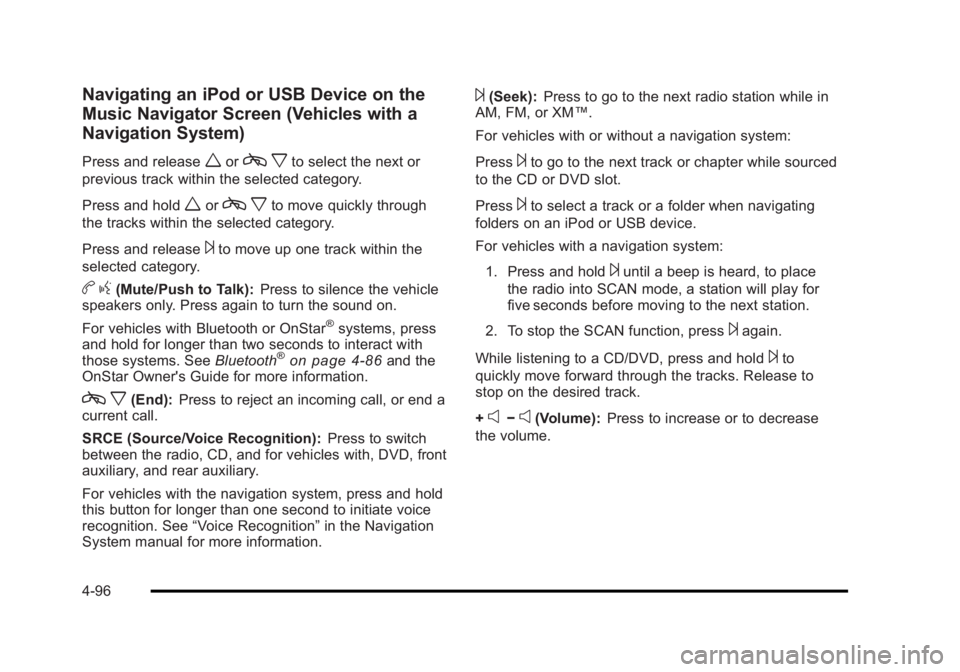
Press and releaseworcxto select the next or
previous track within the selected category.
Press and hold
worc xto move quickly through
the tracks within the selected category.
Press and release
¨to move up one track within the
selected category.
b g(Mute/Push to Talk): Press to silence the vehicle
speakers only. Press again to turn the sound on.
For vehicles with Bluetooth or OnStar
®systems, press
and hold for longer than two seconds to interact with
those systems. See Bluetooth
®on page 4‑86and the
OnStar Owner's Guide for more information.
c x(End): Press to reject an incoming call, or end a
current call.
SRCE (Source/Voice Recognition): Press to switch
between the radio, CD, and for vehicles with, DVD, front
auxiliary, and rear auxiliary.
For vehicles with the navigation system, press and hold
this button for longer than one second to initiate voice
recognition. See “Voice Recognition” in the Navigation
System manual for more information.
¨(Seek): Press to go to the next radio station while in
AM, FM, or XM™.
For vehicles with or without a navigation system:
Press
¨to go to the next track or chapter while sourced
to the CD or DVD slot.
Press
¨to select a track or a folder when navigating
folders on an iPod or USB device.
For vehicles with a navigation system:
1. Press and hold
¨until a beep is heard, to place
the radio into SCAN mode, a station will play for
five seconds before moving to the next station.
2. To stop the SCAN function, press
¨again.
While listening to a CD/DVD, press and hold
¨to
quickly move forward through the tracks. Release to
stop on the desired track.
+
e−e(Volume): Press to increase or to decrease
the volume.
4-96