display BUICK LUCERNE 2011 Repair Manual
[x] Cancel search | Manufacturer: BUICK, Model Year: 2011, Model line: LUCERNE, Model: BUICK LUCERNE 2011Pages: 450, PDF Size: 3.63 MB
Page 233 of 450
Black plate (77,1)Buick Lucerne Owner Manual - 2011
Notice:If a label is added to a CD, more than one
CD is inserted into the slot at a time, or an attempt
is made to play scratched or damaged CDs, the
CD player could be damaged. While using the CD
player, use only CDs in good condition without any
label, load one CD at a time, and keep the CD player
and the loading slot free of foreign materials,
liquids, and debris.
If an error displays, see “CD Messages”earlier in this
section.
Using the Auxiliary Input Jack
The radio system may have a 3.5 mm (1/8 in) auxiliary
input jack located on the faceplate. This is not an audio
output; do not plug the headphone set into the front
auxiliary input jack. An external audio device such as an
iPod
®, laptop computer, MP3 player, CD changer, etc.
can be connected to the auxiliary input jack for use as
another audio source.
Drivers are encouraged to set up any auxiliary device
while the vehicle is in P (Park). See Defensive Driving
on page 5‑2for more information on driver distraction. To use a portable audio player, connect a 3.5 mm
(1/8 in) cable to the radio's front auxiliary input jack.
When a device is connected, press the radio CD/AUX
button to begin playing audio from the device over the
vehicle speakers.
O(Power/Volume):
Turn to adjust the volume.
Additional volume adjustments may have to be made
from the portable device if the volume is too quiet or
too loud.
BAND: Press to listen to the radio while a portable
audio device is playing. The portable audio device
continues playing until it is stopped or turned off.
CD/AUX (CD/Auxiliary): Press to play a CD while a
portable audio device is playing. Press again and the
system begins playing audio from the connected
portable audio player. If a portable audio player is not
connected, No Aux Input Device Found may display.
Using the USB Port
Radio's with a USB port can control a USB storage
device or an iPod®using the radio buttons and knobs.
See Using an MP3on page 4‑78for information about
how to connect and control a USB storage device or
an iPod.
4-77
Page 235 of 450
Black plate (79,1)Buick Lucerne Owner Manual - 2011
USB Supported File and Folder Structure
The radio supports:
.Up to 700 folders.
.Up to 8 folders in depth.
.Up to 65,535 files.
.Folder and file names up to 64 bytes.
.Files with an .mp3 or .wma file extension.
.AAC files stored on an iPod.
.FAT16
.FAT32
Root Directory
The root directory is treated as a folder. Files are stored
in the root directory when the disc or storage device
does not contain folders. Files accessed from the root
directory of a CD display as F1 ROOT.
Empty Folder
Folders that do not contain files are skipped, and the
player advances to the next folder that contains files.
Order of Play
Tracks are played in the following order:
.Play begins from the first track in the first playlist
and continues sequentially through all tracks in
each playlist. When the last track of the last playlist
has played, play continues from the first track of
the first playlist.
.Play begins from the first track in the first folder
and continues sequentially through all tracks in
each folder. When the last track of the last folder
has played, play continues from the first track of
the first folder.
When play enters a new folder, the display does not
automatically show the new folder name unless the
folder mode has been chosen as the default display.
The new track name displays.
File System and Naming
The song name that displays is the song name that
is contained in the ID3 tag. If the song name is not
present in the ID3 tag, then the radio displays the file
name without the extension (such as .mp3) as the
track name.
Track names longer than 32 characters or four pages
are shortened. The display does not show parts of
words on the last page of text and the extension of the
filename is not displayed.
4-79
Page 236 of 450
Black plate (80,1)Buick Lucerne Owner Manual - 2011
Preprogrammed Playlists
CDs that have preprogrammed playlists that were
created using WinAmp™, MusicMatch™, or Real
Jukebox™software can be accessed, however, there
is no playlist editing capability using the radio. These
playlists are treated as special folders containing
compressed audio song files.
Playlists that have an .m3u or .pls file extension and are
stored on a USB device may be supported by the radio
with a USB port.
Playing a CD-R or CD-RW MP3
f
(Tune): Turn to select MP3 files on the CD currently
playing.
©SEEK: Press to go to the start of the track, if more
than ten seconds have played. Press and hold or press
multiple times to continue moving backward through
tracks.
¨SEEK: Press to go to the next track. Press and hold
or press multiple times to continue moving forward
through tracks.
sREV (Reverse): Press and hold to reverse playback
quickly. Sound is heard at a reduced volume and the
elapsed time of the file displays. Release
sREV to
resume playing.
\FWD (Fast Forward): Press and hold to
advance playback quickly. Sound is heard at a
reduced volume and the elapsed time of the file
displays. Release
\FWD to resume playing. The
elapsed time of the file displays.
S c(Previous Folder): Press the softkey
below
S cto go to the first track in the previous
folder.
cT (Next Folder): Press the softkey belowcTto
go to the first track in the next folder.
RDM (Random): MP3 files can be listened to on a CD
in random, rather than sequential order. To use random:
1. Press the softkey under the RDM tab until Random Current Disc displays to play songs from the
current CD in random order.
2. Press the same softkey again to turn off random play.
h(Music Navigator): Press the softkey
below
hto have the files played in order by
artist or album. The player scans the disc to sort
the files by artist and album ID3 tag information.
It can take several minutes to scan the disc depending
on the number of files on the disc. The radio may begin
playing while it is scanning in the background.
4-80
Page 237 of 450
Black plate (81,1)Buick Lucerne Owner Manual - 2011
When the scan is finished, the disc begins playing files
in order by artist. The current artist playing is shown on
the second line of the display. Once all songs by that
artist are played, the player moves to the next artist in
alphabetical order and begins playing files by that artist.
To listen to files by another artist, press the softkey
located below either arrow tab. The disc goes to the
next or previous artist in alphabetical order. Continue
pressing either softkey below the arrow tab until the
desired artist displays.
To change from playback by artist to playback by
album:1. Press the softkey located below the Sort By tab.
2. Press one of the softkeys below the album tab from the sort screen.
3. Press the softkey below the back tab to return to the main music navigator screen.
The album name displays on the second line between
the arrows and songs from the current album begins to
play. Once all songs from that album have played, the
player moves to the next album in alphabetical order on
the CD and begins playing MP3 files from that album.
To exit music navigator mode, press the softkey below
the Back tab to return to normal MP3 playback.Connecting a USB Storage Device
or iPod®
The USB Port can be used to control an iPod or a USB
storage device.
To connect a USB storage device, connect the device to
the USB port located on the front of the radio.
To connect an iPod, connect one end of the USB cable
that came with the iPod to the iPod’ s dock connector
and connect the other end to the USB port located on
the front of the radio. If the vehicle is on and the USB
connection works, “OK to disconnect” and a GM logo
may appear on the iPod and iPod appears on the
radio's display. The iPod music appears on the radio’s
display and begins playing.
The iPod charges while it is connected to the vehicle if
the vehicle is in the ACC/ACCESSORY or ON/RUN
position. When the vehicle is turned off, the iPod
automatically powers off and will not charge or draw
power from the vehicle's battery.
If you have an older iPod model that is not supported, it
can still be used by connecting it to the Auxiliary Input
Jack using a standard 3.5 mm (1/8 in) stereo cable.
See “Using the Auxiliary Input Jack” earlier for more
information.
4-81
Page 238 of 450
Black plate (82,1)Buick Lucerne Owner Manual - 2011
Using the Radio to Control a USB
Storage Device or iPod
The radio can control a USB storage device or an iPod
using the radio buttons and knobs and display song
information on the radio’s display.
f(Tune):Turn to select files.
©SEEK:Press to go to the start of the track, if more
than ten seconds have played. Press and hold or press
multiple times to continue moving backward through
tracks.
¨SEEK: Press to go to the next track. Press and hold
or press multiple times to continue moving forward
through tracks.
sREV (Reverse): Press and hold to reverse
playback quickly. Sound is heard at a reduced volume.
Release
sREV to resume playing. The elapsed time
of the file displays.
\FWD (Fast Forward): Press and hold to advance
playback quickly. Sound is heard at a reduced volume.
Release
\FWD to resume playing. The elapsed time
of the file displays.
4(Information): Press to display additional information
about the selected track.
Using Softkeys to Control a USB
Storage Device or iPod
The five softkeys below the radio display are used to
control the functions listed below.
To use the softkeys:
1. Press the first or fifth softkey below the radio display to display the functions listed below,
or press the softkey below the function if it is
currently displayed.
2. Press the softkey below the tab with the function on it to use that function.
j(Pause): Press the softkey belowjto pause the
track. The tab appears raised when pause is being
used. Press the softkey below
jagain to resume
playback.
Back: Press the softkey below the back tab to go back
to the main display screen on an iPod, or the root
directory on a USB storage device.
c(Folder View): Press the softkey belowcto view
the contents of the current folder on the USB drive. To
browse and select files:
1. Press the softkey below
c.
2. Turn
fto scroll through the list of folders.
4-82
Page 251 of 450
Black plate (95,1)Buick Lucerne Owner Manual - 2011
CD/DVD
To select tracks on a CD/DVD:
Press and release
worcxto go to the next or
previous track.
Select tracks on an iPod or USB Device
(Vehicles without a Navigation System)
1. Press and holdworc xwhile listening to a
song until the contents of the current folder display
on the radio display.
2. Press and release
worc xto scroll up or
down the list, then press and hold
w, or press¨to
play the highlighted track.
Navigating folders on an iPod or USB
Device (Vehicles without a Navigation
System):
1. Press and holdworc xwhile listening to a
song until the contents of the current folder display
on the radio display.
2. Press and hold
c xto go back to the previous
folder list. 3. Press and release
worc
xto scroll up or
down the list.
.To select a folder, press and holdw, or
press
¨when the folder is highlighted.
.To go back further in the folder list, press and
hold
c x.
Navigating an iPod or USB Device on
the Main Audio Screen (Vehicles with a
Navigation System)
Press and releaseworcxto select the next or
previous track within the selected category.
Press and hold
worc xto move quickly through
the tracks.
Press and release
¨to move up one track within the
selected category.
4-95
Page 260 of 450
Black plate (6,1)Buick Lucerne Owner Manual - 2011
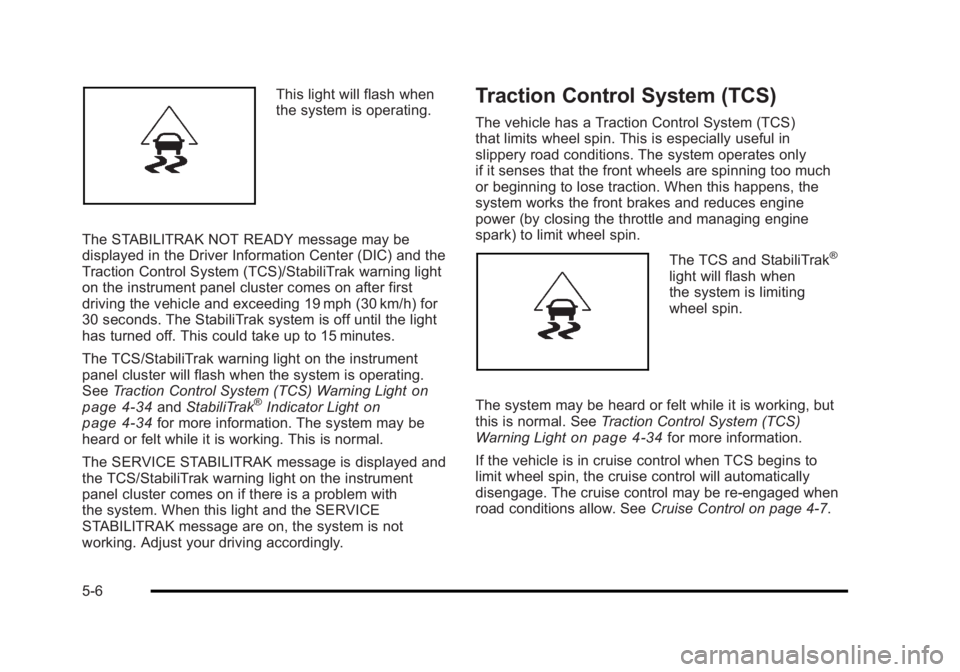
This light will flash when
the system is operating.
The STABILITRAK NOT READY message may be
displayed in the Driver Information Center (DIC) and the
Traction Control System (TCS)/StabiliTrak warning light
on the instrument panel cluster comes on after first
driving the vehicle and exceeding 19 mph (30 km/h) for
30 seconds. The StabiliTrak system is off until the light
has turned off. This could take up to 15 minutes.
The TCS/StabiliTrak warning light on the instrument
panel cluster will flash when the system is operating.
See Traction Control System (TCS) Warning Light
on
page 4‑34and StabiliTrak®Indicator Lighton
page 4‑34for more information. The system may be
heard or felt while it is working. This is normal.
The SERVICE STABILITRAK message is displayed and
the TCS/StabiliTrak warning light on the instrument
panel cluster comes on if there is a problem with
the system. When this light and the SERVICE
STABILITRAK message are on, the system is not
working. Adjust your driving accordingly.
Traction Control System (TCS)
The vehicle has a Traction Control System (TCS)
that limits wheel spin. This is especially useful in
slippery road conditions. The system operates only
if it senses that the front wheels are spinning too much
or beginning to lose traction. When this happens, the
system works the front brakes and reduces engine
power (by closing the throttle and managing engine
spark) to limit wheel spin.
The TCS and StabiliTrak®
light will flash when
the system is limiting
wheel spin.
The system may be heard or felt while it is working, but
this is normal. See Traction Control System (TCS)
Warning Light
on page 4‑34for more information.
If the vehicle is in cruise control when TCS begins to
limit wheel spin, the cruise control will automatically
disengage. The cruise control may be re-engaged when
road conditions allow. See Cruise Control on page 4‑7.
5-6
Page 261 of 450
Black plate (7,1)Buick Lucerne Owner Manual - 2011
The SERVICE TRACTION CONTROL message in the
DIC and the TCS/StabiliTrak warning light comes on if
there is a problem with the traction control system. See
DIC Warnings and Messages on page 4‑49.
When this light and the SERVICE TRACTION
CONTROL message are on, the system will not limit
wheel spin. Adjust your driving accordingly.
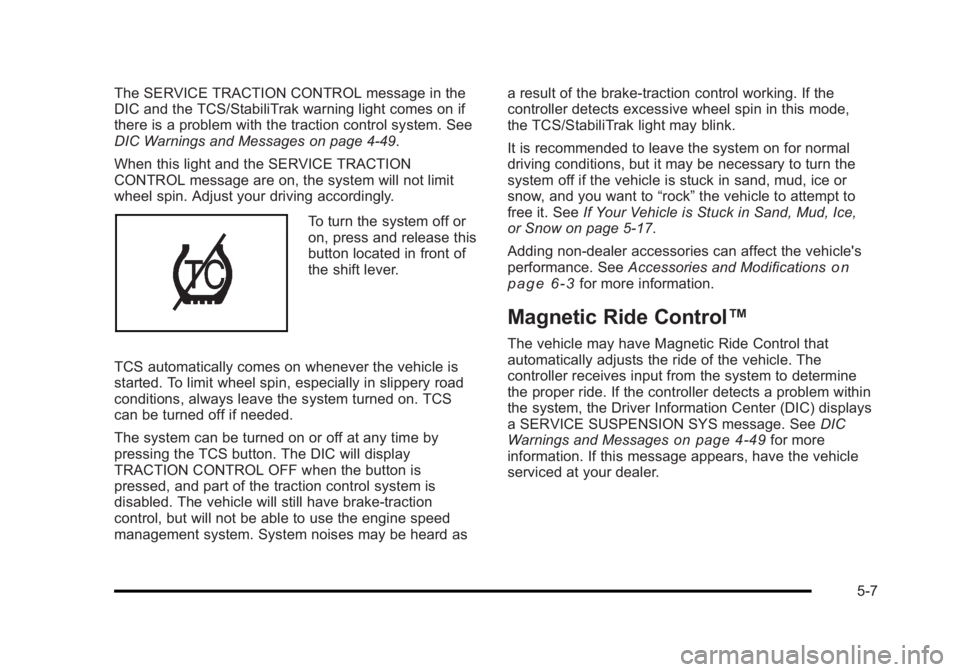
To turn the system off or
on, press and release this
button located in front of
the shift lever.
TCS automatically comes on whenever the vehicle is
started. To limit wheel spin, especially in slippery road
conditions, always leave the system turned on. TCS
can be turned off if needed.
The system can be turned on or off at any time by
pressing the TCS button. The DIC will display
TRACTION CONTROL OFF when the button is
pressed, and part of the traction control system is
disabled. The vehicle will still have brake-traction
control, but will not be able to use the engine speed
management system. System noises may be heard as a result of the brake-traction control working. If the
controller detects excessive wheel spin in this mode,
the TCS/StabiliTrak light may blink.
It is recommended to leave the system on for normal
driving conditions, but it may be necessary to turn the
system off if the vehicle is stuck in sand, mud, ice or
snow, and you want to
“rock”the vehicle to attempt to
free it. See If Your Vehicle is Stuck in Sand, Mud, Ice,
or Snow on page 5‑17.
Adding non‐dealer accessories can affect the vehicle's
performance. See Accessories and Modifications
on
page 6‑3for more information.
Magnetic Ride Control™
The vehicle may have Magnetic Ride Control that
automatically adjusts the ride of the vehicle. The
controller receives input from the system to determine
the proper ride. If the controller detects a problem within
the system, the Driver Information Center (DIC) displays
a SERVICE SUSPENSION SYS message. See DIC
Warnings and Messages
on page 4‑49for more
information. If this message appears, have the vehicle
serviced at your dealer.
5-7
Page 296 of 450
Black plate (10,1)Buick Lucerne Owner Manual - 2011
While refueling, hang the tethered fuel cap from the
hook on the fuel door.
{WARNING:
Fuel can spray out on you if you open the fuel cap
too quickly. If you spill fuel and then something
ignites it, you could be badly burned. This spray
can happen if the tank is nearly full, and is more
likely in hot weather. Open the fuel cap slowly and
wait for any hiss noise to stop. Then unscrew the
cap all the way.
Be careful not to spill fuel. Do not top off or overfill the
tank and wait a few seconds after you have finished
pumping before removing the nozzle. Clean fuel from
painted surfaces as soon as possible. See Washing
Your Vehicle on page 6‑102.
When replacing the fuel cap, turn it to the right
(clockwise) until it clicks. Make sure the cap is fully
installed. The diagnostic system can determine if the
fuel cap has been left off or improperly installed. This
would allow fuel to evaporate into the atmosphere. See
Malfunction Indicator Lamp on page 4‑37. The TIGHTEN GAS CAP message displays on the
Driver Information Center (DIC) if the fuel cap is not
properly installed.
{WARNING:
If a fire starts while you are refueling, do not
remove the nozzle. Shut off the flow of fuel by
shutting off the pump or by notifying the station
attendant. Leave the area immediately.
Notice: If you need a new fuel cap, be sure to get
the right type. Your dealer can get one for you.
If you get the wrong type, it may not fit properly.
This may cause the malfunction indicator lamp to
light and may damage the fuel tank and emissions
system. See Malfunction Indicator Lamp
on
page 4‑37.
6-10
Page 306 of 450
Black plate (20,1)Buick Lucerne Owner Manual - 2011
Selecting the Right Engine Oil
Selecting the right engine oil depends on both the
proper oil specification and viscosity grade:
Specification
Use and ask for engine oils with the dexos™
certification mark. Oils meeting the requirements of the
vehicle should have the dexos certification mark on the
container. This certification mark indicates that the oil
has been approved to the dexos specification.
This vehicle was filled at the factory with
dexos‐approved engine oil.Notice:
Use only engine oil that is approved to
the dexos specification or an equivalent engine
oil of the appropriate viscosity grade. Engine oils
approved to the dexos specification will show the
dexos symbol on the container. Failure to use the
recommended engine oil or equivalent can result in
engine damage not covered by the vehicle warranty.
If you are unsure whether the oil is approved to the
dexos specification, ask your service provider.
Use of Substitute Engine Oils if dexos is unavailable:
In the event that dexos‐approved engine oil is not
available at an oil change or for maintaining proper
oil level, you may use substitute engine oil displaying
the API Starburst symbol and of SAE 5W-30 viscosity
grade. Use of oils that do not meet the dexos
specification, however, may result in reduced
performance under certain circumstances.
6-20