reset BUICK PARK AVENUE 2003 User Guide
[x] Cancel search | Manufacturer: BUICK, Model Year: 2003, Model line: PARK AVENUE, Model: BUICK PARK AVENUE 2003Pages: 372, PDF Size: 2.8 MB
Page 161 of 372
If you choose ON for AUTO DOOR LOCKS, and OFF
for UNLOCK IN PARK, your door locks will lock
every time you shift out of PARK (P), and there will be
no automatic door unlock when shifting back into
PARK (P).
When you choose ON for UNLOCK in PARK, the DIC
will display WHICH DOORS-ALL/DRIVER. You have the
choice of unlocking all doors, or just the driver's door.
To change modes, do the following:
1. Move the arrow on the display between ON and
OFF by pressing the ENG/MET button.
2. Once you have made your selection, press the
RESET button and your choice will be retained
in memory.
See
Programmable Automatic Door Locks on page 2-11for more information about this feature.
Delayed Locking
The delayed locking feature, which delays the actual
locking of the vehicle, can be made active or inactive
through the DIC. When DELAYED LOCKING-OFF-ON
appears on the display, use the ENG/MET button to
toggle the arrow between OFF and ON. When you have
made your choice, press the RESET button to record
your selection.
For more information on this feature, see
Delayed
Locking on page 2-10.
Security Feedback
By choosing different combinations of these selections,
you can choose the type of transmitter activated
feedback you receive when locking and unlocking your
vehicle with your transmitter. Each time you make a
selection by pressing the ENG/MET button, press
the RESET button to record your choice.
·LOCK FEEDBACK ± OFF/ON
·LOCK FEEDBACK ± LIGHTS/LIGHTS + HORN
·UNLOCK FEEDBACK ± OFF/LIGHTS
If you choose ON for LOCK FEEDBACK you will also
need to choose LIGHTS or LIGHTS + HORN.
You can select the following modes:
·If you choose OFF for LOCK FEEDBACK and OFF
for UNLOCK FEEDBACK, you will receive no
security feedback when locking or unlocking your
vehicle.
·If you choose OFF for LOCK FEEDBACK and
LIGHTS for UNLOCK FEEDBACK, you will receive
no security feedback when locking your vehicle
and the exterior lamps will ¯ash when unlocking
your vehicle.
3-49
Page 162 of 372
·If you choose LIGHTS for LOCK FEEDBACK and
OFF for UNLOCK FEEDBACK, your exterior
lamps will ¯ash when locking your vehicle and you
will receive no security feedback when unlocking
your vehicle.
·If you choose LIGHTS for LOCK FEEDBACK and
LIGHTS for UNLOCK FEEDBACK, your exterior
lamps will ¯ash when locking and unlocking
your vehicle.
·If you choose LIGHTS + HORN for LOCK
FEEDBACK and OFF for UNLOCK FEEDBACK,
your exterior lamps will ¯ash and the horn will chirp
when locking your vehicle and you will receive
no security feedback when unlocking your vehicle.
·If you choose LIGHTS + HORN for LOCK
FEEDBACK and LIGHTS for UNLOCK FEEDBACK,
your exterior lamps will ¯ash and the horn will
chirp when locking your vehicle and your exterior
lamps will ¯ash when unlocking your vehicle.
For more information on this feature, see ªSecurity
Feedbackº under
Remote Keyless Entry System
Operation on page 2-5.
Perimeter Lighting
When the button with the unlock symbol on the
transmitter is pressed, the DRL lamps (high-beams at
reduced intensity), parking lamps and back-up lamps will
turn on if it is dark enough according to the Twilight
Sentinel
ž.
You can control activation of this feature by choosing
OFF or ON when the PERIMETER LIGHTS choice
is displayed on the DIC. Make your choice by pressing
the ENG/MET button and record your choice by
pressing the RESET button.
If you want to choose PERIMETER LIGHTS ON, you
must also choose LIGHTS for UNLOCK FEEDBACK
while making the security feedback choices.
For more information on this feature, see ªPerimeter
Lightingº under
Exterior Lamps on page 3-12.
Memory Seat Recall
This feature recalls the position of your seat. When this
feature is active, the memory seat and mirror positions
will be recalled for the identi®ed driver when the remote
keyless entry transmitter is used to enter the vehicle.
You can program this feature to be active by choosing
ON when the SEAT RECALL choice appears, or
inactive by choosing OFF when the SEAT RECALL
choice appears on the DIC.
3-50
Page 163 of 372
You can also program this feature to recall your
memory seat position or the exit seat position.
·Memory Position: Choose ON when the SEAT
RECALL choice appears, and then choose
MEMORY when the RECALL POSITION choice
appears.
·Exit Position: Choose ON when the SEAT RECALL
choice appears, then choose EXIT when the
RECALL POSITION choice appears and your seat
will move to the stored exit position. The seat
will also move when you enter the vehicle after
unlocking it with a remote keyless entry transmitter.
This will allow for easy entry as well.
For more information on this feature, see
Memory Seat
and Mirrors on page 2-46.
Window Lock Out
The number of passenger windows locked out by the
WINDOW LOCK button can be programmed through the
DIC.
If you choose ALL PASS, all three passenger window
switches will be inactive when the WINDOW LOCK
button is enabled.
If you choose REAR, only the two rear passenger
window switches will be locked out when the WINDOW
LOCK button is enabled.To change modes do the following:
1. Move the arrow on the display between ALL PASS
and REAR by pressing the ENG/MET button.
2. Once you have made your selection, press the
RESET button. Your choice will be retained in
memory.
For more information on this feature, see ªWindow Lock
Outº under
Power Windows on page 2-16.
Audio System(s)
Notice:Before you add any sound equipment to
your vehicle ± like a tape player, CB radio, mobile
telephone or two-way radio ± be sure you can
add what you want. If you can, it's very important to
do it properly. Added sound equipment may
interfere with the operation of your vehicle's engine,
radio or other systems, and even damage them.
Your vehicle's systems may interfere with the
operation of sound equipment that has been added
improperly.
So, before adding sound equipment, check with
your dealer and be sure to check federal rules
covering mobile radio and telephone units.
3-51
Page 165 of 372
RECALL:Press this button to switch the display
between the radio station frequency and the time. To
change what is normally shown on the display (station or
time), press this button until you see the display you
want, then hold the button until the display ¯ashes. If you
press the button when the ignition is off, the time will
show for a few seconds.
Finding a Station
AM-FM:Press this button to switch between FM1,
FM2, and AM. The display will show your selection.
wTUNEx:Press the up or the down arrow to
choose radio stations.
wSEEKx:Press the up or the down arrow to go to
the next or to the previous station and stay there.
To scan stations, press and hold one of the SEEK
arrows for two seconds and SCAN will appear on the
display. The radio will go to a station, play for a few
seconds, then go on to the next station. Press one of
the SEEK arrows again to stop scanning.
The radio will seek and scan only to stations that are in
the selected band and only to those with a strong signal.
P SCAN (Preset Scan):Press this button to listen to
each of your preset stations for a few seconds.
The radio will go to the ®rst preset station, play for a
few seconds, then go on to the next preset station.
Press P SCAN again to stop scanning presets.The radio will scan only to preset stations that are in the
selected band and only to those with a strong signal.
AUTO SET (Automatic Set):Press this button,
after selecting AM or FM, to seek and set the
12 strongest FM or the 6 strongest AM stations on your
preset pushbuttons. AUTO SET will ¯ash while
seeking and will remain on until this function is complete.
To return to the stations you manually set, press
AUTO SET again.
Setting Preset Stations
The six numbered pushbuttons let you return to your
favorite stations. You can set up to 18 stations (six FM1,
six FM2 and six AM) by performing the following
steps:
1. Turn the radio on.
2. Press AM-FM to select FM1, FM2, or AM.
3. Tune in the desired station.
4. Press TONE to select the setting you prefer.
5. Press and hold one of the six numbered
pushbuttons. The sound will mute. When it returns,
release the pushbutton. Whenever you press
that numbered pushbutton, the station you set will
return and the tone you selected will be
automatically selected for that pushbutton.
6. Repeat the steps for each pushbutton.
3-53
Page 166 of 372
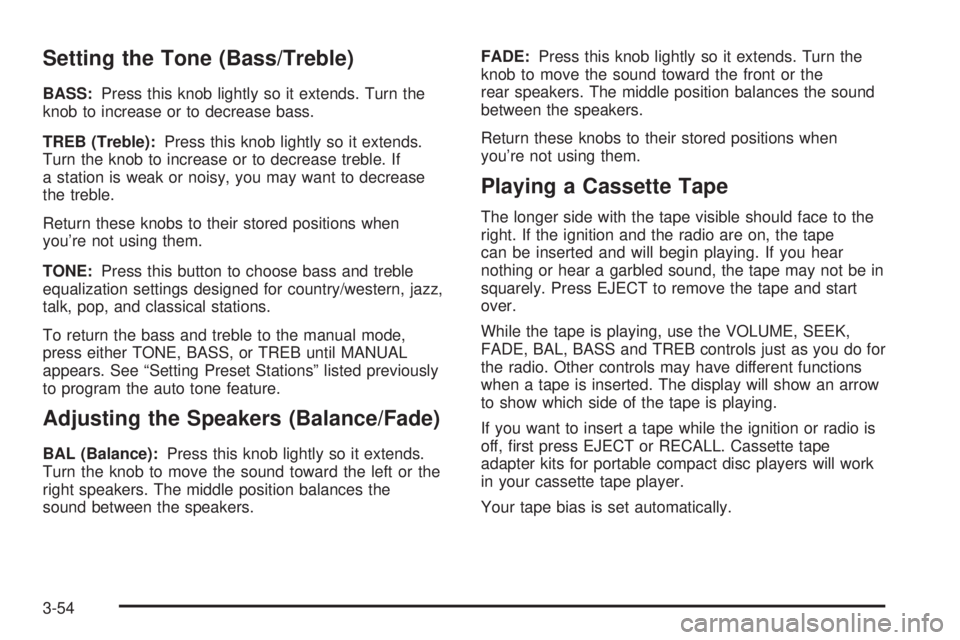
Setting the Tone (Bass/Treble)
BASS:Press this knob lightly so it extends. Turn the
knob to increase or to decrease bass.
TREB (Treble):Press this knob lightly so it extends.
Turn the knob to increase or to decrease treble. If
a station is weak or noisy, you may want to decrease
the treble.
Return these knobs to their stored positions when
you're not using them.
TONE:Press this button to choose bass and treble
equalization settings designed for country/western, jazz,
talk, pop, and classical stations.
To return the bass and treble to the manual mode,
press either TONE, BASS, or TREB until MANUAL
appears. See ªSetting Preset Stationsº listed previously
to program the auto tone feature.
Adjusting the Speakers (Balance/Fade)
BAL (Balance):Press this knob lightly so it extends.
Turn the knob to move the sound toward the left or the
right speakers. The middle position balances the
sound between the speakers.FADE:Press this knob lightly so it extends. Turn the
knob to move the sound toward the front or the
rear speakers. The middle position balances the sound
between the speakers.
Return these knobs to their stored positions when
you're not using them.
Playing a Cassette Tape
The longer side with the tape visible should face to the
right. If the ignition and the radio are on, the tape
can be inserted and will begin playing. If you hear
nothing or hear a garbled sound, the tape may not be in
squarely. Press EJECT to remove the tape and start
over.
While the tape is playing, use the VOLUME, SEEK,
FADE, BAL, BASS and TREB controls just as you do for
the radio. Other controls may have different functions
when a tape is inserted. The display will show an arrow
to show which side of the tape is playing.
If you want to insert a tape while the ignition or radio is
off, ®rst press EJECT or RECALL. Cassette tape
adapter kits for portable compact disc players will work
in your cassette tape player.
Your tape bias is set automatically.
3-54
Page 169 of 372
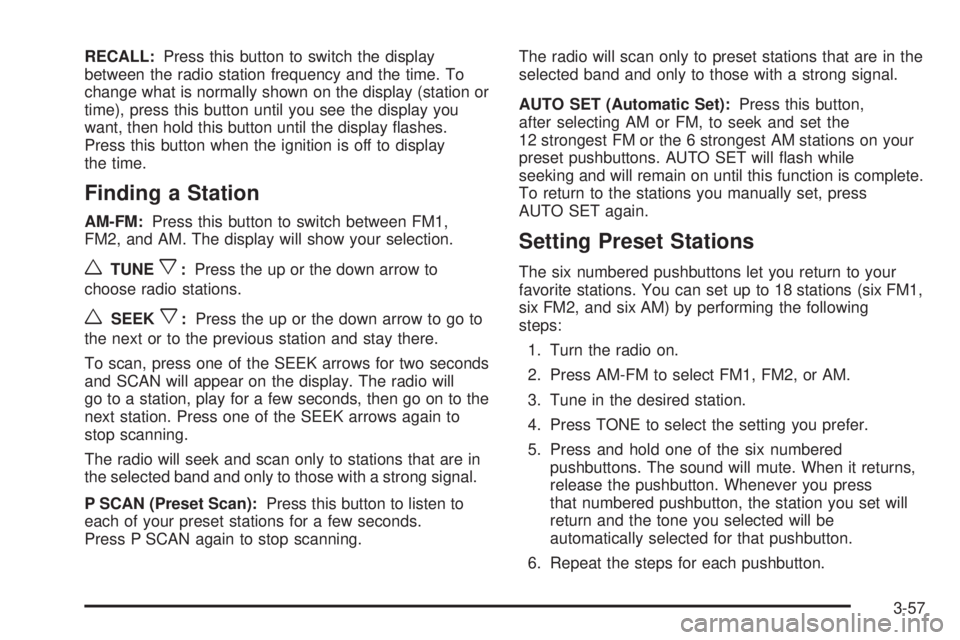
RECALL:Press this button to switch the display
between the radio station frequency and the time. To
change what is normally shown on the display (station or
time), press this button until you see the display you
want, then hold this button until the display ¯ashes.
Press this button when the ignition is off to display
the time.
Finding a Station
AM-FM:Press this button to switch between FM1,
FM2, and AM. The display will show your selection.
wTUNEx:Press the up or the down arrow to
choose radio stations.
wSEEKx:Press the up or the down arrow to go to
the next or to the previous station and stay there.
To scan, press one of the SEEK arrows for two seconds
and SCAN will appear on the display. The radio will
go to a station, play for a few seconds, then go on to the
next station. Press one of the SEEK arrows again to
stop scanning.
The radio will seek and scan only to stations that are in
the selected band and only to those with a strong signal.
P SCAN (Preset Scan):Press this button to listen to
each of your preset stations for a few seconds.
Press P SCAN again to stop scanning.The radio will scan only to preset stations that are in the
selected band and only to those with a strong signal.
AUTO SET (Automatic Set):Press this button,
after selecting AM or FM, to seek and set the
12 strongest FM or the 6 strongest AM stations on your
preset pushbuttons. AUTO SET will ¯ash while
seeking and will remain on until this function is complete.
To return to the stations you manually set, press
AUTO SET again.
Setting Preset Stations
The six numbered pushbuttons let you return to your
favorite stations. You can set up to 18 stations (six FM1,
six FM2, and six AM) by performing the following
steps:
1. Turn the radio on.
2. Press AM-FM to select FM1, FM2, or AM.
3. Tune in the desired station.
4. Press TONE to select the setting you prefer.
5. Press and hold one of the six numbered
pushbuttons. The sound will mute. When it returns,
release the pushbutton. Whenever you press
that numbered pushbutton, the station you set will
return and the tone you selected will be
automatically selected for that pushbutton.
6. Repeat the steps for each pushbutton.
3-57
Page 170 of 372
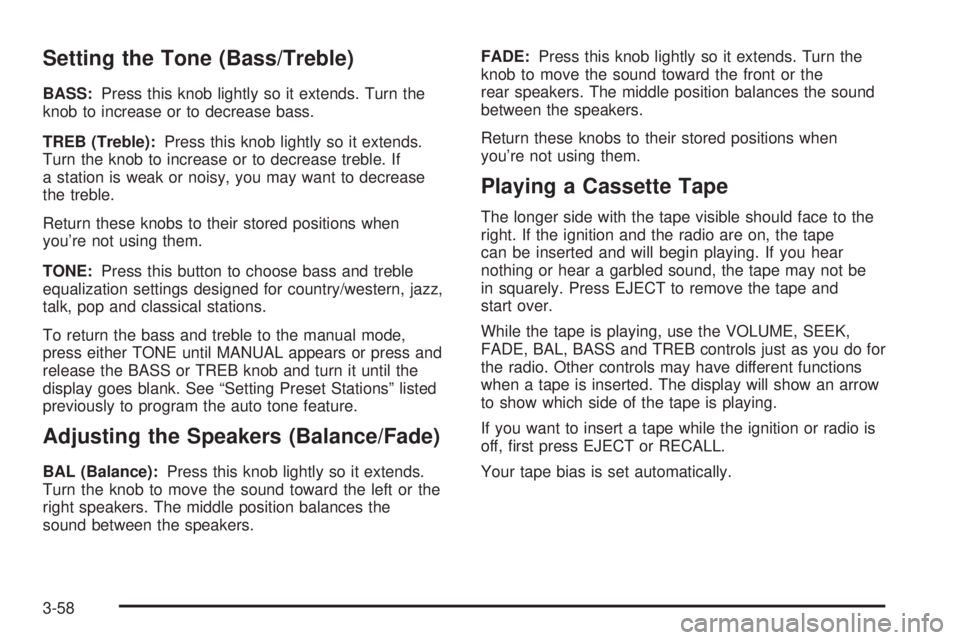
Setting the Tone (Bass/Treble)
BASS:Press this knob lightly so it extends. Turn the
knob to increase or to decrease bass.
TREB (Treble):Press this knob lightly so it extends.
Turn the knob to increase or to decrease treble. If
a station is weak or noisy, you may want to decrease
the treble.
Return these knobs to their stored positions when
you're not using them.
TONE:Press this button to choose bass and treble
equalization settings designed for country/western, jazz,
talk, pop and classical stations.
To return the bass and treble to the manual mode,
press either TONE until MANUAL appears or press and
release the BASS or TREB knob and turn it until the
display goes blank. See ªSetting Preset Stationsº listed
previously to program the auto tone feature.
Adjusting the Speakers (Balance/Fade)
BAL (Balance):Press this knob lightly so it extends.
Turn the knob to move the sound toward the left or the
right speakers. The middle position balances the
sound between the speakers.FADE:Press this knob lightly so it extends. Turn the
knob to move the sound toward the front or the
rear speakers. The middle position balances the sound
between the speakers.
Return these knobs to their stored positions when
you're not using them.
Playing a Cassette Tape
The longer side with the tape visible should face to the
right. If the ignition and the radio are on, the tape
can be inserted and will begin playing. If you hear
nothing or hear a garbled sound, the tape may not be
in squarely. Press EJECT to remove the tape and
start over.
While the tape is playing, use the VOLUME, SEEK,
FADE, BAL, BASS and TREB controls just as you do for
the radio. Other controls may have different functions
when a tape is inserted. The display will show an arrow
to show which side of the tape is playing.
If you want to insert a tape while the ignition or radio is
off, ®rst press EJECT or RECALL.
Your tape bias is set automatically.
3-58
Page 177 of 372
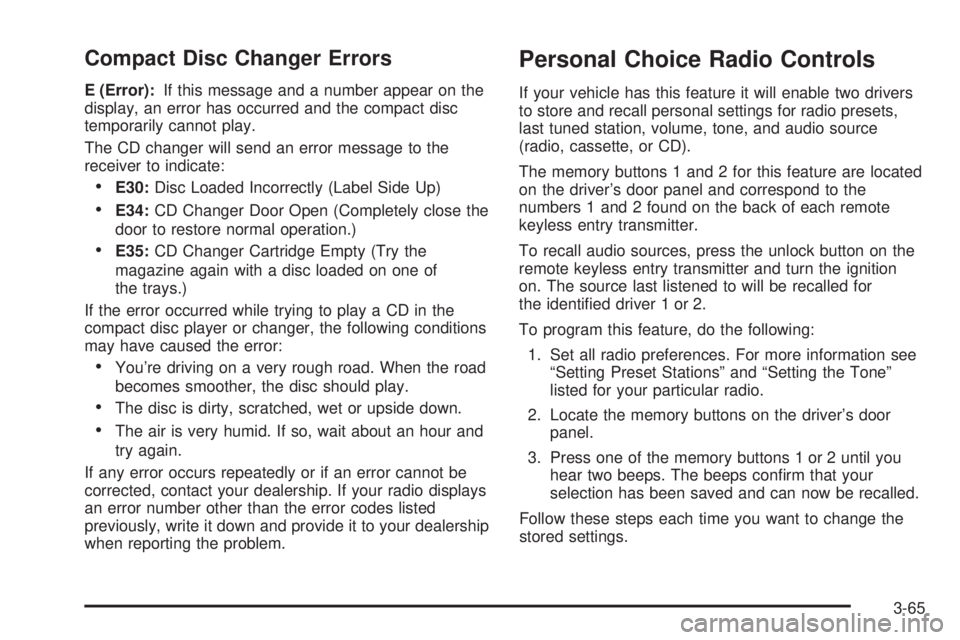
Compact Disc Changer Errors
E (Error):If this message and a number appear on the
display, an error has occurred and the compact disc
temporarily cannot play.
The CD changer will send an error message to the
receiver to indicate:
·E30:Disc Loaded Incorrectly (Label Side Up)
·E34:CD Changer Door Open (Completely close the
door to restore normal operation.)
·E35:CD Changer Cartridge Empty (Try the
magazine again with a disc loaded on one of
the trays.)
If the error occurred while trying to play a CD in the
compact disc player or changer, the following conditions
may have caused the error:
·You're driving on a very rough road. When the road
becomes smoother, the disc should play.
·The disc is dirty, scratched, wet or upside down.
·The air is very humid. If so, wait about an hour and
try again.
If any error occurs repeatedly or if an error cannot be
corrected, contact your dealership. If your radio displays
an error number other than the error codes listed
previously, write it down and provide it to your dealership
when reporting the problem.
Personal Choice Radio Controls
If your vehicle has this feature it will enable two drivers
to store and recall personal settings for radio presets,
last tuned station, volume, tone, and audio source
(radio, cassette, or CD).
The memory buttons 1 and 2 for this feature are located
on the driver's door panel and correspond to the
numbers 1 and 2 found on the back of each remote
keyless entry transmitter.
To recall audio sources, press the unlock button on the
remote keyless entry transmitter and turn the ignition
on. The source last listened to will be recalled for
the identi®ed driver 1 or 2.
To program this feature, do the following:
1. Set all radio preferences. For more information see
ªSetting Preset Stationsº and ªSetting the Toneº
listed for your particular radio.
2. Locate the memory buttons on the driver's door
panel.
3. Press one of the memory buttons 1 or 2 until you
hear two beeps. The beeps con®rm that your
selection has been saved and can now be recalled.
Follow these steps each time you want to change the
stored settings.
3-65
Page 180 of 372
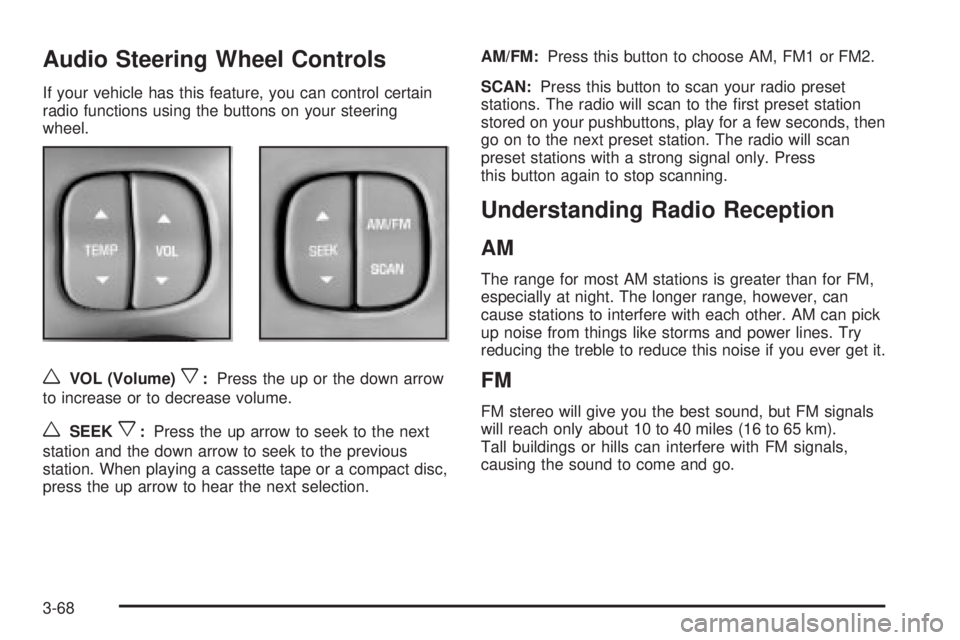
Audio Steering Wheel Controls
If your vehicle has this feature, you can control certain
radio functions using the buttons on your steering
wheel.
wVOL (Volume)x:Press the up or the down arrow
to increase or to decrease volume.
wSEEKx:Press the up arrow to seek to the next
station and the down arrow to seek to the previous
station. When playing a cassette tape or a compact disc,
press the up arrow to hear the next selection.AM/FM:Press this button to choose AM, FM1 or FM2.
SCAN:Press this button to scan your radio preset
stations. The radio will scan to the ®rst preset station
stored on your pushbuttons, play for a few seconds, then
go on to the next preset station. The radio will scan
preset stations with a strong signal only. Press
this button again to stop scanning.
Understanding Radio Reception
AM
The range for most AM stations is greater than for FM,
especially at night. The longer range, however, can
cause stations to interfere with each other. AM can pick
up noise from things like storms and power lines. Try
reducing the treble to reduce this noise if you ever get it.
FM
FM stereo will give you the best sound, but FM signals
will reach only about 10 to 40 miles (16 to 65 km).
Tall buildings or hills can interfere with FM signals,
causing the sound to come and go.
3-68
Page 181 of 372
Care of Your Cassette Tape Player
A tape player that is not cleaned regularly can cause
reduced sound quality, ruined cassettes or a damaged
mechanism. Cassette tapes should be stored in their
cases away from contaminants, direct sunlight and
extreme heat. If they aren't, they may not operate
properly or may cause failure of the tape player.
Your tape player should be cleaned regularly after every
50 hours of use. Your radio may display CLN to
indicate that you have used your tape player for
50 hours without resetting the tape clean timer. If this
message appears on the display, your cassette
tape player needs to be cleaned. It will still play tapes,
but you should clean it as soon as possible to
prevent damage to your tapes and player. If you notice
a reduction in sound quality, try a known good
cassette to see if the tape or the tape player is at fault.
If this other cassette has no improvement in sound
quality, clean the tape player.
For best results, use a scrubbing action, non-abrasive
cleaning cassette with pads which scrub the tape
head as the hubs of the cleaner cassette turn. The
recommended cleaning cassette is available through
your dealership.The cut tape detection feature of your cassette tape
player may identify the cleaning cassette as a damaged
tape, in error. If the cleaning cassette ejects, insert
the cassette at least three times to ensure thorough
cleaning.
You may also choose a non-scrubbing action, wet-type
cleaner which uses a cassette with a fabric belt to
clean the tape head. This type of cleaning cassette will
not eject on its own. A non-scrubbing action cleaner
may not clean as thoroughly as the scrubbing type
cleaner. The use of a non-scrubbing action, dry-type
cleaning cassette is not recommended.
After you clean the player, press and hold the EJECT
button for ®ve seconds to reset the CLN indicator.
The radio will display --- to show the indicator was reset.
Cassettes are subject to wear and the sound quality
may degrade over time. Always make sure the cassette
tape is in good condition before you have your tape
player serviced.
3-69