reset BUICK PARK AVENUE 2003 Owner's Manual
[x] Cancel search | Manufacturer: BUICK, Model Year: 2003, Model line: PARK AVENUE, Model: BUICK PARK AVENUE 2003Pages: 372, PDF Size: 2.8 MB
Page 74 of 372
Power Door Locks
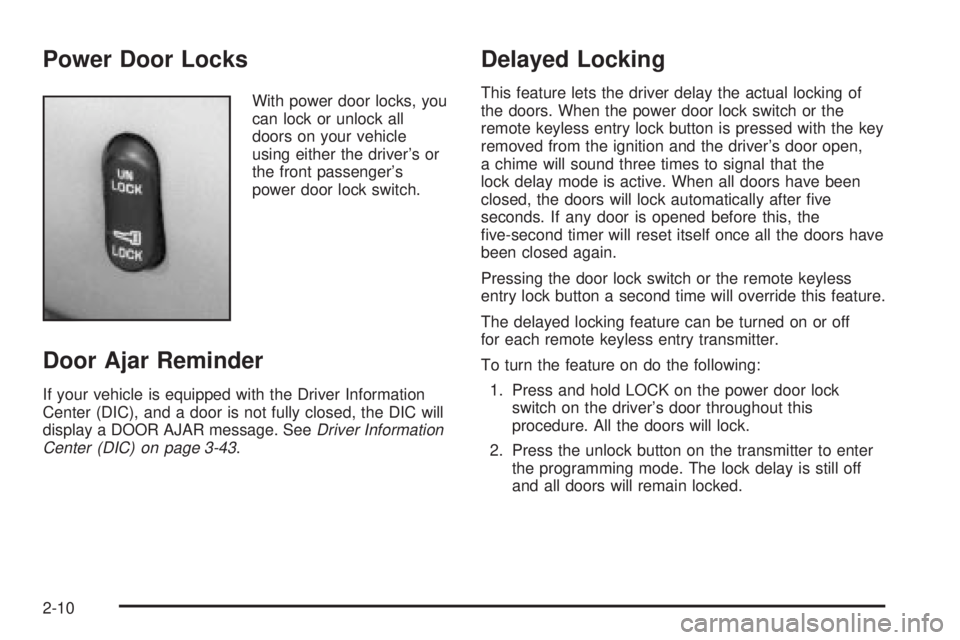
With power door locks, you
can lock or unlock all
doors on your vehicle
using either the driver's or
the front passenger's
power door lock switch.
Door Ajar Reminder
If your vehicle is equipped with the Driver Information
Center (DIC), and a door is not fully closed, the DIC will
display a DOOR AJAR message. See
Driver Information
Center (DIC) on page 3-43.
Delayed Locking
This feature lets the driver delay the actual locking of
the doors. When the power door lock switch or the
remote keyless entry lock button is pressed with the key
removed from the ignition and the driver's door open,
a chime will sound three times to signal that the
lock delay mode is active. When all doors have been
closed, the doors will lock automatically after ®ve
seconds. If any door is opened before this, the
®ve-second timer will reset itself once all the doors have
been closed again.
Pressing the door lock switch or the remote keyless
entry lock button a second time will override this feature.
The delayed locking feature can be turned on or off
for each remote keyless entry transmitter.
To turn the feature on do the following:
1. Press and hold LOCK on the power door lock
switch on the driver's door throughout this
procedure. All the doors will lock.
2. Press the unlock button on the transmitter to enter
the programming mode. The lock delay is still off
and all doors will remain locked.
2-10
Page 106 of 372
Erasing HomeLinkžButtons
To erase programming from the three buttons do the
following:
1. Press and hold down the two outside buttons until
the indicator light begins to ¯ash, after 20 seconds.
2. Release both buttons. Do not hold for longer than
30 seconds.
HomeLink
žis now in the train (learning) mode and can
be programmed at any time beginning with Step 2
under ªProgramming HomeLink
ž.º
Individual buttons can not be erased, but they can be
reprogrammed. See ªReprogramming a Single
HomeLink
žButtonº next.
Reprogramming a Single HomeLinkž
Button
To program a device to HomeLinkžusing a HomeLinkž
button previously trained, follow these steps:
1. Press and hold the desired HomeLink
žbutton. Do
not release the button.
2. The indicator light will begin to ¯ash after
20 seconds. While still holding the HomeLink
ž
button, proceed with Step 2 under ªProgramming
HomeLinkž.º
Resetting Defaults
To reset HomeLinkžto default settings do the following:
1. Hold down the two outside buttons for about
20 seconds until the indicator light begins to ¯ash.
2. Continue to hold both buttons until the HomeLink
ž
indicator light turns off.
3. Release both buttons.
For questions or comments, contact HomeLink
žat
1-800-355-3515, or on the internet at
www.homelink.com.
Storage Areas
Glove Box
Use the key to lock and unlock the glove box. To open
the glove box, pull the handle upward until the latch
opens.
2-42
Page 122 of 372
Setting Cruise Control
{CAUTION:
If you leave your cruise control on when you
are not using cruise, you might hit a button
and go into cruise when you do not want to.
You could be startled and even lose control.
Keep the cruise control switch off until you
want to use cruise control.
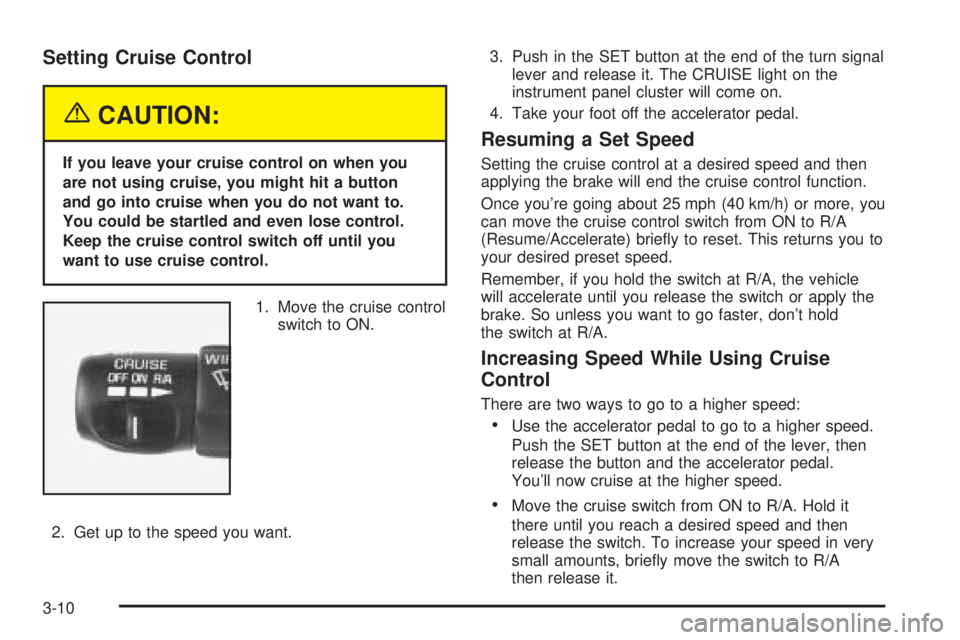
1. Move the cruise control
switch to ON.
2. Get up to the speed you want.3. Push in the SET button at the end of the turn signal
lever and release it. The CRUISE light on the
instrument panel cluster will come on.
4. Take your foot off the accelerator pedal.
Resuming a Set Speed
Setting the cruise control at a desired speed and then
applying the brake will end the cruise control function.
Once you're going about 25 mph (40 km/h) or more, you
can move the cruise control switch from ON to R/A
(Resume/Accelerate) brie¯y to reset. This returns you to
your desired preset speed.
Remember, if you hold the switch at R/A, the vehicle
will accelerate until you release the switch or apply the
brake. So unless you want to go faster, don't hold
the switch at R/A.
Increasing Speed While Using Cruise
Control
There are two ways to go to a higher speed:
·Use the accelerator pedal to go to a higher speed.
Push the SET button at the end of the lever, then
release the button and the accelerator pedal.
You'll now cruise at the higher speed.
·Move the cruise switch from ON to R/A. Hold it
there until you reach a desired speed and then
release the switch. To increase your speed in very
small amounts, brie¯y move the switch to R/A
then release it.
3-10
Page 144 of 372
Speedometer and Odometer
Your speedometer lets you see your speed in both
miles per hour (mph) and kilometers per hour (km/h).
Your odometer shows how far your vehicle has
been driven, in either miles (used in the United States)
or kilometers (used in Canada).
Your vehicle has a tamper-resistant odometer. You may
wonder what happens if your vehicle needs a new
odometer installed. If possible, the new one has to be
set to the same reading the old one had. If it can't
be, then it's set at zero and a label must be put on the
driver's door to show the old mileage reading and
when the new odometer was installed.
Trip Odometer
A trip odometer can tell how far you've driven since you
last set it back to zero. To reset it, push the RESET
button. The trip odometer is reset through the Driver
Information Center (DIC) if your vehicle is equipped with
this feature.
Tachometer
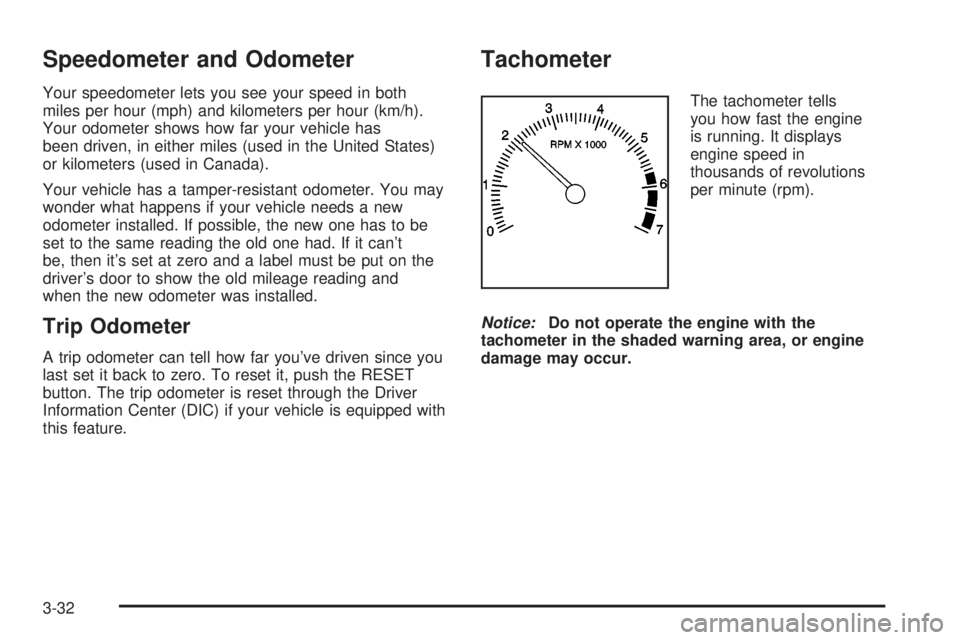
The tachometer tells
you how fast the engine
is running. It displays
engine speed in
thousands of revolutions
per minute (rpm).
Notice:Do not operate the engine with the
tachometer in the shaded warning area, or engine
damage may occur.
3-32
Page 148 of 372
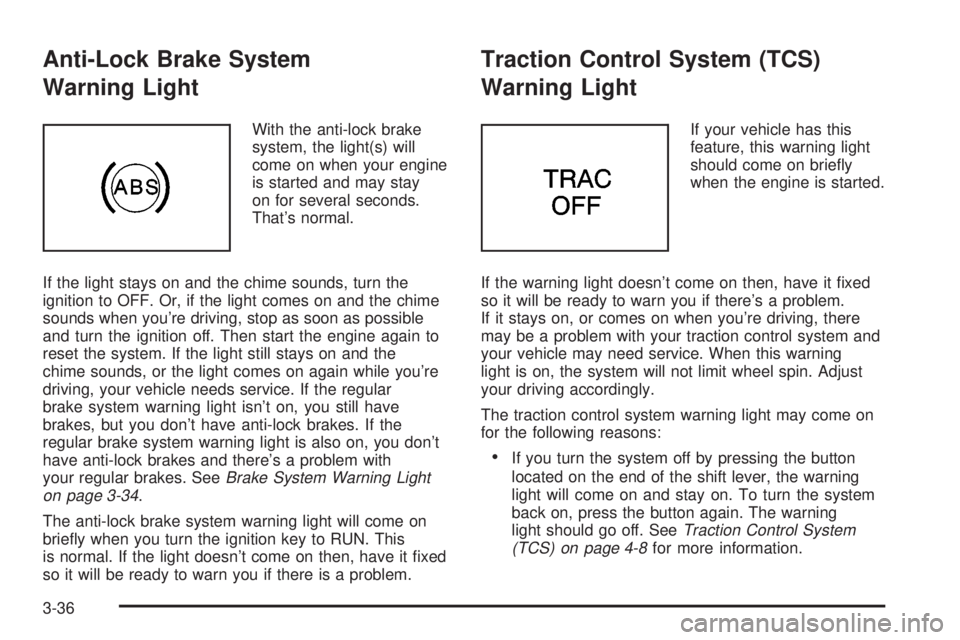
Anti-Lock Brake System
Warning Light
With the anti-lock brake
system, the light(s) will
come on when your engine
is started and may stay
on for several seconds.
That's normal.
If the light stays on and the chime sounds, turn the
ignition to OFF. Or, if the light comes on and the chime
sounds when you're driving, stop as soon as possible
and turn the ignition off. Then start the engine again to
reset the system. If the light still stays on and the
chime sounds, or the light comes on again while you're
driving, your vehicle needs service. If the regular
brake system warning light isn't on, you still have
brakes, but you don't have anti-lock brakes. If the
regular brake system warning light is also on, you don't
have anti-lock brakes and there's a problem with
your regular brakes. See
Brake System Warning Light
on page 3-34.
The anti-lock brake system warning light will come on
brie¯y when you turn the ignition key to RUN. This
is normal. If the light doesn't come on then, have it ®xed
so it will be ready to warn you if there is a problem.
Traction Control System (TCS)
Warning Light
If your vehicle has this
feature, this warning light
should come on brie¯y
when the engine is started.
If the warning light doesn't come on then, have it ®xed
so it will be ready to warn you if there's a problem.
If it stays on, or comes on when you're driving, there
may be a problem with your traction control system and
your vehicle may need service. When this warning
light is on, the system will not limit wheel spin. Adjust
your driving accordingly.
The traction control system warning light may come on
for the following reasons:
·If you turn the system off by pressing the button
located on the end of the shift lever, the warning
light will come on and stay on. To turn the system
back on, press the button again. The warning
light should go off. See
Traction Control System
(TCS) on page 4-8for more information.
3-36
Page 155 of 372
Driver Information Center (DIC)
Your vehicle may be equipped with a Driver Information
Center (DIC). The DIC will display information about
how your vehicle is functioning, as well as warning
messages if a system problem is detected.
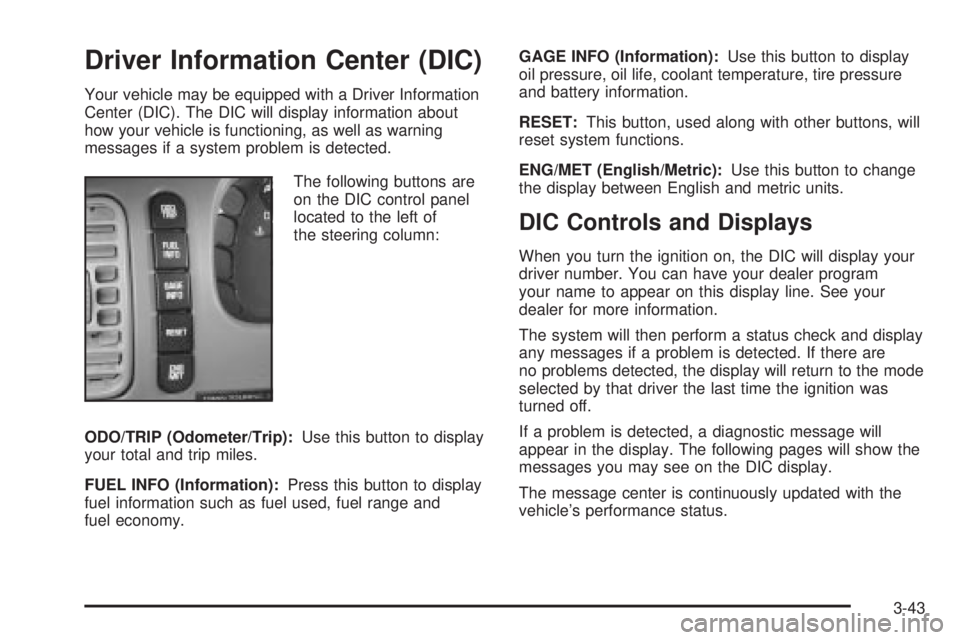
The following buttons are
on the DIC control panel
located to the left of
the steering column:
ODO/TRIP (Odometer/Trip):Use this button to display
your total and trip miles.
FUEL INFO (Information):Press this button to display
fuel information such as fuel used, fuel range and
fuel economy.GAGE INFO (Information):Use this button to display
oil pressure, oil life, coolant temperature, tire pressure
and battery information.
RESET:This button, used along with other buttons, will
reset system functions.
ENG/MET (English/Metric):Use this button to change
the display between English and metric units.
DIC Controls and Displays
When you turn the ignition on, the DIC will display your
driver number. You can have your dealer program
your name to appear on this display line. See your
dealer for more information.
The system will then perform a status check and display
any messages if a problem is detected. If there are
no problems detected, the display will return to the mode
selected by that driver the last time the ignition was
turned off.
If a problem is detected, a diagnostic message will
appear in the display. The following pages will show the
messages you may see on the DIC display.
The message center is continuously updated with the
vehicle's performance status.
3-43
Page 156 of 372
ODO/TRIP (Odometer/Trip)
When this button is pressed, the display will show the
total mileage, and TRIP 1 or TRIP 2 miles. TRIP 1
and TRIP 2 will display the miles traveled since the last
reset. To reset the trip odometer, press the ODO/TRIP
button until the trip miles are shown in the DIC
display, then press the RESET button. The trip odometer
will now accumulate miles until the next reset.
FUEL INFO (Information)
Fuel Used:Press the FUEL INFO button until the
display shows FUEL USED. This display will show you
how much fuel has been used since the last reset.
To learn how much fuel is used from a new starting
point, press the RESET button while the fuel used
is displayed in the DIC.
Fuel Range:Press the FUEL INFO button until the
display shows FUEL RANGE. The fuel range will
calculate the remaining distance you can drive without
refueling. This calculation is based on the average
fuel economy for the last 25 miles (40.25 km) driven,
and the fuel remaining in the fuel tank. The RESET
button does not function in this mode.
Instantaneous Fuel Economy:Press the FUEL INFO
button until the display shows FUEL ECONOMY
INST. Instantaneous fuel economy varies with yourdriving conditions, such as acceleration, braking and the
grade of the road being traveled. The RESET button
does not function in this mode.
Average Fuel Economy:Press the FUEL INFO button
until the display shows FUEL ECONOMY AVERAGE.
Average fuel economy is viewed as a long term
approximation of your overall driving conditions. To
learn the average fuel economy from a new starting
point, press the RESET button while the average fuel
economy is displayed in the DIC.GAGE INFO (Information)
Coolant Temperature:Press the GAGE INFO button
until COOLANT TEMP appears in the display. If there are
no problems detected with the temperature, COOLANT
TEMP NORMAL will appear in the display. If the
temperature is too high, COOLANT TEMP HOT will
appear in the display. If you see the COOLANT TEMP
HOT message, your engine is overheated. You should
pull off the road, stop your vehicle and turn off your
engine as soon as possible. This manual explains what to
do. See
Engine Overheating on page 5-27.
Tire Pressure:Press the GAGE INFO button until
TIRE PRESSURE appears in the display. TIRE
PRESSURE NORMAL is displayed when the Check
Tire Pressure System believes your vehicle's tire
pressures are normal. If a potential tire pressure
problem is detected, the display will show TIRE
PRESSURE LOW.
3-44
Page 157 of 372
Battery Volts:Press the GAGE INFO button until the
display shows BATTERY STATE. If the voltage is
normal the display will show BATTERY STATE
NORMAL. If the voltage drops below 10.5 volts, the
display will show BATTERY STATE LOW. If the voltage
is above 16 volts, the display will show BATTERY
STATE HIGH. If the display shows the high or low
message, you need to have your battery checked.
Oil Pressure:Press the GAGE INFO button until OIL
PRESSURE appears in the display. If there are no
problems detected with the oil pressure, the display will
show OIL PRESSURE NORMAL. If a low oil pressure
condition is detected, the display will show OIL
PRESSURE LOW. If you see the OIL PRESSURE LOW
message, you could be low on oil or your oil is not
going through the engine properly. See your dealer for
service.
Oil Life System:Press the GAGE INFO button until
OIL LIFE INDEX appears in the display. The OIL
LIFE INDEX NORMAL display will show an estimate of
the oil's remaining useful life. When the oil life index
is less than 10% the display will show OIL LIFE INDEX
CHANGE OIL. When you have the oil changed, you
will have to reset the GM Oil Life System. To reset the
Oil Life System, see
Engine Oil on page 5-14.
DIC Warnings and Messages
Other warning messages may appear in the DIC
display. For Canadian drivers, in addition to the DIC
message your DIC will display EXP with a number after
it which re¯ects the following messages:
EXP
(Export ID) Warning Message
23 DOOR AJAR
24 TRUNK AJAR
25 WINDSHIELD WASHER FLUID LOW
36 ENGINE OIL LOW Ð CHECK LEVEL
54 SERVICE STABILITY SYSTEM
55 STABILITY SYSTEM ACTIVE
82 CHANGE ENGINE OIL SOON
91TRACTION CONTROL SYSTEM
ACTIVE
140 TIRE PRESSURE LOW
The EXP codes are used to make translation from
English to other languages easier.
Pressing any of the DIC control buttons will remove
the messages or warnings from the DIC display.
3-45
Page 158 of 372
SERVICE STABILITY SYSTEM ± 54:If you ever see
the SERVICE STABILITY SYSTEM message, it
means there may be a problem with your stability
enhancement system. If you see this message, try to
reset the system (stop; turn off the engine; then start the
engine again). If the SERVICE STABILITY SYSTEM
message still comes on, it means there is a problem.
You should see your dealer for service. Reduce
your speed and drive accordingly.
STABILITY SYSTEM ACTIVE ± 55:You may see the
STABILITY SYSTEM ACTIVE message on the Driver
Information Center. It means that an advanced,
computer-controlled system has come on to help your
vehicle continue to go in the direction in which you're
steering. This stability enhancement system activates
when the computer senses that your vehicle is just
starting to spin, as it might if you hit a patch of ice or
other slippery spot on the road. When the system is on,
you may hear a noise or feel a vibration in the brake
pedal. This is normal.
When the STABILITY SYSTEM ACTIVE message is on,
you should continue to steer in the direction you want
to go. The system is designed to help you in bad
weather or other difficult driving situations by making the
most of whatever road conditions will permit. If the
STABILITY SYSTEM ACTIVE message comes on, you'll
know that something has caused your vehicle to start
to spin, so you should consider slowing down.Tire Pressure Status ± 140:If you see the TIRE
PRESSURE LOW message, you should stop as soon
as you can and check all your tires for damage. (If a tire
is ¯at, see
If a Tire Goes Flat on page 5-68.) Also
check the tire pressure in all four tires as soon as you
can. See
In¯ation -- Tire Pressure on page 5-59andCheck Tire Pressure System on page 5-60.
There are times when you will have to reset (calibrate)
the Check Tire Pressure System. See
Check Tire
Pressure System on page 5-60.
DIC Vehicle Personalization
The DIC is used to program personal choices for up to
two drivers. The drivers are recognized as DRIVER #1
and DRIVER #2. The DIC will identify a person as
UNKNOWN DRIVER if they are neither DRIVER #1 nor
DRIVER #2. You will let the DIC know which driver
you are by using your remote keyless entry transmitter
or by pressing one of the MEMORY buttons located
on the driver's door. Each remote keyless entry
transmitter was pre-programmed to belong to
DRIVER #1 or DRIVER #2. Each transmitter may be
programmed differently for each driver.
3-46
Page 160 of 372
4. Scroll through the following messages and feature
options:
·PARALLEL PARK ± OFF/ON
·AUTO DOOR LOCKS ± OFF/ON
·UNLOCK IN PARK ± OFF/ON
·WHICH DOORS ± ALL/DRIVER
·DELAYED LOCKING ± OFF/ON
·LOCK FEEDBACK ± OFF/ON
·LOCK FEEDBACK ± LIGHTS/LIGHTS + HORN
·UNLOCK FEEDBACK ± OFF/LIGHTS
·PERIMETER LIGHTS ± OFF/ON
·SEAT RECALL ± OFF/ON
·RECALL POSITION ± MEMORY/EXIT
·WINDOW LOCKOUT ± ALL PASS/REAR
If you would like to exit the selection mode without
moving through each of the personal choice features,
simply press a different button on the DIC or turn off the
ignition. However, personal choices you made may
not be retained.
If you happen to move past a selection you would like to
make a personal choice for, press the unlock button on
your transmitter or press the appropriate driver number
on the seat control. This will return you to the beginning of
the option feature programming mode.
A description of each feature programmable through the
DIC follows.
Outside Curb View Assist Mirror
The outside curb view assist mirror, which tilts the
passenger mirror while the vehicle is in REVERSE (R),
can be made active or inactive through the DIC.
When PARALLEL PARK-OFF-ON appears on the
display, use the ENG/MET button to toggle the arrow
between OFF and ON. When you have made your
choice, press the RESET button to record your
selection. For more information on this feature, see
Outside Curb View Assist Mirror on page 2-36.
Programmable Automatic Door Locks
The automatic door lock modes, when shifting in and out
of PARK (P), can be changed through the DIC. You
can change these modes using different selections from
the following DIC displays:
·AUTO DOOR LOCKS Ð OFF/ON
·UNLOCK IN PARK ÐOFF/ON
If you choose OFF for AUTO DOOR LOCKS, your door
locks will operate normally with no automatic feature.
If you choose ON for AUTO DOOR LOCKS, and ON for
UNLOCK IN PARK, your doors will lock every time
you shift out of PARK (P), and the doors will unlock
every time you stop and shift into PARK (P).
3-48