buttons BUICK RAINIER 2007 User Guide
[x] Cancel search | Manufacturer: BUICK, Model Year: 2007, Model line: RAINIER, Model: BUICK RAINIER 2007Pages: 534, PDF Size: 2.87 MB
Page 140 of 534
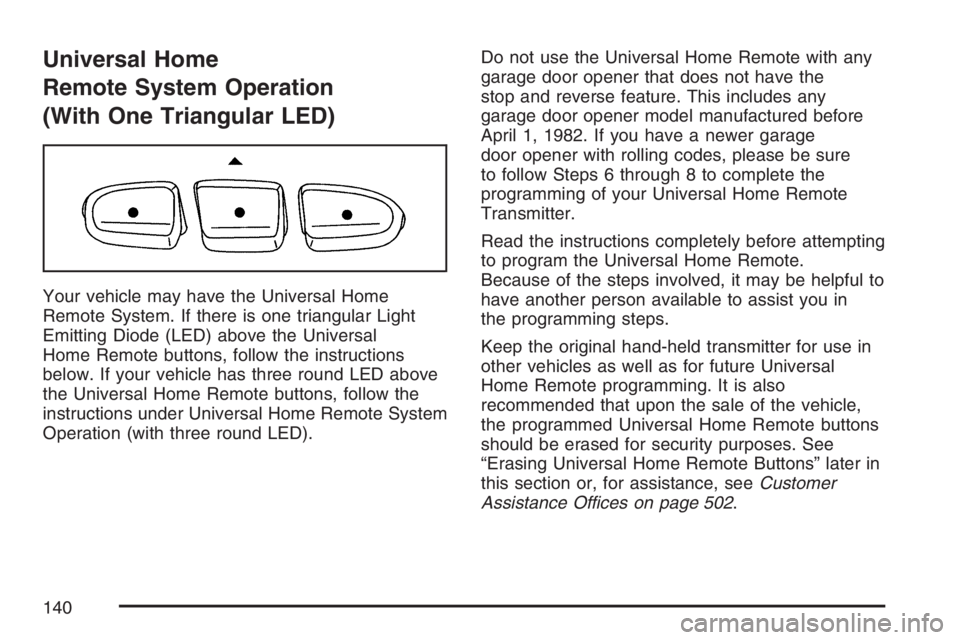
Universal Home
Remote System Operation
(With One Triangular LED)
Your vehicle may have the Universal Home
Remote System. If there is one triangular Light
Emitting Diode (LED) above the Universal
Home Remote buttons, follow the instructions
below. If your vehicle has three round LED above
the Universal Home Remote buttons, follow the
instructions under Universal Home Remote System
Operation (with three round LED).Do not use the Universal Home Remote with any
garage door opener that does not have the
stop and reverse feature. This includes any
garage door opener model manufactured before
April 1, 1982. If you have a newer garage
door opener with rolling codes, please be sure
to follow Steps 6 through 8 to complete the
programming of your Universal Home Remote
Transmitter.
Read the instructions completely before attempting
to program the Universal Home Remote.
Because of the steps involved, it may be helpful to
have another person available to assist you in
the programming steps.
Keep the original hand-held transmitter for use in
other vehicles as well as for future Universal
Home Remote programming. It is also
recommended that upon the sale of the vehicle,
the programmed Universal Home Remote buttons
should be erased for security purposes. See
“Erasing Universal Home Remote Buttons” later in
this section or, for assistance, seeCustomer
Assistance Offices on page 502.
140
Page 141 of 534
Be sure that people and objects are clear of
the garage door or gate operator you are
programming. When programming a garage door,
it is advised to park outside of the garage.
It is recommended that a new battery be installed in
your hand-held transmitter for quicker and more
accurate transmission of the radio-frequency signal.
Programming Universal Home Remote
Follow these steps to program up to three channels:
1. Press and hold down the two outside
Universal Home Remote buttons, releasing
only when the Universal Home Remote
indicator light begins to ash, after
20 seconds. Do not hold down the buttons for
longer than 30 seconds and do not repeat
this step to program a second and/or
third hand-held transmitter to the remaining
two Universal Home Remote buttons.2. Position the end of your hand-held transmitter
about 1 to 3 inches (3 to 8 cm) away from the
Universal Home Remote buttons while
keeping the indicator light in view.
3. Simultaneously press and hold both the
desired Universal Home Remote button
and the hand-held transmitter button. Do not
release the buttons until Step 4 has been
completed.
Some entry gates and garage door openers
may require you to substitute Step 3 with
the procedure noted in “Gate Operator and
Canadian Programming” later in this section.
4. The indicator light will ash slowly at rst and
then rapidly after Universal Home Remote
successfully receives the frequency signal
from the hand-held transmitter. Release both
buttons.
141
Page 142 of 534
5. Press and hold the newly-trained Universal
Home Remote button and observe the
indicator light.
If the indicator light stays on continuously,
programming is complete and your device
should activate when the Universal Home
Remote button is pressed and released.
To program the remaining two Universal Home
Remote buttons, begin with Step 2 under
“Programming Universal Home Remote.”
Do not repeat Step 1 as this will erase all of
the programmed channels.
If the indicator light blinks rapidly for two
seconds and then turns to a constant light,
continue with Steps 6 through 8 following to
complete the programming of a rolling-code
device, most commonly, a garage door opener.
6. Locate in the garage, the garage door opener
receiver (motor-head unit). Locate the “Learn”
or “Smart” button. This can usually be
found where the hanging antenna wire is
attached to the motor-head unit.7. Firmly press and release the “Learn” or
“Smart” button. The name and color of
the button may vary by manufacturer.
You will have 30 seconds to start Step 8.
8. Return to the vehicle. Firmly press and hold
the programmed Universal Home Remote
button for two seconds, then release. Repeat
the press/hold/release sequence a second
time, and depending on the brand of the
garage door opener or other rolling code
device, repeat this sequence a third time to
complete the programming.
The Universal Home Remote should now
activate the rolling-code device.
To program the remaining two Universal
Home Remote buttons, begin with Step 2 of
“Programming Universal Home Remote.” Do not
repeat Step 1, as this will erase all previous
programming from the Universal Home Remote
buttons.
142
Page 143 of 534
Gate Operator and Canadian
Programming
Canadian radio-frequency laws require transmitter
signals to time out or quit after several seconds
of transmission. This may not be long enough
for Universal Home Remote to pick up the signal
during programming. Similarly, some U.S. gate
operators are manufactured to time out in
the same manner.
If you live in Canada, or you are having difficulty
programming a gate operator or garage door
opener by using the “Programming Universal
Home Remote” procedures, regardless of where
you live, replace Step 3 under “Programming
Universal Home Remote” with the following:
Continue to press and hold the Universal Home
Remote button while you press and release every
two seconds (cycle) the hand-held transmitter
button until the frequency signal has been
successfully accepted by the Universal Home
Remote. The Universal Home Remote indicator
light will ash slowly at rst and then rapidly.
Proceed with Step 4 under “Programming
Universal Home Remote” to complete.
Using Universal Home Remote
Press and hold the appropriate Universal Home
Remote button for at least half of a second.
The indicator light will come on while the signal is
being transmitted.
Erasing Universal Home Remote
Buttons
To erase programming from the three Universal
Home Remote buttons do the following:
1. Press and hold down the two outside buttons
until the indicator light begins to ash, after
20 seconds. Do not hold the two outside
buttons for longer than 30 seconds.
2. Release both buttons.
The Universal Home Remote is now in the training
(learning) mode and can be programmed at any
time beginning with Step 2 under “Programming
Universal Home Remote” shown earlier in
this section.
Individual buttons cannot be erased, but they
can be reprogrammed. See “Reprogramming a
Single Universal Home Remote Button” following
this section.
143
Page 176 of 534
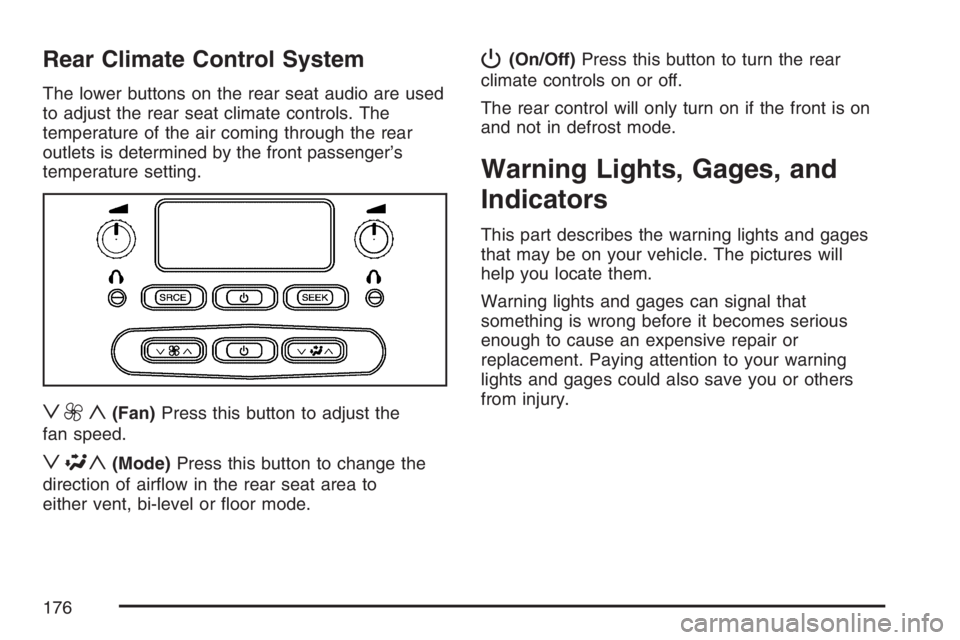
Rear Climate Control System
The lower buttons on the rear seat audio are used
to adjust the rear seat climate controls. The
temperature of the air coming through the rear
outlets is determined by the front passenger’s
temperature setting.
z9y(Fan)Press this button to adjust the
fan speed.
z\y(Mode)Press this button to change the
direction of airow in the rear seat area to
either vent, bi-level or oor mode.
P(On/Off)Press this button to turn the rear
climate controls on or off.
The rear control will only turn on if the front is on
and not in defrost mode.
Warning Lights, Gages, and
Indicators
This part describes the warning lights and gages
that may be on your vehicle. The pictures will
help you locate them.
Warning lights and gages can signal that
something is wrong before it becomes serious
enough to cause an expensive repair or
replacement. Paying attention to your warning
lights and gages could also save you or others
from injury.
176
Page 198 of 534
Driver Information Center (DIC)
The Driver Information Center (DIC) display is
located on the instrument panel cluster, below the
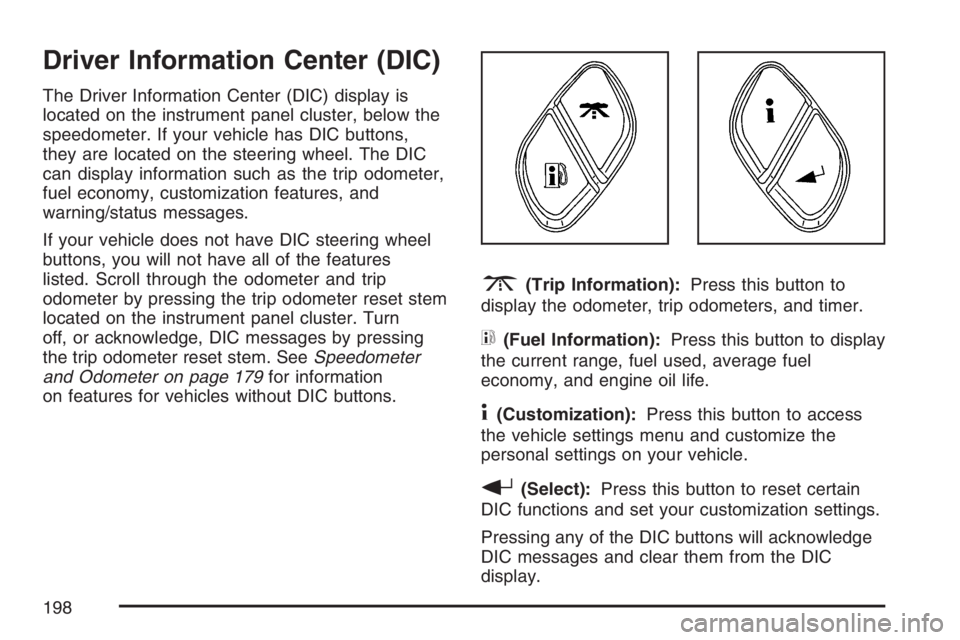
speedometer. If your vehicle has DIC buttons,
they are located on the steering wheel. The DIC
can display information such as the trip odometer,
fuel economy, customization features, and
warning/status messages.
If your vehicle does not have DIC steering wheel
buttons, you will not have all of the features
listed. Scroll through the odometer and trip
odometer by pressing the trip odometer reset stem
located on the instrument panel cluster. Turn
off, or acknowledge, DIC messages by pressing
the trip odometer reset stem. SeeSpeedometer
and Odometer on page 179for information
on features for vehicles without DIC buttons.
3(Trip Information):Press this button to
display the odometer, trip odometers, and timer.
t(Fuel Information):Press this button to display
the current range, fuel used, average fuel
economy, and engine oil life.
4(Customization):Press this button to access
the vehicle settings menu and customize the
personal settings on your vehicle.
r(Select):Press this button to reset certain
DIC functions and set your customization settings.
Pressing any of the DIC buttons will acknowledge
DIC messages and clear them from the DIC
display.
198
Page 199 of 534
DIC Operation and Displays
The DIC comes on when the ignition is on. After a
short delay the DIC will display the information
that was last displayed before the engine
was turned off.
If a problem is detected, a warning message will
appear on the display. Pressing the trip stem
will acknowledge any warning or service
messages. Pressing any of the DIC steering wheel
buttons — trip information, fuel information,
customization, or select button — will also
acknowledge any warnings or service messages.
You should take any message that appears on
the display seriously and remember that clearing
the message will only make the message
disappear, not correct the problem.
The DIC has different modes which can be
accessed by pressing the four DIC buttons located
on the steering wheel. These buttons are trip
information, fuel information, customization, and
select. The button functions are detailed in
the following pages.
Trip Information Button
3
(Trip Information):Press the trip
information button to scroll through the
ODOMETER, TRIP A, TRIP B, TIRE
PRESSURES, and TIMER.
Odometer:Press the trip information button until
ODOMETER appears on the display. This
mode shows the total distance the vehicle has
been driven in either miles or kilometers. Pressing
the reset stem located on the instrument cluster
with the vehicle off will also display the odometer.
Trip A:Press the trip information button until
TRIP A appears on the display. This mode shows
the current distance traveled since the last
reset for TRIP A in either miles or kilometers.
Trip B:Press the trip information button
until TRIP B appears on the display. This mode
shows the current distance traveled since the last
reset for TRIP B in either miles or kilometers.
199
Page 202 of 534
Customization Button
4
(Customization):Press the customization
button to access the VEHICLE SETTINGS menu
and customize the settings to your vehicle.
SeeDIC Vehicle Customization on page 208for
more information.
Select Button
r
(Select):Press the select button to reset
certain DIC functions, turn off or acknowledge
messages on the DIC display, and set your
customization settings. For example, this button
will allow you to reset the trip odometers, turn
off the FUEL LEVEL LOW message, and enables
you to scroll through and select the language
in which the DIC information will appear.
DIC Warnings and Messages
Messages are displayed on the DIC to notify the
driver that the status of the vehicle has changed
and that some action may be needed to correct the
condition. Multiple messages may appear one
after another.Some messages may not require immediate
action. Press any of the DIC buttons on the
steering wheel or the trip odometer reset stem on
the instrument panel cluster to acknowledge
that you received the messages and to clear them
from the display.
Some messages cannot be cleared from the
display because they are more urgent. These
messages require action before they can be
removed from the DIC display. Take any messages
that appear on the display seriously and remember
that clearing the messages will only make the
messages disappear, not correct the problem.
The following are the possible messages that can
be displayed and some information about them.
CHANGE ENGINE OIL
This message displays when the engine oil needs
to be changed and service is required for your
vehicle. SeeScheduled Maintenance on page 479
andEngine Oil on page 369for more information.
Also seeEngine Oil Life System on page 372
for information on how to reset the message. This
message clears itself after 10 seconds until the
next ignition cycle.
202
Page 203 of 534
CHECK TIRE PRESSURE
This message displays when the tire pressure in
one of the vehicle’s tires needs to be checked.
Press any of the DIC buttons, or the trip stem, to
acknowledge this message and clear it from
the DIC display.
If this message appears on the DIC, stop as soon
as you can. Have the tire pressures checked
and set to those shown on the Tire Loading
Information Label. SeeTires on page 411,Loading
Your Vehicle on page 330, andInation - Tire
Pressure on page 419. If the tire pressure is low,
the low tire pressure warning light comes on.
SeeTire Pressure Light on page 189.
CHECK WASHER FLUID
This message displays if the washer uid level is
low. Adding washer uid to the windshield
washer uid reservoir clears this message. See
Windshield Washer Fluid on page 391. This
message clears itself after 10 seconds, or you can
press any of the DIC buttons, or the trip stem,
to acknowledge this message and clear it from the
DIC display.
CURB VIEW ACTIVATED
This message displays when the passenger
outside rearview mirror moves into the curb view
position. SeeOutside Curb View Assist Mirror
on page 128for more information.
DRIVER DOOR AJAR
This message displays and a chime sounds if the
driver’s door is not fully closed. Stop and turn
off the vehicle, check the door for obstructions, and
close the door again. Check to see if the
message still appears on the DIC. Press any of
the DIC buttons, or the trip stem, to acknowledge
this message and clear it from the DIC display.
203
Page 204 of 534
ENGINE COOLANT HOT/ENGINE
OVERHEATED
Notice:If you drive your vehicle while the
engine is overheating, severe engine damage
may occur. If an overheat warning appears
on the instrument panel cluster and/or
DIC, stop the vehicle as soon as possible.
Do not increase the engine speed above
normal idling speed. SeeEngine Overheating
on page 382for more information.
This message displays and a chime sounds if the
cooling system temperature gets hot. See
Engine Overheating on page 382for the proper
course of action. This message clears when
the coolant temperature drops to a safe operating
temperature.
FUEL LEVEL LOW
This message displays and a chime sounds if the
fuel level is low in the vehicle’s fuel tank. Refuel as
soon as possible. Press any of the DIC buttons, or
the trip stem, to acknowledge this message and
clear it from the DIC display. SeeLow Fuel Warning
Light on page 197,Filling the Tank on page 361,
andFuel on page 358for more information.
ICE POSSIBLE
This message may display if the outside
temperature reaches a level where ice could form
on the roadway. If the temperature rises to a safe
level, the message clears. This message clears
itself after 10 seconds, or you can press any of the
DIC buttons, or the trip stem, to acknowledge this
message and clear it from the DIC display.
KEY FOB # BATTERY LOW
This message displays if a Remote Keyless Entry
(RKE) transmitter battery is low. Replace the
battery in the transmitter. See “Battery
Replacement” underRemote Keyless Entry (RKE)
System Operation on page 94. Press any of the
DIC buttons, or the trip stem, to acknowledge this
message and clear it from the DIC display.
LEFT REAR DOOR AJAR
This message displays and a chime sounds if the
driver’s side rear door is not fully closed. Stop and
turn off the vehicle, check the door for obstructions,
and close the door again. Check to see if the
message still appears on the DIC. Press any of the
DIC buttons, or the trip stem, to acknowledge this
message and clear it from the DIC display.
204