ignition BUICK RAINIER 2007 Workshop Manual
[x] Cancel search | Manufacturer: BUICK, Model Year: 2007, Model line: RAINIER, Model: BUICK RAINIER 2007Pages: 534, PDF Size: 2.87 MB
Page 210 of 534
UNLOCK DOORS: KEY OUT:All of the doors
will unlock when the key is taken out of the
ignition.
UNLOCK DOORS: MANUALLY:The doors will
not be unlocked automatically.
Choose one of the available options and press the
customization button while it is displayed on the
DIC to select it and move on to the next feature.
For more information on automatic door locks, see
Programmable Automatic Door Locks on page 98.
Lock Feedback
Press the customization button until LOCK
FEEDBACK: BOTH appears in the display.
To select your preference for the feedback you
receive when locking the vehicle with the Remote
Keyless Entry (RKE) transmitter, press the
select button while LOCK FEEDBACK: BOTH is
displayed on the DIC. Pressing the select
button will scroll through the following choices:
LOCK FEEDBACK: BOTH (default):The parking
lamps will ash each time you press the button
with the lock symbol on the RKE transmitter
and the horn will chirp the second time you press
the lock button.LOCK FEEDBACK: OFF:There will be no
feedback when locking the vehicle.
LOCK FEEDBACK: LAMPS:The parking lamps
will ash each time you press the button with
the lock symbol on the RKE transmitter.
LOCK FEEDBACK: HORN:The horn will chirp
the second time you press the button with the lock
symbol on the RKE transmitter.
Choose one of the available options and press the
customization button while it is displayed on the
DIC to select it and move on to the next feature.Unlock Feedback
Press the customization button until UNLOCK
FEEDBACK: LAMPS appears in the display. To
select your preference for the feedback you will
receive when unlocking the vehicle with the Remote
Keyless Entry (RKE) transmitter, press the select
button while UNLOCK FEEDBACK: LAMPS is
displayed on the DIC. Pressing the select button will
scroll through the following choices:
UNLOCK FEEDBACK: LAMPS (default):The
parking lamps will ash each time you press the
button with the unlock symbol on the RKE
transmitter.
210
Page 212 of 534
PERIMETER LIGHTS: OFF:The perimeter lights
will not come on when you unlock the vehicle
with the RKE transmitter.
Choose one of the available options and press the
customization button while it is displayed on the
DIC to select it and move on to the next feature.
Easy Exit Seat
Press the customization button until EASY EXIT
SEAT: OFF appears in the display. To select your
preference for seat position exit, press the
select button while EASY EXIT SEAT: OFF is
displayed on the DIC. Pressing the select button
will scroll through the following choices:
EASY EXIT SEAT: OFF (default):No seat exit
recall will occur.
EASY EXIT SEAT: ON:The driver’s seat will
move to the exit position when the key is removed
from the ignition.
Choose one of the available options and press the
customization button while it is displayed on the
DIC to select it and move on to the next feature.
For more information on seat position exit,
see “Easy Exit Seat” underMemory Seat, Mirrors,
and Pedals on page 10.
Seat Recall
Press the customization button until SEAT
RECALL: OFF appears in the display. To select
your preference for recall of the driver’s memory
seat, mirrors, and adjustable pedals, if your vehicle
has this feature, press the select button while
SEAT RECALL: OFF is displayed on the
DIC. Pressing the select button will scroll through
the following choices:
SEAT RECALL: OFF (default):The driver’s
memory seat, mirrors, and adjustable pedals
position you saved will only be recalled when the
memory button 1 or 2 is pressed.
SEAT RECALL: AT KEY IN:The driver’s
memory seat, mirrors, and adjustable pedals
position you saved will be recalled when you put
the key in the ignition.
SEAT RECALL: ON REMOTE:The driver’s
memory seat, mirrors, and adjustable pedals
position you saved will be recalled when
you unlock the vehicle with the Remote Keyless
Entry (RKE) transmitter.
212
Page 216 of 534
While your vehicle is parked:
Familiarize yourself with all of its controls.
Familiarize yourself with its operation.
Set up your audio system by presetting your
favorite radio stations, setting the tone, and
adjusting the speakers. Then, when driving
conditions permit, you can tune to your favorite
radio stations using the presets and steering
wheel controls if the vehicle has them.
Notice:Before adding any sound equipment
to your vehicle, such as an audio system,
CD player, CB radio, mobile telephone,
or two-way radio, make sure that it can be
added by checking with your dealer. Also,
check federal rules covering mobile radio and
telephone units. If sound equipment can be
added, it is very important to do it properly.
Added sound equipment may interfere with the
operation of your vehicle’s engine, radio, or
other systems, and even damage them.
Your vehicle’s systems may interfere with the
operation of sound equipment that has
been added.Notice:The chime signals related to safety
belts, parking brake, and other functions
of your vehicle operate through the
radio/entertainment system. If that equipment
is replaced or additional equipment is added
to your vehicle, the chimes may not work. Make
sure that replacement or additional equipment
is compatible with your vehicle before
installing it. SeeAccessories and Modifications
on page 356.
Your vehicle has a feature called Retained
Accessory Power (RAP). With RAP, the audio
system can be played even after the ignition
is turned off. SeeRetained Accessory
Power (RAP) on page 110for more information.
216
Page 217 of 534
Setting the Time
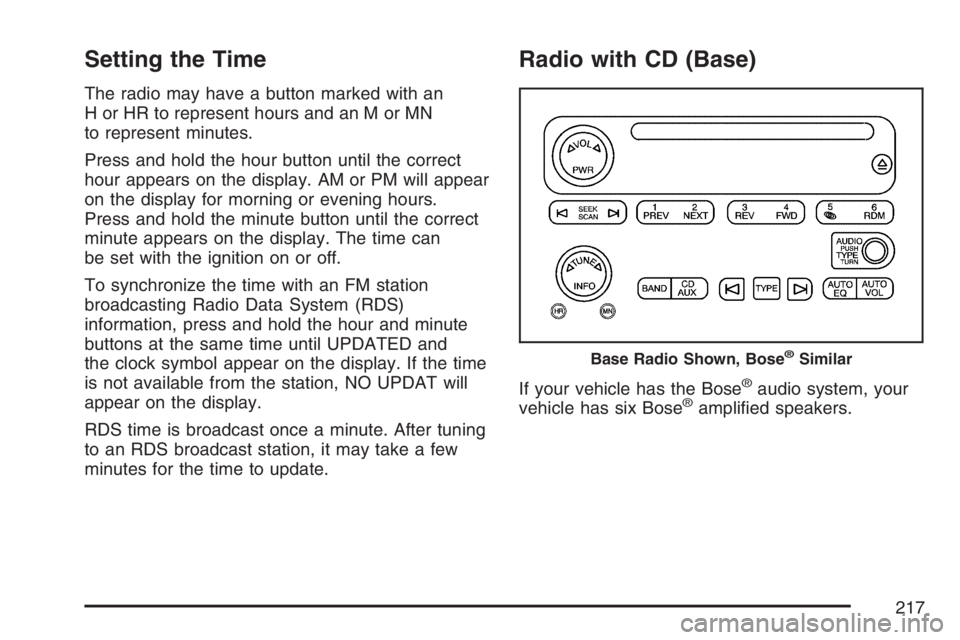
The radio may have a button marked with an
H or HR to represent hours and an M or MN
to represent minutes.
Press and hold the hour button until the correct
hour appears on the display. AM or PM will appear
on the display for morning or evening hours.
Press and hold the minute button until the correct
minute appears on the display. The time can
be set with the ignition on or off.
To synchronize the time with an FM station
broadcasting Radio Data System (RDS)
information, press and hold the hour and minute
buttons at the same time until UPDATED and
the clock symbol appear on the display. If the time
is not available from the station, NO UPDAT will
appear on the display.
RDS time is broadcast once a minute. After tuning
to an RDS broadcast station, it may take a few
minutes for the time to update.
Radio with CD (Base)
If your vehicle has the Bose®audio system, your
vehicle has six Bose®amplied speakers.
Base Radio Shown, Bose®Similar
217
Page 219 of 534
Playing the Radio
PWR (Power):Press this knob to turn the system
on and off.
oVOLp(Volume):Turn this knob clockwise or
counterclockwise to increase or to decrease the
volume.
INFO (Information):When the ignition is off,
press this knob to display the time.
For RDS, press the INFO knob to change what
appears on the display while using RDS. The
display options are station name, RDS station
frequency, PTY (program type), and the name of
the program (if available).
For XM™ (if equipped), press the INFO knob
while in XM™ mode to retrieve four different
categories of information related to the current
song or channel: Artist, Song Title, Category
or PTY, Channel Number/Channel Name.To change the default on the display, press the
INFO knob until you see the desired display, then
press and hold the knob until a beep sounds.
The selected display becomes the default.
AUTO VOL (Automatic Volume):With automatic
volume, the audio system adjusts automatically
to make up for road and wind noise as you drive
by increasing the volume as vehicle speed
increases.
Set the volume at the desired level. Press this
button to select LOW, MEDIUM, or HIGH. AVOL
displays. Each higher setting provides more
volume compensation at faster vehicle speeds.
To turn automatic volume off, press this button
until AVOL OFF displays.
219
Page 224 of 534
RDS Messages
INFO (Information):If the current station has a
message, the information symbol displays.
Press this button to see the message. The
message can display the artist, song title, call in
phone numbers, etc.
If the entire message is not displayed, parts of
the message appears every three seconds.
To scroll through the message, press and release
the INFO button. A new group of words displays
after every press of the button. Once the complete
message displays, the information symbol
disappears from the display until another new
message is received. The last message can be
displayed by pressing the INFO button. The
last message can be viewed until a new message
is received or you can tune to a different station.
Radio Messages
CAL ERR (Calibration Error):The audio system
has been calibrated for your vehicle from the
factory. If CAL ERR displays, it means that the
radio has not been congured properly for
the vehicle and must be returned to your dealer
for service.LOCKED:This message is displayed when the
THEFTLOCK
®system has locked up. Take
the vehicle to your dealer for service.
If any error occurs repeatedly, or if an error cannot
be corrected, contact your dealer.
Radio Messages for XM™ Only
SeeXM Radio Messages on page 257later in this
section for further detail.
Playing a CD
Insert a CD partway into the slot, label side up.
The player pulls it in and the CD should begin
playing. If you want to insert a CD with the ignition
off, rst press the eject button or the INFO knob.
If the ignition or radio is turned off with the CD in the
player, it stays in the player. When the ignition or
radio is turned on, the CD starts playing where it
stopped, if it was the last selected audio source.
When a CD is inserted, the CD symbol displays.
As each new track starts to play, the track number
displays.
224
Page 227 of 534
INFO (Information):Press this knob to see how
long the current track has been playing. ET and the
elapsed time displays. To change the default on the
display, track, or elapsed time, press the knob until
you see the desired display, then press and hold
the knob for two seconds. The radio produces one
beep and the selected display becomes the default.
BAND:Press this button to listen to the radio
while a CD is playing. The inactive CD remains
inside the radio for future listening.
CD AUX (Auxiliary):Press this button to play a
CD while listening to the radio, or to listen to
an auxiliary source (such as rear seat
entertainment, if equipped).
Z(Eject):Press this button to eject a CD. Eject
can be activated with either the ignition or radio
off. CDs can be loaded with the radio and ignition
off if this button is pressed rst.
CD Messages
If the CD comes out, it could be for one of the
following reasons:
It is very hot. When the temperature returns to
normal, the CD should play.
You are driving on a very rough road.
When the road becomes smoother, the CD
should play.
The CD is dirty, scratched, wet, or
upside down.
The air is very humid. If so, wait about an
hour and try again.
There could have been a problem while
burning the CD.
The label could be caught in the CD player.
If the CD is not playing correctly, for any
other reason, try a known good CD.
If any error occurs repeatedly or if an error cannot
be corrected, contact your dealer. If the radio
displays an error message, write it down
and provide it to your dealer when reporting the
problem.
227
Page 229 of 534
While the radio is tuned to an RDS station, the
station name or call letters display instead of the
frequency. RDS stations may also provide the
time of day, a program type (PTY) for current
programming, and the name of the program being
broadcast.
XM™ Satellite Radio Service
XM™ is a satellite radio service that is based in
the 48 contiguous United States and Canada.
XM™ offers a large variety of coast-to-coast
channels including music, news, sports, talk,
traffic/weather (U.S. subscribers), and children’s
programming. XM™ provides digital quality
audio and text information that includes song title
and artist name. A service fee is required in
order to receive the XM™ service. For more
information, contact XM™; In the U.S. at
www.xmradio.com or call 1-800-852-XMXM (9696)
or in Canada at www.xmradio.ca or call
1-877-GET-XMSR (438-9677).
Playing the Radio
PWR (Power):Press this knob to turn the system
on and off.
oVOLp(Volume):Turn this knob clockwise
or counterclockwise to increase or to decrease
the volume.
DISPL (Display):When the ignition is turned off,
press this knob to display the time.
For RDS, press the DISPL knob to change the
display while using RDS. The display options are
station name, RDS station frequency, PTY,
and the name of the program (if available).
For XM™ (if equipped), press the DISPL knob
while in XM™ mode to retrieve four different
categories of information related to the current
song or channel: Artist, Song Title, Category
or PTY, Channel Number/Channel Name.
To change the default on the display, press the
DISPL knob until you see the desired display, then
press and hold this knob for two seconds. The
radio produces one beep and the selected display
becomes the default.
229
Page 234 of 534
TRAF (Traffic):If TRAF displays, the tuned
station broadcasts traffic announcements and you
will hear a traffic announcement when the
tuned radio station broadcasts one.
If the station does not broadcast traffic
announcements, press the TRAF button and the
radio seeks to a station that does. When a station
that broadcasts traffic announcements is found,
the radio stops seeking and TRAF displays.
If no station is found that broadcasts traffic
announcements, No Traf displays.
If TRAF displays, press the TRAF button to turn
off the traffic announcements.
The radio plays the traffic announcement if the
volume is low. The radio interrupts the play
of a CD if the last tuned station broadcasts traffic
announcements.
This function does not apply to XM™ Satellite
Radio Service.Radio Messages
CAL ERR (Calibration Error):The audio system
has been calibrated for your vehicle from the
factory. If CAL ERR displays it means that
the radio has not been congured properly for
your vehicle and it must be returned to your
dealer for service.
LOCKED:This message is displayed when the
THEFTLOCK
®system has locked up. Take
your vehicle to your dealer for service.
If any error occurs repeatedly or if an error cannot
be corrected, contact your dealer.
Radio Messages for XM™ Only
SeeXM Radio Messages on page 257later in this
section for further detail.
Playing a CD
Insert a CD partway into the slot, label side up.
The player pulls it in, and READING displays. The
CD should begin playing. If you want to insert a
CD with the ignition off, rst press the eject button
or the DISPL knob.
234
Page 235 of 534
If the ignition or radio is turned off with a CD in the
player it stays in the player. When the ignition or
radio is turned on, the CD starts to play where it
stopped, if it was the last selected audio source.
When the CD is inserted, the CD symbol displays.
As each new track starts to play, the track
number also displays.
The CD player can play the smaller 3 inch (8 cm)
single CDs with an adapter ring. Full-size CDs
and the smaller CDs are loaded in the same
manner.
If playing a CD-R, the sound quality can be
reduced due to CD-R quality, the method of
recording, the quality of the music that has been
recorded, and the way the CD-R has been
handled. There can be an increase in skipping,
difficulty in nding tracks, and/or difficulty in loading
and ejecting. If these problems occur, check the
bottom surface of the CD. If the surface of the CD
is damaged, such as cracked, broken, or
scratched, the CD will not play properly. If the
surface of the CD is soiled, seeCare of Your CDs
and DVDs on page 279for more information.
If there is no apparent damage, try a known
good CD.Do not add any label to a CD, it could get caught
in the CD player. If a CD is recorded on a
personal computer and a description label is
needed, try labeling the top of the recorded CD
with a marking pen.
Notice:If you add any label to a CD, insert
more than one CD into the slot at a time, or
attempt to play scratched or damaged CDs, you
could damage the CD player. When using the
CD player, use only CDs in good condition
without any label, load one CD at a time, and
keep the CD player and the loading slot free of
foreign materials, liquids, and debris.
If an error appears on the display, see “CD
Messages” later in this section.
1 FLD
x(Previous):This pushbutton does not
work while using a non-MP3 CD.
2 FLD
w(Next):This pushbutton does not work
while using a non-MP3 CD.
235