audio BUICK RANDEZVOUS 2003 Owner's Guide
[x] Cancel search | Manufacturer: BUICK, Model Year: 2003, Model line: RANDEZVOUS, Model: BUICK RANDEZVOUS 2003Pages: 432, PDF Size: 2.75 MB
Page 236 of 432

n,q,p,o(Directional Arrows):Press these
buttons to move through DVD menus. The up arrow will
skip to the next chapter or track, the down arrow will
take you to the beginning of the current chapter or track.
Press the down arrow twice to take you to the previous
chapter or track. The right arrow will fast forward
and the left arrow will reverse through a chapter or track.
z(Display Control Button):Press this button to
adjust color, tint, brightness, contrast, and display mode
(normal, full or zoom). The dynamic range compression
feature can be used to reduce the loud audio produced
by some DVDs, and to improve the audio quality.
e(Sound):This button moves to next the language
or commentary. Press this button to call-up a menu that
will operate only when a DVD is playing. The format
and content of this function will vary from disc to disc.
r(Rewind):Press this button to reverse the DVD.
To stop reversing, press this button again. This
button may not work when the DVD is playing the
copyright information or the previews.
SRCE (Source):Press this button to toggle the system
between the DVD player and an auxiliary source.
c(Stop):Press this button to stop playing, rewinding
or fast forwarding a DVD or CD. Press this button
twice to return to the beginning of the DVD.
t(Prior Chapter/Track):Press this button to go to
the beginning of the next chapter or track. Press
this button again to return to the previous chapter or
track. This button may not work when the DVD is playing
the copyright information or previews.
1 through 0 (Numeric Keypad):The numeric keypad
provides you with the capability of direct chapter title
and track number selection. Press the button located on
the bottom right of the numeric kept pad to select
chapter, title and track numbers greater than 9.
P(Backlight):This button turns on backlighting on
the remote for use at night.
y(Main Menu):Press this button to view the media
menu. The media menu is different on every disc.
Use the up, down, right and left arrow buttons to move
the cursor around the media menu. After making a
selection, press the enter button.
r(Enter):Press this button to select choices
highlighted in any menu.
q(Return):Press this button to take you back one
step in any menu. Press this button to exit the current
menu to move to the previous menu. This button
will operate only when a DVD is playing and/or a menu
is active.
3-100
2003 - Rendezvous OM
Page 237 of 432

U(Camera):This button changes camera angles on
DVDs that have this feature. Press this button to
call-up a menu that will operate only when a DVD is
being played. The format and content of this function will
vary from disc to disc.
{(Subtitles):This button turns on subtitles and
moves through subtitle options (English, Spanish,
French, etc., if available). Press this button to call-up a
menu that will operate only when a DVD is being
played. The format and content of this function will vary
from disc to disc.
[(Fast Forward):Press this button to fast forward
the DVD. To stop fast forwarding, press this button
again. This button may not work when the DVD
is playing the copyright information or the previews.
s(Play/Pause):Press this button to start play of a
DVD or CD. Press this button while a DVD is playing
to pause it. Press it again to continue playing the DVD
or CD.
u(Next Chapter/Track):Press this button to go to
the beginning of the next chapter or track. This
button may not work when the DVD is playing the
copyright information or the previews.
Setup Menu
To access the setup menu, ensure that a DVD disc is in
the player and the video is stopped. Press the main menu
button. Once the menu is activated, use the directional
arrows and the enter button to navigate the screen.
The setup menu allows the user to select default
preferences for Menu Language, Subtitle Language,
Audio Language, TV Aspect, TV Mode, and Dynamic
Range Compression.
Not all DVDs support all the feature defaults in the setup
menus. In the event a particular feature is not supported,
defaults will be provided by the DVD media.
Exit the setup menu by pressing the return button on
the remote control or the DVD player. If you make
changes to the system setup defaults, the disc
will resume play from its beginning and not where it
previously left off.
Battery Replacement
To change the remote control batteries, do the following:
1. Unclip the battery door located on the back of the
remote control.
2. Remove the batteries from the compartment.
3. Replace the two AA batteries. Make sure that they
are installed correctly, using the diagram on the
inside of the battery compartment.
3-101
2003 - Rendezvous OM
Page 239 of 432

Problem Recommended Action
The language in the audio
or on the screen is wrong.Press the main menu
button on the DVD player
or the remote control and
change the audio or
language selection on the
DVD menu.
The remote control does
not work.Point the remote control
directly at the transmitter
window. The batteries
could be weak or put in
wrong. The parental
control button might have
been pressed. (The power
indicator light willflash.)
How do I get subtitles on
or off?Press the subtitle button
on the remote control to
go to the DVDs main
menu. Then follow the
screen prompts.
After stopping the player, I
push the play button but
sometimes the DVD starts
where I left off, and
sometimes at the
beginning.Press the stop button on
the remote control to
resume where the DVD
left off. Press the stop
button twice to start the
DVD at the beginning. If
the power is off and the
DVD is still in the player,
press the play button.Problem Recommended Action
The DVD is playing but
there is no picture or
sound. The auxiliary
source is running but
there is no picture or
sound.Press and release the
SRCE button on the
remote control or the DVD
player to get to auxiliary
input. Check to make sure
that the auxiliary source is
connected to the inputs
properly.
The audio or video skips
or jumps.The DVD could be dirty or
scratched. Try cleaning
the DVD.
When I return to the DVD
from the system menu,
sometimes it plays from
the beginning and
sometimes from where it
left off.If the stop button was
pressed once, it resumes
play from where it left off.
If the stop button was
pressed twice, it will start
at the beginning of the
DVD. However, if a
change was made to the
menu the DVD will start
from where it left off, even
if the stop button was only
pressed once.
3-103
2003 - Rendezvous OM
Page 240 of 432

Problem Recommended Action
The fast forward, reverse,
previous and next
functions do not work.Some commands that do
one thing for DVDs will
not always work or
perform the same function
for audio, CDs or games.
These functions may also
be disabled when the
DVD is playing the
copyright information or
previews.
My disc is stuck in the
player. The eject button
does not work.Press the eject button on
the DVD player. Turn the
power off, then on again,
then press the eject
button on the DVD player.
Do not attempt to force or
remove the disc from the
player. If the problem
persists, return to your
dealer for further
assistance.
I lost the remote control
and/or the headphones.Contact your dealer for
assistance.
What is the best way to
clean the screen?Wipe the video screen
with a soft cloth that is
slightly damp with water.Problem Recommended Action
Sometimes the cordless
headphone audio cuts out
or buzzes for a moment,
then it comes back.This could be caused by
interference from cell
towers or by using your
cellular telephone or other
radio transmitter device in
the vehicle.
DVD System inoperable. In severe or extreme
temperatures your DVD
system might not be
operable. Temperatures
below−4°F(−20°C) or
above 140°F (60°C). To
could damage your DVD
system. Please operate
your DVD system under
normal or comfortable
cabin temperature ranges.
The cordless headphones
have audio distortion.Verify that the
headphones are facing to
the front of the vehicle
(left and right sides are
indicated on the
headphones to ensure
that the signal is received
properly.
In auxiliary mode, the
picture moves or scrolls.Check the signal coming
from the auxiliary device
and make sure that the
connection and the signal
are good.
3-104
2003 - Rendezvous OM
Page 241 of 432

Rear Seat Audio (RSA)
This feature allows rear seat passengers to listen to and
control any of the music sources: radio, cassette
tapes and CDs. However, the rear seat passengers can
only control the music sources that the front seat
passengers are not listening to. For example, rear seat
passengers may listen to a cassette tape or CD
through headphones, while the driver listens to the radio
through the front speakers. The rear seat passengers
have control of the volume for each set of headphones.
The front seat audio controls always have priority
over the RSA controls. If the front seat passengers
switch the source for the main radio to a remote source,
the RSA will play the same remote source. The rear
speakers will be muted when the RSA power is turned
on. You may operate the RSA functions even when
the main radio is off.
Primary Radio Controls
The following function is controlled by the knob on the
main radio:
PWR (Power):Push this knob twice to turn RSA off.
Rear Seat Radio Controls
The following functions are controlled by the RSA
system buttons:
PWR (Power):Press this button to turn RSA on or off.
VOL (Volume):Press this knob lightly so it extends.
Turn the knob to increase or to decrease volume.
Push the knob back into its stored position when you’re
not using it. The upper VOL knob controls the upper
headphone and the lower VOL knob controls the lower
headphone.
3-105
2003 - Rendezvous OM
Page 243 of 432
If THEFTLOCK®is activated, your radio will not operate
if stolen. The radio will display LOCKED and a red
LED indicator light will come on above the key symbol
to indicate a locked condition. If this occurs, the radio will
need to be returned to the dealer.
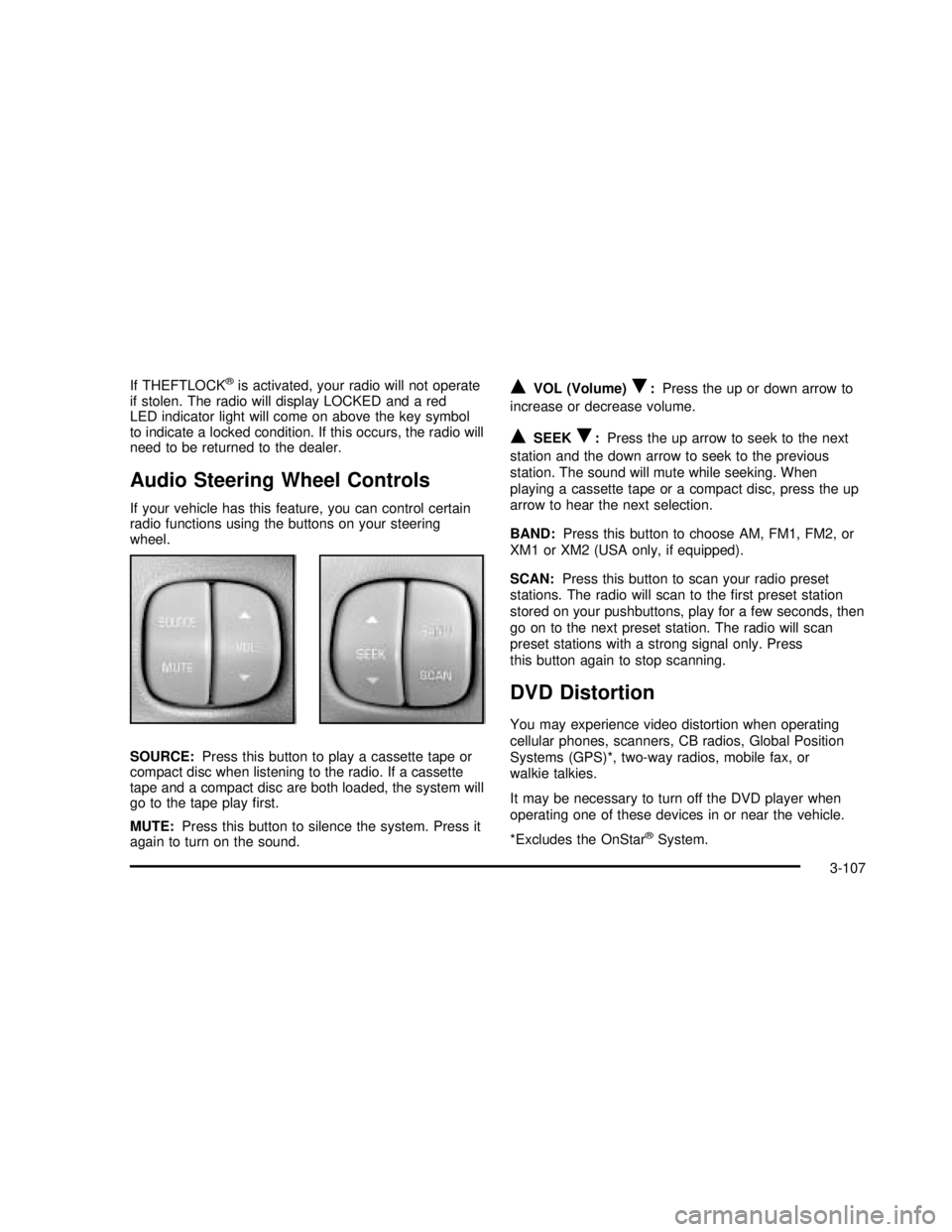
Audio Steering Wheel Controls
If your vehicle has this feature, you can control certain
radio functions using the buttons on your steering
wheel.
SOURCE:Press this button to play a cassette tape or
compact disc when listening to the radio. If a cassette
tape and a compact disc are both loaded, the system will
go to the tape playfirst.
MUTE:Press this button to silence the system. Press it
again to turn on the sound.
QVOL (Volume)R:Press the up or down arrow to
increase or decrease volume.
QSEEKR:Press the up arrow to seek to the next
station and the down arrow to seek to the previous
station. The sound will mute while seeking. When
playing a cassette tape or a compact disc, press the up
arrow to hear the next selection.
BAND:Press this button to choose AM, FM1, FM2, or
XM1 or XM2 (USA only, if equipped).
SCAN:Press this button to scan your radio preset
stations. The radio will scan to thefirst preset station
stored on your pushbuttons, play for a few seconds, then
go on to the next preset station. The radio will scan
preset stations with a strong signal only. Press
this button again to stop scanning.
DVD Distortion
You may experience video distortion when operating
cellular phones, scanners, CB radios, Global Position
Systems (GPS)*, two-way radios, mobile fax, or
walkie talkies.
It may be necessary to turn off the DVD player when
operating one of these devices in or near the vehicle.
*Excludes the OnStar
®System.
3-107
2003 - Rendezvous OM
Page 324 of 432
For example, if someone puts in brake linings that are
wrong for your vehicle, the balance between your
front and rear brakes can change–for the worse.
The braking performance you’ve come to expect can
change in many other ways if someone puts in the
wrong replacement brake parts.
Battery
Your new vehicle comes with a maintenance free
ACDelco®battery. When it’s time for a new battery, get
one that has the replacement number shown on the
original battery’s label. We recommend an ACDelco
®
battery. SeeEngine Compartment Overview on
page 5-10for battery location.
Warning:Battery posts, terminals and related
accessories contain lead and lead compounds,
chemicals known to the State of California to cause
cancer and reproductive harm. Wash hands after
handling.
Vehicle Storage
If you’re not going to drive your vehicle for 25 days or
more, remove the black, negative (−) cable from
the battery. This will help keep your battery from
running down.
{CAUTION:
Batteries have acid that can burn you and gas
that can explode. You can be badly hurt if you
aren’t careful. See“Jump Starting”next for
tips on working around a battery without
getting hurt.
Contact your dealer to learn how to prepare your
vehicle for longer storage periods.
Also, for your audio system, seeTheft-Deterrent
Feature on page 3-106.
Jump Starting
If your battery has run down, you may want to use
another vehicle and some jumper cables to start your
vehicle. Be sure to follow the steps below to do it safely.
5-36
2003 - Rendezvous OM
Page 391 of 432

Part B: Owner Checks and Services
Listed in this part are owner checks and services
which should be performed at the intervals specied to
help ensure the safety, dependability and emission
control performance of your vehicle.
Be sure any necessary repairs are completed at once.
Whenever anyuids or lubricants are added to your
vehicle, make sure they are the proper ones, as shown
in Part D.
At Each Fuel Fill
It is important for you or a service station attendant to
perform these underhood checks at each fuelfill.
Engine Oil Level Check
Check the engine oil level and add the proper oil if
necessary. SeeEngine Oil on page 5-11for further
details.
Engine Coolant Level Check
Check the engine coolant level and add DEX-COOL®
coolant mixture if necessary. SeeEngine Coolant
on page 5-19for further details.
Windshield Washer Fluid Level Check
Check the windshield washeruid level in the windshield
washer tank and add the properuid if necessary.
SeeWindshield Washer Fluid on page 5-32for further
details.
At Least Once a Month
Tire Inflation Check
Make sure tires are inated to the correct pressures.
Don’t forget to check your spare tire. SeeTires on
page 5-48for further details.
Cassette Tape Player Service
Clean cassette tape player. Cleaning should be done
every 50 hours of tape play. SeeAudio System(s)
on page 3-64for further details.
At Least Twice a Year
Restraint System Check
Make sure the safety belt reminder light and all your
belts, buckles, latch plates, retractors and anchorages
are working properly. Look for any other loose or
damaged safety belt system parts. If you see anything
that might keep a safety belt system from doing its
job, have it repaired. Have any torn or frayed safety belts
replaced.
6-9
2003 - Rendezvous OM
Page 411 of 432

A
About Driving Your Vehicle.....................................ii
Accessory Inflator...........................................5-57
Accessory Power Outlets.................................3-23
Adding Washer Fluid.......................................5-32
Additional Program Information........................... 7-8
Additives, Fuel................................................. 5-6
Add-On Electrical Equipment............................5-85
Adjusting the Captain’s Chairs
(Second Row).............................................1-12
Adjusting the Speakers....................3-67, 3-74, 3-84
Air Bag
Readiness Light..........................................3-37
Air Bag Systems.............................................1-67
How Does an Air Bag Restrain?....................1-73
Servicing Your Air Bag-Equipped Vehicle.........1-76
What Makes an Air Bag Inflate?....................1-73
What Will You See After an Air Bag Inflates?......1-74
When Should an Air Bag Inflate?...................1-72
Where Are the Air Bags?..............................1-70
Air Cleaner/Filter, Engine.................................5-15
All Overseas Locations...................................... 7-4
All-Wheel Drive......................................5-41, 5-77
All-Wheel Drive Disable Warning Message..........3-49
All-Wheel-Drive (AWD) System.........................4-11
Aluminum or Chrome-Plated Wheels..................5-82
AM .............................................................3-108
Antenna, Integrated Windshield.......................3-110Antenna, XM™ Satellite Radio Antenna System . . . 3-110
Anti-lock Brake System (ABS)............................ 4-8
Anti-Lock Brake, System Warning Light..............3-39
Appearance Care............................................5-77
Care of Safety Belts....................................5-80
Chemical Paint Spotting...............................5-83
Cleaning the Inside of Your Vehicle................5-78
Cleaning the Outside of Your Vehicle..............5-80
Finish Damage............................................5-83
GM Vehicle Care/Appearance Materials..........5-83
Sheet Metal Damage...................................5-82
Underbody Maintenance...............................5-83
Weatherstrips..............................................5-80
Arming with the Power Lock Switch...................2-15
Arming with the Remote Keyless Entry
Transmitter
.................................................2-16
Ashtrays
........................................................3-24
Audio Speakers
..............................................3-95
Audio System(s)
.............................................3-64
Audio Steering Wheel Controls
....................3-107
Care of Your Cassette Tape Player
...............3-108
Care of Your CD and DVD Player
................3-109
Care of Your CDs and DVDs
.......................3-109
Integrated Windshield Antenna
.....................3-110
Radio with Cassette and CD
.........................3-71
Radio with CD
............................................3-65
Radio with Six-Disc CD
................................3-82
Rear Seat Audio (RSA)
...............................3-105
1
2003 - Rendezvous OM
Page 412 of 432

Audio System(s) (cont.)
Setting the Time..........................................3-65
Theft-Deterrent Feature...............................3-106
Understanding Radio Reception...................3-108
XM™Satellite Radio Antenna System...........3-110
Auto Door Lock/Unlock....................................3-59
Automatic Door Lock/Unlock.............................2-48
Automatic Headlamp System............................3-13
Automatic Level Control...................................4-33
Automatic Operation........................................3-29
Automatic Transaxle
Fluid..........................................................5-17
Operation...................................................2-22
Automatic Transaxle Check..............................6-10
Automatic Transaxle Shift Lock Control
System Check.............................................6-11
B
Backing Up....................................................4-39
Battery..........................................................5-36
Battery Replacement......................................... 2-7
Battery Run-Down Protection............................3-17
Before Leaving on a Long Trip.........................4-22
Before You Drive............................................3-94
Bench Seat, Split............................................. 1-7
Body Lubrication Service..................................6-10
Brake
Low Fluid Warning Message.........................3-51
Parking......................................................2-25Brake (cont.)
System Inspection.......................................6-14
System Warning Light..................................3-38
Brake Fluid....................................................5-33
Brake Wear...................................................5-35
Brakes..........................................................5-33
Braking........................................................... 4-7
Braking in Emergencies..................................... 4-9
Break-In, New Vehicle.....................................2-18
Bulb Replacement...........................................5-42
Front Turn Signal, Sidemarker and
Parking Lamps.........................................5-44
Halogen Bulbs............................................5-43
Headlamps.................................................5-43
Replacement Bulbs......................................5-46
Taillamps and Back-Up Lamps.......................5-45
Taillamps, Turn Signal, and Stoplamps............5-45
Buying New Tires...........................................5-53C
California Fuel.................................................. 5-5
Canada........................................................... 7-4
Canadian Owners................................................ ii
Canadian Roadside Assistance........................... 7-6
Canceling the Rear Door Security Locks............2-10
Capacities and Specifications............................5-92
Captain Chairs, Rear.......................................1-12
Carbon Monoxide...................4-25, 4-34, 2-11, 2-29
2
2003 - Rendezvous OM