audio BUICK RANDEZVOUS 2003 Owner's Guide
[x] Cancel search | Manufacturer: BUICK, Model Year: 2003, Model line: RANDEZVOUS, Model: BUICK RANDEZVOUS 2003Pages: 432, PDF Size: 2.75 MB
Page 216 of 432

Cassette Tape Messages
If an error message appears while trying to play a
cassette tape, it could be for one of the following
reasons:
•TIGHT TAPE:The tape is tight and the player can’t
turn the tape hubs. Remove the tape. Hold the tape
with the open end down and try to turn the right
hub counterclockwise with a pencil. Turn the tape
over and repeat. If the hubs do not turn easily, your
tape may be damaged and should not be used in
the player. Try a new tape to make sure your player
is working properly.
•BROKEN TAPE:The tape is broken. Try a
new tape.
CLEAN PLAYER:If this message appears on the
display, the cassette tape player needs to be cleaned. It
will still play tapes, but you should clean it as soon as
possible to prevent damage to the tapes and player. See
Care of Your Cassette Tape Player on page 3-108.
If any error occurs repeatedly or if an error can’t
be corrected, contact your dealership. If your radio
displays an error number, write it down and provide it to
your dealership when reporting the problem.
CD Adapter Kits
It is possible to use a portable CD player adapter kit
with your cassette tape player after activating the bypass
feature on your tape player.
To activate the bypass feature, use the following steps:
1. Turn the ignition on.
2. Turn the radio off.
3. Insert the adapter into the cassette slot.
4. Press and hold the CD TAPE button until READY is
displayed.
The override feature will remain active until the eject
button is pressed.
Playing a Compact Disc
Insert a disc partway into the slot, label side up. The
player will pull it in. The disc should begin playing. If you
want to insert a CD while the ignition or the radio is
off,first press the eject button or DISP.
If you turn off the ignition or radio with a disc in the
player, it will stay in the player. When you turn on the
ignition or system, the disc will start playing where
it stopped, if it was the last selected audio source.
If an error appears on the display, see“Compact Disc
Errors”later in this section.
3-80
2003 - Rendezvous OM
Page 218 of 432
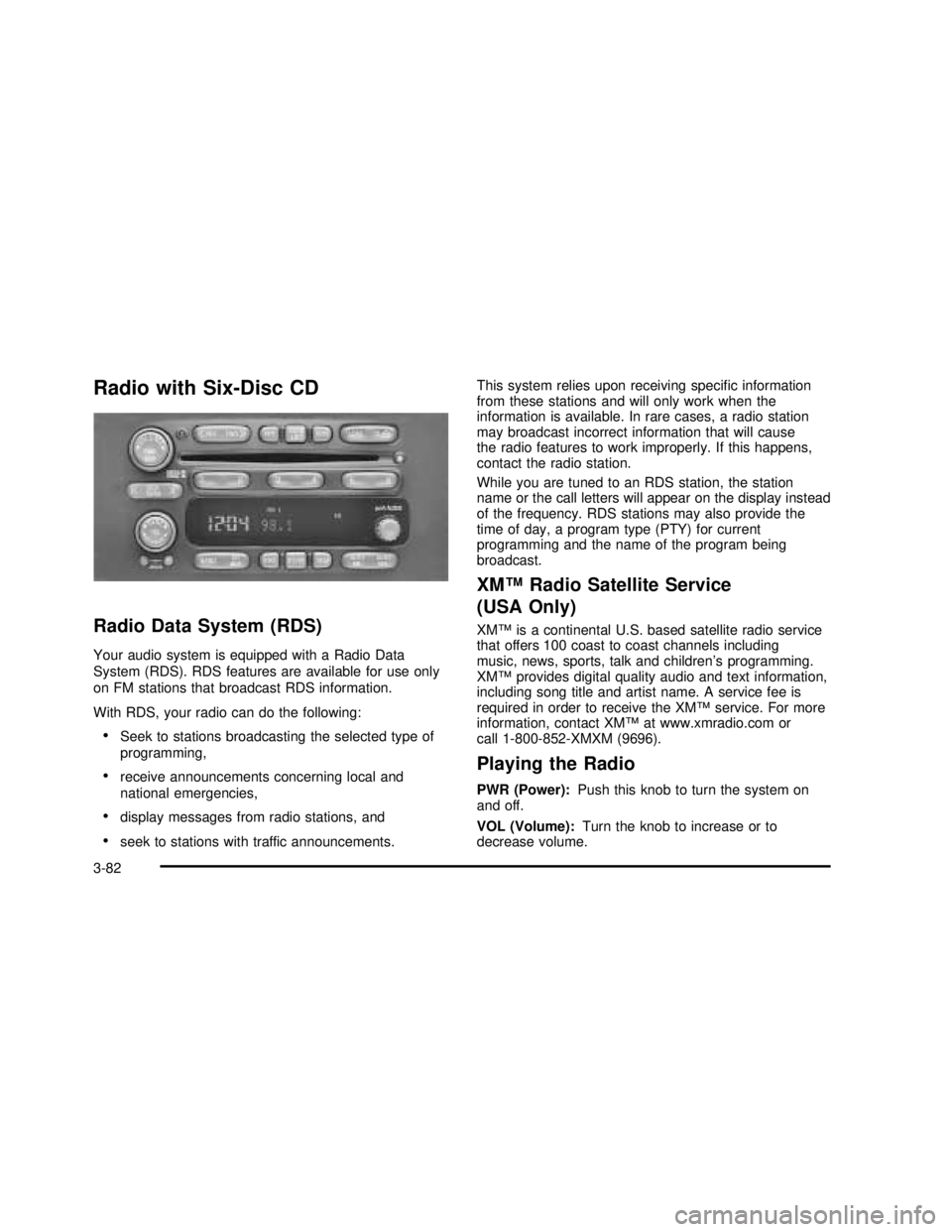
Radio with Six-Disc CD
Radio Data System (RDS)
Your audio system is equipped with a Radio Data
System (RDS). RDS features are available for use only
on FM stations that broadcast RDS information.
With RDS, your radio can do the following:
•Seek to stations broadcasting the selected type of
programming,
•receive announcements concerning local and
national emergencies,
•display messages from radio stations, and
•seek to stations with traffic announcements.This system relies upon receiving specific information
from these stations and will only work when the
information is available. In rare cases, a radio station
may broadcast incorrect information that will cause
the radio features to work improperly. If this happens,
contact the radio station.
While you are tuned to an RDS station, the station
name or the call letters will appear on the display instead
of the frequency. RDS stations may also provide the
time of day, a program type (PTY) for current
programming and the name of the program being
broadcast.
XM™Radio Satellite Service
(USA Only)
XM™is a continental U.S. based satellite radio service
that offers 100 coast to coast channels including
music, news, sports, talk and children’s programming.
XM™provides digital quality audio and text information,
including song title and artist name. A service fee is
required in order to receive the XM™service. For more
information, contact XM™at www.xmradio.com or
call 1-800-852-XMXM (9696).
Playing the Radio
PWR (Power):Push this knob to turn the system on
and off.
VOL (Volume):Turn the knob to increase or to
decrease volume.
3-82
2003 - Rendezvous OM
Page 219 of 432

AUTO VOL (Automatic Volume):Your system has a
feature called automatic volume. With this feature,
your audio system adjusts automatically to make up for
road and wind noise as you drive.
Set the volume at the desired level. Press this button to
select MIN, MED or MAX. Each higher setting will
allow for more volume compensation at faster vehicle
speeds. Then, as you drive, automatic volume increases
the volume, as necessary, to overcome noise at any
speed. The volume level should always sound the same
to you as you drive. If you don’t want to use automatic
volume, select OFF.
RCL (Recall):Push this knob to switch the display
between the radio station frequency and the time.
Pushing this knob with the ignition off will display
the time.
For XM™(USA only, if equipped), pressing this button
while in XM™mode to retrieve various pieces of
information related to the current song or channel.
By pressing and releasing the RCL button, you may
retrieve four different categories of information:
Artist, Song Title, Category or PTY, Channel
Number/Channel Name.
To change the default on the display, push the knob
until you see the display you want, then hold the knob
until the displayflashes. The selected display will
now be the default.Finding a Station
BAND:Press this button to switch between AM, FM1,
FM2, or XM1, XM2 (USA only, if equipped). The
display will show your selection.
TUNE:Turn this knob to select radio stations.
sSEEKt:Press the right or the left arrow to go to
the next or to the previous station and stay there.
The radio will seek only to stations that are in the
selected band and only to those with a strong signal.
sSCANt:Press and hold either SCAN arrow
for two seconds until SC appears on the display and
you hear a beep. The radio will go to a station, play for
a few seconds, then go on to the next station. Press
either SCAN arrow again to stop scanning.
To scan preset stations, press and hold either SCAN
arrow for more than four seconds. PRESET SCAN will
appear on the display. You will hear a double beep.
The radio will go to a preset station stored on your
pushbuttons, play for a few seconds, then go on to the
next preset station. Press either SCAN arrow again
to stop scanning presets.
The radio will scan only to stations that are in the
selected band and only to those with a strong signal.
3-83
2003 - Rendezvous OM
Page 220 of 432

Setting Preset Stations
The six numbered pushbuttons let you return to your
favorite stations. You can set up to 30 stations (six AM,
six FM1 and six FM2, six XM1 and six XM2 (USA
only, if equipped), by performing the following steps:
1. Turn the radio on.
2. Press BAND to select AM, FM1, FM2, or XM1,
or XM2.
3. Tune in the desired station.
4. Press AUTO EQ to select the equalization.
5. Press and hold one of the six numbered
pushbuttons until you hear a beep. Whenever you
press that numbered pushbutton, the station
you set will return and the equalization that you
selected will also be automatically selected for that
pushbutton.
6. Repeat the steps for each pushbutton.
Setting the Tone (Bass/Treble)
AUDIO:Push the AUDIO knob until BASS, MID or
TREB appears on the display. Turn the knob to increase
or to decrease. If a station is weak or noisy, you may
want to decrease the treble.
To adjust bass, midrange or treble to the middle
position, select BASS, MID or TREB and push and hold
the AUDIO knob. The radio will produce one beep
and adjust the display level to zero.To adjust all tone and speaker controls to the middle
position, push and hold the AUDIO knob when no tone
or speaker control is displayed. The radio will produce
one beep and CENTERED will appear on the display.
AUTO EQ (Automatic Equalization):Press this button
to choose between bass, midrange and treble
equalization settings designed for country, jazz, talk,
pop, rock and classical program types.
To return to the manual mode (CUSTOM), press the
AUTO EQ button until CUSTOM appears on the display.
Then you will be able to manually adjust the bass,
midrange and treble using the AUDIO knob.
Adjusting the Speakers (Balance/Fade)
AUDIO:To adjust the balance between the right
and the left speakers, push the AUDIO knob until BAL
appears on the display. Turn the knob to move the
sound toward the left or the right speakers.
To adjust the fade between the front and rear speakers,
push and hold the AUDIO knob until FAD appears on
the display. Turn the knob to move the sound toward the
front or the rear speakers.
To adjust the balance and the fade to the middle
position, select balance or fade and push and hold the
AUDIO knob. The radio will beep once and will
adjust the display level to the middle position.
3-84
2003 - Rendezvous OM
Page 221 of 432

To adjust all tone and speaker controls to the middle
position, push and hold the AUDIO knob when no tone
or speaker controls are displayed. The radio will
produce one beep and CENTERED will appear on the
display.
Finding a PTY Station (RDS and XM™)
To select andfind a desired PTY perform the following:
1. Press the P-TYPE button. P-TYPE and the last
selected PTY will be displayed on the screen.
2. Select a category by turning the P-TYPE knob.
3. Once the desired category is displayed, press either
SEEK arrow to select the category and take you to
the category’sfirst station.
4. If you want to go to another station within that
category and the category is displayed, press
either SEEK arrow once. If the category is not
displayed, press either SEEK arrow twice to display
the category and then to go to another station.
5. If PTY times out and is no longer on the display, go
back to Step 1.
If both P-TYPE and TRAF are on, the radio will search
for stations with the selected PTY and traffic
announcements.
To use the PTY interrupt feature, press and hold the
P-TYPE button until you hear a beep on the PTY
you want to interrupt with. When selected, an asteriskwill appear beside that PTY on the display. You may
select multiple interrupts if desired. When you are
listening to a compact disc, the last selected RDS station
will interrupt play if that selected program type format
is broadcast.
SCAN:You can also scan through the channels within
a category by performing the following:
1. Press the P-TYPE button. P-TYPE and the last
selected PTY will be displayed on the screen.
2. Select a category by turning the P-TYPE knob.
3. Once the desired category is displayed, press and
hold either SCAN arrow, and the radio will begin
scanning within your chosen category.
4. Press either SCAN arrow again to stop at a
particular station.
BAND (Alternate Frequency):Alternate frequency
allows the radio to switch to a stronger station with the
same program type. Press and hold BAND for two
seconds to turn alternate frequency on. AF ON
will appear on the display. The radio may switch to
stronger stations. Press and hold BAND again for two
seconds to turn alternate frequency off. AF OFF
will appear on the display. The radio will not switch to
other stations. When you turn the ignition off and then on
again, the alternate frequency feature will automatically
be turned on.
This function does not apply for XM™.
3-85
2003 - Rendezvous OM
Page 223 of 432

Traffic Interrupt Feature:Your radio can interrupt the
play of a CD, or XM™station. Press the TRAF
button. The radio will seek to a station that broadcasts
traffic announcements. When the radiofinds a station
that broadcasts traffic announcements, it will stop.
Brackets around TRAF will appear on the display.When a traffic announcement comes on the station
that was found, you will hear it. When the traffic
announcement is over, the radio will resume play of
theCD,orXM™station. If no station is found, NO
TRAFFIC will appear on the display.
XM™Radio Messages
Radio Display
MessageCondition Action Required
XL (Explicit Language
Channels)XL on the radio display,
after the channel name,
indicates content with
explicit language.These channels, or any others, can be blocked at a
customer’s request, by calling 1-800-852-XMXM (9696).
Updating Updating encryption
codeThe encryption code in your receiver is being updated, and
no action is required. This process should take no longer
than 30 seconds.
No Signal Loss of signal Your system is functioning correctly, but you are in a
location that is blocking the XM signal. When you move
into an open area, the signal should return.
Loading XM Acquiring channel audio
(after 4 second delay)Your radio system is acquiring and processing audio and
text data. No action is needed. This message should
disappear shortly.
CH Off Air Channel not in service This channel is not currently in service. Tune to another
channel.
3-87
2003 - Rendezvous OM
Page 230 of 432

Before You Drive
The RSE is designed for rear seat passengers only.
The driver cannot safely view the video screen
while driving and should not try to do so.
Your DVD system is designed to be inoperable when
the vehicle is exposed to extremely low or high
temperatures, in order to protect your system from
damage. Operate your DVD system under normal or
comfortable cabin temperature ranges.
Headphones
The entertainment system includes two cordless
headphones.
The cordless headphones have an ON/OFF switch, and
a volume control. To use the headphones turn the
switch to ON. An indicator light on the headphones will
illuminate. If the light does not illuminate, the batteries
may need to be replaced. See“Battery Replacement”
later in this section for more information. Switch the
headphones to OFF when not in use.
If the DVD system is shut off, or if the headphones are
out of range of the transmitters, located below the
overhead RSE control panel, for more than three
minutes, the headphones will shut off automatically to
save the battery power. If you move too far forward
or step out of the vehicle, the headphones will lose the
audio signal.To adjust the volume on the cordless headphones, use
the volume control.
Notice:Do not store the headphones in heat or
direct sunlight. This could damage the headphones
and repairs would not be covered by your warranty.
Keep the headphones stored in a cool, dry place.
If there is a decreased audio signal during CD or DVD
play, you may hear a low“hissing”noise through the
speakers and/or headphones. If the hissing sound in the
wireless headphones seems excessive, make sure
that the headphone batteries are fully charged. Some
amount of hissing is normal.
Battery Replacement
To change the batteries, do the following:
1. Loosen the screw on the battery compartment door
located on the left side of the headphone earpiece.
2. Replace the two AAA batteries in the compartment.
Make sure that they are installed correctly using the
diagram on the inside of the battery compartment.
3. Tighten the screw on the battery compartment door.
If the headphones are to be stored for a long period
of time, remove the batteries, and keep them in a cool,
dry place.
3-94
2003 - Rendezvous OM
Page 231 of 432

Stereo RCA Jacks
The RCA jacks are located behind the video screen on
the DVD console. The RCA jacks allow you to
connect audio and video signals from an auxiliary
device such as a camcorder or a video game unit to
your RSE just as you would to a standard television. The
yellow RCA jack is used for video, the red RCA jack
for right audio, and the white RCA jack for left
audio inputs. The system requires standard RCA cables
(not included) to connect your auxiliary device to the
RCA jacks. Refer to the manufacturer’s instructions for
proper usage.
To use the auxiliary audio and video inputs on the
entertainment system, connect an external auxiliary
device such as a camcorder to the RCA jacks and turn
on both the auxiliary device power and the power on
the front of the RSE player.
If a disc is present when the RSE power is turned on,
the player will automatically begin playing the disc
and the user will need to press the SRCE button on the
remote control or on the DVD player faceplate to
switch to the auxiliary input signals. Pressing the SRCE
button on the remote control or on the DVD player
faceplate will toggle the system between DVD player
and auxiliary device. See“DVD Player”, and“Remote
Control”later in this section for more information.
Audio Speakers
Audio from the DVD Player or auxiliary devices can be
heard through the following possible sources:
•Wireless Headphones
•Vehicle’s Speakers
•Rear Seat Audio (RSA) Jacks (if equipped). Plug
the wired headphones into the jacks on the RSA
system.
Only one audio source can be heard through the
vehicles speakers at a time.
You can listen to the entertainment system or an
auxiliary device through all of the vehicles speakers
when the following occurs:
•The RSA system (if equipped) is off,
•a DVD or auxiliary device is playing, and
•the front audio system is on and either the CD/AUX
or the TAPE/CD button is pressed to enable the
entertainment system.
The front audio system will display RSE when the
entertainment system is on and RSE OFF when it is off.
To turn the vehicles speakers on and off, press either
the CD/AUX or the TAPE/CD button on the front
audio system. The audio from the entertainment system
can be heard through both the wireless headphones
and the vehicles speakers at the same time.
3-95
2003 - Rendezvous OM
Page 232 of 432

You can listen to the entertainment system through
the wired headphone jacks on the RSA system
(if equipped) when the following occurs:
•The RSA system is on,
•a DVD or auxiliary device is playing, and
•RSE is displayed on the front audio system by
pressing the TAPE/CD button on the RSA system.
The volume on the audio system may vary when
switching between a radio station, CD, DVD, cassette or
auxiliary device.
If there is a decreased audio signal during CD or DVD
play, you may hear a low“hissing”noise through
the speakers and/or headphones. If the hissing sound in
the wireless headphones seems excessive, make
sure that the headphone batteries are fully charged.
Some amount of hissing is normal.
Video Screen
The video screen is located in the overhead console.
To use the video screen, do the following:
1. Push forward on the release button and the screen
will fold down.
2. Push the screen away from you and adjust its
position as desired.
When the video screen is not in use, push it up into its
stowed and latched position.The DVD player and display will continue to operate
when the video screen is in either the up or down
positions.
The video screen contain the transmitters for the
cordless headphones and the receiver for the remote
control. If the screen is in the closed position, the signals
will not be available for the operation of the headphones
or the remote control.
Notice:Avoid directly touching the video screen,
as damage may occur. See“Cleaning the Video
Screen”in the Index for more information.
DVD Player
The DVD player is located in the overhead console.
The DVD player can be controlled by the buttons on the
DVD player, and/or by the buttons on the remote
control. See“Remote Control”later in this section for
more information.
The DVD player is only compatible with DVDs of the
appropriate region code for the country that the vehicle
was sold in. On some DVD jackets, you will see the
region displayed. Standard audio CDs can also
be played by the DVD player. The video screen will
default to off when an audio CD is played.
If an error message appears on the video screen, see
DVD Messages later in this section.
3-96
2003 - Rendezvous OM
Page 233 of 432

DVD Player Buttons
Y(Eject):Press this button to eject a DVD or CD.
SRCE (Source):Press this button to toggle the system
between the DVD player and an auxiliary source.
y(Main Menu):Press this button to view the media
menu. The media menu is different on every DVD.
Use the up, down, right and left arrow buttons to move
the cursor around the media menu. After making a
selection press enter. This button only operated when
using a DVD.
O(Power):Press this button to turn the DVD player
on and off.
T(Power Light):Shows if power is on or off.
o(Stop):Press this button to stop playing, rewinding
or fast forwarding. Press this button twice to return
to the beginning of the DVD.
s(Play/Pause):Press this button to start play of a
DVD or CD. Press this button while a DVD or CD is
playing to pause it. Press it again to continue play of a
DVD or CD.
z(Display Control Button):Press these buttons to
adjust color, tint, brightness, contrast, and display
mode (normal, full or zoom). The dynamic range
compression feature can be used to reduce the loud
audio produced by some DVDs and to improve the audio
quality.
nu,qt,pr,o[(Directional Control
Circle):Press these buttons to move through menu
choices, or move forward or back in a movie. These
controls can also be use to move forward or backward
through a CD.
r(Enter):Press this button to select choices
highlighted in any menu.
Playing a Disc
To play a disc, gently insert the disc (with the label side
up) into the loading slot. The DVD player will continue
loading the disc and the player will automatically start if
the vehicle is in run, accessory or RAP.
3-97
2003 - Rendezvous OM