infotainment BUICK REGAL 2011 User Guide
[x] Cancel search | Manufacturer: BUICK, Model Year: 2011, Model line: REGAL, Model: BUICK REGAL 2011Pages: 368, PDF Size: 5.35 MB
Page 156 of 368
Black plate (6,1)Buick Regal Owner Manual - 2011
7-6 Infotainment System
3. Press and hold theZknob
until the value changes to 0.
Press the BACK button to go back
to the Tone Settings menu.
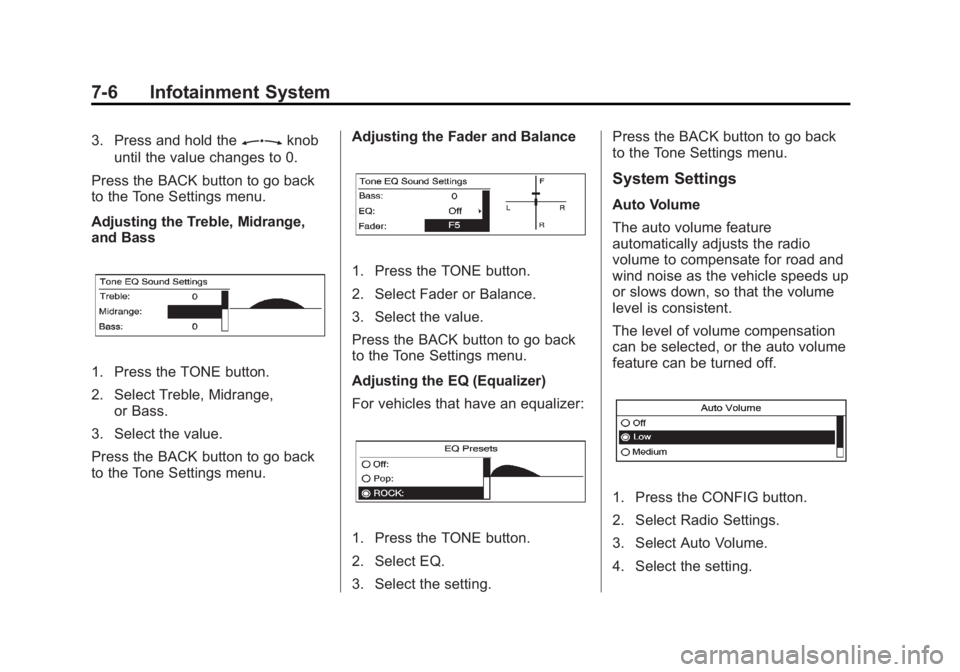
Adjusting the Treble, Midrange,
and Bass
1. Press the TONE button.
2. Select Treble, Midrange, or Bass.
3. Select the value.
Press the BACK button to go back
to the Tone Settings menu. Adjusting the Fader and Balance
1. Press the TONE button.
2. Select Fader or Balance.
3. Select the value.
Press the BACK button to go back
to the Tone Settings menu.
Adjusting the EQ (Equalizer)
For vehicles that have an equalizer:
1. Press the TONE button.
2. Select EQ.
3. Select the setting.Press the BACK button to go back
to the Tone Settings menu.
System Settings
Auto Volume
The auto volume feature
automatically adjusts the radio
volume to compensate for road and
wind noise as the vehicle speeds up
or slows down, so that the volume
level is consistent.
The level of volume compensation
can be selected, or the auto volume
feature can be turned off.
1. Press the CONFIG button.
2. Select Radio Settings.
3. Select Auto Volume.
4. Select the setting.
Page 157 of 368
Black plate (7,1)Buick Regal Owner Manual - 2011
Infotainment System 7-7
5. Press the BACK button to goback to the System
Configuration menu.
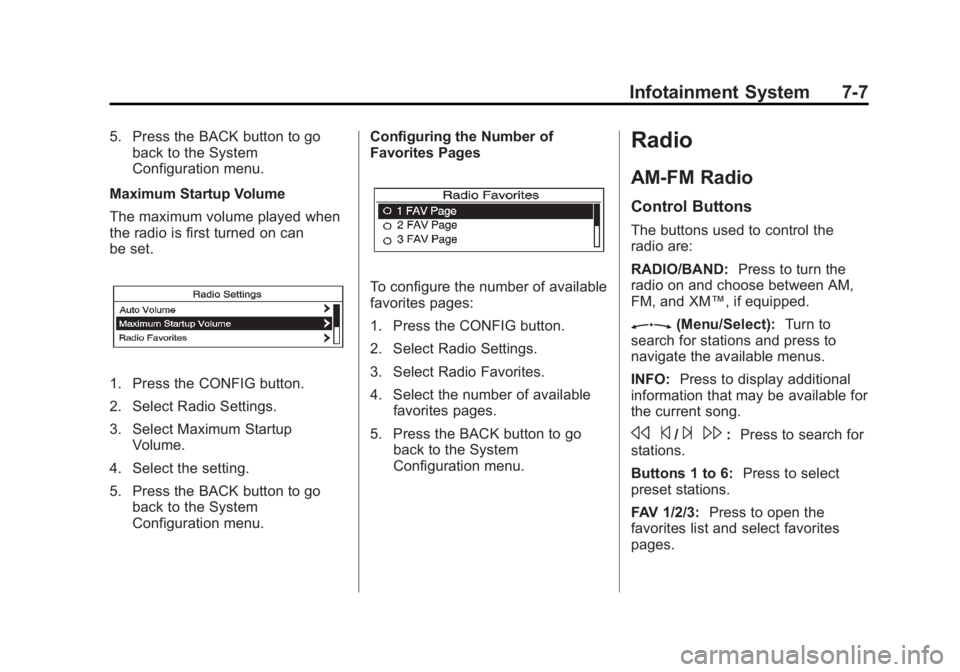
Maximum Startup Volume
The maximum volume played when
the radio is first turned on can
be set.
1. Press the CONFIG button.
2. Select Radio Settings.
3. Select Maximum Startup Volume.
4. Select the setting.
5. Press the BACK button to go back to the System
Configuration menu. Configuring the Number of
Favorites Pages
To configure the number of available
favorites pages:
1. Press the CONFIG button.
2. Select Radio Settings.
3. Select Radio Favorites.
4. Select the number of available
favorites pages.
5. Press the BACK button to go back to the System
Configuration menu.
Radio
AM-FM Radio
Control Buttons
The buttons used to control the
radio are:
RADIO/BAND: Press to turn the
radio on and choose between AM,
FM, and XM™, if equipped.
Z(Menu/Select): Turn to
search for stations and press to
navigate the available menus.
INFO: Press to display additional
information that may be available for
the current song.
s ©/¨\:Press to search for
stations.
Buttons 1 to 6: Press to select
preset stations.
FAV 1/2/3: Press to open the
favorites list and select favorites
pages.
Page 158 of 368
Black plate (8,1)Buick Regal Owner Manual - 2011
7-8 Infotainment System
AS 1/2:Press to open the
autostore list and select autostore
pages.
RDS (Radio Data System)
The radio may have RDS. The RDS
feature is available for use only on
FM stations that broadcast RDS
information. This feature only works
when the information from the radio
station is available. In rare cases, a
radio station could broadcast
incorrect information that causes the
radio features to work improperly.
If this happens, contact the radio
station.
While the radio is tuned to an
FM-RDS station, the station name
or call letters display.
Radio Menus
Radio menus are available for AM
and FM.
Push the
Zknob to open the
main radio menu for that band.
Selecting a Band
Press the RADIO/BAND button to
choose AM, FM, or XM™,
if equipped. The last station that
was playing starts playing again.
Selecting a Station
Seek Tuning
If the radio station is not known:
Briefly press
s ©or¨\to
automatically search for the next
available station. If a station is not
found, the radio switches to a more
sensitive search level. If a station
still is not found, the frequency that
was last active begins to play.
If the radio station is known:
Press and hold
s ©or¨\until
the station on the display is
reached, then release the button.
Manual Tuning
Turn the
Zknob to select the
frequency on the display. Favorites List
1. Press the
Zknob.
2. Select Favorites List.
3. Select the station.
Station Lists
1. Press the
Zknob.
2. Select AM or FM Station List. All receivable stations in the current
reception area are displayed. If a
station list has not been created,
an automatic station search
is done.
3. Select the station.
Category Lists
Most stations that broadcast an
RDS program‐type code specify the
type of programming transmitted.
Some stations change the program
type code depending on the
content. The system stores the RDS
stations sorted by program type in
the FM category list.
Page 159 of 368
Black plate (9,1)Buick Regal Owner Manual - 2011
Infotainment System 7-9
To search for a programming type
determined by station:
1. Press the
Zknob.
2. Select FM Category List. A list of all programming types available
displays.
3. Select the programming type. A list of stations that transmit
programming of the selected
type displays.
4. Select the station. The category lists are updated
when the station lists are
updated.
Updating Station & Category Lists
If stations stored in the station list
can no longer be received:
1. Press the
Zknob.
2. Select Update AM or FM Station List, if the stations stored in the
station list are no longer
received. A station search will be
completed and the first station in
the updated list will play. To cancel the station search, press
the
Zknob.
Storing a Station as a Favorite
Stations from all bands can be
stored in any order in the favorite
pages.
Up to six stations can be stored in
each favorite page and the number
of available favorite pages can
be set.
Storing Stations
To store the station to a position in
the list, press the corresponding
numeric button 1 to 6 until a beep is
heard. The stored station will begin
playback.
Retrieving Stations
Press the FAV 1/2/3 button to open
a favorite page or to switch to
another favorite page. Briefly press
one of the 1 to 6 buttons to retrieve
the station.
Autostore Stations
AS 1/2 (Autostore):
Autostore
searches and stores six FM and
six AM stations with the strongest
signal. To use autostore:
1. Press RADIO/BAND to select FM or AM.
2. Press AS 1/2 for at least two seconds. The radio then
searches for available stations.
3. The radio automatically stores the six strongest stations found
as autostore presets.
Press the AS 1/2 button to alternate
between the autostore stations and
favorites.
AS displays on the radio when using
autostore presets.
Autostore does not delete
previously stored favorite stations.
Autostore does not function with XM
radio stations.
Page 160 of 368
Black plate (10,1)Buick Regal Owner Manual - 2011
7-10 Infotainment System
Satellite Radio
Vehicles with an XM™Satellite
Radio tuner and a valid XM Satellite
Radio subscription can receive XM
programming.
XM Satellite Radio Service
XM is a satellite radio service based
in the 48 contiguous United States
and 10 Canadian provinces. XM
Satellite Radio has a wide variety of
programming and commercial-free
music, coast to coast, and in
digital-quality sound. A service fee
is required to receive the XM
service. If XM Service needs to be
reactivated, the radio will display
"No Subscription Please Renew" on
channel XM1. For more information,
contact XM at www.xmradio.com or
call 1-800-929-2100 in the U.S. and
www.xmradio.ca or call
1-877-438-9677 in Canada.
Control Buttons
The buttons used to control the XM
radio are:
RADIO/BAND: Press to turn the
radio on and choose between AM,
FM, and XM™, if equipped.
Z(Menu/Select): Turn to
search for channels and press to
navigate the available menus.
INFO: Press to display additional
information that may be available
about the current song.
s ©/¨\:Press to go to the
previous or next channel.
FAV 1/2/3: Press to open the
favorites list and select favorite
pages.
Buttons 1 to 6: Press to select
preset stations.
Selecting the XM Band
Press the RADIO/BAND button to
choose between the AM, FM, and
XM bands. The last channel played
in that band begins to play when
that band is selected.
XM Categories
XM channels are organized in
categories.
Removing or Adding Categories
Channels in a category that have
been removed can still be accessed
by using the
s ©or¨\
buttons, or theZknob.
To add or remove categories:
1. Press the CONFIG button.
2. Select Radio Settings.
3. Select XM Categories.
4. Turn the
Zknob to highlight
the category.
5. Press the
Zknob to remove
or add the category.
Page 161 of 368
Black plate (11,1)Buick Regal Owner Manual - 2011
Infotainment System 7-11
Selecting an XM Channel
XM channels can be selected by
station lists or category lists.
Selecting a Channel by
Station List
XM channels can be selected by
using
s©,¨\, or the
Zknob.
To select an XM channel using
s
©
or¨ \, do one of the following:
.Press and releases ©or¨
\
to go to the previous or next
channel.
.Press and holds ©or¨\
to scroll through the previous or
next channels until the channel
is reached. To select an XM channel using the
Zknob:
1. Turn the
Zknob to highlight
an XM channel.
2. Press the
Zknob to select
the channel, or leave the
channel highlighted.
To select an XM channel using
the menu:
1. Press the
Zknob.
2. Select XM Stations List.
3. Select the channel.
Selecting a Channel by Category
1. Press the
Zknob.
2. Select XM Category List. A list of all programming types available
displays.
3. Select the programming type.
4. Select the channel.
Storing an XM Channel as a
Favorite
Channels from all bands can be
stored in any order in the favorites
pages.
Up to six channels can be stored in
each favorites page and the number
of available favorites pages can
be set.
Storing a Channel as a Favorite
To store the channel to a position in
the list, press and hold the
corresponding 1 to 6 button until the
channel can be heard again.
Retrieving Channels
Press the FAV button to open a
favorites page or to change to
another favorites page. Briefly press
one of the 1 to 6 buttons to retrieve
the channel.
Page 162 of 368
Black plate (12,1)Buick Regal Owner Manual - 2011
7-12 Infotainment System
XM Messages
XL (Explicit Language
Channels):These channels, or any
others, can be blocked by request,
by calling 1-800-929-2100 in the
U.S. and 1-877-438-9677 in
Canada.
XM Updating: The encryption code
in the receiver is being updated. No
action is required. This process
should take no longer than
30 seconds.
Loading XM: The audio system is
acquiring and processing audio and
text data. No action is needed. This
message should disappear shortly.
Channel Off Air: This channel is
not currently in service. Tune in to
another channel.
Channel Unauth: This channel is
blocked or cannot be received with
your XM subscription package.
Channel Unavailable: This
previously assigned channel is no
longer assigned. Tune to another
station. No Artist Info:
The system is
working properly. No artist
information is available at this time
on this channel.
No Title Info: The system is
working properly. No song title
information is available at this time
on this channel.
No CAT Info: The system is
working properly. No category
information is available at this time
on this channel.
No Information: The system is
working properly. No text or
informational messages are
available at this time on this
channel.
No Subscription Please Renew:
The XM subscription needs to be
reactivated. Contact XM at
www.xmradio.com or call
1-800-929-2100 in the U.S. and
www.xmradio.ca or call
1-877-438-9677 in Canada. No XM Signal:
The system is
working properly. The vehicle may
be in a location where the XM signal
is being blocked. When the vehicle
is moved into an open area, the
signal should return.
CAT Not Found: The system is
working properly. There are no
channels available for the selected
category.
XM Radio ID: If tuned to channel 0,
this message alternates with the XM
Radio eight‐digit radio ID label. This
label is needed to activate the
service.
Unknown: If this message is
received when tuned to channel 0,
there could be a receiver fault.
Consult with your dealer.
Check Antenna: If this message
does not clear within a short period
of time, the receiver could have a
fault. Consult with your dealer.
Page 163 of 368
Black plate (13,1)Buick Regal Owner Manual - 2011
Infotainment System 7-13
XM Not Available:If this message
does not clear within a short period
of time, the receiver could have a
fault. Consult with your dealer.
Radio Reception
Frequency interference and static
can occur during normal radio
reception if items such as cellular
phone chargers, vehicle
convenience accessories, and
external electronic devices are
plugged into the accessory power
outlet. If there is interference or
static, unplug the item from the
accessory power outlet.
FM
FM signals only reach about
16 to 65 km (10 to 40 mi). Although
the radio has a built-in electronic
circuit that automatically works to
reduce interference, some static
can occur, especially around tall
buildings or hills, causing the sound
to fade in and out.
AM
The range for most AM stations is
greater than for FM, especially at
night. The longer range can cause
station frequencies to interfere
with each other. For better radio
reception, most AM radio stations
boost the power levels during the
day, and then reduce these levels
during the night. Static can also
occur when things like storms and
power lines interfere with radio
reception. When this happens, try
reducing the treble on the radio.
XM™ Satellite Radio Service
XM satellite radio service gives
digital radio reception from coast to
coast in the 48 contiguous United
States, and in Canada. Just as
with FM, tall buildings or hills can
interfere with satellite radio signals,
causing the sound to fade in and
out. In addition, traveling or standing
under heavy foliage, bridges,
garages, or tunnels may cause loss
of the XM signal for a period of time.
Cellular Phone Usage
Cellular phone usage may cause
interference with the vehicle's radio.
This interference may occur when
making or receiving phone calls,
charging the phone's battery, or
simply having the phone on. This
interference can cause an increased
level of static while listening to the
radio. If static is received while
listening to the radio, unplug the
cellular phone and turn it off.
Backglass Antenna
The AM-FM antenna is integrated
with the rear window defogger,
located in the rear window. Make
sure that the inside surface of the
rear window is not scratched and
that the lines on the glass are not
damaged. If the inside surface is
damaged, it could interfere with
radio reception. For proper radio
reception, the antenna connector
needs to be properly attached to the
post on the glass.
Page 164 of 368

Black plate (14,1)Buick Regal Owner Manual - 2011
7-14 Infotainment System
If a cellular telephone antenna
needs to be attached to the glass,
make sure that the grid lines for the
AM-FM antenna are not damaged.
There is enough space between the
grid lines to attach a cellular
telephone antenna without
interfering with radio reception.
Notice:Using a razor blade or
sharp object to clear the inside
rear window can damage the rear
window antenna and/or the rear
window defogger. Repairs would
not be covered by the vehicle
warranty. Do not clear the inside
rear window with sharp objects. Notice:
Do not apply aftermarket
glass tinting with metallic film.
The metallic film in some tinting
materials will interfere with or
distort the incoming radio
reception. Any damage caused to
your backglass antenna due to
metallic tinting materials will not
be covered by the vehicle
warranty.
Satellite Radio Antenna
For vehicles with XM satellite radio
service, the antenna is located on
the roof of the vehicle. Keep the
antenna clear of obstructions for
clear radio reception.
Audio Players
CD Player
The CD player can play audio CDs
and MP3 CDs.
The CD player will not play
8 cm (3 in) CDs.
Care of CDs
Sound quality can be reduced due
to disc quality, recording method,
quality of the music recorded, and
disc handling. Handle discs carefully
and store them in their original
cases or other protective cases
away from direct sunlight and dust.
If the bottom surface of a disc is
damaged, the disc may not play
properly or at all. Do not touch the
bottom surface of a disc while
handling it; this could damage the
surface. Pick up discs by grasping
the outer edges or the edge of the
hole and the outer edge.
Page 165 of 368

Black plate (15,1)Buick Regal Owner Manual - 2011
Infotainment System 7-15
If the bottom surface of a disc is
dirty, take a soft lint‐free cloth,
or dampen a clean soft cloth in a
mild neutral detergent solution
mixed with water, and clean it. Wipe
the disc from the center to the
outer edge.
Care of the CD Player
Do not add a label to a disc; it could
get caught in the CD player. If a
label is needed, write on the top of
the recorded disc with a
marking pen.
Do not use disc lens cleaners
because they could contaminate the
lens of the disc optics and damage
the CD player.Notice:
If a label is added to a
CD, more than one CD is inserted
into the slot at a time, or an
attempt is made to play scratched
or damaged CDs, the CD player
could be damaged. While using
the CD player, use only CDs in
good condition without any label,
load one CD at a time, and keep
the CD player and the loading slot
free of foreign materials, liquids,
and debris.
Control Buttons
The buttons used to control the CD
player are:
CD/AUX: Press to use the CD
player.
s ©/¨\:Press to select
tracks or to fast rewind or forward
within a track.
INFO: Press to display additional
information about the current track
that may be available.
Z(Menu/Select): Turn to
select tracks. Press to enter the CD
menu and select items.
Z(Eject): Press to eject the disc.
Inserting a CD
With the printed side facing up,
insert a disc into the CD slot until it
is drawn in.
Removing a CD
Press theZbutton.
The disc is pushed out of the
CD slot.
If the disc is not removed after it is
ejected, it is pulled back in after a
few seconds.
Playing a CD or MP3 CD
Press the CD/AUX button if there is
a disc in the player; it begins
playing.
Information about the disc and
current track is shown on the
display depending on the data
stored.