CD player BUICK REGAL 2012 User Guide
[x] Cancel search | Manufacturer: BUICK, Model Year: 2012, Model line: REGAL, Model: BUICK REGAL 2012Pages: 440, PDF Size: 6.22 MB
Page 176 of 440
Black plate (12,1)Buick Regal Owner Manual - 2012
7-12 Infotainment System
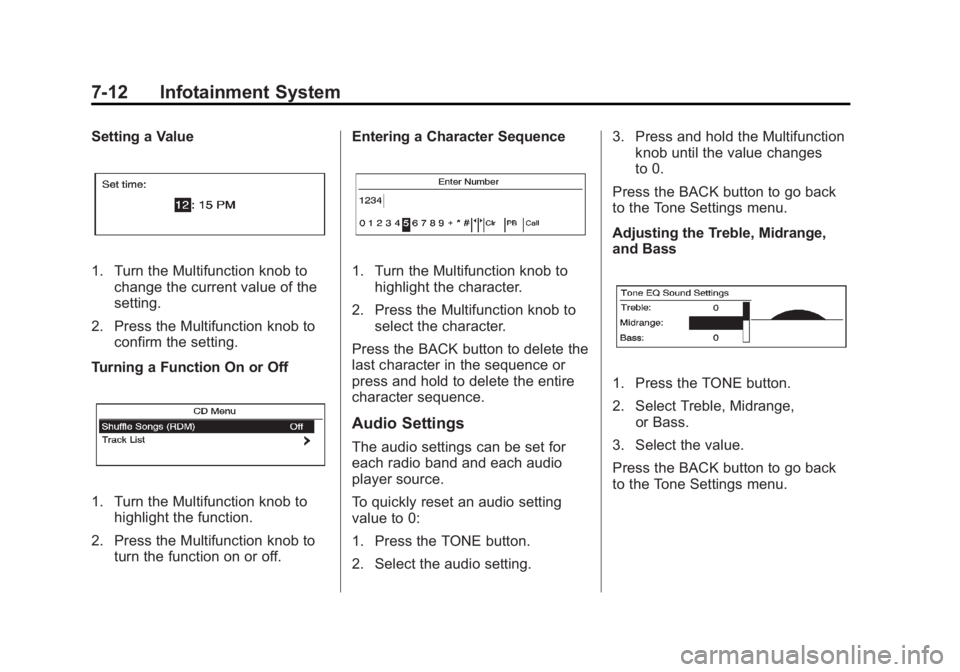
Setting a Value
1. Turn the Multifunction knob tochange the current value of the
setting.
2. Press the Multifunction knob to confirm the setting.
Turning a Function On or Off
1. Turn the Multifunction knob to highlight the function.
2. Press the Multifunction knob to turn the function on or off. Entering a Character Sequence
1. Turn the Multifunction knob to
highlight the character.
2. Press the Multifunction knob to select the character.
Press the BACK button to delete the
last character in the sequence or
press and hold to delete the entire
character sequence.
Audio Settings
The audio settings can be set for
each radio band and each audio
player source.
To quickly reset an audio setting
value to 0:
1. Press the TONE button.
2. Select the audio setting. 3. Press and hold the Multifunction
knob until the value changes
to 0.
Press the BACK button to go back
to the Tone Settings menu.
Adjusting the Treble, Midrange,
and Bass
1. Press the TONE button.
2. Select Treble, Midrange, or Bass.
3. Select the value.
Press the BACK button to go back
to the Tone Settings menu.
Page 188 of 440
Black plate (24,1)Buick Regal Owner Manual - 2012
7-24 Infotainment System
If a cellular telephone antenna
needs to be attached to the glass,
make sure that the grid lines for the
AM-FM antenna are not damaged.
There is enough space between the
grid lines to attach a cellular
telephone antenna without
interfering with radio reception.
Notice:Using a razor blade or
sharp object to clear the inside
rear window can damage the rear
window antenna and/or the rear
window defogger. Repairs would
not be covered by the vehicle
warranty. Do not clear the inside
rear window with sharp objects. Notice:
Do not apply aftermarket
glass tinting with metallic film.
The metallic film in some tinting
materials will interfere with or
distort the incoming radio
reception. Any damage caused to
your backglass antenna due to
metallic tinting materials will not
be covered by the vehicle
warranty.
Satellite Radio Antenna
For vehicles with XM satellite radio
service, the antenna is located on
the roof of the vehicle. Keep the
antenna clear of obstructions for
clear radio reception.
Audio Players
CD Player
For vehicles equipped with the
MyLink or IntelliLink infotainment
system, see the separate MyLink/
IntelliLink Features and Functions
Guide for more information.
The CD player can play audio CDs
and MP3 CDs.
The CD player will not play
8 cm (3 in) CDs.
Care of CDs
Sound quality can be reduced due
to disc quality, recording method,
quality of the music recorded, and
disc handling. Handle discs carefully
and store them in their original
cases or other protective cases
away from direct sunlight and dust.
If the bottom surface of a disc is
damaged, the disc may not play
properly or at all. Do not touch the
bottom surface of a disc while
handling it; this could damage the
Page 189 of 440
Black plate (25,1)Buick Regal Owner Manual - 2012
Infotainment System 7-25
surface. Pick up discs by grasping
the outer edges or the edge of the
hole and the outer edge.
If the bottom surface of a disc is
dirty, take a soft lint‐free cloth,
or dampen a clean soft cloth in a
mild neutral detergent solution
mixed with water, and clean it. Wipe
the disc from the center to the
outer edge.
Care of the CD Player
Do not add a label to a disc; it could
get caught in the CD player. If a
label is needed, write on the top of
the recorded disc with a
marking pen.
Do not use disc lens cleaners
because they could contaminate the
lens of the disc optics and damage
the CD player.
Notice:If a label is added to a
CD, more than one CD is inserted
into the slot at a time, or an
attempt is made to play scratched
or damaged CDs, the CD player
could be damaged. While using the CD player, use only CDs in
good condition without any label,
load one CD at a time, and keep
the CD player and the loading slot
free of foreign materials, liquids,
and debris.
Control Buttons (Radio
with CD)
The buttons used to control the CD
player are:
CD/AUX:
Press to use the CD
player.
s ©or¨\:Press to select
tracks or to fast rewind or forward
within a track.
INFO: Press to display additional
information about the current track
that may be available.
Multifunction Knob: Turn to select
tracks. Press to enter the CD menu
and select items.
Z(Eject): Press to eject the disc.
Inserting a CD
With the printed side facing up,
insert a disc into the CD slot until it
is drawn in.
Removing a CD
PressZ.
The disc is pushed out of the
CD slot.
If the disc is not removed after it is
ejected, it is pulled back in after a
few seconds.
Playing a CD or MP3 CD
PressJif there is a disc in the
player; it begins playing.
Information about the disc and
current track is shown on the
display depending on the data
stored.
Page 190 of 440
Black plate (26,1)Buick Regal Owner Manual - 2012
7-26 Infotainment System
Selecting a CD Track
Using the control buttons:
.Presss©or¨\to select
the previous or next track.
.Turn the Multifunction knob.
Using the CD Menu:
1. Press the Multifunction knob.
2. Select Tracks list.
3. Select the track.
Playing Tracks in Random Order
Press the Multifunction knob and
then set Shuffle Songs to On.
Fast Forward and Rewind
Press and hold
¨ \ors ©to
fast forward or rewind within the
current track.
Selecting an MP3 Track
Using the control buttons:
.Presss ©or¨\to select
the previous or next track.
.Turn the Multifunction knob. Using the CD Menu:
1. Press the Multifunction knob.
2. Select Playlists/Folders.
3. Select the playlist or folder.
4. Select the track.
Searching for MP3 Tracks
The search feature may take some
time to display the information after
reading the disc due to the amount
of information stored on the disc.
FM automatically plays while the
disc is being read.
Tracks can be searched by:
.Playlists
.Artists
.Albums
.Song Titles
.Genres
.Folder View
To search for tracks:
1. Press the Multifunction knob.
2. Select Search. 3. Select: Playlists, Artists, Albums,
Song Titles, Genres, or
Folder View.
4. Select the track.
Control Buttons (Radio with
CD and Touchscreen)
The buttons used to control the CD
player are:
SRCE (Source): Press to use the
CD player.
s ©or¨\:Press to select
tracks or to fast rewind or forward
within a track.
INFO: Press to display additional
information about the current track
that may be available.
Multifunction Knob: Turn to select
tracks. Press to enter the CD menu
and select items.
Z(Eject): Press to eject the disc.
Page 192 of 440
Black plate (28,1)Buick Regal Owner Manual - 2012
7-28 Infotainment System
.Recorded on a CD-R or CD-RW
with a maximum capacity of
700 MB.
.The Artist/Album/Song Titles/
Genre information requires a CD
to be fully scanned before the
music navigator works with
these menus.
MP3 Music Menu
Press the Menu screen button while
that source is active to access
the menu.
Press any of the following buttons
on the MP3 Menu:
Shuffle Songs: Press to play the
tracks randomly. Press again to stop
shuffle.
Playlists: Press to view the
playlists stored on the disc. Select a
playlist to view the list of all songs in
that playlist. There might be a delay
before the list displays. Select a
song from the list to begin playback. Artists:
Press to view the list of
artists stored on the disc. Select an
artist name to view a list of all songs
by the artist. There might be a delay
before the list displays. Select a
song from the list to begin playback.
Albums: Press to view the albums
on the disc. Select the album to
view a list of all songs on the album.
There might be a delay before the
list displays. Select a song from the
list to begin playback.
Song Titles: Press to display a list
of all songs on the disc. Songs are
displayed as stored on the disc.
There might be a delay before the
list displays. To begin playback,
select a song from the list.
Genres: Press to view the genres.
Select a genre to view a list of all
songs of that genre. Select a song
from the list to begin playback.
Folders: Press to open a folder list
to access the files within the folder
structure. Root Directory
The root directory is treated as a
folder. All files contained directly
under the root directory are
accessed prior to any root directory
folders.
Empty Folders
If a root directory or folder is empty
or contains only folders, the player
advances to the next folder in the
file structure that contains a
compressed audio file. The empty
folder(s) are not displayed or
numbered.
No Folder
When the CD only contains
compressed audio files without any
folders or playlists, all files are
under the root folder.
File System and Naming
The song titles, artists, albums, and
genres are taken from the file's ID3
tag and are only displayed if present
in the tag. If a song title is not
Page 193 of 440

Black plate (29,1)Buick Regal Owner Manual - 2012
Infotainment System 7-29
present in the ID3 tag, the radio
displays the file name as the
track name.
Preprogrammed Playlists
The radio recognizes
preprogrammed playlists; however,
there is no editing capability. These
playlists are treated as special
folders containing compressed
audio song files.
Auxiliary Devices
For vehicles equipped with the
MyLink or IntelliLink infotainment
system, see the separate MyLink/
IntelliLink Features and Functions
Guide for more information.
This vehicle has an auxiliary input
jack in the center console. Possible
auxiliary audio sources include:
.Laptop computer
.MP3 player
A. USB port
B. 3.5 mm (1/8 in) auxiliaryinput jack
This jack is not an audio output.
Do not plug headphones into the
auxiliary input jack. Drivers are
encouraged to set up any auxiliary
device while the vehicle is in
P (Park). Connect a 3.5 mm (1/8 in) cable
from the auxiliary device to the
auxiliary input jack. When a
device is connected, the system
automatically begins playing audio
from the device over the vehicle
speakers.
If an auxiliary device has already
been connected, but a different
source is currently active, press the
Now Playing screen button on the
Home Page, then press Source
repeatedly to cycle through all of the
available audio source screens, until
the AUX source screen is selected.
Portable devices are controlled by
using the menu system described in
Overview (Radio with CD) on
page 7‑3
orOverview (Radio with
CD and Touchscreen) on page 7‑4
or Operation on page 7‑10.
Page 194 of 440
Black plate (30,1)Buick Regal Owner Manual - 2012
7-30 Infotainment System
Using the 3.5 mm (1/8 in)
Auxiliary Input Jack
Connect a 3.5 mm (1/8 in) cable to
the 3.5 mm (1/8 in) auxiliary input
jack to use a portable audio player.
Playback of an audio device that is
connected to the 3.5 mm (1/8 in)
auxiliary input jack can only be
controlled using the controls on the
device.
Adjusting the Volume
Turn the
3/Oknob to adjust the
volume of the infotainment system
after the volume level has been set
on the portable audio device.
USB Port
For vehicles with a USB port, the
following devices may be connected
and controlled by the infotainment
system:
.iPods
.PlaysForSure Devices (PFDs)
.USB Drives
.Zunes®
Not all iPods, PFDs, USB Drives,
and Zunes are compatible with the
infotainment system.
Connecting and Controlling an
iPod®(Radio with CD)
Not all iPods can be controlled by
the infotainment system.
Connecting an iPod
Connect the iPod to the USB port.
Searching for a Track
Tracks can be searched for by:
.Playlists
.Artists
.Albums
.Song Titles
.Podcasts
.Genres
.Audiobooks
.Composers To search for tracks:
1. Press the Multifunction knob.
2. Select Search.
3. Select: Playlists, Artists, Albums,
Song Titles, Podcasts, Genres,
Audiobooks, or Composers.
4. Select the track.
Shuffle
Press the Multifunction knob and set
Shuffle Songs (Random) to On or
Off, then press the BACK button to
return the main screen.
On: Plays tracks in the current
folder in random order.
Off: Plays tracks in the current
folder in sequential order.
Repeat
Press the Multifunction knob and set
Repeat to On or Off, then press the
BACK button to return to the main
screen.
On: Repeats the current track.
Page 196 of 440
Black plate (32,1)Buick Regal Owner Manual - 2012
7-32 Infotainment System
Tracks can be searched for by:
.Playlists*
.Artists
.Albums
.Song Titles
.Genres
.Folder View
*This only displays if a playlist is
found on the device.
To search for tracks:
1. Press the Multifunction knob.
2. Select Search.
3. Select: Playlists, Artists, Albums, Song Titles, Genres,
or Folder View.
4. Select the track.
Shuffle
Press the Multifunction knob and set
Shuffle Songs (Random) to On
or Off.
On: Plays current tracks in random
order. Off:
Plays current tracks in
sequential order.
Repeat
Press the Multifunction knob and set
Repeat to On or Off.
Repeat On: Repeats the current
track.
Repeat Off: Starts playing from the
beginning of the current track after
the last track finishes.
Playing from a USB (Radio
with CD and Touchscreen)
A USB mass storage device or
Microsoft Transfer Protocal (MTP)
device can be connected to the
USB port.
The USB port is in the center
console.
The USB icon displays when the
USB device is connected. USB MP3 Player and USB Drives
.The USB MP3 players and USB
drives connected must comply
with the USB Mass Storage
Class specification (USB MSC).
.Only USB MP3 players and USB
drives with a sector size or
512 bytes and a cluster size
smaller or equal to 32 kbytes in
the FAT32 file system are
supported.
.Hard disk drives are not
supported.
.The following restrictions apply
for the data stored on a USB
MP3 player or USB device:
‐
Maximum folder structure
depth: 11 levels.
‐ Maximum number of MP3/
WMA files that can be
displayed: 1,000.
.WMA with Digital Rights
Management (DRM) from online
music shops cannot be played.
Page 197 of 440
Black plate (33,1)Buick Regal Owner Manual - 2012
Infotainment System 7-33
WMA files can only be played
back safely if they were created
with Windows Media Player
version 8 or later.
‐Applicable playlist extensions
are: .m3u, .pls.
‐ Playlist entries must be in the
form of relative paths.
‐ The system attribute for
folders/files that contain audio
data must not be set.
To play a USB device, do one of the
following:
.Connect the USB and it begins
to play.
.Press the Now Playing screen
button on the Home Page, then
press the SRCE button on the
faceplate repeatedly to cycle
through all of the available audio
source screens, until the USB
source screen is selected. While the USB source is active, use
the following to operate USB
function:
w/j(Play/Pause):
Press to start,
pause, or resume play of the current
media source.
s ©(Seek/Previous):
1. Press to seek to the beginning of the current or previous track.
If the track has been playing for
less than five seconds, the
previous track plays. If playing
longer than five seconds, the
current track restarts.
2. Press and hold to reverse quickly through playback.
3. Release to return to playing speed. Elapsed time displays.
\¨(Seek/Next):
1. Press to seek to the next track.
2. Press and hold to advance quickly through playback.
Release to return to playing
speed. Elapsed time displays. USB Menu
Press any of the following buttons
on the USB Menu:
Shuffle Songs:
Press to play the
tracks randomly. Press again to stop
shuffle.
Playlists: Press to view the
playlists stored on the USB. Select
a playlist to view the list of all songs
in that playlist. There might be a
delay before the list displays. Select
a song from the list to begin
playback.
Artists: Press to view the list of
artists stored on the USB. Select an
artist name to view a list of all
albums by the artist. There might be
a delay before the list displays. To
select a song, touch All Songs then
select a song or touch an album
then select a song from the list to
begin playback.
Albums: Press to view the albums
on the USB. Select the album to
view a list of all songs on the album.
Page 202 of 440
Black plate (38,1)Buick Regal Owner Manual - 2012
7-38 Infotainment System
adjusted volume level remains in
memory for later calls. The system
maintains a minimum volume level.
Other Information
The Bluetooth®word mark and
logos are owned by the Bluetooth®
SIG, Inc. and any use of such marks
by General Motors is under license.
Other trademarks and trade names
are those of their respective owners.
See Radio Frequency Statement on
page 13‑20 for information
regarding Part 15 of the Federal
Communications Commission (FCC)
rules and Industry Canada
Standards RSS-GEN/210/220/310.
Bluetooth (Infotainment
Controls)
For vehicles equipped with the
MyLink or IntelliLink infotainment
system, see the separate MyLink/
IntelliLink Features and Functions
Guide for more information. For information about how to
navigate the menu system using the
infotainment controls, see
Operation
on page 7‑10.
Pairing
A Bluetooth‐enabled cell phone
must be paired to the Bluetooth
system and then connected to the
vehicle before it can be used. See
your cell phone manufacturer's user
guide for Bluetooth functions before
pairing the cell phone. If a Bluetooth
phone is not connected, calls will be
made using OnStar Hands‐Free
Calling, if available. See OnStar
Overview on page 14‑1 for more
information.
Pairing Information
.A Bluetooth phone with MP3
capability cannot be paired to
the vehicle as a phone and an
MP3 player at the same time.
.Up to five cell phones can be
paired to the Bluetooth system.
.The pairing process is disabled
when the vehicle is moving.
.Pairing only needs to be
completed once, unless the
pairing information on the cell
phone changes or the cell phone
is deleted from the system.
.Only one paired cell phone can
be connected to the Bluetooth
system at a time.
.If multiple paired cell phones are
within range of the system, the
system connects to the first
available paired cell phone in the
order that they were first paired
to the system. To link to a
different paired phone, see
“Linking to a Different Phone”
later in this section.
Pairing a Phone
1. Press the CONFIG button.
2. Select Phone Settings or Bluetooth Settings.
3. Select Bluetooth.