instrument cluster BUICK REGAL 2016 User Guide
[x] Cancel search | Manufacturer: BUICK, Model Year: 2016, Model line: REGAL, Model: BUICK REGAL 2016Pages: 357, PDF Size: 5.37 MB
Page 105 of 357
Buick Regal Owner Manual (GMNA-Localizing-U.S./Canada/Mexico-
9159380) - 2016 - CRC - 2/23/16
104 Instruments and Controls
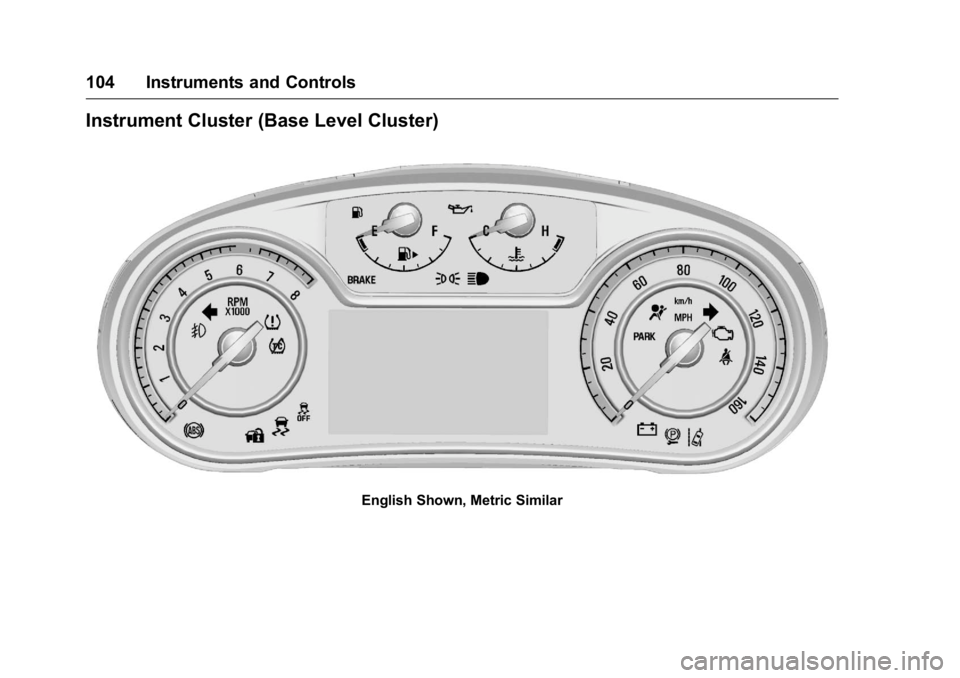
Instrument Cluster (Base Level Cluster)
English Shown, Metric Similar
Page 107 of 357
Buick Regal Owner Manual (GMNA-Localizing-U.S./Canada/Mexico-
9159380) - 2016 - CRC - 2/23/16
106 Instruments and Controls
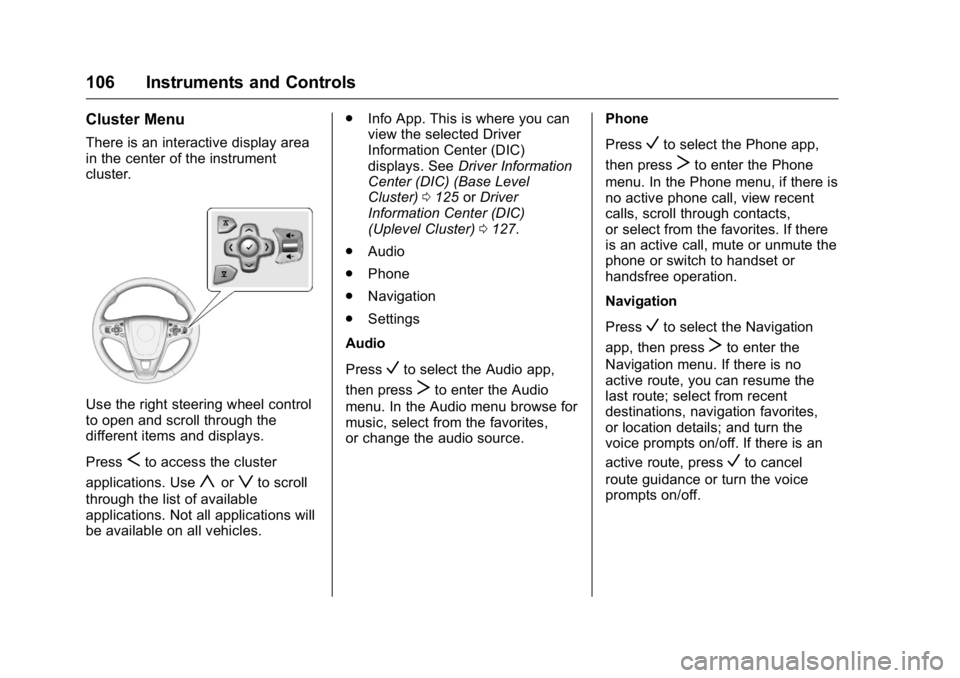
Cluster Menu
There is an interactive display area
in the center of the instrument
cluster.
Use the right steering wheel control
to open and scroll through the
different items and displays.
Press
Sto access the cluster
applications. Use
yorzto scroll
through the list of available
applications. Not all applications will
be available on all vehicles. .
Info App. This is where you can
view the selected Driver
Information Center (DIC)
displays. See Driver Information
Center (DIC) (Base Level
Cluster) 0125 orDriver
Information Center (DIC)
(Uplevel Cluster) 0127.
. Audio
. Phone
. Navigation
. Settings
Audio
Press
Vto select the Audio app,
then press
Tto enter the Audio
menu. In the Audio menu browse for
music, select from the favorites,
or change the audio source. Phone
Press
Vto select the Phone app,
then press
Tto enter the Phone
menu. In the Phone menu, if there is
no active phone call, view recent
calls, scroll through contacts,
or select from the favorites. If there
is an active call, mute or unmute the
phone or switch to handset or
handsfree operation.
Navigation
Press
Vto select the Navigation
app, then press
Tto enter the
Navigation menu. If there is no
active route, you can resume the
last route; select from recent
destinations, navigation favorites,
or location details; and turn the
voice prompts on/off. If there is an
active route, press
Vto cancel
route guidance or turn the voice
prompts on/off.
Page 108 of 357
Buick Regal Owner Manual (GMNA-Localizing-U.S./Canada/Mexico-
9159380) - 2016 - CRC - 2/23/16
Instruments and Controls 107
Settings
Press
Vto select the Settings app,
then press
Tto enter the Settings
menu. Use
yorzto scroll
through items in the Settings menu.
Units : Press
Twhile Units is
displayed to enter the Units menu.
Choose English or metric units by
pressing
Vwhile the desired item is
highlighted.
Info Pages : Press
Twhile Info
Pages is displayed to enter the Info
Pages menu and select the items to
be displayed in the Info App. See
Driver Information Center (DIC)
(Base Level Cluster) 0125 orDriver
Information Center (DIC) (Uplevel
Cluster) 0127. Speed Warning :
The Speed
Warning display allows the driver to
set a speed that they do not want to
exceed. To set the Speed Warning,
press
Twhen Speed Warning is
displayed. Press
yorzto adjust
the value. Press
Vto set the speed.
Once the speed is set, this feature
can be turned off by pressing
V
while viewing this page. If the
selected speed limit is exceeded, a
pop-up warning is displayed with a
chime. Compass :
In certain vehicles the
compass setting will allow for
manually setting the compass. The
user can set the zone and calibrate
the compass. This setting page is
only available on vehicles that are
equipped with Remote Compass
Module.
Jump Start : The Jump Start
display is used to perform an
on-board jump start for eAssist
vehicles. See “Jump Starting
(On-board with eAssist Only)” in the
Index.
Page 109 of 357
Buick Regal Owner Manual (GMNA-Localizing-U.S./Canada/Mexico-
9159380) - 2016 - CRC - 2/23/16
108 Instruments and Controls
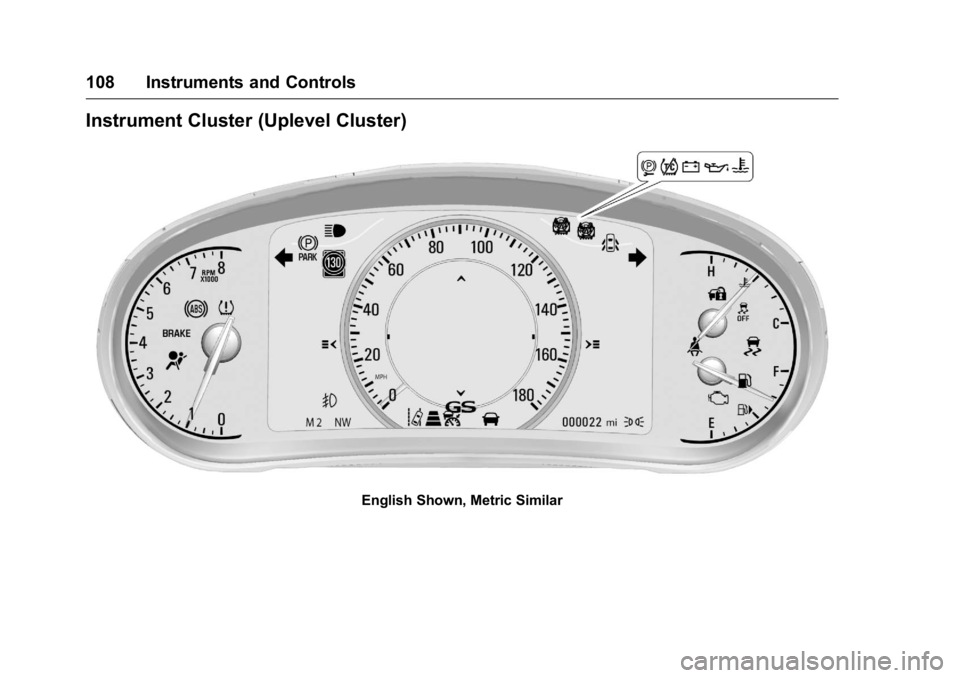
Instrument Cluster (Uplevel Cluster)
English Shown, Metric Similar
Page 110 of 357
Buick Regal Owner Manual (GMNA-Localizing-U.S./Canada/Mexico-
9159380) - 2016 - CRC - 2/23/16
Instruments and Controls 109
Cluster Menu
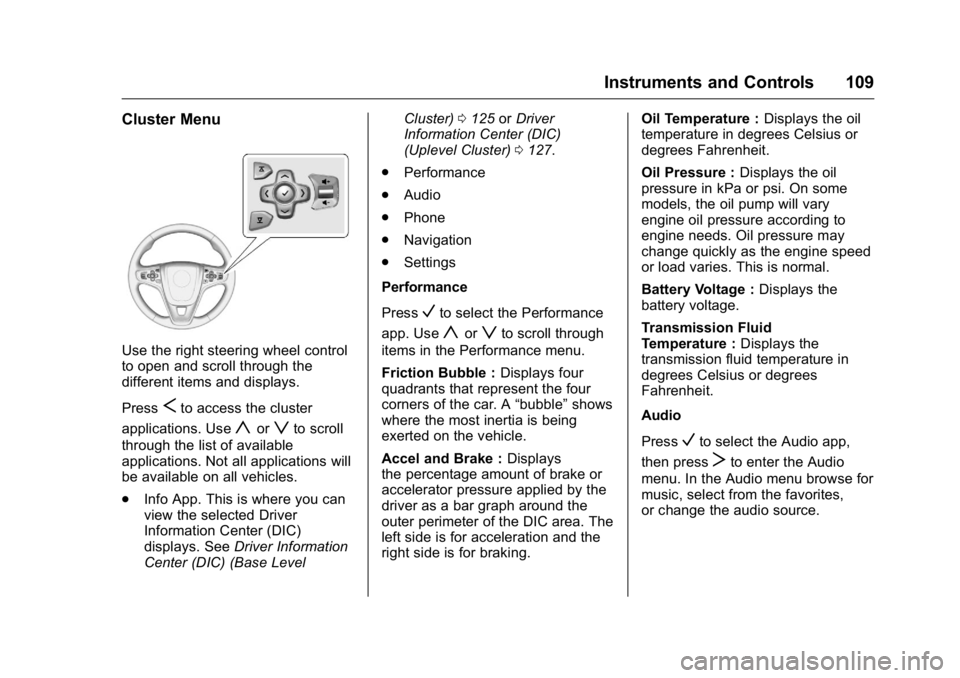
Use the right steering wheel control
to open and scroll through the
different items and displays.
Press
Sto access the cluster
applications. Use
yorzto scroll
through the list of available
applications. Not all applications will
be available on all vehicles.
. Info App. This is where you can
view the selected Driver
Information Center (DIC)
displays. See Driver Information
Center (DIC) (Base Level Cluster)
0125 orDriver
Information Center (DIC)
(Uplevel Cluster) 0127.
. Performance
. Audio
. Phone
. Navigation
. Settings
Performance
Press
Vto select the Performance
app. Use
yorzto scroll through
items in the Performance menu.
Friction Bubble : Displays four
quadrants that represent the four
corners of the car. A “bubble”shows
where the most inertia is being
exerted on the vehicle.
Accel and Brake : Displays
the percentage amount of brake or
accelerator pressure applied by the
driver as a bar graph around the
outer perimeter of the DIC area. The
left side is for acceleration and the
right side is for braking. Oil Temperature :
Displays the oil
temperature in degrees Celsius or
degrees Fahrenheit.
Oil Pressure : Displays the oil
pressure in kPa or psi. On some
models, the oil pump will vary
engine oil pressure according to
engine needs. Oil pressure may
change quickly as the engine speed
or load varies. This is normal.
Battery Voltage : Displays the
battery voltage.
Transmission Fluid
Temperature : Displays the
transmission fluid temperature in
degrees Celsius or degrees
Fahrenheit.
Audio
Press
Vto select the Audio app,
then press
Tto enter the Audio
menu. In the Audio menu browse for
music, select from the favorites,
or change the audio source.
Page 111 of 357
Buick Regal Owner Manual (GMNA-Localizing-U.S./Canada/Mexico-
9159380) - 2016 - CRC - 2/23/16
110 Instruments and Controls
Phone
Press
Vto select the Phone app,
then press
Tto enter the Phone
menu. In the Phone menu, if there is
no active phone call, view recent
calls, scroll through contacts,
or select from the favorites. If there
is an active call, mute or unmute the
phone or switch to handset or
handsfree operation.
Navigation
Press
Vto select the Navigation
app, then press
Tto enter the
Navigation menu. If there is no
active route, you can resume the
last route and turn the voice
prompts on/off. If there is an active
route, press
Vto cancel route
guidance or turn the voice prompts
on/off.
Settings
Press
Vto select the Settings app,
then press
Tto enter the Settings
menu. Use
yorzto scroll
through items in the Settings menu. Units :
Press
Twhile Units is
displayed to enter the Units menu.
Choose English or metric units by
pressing
Vwhile the desired item is
highlighted.
Display Themes : Press
Twhile
Display Themes is displayed to
enter the menu. Choose Sport or
Touring by pressing
Vwhile the
desired item is highlighted.
Info Pages : Press
Twhile Info
Pages is displayed to enter the Info
Pages menu and select the items to
be displayed in the Info App. See
Driver Information Center (DIC)
(Base Level Cluster) 0125 orDriver
Information Center (DIC) (Uplevel
Cluster) 0127.
Speed Warning : The Speed
Warning display allows the driver to
set a speed that they do not want to
exceed. To set the Speed Warning,
press
Twhen Speed Warning is
displayed. Press
yorzto adjust
the value. Press
Vto set the speed.
Once the speed is set, this feature
can be turned off by pressing
V
while viewing this page. If the
selected speed limit is exceeded, a
pop-up warning is displayed with a
chime.
Software Information : Displays
the open source software
information.
Compass : In certain vehicles the
compass setting will allow for
manually setting the compass. The
user can set the zone and calibrate
the compass. This setting page is
only available on vehicles that are
equipped with Remote Compass
Module.
Speedometer
The speedometer shows the
vehicle's speed in either kilometers
per hour (km/h) or miles per
hour (mph).
Odometer
The odometer shows how far the
vehicle has been driven, in either
kilometers or miles.
Page 112 of 357
Buick Regal Owner Manual (GMNA-Localizing-U.S./Canada/Mexico-
9159380) - 2016 - CRC - 2/23/16
Instruments and Controls 111
Trip Odometer
The trip odometer shows how far
the vehicle has been driven since
the trip odometer was last reset.
The trip odometer is accessed and
reset through the Driver Information
Center (DIC). SeeDriver
Information Center (DIC) (Base
Level Cluster) 0125 orDriver
Information Center (DIC) (Uplevel
Cluster) 0127.
Tachometer
The tachometer displays the engine
speed in revolutions per
minute (rpm).
For eAssist vehicles, when the
ignition is in ON/RUN, the
tachometer indicates the vehicle
status. When pointing to AUTO
STOP, the engine is off but the
vehicle is on and can move. The
engine could auto start at any time.
When the indicator points to OFF,
the vehicle is off. When the engine is on, the
tachometer will indicate the engine’s
revolutions per minute (rpm). The
tachometer may vary by several
hundred rpm’s, during auto stop
mode, when the engine is shutting
off and restarting.
A slight bump may be felt when the
transmission is determining the
most fuel efficient operating range.
Caution
If the engine is operated with the
rpm’s in the warning area at the
high end of the tachometer, the
vehicle could be damaged, and
the damage would not be covered
by the vehicle warranty. Do not
operate the engine with the rpm’s
in the warning area.
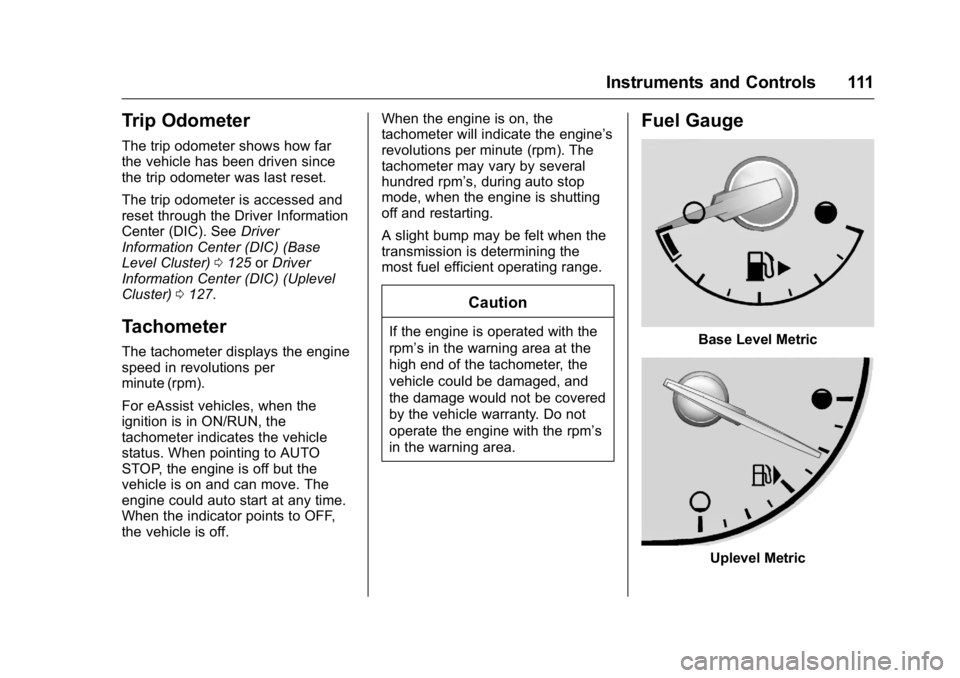
Fuel Gauge
Base Level Metric
Uplevel Metric
Page 114 of 357
Buick Regal Owner Manual (GMNA-Localizing-U.S./Canada/Mexico-
9159380) - 2016 - CRC - 2/23/16
Instruments and Controls 113
Uplevel Metric
Base Level English
Uplevel English
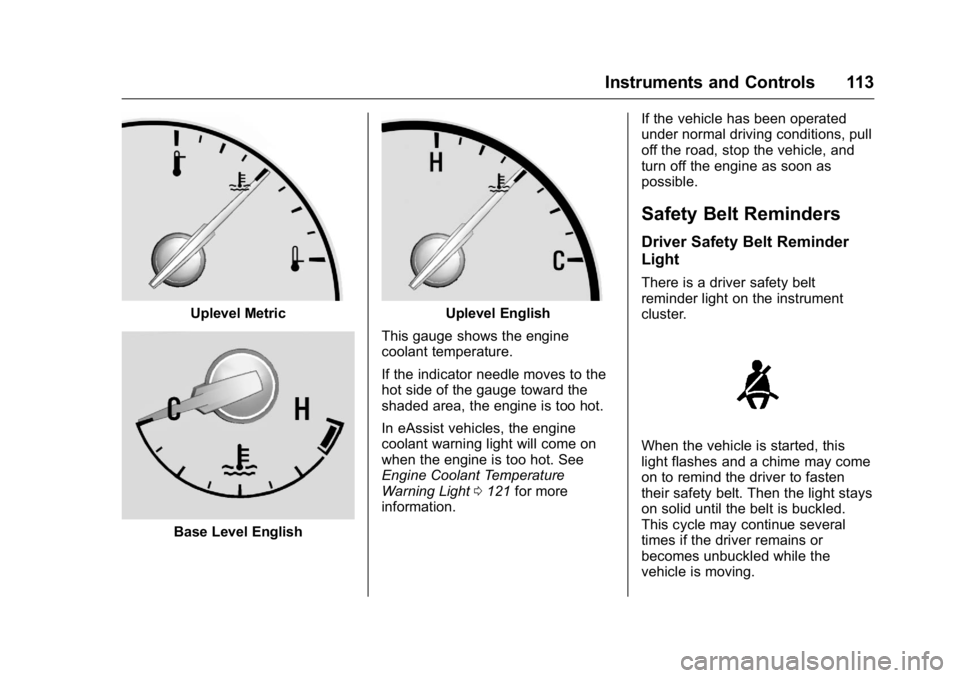
This gauge shows the engine
coolant temperature.
If the indicator needle moves to the
hot side of the gauge toward the
shaded area, the engine is too hot.
In eAssist vehicles, the engine
coolant warning light will come on
when the engine is too hot. See
Engine Coolant Temperature
Warning Light 0121 for more
information. If the vehicle has been operated
under normal driving conditions, pull
off the road, stop the vehicle, and
turn off the engine as soon as
possible.
Safety Belt Reminders
Driver Safety Belt Reminder
Light
There is a driver safety belt
reminder light on the instrument
cluster.
When the vehicle is started, this
light flashes and a chime may come
on to remind the driver to fasten
their safety belt. Then the light stays
on solid until the belt is buckled.
This cycle may continue several
times if the driver remains or
becomes unbuckled while the
vehicle is moving.
Page 120 of 357
Buick Regal Owner Manual (GMNA-Localizing-U.S./Canada/Mexico-
9159380) - 2016 - CRC - 2/23/16
Instruments and Controls 119
If a message displays in the Driver
Information Center (DIC), seeBrake
System Messages 0131.
Antilock Brake System
(ABS) Warning Light
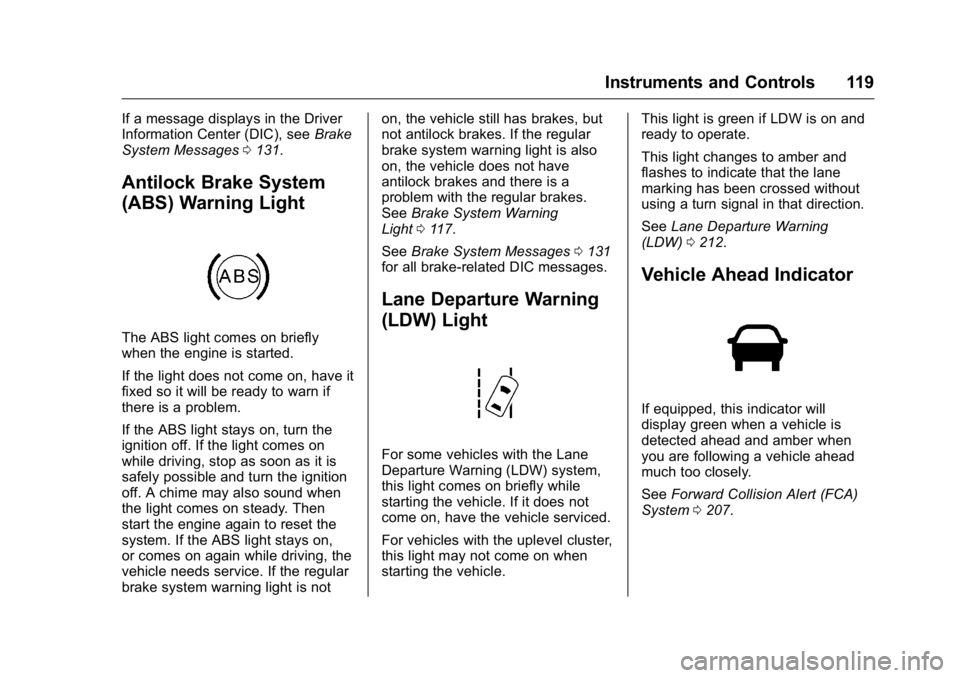
The ABS light comes on briefly
when the engine is started.
If the light does not come on, have it
fixed so it will be ready to warn if
there is a problem.
If the ABS light stays on, turn the
ignition off. If the light comes on
while driving, stop as soon as it is
safely possible and turn the ignition
off. A chime may also sound when
the light comes on steady. Then
start the engine again to reset the
system. If the ABS light stays on,
or comes on again while driving, the
vehicle needs service. If the regular
brake system warning light is not on, the vehicle still has brakes, but
not antilock brakes. If the regular
brake system warning light is also
on, the vehicle does not have
antilock brakes and there is a
problem with the regular brakes.
See
Brake System Warning
Light 0117.
See Brake System Messages 0131
for all brake-related DIC messages.
Lane Departure Warning
(LDW) Light
For some vehicles with the Lane
Departure Warning (LDW) system,
this light comes on briefly while
starting the vehicle. If it does not
come on, have the vehicle serviced.
For vehicles with the uplevel cluster,
this light may not come on when
starting the vehicle. This light is green if LDW is on and
ready to operate.
This light changes to amber and
flashes to indicate that the lane
marking has been crossed without
using a turn signal in that direction.
See
Lane Departure Warning
(LDW) 0212.
Vehicle Ahead Indicator
If equipped, this indicator will
display green when a vehicle is
detected ahead and amber when
you are following a vehicle ahead
much too closely.
See Forward Collision Alert (FCA)
System 0207.
Page 126 of 357
Buick Regal Owner Manual (GMNA-Localizing-U.S./Canada/Mexico-
9159380) - 2016 - CRC - 2/23/16
Instruments and Controls 125
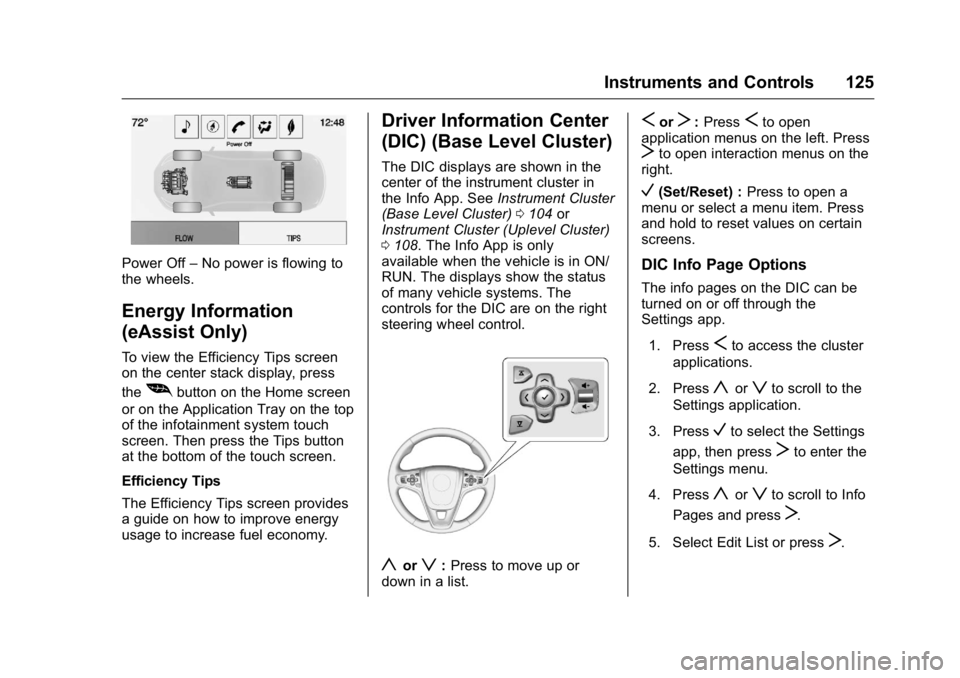
Power Off–No power is flowing to
the wheels.
Energy Information
(eAssist Only)
To view the Efficiency Tips screen
on the center stack display, press
the
[button on the Home screen
or on the Application Tray on the top
of the infotainment system touch
screen. Then press the Tips button
at the bottom of the touch screen.
Efficiency Tips
The Efficiency Tips screen provides
a guide on how to improve energy
usage to increase fuel economy.
Driver Information Center
(DIC) (Base Level Cluster)
The DIC displays are shown in the
center of the instrument cluster in
the Info App. See Instrument Cluster
(Base Level Cluster) 0104 or
Instrument Cluster (Uplevel Cluster)
0 108. The Info App is only
available when the vehicle is in ON/
RUN. The displays show the status
of many vehicle systems. The
controls for the DIC are on the right
steering wheel control.
yorz: Press to move up or
down in a list.
SorT: PressSto open
application menus on the left. Press
Tto open interaction menus on the
right.
V(Set/Reset) : Press to open a
menu or select a menu item. Press
and hold to reset values on certain
screens.
DIC Info Page Options
The info pages on the DIC can be
turned on or off through the
Settings app.
1. Press
Sto access the cluster
applications.
2. Press
yorzto scroll to the
Settings application.
3. Press
Vto select the Settings
app, then press
Tto enter the
Settings menu.
4. Press
yorzto scroll to Info
Pages and press
T.
5. Select Edit List or press
T.